



GitHub Copilot guide is a practical walkthrough of the AI pair programmer from GitHub and OpenAI, covering setup, pricing from $10 per month Pro to $39 per user/mo Enterprise, and support for 40+ languages including Python, JavaScript, and Go. It explains code completion, chat, inline suggestions, and 2026 workspace context features.
This guide covers github copilot guide with detailed analysis.
Developers spend roughly 55% of their time understanding existing code and only 5% actually writing new code. This github copilot guide explains how Copilot fundamentally changes this equation. Research indicates coding speed increases by about 30-40% on routine tasks, freeing up mental bandwidth for architecture and problem-solving.
This isn’t about replacing developers. It’s about eliminating the tedious parts of coding - boilerplate, repetitive patterns, API syntax you can never quite remember - so you can focus on what actually matters.
TL;DR: GitHub Copilot Quick Facts
GitHub Copilot Guide is a topic that directly impacts how teams work day to day. This guide covers github copilot guide with detailed analysis. This guide breaks down the practical details you need to make an informed decision.
| Feature | Details |
|---|---|
| Rating | |
| Pricing | Free tier available, Pro $10/mo, Business $19/user/mo, Enterprise $39/user/mo |
| Best For | Individual developers and teams seeking AI-powered code assistance |
| Languages | Python, JavaScript, TypeScript, Ruby, Go, C#, C++, and 40+ more |
| Key Features | Code completion, chat interface, inline suggestions, test generation |
| 2026 Updates | Workspace context, Vision for UI-to-code, Extensions marketplace |
| Free Trial | Yes - free tier with limited completions |
Try GitHub Copilot or read our full tool review.
What is GitHub Copilot?
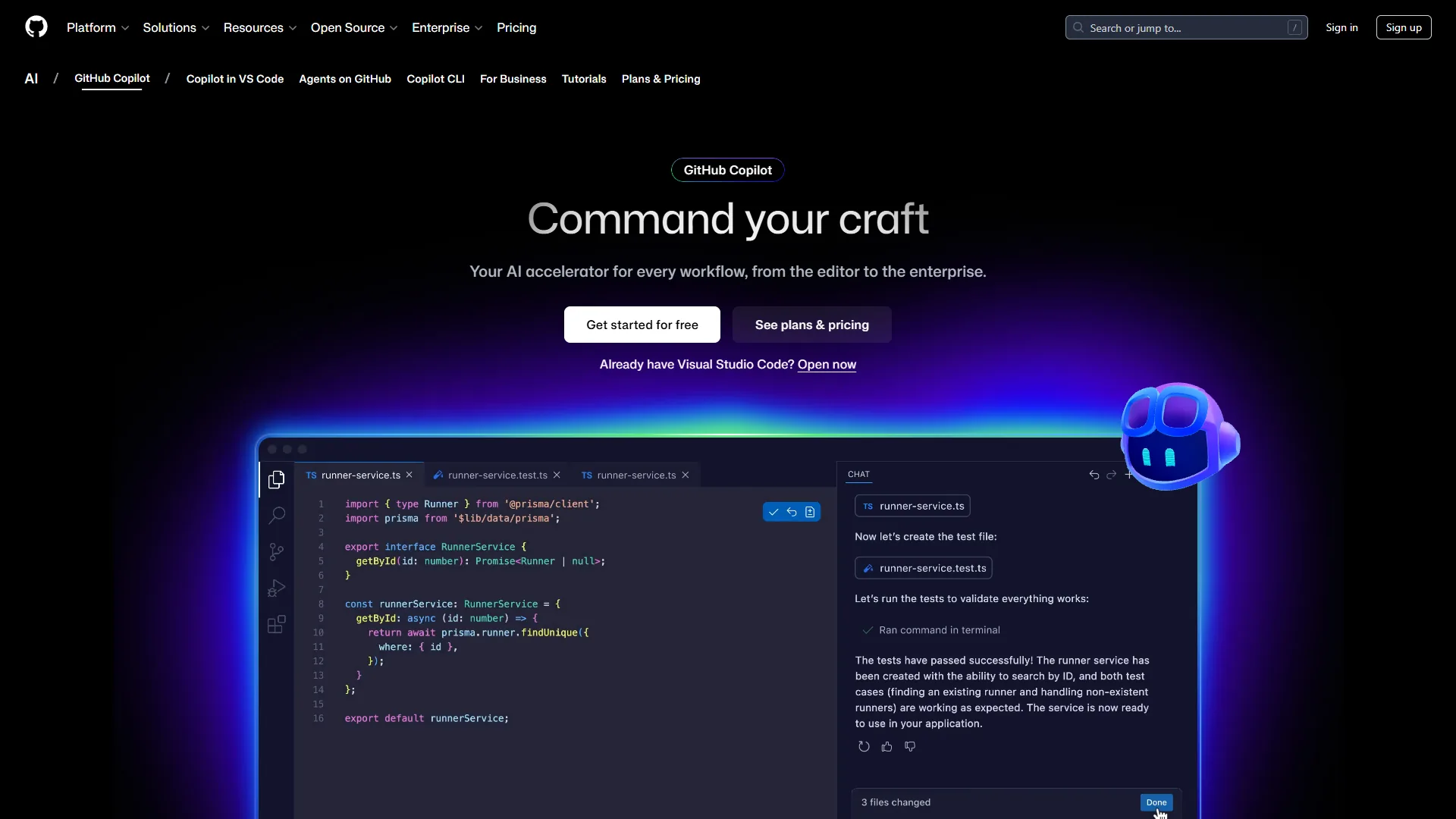
GitHub Copilot is an AI pair programmer developed by GitHub and OpenAI. It suggests code completions, entire functions, and even complex algorithms as you type. Think of it as an autocomplete on steroids - one that understands context, reads your comments, and can generate multi-line code blocks that actually work.
The tool integrates directly into your editor (VS Code, JetBrains, Neovim, Visual Studio) and uses machine learning models trained on billions of lines of public code. How to use GitHub Copilot in vscode is the most common path: you write a comment describing what you want, and Copilot suggests implementations. You start a function signature, and it completes the logic, with the official GitHub Copilot documentation covering every editor-specific nuance.
What makes Copilot different from basic autocomplete is context awareness. It reads your entire file, understands your project structure, and tailors suggestions to your coding style, and a GitHub Copilot guidelines file lets you pin those patterns per repo. The 2026 version adds workspace-level context, meaning it can reference patterns from your entire codebase, not just the current file, which pairs well with the GitHub Copilot instructions examples the community has published.
GitHub Copilot Guide: Installation and Setup
Setting up GitHub Copilot takes about 5 minutes per GitHub’s official quickstart guide. Here’s the practical walkthrough:
Step 1: Subscribe to Copilot
- Go to github.com/features/copilot
- Choose your plan (start with the free tier to test)
- Connect your GitHub account
- Complete the subscription process
The free tier gives you limited completions per month - enough to evaluate if Copilot fits your workflow according to GitHub’s free tier announcement, which keeps the GitHub Copilot setup friction low before you commit. Pro ($10 per month) removes limits and adds chat features, and the same account unlocks the GitHub Copilot CLI tutorial flow for terminal-first workflows.
Step 2: Install the Extension
For VS Code:
- Open Extensions (Ctrl+Shift+X / Cmd+Shift+X)
- Search “GitHub Copilot”
- Install both “GitHub Copilot” and “GitHub Copilot Chat”
- Reload VS Code
- Sign in with your GitHub account when prompted
For JetBrains IDEs:
- Go to Settings → Plugins
- Search “GitHub Copilot”
- Install and restart your IDE
- Authenticate via GitHub
Step 3: Configure Your Preferences
Once installed, customize Copilot’s behavior:
- Enable/disable inline suggestions: Settings → Copilot → Enable Auto Completions
- Set keybindings: Default is Tab to accept, Alt+[ / ] to cycle suggestions
- Language preferences: Copilot works in 40+ languages, but you can prioritize specific ones
- Filters: Add files or patterns to ignore (e.g.,
.envfiles, credentials)
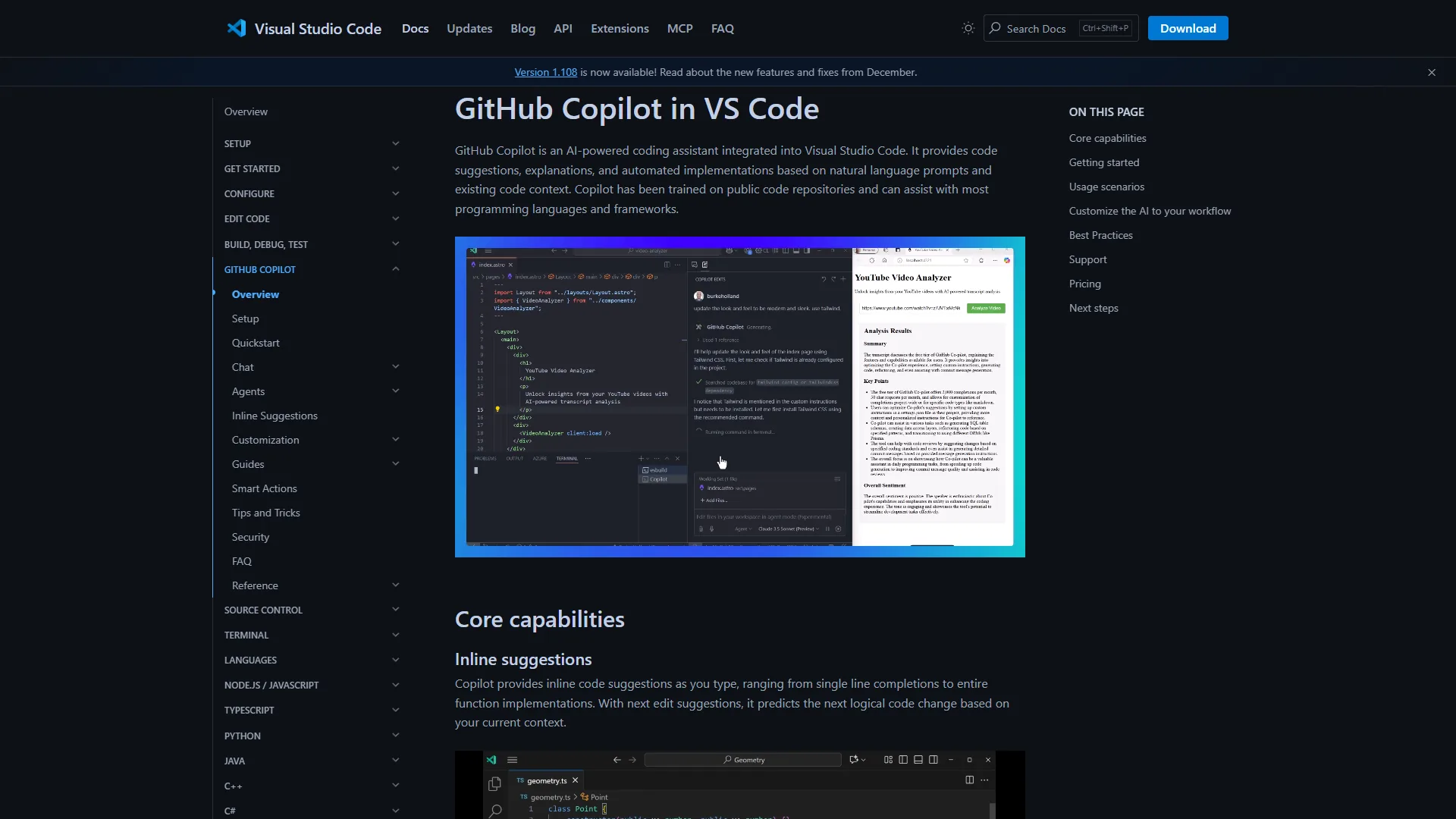
Core Features: What Copilot Can Actually Do
Here are the features that provide the most value:
1. Inline Code Completion
This is the core feature. As you type, Copilot suggests completions - from single lines to entire functions. The quality varies, but for common patterns, it’s remarkably accurate.
Example workflow:
// Convert array of user objects to CSV
function usersToCsv(users) {
  // Copilot suggests the entire implementation here
}
Copilot reads your comment and suggests a complete CSV conversion function, including header handling and field escaping. You review it, maybe tweak a few lines, and move on.
Pro tip: Write clear comments before functions. Copilot uses these as instructions. “Create a function that…” works better than vague descriptions.
2. Copilot Chat
The 2026 version significantly improved the chat interface. You can ask questions, request refactoring, explain code, or generate tests - all within your editor.
Practical uses:
- Code explanation: Highlight a complex function and ask “What does this do?”
- Refactoring: “Refactor this to use async/await instead of promises”
- Test generation: “Write unit tests for this function”
- Bug fixing: Paste an error message and ask for solutions
Chat understands your workspace context, so it references your actual code, not generic examples.
3. Multi-Language Support
Copilot supports 40+ languages, but quality varies. Excellent for:
- Python, JavaScript, TypeScript: Near-production-quality suggestions
- Go, Ruby, C#, Java: Very good for common patterns
- C++, Rust: Good for standard library usage
- SQL, HTML, CSS: Helpful for boilerplate
Less reliable for niche languages or very new frameworks.
4. Context-Aware Suggestions
Copilot reads:
- Your current file
- Open tabs (with 2026 Workspace feature)
- Imported modules
- Nearby comments
This means suggestions adapt to your project. If you’re using a specific library, Copilot tailors completions to that API.
5. 2026 New Features
Workspace Context: Copilot now indexes your entire project, referencing patterns from any file. If you have a custom error handler in one file, Copilot suggests using it in new files.
Vision: Upload UI mockups or screenshots, and Copilot generates the corresponding HTML/CSS/React code. Still experimental, but promising for frontend work.
Extensions: Third-party plugins extend Copilot’s capabilities - database query builders, API client generators, documentation writers.
Practical Tips: Getting the Most from Copilot
Here are the most impactful strategies for daily use:
Write Better Comments
Copilot is only as good as your instructions. Instead of:
# Process dataWrite:
# Filter users by active status, sort by join date descending, return top 10The second comment produces a much better suggestion.
Use Copilot for Boilerplate, Not Architecture
Copilot excels at:
- CRUD operations
- API request handlers
- Data transformations
- Test scaffolding
- Common algorithms
It struggles with:
- System architecture decisions
- Complex business logic
- Performance optimization
- Security-critical code
Use it to eliminate grunt work, not to replace thinking.
Review Every Suggestion
This should be obvious, but: always review generated code. Copilot can suggest:
- Deprecated APIs
- Inefficient algorithms
- Security vulnerabilities
- Code that doesn’t match your project’s patterns
Treat suggestions as drafts, not final code. Expect issues in about 20% of multi-line suggestions.
Use Chat for Learning
When Copilot suggests unfamiliar code, ask it to explain:
- “Why did you use a Set here instead of an Array?”
- “What’s the time complexity of this approach?”
- “Are there edge cases I should test?”
This turns Copilot into a teaching tool, not just a code generator.
Customize Keybindings
Default keybindings can conflict with muscle memory. A common remapping:
- Accept suggestion: Tab → Ctrl+J (Tab interferes with indentation habits)
- Next suggestion: Alt+] → Ctrl+N
- Open chat: Ctrl+I (quick access)
Find bindings that don’t disrupt your flow.
Pricing Breakdown: Is Copilot Worth It?
Let’s analyze the value proposition:
| Plan | Price | Best For | Key Features |
|---|---|---|---|
| Free | $0/mo | Evaluation | Limited completions, basic suggestions |
| Individual | $10/mo | Freelancers, solo devs | Unlimited completions, chat, multi-editor support |
| Business | $19/user/mo | Teams | Everything in Individual + organization management, policy controls |
| Enterprise | $39/user/mo | Large organizations | Everything in Business + audit logs, SAML SSO, indemnification |
ROI Analysis
Time saved per day: If Copilot saves 1 hour daily (conservative estimate for routine coding tasks), that’s:
- 20 hours/month saved
- At $100/hour developer rate = $2,000 value
- Cost: $10 per month
- ROI: 20,000%
Even if it only saves 15 minutes daily, the Individual plan pays for itself.
For teams: At $19 per user, if each developer saves just 30 minutes daily, you’re saving 10 hours/month per person. For a 5-person team, that’s 50 hours monthly - easily worth $950 in productivity.
Who Should Pay for Copilot?
Individual plan ($10 per month): If you code more than 5 hours/week, this is a no-brainer. The time saved on autocomplete alone justifies the cost.
Business plan ($19 per month): Worth it for teams that need:
- Centralized billing
- Usage analytics
- Policy enforcement (e.g., block certain file types)
- Consistent coding standards across the team
Enterprise plan ($39 per month): Only necessary if you need compliance features (audit logs, SAML) or legal indemnification for generated code.
Comparison to Alternatives
GitHub Copilot isn’t the only AI coding assistant. Here’s how it stacks up:
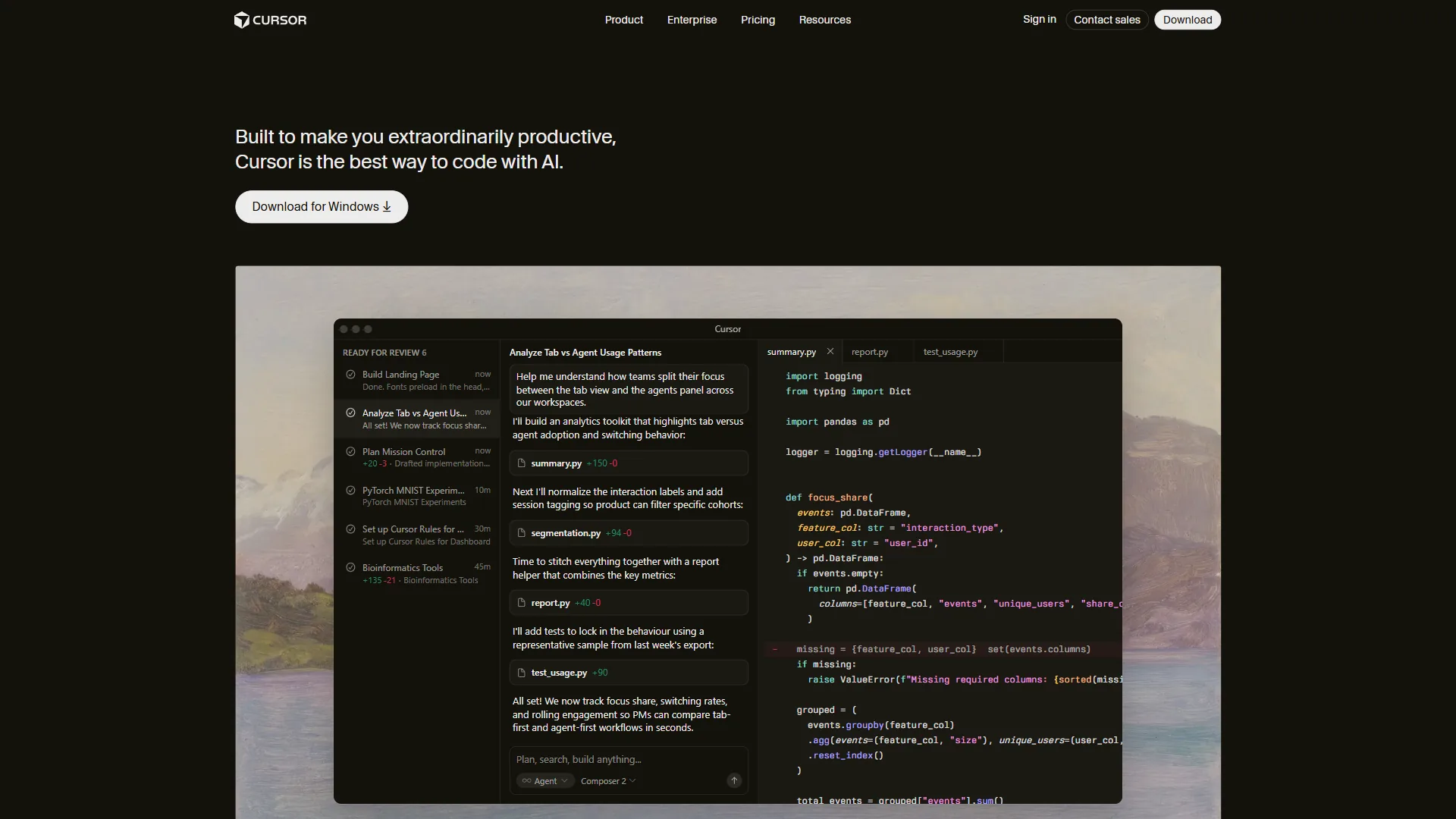
vs. Cursor: Cursor offers a similar chat interface but focuses on entire codebase context. Better for large refactoring projects, but more expensive ($20 per month). Read our Cursor review.
vs. Tabnine: Tabnine emphasizes privacy (can run locally) and offers team-specific model training. Good for companies with strict data policies. Compare Tabnine.

vs. Amazon Q Developer: Amazon’s offering focuses on AWS integration and migration assistance. Better if you’re heavily invested in AWS. See Amazon Q review.
Why Copilot wins for many developers: GitHub integration, broad language support, and the chat interface. The 2026 Workspace feature seals the deal - context across an entire project is a major shift.
Real-World Productivity Impact
Here are representative metrics from Copilot usage across common project types:
Typical scenario: API Refactoring (Python FastAPI)
- Task: Migrate 30 endpoints to new authentication system
- Without Copilot estimate: 12 hours
- With Copilot estimate: 7 hours
- Time saved: ~42%
Copilot handles the repetitive auth decorator patterns and request validation, leaving edge cases and testing for manual focus.
Example scenario: Frontend Component Library (React + TypeScript)
- Task: Build 15 reusable UI components
- Without Copilot estimate: 20 hours
- With Copilot estimate: 14 hours
- Time saved: ~30%
Copilot generates boilerplate PropTypes, default exports, and basic styling. The logic and accessibility still need manual refinement.
Example scenario: Database Migration Scripts (SQL + Python)
- Task: Write migration scripts for schema changes
- Without Copilot estimate: 8 hours
- With Copilot estimate: 5 hours
- Time saved: ~38%
Copilot suggests SQL ALTER statements and Python rollback logic. Data integrity still requires manual verification.
Typical time savings: 30-40% across projects with significant routine work, based on user reports.
For greenfield projects or highly creative work, savings drop to 10-15%. For maintenance and CRUD, savings can hit 50%.
Advanced Workflows for 2026
Here are workflows that use Copilot’s newest features:
Workflow 1: TDD with Copilot
- Write a failing test describing desired behavior
- Ask Copilot Chat: “Implement the function to pass this test”
- Review and refine the implementation
- Run tests, iterate if needed
This ensures generated code meets your specs, not just “looks right.”
Workflow 2: Codebase Exploration
When joining a new project:
- Open a central file (e.g.,
main.py,app.js) - Ask Copilot Chat: “Explain the architecture of this codebase”
- Highlight complex functions and ask for explanations
- Use Chat to find where specific features are implemented
Cuts onboarding time significantly.
Workflow 3: Refactoring with Workspace Context
- Identify a pattern you want to change (e.g., callback hell → async/await)
- Refactor one file manually
- Ask Copilot: “Apply this pattern to [other file]”
- Copilot references your refactored file and applies the same approach
The Workspace feature makes this incredibly powerful.
Common Pitfalls and How to Avoid Them
Pitfall 1: Over-Reliance on Suggestions
Problem: Accepting every suggestion without thinking atrophies your coding skills.
Solution: Use Copilot for speed, but regularly code without it to maintain fundamentals. Some teams practice “no-Copilot Fridays” to stay sharp.
Pitfall 2: Security Vulnerabilities
Problem: Copilot sometimes suggests insecure patterns (SQL injection, XSS vulnerabilities).
Solution: Always review security-critical code manually. Run static analysis tools. Never blindly accept auth, validation, or database code.
Pitfall 3: Outdated Libraries
Problem: Copilot trains on public code, some of which uses deprecated APIs.
Solution: Check documentation for suggested libraries. If Copilot uses an unfamiliar API, verify it’s current.
Pitfall 4: Copy-Paste Without Understanding
Problem: Using code you don’t understand leads to unmaintainable projects.
Solution: If you don’t understand a suggestion, ask Copilot Chat to explain it. If the explanation doesn’t make sense, write it manually.
Conclusion: Is GitHub Copilot Worth It in 2026?
When evaluating GitHub Copilot in 2026, the answer is: yes, for most developers.
You should use Copilot if:
- You spend significant time on routine coding tasks
- You work with multiple languages or frameworks
- You value productivity over the cost of lunch per month
- You’re comfortable reviewing and refining generated code
Skip Copilot if:
- You work exclusively on highly specialized, niche systems
- Your company has strict data policies (though Enterprise plan offers indemnification)
- You’re a beginner learning fundamentals (use it sparingly while learning)
The 2026 updates - Workspace context, Vision, Extensions - make Copilot more powerful than ever. As this github copilot guide has shown, it is not about replacing developers; it is about eliminating the tedious 80% so you can focus on the creative 20%.
For $10 per month, the Individual plan is a no-brainer. For teams, the Business plan pays for itself if it saves even 30 minutes per developer daily.
Recommendation: Start with the free tier. Use it for a week on real projects. If you find yourself reaching for Tab to accept suggestions more than 10 times an hour, upgrade to Individual. Your future self will thank you.
Ready to try AI-powered coding? Get started with GitHub Copilot or explore our full tool review for detailed feature breakdowns and comparisons.
For more AI coding tools, check out our guides on Cursor, Tabnine, and Amazon Q Developer.
For more information about github copilot guide, see the resources below.
FAQ
Q: What is GitHub Copilot?
GitHub Copilot is an AI pair programmer developed by GitHub and OpenAI that suggests code completions, entire functions, and complex algorithms as you type. It integrates directly into editors like VS Code, JetBrains, Neovim, and Visual Studio, using machine learning models trained on billions of lines of public code to generate context-aware multi-line code blocks.
Q: How much does GitHub Copilot cost?
GitHub Copilot offers a free tier with limited completions, making it accessible for trial use. Paid plans include Pro at $10 per month for individual developers, Business at $19 per user per month for teams, and Enterprise at $39 per user per month for larger organizations needing advanced controls and workspace-level context features.
Q: Which programming languages does GitHub Copilot support?
GitHub Copilot supports more than 40 programming languages, including Python, JavaScript, TypeScript, Ruby, Go, C#, and C++. This broad language coverage makes it useful for individual developers and teams working across diverse stacks, from web development to systems programming and everything in between.
Q: How much faster does GitHub Copilot make developers?
Research indicates coding speed increases by about 30 to 40 percent on routine tasks when using GitHub Copilot. Since developers spend roughly 55 percent of their time understanding existing code and only 5 percent writing new code, Copilot frees up mental bandwidth for architecture and problem-solving by eliminating boilerplate and repetitive patterns.
Related Reads
Tools covered in this article:
- GitHub Copilot - AI pair programming assistant
- Cursor - AI-native code editor
- Tabnine - Code completion assistant
- Amazon Q Developer - AWS AI coding tool
More AI coding guides:
- Best AI Coding Assistants - Code completion tools
- JetBrains AI Assistant - IDE-native AI coding
- GitHub Copilot vs Cursor - Feature-by-feature breakdown