



The average professional spends 28% of their workday on email - that is roughly 2.6 hours every single day, according to Harvard Business Review research. If you have ever ended a workday feeling like you accomplished nothing but clearing your inbox, you are not alone. Learning how to automate email with AI is the fastest way to reclaim that lost time and redirect it toward work that actually moves the needle.
The good news: you do not need to be a developer or automation expert to set this up. Plenty of teams start with how to automate email with AI free options, then layer in AI for email management free tiers as the workload grows. In 2026, AI email tools have matured to the point where you can automate inbox triage, draft replies, schedule follow-ups, and connect your email to your broader workflow - all without writing a single line of code.
This guide walks you through five practical ways to automate email with AI, recommend the best tools for each approach, and give you a step-by-step setup plan you can implement this week.
Why AI Email Automation Matters in 2026
How to Automate Email with AI is easier than most people expect with the right tools and approach. This guide walks through the practical steps to automate email with AI, from choosing the right platform to building workflows that save hours each week.
Email is not going away. Despite predictions that Slack, Teams, and other messaging platforms would replace it, email volume has actually increased. Radicati Group estimates that the average business user sends and receives over 130 emails per day in 2026.
Here is why AI automation has become essential rather than optional:
- Volume is unmanageable manually. Processing 130+ emails at even 30 seconds each takes over an hour of pure reading time - before you type a single reply.
- Response expectations have accelerated. Clients and colleagues expect replies within hours, not days. AI drafts let you respond faster without sacrificing quality.
- Context switching kills productivity. Every time you stop working to check email, it takes an average of 23 minutes to regain deep focus. Automated triage eliminates the need for constant inbox monitoring.
- Follow-ups fall through the cracks. Studies show that 70% of unanswered emails never receive a follow-up. Automated sequences fix this entirely.
Professionals who have adopted AI email automation report saving between 5 and 10 hours per week. That is not a marginal improvement - it is an entire extra workday recovered every single week.
How to Automate Email with AI: 5 Practical Approaches
Let’s get practical. Here are five proven approaches to automate email with AI, ordered from quickest wins to more advanced setups.
1. Smart Inbox Triage and Prioritization
The biggest time drain is not writing emails - it is deciding which ones to deal with first. AI-powered triage solves this by automatically categorizing, labeling, and prioritizing your inbox.
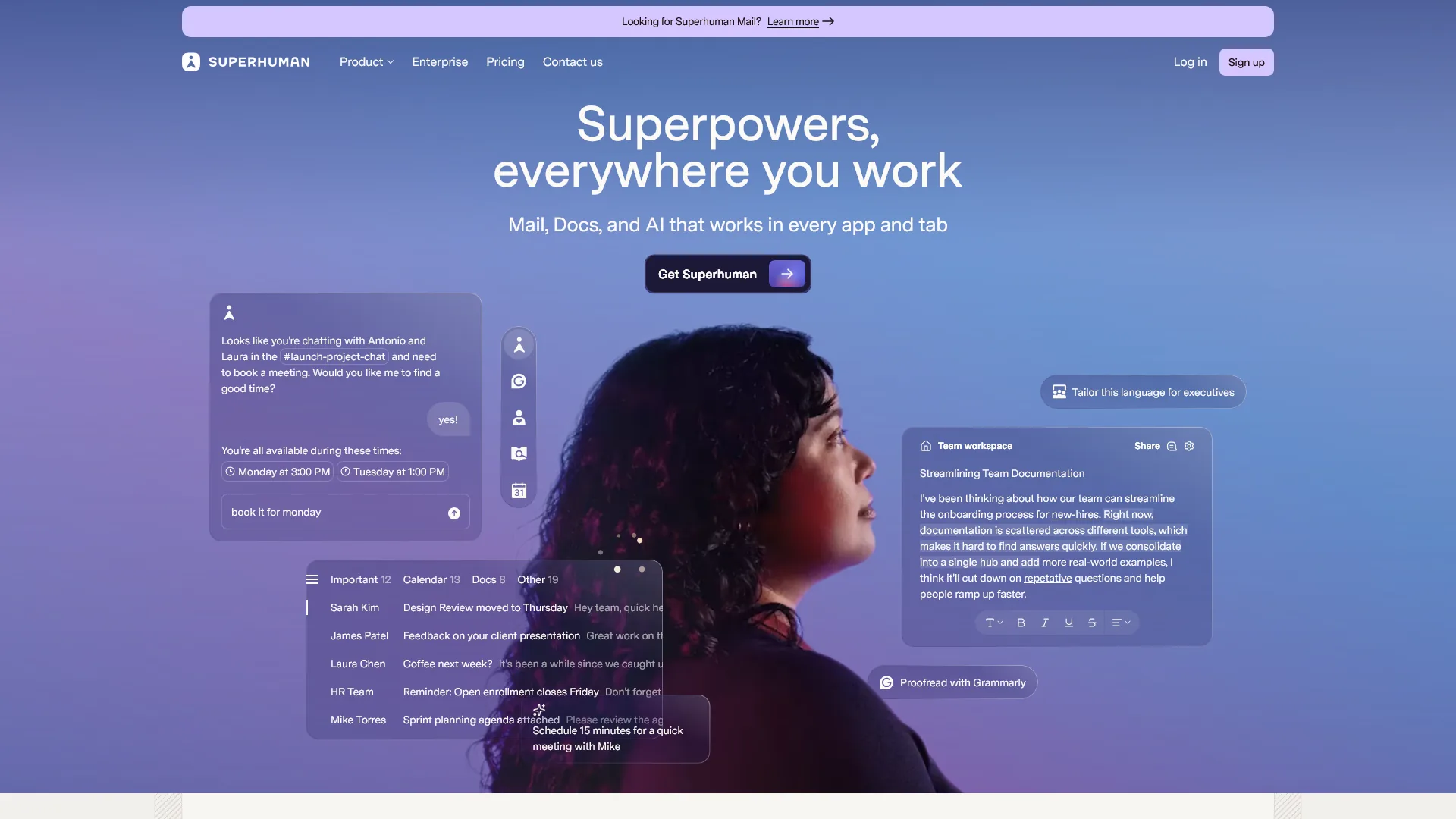
Superhuman is the leader in this category. Its AI-powered triage system uses Auto Labels to sort incoming mail by urgency, topic, and required action. After a brief learning period where it studies your email patterns, the system achieves roughly 85% categorization accuracy.
Here is how smart triage works in practice:
- Priority detection: AI identifies emails that require immediate action versus informational messages you can batch-process later.
- Auto-categorization: Emails are sorted into labels like “Needs Reply,” “FYI Only,” “Scheduling,” and “Newsletters” without you lifting a finger.
- Sender intelligence: The system learns which contacts you prioritize and surfaces their messages first.
- Snooze recommendations: For messages you cannot handle immediately, AI suggests optimal snooze times based on your calendar and response patterns.
Quick setup tip: Most email clients now offer some version of priority inbox and a lightweight built-in AI email organizer. Gmail’s “Important and unread first” view uses machine learning to sort messages, and the AI email assistant Outlook ships with - Focused Inbox - separates actionable mail from noise. If you are looking for the best AI email assistant for Outlook or simply want to use AI in Outlook email, start there before you invest in a dedicated tool.
Can AI Draft and Reply to Emails for You?
Writing email replies is the second biggest time sink. AI drafting tools analyze the incoming message, understand the context, and generate a complete reply that matches your writing voice.
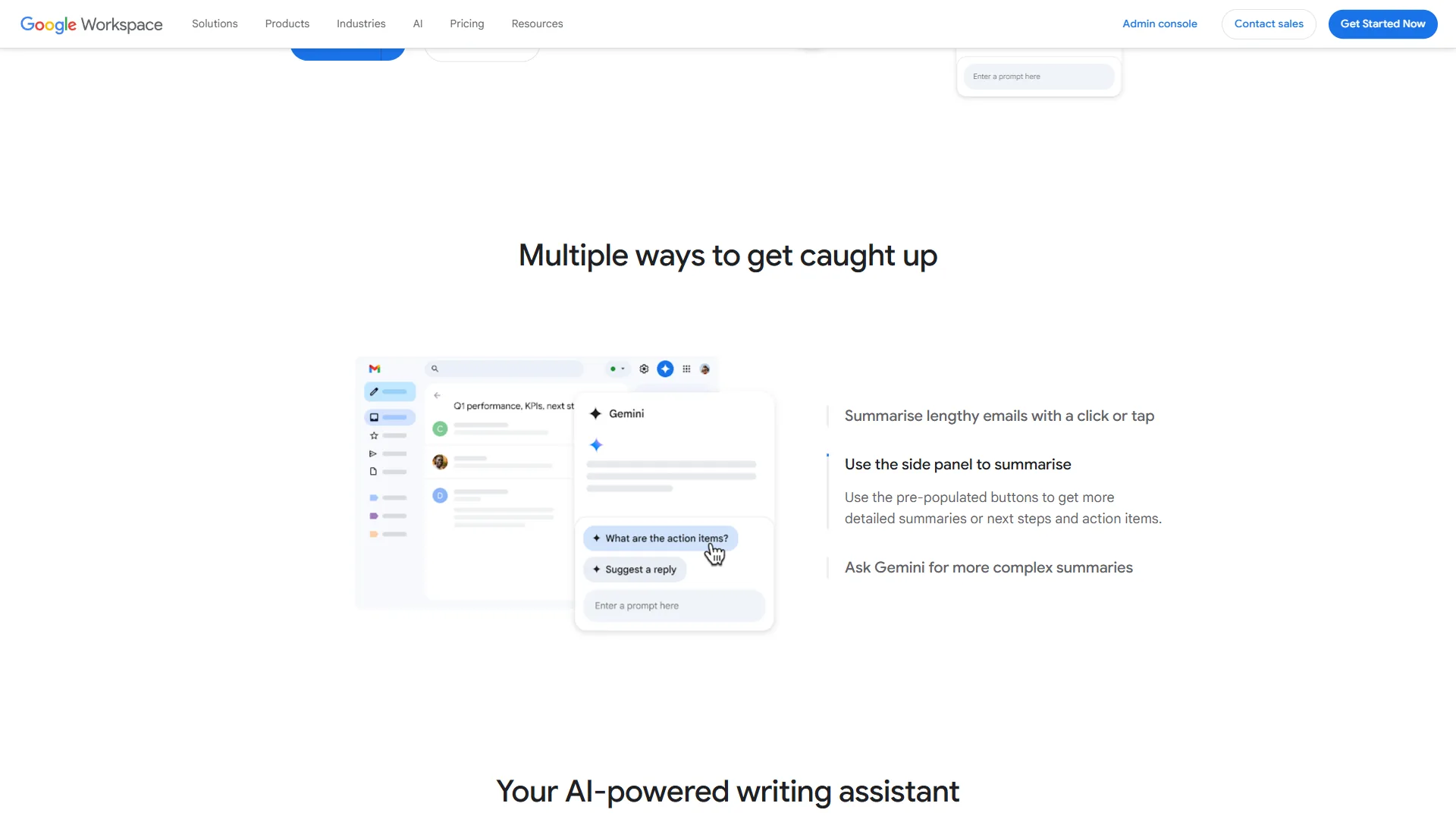
This goes far beyond Gmail’s basic Smart Compose autocomplete. Modern AI drafting tools like Superhuman’s Auto Drafts learn from your entire email history to replicate your tone, vocabulary, and communication style. The difference is striking - these drafts sound like you wrote them, not like a chatbot.
What AI email drafting handles well:
- Acknowledging receipt and confirming next steps
- Scheduling meetings and responding to calendar invitations
- Answering common questions with consistent, accurate information
- Writing professional declines and deferrals
- Crafting follow-up messages that reference prior conversations
Where it still needs human oversight:
- Sensitive negotiations or complaints
- Messages with complex technical nuance
- Emotionally charged communications
- First-time outreach to important contacts
The practical approach is to let AI draft everything and then review before sending. Most users report accepting 60-70% of AI drafts with zero edits and spending under 15 seconds reviewing the rest. Compare that to the 3-5 minutes it takes to compose a typical reply from scratch.
3. Automated Follow-Up Sequences
Here is a scenario that happens every day: you send an important email, the recipient does not reply, and you forget to follow up. Three weeks later, you realize the deal stalled, the project got delayed, or the opportunity vanished.
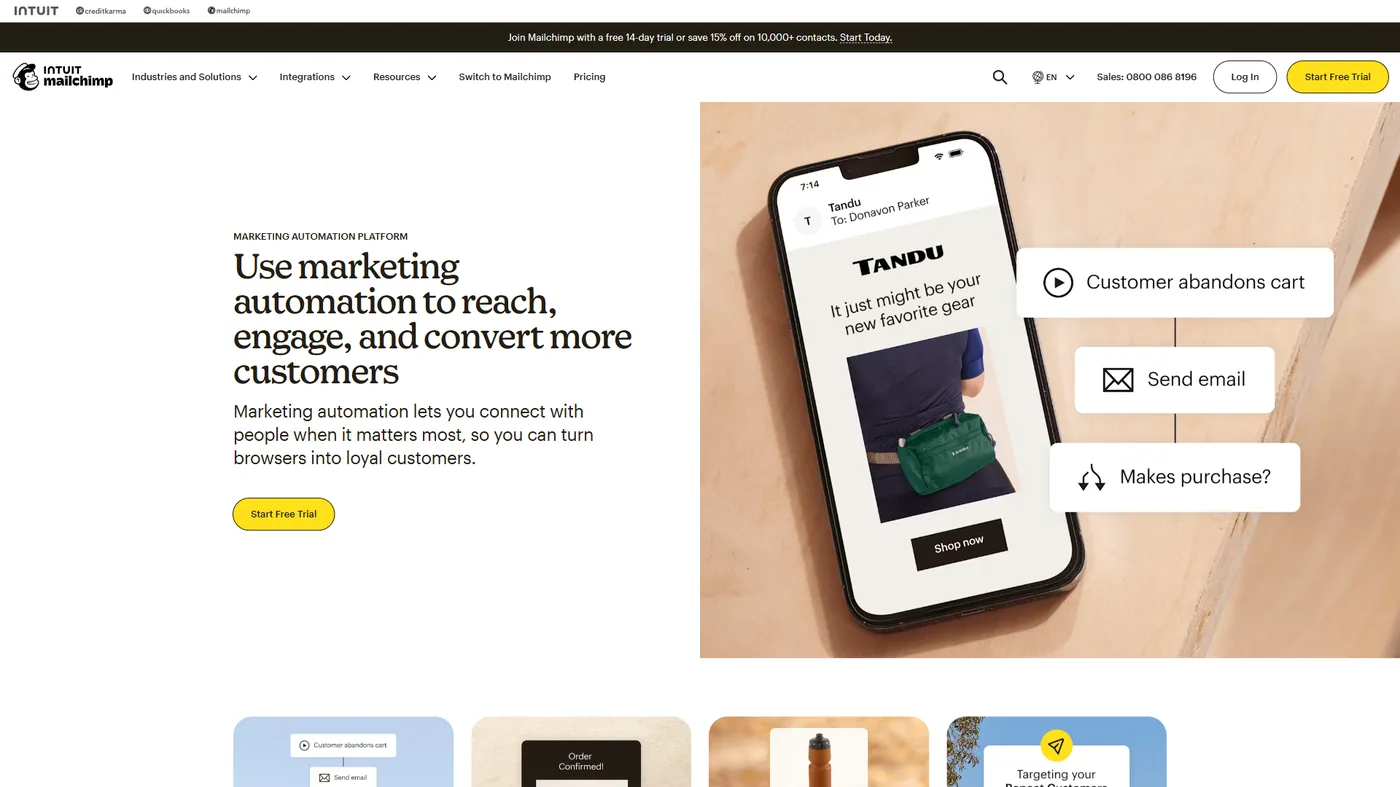
AI-powered follow-up automation eliminates this entirely. Mailchimp and similar platforms let you create conditional email sequences that trigger based on recipient behavior.
How automated follow-ups work:
- You send the initial email. The system starts a timer.
- If no reply within your set window (say, 3 business days), AI generates and sends a contextual follow-up.
- The follow-up adapts. AI references the original message, adjusts the tone (slightly more urgent but not pushy), and offers a clear call-to-action.
- If the recipient replies at any point, the sequence stops automatically.
- After 2-3 unanswered follow-ups, the system flags the contact for manual review rather than continuing to send.
For sales teams and freelancers, automated follow-ups are the single highest-ROI email automation. Research from HubSpot shows that 80% of sales require at least five follow-ups, but 44% of salespeople give up after just one.
Pro tip: Keep follow-up sequences at three messages maximum. Beyond that, you risk annoying the recipient and damaging the relationship. The AI should escalate tone gradually - reminder, gentle nudge, then a final “closing the loop” message that gives the recipient a graceful exit.
4. Workflow Automation and Integrations
Email rarely exists in isolation. You get an email with an invoice, and you need to log it in your accounting software. A customer sends a support question, and you need to create a ticket. A prospect fills out a form, and you need to add them to your CRM.
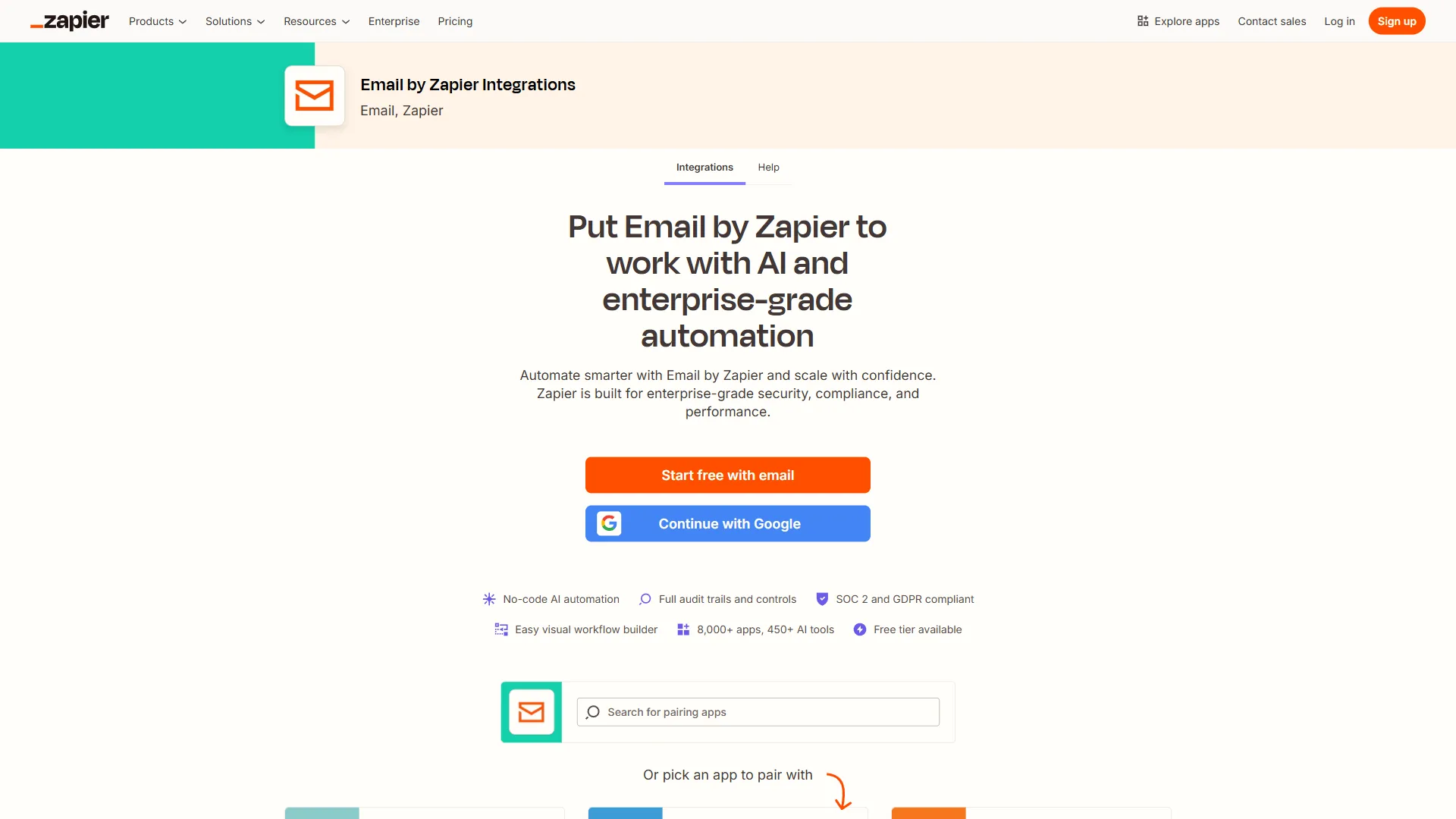
Zapier is the dominant platform for connecting email to everything else. With over 7,000 app integrations, you can build automations that eliminate the manual data entry that eats hours of your week.
High-impact email automation workflows:
| Trigger | Action | Time Saved |
|---|---|---|
| Email with attachment received | Save to Google Drive, notify on Slack | 2-3 min/email |
| New email from specific domain | Create CRM contact, add to sequence | 5-10 min/lead |
| Email containing “invoice” | Extract amount, log in QuickBooks | 3-5 min/invoice |
| Out-of-office reply detected | Pause follow-up sequence, reschedule | 2 min/contact |
| Meeting confirmation received | Create calendar event, send prep doc | 5 min/meeting |
The key insight is that how to automate email with AI is not just about the email itself - it is about eliminating the work that email creates downstream. A single Zapier automation that routes customer inquiries to the right team member and creates a support ticket can save 15-20 minutes per inquiry.
Getting started: Identify the three email-triggered tasks you perform most often. Build a Zap for each one. Most users see immediate ROI from just these three automations.
5. Smart Scheduling and Send Optimization
When you send an email matters almost as much as what you write. AI send optimization analyzes recipient behavior patterns to determine the exact time each individual is most likely to open and respond.
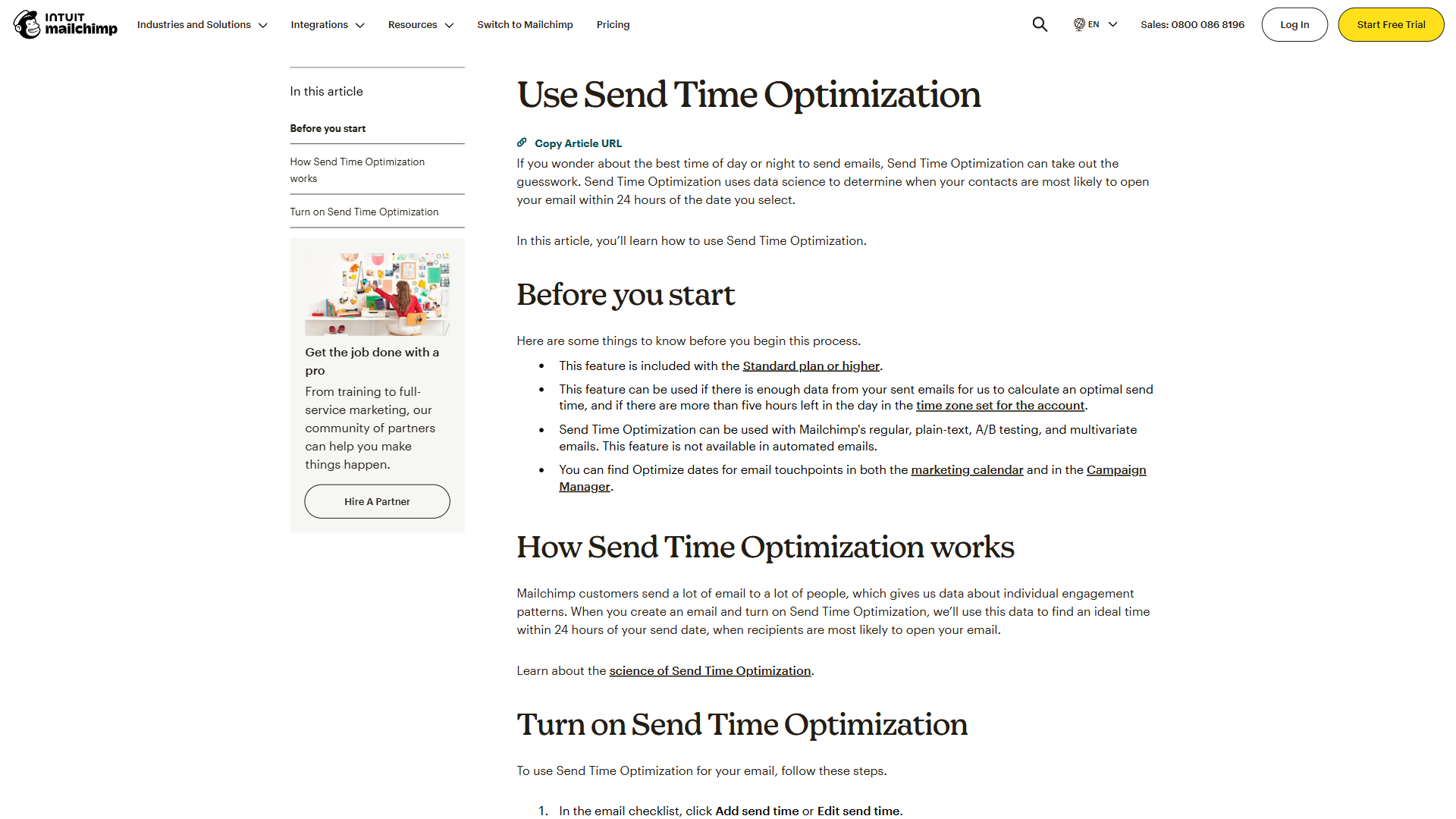
This is not the same as scheduling an email for 9 AM on Tuesday. AI send optimization is per-recipient:
- Recipient A opens emails at 7:15 AM before their commute. Your message lands at 7:10 AM.
- Recipient B clears their inbox after lunch. Your message arrives at 1:05 PM.
- Recipient C is in a different time zone. AI adjusts automatically.
Mailchimp’s send time optimization has shown 20-25% improvements in open rates during controlled testing. For marketing campaigns reaching thousands of subscribers, that difference translates directly to revenue.
For individual email, smart scheduling means:
- Never manually calculating time zone differences
- Avoiding the “sent at 2 AM” impression that makes you look disorganized
- Batching your email work into one or two focused sessions while messages deploy throughout the day at optimal times
Which AI Email Tools Are Best in 2026?
Choosing the right tool depends on your primary use case. Here is a side-by-side comparison of the leading options:
| Tool | Best For | AI Features | Starting Price | Free Tier |
|---|---|---|---|---|
| Superhuman | Inbox productivity | Auto Drafts, triage, voice matching | $25/mo | No |
| Mailchimp | Marketing campaigns | Intuit Assist, send optimization | $20/month | Yes (limited) |
| Zapier | Workflow automation | AI-powered Zaps, natural language setup | $29.99/month | 100 tasks/mo |
| HubSpot | Sales + CRM email | AI writing, sequence automation | Free | Yes |
| Customer.io | Transactional email | NLP segmentation, behavioral triggers | $100/mo | No |
| Shortwave | AI-first inbox | Full AI assistant, search, summaries | Low monthly cost | Yes |
| SaneBox | Email filtering | AI sorting, snooze, digest | Low monthly cost | 14-day trial |
Recommendations by role:
- Executives and consultants processing 100+ emails daily: Superhuman for inbox speed, Zapier for downstream automation.
- Marketers and small businesses running email campaigns: Mailchimp for campaigns, HubSpot for CRM integration.
- Freelancers and solopreneurs managing client communication: Shortwave or SaneBox for affordable AI triage, Zapier for workflow connections.
- Sales teams running outbound sequences: HubSpot for sequences, Superhuman for reply speed.
Step-by-Step Setup Guide
Ready to automate email with AI? Here is a practical implementation plan you can complete in under two hours.
Phase 1: Quick Wins (30 minutes)
Enable built-in AI features in your current email client.
If you use Gmail:
- Open Settings (gear icon) and go to “General.”
- Enable “Smart Compose” and “Smart Reply.”
- Turn on “Nudges” to get follow-up reminders.
- Switch your inbox type to “Priority Inbox” under the Inbox tab.
If you use Outlook:
- Go to Settings and select “Focused Inbox” to separate important mail.
- Enable “Suggested Replies” under Mail settings.
- Turn on “Schedule Send” to time your messages.
These features are free and already built in. Most people never activate them.
Phase 2: Add AI Triage (30 minutes)
Choose and set up a dedicated AI email tool.
- Sign up for Superhuman (individual productivity) or Shortwave (budget-friendly alternative).
- Connect your email account and let the AI analyze your history (this takes 10-15 minutes).
- Review the initial categorization and correct any misclassified messages. This trains the model.
- Set up your priority rules: which senders always get surfaced, which domains go to a digest.
Phase 3: Build Your First Automation (45 minutes)
Create three email-triggered workflows in Zapier.
- Go to Zapier and connect your email account.
- Build Zap 1: “New email with attachment from [key client domain] -> Save to Google Drive folder -> Notify me on Slack.”
- Build Zap 2: “New email matching [support keyword] -> Create ticket in your project management tool.”
- Build Zap 3: “New starred email -> Add to Notion/Todoist as a task with the subject line.”
Test each automation by sending yourself test emails that match the trigger conditions.
Phase 4: Set Up Follow-Up Sequences (15 minutes)
Configure automated follow-ups for outbound email.
- In your email tool or CRM, create a follow-up template sequence.
- Set the first follow-up for 3 business days after no reply.
- Set the second follow-up for 5 business days after the first.
- Set a final “closing the loop” message for 7 business days after the second.
- Enable auto-stop when the recipient replies.
Phase 5: Measure and Optimize (Ongoing)
After one week, review your metrics:
- Time saved per day (track with a simple timer for the first week)
- Response rate changes from send time optimization
- Follow-up conversion rate (how many dormant threads reactivated)
- Automation trigger count (are your Zaps actually firing?)
Adjust your rules and sequences based on real data, not assumptions.
The Bottom Line
Learning how to automate email with AI is not about replacing human judgment - it is about eliminating the mechanical, repetitive parts of email management so you can focus on the messages that actually require your attention. The professionals who have adopted these tools consistently report saving 5-10 hours per week, with the biggest gains coming from AI triage and automated follow-ups.
Start with the free features built into Gmail or Outlook. Add Superhuman when you are ready for dedicated AI triage. Build three Zapier automations for your most common email-triggered tasks. The entire setup takes under two hours, and the time savings compound from day one.
The question is not whether to automate email with AI - it is how many hours you are willing to keep losing before you start.
Frequently Asked Questions
What is the easiest way to automate email with AI?
Start with the AI features already built into Gmail or Outlook before paying for anything. Enable Smart Compose, Smart Reply, and Priority Inbox in Gmail, or Focused Inbox and Suggested Replies in Outlook. These cost nothing, take 10 minutes to set up, and handle the bulk of triage and quick replies. Once you hit their limits, layer on a dedicated AI tool like Superhuman or Shortwave.
How much time can AI email automation actually save?
Professionals who adopt AI email automation report saving between 5 and 10 hours per week. The biggest gains come from automated triage (eliminating the “what should I read first” decision) and follow-up sequences (eliminating the “did I forget to follow up” guilt). For high-volume roles like sales or executive assistants, savings can exceed 15 hours per week.
Is AI email automation safe and private?
Reputable AI email tools encrypt data in transit and at rest, and most enterprise-grade options offer SOC 2 compliance and data residency controls. That said, AI tools must read your email to work, so audit each vendor’s privacy policy and data retention terms before connecting your account. Avoid tools that train models on customer email content unless you have explicit opt-out.
Should I use AI to write emails or just to triage them?
Both, but introduce them in order. Triage delivers immediate ROI with low risk - you are just sorting messages, not sending anything. AI drafting is higher value but requires you to review every output for tone and accuracy before sending. Most users start with triage, build trust over a few weeks, then add drafting once they understand the tool’s voice.
Which AI email tool is best for small businesses?
For solopreneurs and small teams under 10 people, HubSpot Free is the strongest combination of CRM, sequences, and AI writing at zero cost. For inbox productivity, Shortwave or SaneBox deliver 80% of Superhuman’s value at a fraction of the price. Add Zapier for downstream workflow automation.
Want to learn more about Superhuman?
Related Guides
- Activecampaign Email Automation Workflows - Build sequences in ActiveCampaign
- Mailchimp AI Features Guide - Mailchimp’s AI marketing tools
- Hubspot Breeze Assistant Guide - HubSpot’s AI assistant for sales and email
Related Reading
- Best AI Email Tools for 2026: Boost Your Inbox Productivity
- Best Email Marketing Platforms 2026
- Best Email Marketing Tools 2026
- Best Marketing Automation Tools 2026
- Superhuman Review
- Mailchimp Review
- Zapier Review
- HubSpot Review
- Customer.io Review
External Resources
- How to Spend Way Less Time on Email Every Day - Harvard Business Review
- The Social Economy: Productivity and Social Technologies - McKinsey
- The Ultimate Guide to Email Automation - Zapier Blog
Related Guides
- 15 Calendly Tips and Tricks to Save 4+ Hours Weekly
- ActiveCampaign AI Features: Active Intelligence Guide
- ActiveCampaign CRM Setup: How to Set Up ActiveCampaign CRM
- ActiveCampaign Email Automation: 10 Workflows That Work
- ActiveCampaign Lead Scoring: Complete Setup Guide (2026)
- ActiveCampaign Shopify Integration: Complete Setup
- ActiveCampaign WordPress: Forms, Tracking & Automation
- ActiveCampaign Zapier: 10 Automations to Build Today
- AI Agent Orchestration: Patterns That Scale in 2026
- AI Avatar Video Marketing: 2026 Walkthrough for Teams