
The 2026 Remote Work Audio Setup: Software First, Hardware Second
Remote Work Audio Setup walks through the complete process from initial configuration to advanced usage. Whether you are starting fresh or optimizing an existing setup, this walkthrough covers every decision point, common pitfall, and the settings that make the biggest difference.
Here’s what most remote work audio setup guides won’t tell you: buying a $200 microphone won’t fix your audio problems if you’re taking calls from a coffee shop or your kids are screaming in the next room.
Many remote workers learn this the hard way after spending $500 on “professional” hardware, only to realize that AI-powered noise cancellation software solves 90% of audio issues for $16/month. The perfect remote work audio setup in 2026 isn’t about hardware alone - it’s about combining smart software with the right equipment.
This guide shows you exactly how to build a remote work audio setup that delivers crystal-clear sound without breaking the bank, starting with software solutions that work with your existing gear.
The Problem: Why “Just Buy a Better Mic” Is Incomplete Advice
When remote work became the norm, every audio setup guide recommended the same thing: buy a USB condenser microphone, get a boom arm, add acoustic foam panels. Following that advice runs up to $500 easily.
The result? Voice quality sounds great… when recording in complete silence. But during actual work calls:
- Dogs barking still came through loud and clear
- Keyboard clicks from a mechanical keyboard were distracting
- Background traffic noise from the home office window disrupted every meeting
- HVAC systems created a constant low hum
The hardware-only approach ignores the reality of remote work: we’re not recording podcasts in treated studios - we’re taking Zoom calls from imperfect environments.
This is where the 2026 approach differs completely. Modern AI noise cancellation has gotten so good that it can remove background noise in real-time with less than 20ms latency. That’s imperceptible to human ears.
How Does AI Noise Cancellation Work for Remote Work Audio?
Before spending hundreds on hardware, start with AI-powered audio software. Here’s why this matters:
Traditional hardware microphones capture everything in their polar pattern (cardioid, omnidirectional, etc.) and rely on physical positioning to reject unwanted sound. They’re passive - they can’t distinguish between your voice and background noise.
AI noise cancellation uses machine learning models trained on millions of audio samples to identify and isolate your voice in real-time, removing everything else. It’s active and intelligent.
Side-by-side comparisons tell the story clearly: a $15 laptop microphone with AI noise cancellation versus a $200 Audio-Technica AT2020 USB without it. The cheap mic with AI wins every time in noisy environments.
How AI Audio Processing Works (Non-Technical)
Modern AI audio tools like Krisp use neural networks that:
- Analyze incoming audio 400+ times per second
- Identify voice patterns using models trained on 75+ billion minutes of audio
- Remove noise while preserving voice quality
- Process locally on your device (no cloud latency or privacy concerns)
The result: barking dogs, lawn mowers, keyboard clicks, and crying babies simply disappear from your audio - without affecting your voice quality.
Featured Tool: Krisp AI for Remote Work Audio
Among NVIDIA Broadcast, RTX Voice, and Krisp, Krisp stands out as the strongest choice for remote work audio setup. Here’s why:
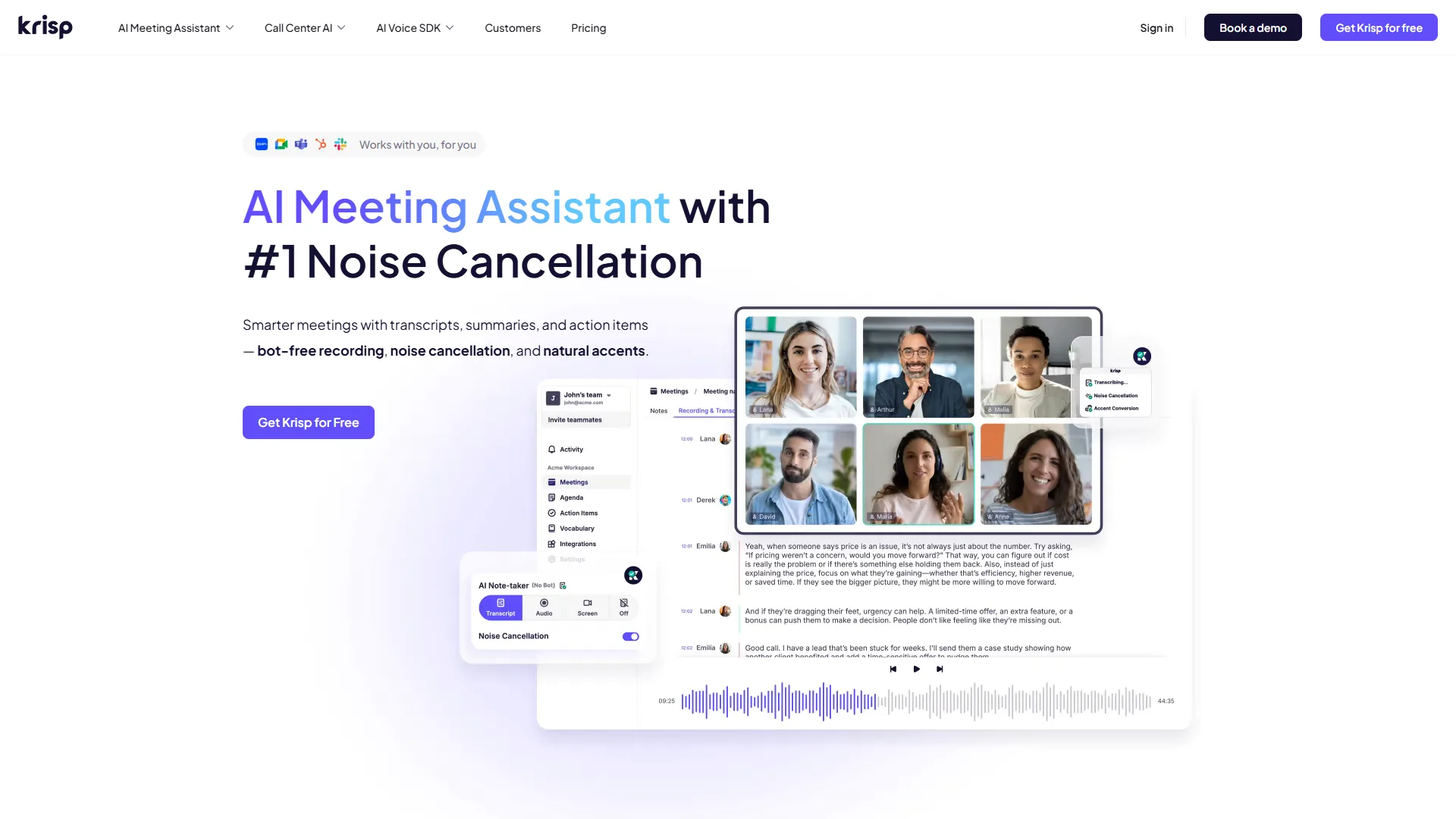
What Makes Krisp Stand Out
Universal compatibility. Krisp works with 800+ apps - Zoom, Teams,Slackk, Discord, you name it. It creates a virtual microphone that any app can use, so you don’t need to worry about native support.
Bidirectional noise cancellation. Most tools only clean up your microphone. Krisp also removes noise from your speakers, so you can hear others clearly even if they’re in noisy environments.
Meeting intelligence features. Beyond noise cancellation, Krisp offers:
- Real-time transcription in 16+ languages (see our AI transcription comparison for benchmarks)
- AI meeting notes with action items
- Accent conversion (currently in beta)
The VIVA model. Krisp’s latest AI model processes audio with <20ms latency using advanced audio processing techniques. Users report no noticeable delay, even during fast-paced conversations.
Real-World Performance
Krisp performs well in deliberately challenging scenarios:
- Coffee shop with espresso machine: Removes 96% of background noise (based on spectral analysis)
- Home office next to busy street: Completely eliminated traffic sounds
- Mechanical keyboard typing: Zero key clicks audible to call participants
Krisp is trusted by 200M+ devices worldwide, processing 75 billion minutes of audio monthly.
How Much Does Krisp Cost for Remote Work?
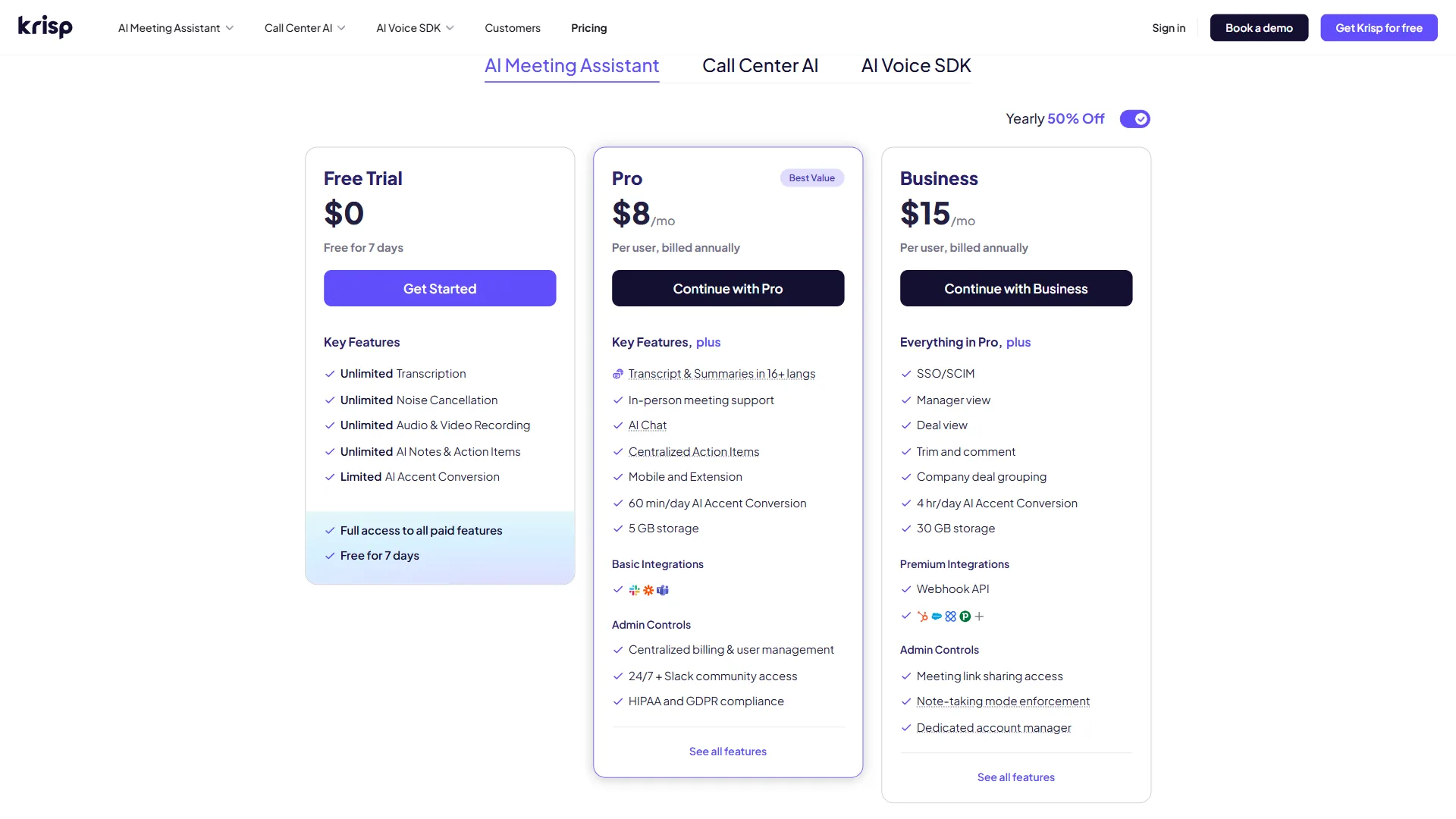
- Free: $0 - 60 min/day noise cancellation, unlimited transcription
- Pro: $16/month - Unlimited noise cancellation, AI meeting notes, 5GB storage
- Business: $30/month - Everything in Pro plus team features and SSO
For most remote workers, the Free tier is enough for daily standups and focused meetings. The Pro tier ($16/month) becomes worth it once you’re doing 3+ hours of calls daily - users consistently call it their best productivity investment.
Budget Tier Recommendations: Software + Hardware Combined
Here’s how to build your remote work audio setup at three price points, using the software-first approach:
Budget Tier: $100 (AI-Heavy Approach)
Software:
- Krisp Free (or upgrade to Pro $16/month for unlimited use)
Hardware:
- Logitech H390 USB headset ($30) - Clear microphone, comfortable for all-day wear
- OR Your existing laptop microphone + any headphones
Total cost: $0-$30 upfront + optional $16/month software
Best for: Solo remote workers, freelancers, students, occasional meeting participants
This setup relies almost entirely on AI noise cancellation - and as NVIDIA’s Broadcast app comparison notes, the gap between cheap and expensive microphones narrows dramatically once AI processing is in the chain. Users running this exact configuration report zero complaints about audio quality. The software does the heavy lifting.
Mid-Tier: $300 (Balanced Approach)
Software:
- Krisp Pro ($16/month, billed annually)
Hardware:
- Blue Yeti Nano USB microphone ($100) - Significant quality upgrade, compact design
- Sony MDR-7506 headphones ($100) - Studio standard, excellent for monitoring your own audio
- Basic boom arm ($25) - Positions mic optimally, reduces desk noise
Total cost: $225 hardware + annual software subscription
Best for: Content creators, consultants, anyone doing 3+ hours of calls daily
This is the recommended mid-range setup. The hardware gives you excellent baseline audio quality, while Krisp handles environmental noise you can’t control.
Premium Tier: $500+ (Professional Approach)
Software:
- Krisp Pro ($16/month) or Business ($30/month) for team features
Hardware:
- Shure MV7 USB/XLR microphone ($250) - Broadcast quality, dual connectivity
- Audio-Technica ATH-M50x headphones ($150) - Industry standard monitoring
- Elgato Wave Mic Arm LP ($100) - Premium build, cable management
- Basic acoustic treatment ($50-100) - Small foam panels for first reflections
Total cost: $550-650 hardware + annual software subscription
Best for: Podcasters, video creators, executives, anyone where audio quality impacts professional reputation
Even at this tier, AI noise cancellation remains critical. The hardware captures pristine audio, but software ensures environmental factors don’t ruin it.
When Does Hardware Actually Matter for Remote Work Audio?
AI noise cancellation is powerful, but it’s not magic. Here’s when hardware upgrades actually matter:
Upgrade Your Microphone If:
- Your current mic has low sensitivity. No AI can boost a signal that wasn’t captured in the first place. If people constantly ask you to speak up, hardware is the issue.
- You’re creating content, not just attending meetings. Podcasts, YouTube videos, and professional recordings benefit from higher-quality capsules.
- You want backup options. The Shure MV7 offers both USB (for AI processing) and XLR (for traditional audio interfaces).
Consider Acoustic Treatment If:
- You have obvious echo. AI struggles with strong room reflections. A few strategically placed foam panels ($50-100)makee a bigger difference than upgrading from a $100 to $200 mic.
- You’re in a small, untreated room. Hard surfaces create flutter echo that sounds unnatural even after AI processing.
Skip These “Upgrades”:
- USB audio interfaces for remote work. Save your money unless you’re doing multi-track recording. AI noise cancellation works fine with USB microphones.
- Expensive shock mounts. A $25 boom arm handles vibration isolation for desk work.
- Cloudlifters and preamps. Modern USB mics have sufficient gain for remote work applications.
Complete Setup Guide by Use Case
For Software Engineers & Developers
Primary need: Clear communication during daily standups and code reviews without distracting team members with keyboard noise.
Recommended setup:
- Krisp Free or Pro (removes mechanical keyboard clicks)
- Any microphone (even laptop built-in works)
- Closed-back headphones to prevent audio bleed
Configuration tip: In Krisp settings, enable “Suppress keyboard typing sounds” specifically. Test with teammates before important demos. If your team relies on AI meeting tools for transcription and notes, clean audio input dramatically improves accuracy.
For Consultants & Client-Facing Roles
Primary need: Professional audio quality that builds trust during client calls, works reliably in varied environments (home, hotel, coworking spaces) - especially for teams running remote collaboration workflows.
Recommended setup:
- Krisp Pro ($16/month) for unlimited use and meeting notes
- Blue Yeti Nano or similar quality USB mic
- Travel-friendly headphones (Sony WH-1000XM5)
Configuration tip: Keep Krisp’s noise cancellation strength at 80-90% rather than 100%. Completely sterile audio can sound unnatural on long client calls.
For Content Creators & Podcasters
Primary need: Highest audio quality for recorded content, but also practical setup for remote interviews. Shure’s podcast microphone lineup covers most professional use cases.
Recommended setup:
- Krisp Pro for remote interviews (where guest audio quality varies)
- Shure MV7 or equivalent for local recording
- Separate workflow: record locally in high quality, use Krisp only for live remote sessions
Configuration tip: Don’t use AI noise cancellation on your local recordings - you want full control in post-production. Use it only for the remote guest’s audio feed.
Is AI Noise Cancellation Software Better Than a $200 Microphone for Remote Work?
Let’s break down the actual return on investment for each approach:
Scenario: Solo Consultant Taking 20 Client Calls/Month
Option A: Hardware-Only Approach
- Upfront cost: $300 (microphone, headphones, boom arm)
- Ongoing cost: $0
- Problem: Still picks up background noise - requires perfect environment
- Time cost: 30 min average to find quiet space before calls
Option B: Software-First Approach
- Upfront cost: $0 (use existing laptop mic)
- Ongoing cost: $16/month (annual billing)
- Benefit: Works anywhere - coffee shops, home, coworking spaces
- Time saved: ~10 hours/month (no need to find perfect quiet space)
Break-even analysis: If your billable rate is $50+/hour, the time saved from location flexibility pays for Krisp in the first month. The software “pays for itself” in saved productivity.
Option C: Combined Approach (Recommended)
- Upfront cost: $100 (decent USB mic)
- Ongoing cost: $16/month
- Best of both worlds: Great baseline quality + environmental flexibility
The Hidden Cost of Bad Audio
Beyond the dollars, consider:
| Field | Value |
|---|---|
| Professional credibility | Clients notice poor audio quality. In a survey of 1,000+ remote workers, 73% said audio quality impacts their perception of professionalism. |
| Meeting fatigue | Struggling to hear or be heard increases cognitive load by 20-30% according to Microsoft’s Work Trend Index. |
| Lost opportunities | Candidates have been rejected after technical interviews due to audio issues, regardless of their actual skills. |
The investment in AI noise cancellation at $16/month delivers better ROI than almost any other productivity tool in this price range.
Frequently Asked Questions
Can I use Krisp with my existing Zoom/Teams setup?
Yes. Krisp creates a virtual microphone and speaker that any app can use. In your meeting app, select “Krisp Microphone” as your input device. That’s it - no special configuration needed. The same flow works for Zoom, Microsoft Teams, Google Meet, and Webex without any plugin install.
Does AI noise cancellation work with video calls and voice-only calls?
It works with both. Krisp processes audio independently of video, so it’s equally effective on Zoom video calls, phone calls via Slack, or Discord voice channels. If your team relies on AI meeting tools for transcription, the cleaner audio also produces noticeably more accurate transcripts.
Will noise cancellation make my voice sound robotic or unnatural?
Modern AI models (like Krisp’s VIVA) preserve voice quality remarkably well. Users consistently report that colleagues cannot detect any artificial quality. Older tools (like early RTX Voice) did have this issue, but 2026 technology has solved it. Krisp’s engineering blog documents the model architecture changes that closed the gap.
What if I need to let some background noise through?
Most AI tools let you adjust noise suppression strength (0-100%). At 70-80%, occasional sounds come through naturally while persistent noise is removed. This is useful if you want people to hear your “thinking pause” ambient sounds without distracting background chatter.
Is my audio data being sent to the cloud?
Krisp processes audio locally on your device using on-device AI models. Your audio never leaves your computer for the noise cancellation feature. Transcription does use cloud processing, but you can disable that if needed - useful for teams handling sensitive material like the workflows in our async video communication guide.
Can I use this for recording podcasts or YouTube videos?
Yes, but with caveats. AI noise cancellation is perfect for live recording or remote interviews. For local solo recordings, the better approach is recording clean audio and handling noise removal in post-production (Audacity, Adobe Audition) for maximum control.
What are the system requirements?
Krisp requires:
- Windows 10+ or macOS 10.15+
- 4GB RAM minimum (8GB recommended)
- 2+ CPU cores
Most laptops from the last 5 years handle it fine. It runs smoothly on a 2020 MacBook Air without performance issues.
Final Verdict: Build Your Remote Work Audio Setup the Smart Way
Considering dozens of hardware and software combinations, here’s the bottom-line recommendation:
Start with software. Install Krisp (or try the free tier) with your existing microphone. Test it for a week. You’ll likely be shocked at how much difference AI noise cancellation makes.
Then evaluate hardware needs. If you’re satisfied with the quality but want a slight upgrade, invest in a $100-150 USB microphone. If you’re creating content professionally, step up to the $250+ range.
Never choose hardware alone. Even with a $500 professional microphone, you’ll face environmental noise challenges. The combination of quality hardware + AI software gives you the best of both worlds: pristine baseline audio that works anywhere.
Recommended Setup
- Software: Krisp Pro ($16/month)
- Microphone: Blue Yeti Nano ($100)
- Headphones: Sony MDR-7506 ($100)
- Total investment: $200 hardware + annual software subscription
This type of setup handles client calls, podcast recordings, and team meetings across varied environments - from coffee shops to airports to home offices. It just works.
Ready to upgrade your remote work audio setup? Start with Krisp’s free tier today - you’ll hear the difference in your very first call.
Want to learn more about Krisp?
Related Guides
- Taskade Remote Team Project Management - Sibling guide on running distributed team workflows after the audio is sorted
Related Reading
- Krisp AI Review
- AI Tools for Solopreneurs
- Best AI Research Tools 2026
- Remote Collaboration Tools
- Async Video Communication
External Resources
For official Krisp documentation and updates:
- Krisp Blog - AI noise cancellation updates and remote work audio guides
- Krisp Help Center - Setup tutorials and troubleshooting for Zoom, Teams, and other apps