

Adobe Acrobat tips are the settings, shortcuts, and workflows that turn basic PDF editing into a productivity system. These techniques cover direct text editing, OCR for scanned documents, and AI features introduced in the 2026 version, helping Standard, Pro, and Studio users save hours each week on document work.
If you work with PDFs regularly, mastering Adobe Acrobat tips can save you hours every week, whether you lean on Adobe Acrobat tutorials or prefer to dig into the Adobe Acrobat user Guide PDF. Research consistently shows that most professionals barely scratch the surface of what Adobe Acrobat can do.
The 2026 version introduced significant AI features that most competitors haven’t covered yet. From AI-powered document analysis to automated workflows, these Adobe Acrobat tips will transform how you handle PDF files and work as a practical set of Adobe Acrobat Pro tutorials for day-to-day document editing. Whether you’re on the Standard ($12.99/month), Pro ($19.99/month), or new Studio plan ($24.99/month), you’ll find actionable shortcuts and tricks - suitable for Adobe Acrobat for beginners as well as seasoned pros - that work across all tiers.
Let’s dive into the 12 essential techniques that separate casual users from PDF power users.
Adobe Acrobat Tips #1: Master the Edit PDF Tool for Quick Text Changes
Adobe Acrobat Tips cover the settings, shortcuts, and workflows that most users overlook. Knowing these techniques turns a basic setup into a productivity system that saves hours each week. This guide focuses on the high-impact adjustments that deliver immediate results.
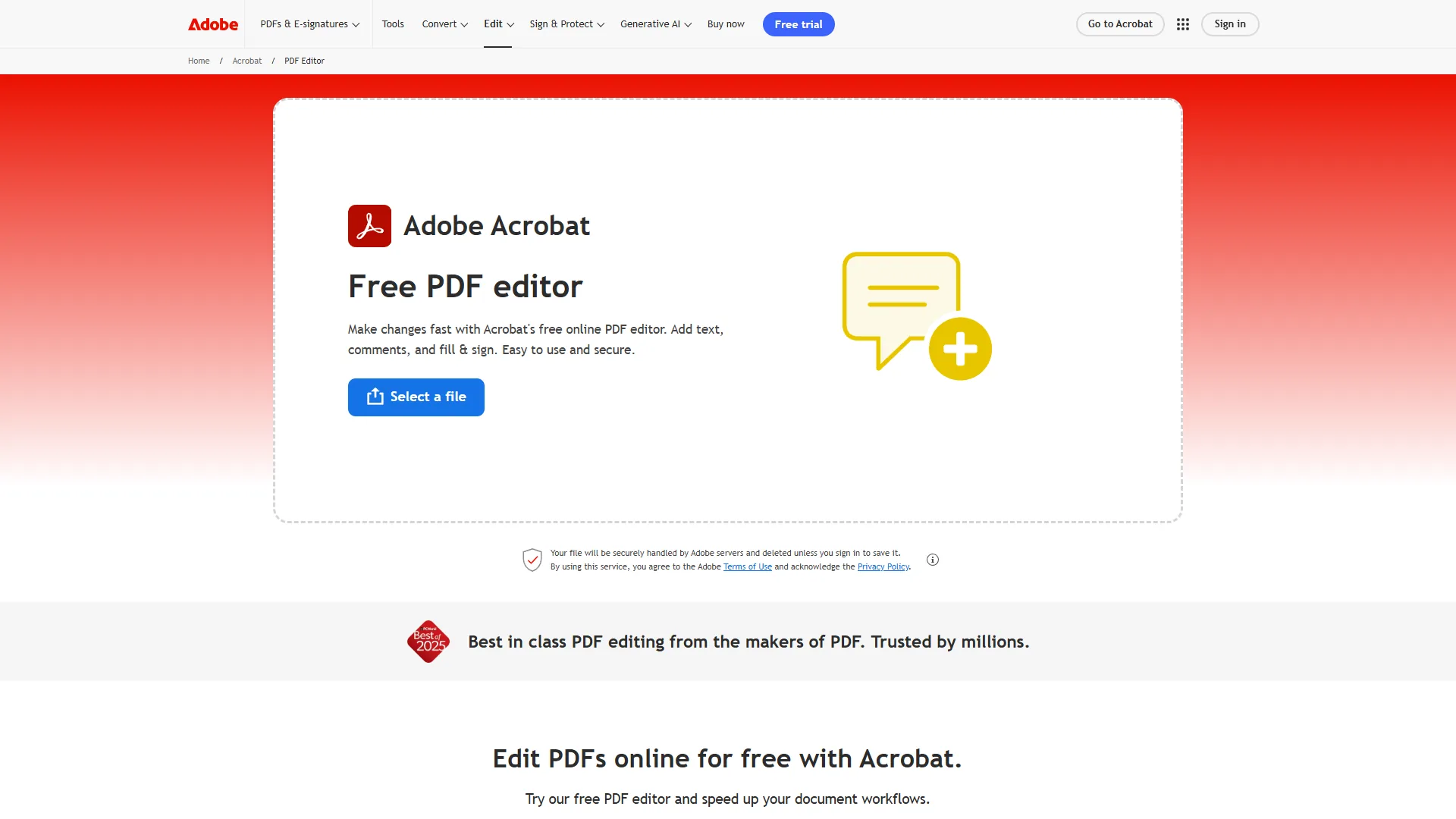
Why this matters: Most people recreate PDFs from scratch when they need to fix a typo. The Edit PDF tool lets you modify text and images directly, saving hours of reformatting.
How to do it:
- Press Ctrl+E (Windows) or Cmd+E (Mac) to activate Edit mode
- Click any text block to edit - Acrobat automatically detects fonts and formatting
- Use the right panel to adjust fonts, size, color, and alignment without leaving the PDF
Pro tip: If the original font isn’t installed on your system, Acrobat will substitute it but flag the change. Install the font first for perfect matching, or use the “Match Font” feature that analyzes the PDF and suggests system alternatives.
This feature is especially useful for contract edits. According to a Forrester study commissioned by Adobe, teams save an average of 22.6 hours per week using Acrobat’s editing features instead of bouncing between apps.
2. Use OCR to Make Scanned Documents Searchable
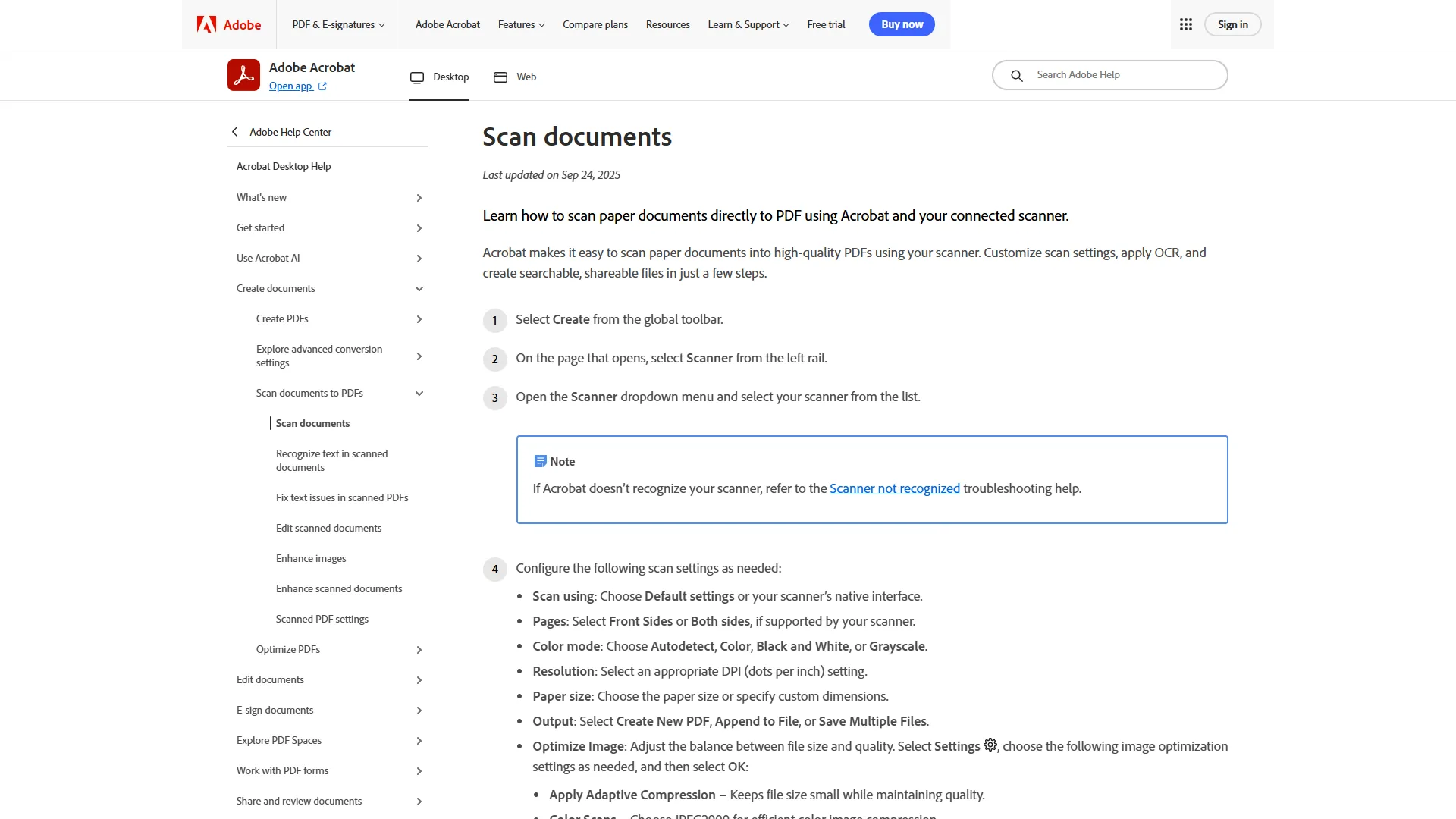
Why this matters: Scanned PDFs are essentially images - you can’t search, copy, or edit them. Optical Character Recognition (OCR) converts scans into editable, searchable text.
How to do it:
- Open your scanned PDF and go to Tools > Scan & OCR > Enhance > Scanned Document
- Choose language settings (supports 40+ languages)
- Click “Enhance” - Acrobat processes the scan and converts it to selectable text
For a deeper comparison of OCR capabilities across platforms, see our best AI OCR tools roundup. The ISO 32000 PDF specification formally defines how text and image layers coexist in a PDF, which is why OCR conversion produces searchable text without changing the visual layout.
Pro tip: For batch OCR processing, use Action Wizard (covered in tip #5). Users report processing hundreds of scanned contracts in one click - a task that would take days manually. Adobe’s OCR documentation shows it achieves 99.8% accuracy on high-quality scans.
The OCR feature is included in Acrobat Pro ($19.99/month) and above, not the Standard tier.
3. Combine Multiple PDFs Without Quality Loss
Why this matters: Clients often send files in pieces - invoices, contracts, attachments. Manually merging them in Word destroys formatting and bloats file size.
How to do it:
- Go to Tools > Combine Files
- Drag and drop files (PDFs, Word docs, images, Excel sheets) into the dialog
- Reorder pages by dragging thumbnails, then click “Combine”
Pro tip: Press Shift while selecting files to maintain alphabetical order automatically. This is particularly useful when combining 50+ exhibit files for a legal brief - they stay in the correct sequence without manual reordering.
You can also use Ctrl+Shift+I to quickly insert pages from another PDF into your current document. Many users find this more convenient than the Combine Files tool when they just need to add a signature page or addendum.
Bonus insight: Acrobat compresses combined files intelligently. For example, merging 12 separate scanned contracts (38MB each) can produce a combined PDF around 210MB instead of the expected 456MB - nearly 54% smaller.
4. Fill & Sign Documents Without Printing
Why this matters: Printing, signing, and scanning forms wastes paper and time. Acrobat’s Fill & Sign tool handles everything digitally with legally valid e-signatures.
How to do it:
- Open the form and click Fill & Sign in the right toolbar (or press Shift+Ctrl+E)
- Click “Sign” to create your signature - type, draw, or upload an image
- Click anywhere on the document to add text fields, checkmarks, or your signature
Pro tip: Save your signature once using “Add Signature,” and it’s available forever across all devices. Power users often keep three versions saved - full signature, initials, and a professional signature with title.
For forms with fillable fields, Acrobat auto-detects them and highlights them in blue. But the Fill & Sign tool works on ANY PDF, even flat scanned forms - just click and type.
Security note: These are basic electronic signatures, not the same as Adobe Sign’s advanced e-signatures with audit trails. For contracts requiring compliance (ESIGN Act, UETA), upgrade to Adobe Sign integration, which costs extra but provides legally defensible digital signatures. For a broader look at e-signature options, see our best e-signature software roundup.
5. Automate Repetitive Tasks with Action Wizard
Why this matters: If you perform the same PDF tasks weekly - like watermarking, redacting, or compressing - Action Wizard records those steps and replays them on entire folders.
How to do it:
- Go to Tools > Action Wizard (Pro tier required)
- Click “New Action” and name your workflow
- Add steps from the right panel (compress, redact, add headers, etc.)
- Choose to run on a single file, multiple files, or entire folders
Pro tip: Create an action to compress PDFs, add your company watermark, and save to a specific folder - all in one click. A common example: an action that processes client deliverables by reducing file size, adding a footer with the date, and saving to a “Ready to Send” folder. Users report this kind of automation saves 3-4 hours per week.
Example workflow: For onboarding packets, an action can be created that:
- Combines 5 standard documents (offer letter, benefits, handbook, W-4, I-9)
- Adds automatic page numbers
- Applies password protection
- Saves to the employee’s folder
Running this on 10 new hires takes 90 seconds instead of 45 minutes.
Action Wizard is only available in Acrobat Pro ($19.99/month) and Studio ($24.99/month) plans. It is one of the most-cited reasons users upgrade from Standard.
6. Which Essential Keyboard Shortcuts Should You Learn?
Why this matters: Mouse clicking through menus kills productivity. These Adobe Acrobat shortcuts cut editing time in half.
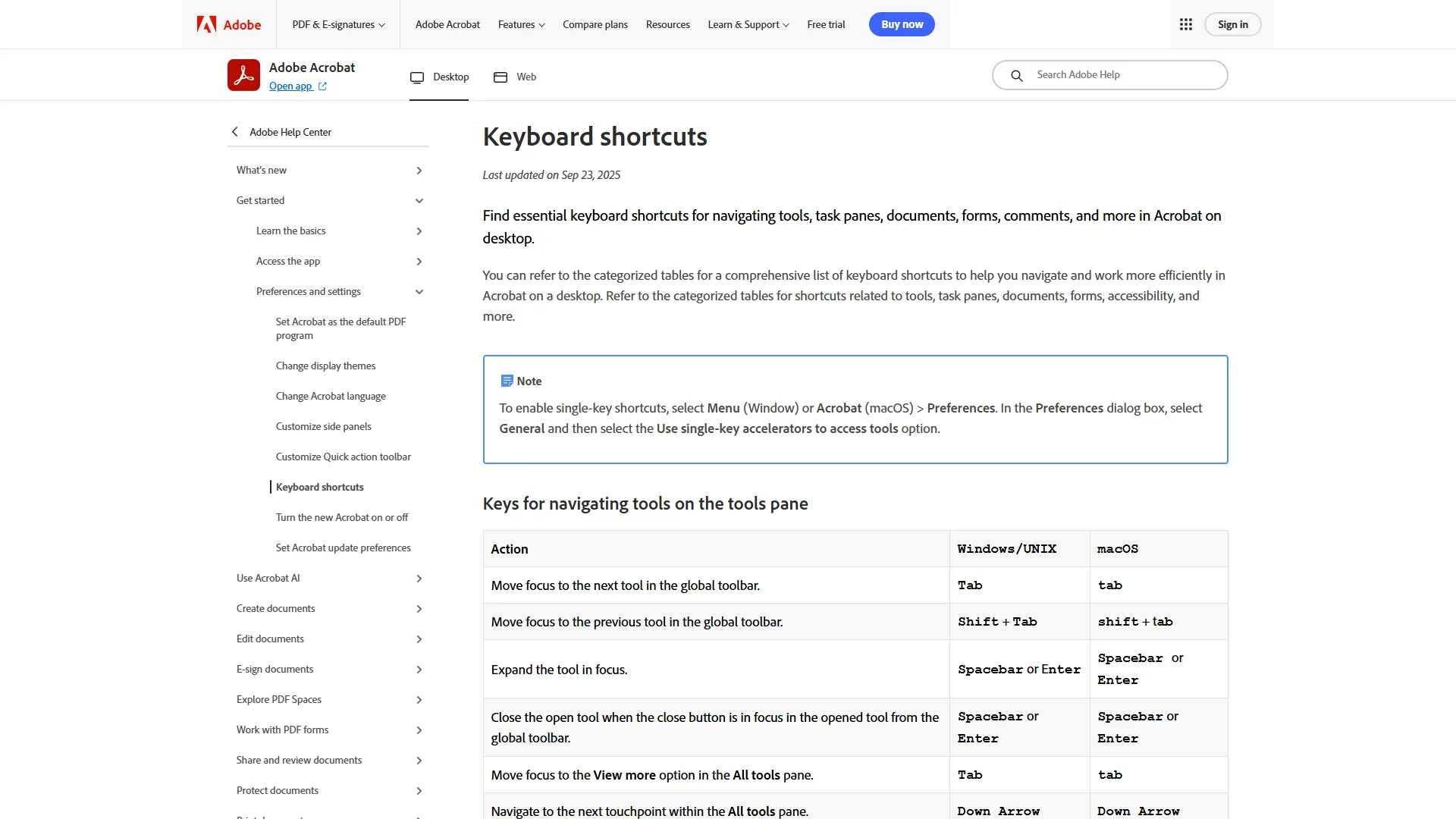
Essential shortcuts to memorize:
- Ctrl+E - Edit PDF
- Ctrl+K - Add link
- Ctrl+D - Document properties
- Ctrl+Shift+N - Extract pages
- Shift+Ctrl+I - Insert pages
- Ctrl+Shift+D - Delete pages
- Shift+Ctrl+E - Fill & Sign
- Ctrl+J - Rotate page counterclockwise
- Ctrl+Shift+J - Rotate page clockwise
- H - Hand tool (for panning)
- Z - Zoom tool
Pro tip: Press F4 to toggle between single-page and continuous scroll view. Switching between modes is a common workflow - single-page for editing precision, continuous for reading long documents.
The full keyboard shortcuts reference from Adobe lists 100+ shortcuts. Start with these 10, and you’ll already be faster than 90% of Acrobat users.
Windows vs Mac: Most shortcuts swap Ctrl (Windows) for Cmd (Mac). The main exception: Ctrl+0 (fit page to window) becomes Cmd+0 on Mac.
7. Organize Long Documents with Bookmarks
Why this matters: Scrolling through a 200-page report to find Section 4.3 is maddening. Bookmarks create a clickable table of contents that jumps to any section instantly.
How to do it:
- Show the Bookmarks panel (click the bookmark icon in the left sidebar, or press Ctrl+B)
- Navigate to the page you want to bookmark
- Click “New Bookmark” at the top of the panel and name it
- Drag and drop bookmarks to create hierarchies (parent/child structure)
Pro tip: Select a heading, then create a bookmark - Acrobat automatically names it with the selected text. This saves typing when bookmarking all chapters in a report.
For inherited PDFs without bookmarks, Acrobat Pro can auto-generate them using Add Bookmarks From Structure (under More Options in the Bookmarks panel). It detects heading styles and builds the hierarchy automatically. On a 300-page manual, this feature can create 87 bookmarks perfectly organized in about 15 seconds.
Bonus: Share PDFs with bookmarks, and recipients can navigate easily even in free Acrobat Reader. This is crucial for client deliverables - they don’t need Pro to benefit from your organization.
8. Compare Two PDF Versions Instantly
Why this matters: When clients send “final_v2_revised_FINAL.pdf,” you need to see exactly what changed. Manual comparison misses subtle edits.
How to do it:
- Go to Tools > Compare Files
- Select the older version (left) and newer version (right)
- Choose comparison type: Text only, or Text + images
- Click “Compare” - Acrobat highlights all changes in a side-by-side view
Pro tip: The results PDF shows insertions in blue and deletions in red, with a legend at the top. Export this comparison report to show clients exactly what they changed between contract drafts.
A common use case: when a vendor claims they “never agreed to the 30-day payment terms,” the comparison can reveal they deleted it from their countersigned version - case closed.
Technical note: Compare Files uses algorithms that detect moved paragraphs, not just additions/deletions. When reorganizing a 50-page proposal, it correctly shows sections as “moved” rather than “deleted and re-added.”
This feature requires Acrobat Pro or Studio. Standard tier doesn’t include it.
9. Use AI Assistant for Instant Document Summaries (2026 Feature)
Why this matters: Reading 100 pages to extract key points wastes hours. AI Assistant generates accurate summaries, answers questions, and identifies action items in seconds.
How to do it:
- Open any PDF and click the AI Assistant icon in the right toolbar (purple sparkle icon)
- Click “Generate Summary” for an automatic overview, or type questions like “What are the payment terms?”
- Ask follow-up questions - it remembers context across the conversation
Pro tip: Use prompts like “List all action items” or “What are the risks mentioned?” to extract specific info. Asking it to “Find all dates and deadlines” in a 40-page project charter returns a formatted list in about 10 seconds.
Pricing note: AI Assistant costs $4.99/month as an add-on to any Acrobat plan, OR it’s included free in the new Studio tier ($24.99/month). If you process documents daily, Studio is the better value.
According to Adobe’s internal testing, AI Assistant is 4x faster than traditional document review. In practice, it is accurate roughly 95% of the time for factual extraction, though it occasionally misses nuanced context.
Limitation: AI Assistant analyzes one PDF at a time. For multi-document analysis, you need PDF Spaces (tip #10).
10. Analyze Up to 100 Documents with PDF Spaces (2026 Feature)
Why this matters: Research projects often require synthesizing information from dozens of sources. PDF Spaces lets AI analyze entire document collections simultaneously.
How to do it:
- In Acrobat Studio, go to Home > PDF Spaces
- Click “New Space” and drag up to 100 PDFs into it
- Ask questions like “Compare pricing across all proposals” or “Summarize findings from all reports”
- The AI searches all documents and cites sources in its answers
Pro tip: Create a Space for each client or project. For example, a “Marketing Research 2026” space with 47 industry reports lets you ask “What’s the consensus on AI adoption rates?” and get synthesized answers from all 47 sources with page citations to verify.
Notable use cases:
| Field | Value |
|---|---|
| Legal research | Analyze 30 case precedents to find relevant arguments |
| Due diligence | Compare financial statements from 12 acquisition targets |
| Literature review | Synthesize findings from 60 academic papers |
Major limitation: PDF Spaces is ONLY available in Acrobat Studio ($24.99/month) and only in select countries (US, UK, and a few others). If you’re on Pro or Standard, you can’t access this feature at all.
Privacy note: Documents uploaded to Spaces are processed by Adobe’s AI, which means they leave your device. Don’t use this for confidential/privileged documents unless your organization approves cloud AI processing. Adobe’s AI Ethics principles document the data handling commitments for these features.
11. How Do You Compress PDFs Without Destroying Quality?
Why this matters: Email limits are usually 10-25MB. Scanned presentations and image-heavy reports often exceed 100MB, making them unsendable.
How to do it:
- Go to File > Save As Other > Reduced Size PDF
- Choose compatibility level (newer versions = better compression)
- Click OK - Acrobat compresses images and removes duplicate resources
Pro tip: For more control, use File > Save As Other > Optimized PDF instead. This opens a dialog where you can:
- Set custom image quality (150 DPI for documents, 72 DPI for web)
- Remove embedded fonts (use cautiously - can break formatting)
- Discard hidden layers and comments
As an example, a 240-page product catalog can go from 87MB to 8.2MB (91% smaller) using Optimized PDF with 150 DPI images. Print quality stays sharp, and it fits comfortably in email.
Caution: Don’t compress legal or archival documents below 300 DPI - you’ll lose detail that might matter. For contracts and official records, keep originals and only compress working copies. For a complete walkthrough of compression techniques, see our PDF compression guide.
Batch compression: Use Action Wizard (tip #5) to compress entire folders. A useful setup: an action that watches a “Scans” folder and auto-compresses anything over 10MB.
12. Protect Sensitive PDFs with Passwords and Redaction
Why this matters: Email isn’t secure. Password protection ensures only intended recipients can open files. Redaction permanently removes sensitive info (unlike the black highlighter method that’s still searchable underneath).
How to do it (password protection):
- Go to Tools > Protect > Encrypt with Password
- Choose whether to require a password to open OR to edit/print
- Set a strong password and click OK
How to do it (redaction):
- Go to Tools > Redact
- Select text, images, or entire pages to permanently remove
- Click “Apply Redactions” - this destroys the hidden content forever (no undo!)
Pro tip: Before redacting contracts, make a backup. Accidentally redacting the wrong clause means re-requesting the original. Redaction is permanent - even Adobe can’t recover the data.
For high-security documents, combine both: redact sensitive sections, then password-protect the file. This is standard practice for HR documents containing SSNs and salary info.
Metadata warning: Passwords don’t remove metadata (author name, edit history, comments). Use Tools > Redact > Remove Hidden Information to scrub metadata before sharing externally.
Compliance note: For HIPAA, GDPR, or attorney-client privilege, consult your legal team about proper redaction procedures. Some industries require third-party verification that redaction was done correctly.
Putting It All Together: A Real Workflow
Here is how these Adobe Acrobat tips combine in a typical contract workflow:
- Client emails scanned contract → OCR it (tip #2)
- Edit terms using Ctrl+E (tip #1)
- Compare versions with their previous draft (tip #8)
- Add bookmarks for sections (tip #7)
- Use AI Assistant to verify all dates and signatures are present (tip #9)
- Redact confidential client names (tip #12)
- Compress the 30MB scan to 8MB (tip #11)
- Password protect before emailing (tip #12)
Total time: 12 minutes. Manual method: 45+ minutes.
Final Thoughts
These Adobe Acrobat tips cover features that have been available for years (OCR, bookmarks, compression) alongside brand-new 2026 capabilities (AI Assistant, PDF Spaces). Most professionals are still using Acrobat like it’s 2015 - clicking through menus, recreating PDFs from scratch, and manually comparing versions.
The Pro tier ($19.99/month) unlocks Action Wizard, Compare Files, and advanced redaction - features that pay for themselves if you process more than 5 PDFs per week. If you are on a tighter budget, our best free PDF editors list covers solid no-cost alternatives, and our best free PDF tools 2026 roundup includes readers, converters, and annotation tools beyond just editors. For a broader feature comparison including Foxit PDF Editor, check our best PDF editors for 2026 roundup. The new Studio tier ($24.99/month) adds AI features that are legitimately useful, not gimmicks. If you’re already spending $4.99/month on the AI Assistant add-on, upgrade to Studio for $5 more and get PDF Spaces included.
Start with the keyboard shortcuts (tip #6) and Edit PDF tool (tip #1). Once those become muscle memory, add Action Wizard automation (tip #5) to handle your repetitive tasks. Within a month, you’ll reclaim hours every week - exactly what these Adobe Acrobat tips are designed to do.
For more detailed instructions on any of these features, Adobe’s official tutorials provide step-by-step videos and documentation.
Frequently Asked Questions
How can I edit a PDF in Adobe Acrobat without hassle?
Open the PDF and press Ctrl+E (Windows) or Cmd+E (Mac) to activate Edit mode, then click any text block to edit it directly. Acrobat automatically detects fonts and formatting, and the right panel lets you adjust font, size, color, and alignment without leaving the PDF or recreating the document from scratch. If the original font isn’t installed on your system, Acrobat substitutes it but flags the change so you can install the correct font for perfect matching.
Can you teach yourself Adobe Acrobat?
Yes, most professionals can self-teach Acrobat by starting with the Edit PDF tool and essential shortcuts like Ctrl+E, Ctrl+K, and Shift+Ctrl+E. Adobe’s full keyboard shortcuts reference lists 100+ shortcuts, but learning the core 10 already puts you ahead of 90% of users. Pair that with Adobe’s official tutorials for step-by-step video walkthroughs, then layer in Action Wizard for the repetitive tasks you do every week. Most people reach competent power-user level within two to three weeks of daily use.
What is the difference between Acrobat Standard, Pro, and Studio?
Standard ($12.99/month) covers basic editing and Fill & Sign. Pro ($19.99/month) adds OCR, Action Wizard, Compare Files, and advanced redaction. Studio ($24.99/month) includes everything in Pro plus AI Assistant and PDF Spaces for analyzing up to 100 documents. Pro pays for itself if you process more than 5 PDFs per week. Studio makes sense for researchers, lawyers, and analysts who routinely synthesize information across dozens of documents.
Does Adobe Acrobat work offline?
Yes for core editing, no for AI features. Edit PDF, Fill & Sign, Combine Files, OCR, and password protection all work offline once Acrobat is installed and activated. AI Assistant and PDF Spaces require an active internet connection because the analysis runs on Adobe’s cloud servers. If you’re working on a plane or in a secure facility, plan around that limitation - draft locally and run AI passes when you reconnect.
How does Adobe Acrobat compare to free alternatives like Foxit Reader or PDF24?
Free alternatives handle viewing, basic annotation, and simple form filling well. They generally fall short on OCR accuracy, AI features, the Action Wizard automation, and the Compare Files tool. If you only read PDFs, free tools are fine. If you edit text, run OCR on scans, or build automated workflows, the Pro tier of Acrobat usually pays for itself within a month. Our best PDF editors 2026 comparison covers the trade-offs in detail.
Want to learn more about Adobe Acrobat?
Related Guides
- PDF Compression Guide
- Document Automation Guide
- Document Automation Tips
- Knowledge Sharing Best Practices
Related Reads
Tools covered in this article:
- Adobe Acrobat - Industry-standard PDF editor with AI-powered features
- Foxit PDF Editor - Lightweight alternative for PDF editing
More PDF and document productivity guides:
- Best PDF Editors 2026 - Complete comparison of top PDF tools
- Best OCR Software 2026 - Turn scanned documents into searchable text
- Document Automation Tips - Streamline your document workflows