


Every team has workflows that eat hours of human time: scraping competitor pricing, enriching lead lists with company data, processing stacks of invoices, or generating content variations for different audiences. Traditional automation tools like Zapier handle the plumbing between apps, but the moment you need AI to actually think about the data - categorize it, extract meaning, score leads, summarize documents - those tools hit a wall. That is the gap Gumloop fills.
This guide covers building Gumloop AI automation workflows, from lead enrichment pipelines to content generation flows and competitive research scrapers. It walks through what Gumloop actually does, how to build your first automation, and the advanced features that make it worth paying attention to - even if you have never written a line of code.
What Gumloop Does (And Why It Matters)
Gumloop AI Automation covers the strategies and tools that deliver real productivity gains in this space. Every team has workflows that eat hours of human time: scraping competitor pricing. This guide walks through the practical steps from setup through advanced optimization.
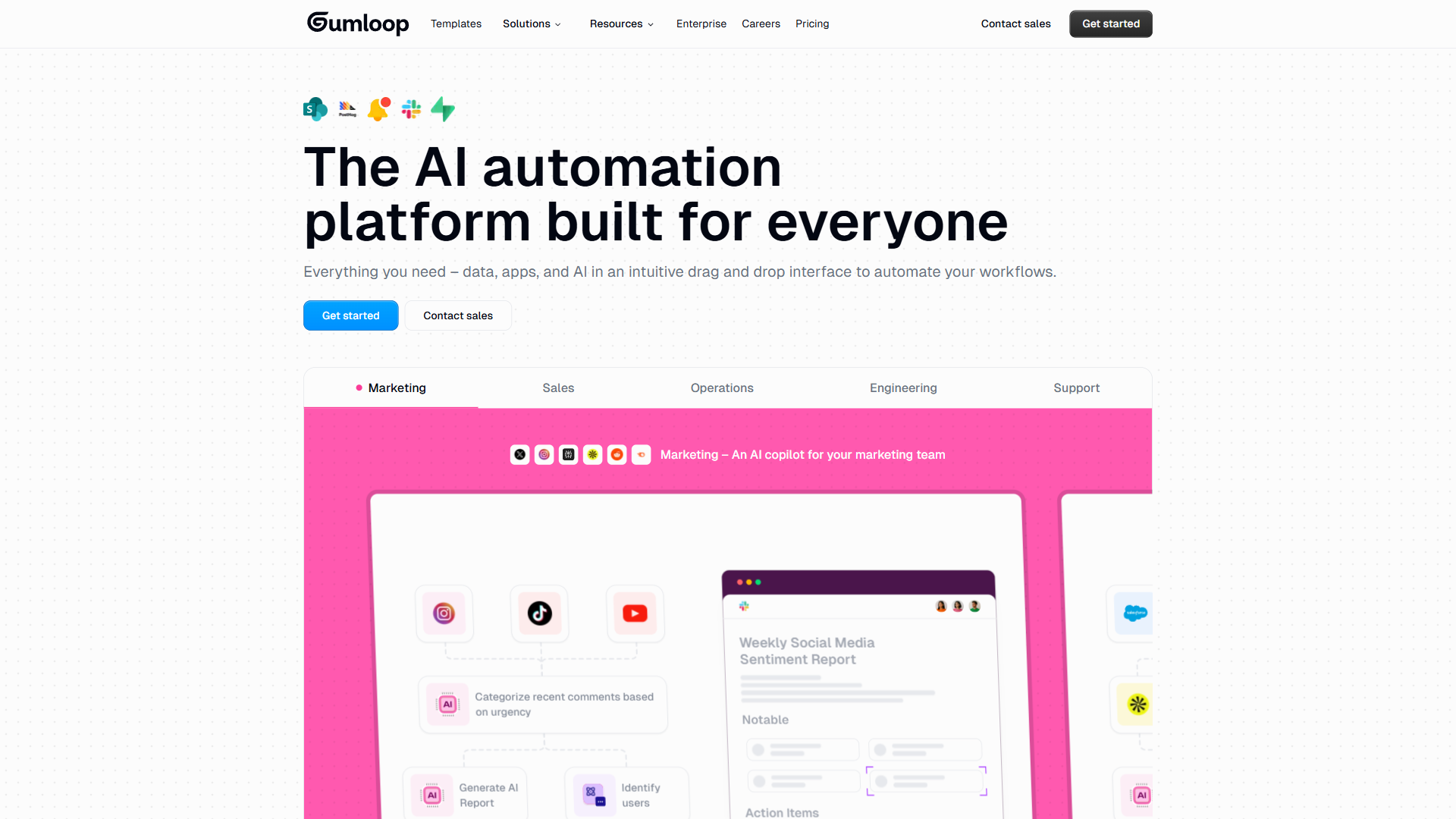
At its core, gumloop ai automation is about building workflows visually using a drag-and-drop canvas. Think of it as what you would get if Figma and Zapier had a child raised by OpenAI. Instead of linear “if this, then that” triggers, you work on an infinite canvas where you connect nodes - each representing an action like “scrape this URL,” “run this through GPT-5,” or “send results to Google Sheets.”
The platform ships with 115+ pre-built nodes covering common automation tasks, and it provides native access to frontier AI models including GPT-5, Claude 4 Opus, Claude 3.7 Sonnet, and Gemini 2.5 Pro. New models typically appear within days of release - a speed that most automation platforms cannot match.
What makes this different from bolting an AI step onto Zapier? Architecture. Gumloop was built from the ground up for AI workflows. Nodes for data extraction, categorization, scoring, and analysis are native primitives, not afterthoughts. This means building a workflow that scrapes 50 company websites, extracts key data points with AI, scores them against criteria, and pushes qualified leads to your CRM takes minutes instead of the hours it would require stitching together multiple tools.
Gumloop currently holds across review platforms. The platform is backed by Y Combinator, has raised over $20 million in funding, and counts companies like Webflow and Rippling among its enterprise customers.
Building Your First Gumloop Automation
The best way to understand Gumloop is to build something. Here is a practical walkthrough of creating a lead enrichment workflow - one of the most common use cases on the platform.
Step 1: Create a New Flow
After signing up (the free tier gives you 2,000 credits to experiment), you land on the dashboard. Click “New Flow” and you get a blank infinite canvas. This is where all the magic happens.
Step 2: Add Your Input Source
Drag an input node onto the canvas. For a lead enrichment workflow, this could be:
- Google Sheets node - Pull company names or URLs from a spreadsheet
- CSV Upload node - Import a list directly
- Webhook node - Receive data from another tool in real time (paid plans only)
Step 3: Add AI Processing Nodes
This is where Gumloop separates itself from traditional automation. Drag an AI node onto the canvas and connect it to your input. You can choose which model to use:
- Standard models (2 credits per call) - GPT-4.1 Nano, Claude 3.5 Haiku, Gemini 2.5 Flash. Good for simple classification and formatting tasks.
- Advanced models (20 credits per call) - GPT-4.1, Claude 4 Sonnet, Gemini 2.5 Pro. The sweet spot for most business workflows.
- Expert models (30 credits per call) - GPT-5, Claude 4 Opus. Reserve these for complex reasoning tasks where accuracy matters most.
Write your prompt directly in the node. For lead enrichment, something like: “Given this company URL, extract the company name, industry, employee count, and a one-sentence description of what they do. Format as JSON.”
Step 4: Add Web Scraping (Optional)
If your workflow needs data from websites, add a web scraping node before the AI processing step. Gumloop includes built-in scraping that handles dynamic content, pagination, and common anti-bot measures. There is also a Chrome extension that simplifies selector setup - you click on the elements you want and it generates the scraping configuration automatically.
Step 5: Connect Your Output
Add an output node to send results somewhere useful:
- Google Sheets - Append enriched data to a spreadsheet
- Slack notification - Alert your sales team about high-scoring leads
- CRM integration - Push directly to HubSpot, Salesforce, or other tools
- Email - Send formatted results to a distribution list
Step 6: Test and Deploy
Hit the “Run” button to test your flow with sample data. Gumloop shows you the output of each node so you can debug issues step by step. Once everything works, you can deploy the flow to run on a schedule or trigger it via webhooks.
Key Use Cases: Where Gumloop AI Automation Excels
Data Extraction and Web Scraping
This is arguably Gumloop’s strongest use case. The combination of built-in web scraping nodes and AI-powered extraction means you can pull structured data from unstructured web pages at scale.
Practical examples:
- Competitive pricing monitoring - Scrape competitor pricing pages weekly and have AI extract price changes, new tiers, and feature additions
- Job market research - Pull job postings from multiple boards, extract salary ranges, required skills, and seniority levels
- Review aggregation - Scrape review sites for specific products, then use AI to categorize sentiment themes
For example, a competitive analysis workflow can scrape 30 competitor websites, extracted pricing tiers with AI, and compiled everything into a formatted Google Sheet. The whole thing took about 20 minutes to build and 3 minutes to run. Doing it manually would have taken a full afternoon.
Document Processing
Gumloop handles document processing well thanks to its AI nodes that can read, interpret, and extract data from PDFs, images, and other file types.
Practical examples:
- Invoice processing - Extract vendor name, amounts, dates, and line items from PDF invoices, then push to accounting software
- Resume screening - Parse resumes against job requirements and score candidates automatically
- Contract analysis - Extract key terms, dates, and obligations from legal documents
Content Generation Pipelines
For marketing teams and content creators, Gumloop can power entire content workflows.
Practical examples:
- Blog post outlines - Feed a topic and target keyword into an AI node, generate an SEO-optimized outline, then expand each section
- Social media variations - Take one piece of long-form content and generate platform-specific versions for LinkedIn, X, and email newsletters
- Product descriptions - Pull product specs from a spreadsheet and generate unique descriptions for each item
Lead Enrichment and Sales Automation
One sales team using Gumloop reported 65% more meetings booked and a 207% revenue boost from automated outreach workflows. The platform’s strength here is combining web scraping with AI analysis.
A typical lead enrichment pipeline:
- Import company names from a CRM export
- Scrape each company’s website and LinkedIn page
- Use AI to extract key information (size, industry, tech stack, recent news)
- Score leads based on your ideal customer profile
- Push qualified leads to your CRM with enriched data
- Trigger personalized outreach sequences
This type of workflow is perfect for sales teams and small businesses that want enterprise-level automation without hiring developers.
Advanced Features That Power Users Need
Conditional Logic and Branching
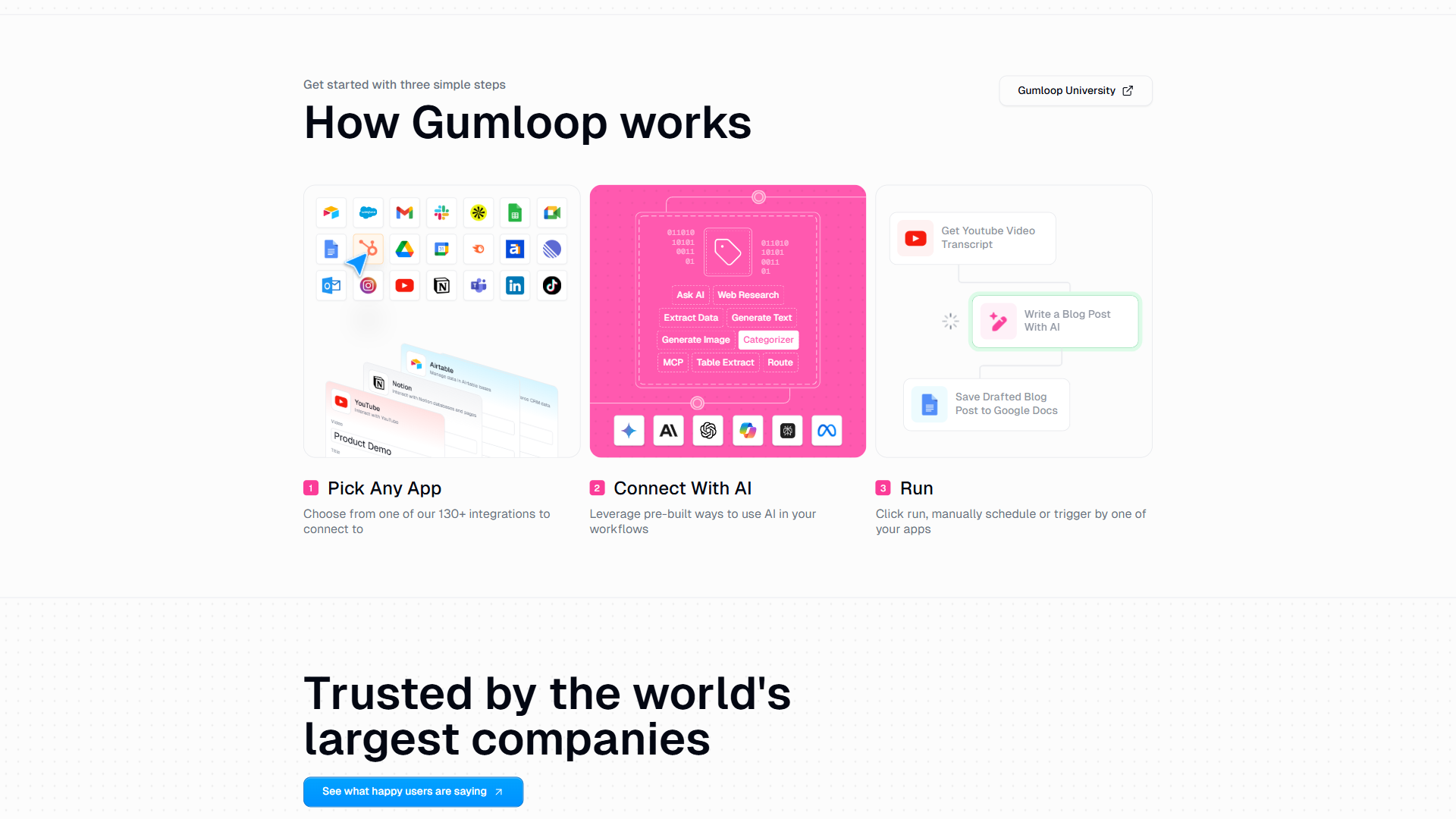
Not every item in a batch should follow the same path. Gumloop supports conditional branching where workflows split based on AI analysis or data values. For example, a lead scoring workflow might route high-score leads to immediate outreach, medium-score leads to a nurture sequence, and low-score leads to a “revisit later” list.
Webhook Triggers
Paid plans unlock webhook triggers, letting external events kick off your workflows automatically. When a new form submission arrives, when a CRM record updates, or when a monitoring tool flags an anomaly - webhooks can trigger the appropriate Gumloop flow without manual intervention.
Scheduled Automations
Set workflows to run on recurring schedules. A competitive analysis flow that runs every Monday morning. A lead enrichment pipeline that processes new signups daily. A content review workflow that checks published pages weekly. Scheduling is available on all plans, though the free tier has limitations.
List Processing and Concurrency
Gumloop handles batch operations through its list processing feature. Instead of running a workflow once, you can feed it a list of 500 company URLs and it processes them all. The concurrency limits vary by plan:
- Free: 2 concurrent list steps
- Solo: 5 concurrent list steps
- Team: 15 concurrent list steps
This matters for speed. A lead enrichment workflow processing 500 companies with 5 concurrent steps finishes roughly 2.5x faster than with 2 concurrent steps.
Bring Your Own API Key (BYOK)
Solo and higher plans let you use your own OpenAI, Anthropic, or Google API keys instead of consuming Gumloop credits. If you already have API credits or want more granular cost control, BYOK can significantly reduce your effective cost per workflow run.
Gummie AI Agent
Gumloop includes an AI assistant called Gummie that helps you build workflows. Describe what you want to automate in plain English, and Gummie suggests node configurations, writes prompts, and troubleshoots errors. It is not perfect - you will still need to refine the output - but it reduces the learning curve significantly for new users.
Integration Ecosystem
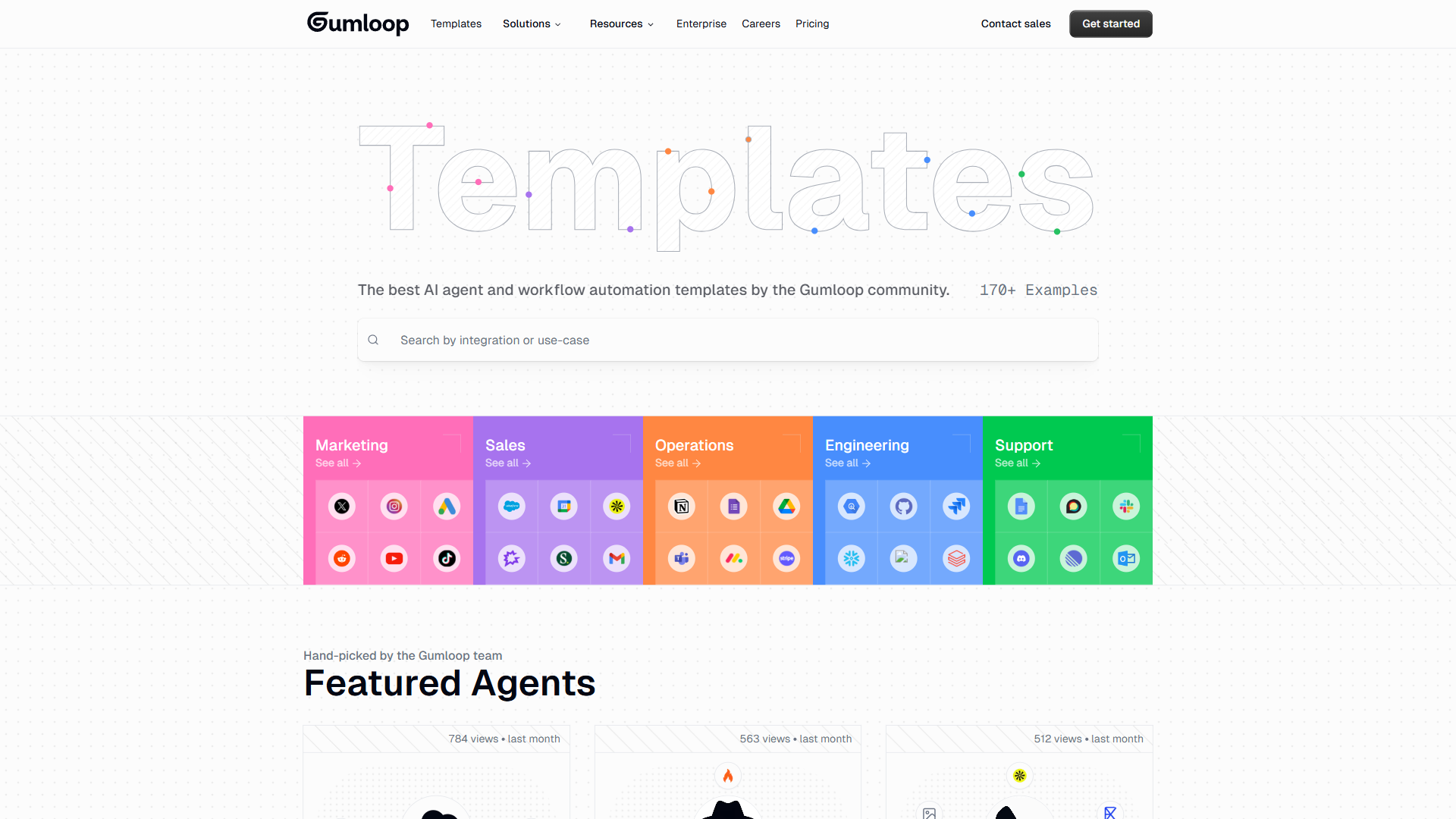
Gumloop ships with 115+ pre-built automation blocks. That is far fewer than Zapier’s 8,000+ integrations, but the blocks cover the tools most teams actually use:
- Productivity: Google Sheets, Google Docs, Notion, Slack, Gmail
- CRM: HubSpot, Salesforce
- Data: Airtable, CSV imports/exports
- AI Models: OpenAI (GPT-5, GPT-4.1), Anthropic (Claude 4, Claude 3.7), Google Gemini (2.5)
- Web: Built-in scraping, HTTP requests, webhooks
For tools without pre-built nodes, Gumloop offers custom API connection nodes. You configure the endpoint, authentication, and payload - it requires some technical knowledge, but it means you are never truly locked out of connecting a niche tool.
Pricing: Which Plan Fits Your Needs
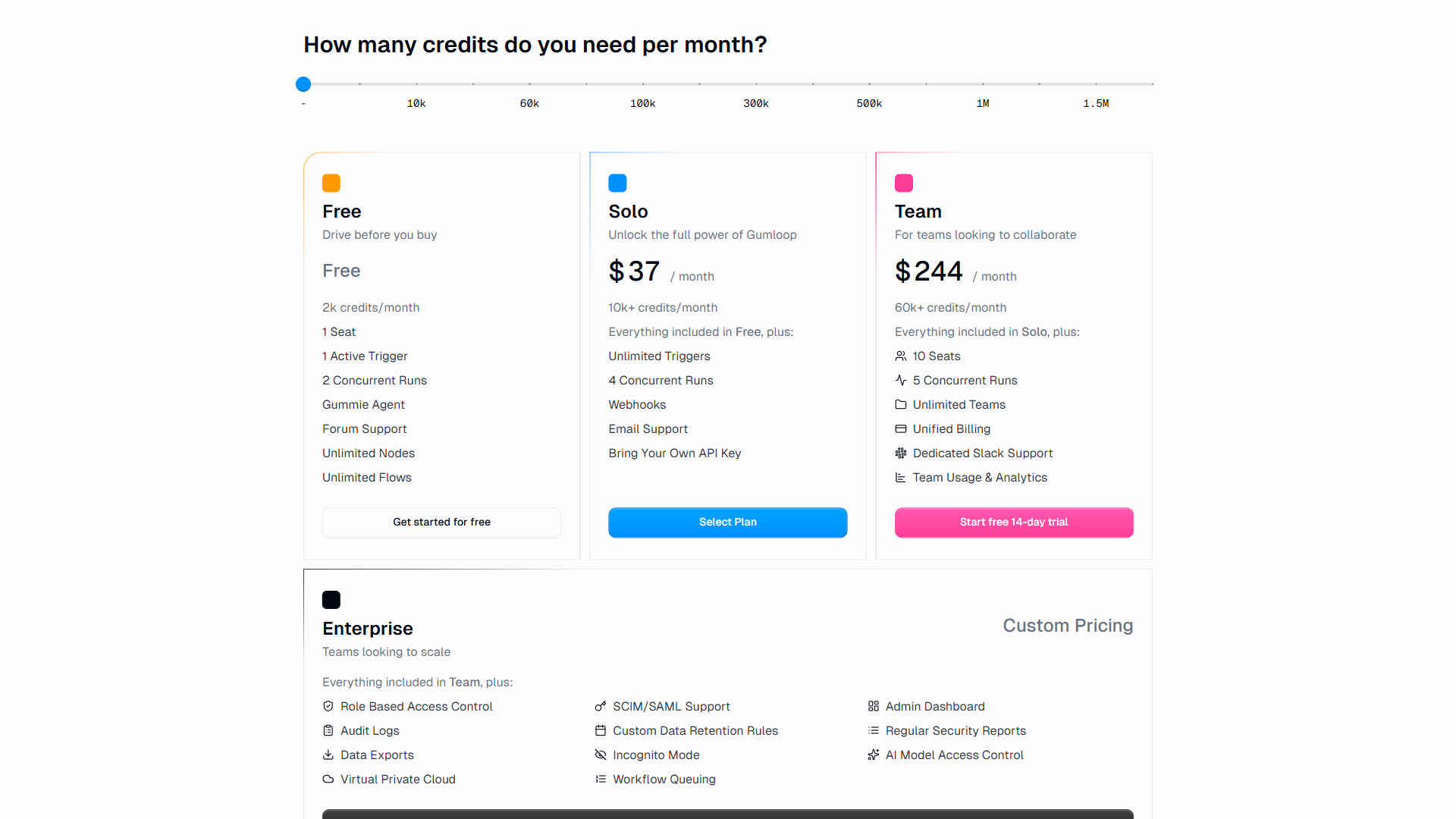
Gumloop uses credit-based pricing. Credits are consumed based on the AI model you choose (Standard = 2 credits, Advanced = 20 credits, Expert = 30 credits). Here is how the tiers break down:
Free - 2,000 credits, 2 concurrent flow runs, access to Standard AI models only. Good for testing the platform and building simple workflows. The credits will last about 4-5 days of active use.
Solo ($37/month) - 10,000 credits, 1 user seat, BYOK support, webhooks, event triggers, email support. Access to all AI model tiers including Advanced and Expert models. This is the sweet spot for individual users running AI-heavy workflows.
Team - 60,000 credits, up to 10 user seats, workspaces, organization templates, shared credentials and custom nodes, dedicated Slack support. The jump from Solo is steep, but it is the only way to get collaboration features.
Enterprise (custom pricing) - Unlimited seats, SSO/SCIM, SOC 2 and GDPR compliance, RBAC, audit logs, VPC deployment, dedicated account manager. For organizations with security and compliance requirements.
The credit-based model is one of Gumloop’s advantages over per-step competitors. A complex 100-step workflow costs the same as a 10-step workflow if they use the same AI processing. As your workflows grow in complexity, you do not get punished with linearly increasing costs.
One caveat: credit consumption can be hard to predict during testing. Expert models burn 30 credits per call, and if you are iterating on prompts, those credits disappear fast. Start with Standard models during development and switch to Advanced or Expert only when you need the quality.
Gumloop vs Alternatives: A Quick Comparison
| Feature | Gumloop | Zapier | Make |
|---|---|---|---|
| AI Focus | AI-first, native models | AI add-on (bolted on) | AI add-on |
| AI Models | GPT-5, Claude 4, Gemini 2.5 | Limited AI integrations | OpenAI only |
| Integrations | 115+ blocks | 8,000+ apps | 1,800+ apps |
| Pricing Model | Credit-based (flat scaling) | Per-step billing | Per-operation billing |
| Starting Price | $37/mo (Solo) | $29.99/mo (Starter) | $10.59/month (Core) |
| User Rating | |||
| Best For | AI-heavy workflows | Simple app-to-app triggers | Budget-friendly automation |
When to choose Gumloop: Your workflows require AI processing at their core - data extraction, content generation, categorization, scoring, or summarization. The native model access and credit-based pricing give you better economics than running the same workload through Zapier’s AI actions.
When to choose Zapier: You need simple app-to-app connections and the broadest possible integration library. If your automation is “when X happens in App A, do Y in App B” without AI processing, Zapier is easier and has more pre-built connectors.
When to choose Make: Budget is tight and your automation needs are moderate. Make starts at $10.59/month and handles many use cases that Gumloop’s $37/month Solo plan covers, just without the deep AI integration.
Tips for Getting the Most Out of Gumloop
Start with the free tier. The 2,000 credits are enough to build and test 2-3 real workflows. Do not commit to a paid plan until you have validated that your use case genuinely benefits from AI-native automation. For a broader frame of reference, see our best AI automation tools roundup before locking in.
Use Standard models during development. At 2 credits per call versus 30 for Expert models, you will iterate 15x more before running out of credits. Switch to Advanced or Expert models only after your prompts are refined.
Use Gumloop University. The documentation and learning resources cover the basics well. For advanced use cases, the community forum often has solutions that documentation does not cover yet.
Build modular flows. Instead of one massive workflow, build smaller flows that handle specific tasks and chain them together. This makes debugging easier and lets you reuse components across different automations.
Monitor credit usage weekly. Set a reminder to check your credit consumption. The biggest surprise for new users is how quickly Expert model calls add up, especially during the testing phase.
The Bottom Line
The gumloop ai automation platform fills a real gap in the automation landscape. If your workflows need AI to do more than just pass data between apps - if they need AI to think, categorize, extract, score, or generate - Gumloop’s AI-first architecture delivers that capability without requiring you to write code. The visual canvas builder makes complex flows surprisingly approachable, and the credit-based pricing rewards you as workflows scale rather than penalizing you.
The platform is not perfect. The integration library is small compared to Zapier, the learning curve is steeper than simpler tools, and credit consumption during testing can catch you off guard. But for teams, founders, and solopreneurs who are automating AI-heavy workflows, the Solo plan at $37/month is a strong investment.
Explore the full tool breakdown on our Gumloop tool page to see detailed feature scores, pricing comparisons, and user ratings.
Frequently Asked Questions
What is Gumloop automation?
Gumloop is an AI-first automation platform built on a visual drag-and-drop canvas. Unlike traditional tools that handle simple app-to-app triggers, Gumloop lets you connect nodes - each representing actions like scraping a URL, running data through GPT-5, or sending results to Google Sheets - making it suited for workflows that require AI to categorize, extract, score, or summarize data.
How much does Gumloop cost?
Gumloop uses credit-based pricing across four tiers: Free with 2,000 credits per month, Solo at $37/month with 10,000 credits, Team (60,000 credits and up to 10 seats), and Enterprise with custom pricing. Solo and higher plans also let you use your own OpenAI, Anthropic, or Google API keys instead of consuming Gumloop credits.
Is Gumloop better than Zapier?
It depends on your workflow. Choose Gumloop when AI processing is core to the automation - data extraction, content generation, categorization, scoring, or summarization. Choose Zapier when you need simple app-to-app triggers and the broadest possible integration library, since Zapier connects 8,000+ apps versus Gumloop’s 115+ blocks.
Which AI models does Gumloop support?
Gumloop provides native access to GPT-5, Claude 4 Opus, Claude 3.7 Sonnet, and Gemini 2.5 Pro. New models typically appear within days of release. Free tier users are limited to Standard models, while Advanced and Expert models are unlocked on the Solo plan and above.
Does Gumloop have a free trial?
Yes - the Free tier gives 2,000 credits per month, which is enough to build and test 2-3 real workflows before committing to a paid plan. Standard AI models cost 2 credits per call, so the free tier supports roughly 1,000 Standard model runs or about 100 Expert model runs each month.
Want to learn more about Gumloop?
Related Guides
- Make AI Agents Guide - Build AI agents on Make as an alternative
- AI Workflow Automation Maturity Model - Where your team stands on automation readiness
- Document Automation Guide - Automate document workflows end-to-end
Related Reading
- Gumloop Review - Full review with pricing, features, and ratings
- Zapier Review - Full review with pricing, features, and ratings
- Make Review - Full review with pricing, features, and ratings
- Best AI Automation Tools 2026 - How Gumloop stacks up against Zapier, Make, n8n, and other platforms
- AI Workflow Automation Maturity Model - Framework for evaluating where your team stands on automation readiness
- AI Tools for Small Business - Budget-friendly AI tools including automation platforms
External Resources
- Gumloop Official Website - Sign up for the free tier and explore the canvas builder
- Gumloop Documentation - Official docs covering nodes, integrations, and advanced features
- Gumloop vs Zapier (Official Comparison) - Gumloop’s own breakdown of how they differ from Zapier
Related Guides
- 15 Calendly Tips and Tricks to Save 4+ Hours Weekly
- ActiveCampaign CRM Setup: How to Set Up ActiveCampaign CRM
- ActiveCampaign Shopify Integration: Complete Setup
- ActiveCampaign WordPress: Forms, Tracking & Automation
- ActiveCampaign Zapier: 10 Automations to Build Today
- AI Agent Orchestration: Patterns That Scale in 2026
- AI Workflow Automation Maturity Model: 5 Levels
- Automate Approval Process No Code: Complete 2026 Guide
- Building AI First Workflows: A Practitioner's 2026 Guide
- Client Onboarding Automation: Automate Client Onboarding