
HubSpot Breeze AI is a unified artificial intelligence layer built into the HubSpot platform. It powers conversational assistance, automated agents, content generation, data enrichment, and customer intelligence across every hub. The official Breeze AI product page covers the full feature compilation, but this guide walks you through accessing Breeze, configuring it for your team, and putting it to work on real tasks. Whether you are on the free tier or an Enterprise plan, the HubSpot pricing page is the right starting reference for HubSpot Breeze AI pricing across every hub.
Prerequisites for HubSpot Breeze AI Setup
Before you begin, confirm you have the following in place.
HubSpot Account
You need an active HubSpot account. If you do not have one, sign up for a free HubSpot account to get started. The free plan includes limited Breeze AI features, so you can explore the basics before upgrading.
Admin or Super Admin Access
Enabling Breeze for your team requires admin privileges. Navigate to Settings > Account Management > Users & Teams to confirm your role. If you are not an admin, ask your account administrator to enable Breeze AI access for your user.
Supported Browser
HubSpot recommends Chrome, Firefox, Edge, or Safari. Breeze Assistant runs entirely in the browser - no desktop software installation is required. Mobile users can also install the Breeze Assistant app, covered in our HubSpot Breeze Assistant guide.
Understanding HubSpot Breeze AI Plan Tiers
Breeze features vary significantly by plan. Here is exactly what each tier includes.
Free Tools (Free)
The free plan gives you a CRM for up to 2 users, contact management, email tracking, meeting scheduling, and 2,000 emails per month. Breeze AI access is described as “limited” - you get basic AI suggestions in some tools, but you do not get full Breeze Assistant access (no HubSpot AI chatbot for live conversational workflows), no Breeze Customer Agent, no Breeze Prospecting Agent, no custom assistants, and no Breeze Studio.
Starter Customer Platform ($20/month, or $15/month annual billed annually)
Starter is the first tier with full Breeze AI Assistant access - effectively the HubSpot Breeze Copilot for everyday CRM work. You also get a basic Breeze Customer Agent, access to all five hubs (Marketing, Sales, Service, CMS, Operations), 1,000 marketing contacts, email templates and sequences, live chat and chatbots, and 2 deal/ticket pipelines per hub. There is no onboarding fee.
Professional Marketing Hub ($890/month, or $890/month annual billed annually)
Professional unlocks Breeze AI Assistant with memory - the assistant remembers context from previous conversations. You also get the Breeze Prospecting Agent, data enrichment capabilities, omnichannel marketing automation, A/B testing, blog creation with SEO tools, and custom reporting. There is a $3,000 one-time onboarding fee.
Professional Sales/Service Hub ($90/month, or $90/month annual billed annually)
This tier includes 3 core seats, the Breeze Customer Agent (targeting 50%+ ticket resolution), AI-powered workspaces, 3,000 calling minutes per user, multiple deal/ticket pipelines, and sales sequences. The onboarding fee is $1,500 for Sales Hub or $1,125 for Service Hub.
Enterprise Marketing Hub ($3,600/month, or $3,240/month billed annually)
Enterprise provides the full Breeze AI Suite, including Breeze Studio for building custom agents, Breeze Marketplace access, custom AI assistants, Data Hub with AI-powered data tools, unlimited automated emails, and multiple brand domains. The onboarding fee is $7,000.
Enterprise Sales/Service Hub ($1,500/month, or $1,350/month billed annually)
This plan includes the full Breeze AI Suite, an Advanced Customer Agent with voice capabilities, custom AI assistants via Breeze Studio, 12,000 calling minutes per user, and 100+ deal pipelines (Sales) or unlimited ticket pipelines (Service). The onboarding fee is $3,500.
Enabling Breeze AI Access
Once you know your plan tier, follow these steps to enable Breeze for your account.
Step 1: Open AI Settings
Click the gear icon in the top navigation bar to open Settings. In the left sidebar, navigate to AI (or search “AI” in the settings search bar). This is where all Breeze controls live. You will see toggles for Breeze Assistant, AI-generated content, and data enrichment features.
Step 2: Enable Breeze Assistant for Users
Toggle on Give users access to Breeze Assistant. This makes the Breeze Assistant icon visible in the top-right corner of every page in HubSpot for all users with the appropriate permissions. Once enabled, users can immediately start interacting with Breeze by clicking the icon. The toggle applies account-wide, so every user with the correct seat type will see the Breeze Assistant.
Step 3: Configure AI Permissions by Role
If you want to restrict Breeze access to specific teams, go to Settings > Users & Teams. Select a user or team, then adjust their permissions under the AI section. You can control who can use Breeze Assistant, who can access Breeze Studio, and who can create custom assistants. For example, you might enable Breeze Studio permissions only for marketing managers while giving all sales reps access to the standard Breeze Assistant.
Step 4: Review AI Content Generation Settings
Under Settings > AI > Content, review how HubSpot handles AI-generated content. You can choose whether to allow AI-drafted emails to send automatically or require manual review first. For teams new to Breeze, keeping manual review enabled adds a safety net while your team builds confidence with the tool.
Step 5: Set Up Brand Voice (Optional but Recommended)
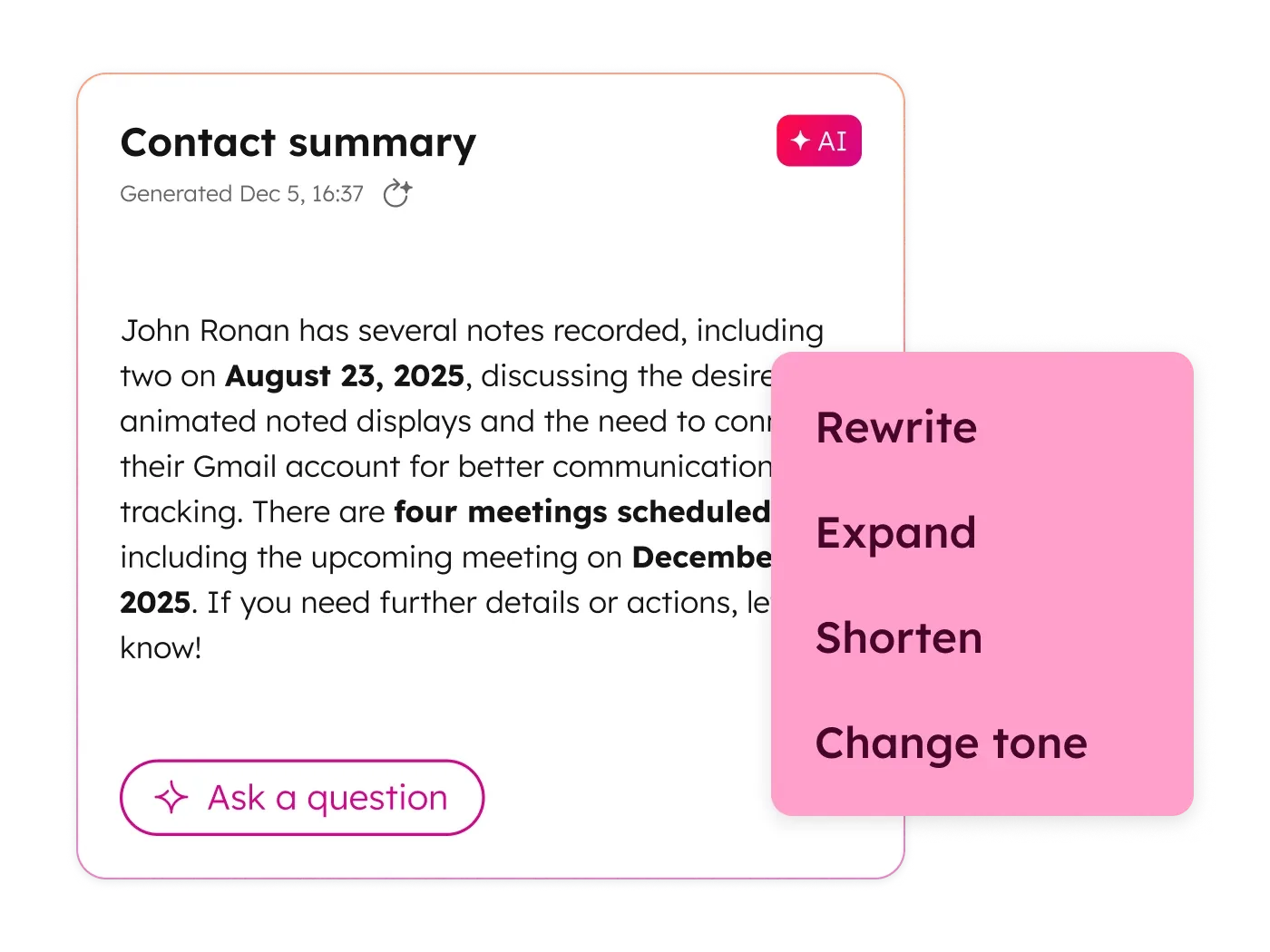
If you plan to use Breeze for content generation, navigate to Settings > Branding > Brand Voice. Define your company tone, style guidelines, and key messaging - the HubSpot Content Agent guide covers brand voice training in detail. Upload examples of your best-performing content so Breeze can learn your style. Breeze will apply this voice when generating or refining content across emails, blog posts, and social media. You can create multiple brand voices if you manage different brands or audience segments.
Configuring Breeze for Your Workflow
With Breeze enabled, configure it for your specific use case.
Connect Integrations
Breeze works with Zoom, Microsoft Teams, Google Meet, and other meeting tools for automatic meeting transcription and summaries. Navigate to Settings > Integrations > Connected Apps and connect your meeting platform. Click Connect App, search for your meeting tool, and follow the authorization steps. This is especially important if you want Breeze meeting insights - the HubSpot Breeze meeting insights guide walks through the full setup. Without a connected meeting tool, Breeze cannot generate post-meeting summaries or action items.
You should also connect your email provider (Gmail or Outlook) if you have not already. This allows Breeze to draft contextual follow-up emails based on recent conversations and CRM activity.
Set Up Knowledge Vaults
Knowledge vaults train Breeze on your company-specific information. Navigate to Breeze > Knowledge in the left sidebar to add sources. Click Add Source and upload product documentation, FAQ documents, brand guidelines, sales playbooks, and pricing sheets. You can add files in PDF, DOCX, or plain text format.
Organize your knowledge sources into logical categories - for example, create separate vaults for “Product Documentation,” “Sales Collateral,” and “Support FAQs.” The more context you provide, the more accurate Breeze responses become. Review and update your knowledge vaults quarterly to keep information current.
Configure Data Enrichment (Professional+ Only)
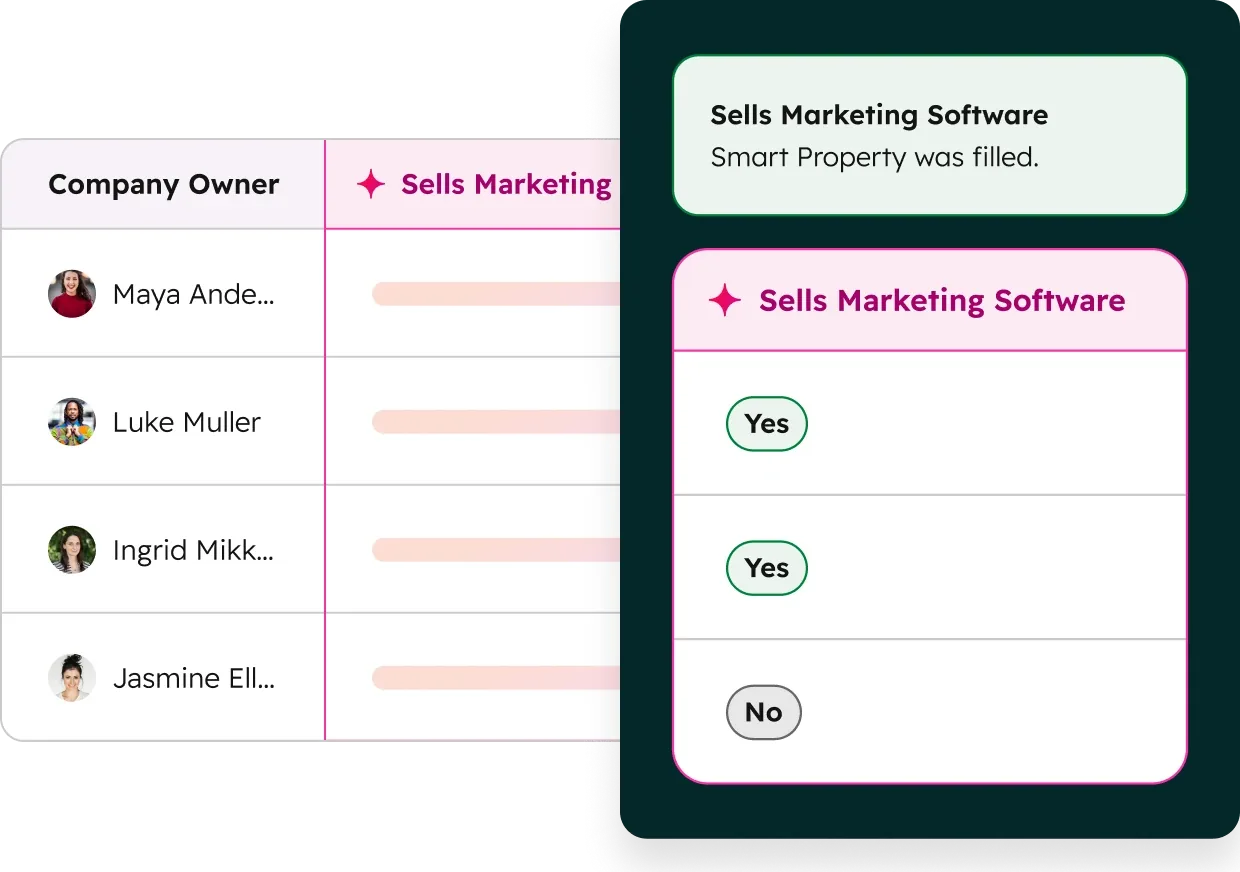
If you are on a Professional or Enterprise plan, enable data enrichment under Settings > AI > Data. Breeze will automatically fill in missing contact and company properties using external data sources - saving hours of manual research. This includes company size, industry, revenue range, technology stack, and social media profiles. Our HubSpot Breeze data agent guide and Breeze Intelligence buyer intent guide cover the deeper enrichment patterns.
Data enrichment runs continuously in the background. When a new contact or company enters your CRM, Breeze attempts to fill in any blank properties within minutes. You can review enrichment activity under Breeze > Intelligence > Enrichment Log to see which records were updated and what data was added.
Set Up Automation Rules (Optional)
Navigate to Automations > Workflows and explore the Breeze-powered automation templates. HubSpot provides pre-built workflows for common scenarios like lead scoring, ticket routing, and follow-up sequences. You can also create custom workflows that trigger based on Breeze agent actions - for example, automatically assigning a deal owner when the Prospecting Agent qualifies a new lead.
First Use: Breeze Assistant
The Breeze Assistant is the conversational interface you will use most frequently.
Opening Breeze Assistant
Click the Breeze Assistant icon in the top-right corner of any HubSpot page. A side panel opens where you can type prompts or select suggested actions.
Your First Prompt
Try a simple task to verify everything works. Type: “Summarize my open deals from this week.” Breeze will pull data from your CRM and provide a summary. If you see results, your setup is working correctly.
Using Suggested Prompts
Below the text input, Breeze displays context-aware suggested prompts based on the page you are viewing. On a contact record, you might see “Draft a follow-up email to this contact.” On a deal page, you might see “Summarize this deal history.” Click any suggestion to run it instantly.
Saving Prompts (Starter+ Only)
If you find yourself using the same prompt repeatedly, click the bookmark icon to save it. Saved prompts appear in your Breeze Assistant sidebar for quick access. This feature requires a Starter plan or higher.
Connected Apps
Click the Apps dropdown at the top of the Breeze Assistant panel to connect external tools. Select the checkbox next to each app you want to include in your prompts. This allows Breeze to pull data from connected services when answering questions.
First Use: Breeze Agents
Breeze Agents are purpose-built AI tools that handle specific tasks autonomously.
Customer Agent (Starter+ Plans)
The Customer Agent handles customer support inquiries automatically. See the official Customer Agent documentation for the latest capability list. Navigate to Breeze > Agents > Customer Agent to set it up. Start by selecting knowledge sources - choose the knowledge vaults you created in the configuration step. Then define escalation rules: specify when the agent should hand off to a human (for example, billing disputes or technical issues above a certain complexity). Choose which channels it monitors - live chat, email, or both.
Test the Customer Agent with a few sample questions before going live. Ask it something only your knowledge vault should answer. If the response is accurate, enable it for a small subset of incoming tickets first. On Professional plans, HubSpot targets 50%+ ticket resolution through the Customer Agent. Monitor resolution rates under Service > Conversations > Agent Performance.
Prospecting Agent (Professional Marketing Hub+)
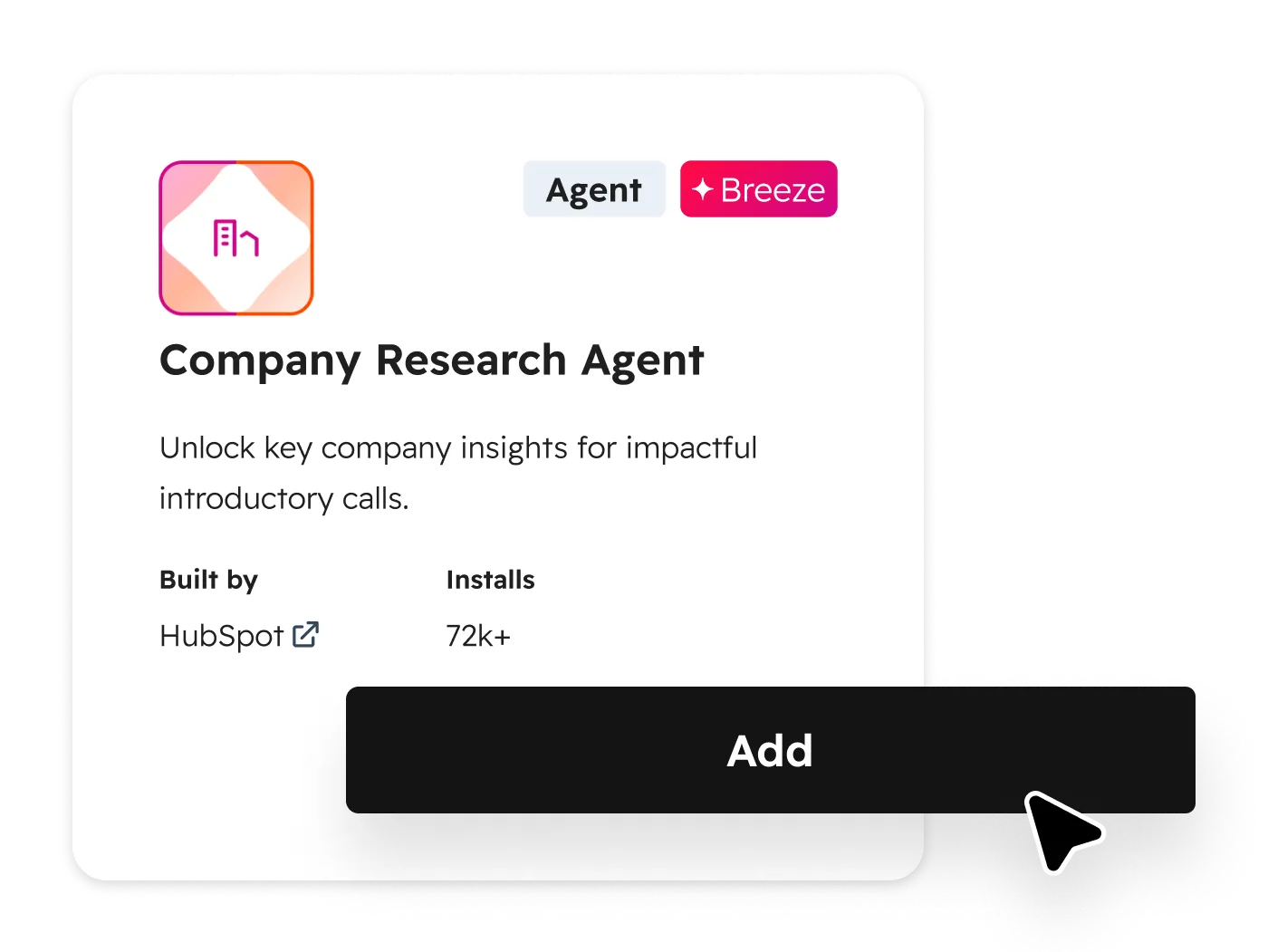
The Prospecting Agent identifies and reaches out to potential leads. Navigate to Breeze > Agents > Prospecting Agent to configure it. Define your ideal customer profile by specifying industry, company size, job titles, and geographic criteria. The agent uses your existing CRM data and Breeze Intelligence to find prospects that match these criteria - the HubSpot Breeze prospecting agent guide walks through advanced ICP targeting and outreach sequencing.
Set daily outreach limits to control volume. Start with 10-20 prospects per day and increase as you refine your targeting. The agent drafts personalized outreach messages based on each prospect’s company data and recent activity - review these drafts before enabling auto-send.
Data Agent (Professional+ Plans)
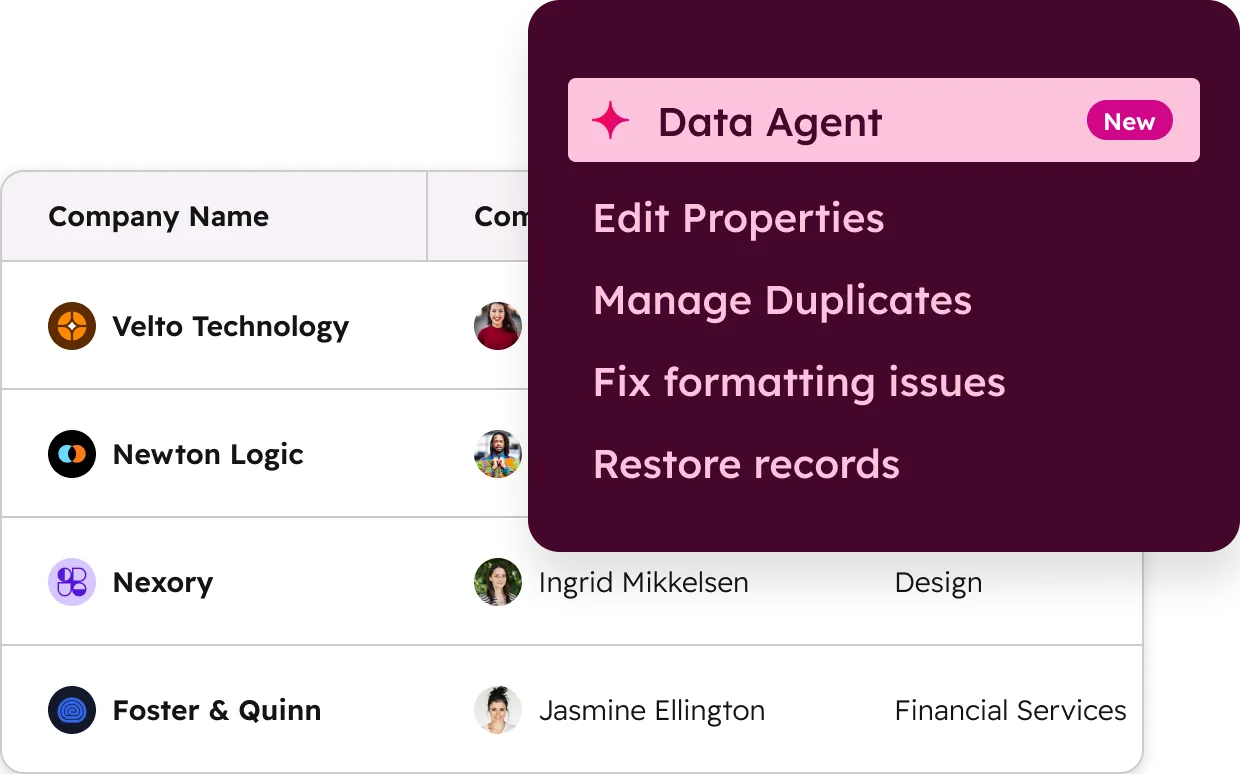
The Data Agent enriches your CRM records automatically. Navigate to Breeze > Agents > Data Agent to enable it. It fills in missing company information, job titles, phone numbers, revenue data, and social profiles. Select which properties you want the agent to enrich and set priority rules for which records get processed first (for example, prioritize contacts in active deals). The Data Agent runs continuously in the background once enabled and processes new records within minutes of creation.
Verifying Your Setup
After enabling Breeze, verify everything is working correctly.
Check 1: Breeze Assistant Responds
Open Breeze Assistant and type any prompt. You should receive a response within a few seconds. If the icon does not appear, confirm that the admin has enabled “Give users access to Breeze Assistant” in AI settings.
Check 2: CRM Data Access
Ask Breeze to pull a specific record: “Show me the contact record for [name].” If Breeze cannot access your CRM data, check your user permissions under Settings > Users & Teams.
Check 3: Connected Apps
If you connected Zoom or Teams, schedule a test meeting and verify that Breeze captures the meeting details afterward. Check the meeting record in HubSpot to confirm transcription and summary generation.
Check 4: Brand Voice (If Configured)
Ask Breeze to draft a short email or social media post. Review the output to confirm it matches your brand voice settings. If the tone feels off, revisit Settings > Branding > Brand Voice and refine your guidelines.
Next Steps After Setup
With Breeze up and running, explore these capabilities next.
Explore Breeze Studio (Enterprise Only)
Breeze Studio lets you build custom AI assistants tailored to your team’s specific workflows. You can create assistants for onboarding new hires, handling specific product inquiries, or automating internal processes. See the HubSpot Custom Breeze Assistant Builder Guide for a step-by-step walkthrough, and the HubSpot Breeze Studio guide for the wider Studio environment overview.
Set Up Meeting Insights
Connect your meeting tools and enable automatic transcription. Breeze will generate summaries, extract action items, and suggest follow-up tasks after every recorded meeting.
Try Content Generation
Use Breeze to draft blog posts, email campaigns, and social media content. The AI pulls from your brand voice settings and CRM data to create personalized, on-brand copy.
Review Analytics
Monitor how your team uses Breeze through the built-in reporting dashboard. Track which features get the most use, how many support tickets the Customer Agent resolves, and how much time Breeze saves across your organization.
Frequently Asked Questions
Is HubSpot Breeze AI available on the free plan?
The free plan includes “limited Breeze AI features” - basic AI suggestions in some tools. However, full Breeze Assistant access, the Customer Agent, the Prospecting Agent, custom assistants, and Breeze Studio are not available on the free tier. The Starter plan at $20/month (or $15/month annual billed annually) is the first tier with full Breeze Assistant access.
Do I need to install anything to use Breeze?
No. Breeze runs entirely within the HubSpot web application. There is no separate software to download or install. For mobile access, download the Breeze Assistant app from the App Store or Google Play Store to use voice input, file attachments, and on-the-go access.
Can Breeze access my existing CRM data?
Yes. Breeze reads your contacts, companies, deals, tickets, and other CRM records to provide contextual responses. It can summarize deal histories, draft personalized emails based on contact properties, and surface insights from your data. The depth of access depends on your user permissions.
What is the difference between Breeze Assistant and Breeze Agents?
Breeze Assistant is a conversational interface where you type prompts and receive responses - similar to chatting with an AI. Breeze Agents are autonomous tools that perform specific tasks without prompting, such as resolving support tickets (Customer Agent), finding prospects (Prospecting Agent), or enriching data records (Data Agent). The Assistant is reactive and the Agents are proactive.
How does Breeze handle data privacy?
HubSpot states that Breeze AI does not use your CRM data to train its underlying models. Your business data stays within your HubSpot account. Breeze uses large language models to process requests, but the prompts and responses are not shared across accounts or used for model training.
Want to learn more about HubSpot?
Related Reading
Related Guides
- HubSpot Breeze Assistant Guide
- HubSpot Custom Breeze Assistant Builder Guide
- HubSpot AI Content Generation Guide
- HubSpot Breeze Meeting Insights Guide
- HubSpot Breeze Studio Guide 2026
- HubSpot Breeze Prospecting Agent Guide 2026
- HubSpot Breeze Data Agent Guide 2026
External Resources
- HubSpot Breeze Knowledge Base - Official setup, configuration, and troubleshooting documentation for every Breeze feature
- HubSpot Breeze AI Product Overview - Feature compilation across the Breeze suite, including agents, Studio, and Intelligence
- HubSpot API Documentation - Reference for extending Breeze workflows with custom integrations and webhooks
Related Guides
- 15 Calendly Tips and Tricks to Save 4+ Hours Weekly
- ActiveCampaign AI Features: Active Intelligence Guide
- ActiveCampaign CRM Setup: How to Set Up ActiveCampaign CRM
- ActiveCampaign Lead Scoring: Complete Setup Guide (2026)
- AI Avatar Video Marketing: 2026 Walkthrough for Teams
- AI Chatbots Customer Service Setup: Complete 2026 Guide
- Apollo Sales Prospecting: Build a Predictable System
- Apollo Sequences Automated Outreach: Complete 2026 Guide
- ChatGPT Custom GPTs Guide - Save 130+ Hours a Year
- ChatGPT Tips And Tricks: 2026 Walkthrough for Teams