


Most people use ChatGPT the same way every day - open a new chat, type their request, add the same context they added yesterday, and hope for a decent response. It works, but it is slow and repetitive. Custom GPTs solve this by letting you build specialized AI assistants that already know your context, your preferences, and your workflows. Instead of explaining what you need every single time, you configure it once and get consistent, high-quality output from that point forward.
This chatgpt custom gpts guide walks you through building custom GPTs that deliver real productivity gains - not just novelty projects that collect dust in your sidebar. With over 3 million custom GPTs already created and around 159,000 published in the GPT Store, the feature has proven its value. Our ChatGPT tips and tricks guide covers the surrounding workflow features. The question is whether you are building GPTs that actually save time or just recreating what a well-crafted prompt could already do.
What Custom GPTs Actually Are (And Are Not)
What is a custom GPT? It is a specialized version of ChatGPT that you configure with specific instructions, knowledge files, and capabilities. Think of them as saved workflows with personality - they remember your context, follow your rules, and produce consistent output without you repeating yourself. Custom GPT examples range from meeting prep briefers to code review assistants, each tailored to a specific recurring task.
What custom GPTs are: Pre-configured assistants with persistent instructions and knowledge. Reusable tools you can share with your team or publish publicly. Wrappers around ChatGPT’s core capabilities with your specific context baked in.
What custom GPTs are not: Standalone applications, fine-tuned models, or replacements for dedicated software. They complement your existing tools by handling repetitive AI interactions.
The real value is compound time savings. A custom GPT that saves you 3 minutes per use and gets used 10 times a day saves over 130 hours per year from a single assistant.
Prerequisites: What You Need
To create a custom GPT in ChatGPT, you need a ChatGPT Plus subscription ($20/month minimum). There is no way to create custom GPT free - the free tier only allows you to use public GPTs from the GPT Store, not build or configure your own. Here is what each plan offers for custom GPT work:
| Plan | Price | Custom GPT Access |
|---|---|---|
| Free | $0/mo | Use public GPTs only (no creation) |
| Plus | $20/month | Create and publish GPTs, GPT Store access |
| Team | $30/month/user | Shared workspace GPTs, admin controls |
| Enterprise | Custom | Organization-wide GPTs, advanced security |
If you are just getting started, Plus is sufficient. Team becomes worthwhile when you have 3 or more people who would use the same custom GPTs - OpenAI’s Team plan documentation outlines the admin controls and shared workspace features.
Step-by-Step: Building Your First Custom GPT
This section of our chatgpt custom gpts guide covers how to create custom GPT assistants from start to finish. The entire setup takes around 10-15 minutes for a well-thought-out GPT.
Step 1: Access the GPT Builder
- Open ChatGPT and click your profile icon
- Select My GPTs from the dropdown
- Click Create a GPT in the top right corner
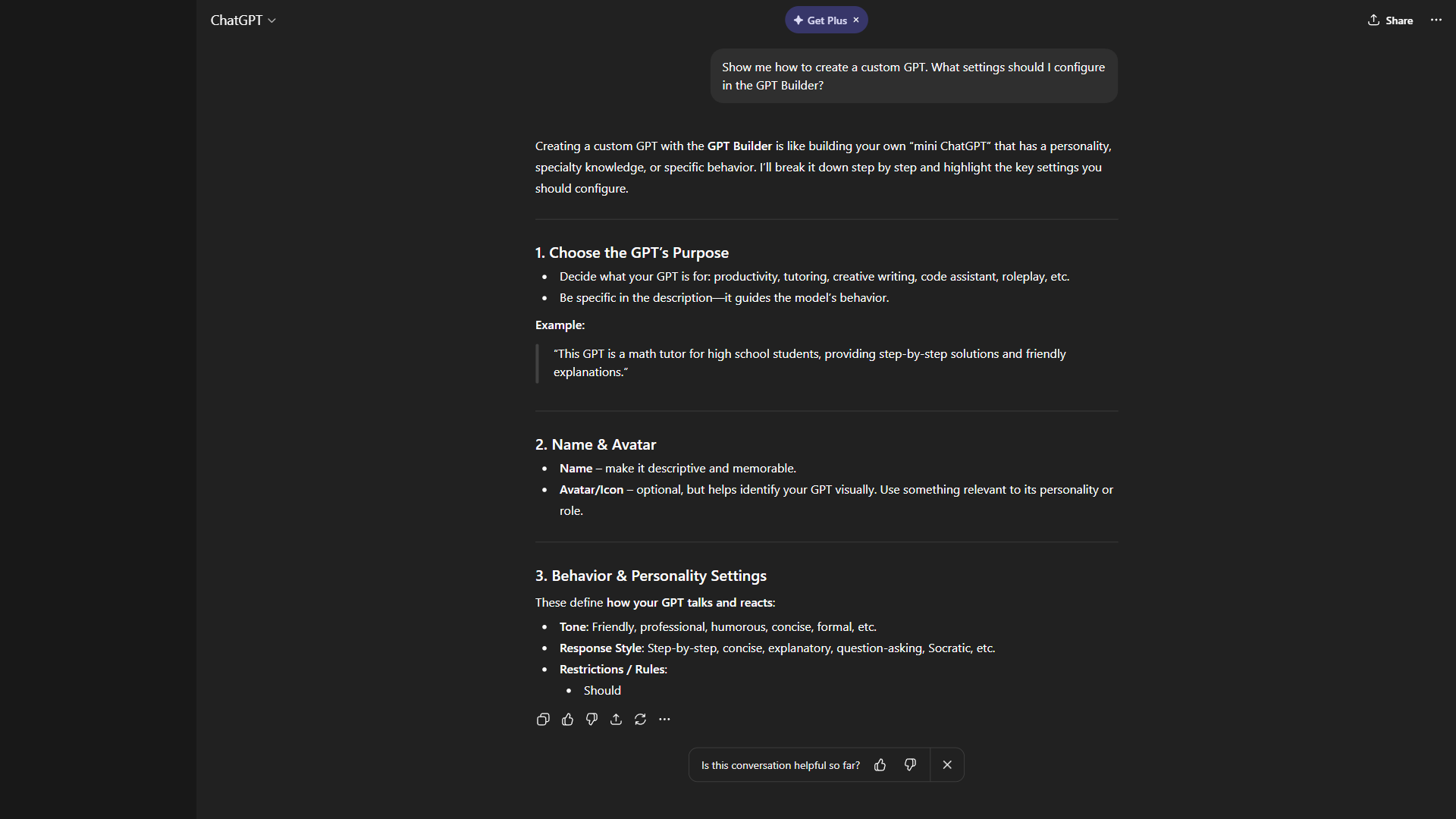
You will see two tabs: Create (conversational builder) and Configure (manual setup). Skip the Create tab - the Configure tab gives you full control and is faster once you know what you want.
Step 2: Define the Core Configuration
Name and Description: Choose a clear, specific name. “Marketing Email Writer” is better than “Email Helper” because it tells you exactly what the GPT does when you see it in your sidebar six months from now.
Instructions: This is the most important field. Write detailed instructions that cover:
- Role definition - What the GPT is and who it serves
- Output format - How responses should be structured
- Tone and style - Formal, casual, technical depth
- Constraints - What the GPT should never do
- Process - Step-by-step approach for handling requests
Here is an example instruction block for a blog outline generator:
You are a content strategist for B2B SaaS companies.

When given a topic:
1. Identify the search intent
2. Suggest a title with the primary keyword
3. Create an H2/H3 outline with 6-8 sections
4. Include suggested word count per section
5. Recommend 2-3 data points to include

Format: Markdown. Tone: Professional but conversational.
Never: Use clickbait titles or suggest thin sections.
Step 3: Upload Knowledge Files
Knowledge files give your GPT access to specific information that ChatGPT does not have. You can upload up to 20 files (PDFs, text files, spreadsheets, code files) per GPT. Focus on brand guidelines, product documentation, templates showing quality standards, and process documents.
Important: Do not upload sensitive data (API keys, passwords, financial records). Knowledge files can potentially be extracted through prompt injection - OWASP’s LLM Top 10 documents the attack patterns. Treat uploads as semi-public information.
Step 4: Enable Capabilities
Choose which tools your GPT can access:
- Web Browsing - Search the internet for current information
- DALL-E Image Generation - Create images within conversations
- Code Interpreter - Run Python code, analyze data, create charts
Enable only what your GPT needs. A writing assistant does not need Code Interpreter. A data analyst GPT probably does not need DALL-E. Fewer capabilities mean faster, more focused responses.
Step 5: Configure Actions (Advanced)
Actions let your GPT connect to external APIs - this is where custom GPTs go from “nice to have” to genuinely powerful. Connect to Google Sheets for data lookup, Zapier for multi-step automations, or your own APIs for proprietary data access. Actions require an OpenAPI schema definition, so start without them and add later as you identify integration needs.
Step 6: Test and Iterate
Before publishing, test your GPT with real scenarios:
- Happy path - Give it a standard request it was designed for
- Edge cases - Try unusual inputs or ambiguous requests
- Stress test - Ask something outside its scope to see how it handles it
- Output quality - Compare results against manually doing the same task
Iteration is where most people stop too early. Your first version will be around 60-70% as good as it could be. Spend another 15 minutes refining instructions based on test results, and you will hit 90%+.
5 Custom GPTs That Actually Save Time
The difference between a useful custom GPT and a novelty one comes down to frequency of use and consistency of need. Here are five GPTs worth building, each addressing a real productivity gap.
1. Meeting Prep Briefer
What it does: Takes a meeting title, attendees, and context, then produces a one-page prep document with attendee backgrounds, discussion points, questions to ask, and action item templates.
Why it works: Most professionals spend 5-10 minutes prepping for each meeting or skip prep entirely. This GPT cuts that to under a minute. Structure output as: Attendee Summary, Agenda Items, Suggested Questions, Action Item Template.
Time saved: Around 30-45 minutes per day for someone with 5+ meetings. Our meeting prep AI workflow guide goes deeper on the prompts and source data.
2. Client Communication Drafter
What it does: Given a situation (project update, scope change, delay notification), drafts a professional client email matching your company’s voice.
Why it works: Client emails take disproportionate time because the stakes feel high. Upload your brand voice guidelines, 10-15 example emails, and client FAQ document. The GPT produces first drafts that need only minor edits.
Time saved: Around 15-20 minutes per email, with 3-5 client emails per day for account managers.
3. Weekly Report Generator
What it does: Takes bullet-point notes about your week and formats them into a structured report matching your company’s template.
Why it works: Weekly reports are universally dreaded because they are boring to write but important to deliver. Upload your report template, and the GPT quantifies accomplishments and flags blockers with suggested solutions.
Time saved: Around 20-30 minutes per week.
4. Code Review Assistant
What it does: Reviews code snippets against your team’s coding standards, suggests improvements, and flags potential issues.
Why it works: Upload your style guide and common anti-patterns. Not a replacement for human code review, but an excellent first pass that catches formatting issues and naming inconsistencies before a teammate sees it. Pair it with Claude Code or GitHub Copilot for live editor feedback.
Time saved: Around 10-15 minutes per pull request for both author and reviewer.
5. Content Repurposer
What it does: Takes a long-form piece of content (blog post, whitepaper, presentation) and creates derivative content: social media posts, email summaries, tweet threads, and newsletter blurbs.
Why it works: Content repurposing is pure time drain - the thinking is already done, but reformatting for each channel is tedious. Configure it to create LinkedIn posts, Twitter/X threads, newsletter summaries, and email teasers while matching your brand voice. Our AI content repurposing guide covers the surrounding workflow.
Time saved: Around 45-60 minutes per piece of content repurposed.
Should You Build a Custom GPT or Use an Existing One?
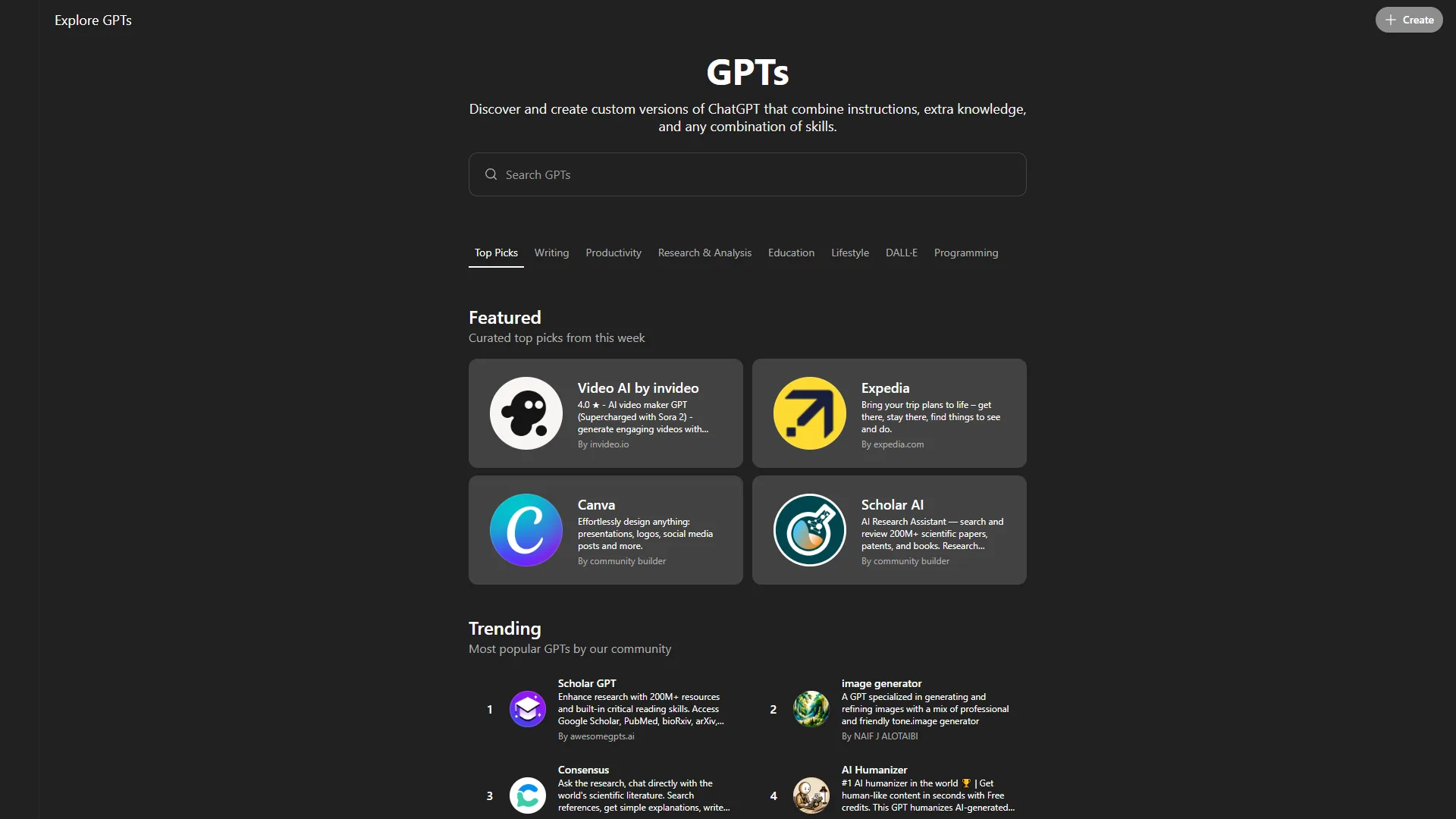
Before building from scratch, check the GPT Store. With around 159,000 public GPTs available, someone may have already built what you need.
Build your own when: Your use case requires proprietary knowledge, specific output formatting, or Actions connected to your tools. Custom GPTs are also better when you plan to iterate over time.
Browse existing GPTs when: The task is generic (grammar checking, translation, summarization) or you want to evaluate a concept before investing time in building.
Pro tip: Even when you find a good public GPT, consider building your own version if you will use it frequently. Public GPTs cannot be customized, and their creators can change or remove them at any time.
How Do You Troubleshoot Common Custom GPT Issues?
Inconsistent output quality: Your instructions are too vague. Instead of “write in a professional tone,” specify “use short sentences, avoid jargon, and structure every response with a summary paragraph followed by bullet-point details.”
GPT ignores knowledge files: Add a line in your instructions: “Always reference the uploaded [filename] when answering questions about [topic].” Break large files into smaller, focused documents.
GPT goes off-script: Add a scope constraint: “If asked about topics outside [your domain], politely redirect the user and explain what you can help with.”
Slow response times: Disable unused capabilities and simplify instructions. If you have more than 1,000 words of instructions, look for consolidation opportunities. OpenAI’s prompt engineering guide has additional tightening patterns worth applying.
Version Control: Keeping Your GPTs Sharp
Custom GPTs are not “set and forget” tools. Treat them like software with regular updates:
- Keep a running note of every time a GPT produces subpar output
- Monthly, review those notes and update instructions to address patterns
- Test the updated GPT against your saved subpar examples
- Archive GPTs you have not used in 60+ days
This chatgpt custom gpts guide emphasizes iteration because the difference between a mediocre GPT and a great one usually comes down to 3-4 instruction refinements based on real usage.
Connecting Custom GPTs to Your Workflow
The real productivity unlock happens when custom GPTs integrate with your broader tool stack through Actions:
- ChatGPT + Zapier: Your client email GPT drafts the message, then a Zapier action sends it through your email platform
- ChatGPT Google Workspace: Connect to Google Sheets for data lookup or write directly to Google Docs
- ChatGPT + Project Management: Feed your weekly report GPT with data from Notion or Asana through API actions
- ChatGPT + CRM: Build a sales prep GPT that pulls prospect data from HubSpot or Salesforce before calls
These integrations require some technical setup (OpenAPI schemas and authentication), but they transform custom GPTs from isolated chatbots into genuine workflow automation.
ROI: Quantifying the Time Investment
Building a custom GPT takes 15-30 minutes. A GPT that saves 5 minutes per use and gets used 10 times per week saves around 43 hours per year - a 129x return on a 20-minute investment. Even a conservative scenario (2 minutes saved, 5 uses per week) delivers over 8 hours per year. Microsoft’s Work Lab research reports similar productivity multipliers across knowledge work.
The ChatGPT Plus subscription ($20/month) pays for itself if custom GPTs save you more than 15 minutes per month. For most professionals, a single well-built GPT clears that threshold in the first week.
For a deeper look at ChatGPT’s full feature set including Deep Research, Canvas, and Voice mode, see our comprehensive review.
Advanced Tips for Power Users
Chained GPTs: Use the output of one GPT as input for another. Research GPT produces findings, then Writing GPT turns them into a blog post. This chatgpt custom gpts guide approach mirrors how specialist teams work.
Conversation starters: Configure 4 starters representing your most common use cases. This saves typing and reminds you of the GPT’s full capabilities.
Structured prompts within instructions: Include prompt templates directly in your instructions. Example: “When the user says ‘new post,’ ask for: topic, target audience, tone, word count, and key points.”
Team GPT libraries: On Team or Enterprise plans, create a shared library of approved GPTs to standardize how your team handles common tasks. Our ChatGPT for teams guide covers governance and rollout.
The Bottom Line: ChatGPT Custom GPTs Guide Recap
Custom GPTs represent one of the highest-ROI features in ChatGPT’s toolkit. The setup cost is minimal - 15 to 30 minutes per GPT - and the compound time savings grow with every use. Start with one GPT that addresses your most repetitive task, refine it over 2-3 iterations, and expand from there.
The professionals getting the most value from this chatgpt custom gpts guide approach are not building dozens of GPTs. They are building 3-5 excellent ones that handle their most frequent, most time-consuming communication and analysis tasks. Focus on frequency and consistency of need, and you will build GPTs that genuinely transform your daily workflow.
Ready to get started? Visit ChatGPT to explore the GPT Builder, or browse the GPT Store to see what others have created in your industry.
Frequently Asked Questions
Do you need a paid ChatGPT subscription to create custom GPTs?
Yes. Custom GPT creation requires a ChatGPT Plus subscription at $20/month minimum. The free tier only allows you to use public GPTs from the GPT Store - it does not include the ability to build, configure, or publish your own custom GPTs. Team and Enterprise plans add shared workspace GPTs and admin controls.
How much time can a custom GPT realistically save?
A custom GPT that saves 3 minutes per use and runs 10 times a day saves over 130 hours per year from a single assistant. Even a conservative setup - 2 minutes saved, 5 uses per week - delivers more than 8 hours per year. The ChatGPT Plus subscription pays for itself if custom GPTs save you more than 15 minutes per month.
What types of files can you upload to a custom GPT?
You can upload up to 20 files per GPT, including PDFs, text files, spreadsheets, and code files. Useful uploads include brand guidelines, product documentation, quality-standard templates, and process documents. Avoid uploading sensitive data such as API keys, passwords, or financial records, as knowledge files can potentially be extracted through prompt injection.
When should you build a custom GPT versus using an existing one from the GPT Store?
Build your own when your use case requires proprietary knowledge, specific output formatting, or API actions connected to your tools. Browse existing GPTs when the task is generic - grammar checking, translation, or summarization - or when you want to evaluate a concept before investing time. Even if you find a good public GPT, building your own is worth it for frequent tasks, since public GPTs can be changed or removed by their creators.
Can custom GPTs share data between team members?
On ChatGPT Team and Enterprise plans, you can publish a custom GPT to your workspace so every member uses the same instructions, knowledge files, and Actions. The conversations themselves stay private to each user, but the GPT’s configuration is shared. This chatgpt custom gpts guide approach is how most marketing and engineering teams standardize repetitive AI tasks.
Want to learn more about ChatGPT?
Related Guides
- ChatGPT Tips and Tricks - Master advanced ChatGPT features for daily productivity
- ChatGPT Prompts Guide 2026 - Prompt engineering techniques for better AI output
- AI Content Writing Workflow - End-to-end guide for AI-assisted content creation
- AI Productivity Trends 2026 - The shifts shaping how teams work with AI
Related Reading
Tools covered in this article:
- ChatGPT - AI assistant with custom GPT creation and GPT Store
More ChatGPT and AI productivity guides:
- 25 ChatGPT Tips and Tricks - Master advanced ChatGPT features for daily productivity
- ChatGPT Prompts Guide 2026 - Prompt engineering techniques for better AI output
- Claude vs ChatGPT - Feature comparison of the leading AI assistants
- AI Content Writing Workflow - End-to-end guide for AI-assisted content creation
External Resources
- OpenAI Official Guide to Creating Custom GPTs
- ChatGPT Pricing and Plan Comparison
- OpenAI Actions Documentation for Custom GPT Integrations
Related Guides
- 15 Calendly Tips and Tricks to Save 4+ Hours Weekly
- Activecampaign AI Content Generation: Complete 2026 Guide
- ActiveCampaign AI Features: Active Intelligence Guide
- Activecampaign Automation Builder: Complete 2026 Guide
- ActiveCampaign CRM Setup: How to Set Up ActiveCampaign CRM
- ActiveCampaign Lead Scoring: Complete Setup Guide (2026)
- AI Agent Orchestration: Patterns That Scale in 2026
- AI Avatar Video Marketing: 2026 Walkthrough for Teams
- AI Chatbots Customer Service Setup: Complete 2026 Guide
- AI Content Writing Workflow: 2026 Walkthrough for Teams