




A notion database templates guide is a structured resource for building Notion databases that go beyond basic tables. Using relations, rollups, formulas, and multiple views, these templates transform flat data into dynamic systems. Common examples include a CRM, project tracker, content calendar, and habit tracker - each configured with specific properties and views.
A practical guide to building powerful Notion database templates - from simple trackers to relational systems that run your entire workflow.
Most Notion users never get past basic tables. They open a stock Notion page template, add a few columns, and wonder why the tool still feels like a glorified spreadsheet. The real power of Notion databases lives in relations, rollups, formulas, and views - features that transform a flat table into a dynamic system that tracks, calculates, and surfaces exactly what you need.
Based on research into Notion database templates across common use cases, team workflows, and community examples, the patterns emerge that separate throwaway tables from systems people actually use every day.
This Notion database templates guide walks you through four battle-compared database templates - a CRM, a project tracker, a content calendar, and a habit tracker - with the exact property configurations and view setups that make each one work. Whether you are new to Notion databases or you want to edit a Notion database template you already use, you will find actionable patterns you can implement today.
Why Notion Databases Beat Spreadsheets
Before diving into templates, it helps to understand what makes Notion databases fundamentally different from spreadsheets. A Google Sheet stores data in rows and columns. A Notion database stores data in pages - each row is actually a full page that can contain any amount of structured and unstructured content. Even Airtable, which shares some database DNA with Notion, handles this differently.
This distinction matters for three reasons:
-
Rich content per entry. Each database row opens into a page where you can add notes, embed files, create sub-databases, and write long-form content. A CRM contact is not just a name and email - it is a page with meeting notes, deal history, and linked tasks.
-
Multiple views of the same data. One database can display as a table, board, calendar, timeline, gallery, or list. Your project tracker shows as a Kanban board for daily standups, a timeline for stakeholder updates, and a table for data exports - all from the same underlying data.
-
Relations and rollups. Databases can link to each other. A project links to its tasks, which link to their assignees, which link to their departments. Rollups then aggregate data across those connections - showing total hours per project, task completion rates per person, or revenue per client.
According to Notion’s own documentation, databases are the most-used feature among teams on paid plans, with the average Business workspace running 15-20 interconnected databases.
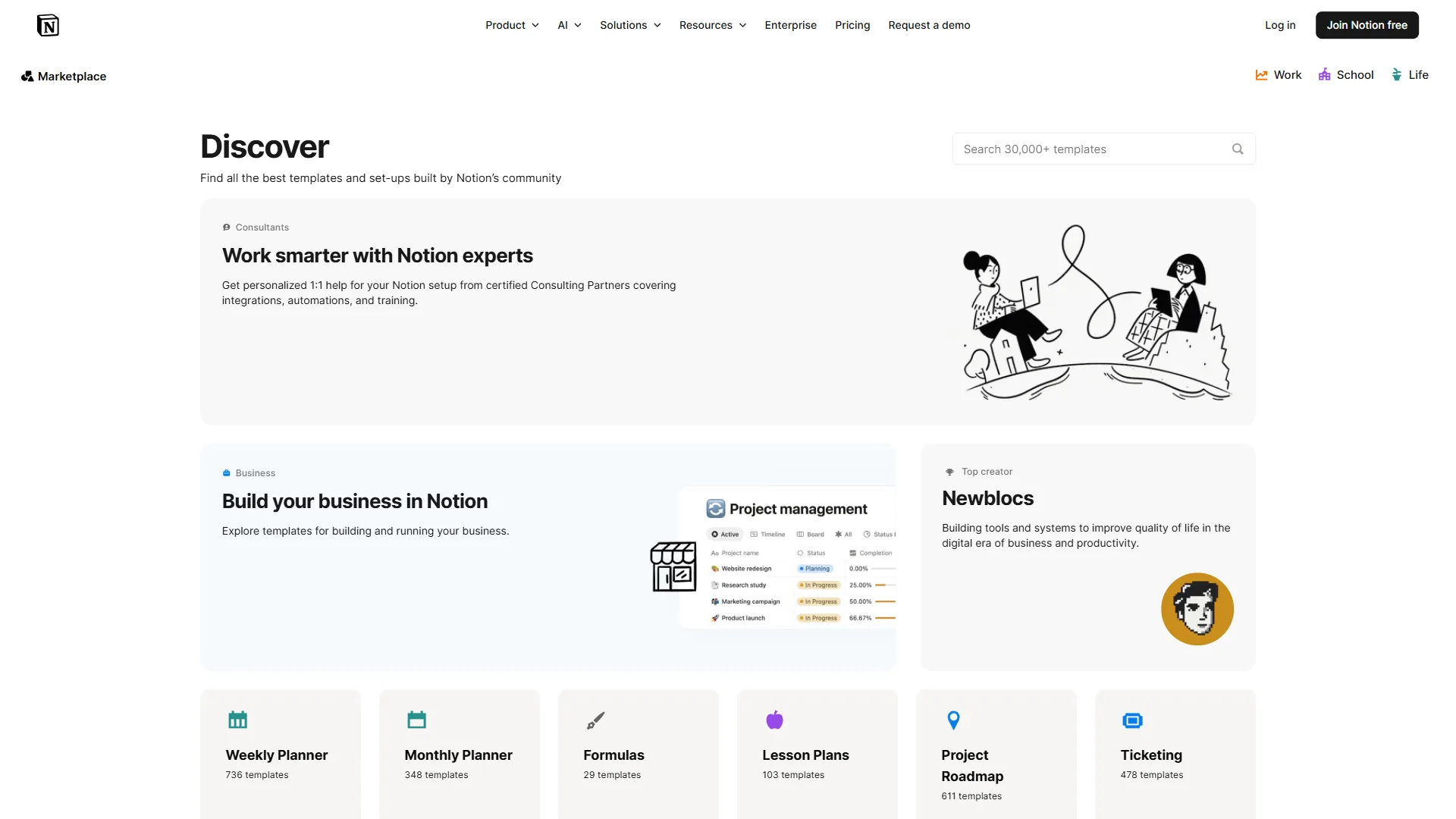
Which Notion Database Properties Do You Actually Need?
Before building templates, make sure you understand these property types. They are the building blocks for everything that follows.
| Property Type | What It Does | Example Use |
|---|---|---|
| Select | Single choice from a dropdown | Status, priority, category |
| Multi-select | Multiple tags from a dropdown | Skills, labels, channels |
| Relation | Links to another database | Project linked to Tasks |
| Rollup | Aggregates data from relations | Count of incomplete tasks |
| Formula | Calculates values from properties | Days until deadline |
| Date | Stores dates with optional end date | Start/end for timeline view |
| Person | Assigns workspace members | Task owner, reviewer |
| Checkbox | Boolean true/false | Done, approved, paid |
| URL | Clickable link | Website, social profile |
| Files & media | Attachments | Contracts, screenshots |
Understanding these properties is essential for any Notion database templates guide. If you want to see how Notion stacks up against other AI-powered database tools, the property system is its biggest differentiator. The official property reference documents the data type behavior for each option. The properties you choose define what your database can do. A project tracker without a Date property cannot use timeline view. A CRM without a Relation to a Deals database cannot show revenue per contact. Think about the questions you want to answer before adding properties - every property should serve a specific purpose.
Template 1: Lightweight CRM
This CRM template works for freelancers, small agencies, and anyone who needs to track contacts, deals, and follow-ups without the overhead of Salesforce or HubSpot. For a deeper dive into purpose-built CRMs, our best CRM software 2026 roundup compares dedicated platforms.
Database Structure
Contacts Database:
| Property | Type | Configuration |
|---|---|---|
| Name | Title | Contact’s full name |
| Company | Text | Organization name |
| Primary contact email | ||
| Phone | Phone | Phone number |
| Status | Select | Lead, Active, Inactive, Lost |
| Source | Select | Referral, Inbound, Cold, Event |
| Last Contacted | Date | Manual or automated update |
| Deals | Relation | Links to Deals database |
| Total Revenue | Rollup | Sum of Deal amounts |
| Notes | Text | Quick reference notes |
Deals Database:
| Property | Type | Configuration |
|---|---|---|
| Deal Name | Title | Descriptive deal name |
| Contact | Relation | Links back to Contacts |
| Amount | Number (currency) | Deal value in dollars |
| Stage | Select | Discovery, Proposal, Negotiation, Closed Won, Closed Lost |
| Close Date | Date | Expected or actual close |
| Probability | Number (percent) | Win likelihood |
| Weighted Value | Formula | prop("Amount") * prop("Probability") / 100 |
Key Views to Create
- Board view by Stage - Drag deals through your pipeline visually. This is your daily working view.
- Table view filtered to “Last Contacted > 14 days ago” - Your follow-up reminder list. Anyone you have not contacted in two weeks surfaces automatically.
- Gallery view grouped by Status - A visual contact directory showing profile images and key details at a glance.
Power User Tip
Create a formula property called “Days Since Contact” using dateBetween(now(), prop("Last Contacted"), "days"). Then create a filtered view showing only contacts where this number exceeds 14. This gives you a built-in follow-up system without any external integrations.
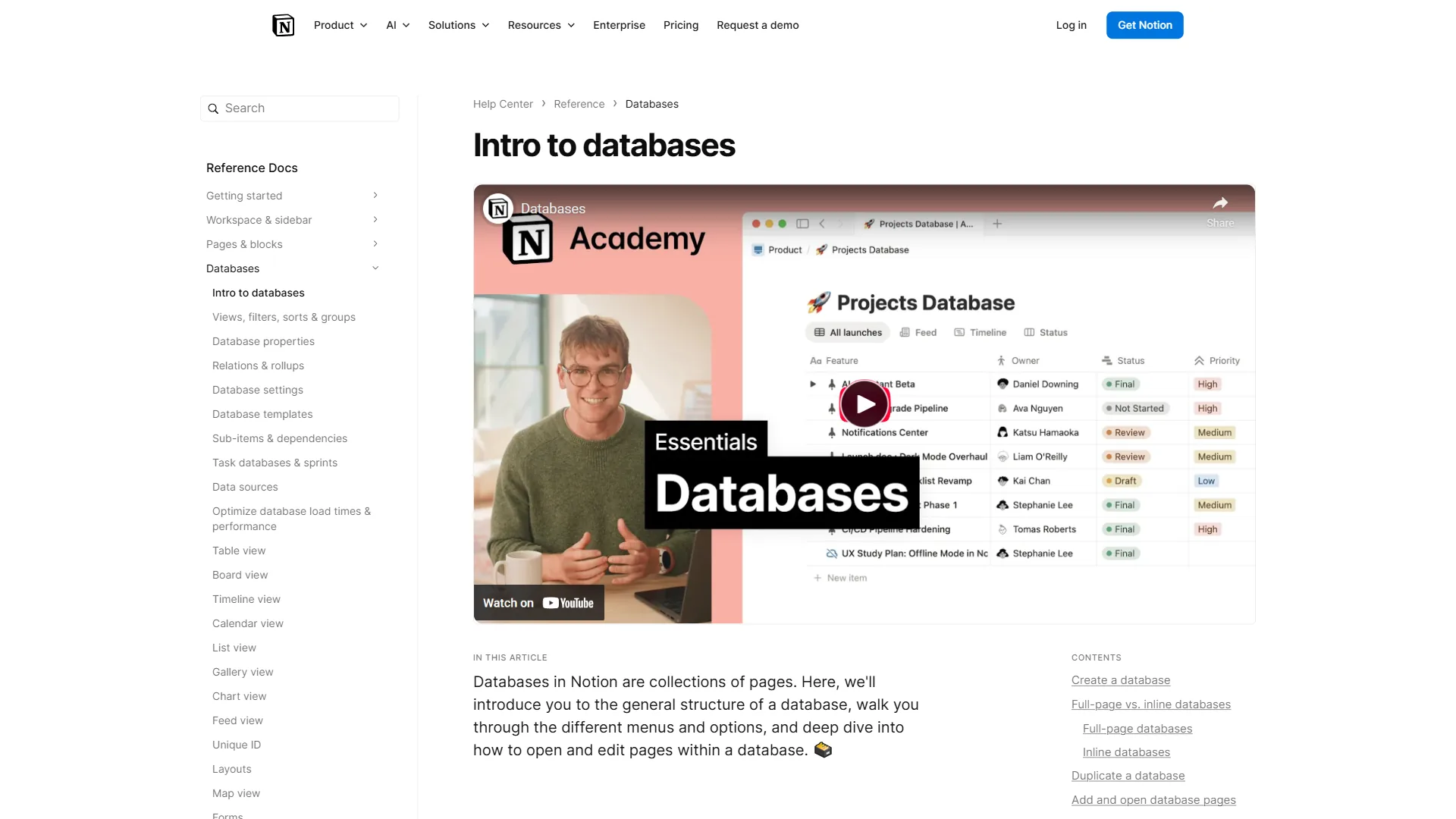
Template 2: Project Tracker with Dependencies
This template goes beyond basic task lists by incorporating dependencies, time tracking, and automatic progress calculation. It works for product launches, marketing campaigns, or any multi-phase project. If you are evaluating dedicated PM software, see our best project management tools roundup - but many teams find Notion handles 80% of what those tools do.
Database Structure
Projects Database:
| Property | Type | Configuration |
|---|---|---|
| Project Name | Title | Clear, descriptive name |
| Status | Select | Planning, In Progress, Review, Complete, On Hold |
| Owner | Person | Project lead |
| Start Date | Date | With end date enabled for timeline |
| Tasks | Relation | Links to Tasks database |
| Completion | Rollup | Percent of tasks checked |
| Priority | Select | P0, P1, P2, P3 |
Tasks Database:
| Property | Type | Configuration |
|---|---|---|
| Task | Title | Action-oriented description |
| Project | Relation | Links back to Projects |
| Assignee | Person | Who is responsible |
| Due Date | Date | Deadline |
| Done | Checkbox | Completion status |
| Blocked By | Relation | Self-relation to Tasks |
| Blocking | Rollup | Count of tasks this blocks |
| Effort | Select | Small (1h), Medium (4h), Large (8h), XL (16h+) |
Key Views to Create
- Timeline view - Visualize project phases and task durations. Group by project for portfolio-level planning.
- Board view grouped by Assignee - See who is overloaded at a glance. If one column is twice as long as the others, redistribute.
- Table filtered to “Blocking > 0 AND Done = unchecked” - Your blockers view. These tasks are holding up other work and should be prioritized.
- Calendar view - See deadlines mapped to dates for sprint planning.
Power User Tip
Use the self-relation pattern for dependencies. The “Blocked By” property is a relation from the Tasks database to itself. When Task B depends on Task A, link them. Then create a rollup on Task A that counts how many items reference it in “Blocked By.” Tasks with a high blocking count are your critical path - if they slip, everything downstream slips too.
Template 3: Content Calendar
This template is designed for content creators, solo creators, and marketing departments who need to plan, produce, and track content across multiple channels. Pairing it with an AI content writing workflow can speed up the drafting and editing stages significantly. The Notion API documentation shows how to push published content from a database into webhooks for downstream automation.
Database Structure
Content Database:
| Property | Type | Configuration |
|---|---|---|
| Title | Title | Headline or working title |
| Status | Select | Idea, Outlined, Drafting, Editing, Scheduled, Published |
| Type | Select | Blog, Video, Social, Newsletter, Podcast |
| Channel | Multi-select | Website, YouTube, LinkedIn, X, Instagram |
| Author | Person | Content creator |
| Editor | Person | Reviewer/editor |
| Publish Date | Date | Scheduled publication |
| Target Keyword | Text | Primary SEO keyword |
| Word Count | Number | Target or actual length |
| Topic Cluster | Select | Groups related content |
| Assets | Relation | Links to Assets database |
| Performance | Relation | Links to Analytics database |
Key Views to Create
- Calendar view - The classic editorial calendar. See what is publishing when and identify gaps in your schedule.
- Board view by Status - Your production pipeline. Move content from Idea through to Published. Filter by Author to see individual workloads.
- Table grouped by Topic Cluster - Spot clusters with thin coverage. If your “AI Tools” cluster has twelve articles but “Productivity Tips” has two, you know where to focus next.
- Gallery view filtered to “Status = Published” - A visual portfolio of published content with cover images.
Power User Tip
Add a formula property called “Days Until Publish” using dateBetween(prop("Publish Date"), now(), "days"). Create a filtered view showing items where this value is less than 7 and Status is not “Published” or “Scheduled.” This is your “about to be late” alert system - content that is due within a week but not yet in the final stages of production.
Template 4: Habit and Goal Tracker
This personal productivity template uses a combination of daily check-ins and goal tracking to build consistent habits over time - a pattern especially popular among freelancers who need self-imposed structure. The design is inspired by the “don’t break the chain” methodology.
Database Structure
Habits Database:
| Property | Type | Configuration |
|---|---|---|
| Habit | Title | Clear habit name |
| Category | Select | Health, Learning, Work, Creative, Social |
| Frequency | Select | Daily, Weekdays, 3x/week, Weekly |
| Current Streak | Rollup | Count consecutive check-ins |
| Total Check-ins | Rollup | Count all completed entries |
| Active | Checkbox | Whether currently tracking |
Daily Log Database:
| Property | Type | Configuration |
|---|---|---|
| Date | Date | Log entry date |
| Habit | Relation | Links to Habits database |
| Completed | Checkbox | Did you do it today? |
| Notes | Text | Optional reflection |
| Duration | Number (minutes) | Time spent |
| Difficulty | Select | Easy, Normal, Hard, Skipped |
Key Views to Create
- Calendar view - See your check-in history at a glance. Green checkboxes create a satisfying visual streak.
- Table grouped by Habit, filtered to current week - Your weekly dashboard showing which habits you have hit and which need attention.
- Board view by Category - Ensure you have balanced habits across health, learning, and work rather than overloading one area.
Power User Tip
Create a template button at the top of your habits dashboard that generates a full day’s worth of Daily Log entries with one click. Set it to create one entry per active habit, pre-filling the Date with today and linking the correct Habit relation. This turns a five-minute daily setup process into a single click.
Notion database templates guide: Advanced Relations and Rollups
The templates above use basic relations, but the real power emerges when you chain relations together. Here are three advanced patterns that work across any template.
Pattern 1: The Hub Database
Create a central “hub” database - like a Projects database - that links to multiple satellite databases (Tasks, Notes, Files, Meetings). Each satellite database has a relation back to the hub. This gives you a project page that surfaces everything related to that project from across your workspace, without duplicating any data.
Pattern 2: Rollup Dashboards
Build a dashboard database where each entry represents a summary view. Use relations and rollups to pull in aggregate data. For example, a “Weekly Review” entry can rollup total tasks completed, habits maintained, deals closed, and content published - giving you a single page that summarizes your entire week across all systems.
Pattern 3: Status Automations
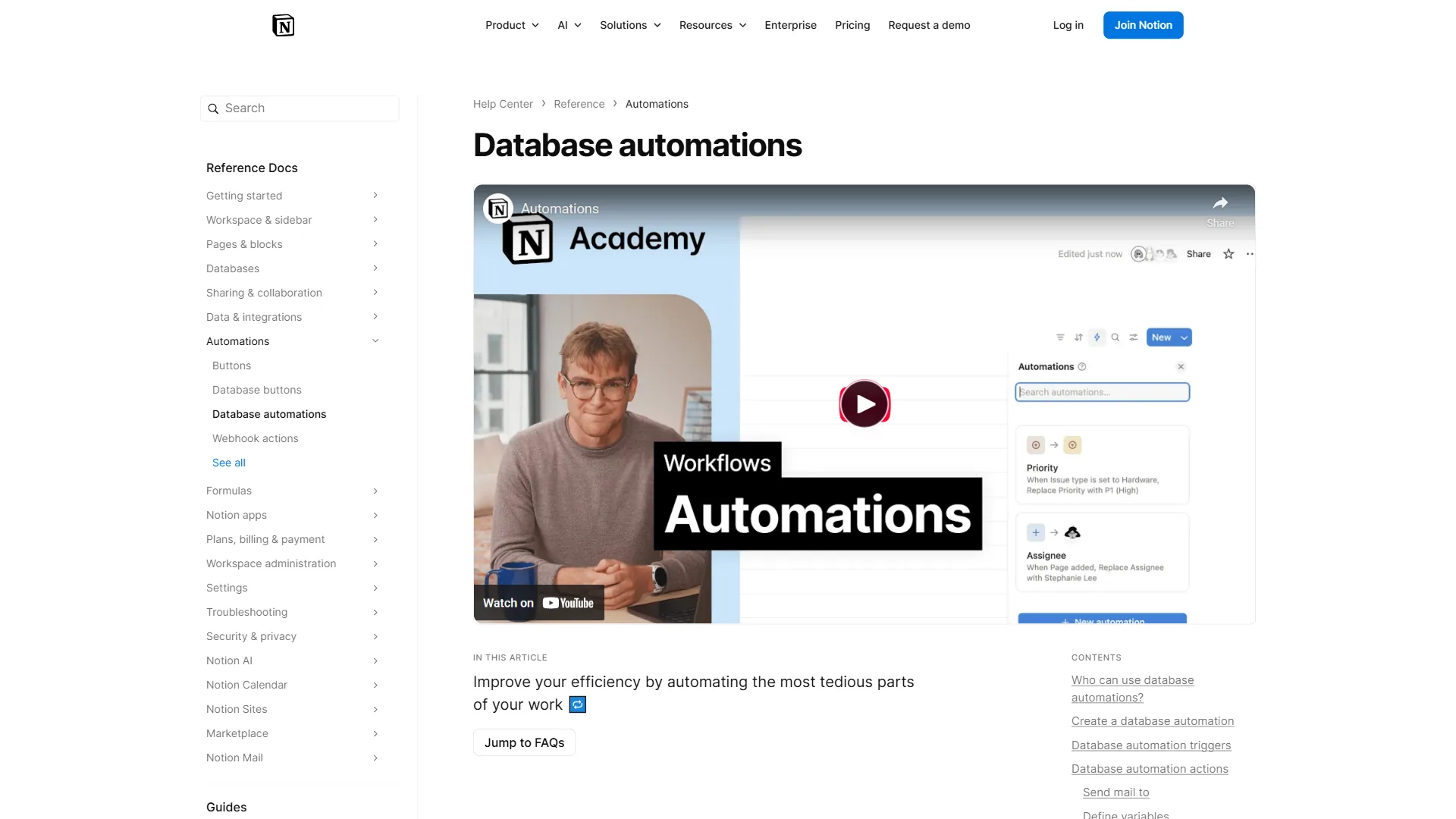
Notion’s database automations (available on Plus and above) can trigger actions when properties change. For more sophisticated cross-app triggers, Make and Zapier wrap the Notion API into no-code workflows. When a task’s checkbox is marked “Done,” automatically update the Last Completed date. When a deal’s stage changes to “Closed Won,” create a new onboarding task in the Tasks database. These automations reduce manual bookkeeping and keep your databases in sync.
Formula Recipes Worth Stealing
Here are five formulas that work well across nearly every database template:
1. Days overdue:
dateBetween(now(), prop("Due Date"), "days")Returns a negative number for upcoming items and positive for overdue - sort descending to see the most overdue first.
2. Status emoji indicator:
if(prop("Done"), "Complete", if(prop("Due Date") < now(), "Overdue", "On Track"))Useful as a visible status that updates automatically.
For more advanced calculation patterns, the Notion AI workflows guide shows how AI blocks can summarize formula output across views.
3. Weighted priority score:
if(prop("Priority") == "P0", 4, if(prop("Priority") == "P1", 3, if(prop("Priority") == "P2", 2, 1))) * if(prop("Effort") == "Small", 1, if(prop("Effort") == "Medium", 2, if(prop("Effort") == "Large", 3, 4)))Multiply priority by effort to identify high-impact work.
4. Completion percentage:
round(prop("Tasks Done") / prop("Total Tasks") * 100)Use with rollup properties for project-level progress tracking.
5. Time until deadline:
if(prop("Due Date") > now(), "Due in " + format(dateBetween(prop("Due Date"), now(), "days")) + " days", "Overdue")Human-readable deadline countdown.
Getting Started: From Template to System
Building a database template is the easy part. Turning it into a system you actually use requires discipline in the first two weeks. Here is a practical adoption process:
Week 1: Build and populate. Create one template from this guide - whichever matches your most pressing need. Add 10-15 real entries. Do not obsess over property perfection yet.
Week 2: Refine views. After a week of use, you will know which views you check daily and which you never open. Delete unused views. Add filters that match your real questions - “What is due this week?” beats “Show everything.”
Week 3: Connect databases. Once your primary database feels solid, build a second template and link them with relations. If you are weighing whether Notion is the right home for this, our ClickUp vs Notion comparison breaks down which tool handles databases better. A project tracker linked to a content calendar creates natural cross-references.
Week 4: Automate and share. Add template buttons for repetitive entry creation. If you are on a team, share the database and set up views tailored to different roles - a manager sees the timeline view, an individual contributor sees the board filtered to their name.
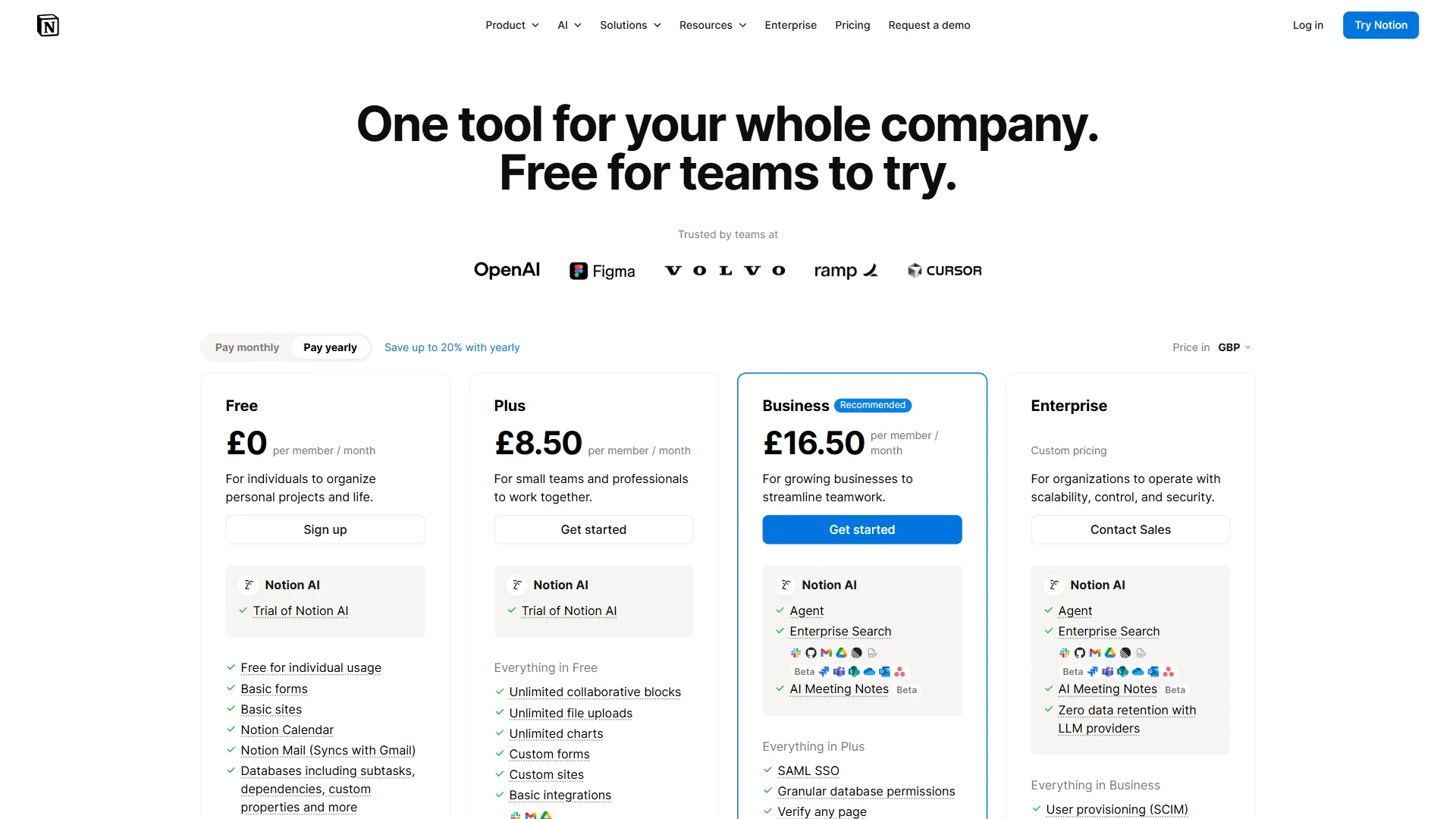
In 2026, Notion’s free tier supports unlimited databases for individual use, making it easy to experiment without financial commitment. Teams will need the Plus plan for unlimited blocks, and AI features require the Business plan. The official Notion pricing page documents the per-tier feature breakdown including database row limits and automation quotas.
What Mistakes Do People Make with Notion Database Templates?
Over-engineering from day one. Start with five properties, not fifteen. Add complexity only when you feel a specific pain point - “I wish I could filter by X” is a signal to add property X. The Notion help center has worked examples of minimal-viable database setups for new workspaces.
Ignoring database views. If you are only using the default table view, you are missing 80% of the value. Every template should have at least three views tailored to different questions.
Duplicating data across databases. If the same information exists in two places, you will forget to update one. Use relations and rollups to reference data from a single source of truth.
Skipping the template button. Any entry you create more than three times per week deserves a template button. The five minutes you spend setting it up saves hours over a month.
The Bottom Line
No Notion database templates guide would be complete without this reminder: templates are not about downloading someone else’s setup and hoping it fits your workflow. The templates in this guide are starting points - patterns that encode best practices for CRM, project management, content planning, and habit tracking. Their real value comes when you customize them with your own properties, views, and relations.
The common thread across all four templates is the same: start simple, connect databases, and build views that answer specific questions. A CRM with three views beats a CRM with thirty properties. A project tracker with working dependencies beats one with beautiful but unused charts.
If you are ready to move beyond basic tables, use this Notion database templates guide as your blueprint and pick one template to build today. Within a week, you will understand why Notion’s 35 million users consider databases the feature that makes everything else click.
Frequently Asked Questions
What makes Notion databases different from spreadsheets?
Unlike spreadsheets that store data in rows and columns, Notion databases store data in pages - each row is a full page that can hold structured and unstructured content. They also support multiple views (table, board, calendar, timeline), relations between databases, rollups that aggregate linked data, and formula properties that calculate values automatically.
What four Notion database templates are covered in this guide?
The guide covers a CRM for tracking contacts and deals, a project tracker with dependencies and progress calculation, a content calendar for planning across multiple channels, and a habit tracker built around daily check-ins and streak tracking. Each includes specific property configurations and recommended view setups.
How do relations and rollups work in Notion databases?
Relations link two databases together - for example, a Projects database linking to a Tasks database. Rollups then aggregate data across those connections, such as calculating the percentage of completed tasks per project or the total revenue per contact. Chaining multiple relations creates cross-workspace visibility without duplicating data.
Does Notion’s free plan support database templates?
In 2026, Notion’s free tier supports unlimited databases for individual use, making it straightforward to build and experiment with templates at no cost. Teams need the Plus plan for unlimited blocks, while AI features require the Business plan.
What are the most common Notion database mistakes to avoid?
The most common mistakes include over-engineering from day one by adding too many properties upfront, relying only on the default table view instead of building multiple purpose-specific views, duplicating data across databases instead of using relations, and skipping template buttons for entries created repeatedly - all of which reduce the system’s long-term usability.
Want to learn more about Notion?
Related Guides
- Notion AI Workflows 2026 - AI-powered automation patterns inside Notion
- AI Content Writing Workflow - Pair the content calendar template with AI drafting
- Knowledge Management ROI - Quantify the value of structured note-taking and databases
Related Reading
Tools covered in this article:
- Notion - All-in-one AI workspace with powerful databases
More Notion and productivity guides:
- Obsidian vs Notion - Note-taking philosophies compared
- Confluence vs Notion - Wiki platforms for teams
- Best Knowledge Management Tools - Top KM platforms reviewed
- Best Free Project Management Tools - Free PM options for small teams
External Resources
- Notion Template Gallery - Official collection of community and first-party templates
- Notion Database Documentation - Official guide to database features and properties
- Notion API Database Reference - Developer documentation for programmatic database access
Related Guides
- 15 Calendly Tips and Tricks to Save 4+ Hours Weekly
- ActiveCampaign AI Features: Active Intelligence Guide
- ActiveCampaign CRM Setup: How to Set Up ActiveCampaign CRM
- ActiveCampaign Email Automation: 10 Workflows That Work
- ActiveCampaign Lead Scoring: Complete Setup Guide (2026)
- ActiveCampaign Shopify Integration: Complete Setup
- ActiveCampaign WordPress: Forms, Tracking & Automation
- ActiveCampaign Zapier: 10 Automations to Build Today
- AI Agent Orchestration: Patterns That Scale in 2026
- AI Avatar Video Marketing: 2026 Walkthrough for Teams