


Slack productivity tips ai are strategies that help teams transform Slack from a basic group chat into a genuine productivity engine. According to Forrester research, effective Slack use can cut meeting time by 27%, reduce email volume by 32%, and save over five hours per employee per week - with AI features available on Business+ and above.
Most teams use Slack like a glorified group chat. They send messages, react with emoji, maybe share a file or two. But they never touch the features that actually move the needle - the ones that cut meeting time by 27%, reduce email volume by 32%, and save over five hours per employee per week. Those are not marketing numbers. They come from Forrester’s Total Economic Impact study of enterprise Slack deployments.
This guide covers the Slack productivity tips that separate teams drowning in notifications from teams that have turned Slack into a genuine productivity engine. We are covering everything from keyboard shortcuts you should have memorized yesterday to AI-powered features most people do not even know exist. Whether you are on the free plan or Business+, these slack productivity tips ai strategies will change how your team communicates. For a broader productivity stack, our best AI productivity tools roundup covers companions to Slack.
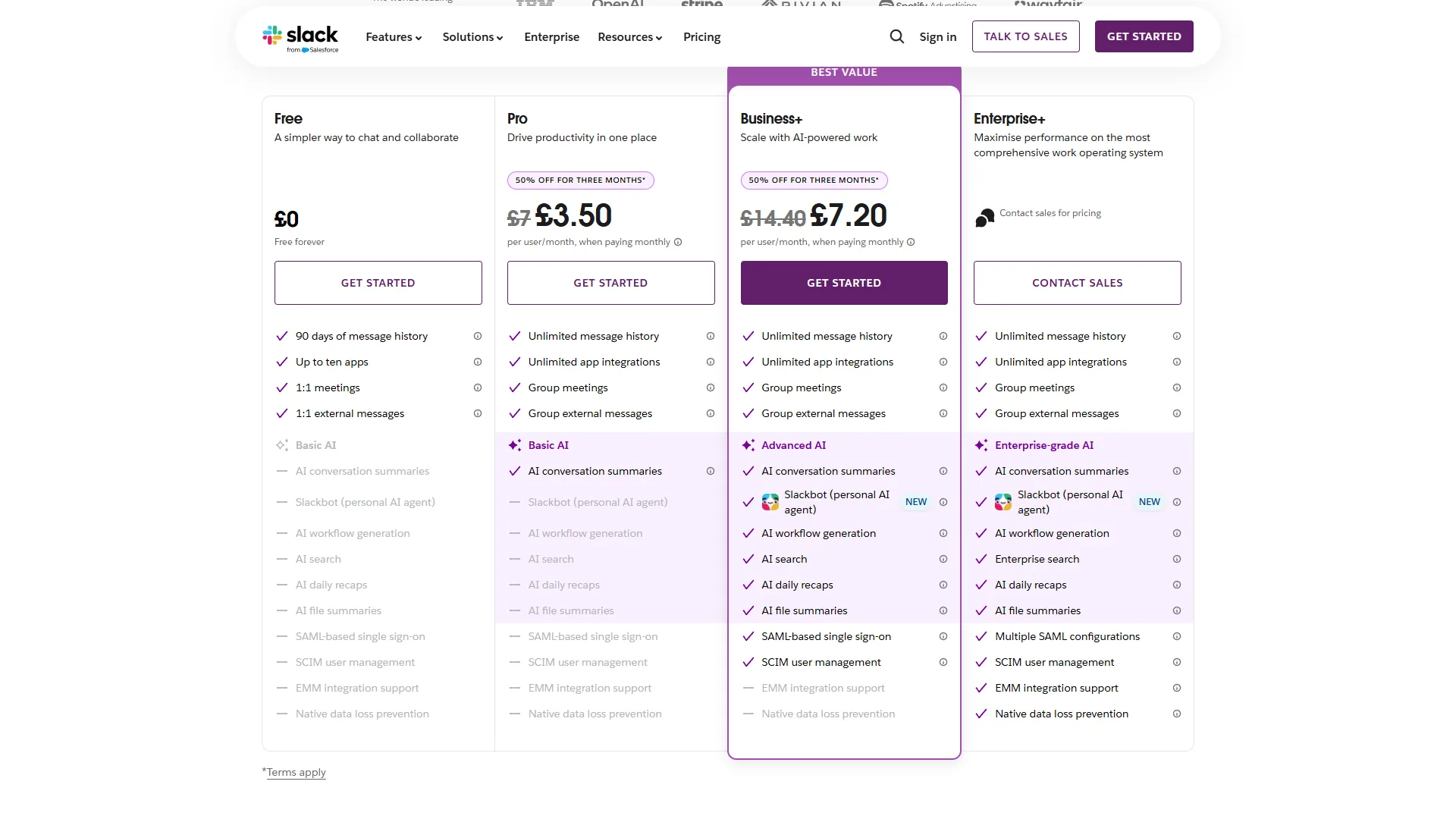
Quick Reference: Slack Plans and Pricing
Before diving in, here is what you are working with at each tier - because some of these tips require specific plan features:
| Plan | Price | Key Features for Productivity |
|---|---|---|
| Free | $0/mo | 90-day message history, 10 app integrations, 1:1 huddles |
| Pro | $7.25/mo (annual) | Full history, unlimited integrations, Workflow Builder, group huddles |
| Business+ | $12.50/mo | Everything in Pro + Slack AI, SSO, compliance tools |
| Enterprise Grid | Custom | Unlimited workspaces, HIPAA, 99.99% SLA |
Most productivity tips in this guide work on Pro and above. We will flag which ones require Business+ for Slack AI features.
How Should You Organize Slack Channels?
1. Use a Consistent Channel Naming Convention
This sounds basic, but it is the foundation everything else builds on. Without a naming system, your workspace becomes an unsearchable mess within six months.
The naming system that works:
#proj-for project channels (#proj-website-redesign,#proj-q1-launch)#team-for department channels (#team-engineering,#team-marketing)#help-for support channels (#help-it,#help-hr,#help-finance)#ext-for external Slack Connect channels (#ext-acme-corp,#ext-agency-name)#announce-for broadcast channels (#announce-company,#announce-engineering)#social-for non-work channels (#social-pets,#social-food,#social-gaming)
Why this matters: When everyone follows the same pattern, new team members find what they need in seconds. Search becomes predictable. And you can set notification rules by prefix - mute all #social- channels but keep #proj- channels on full alert.
2. Set Default Channels and Custom Sections
Stop scrolling through 47 channels to find the three you actually need right now. Custom sidebar sections let you group channels by context, not by alphabetical order.
How to set it up:
- Right-click in your sidebar and select “Create a new section”
- Name it something useful: “Active Projects,” “Daily Check,” “Reference”
- Drag channels into each section
- Star your most critical channels so they always appear at the top
Pro tip: Create a “This Week” section and move channels in and out based on your current focus. This keeps your sidebar relevant without unsubscribing from channels you might need later.
3. Archive Channels Aggressively
Dead channels are not harmless. They clutter search results, confuse new employees, and make your workspace feel overwhelming. If a project channel has not had activity in 30 days, archive it. Archived channels are fully searchable and can be unarchived instantly - there is zero downside.
Set a monthly reminder: Create a recurring Slack reminder with /remind #general "Review and archive inactive channels" every month on the 1st. Assign one person per team to own channel hygiene.
Keyboard Shortcuts That Save Real Time
4. Master the Command Palette
Cmd+K (Mac) / Ctrl+K (Windows) opens Slack’s Quick Switcher - the single fastest way to navigate your workspace. Start typing a channel name, person’s name, or keyword and jump directly there. No scrolling, no clicking through the sidebar.
Essential shortcuts to memorize:
| Shortcut | Action | Time Saved |
|---|---|---|
| Cmd/Ctrl + K | Quick Switcher | ~3 sec per navigation |
| Cmd/Ctrl + Shift + K | Open DM with someone | ~4 sec per message |
| Cmd/Ctrl + Shift + T | Open threads panel | ~2 sec per check |
| Cmd/Ctrl + Shift + A | Open All Unreads | ~5 sec per session |
| Cmd/Ctrl + Shift + S | Open Saved Items | ~3 sec per lookup |
| Cmd/Ctrl + / | Show all shortcuts | - |
| Up Arrow | Edit last message | ~5 sec per correction |
| E (in message) | Add emoji reaction | ~2 sec per reaction |
| M | Mute channel | ~3 sec per mute |
The math: If you navigate between channels 50 times a day and save 3 seconds each time with Cmd+K instead of clicking, that is 2.5 minutes per day. Across a five-day workweek, that is over 12 minutes. Across a year, that is more than 10 hours saved - from one shortcut.
5. Use Mark as Unread Strategically
Read a message but cannot deal with it right now? Right-click and select “Mark unread” to keep it visible in your unreads panel. This is Slack’s built-in task management - every unread message becomes a to-do item you cannot miss.
Better alternative: For messages that need action later, use the “Save for later” bookmark (Ctrl/Cmd + D). Saved items persist in a dedicated panel and do not disappear when you catch up on unreads.
How Do You Manage Slack Notifications Without Missing What Matters?
6. Configure Notifications Per Channel
The default “notify me about everything” approach is why people hate Slack. The fix is channel-level notification settings.
Right-click any channel > Change notifications:
- All new messages: For channels where you need real-time awareness (your team channel, active project channels)
- Mentions only: For channels you need to monitor but not actively watch (company announcements, cross-team channels)
- Nothing: For reference channels you search but never read linearly (documentation channels, automated feed channels)
Notification schedule: In Preferences > Notifications, set a notification schedule. If you work 9-to-5, turn off notifications outside those hours. Your messages will still be there in the morning, and your evenings will be yours again. Pair this with our focus time productivity tips for deeper focus blocks.
7. Use Do Not Disturb Like a Professional
Slack’s Do Not Disturb is not just for after-hours. Use it during focus work blocks throughout the day.
How to set it up effectively:
- Click your profile picture and select “Pause notifications”
- Choose a duration (30 min, 1 hour, 2 hours, or custom)
- Set a custom status like “Deep work until 2pm” so people know you are unavailable
Advanced move: If someone messages you during DND and it is truly urgent, they can choose to “notify anyway.” This means you do not need to worry about missing genuine emergencies - only the noise gets filtered.
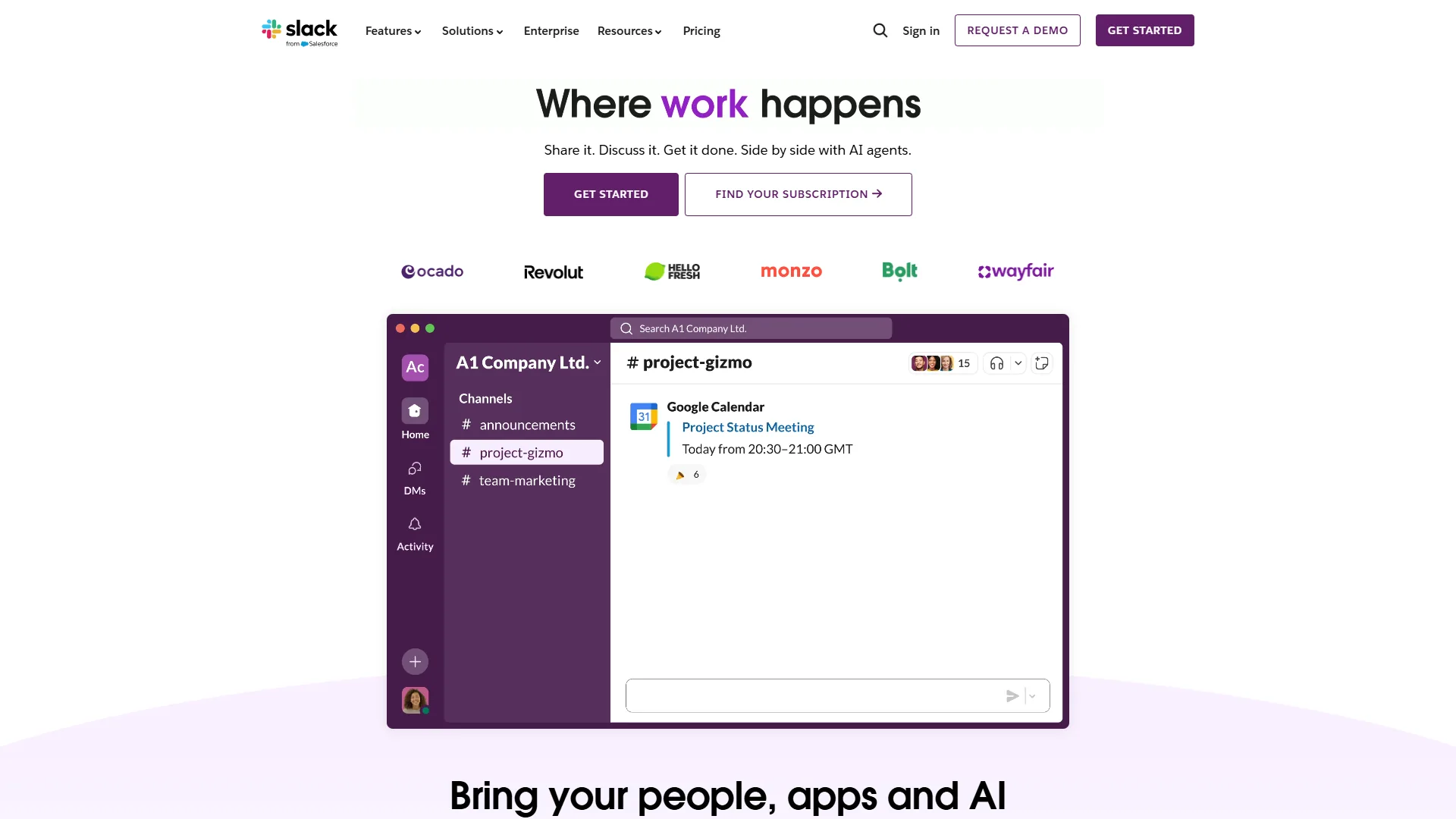
Slack Productivity Tips AI Features (Business+ Required)
This is where most productivity guides fall short. Slack AI launched in 2024 and has matured significantly, but the majority of Business+ users are not taking advantage of it. These slack productivity tips ai features alone can justify the upgrade from Pro.
8. Use AI Channel Recaps to Skip Catch-Up
Coming back from a meeting, a day off, or a long weekend? Instead of scrolling through hundreds of messages, ask Slack AI for a channel recap.
How to use it:
- Open any channel
- Click the sparkle icon in the top-right (or type
/aiin the message box) - Select “Summarize this channel” or “What happened since yesterday?”
Slack AI reads through all the messages, identifies the key discussion points, decisions made, and action items mentioned, and gives you a concise summary. What used to take 15 minutes of scrolling now takes 30 seconds of reading.
Where this shines: Channels with 50+ messages per day. In channels like #team-engineering or #proj-launch, catching up manually is genuinely painful. Slack AI makes it manageable.
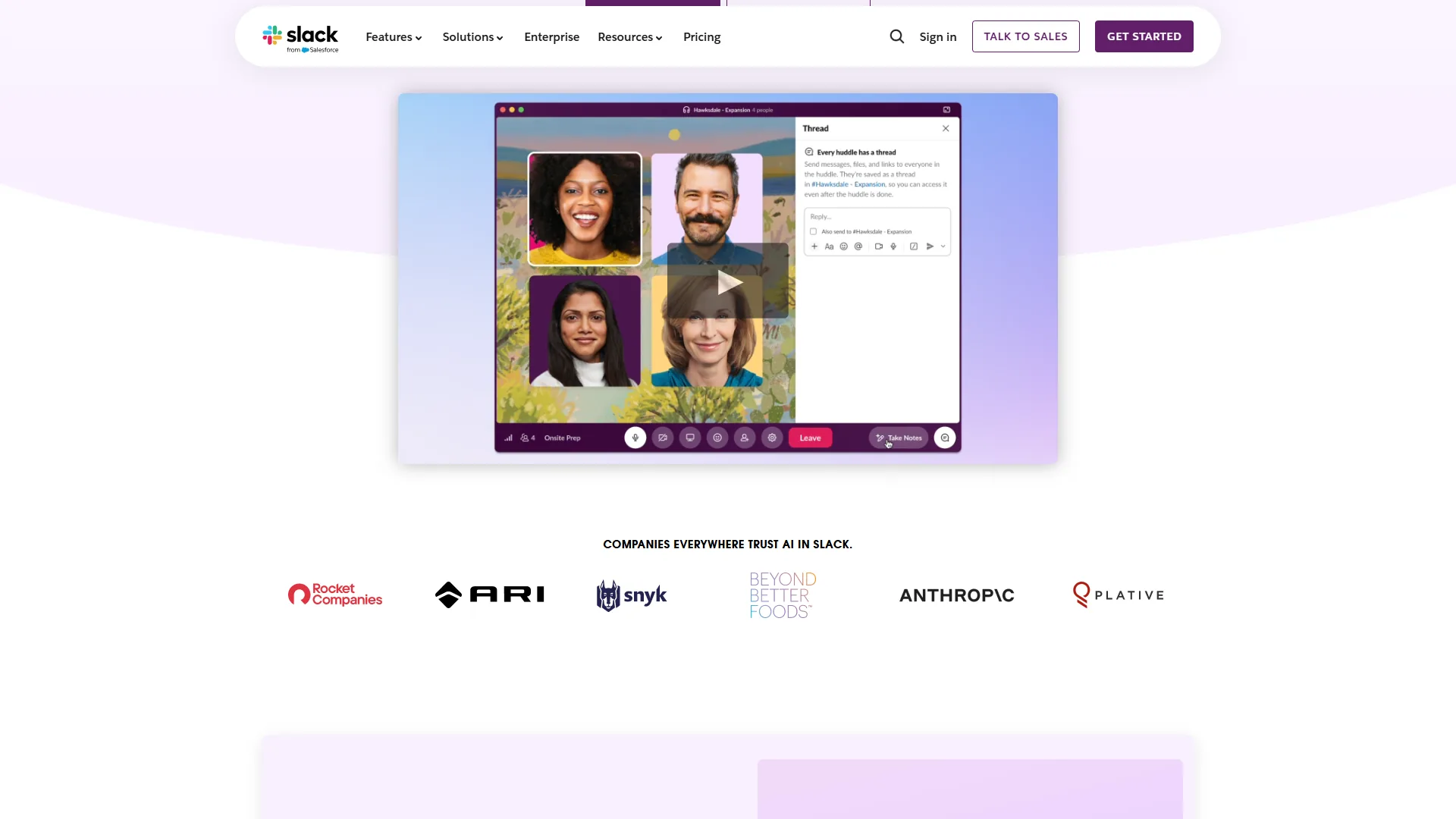
9. AI-Powered Thread Summaries
Long threads are Slack’s biggest UX problem. A thread that starts with a simple question can balloon into 40+ replies with tangents, debates, and eventually a decision buried somewhere in the middle. Slack AI summarizes threads instantly.
How to use it:
- Open any thread with multiple replies
- Click the sparkle icon at the top of the thread
- Get a summary of the discussion, key points, and any conclusions reached
Best use case: Decision threads. When your team debates a technical approach or feature priority across 30 messages, the AI summary tells you what was decided without reading every opinion.
10. AI Search Answers
Traditional Slack search returns a list of messages you have to read through yourself. Slack AI search actually answers your question by synthesizing information from across your workspace.
Try these queries:
- “What was the decision on the Q2 pricing strategy?”
- “What are the current blockers for the mobile app launch?”
- “What did the team decide about the new onboarding flow?”
Instead of getting 47 message results, you get a direct answer with citations you can click to verify. This is particularly powerful for onboarding new team members who need to understand past decisions without reading months of channel history.
Limitation to know: Slack AI only searches content you have access to. It cannot surface messages from private channels you are not in, which means it respects your workspace’s permission model.
Workflow Builder Automation (Pro and Above)
Slack’s Workflow Builder is the most underused feature on the platform. It lets you create no-code automations that handle repetitive tasks - the kind of work that eats 30 minutes of your day without you noticing. For teams ready to go further, our AI workflow automation maturity model guide maps out the progression from basic to advanced automation.
11. Automate Standup Reports
Instead of scheduling a meeting where everyone shares the same three things, build a standup workflow that collects updates asynchronously.
How to build it:
- Go to Tools > Workflow Builder (or search “Workflow Builder” in the search bar)
- Click “Create Workflow” and select “From a template” or start from scratch
- Set the trigger: Scheduled - every weekday at 9:00 AM
- Add a step: Send a form to your team channel
- Include fields: “What did you accomplish yesterday?”, “What are you working on today?”, “Any blockers?”
- Add a step: Post the responses to a designated
#standup-updateschannel
Time saved: A 15-minute standup meeting with 8 people costs 2 hours of collective time per day. An async standup workflow costs zero meeting time and gives everyone a written record they can reference later. For more async patterns, see our meeting culture reform guide.
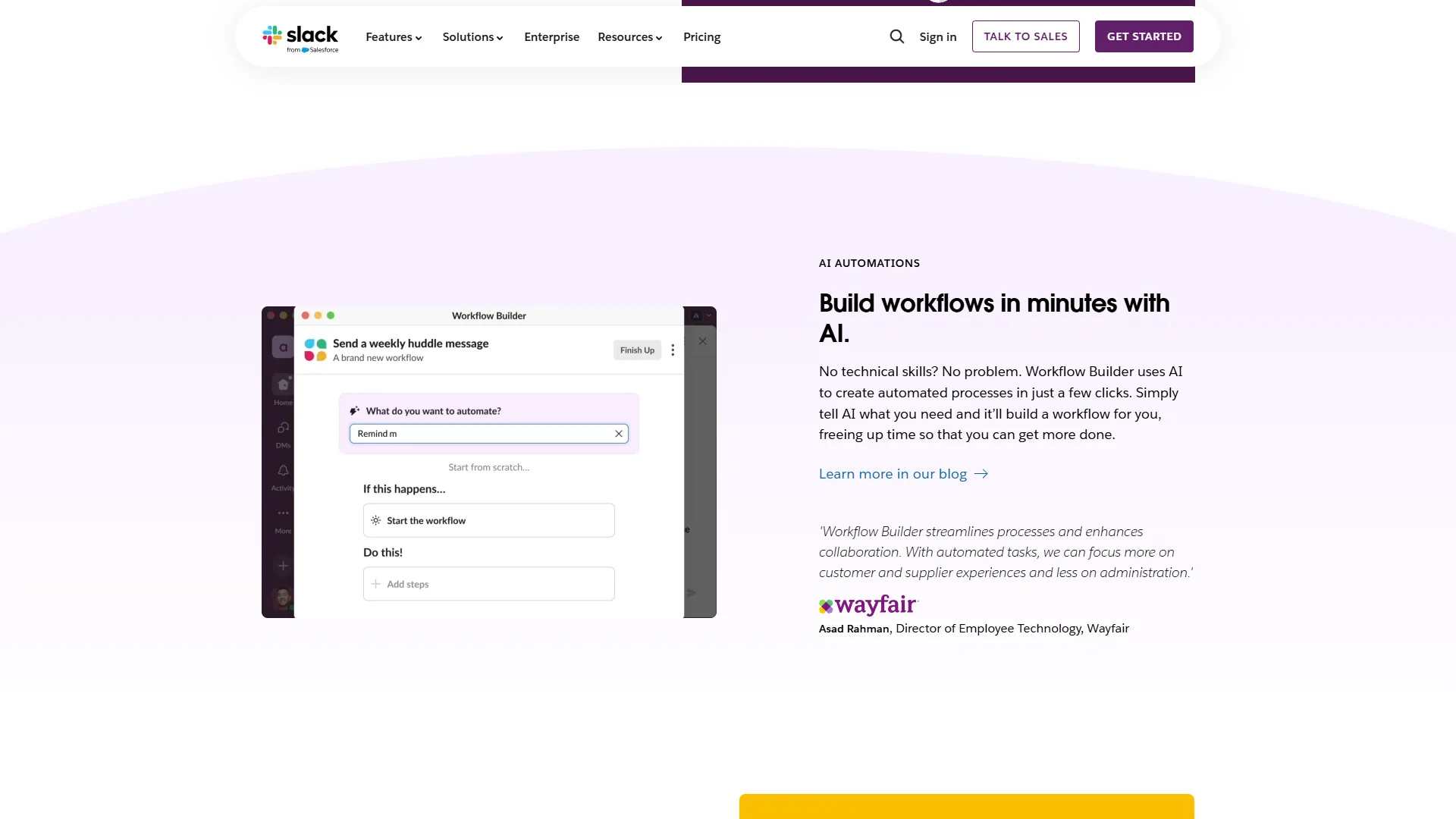
12. Build Approval Workflows
PTO requests, expense approvals, content sign-offs - these are all processes that should not require email chains or separate tools.
Example: PTO Request Workflow
- Trigger: Someone uses the
/ptoshortcut - Step 1: Form collects dates, reason, and coverage plan
- Step 2: Message sent to their manager via DM with approve/deny buttons
- Step 3: On approval, post confirmation to
#team-updatesand add event to shared calendar
This replaces what used to be an email to HR, a follow-up to your manager, and a manual calendar update. The entire flow happens in Slack in under a minute.
13. New Employee Onboarding Workflow
Set up a workflow that triggers when someone joins a specific channel (like #new-hires). It can automatically:
- Send a welcome message with links to key resources
- Ask them to fill out a form with their role, team, and preferences
- Share a checklist of onboarding tasks with deadlines
- Notify their manager and buddy that they have joined
- Schedule reminders for day 7, day 30, and day 90 check-ins
Why this matters: Onboarding is one of those processes where dropped tasks have real consequences. A workflow ensures nothing falls through the cracks regardless of how busy the hiring manager is.
Integration Tips
14. Connect Your Critical Tools
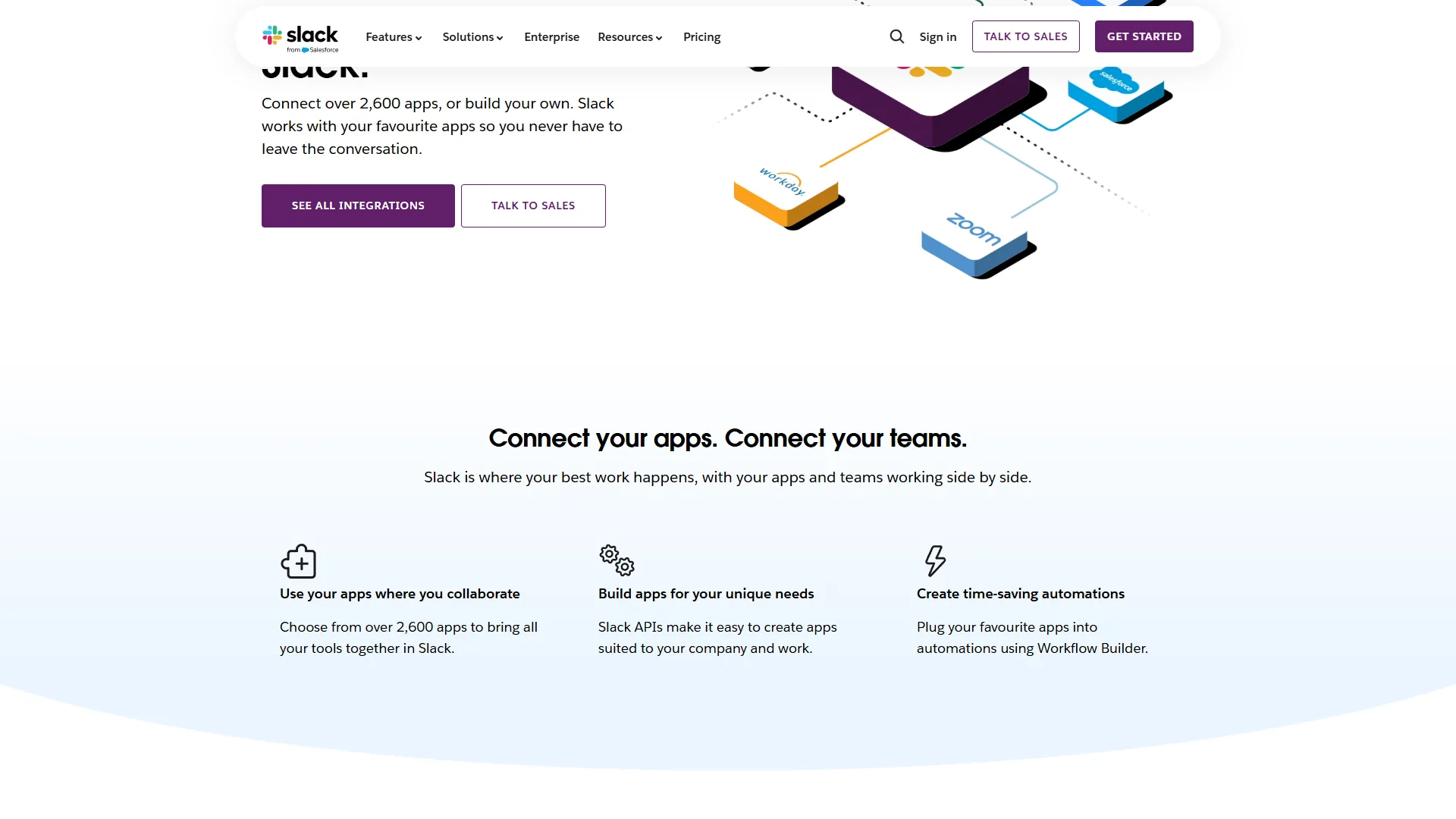
Slack’s integration ecosystem - with over 2,600 apps in the marketplace - is its biggest competitive advantage. But most teams install integrations haphazardly and end up with notification noise from tools nobody configured properly.
The integrations worth setting up properly:
- Project management (Jira, Asana, Monday.com): Get task updates and status changes in relevant project channels. Configure to only show status changes and assignments, not every comment.
- Code repositories (GitHub, GitLab, Bitbucket): PR reviews, deployments, and CI/CD alerts in
#dev-alerts. Filter to only your repos. - CRM (Salesforce, HubSpot): Deal updates and new leads in
#sales-pipeline. Set thresholds to avoid noise from minor updates. - Calendar (Google Calendar, Outlook): Auto-update your Slack status during meetings. This alone saves dozens of “are you available?” messages per week.
- Monitoring (Datadog, PagerDuty, Sentry): Error alerts and incident notifications in dedicated
#incidentschannels with proper escalation.
The key principle: Every integration should post to a specific channel, not to #general. Create dedicated channels for each integration category and set per-channel notifications accordingly.
15. Use Slack Connect for External Collaboration
If you work with clients, vendors, or partners, Slack Connect eliminates the email back-and-forth entirely. Pairing Slack Connect with a shared project management tool like ClickUp or Asana keeps both sides aligned on deliverables. You share a channel between your Slack workspace and theirs, and both sides communicate in real time with full Slack functionality.
Best practices:
- Use the
#ext-naming prefix so internal and external channels are immediately distinguishable - Set clear expectations about response times in the channel description
- Pin key documents and links at the top of every Slack Connect channel
- Review and close Slack Connect channels quarterly to avoid accumulation
Where this works best: Agencies managing ongoing client relationships, vendor partnerships with frequent communication, and cross-company project teams.
Communication Best Practices
16. Thread Everything
Unthreaded channels are impossible to follow. When every conversation happens in the main channel view, topics overlap, context gets lost, and people miss important messages buried between unrelated discussions.
The rule: If your message is a reply to something, put it in a thread. If it is a new topic, post it in the main channel. This one habit transforms channel usability more than any tool or setting.
Additional thread tips:
- Check “Also send to channel” only when your thread reply contains a decision or action item relevant to everyone
- Use threads for brainstorming sessions so the main channel stays clean
- If a thread gets too long (20+ replies), summarize the decision in the main channel and link to the thread
17. Write Better Messages
Most Slack messages are too vague, too long, or missing context. Here is a format that actually works:
For requests:
Request: [what you need]
Context: [why you need it]
Deadline: [when you need it by]
Action: [specific next step for the reader]
For updates:
Update: [project/topic name]
Status: [on track / blocked / completed]
Details: [1-2 sentences]
Next step: [what happens next and who owns it]
For decisions:
Decision needed: [what needs to be decided]
Options: [list the options]
Recommendation: [your preference and why]
Deadline: [when this needs to be decided by]
Writing structured messages sounds like extra work, but it eliminates the three follow-up messages people would otherwise need to send asking for clarification.
18. Use Canvas for Living Documents
Slack Canvas lets you create and pin documents directly inside channels. Unlike pinned messages that get buried, a Canvas stays accessible at the top of the channel and can be collaboratively edited.
Best uses for Canvas:
- Project briefs pinned to project channels
- Meeting notes that the whole team can update
- FAQ documents in
#help-channels - Onboarding checklists in
#new-hires - Weekly priorities in team channels
Why Canvas over Google Docs: The document lives where the conversation happens. No switching tabs, no broken links, no permission issues. For short-to-medium documents that directly support a channel’s purpose, Canvas is the better choice.
Huddles and Async Communication
19. Use Huddles Instead of Scheduling Meetings
Huddles are Slack’s lightweight audio and video calls. They start instantly - no calendar invite, no meeting link, no waiting room. Think of them as a digital tap on the shoulder. For broader strategies on reducing unnecessary meetings, see our meeting culture reform guide.
When to use huddles vs. scheduled meetings:
| Huddles | Scheduled Meetings |
|---|---|
| Quick questions (under 10 min) | Formal presentations |
| Pair programming sessions | Client-facing calls |
| Brainstorming with 2-4 people | All-hands with 20+ people |
| Urgent coordination | Recurring standups (use workflow instead) |
| Impromptu design reviews | Recorded training sessions |
Pro plan feature: Group huddles support up to 50 participants with screen sharing, making them viable for team-wide discussions that do not need to be on a calendar.
20. Send Clips for Async Updates
Clips are short audio or video recordings you can send in any channel or DM. They are Slack’s answer to the “this could have been an email” meeting - except they are better than email because they include tone, visual context, and screen recordings.
Best uses:
- Explaining a design decision with a screen recording showing the mockup
- Giving feedback on a document with your voice instead of typed comments
- Sharing a weekly update your team can watch at their own pace
- Walking through a bug reproduction with screen recording
Time zone advantage: Distributed teams across time zones cannot always huddle in real time. Clips let you communicate asynchronously with the richness of a face-to-face conversation.
Advanced Tips
21. Create Custom Emoji for Workflows
Custom emoji are not just for fun. Teams use them as lightweight workflow signals:
:in-progress:- Someone is working on this:done:- Task completed:blocked:- Needs help or is waiting on something:approved:- Sign-off given:eyes:- I am looking at this:priority:- This needs immediate attention
When your team agrees on emoji meanings, a quick reaction can replace an entire follow-up message. “Hey, did you see my message?” becomes unnecessary when you can see the :eyes: reaction.
22. Build a Personal Slack Dashboard
Create a private channel called #my-dashboard (only you are in it) and use it as a personal command center:
- Forward important messages from other channels
- Post links and resources you want to reference later
- Set recurring reminders for weekly reviews
- Save draft messages before posting them publicly
- Keep a running list of decisions you have made that week
Why not just use Saved Items? Saved Items is great for individual messages, but a personal channel gives you a chronological feed you can scroll through and a place to compose thoughts before sharing them.
23. Use Slack’s Built-in Reminders
The /remind command is one of Slack’s most underused features. Set reminders for yourself or your channels:
/remind me to review the Q2 report at 3pm- Personal reminder/remind #team-marketing to submit blog ideas every Monday at 10am- Channel reminder/remind me in 2 hours to follow up with Sarah- Relative timing/remind @sarah about the design review tomorrow at 2pm- Remind someone else
Use case: When you read a message at 8 AM but cannot act on it until after lunch, set a reminder instead of relying on memory. This is more reliable than “mark as unread” because the reminder fires at the exact time you specified.
Slack Productivity Tips for Managers
24. Set Communication Norms for Your Team
Tools do not fix culture problems. If your team has no norms around Slack usage, even the best tips will not help. Document and share these explicitly:
- Expected response times: DMs within 2 hours, channel mentions within 4 hours, threads within end of day
- When to use Slack vs. email vs. meeting: Quick questions in Slack, formal documentation via email, complex discussions in meetings
- Threading policy: All replies go in threads, period
- After-hours expectations: No expectation of responses outside work hours unless someone uses the DND override
- Channel creation rules: Who can create channels, naming conventions, archival timeline
Pin these norms in your #general or #team- channel. Review them quarterly. New hires should read them on day one.
25. Monitor Workspace Analytics
Slack provides workspace analytics (Settings > Analytics) that show:
- Most active channels and their message volume
- Member activity patterns and peak usage times
- Integration usage across the workspace
- File sharing trends
What to look for:
- Channels with zero activity for 30+ days (archive candidates)
- Teams with unusually high DM volume (might indicate missing channels)
- Peak message hours (schedule announcements for maximum visibility)
- Integration adoption rates (are people actually using the tools you set up?)
The Bottom Line
The difference between teams that love Slack and teams that complain about it almost always comes down to configuration, not the tool itself. The Slack productivity tips in this guide - from channel naming conventions to AI-powered recaps to Workflow Builder automations - represent the gap between using Slack as a chat app and using it as a productivity platform.
If you implement just five things from this guide, start with these:
- Set up a channel naming convention (tip 1) - foundational for everything else
- Configure per-channel notifications (tip 6) - eliminates notification fatigue
- Thread everything (tip 16) - transforms channel usability overnight
- Build one workflow (tips 11-13) - proves the ROI of automation to your team
- Try Slack AI recaps (tip 8) - if you are on Business+, this is the single biggest time saver
With 42 million daily active users and 2,600+ integrations, Slack is not going anywhere. The question is whether your team is using it at 20% capacity or 80%. These slack productivity tips ai strategies should get you significantly closer to that 80% mark - and the 5+ hours per week in time savings that come with it.
Frequently Asked Questions
How much time can Slack productivity tips actually save?
According to Forrester’s Total Economic Impact study of enterprise Slack deployments, effective Slack usage can cut meeting time by 27%, reduce email volume by 32%, and save over five hours per employee per week. Even a single shortcut like Cmd+K, used 50 times daily, adds up to more than 10 hours saved per year.
What plan do you need for Slack AI features?
Slack AI is available on the Business+ plan, priced at $12.50 per month. It includes channel recaps, thread summaries, and AI-powered search. Most other productivity features - like Workflow Builder and unlimited integrations - are available on the Pro plan at $7.25 per month.
What does Slack AI actually do to help with productivity?
Slack AI can summarize entire channels so you catch up in 30 seconds instead of scrolling for 15 minutes. It also summarizes long threads to surface decisions buried in 40+ replies, and its search answers questions directly by synthesizing information across your workspace - rather than returning a raw list of messages to read through yourself.
How do async standup workflows save time in Slack?
A 15-minute standup with 8 people costs 2 hours of collective time per day. A Workflow Builder standup collects updates asynchronously, costs zero meeting time, and produces a written record everyone can reference later. Workflow Builder is available on the Pro plan and above.
What is the fastest keyboard shortcut to learn in Slack?
Cmd+K on Mac or Ctrl+K on Windows opens the Quick Switcher, letting you jump directly to any channel, person, or keyword without scrolling. Used 50 times a day, it saves roughly 2.5 minutes daily - adding up to more than 10 hours per year from one shortcut alone.
Want to learn more about Slack?
Related Guides
- Focus Time Productivity Tips - Managing deep work when Slack notifications are constant
- How to Automate Email with AI - Reduce email alongside your Slack optimization
- Meeting Culture Reform - Replace recurring meetings with async Slack workflows
- AI Workflow Automation Maturity Model - Map your team’s progression beyond basic Slack automation
Related Reading
- Best AI Automation Tools in 2026 - Extend Slack’s automation capabilities with dedicated tools
- Remote Collaboration Tools for Distributed Teams - How Slack fits into a broader remote work stack
- Best Workflow Automation Tools in 2026 - Compare Slack’s Workflow Builder against standalone options
- Slack - Full review, pricing breakdown, and ROI calculator
External Resources
- Slack Keyboard Shortcuts (Official) - Complete reference for all platform shortcuts
- Slack Workflow Builder Guide - Official documentation for building workflows
- Slack AI Features - Overview of AI capabilities on Business+ and Enterprise plans
Related Guides
- 15 Calendly Tips and Tricks to Save 4+ Hours Weekly
- ActiveCampaign AI Features: Active Intelligence Guide
- ActiveCampaign CRM Setup: How to Set Up ActiveCampaign CRM
- ActiveCampaign Email Automation: 10 Workflows That Work
- ActiveCampaign Lead Scoring: Complete Setup Guide (2026)
- ActiveCampaign Zapier: 10 Automations to Build Today
- AI Avatar Video Marketing: 2026 Walkthrough for Teams
- AI Chatbots Customer Service Setup: Complete 2026 Guide
- AI Workflow Automation Maturity Model: 5 Levels
- Apollo Sales Prospecting: Build a Predictable System