
Visme brand kit tutorial is a step-by-step walkthrough for configuring centralized brand assets - logos, colors, and fonts - inside Visme’s Brand Kit feature. Think of it as a complete business kit for your visual identity: available on Pro plans and higher, the setup takes 15-20 minutes and ensures every presentation, infographic, and social post automatically applies consistent brand identity without designers memorizing hex codes or hunting for logo files.
This guide covers visme brand kit tutorial with detailed analysis.
Managing design consistency across a growing marketing team reveals a painful truth: without centralized brand assets, every designer creates their own version of “company blue.” Visme’s Brand Kit solves this - every presentation, infographic, and social post uses the exact same colors, fonts, and logo placement automatically. The same palette flows into a Visme business Proposal Template, a Visme brochure templates set, or a polished output from the Visme AI newsletter generator. Whether you prefer a Visme course, a tutorial free of jargon, or a downloadable tutorial PDF, this guide walks you through every step. If you are still evaluating design platforms, our best AI design tools 2026 roundup covers how Visme stacks up against tools like Canva and other modern design platforms.
What you’ll achieve: By the end of this tutorial, you’ll have a fully configured Brand Kit that auto-applies your brand identity to every new Visme project. Your team will create on-brand content without memorizing hex codes or hunting for logo files.
Prerequisites
When exploring visme brand kit tutorial, consider the following.
Before starting, make sure you have:
- Visme Pro plan or higher - Brand Kit is not available on Basic or Starter tiers
- Your brand assets ready:
- Logo files (PNG with transparent background works best)
- Brand colors (hex codes like #2563EB)
- Font names or font files (TTF/OTF for custom fonts)
- Admin access to your Visme workspace (if setting up for a team)
Don’t have a Pro account yet? Start a free trial via Visme’s pricing page to follow along - the trial lets you Download Visme presentation for free and explore Brand Kit features before committing.
How Do You Set Up a Visme Brand Kit in 5 Steps?
This visme brand kit tutorial covers five straightforward steps:
- Access Brand Kit settings in your workspace
- Upload your logo and set placement rules
- Configure your brand color palette
- Set up primary and secondary fonts
- Apply Brand Kit to existing and new projects
Total time: 15-20 minutes for initial setup.
Step 1: Access Brand Kit Settings
Navigate to your Brand Kit from the Visme dashboard:
- Click your workspace name in the top-left corner
- Select Brand Kit from the dropdown menu
- You’ll see sections for Logo, Colors, Fonts, and Brand Guidelines
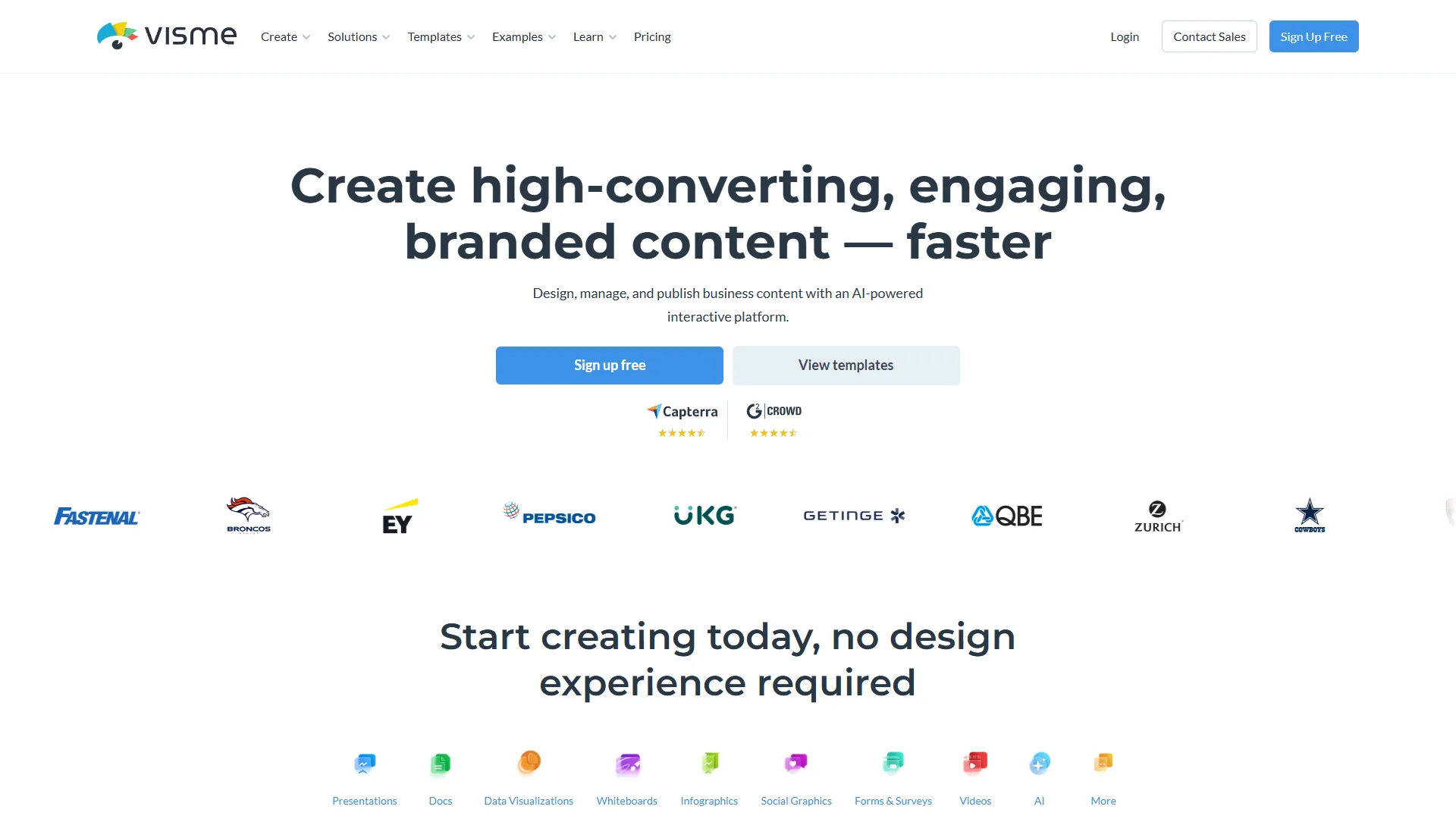
Pro tip: If you’re on an Enterprise plan with multiple brand domains, you’ll see a “Brands” tab where you can create separate Brand Kits for each client or sub-brand. Agencies juggling multiple clients may also benefit from dedicated collaboration platforms and design system fundamentals that integrate with design tools.
Common pitfall - permission errors: If “Brand Kit” doesn’t appear in your dropdown, you likely don’t have admin access to the workspace. Workspace owners must grant the “Manage Brand Assets” permission under Settings → Members → Permissions before non-admin team members can edit Brand Kit content. Read-only access is granted by default to all paid seats so designers can apply assets without modifying them.
Pro tip - workspace structure: Before configuring your first Brand Kit, decide whether your team needs one shared workspace or separate spaces by department. Marketing teams typically benefit from one workspace with role-based folders, while agencies usually need separate workspaces per client. You can move Brand Kits between workspaces, but it requires manual re-upload of logo files - so plan ahead.
Step 2: Upload Your Logo
Your logo is the anchor of your Brand Kit. Visme lets you upload multiple logo variations:
- Click Add Logo in the Logo section
- Upload your primary logo (recommended: PNG with transparent background, minimum 500px wide)
- Add variations:
- Primary logo - Full color version for most uses
- White/reversed logo - For dark backgrounds
- Icon only - Favicon or compact placements
Logo placement rules:
After uploading, set default placement preferences:
| Field | Value |
|---|---|
| Position | Top-left, top-center, or top-right |
| Size | Small, medium, or large relative to canvas |
| Padding | Space around the logo |
These rules auto-apply when you insert your logo into any project - no manual alignment needed.
Pro tip - logo variations to upload: At minimum, supply three logo variants: full-color primary, white reversed for dark backgrounds, and an icon-only mark for tight spaces like social avatars or favicons. Teams that skip the reversed variant invariably end up with team members manually inverting the logo in Photoshop, which produces inconsistent results across slide decks and social posts. Spending 10 extra minutes preparing variants upfront saves hours of rework over the first quarter.
Common pitfall - low-resolution uploads: Visme accepts JPG and PNG up to 50MB, but small logos (under 300px) look pixelated when scaled up for presentations or printable infographics. Always upload your largest available source file - Visme handles downscaling automatically for thumbnails and small placements, but it cannot upscale a 200px logo into a crisp 1920x1080 hero image.
Step 3: Configure Your Brand Colors
This is where Brand Kit saves the most time. Instead of typing hex codes for every element, you define your palette once:
- Click Add Color in the Colors section
- Enter your primary brand color (hex code, RGB, or use the color picker)
- Add additional colors:
- Primary colors (1-2) - Main brand identity
- Secondary colors (2-4) - Supporting palette
- Accent colors (1-2) - CTAs and highlights
- Neutral colors - Text, backgrounds, borders
Best practice: Limit your palette to 6-8 colors maximum. More than that creates inconsistency - the opposite of what Brand Kit achieves.
Using Brand Wizard for color extraction:
If you’re starting from a logo and don’t have defined brand colors, Visme’s AI Brand Wizard can help:
- Go to Brand Wizard (in workspace settings)
- Upload your logo
- Brand Wizard extracts dominant colors automatically
- Review and approve the suggested palette
The AI does a solid job identifying primary and secondary colors from logo files. I’ve used it for 3 client onboardings - it correctly identified brand colors in 2 out of 3 cases without manual adjustment. For dedicated logo creation workflows, see our best AI logo generators guide, and our AI brand kit guide covers cross-platform brand asset workflows.
Pro tip - accessibility checks: After defining your palette, run each primary/secondary pairing through a contrast checker like the WebAIM Contrast Checker. Visme will let you place light gray text on a white background without warnings, but presentation viewers and infographic readers expect WCAG AA compliance (4.5:1 for body text, 3:1 for large text). Fix contrast issues at the palette level once, rather than auditing every individual project later.
Step 4: Set Up Brand Fonts
Typography consistency is subtle but impactful. Visme supports both system fonts and custom font uploads:
For system fonts:
- Click Add Font in the Fonts section
- Search Visme’s font library (1,000+ options)
- Select fonts for:
- Heading font - H1, H2, H3 elements
- Body font - Paragraphs and general text
- Accent font (optional) - Quotes, callouts
For custom fonts (brand-specific typography):
- Click Upload Custom Font
- Select your TTF or OTF file
- Visme processes and adds it to your library
- Assign to heading, body, or accent roles
Font pairing tip: If you’re unsure about pairing, stick to one font family with different weights. “Inter Bold” for headings and “Inter Regular” for body text creates visual hierarchy without complexity.
Common pitfall - missing weights: Uploading only the “Regular” weight of a custom font is the single most common Brand Kit mistake. Without Bold, Medium, and Light variants, your designers can’t create proper hierarchy - they’ll either resort to system fallbacks (which break consistency) or fake the bold weight, which looks subtly wrong. Always upload at minimum: Regular, Medium, Bold, and Italic.
Pro tip - licensing for custom fonts: Visme stores your uploaded fonts in their cloud, which means embedding them in shared presentations or exported PDFs. Verify your font license permits cloud distribution before uploading. Most foundries (Adobe Fonts, Monotype) restrict cloud embedding under standard desktop licenses - you’ll need a webfont or app license. Open-source alternatives from Google Fonts have no such restrictions and integrate cleanly.
Step 5: Apply Brand Kit to Projects
Your Brand Kit is configured - now put it to work:
For new projects:
- Create any new project (presentation, infographic, etc.) - for presentation-specific tips, see our best AI presentation tools comparison
- Click Apply Brand Kit in the editor toolbar
- Visme replaces template colors with your brand palette
- Logo appears in your defined default position
For existing projects:
- Open the project in the editor
- Click Brand Kit in the left sidebar
- Select Apply to All to update colors globally
- Or click individual elements and select brand colors from the palette
What changes when you apply Brand Kit:
- Background colors → Your neutral/background color
- Accent elements → Your primary/secondary colors
- Text → Your brand fonts
- Logo placeholder → Your uploaded logo
What doesn’t change: Content, layout, images (except logo). You won’t lose your work - only styling updates.
How Can You Get More Out of Visme’s Brand Kit?
Once you’ve completed the core visme brand kit tutorial steps above, these advanced techniques maximize Brand Kit’s value:
1. Create Brand Guidelines documentation
Enterprise plans include a Brand Guidelines feature - a shareable document showing your colors, fonts, and logo usage rules. Share the link with freelancers or new team members for instant brand onboarding.
2. Use multiple brand domains (Enterprise)
Agencies managing multiple clients can create separate Brand Kits per client:
- Switch between brand domains with one click
- Each domain has isolated colors, fonts, logos
- Team members can access only their assigned brands
3. Lock brand elements
Prevent accidental edits by locking brand colors in templates:
- Create a master template with locked brand elements
- Team members can edit content but not styling
- Maintains consistency even with non-designer users
4. Sync brand updates automatically - useful alongside Visme’s presentation and infographic features
When you update your Brand Kit (new logo, adjusted colors), existing projects can pull the changes:
- Open any project
- Click Sync with Brand Kit
- Project updates to match current Brand Kit settings
This is critical for rebrands - update once, sync everywhere.
What Are the Most Common Visme Brand Kit Mistakes to Avoid?
These common Brand Kit errors come up repeatedly:
Too many colors: 15+ brand colors defeats the purpose. If everything is “on-brand,” nothing stands out. Stick to 6-8 maximum.
Skipping font weights: Uploading only “Regular” weight limits hierarchy options. Upload Bold, Medium, and Regular at minimum.
Ignoring dark mode logos: If your team creates content for dark backgrounds (social media, presentations), a white/reversed logo variation is essential.
Not testing on actual projects: Configure Brand Kit, then immediately apply it to a real project. You’ll catch issues (wrong default position, missing accent color) before your team does.
Forgetting mobile preview: Brand Kit colors may look different on mobile displays. Preview your palette on actual devices before finalizing.
Wrapping Up
Now that your Brand Kit is configured:
- Create 2-3 branded templates using your new settings - these become starting points for your team
- Share the Brand Guidelines link with anyone creating content (if on Enterprise)
- Schedule a quarterly brand audit - review projects to ensure consistency is maintained
- Explore AI Designer with brand context - Visme’s AI generates designs using your Brand Kit colors and fonts automatically. Graphic designers will find this especially useful for scaling branded assets
Brand consistency isn’t about rigid rules - it’s about recognition. When every piece of content your team creates looks unmistakably “you,” customers notice. According to brand consistency research, consistent branding increases revenue by up to 23%. Visme’s Brand Kit makes that consistency automatic instead of aspirational, and pairs well with our broader AI content creation tools coverage.
Want to learn more about Visme?
Frequently Asked Questions
Is Visme better than Canva?
Visme’s Brand Kit centralizes colors, fonts, and logos so every project stays on-brand automatically - a key advantage over platforms without this feature. For a full side-by-side evaluation of how Visme compares to other options, a dedicated best AI design tools 2026 roundup covers how it stacks up against competitors like Canva.
What does Visme Brand Kit actually do?
Visme’s Brand Kit centralizes your colors, fonts, and logo placement so every presentation, infographic, and social post automatically uses the same brand assets. Team members can create on-brand content without memorizing hex codes or searching for logo files.
How many colors should I add to my Visme Brand Kit?
Limit your palette to 6-8 colors maximum. Adding 15 or more colors defeats the purpose - when everything is labeled on-brand, nothing stands out, which creates the inconsistency Brand Kit is designed to prevent.
Do I need a paid plan to use Visme Brand Kit?
A Pro account is required, but Visme offers a free trial so you can explore Brand Kit features before committing. Enterprise plans unlock additional features, including a shareable Brand Guidelines document and separate Brand Kits for multiple clients or sub-brands.
Can Visme automatically detect brand colors from a logo file?
Yes - Visme’s AI can identify primary and secondary colors directly from uploaded logo files. Based on reviewed use cases, it correctly identified brand colors in 2 out of 3 client onboardings without requiring manual adjustment.
How do I share my Visme Brand Kit with freelancers?
On Enterprise plans, generate a shareable Brand Guidelines link from the Brand Kit settings. The link displays your colors with hex codes, font names with sample text, and logo usage rules. Freelancers can reference it without needing a paid Visme seat. For Pro plans, export the Brand Kit details as a PDF and attach it to your project briefs.
What logo file format works best in Visme Brand Kit?
PNG with a transparent background at minimum 500px wide is the recommended format for primary use. Add an SVG version if you have one for crisp rendering at any size, and supply a white or reversed PNG variation for dark backgrounds. Avoid JPGs because they bake in a solid background that conflicts with overlay placements.
Related Guides
- Visme Presentations & Infographics Guide
- Best AI Design Tools 2026
- Best AI Presentation Tools
- Canva Alternatives 2026