
What Is the ActiveCampaign Brand Kit?
ActiveCampaign AI Brand Kit is a configuration layer that stores your brand assets - logos, colors, fonts, and voice guidelines - so AI-generated content stays on-brand across emails and automations. This guide walks through setting up the Brand Kit, connecting it to AI content generation, and keeping every campaign consistent with the rest of your marketing. For a broader overview of the platform, see the official ActiveCampaign email marketing platform page.
The ActiveCampaign brand kit covers the strategies, tools, and workflows that deliver real productivity gains. This guide walks through the practical steps from initial setup through advanced optimization, with specific recommendations based on team size and budget. For the broader feature set, see our ActiveCampaign AI features guide and the official Brand Kit help center article.
Every email you send is a brand impression. Inconsistent colors, wrong fonts, or a missing logo can make your business look unpolished - especially when you are sending thousands of emails a month across welcome sequences, promotional campaigns, and transactional messages. The ActiveCampaign brand kit solves this by letting AI scan your website and auto-import your brand identity into the platform.
Instead of manually entering hex codes, uploading logos, and selecting fonts every time you build a new email or landing page, ActiveCampaign pulls everything directly from your website URL. The AI detects your primary and secondary colors, identifies your logo files, and matches your fonts - then saves it all as a reusable brand profile. From that point forward, every new email template, landing page, and form starts with your actual brand assets already in place.
This matters most for small teams that do not have a dedicated designer reviewing every campaign before it goes out. It also matters for agencies managing multiple client brands who need to switch contexts quickly without making mistakes. The brand kit takes a process that used to require a full ActiveCampaign design system document and manual setup and reduces it to a single URL scan.
This guide walks through the entire process: setting up the brand kit, customizing what the AI imports, applying your brand across campaigns, and troubleshooting common issues.
When to Use the ActiveCampaign Brand Kit
The brand kit is useful in three specific situations.
You are a small team without a dedicated designer. If the person building emails is also the person running marketing strategy, customer support, and half a dozen other tasks, the ActiveCampaign brand kit removes one more thing from the plate. You do not need to remember your exact brand colors or dig through a Figma file to track down the right ActiveCampaign SVG logo export. The brand kit keeps everything accessible inside the email builder.
You manage multiple brands. Agencies and multi-brand companies using the activecampaign brand kit deal with the constant risk of accidentally using the wrong logo or color palette in a client campaign. The brand kit lets you save separate brand profiles and switch between them, eliminating that risk entirely. If you are comparing platforms before committing, our best email marketing tools roundup covers how ActiveCampaign stacks up. You can also explore the full automation capabilities in the ActiveCampaign automation builder guide, and pair branded emails with targeted segmentation strategies so each brand profile reaches the right audience.
You want consistent emails without a style guide. Even solo founders who “know their brand” end up with slight color variations and font mismatches across campaigns over time. Saving an ActiveCampaign brand kit template locks in your visual identity so every campaign matches, regardless of when you built it or how quickly you put it together.
Which ActiveCampaign Plans Include the AI Brand Kit?
The AI brand kit feature is available on ActiveCampaign plans that include the email designer. The Starter plan ($15/month) gives you access to the brand kit and email builder. Higher-tier plans - Plus ($49/month), Professional ($149/month), and Enterprise - include the same brand kit functionality along with additional features like CRM automation and advanced reporting.
If you are not sure which plan fits your needs, check the pricing page for a full comparison, or read our ActiveCampaign getting started guide to walk through onboarding from scratch. You can also start a 14-day free trial to test the brand kit and email builder before committing to a paid plan.
The brand kit itself does not require an add-on or separate purchase. It is built into the platform’s email design tools.
How Do You Auto-Import Your Brand from a URL?
Setting up the brand kit takes about two minutes. Here is the step-by-step process.
Step 1: Open the Brand Kit
Log into your ActiveCampaign account and navigate to Settings in the left sidebar. Under the Branding section, click Brand Kit. If you do not see this option, check that your account is on a plan that includes the email designer.
Step 2: Enter Your Website URL
You will see a field prompting you to enter your website URL. Type in your full domain - for example, https://yourcompany.com - and click the scan button. ActiveCampaign’s AI will crawl your homepage and key pages to detect your brand elements.
Step 3: Review What the AI Detected
After the scan completes (usually 10 to 30 seconds), the brand kit displays what it found. This typically includes:
- Logo files - The AI looks for logo images in your header, footer, and Open Graph metadata. It usually finds your primary logo and sometimes a favicon or alternate version.
- Brand colors - The scan identifies your dominant colors from CSS stylesheets, header backgrounds, button colors, and link colors. It groups them into primary, secondary, and accent categories.
- Fonts - The AI detects web fonts loaded on your site. If you use Google Fonts or Adobe Fonts, it will identify the exact typeface and weight.
Step 4: Confirm or Adjust
The AI gets it right most of the time, but you should review each section before saving. If your website uses a dark background, the AI might pick up the background color as a “brand color” when it is really just a design element. You can remove any incorrect entries and add missing ones before saving the brand kit.
Once saved, the brand kit becomes your default profile. Every new email, landing page, and form will reference these settings automatically.
Customize Your Brand Settings
The auto-import gives you a strong starting point, but you will likely want to fine-tune the results. The brand kit editor lets you adjust every element the AI detected - and add things it might have missed.
Colors
The brand kit organizes colors into categories: primary, secondary, accent, and background. Click on any color swatch to open the color picker, where you can enter an exact hex code or adjust the value visually. Most brands need at least three colors configured - a primary color for headers and buttons, a secondary color for accents, and a background color for email sections.
If the AI scan picked up colors you do not actually use in emails (like a dark footer background), remove them. Fewer, more intentional colors lead to cleaner templates.
Logos
You can upload multiple logo variations: a full logo for email headers, a compact version for mobile, and an icon for favicons and small placements. Supported formats include PNG, JPG, SVG, and GIF. For best results, upload logos with transparent backgrounds so they work on both light and dark email templates.
If the AI scan did not find your logo - common for sites that render logos as SVG inline elements rather than image files - upload it manually. Drag and drop the file or click to browse.
Fonts
The font section lets you set separate typefaces for headings and body text. ActiveCampaign supports a library of web-safe and Google Fonts. If your website uses a custom or proprietary font that is not available in the library, choose the closest match and note the difference. Email clients have limited font support, so ActiveCampaign automatically falls back to web-safe alternatives when needed.
Button Styling
Beyond colors and fonts, the brand kit lets you define default button styles - corner radius, padding, and text formatting. This means every call-to-action button in your emails starts with consistent styling, even when different team members build campaigns. For more on building those campaigns, see the ActiveCampaign email campaign setup guide. If branded buttons feed into a sales pipeline, the ActiveCampaign deal pipeline guide covers how to track which CTAs drive revenue.
Save your customizations, and the updated brand kit will apply to all new content going forward. Existing campaigns are not retroactively changed, so any emails already built will keep their current styling.
Apply Brand Kit to Emails and Landing Pages
Once your brand kit is configured, it works automatically in the background. Here is how it shows up across different parts of the platform.
Email Campaigns
When you create a new email campaign and open the drag-and-drop editor, your brand colors appear in the color picker as preset swatches. Your logo is available in the image library. Your fonts are pre-selected as the default heading and body typefaces. You do not have to configure anything - the brand kit feeds directly into the editor.
This means a new team member can build an on-brand email on their first day without needing to reference a style guide or ask for hex codes. For a step-by-step walkthrough of campaign setup, see the ActiveCampaign email campaign setup guide.
Email Templates
ActiveCampaign’s template library includes blank layouts and pre-designed templates. When you select any template, the brand kit overrides the template’s default colors and fonts with your own. A template that was designed with blue and white becomes your brand’s green and cream automatically.
Landing Pages
The brand kit extends to ActiveCampaign’s landing page builder. When you create a new landing page, your colors, fonts, and logos are available as defaults. Headers, buttons, form fields, and text blocks all pull from the brand kit, keeping your landing pages visually consistent with your email campaigns.
Forms
Inline forms, floating bar forms, and modal pop-ups all reference the brand kit for styling. If you embed an ActiveCampaign form on your website, the form colors and fonts can match your site’s look automatically.
The key benefit is consistency without effort. Every touchpoint - email, landing page, form - looks like it came from the same brand, because it all draws from the same source of truth.
Brand Kit with AI Content Generation
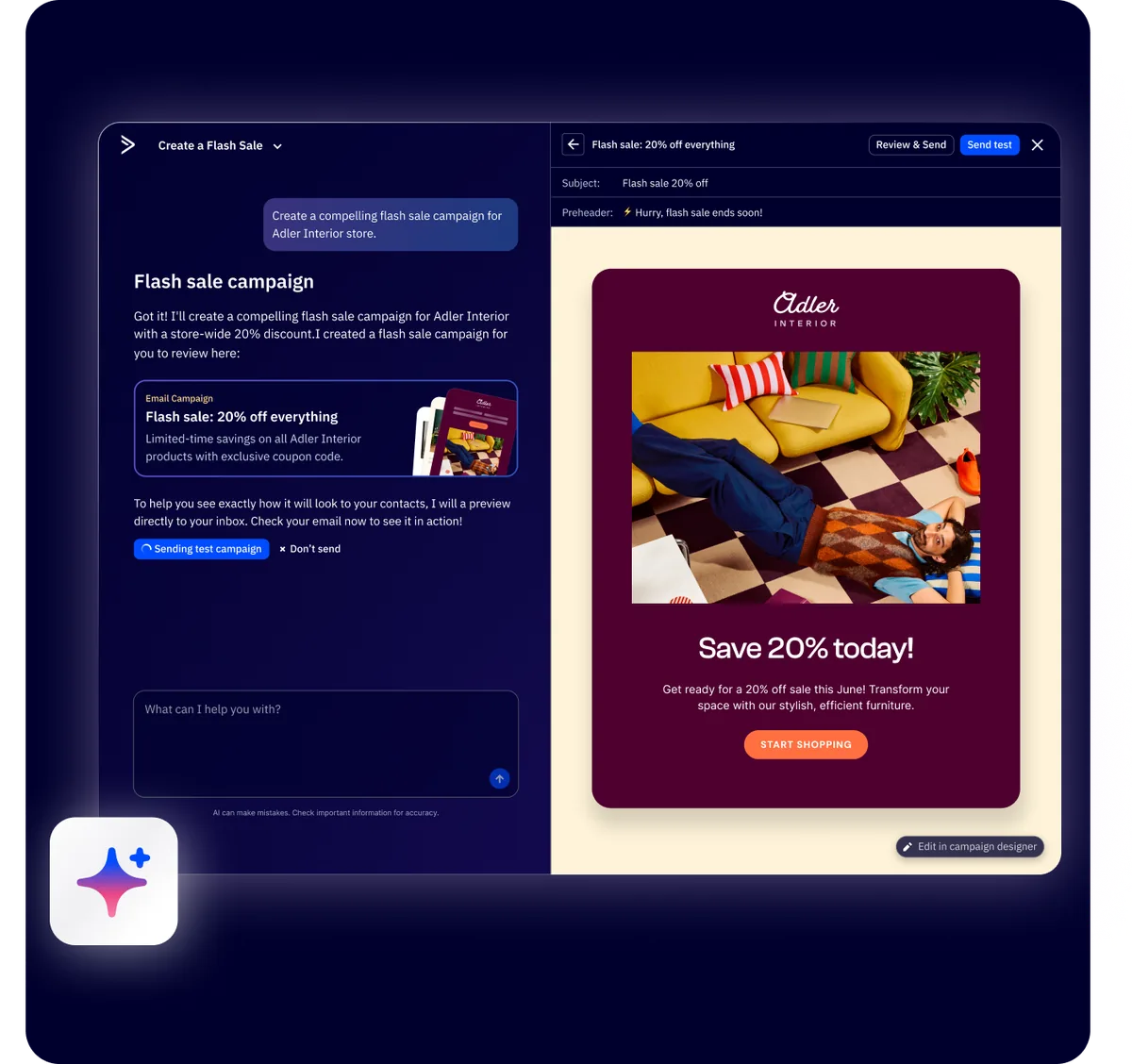
The brand kit becomes even more powerful when combined with ActiveCampaign’s AI content generation tools. The AI campaign builder does not just generate text - it generates on-brand content that matches your visual identity.
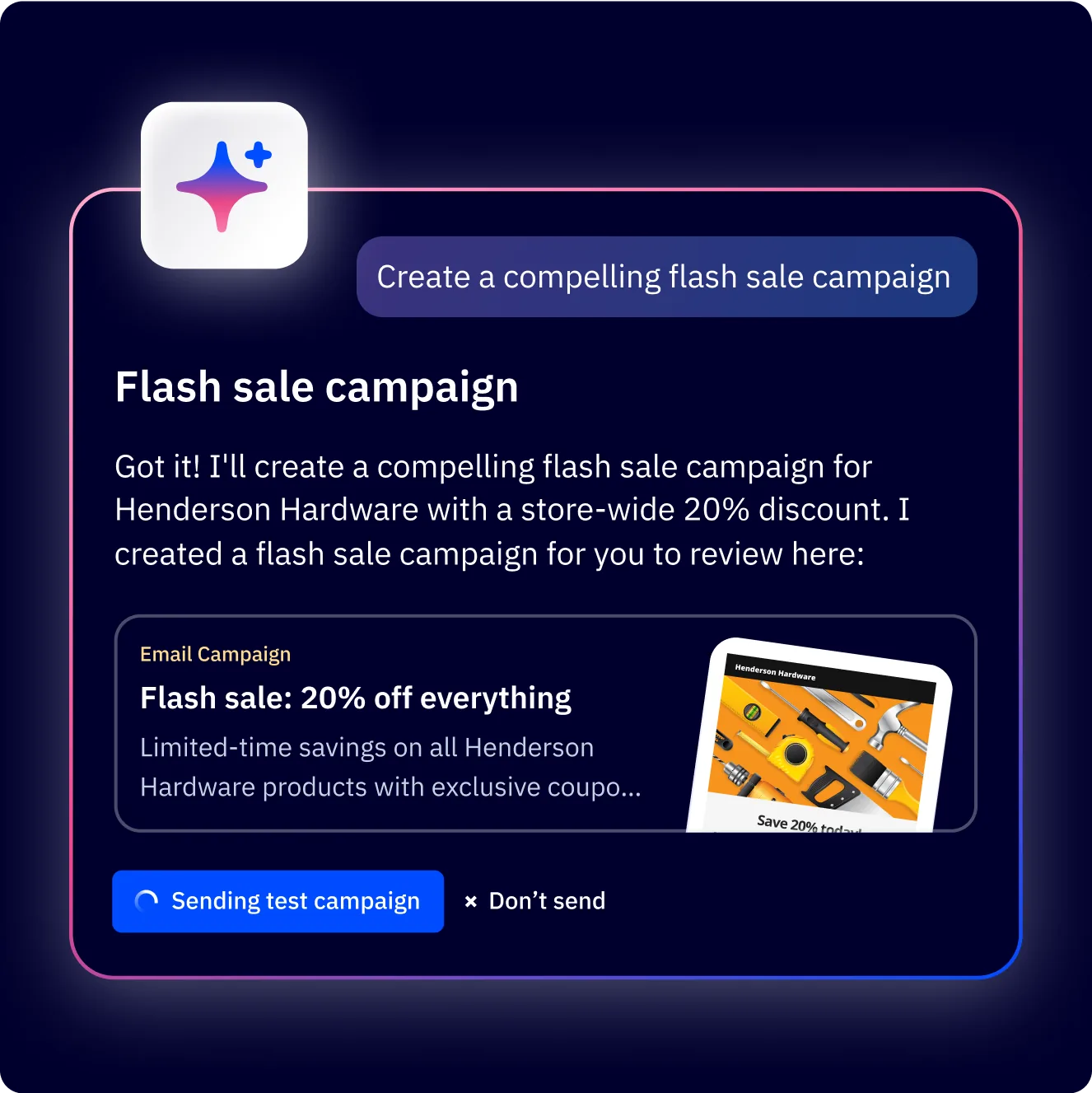
When you use the AI campaign builder to create an email from a text prompt, it references your brand kit to set colors, apply your logo, and style buttons correctly. You describe what you want the email to accomplish, and the AI produces a complete draft that already looks like it belongs to your brand. There is no extra step to “apply branding” after the AI generates content.
This integration means:
- AI-generated subject lines and preview text are styled in your brand fonts when previewed.
- Auto-generated email layouts use your primary and secondary colors for sections, backgrounds, and dividers.
- Call-to-action buttons in AI-generated emails match your brand kit button styles - same corner radius, same colors, same font weight.
- Image placeholders are sized and positioned to work with your logo placement preferences.
For teams that use the AI builder frequently, the activecampaign brand kit eliminates the “it looks generic” problem that plagues most AI-generated marketing content. The output looks like your brand from the start, not like a template that needs heavy customization. To take things further, you can pair the brand kit with email automation workflows so every triggered email matches your brand without manual intervention. The marketing automation platform connects the brand kit directly to your sequences.
Managing Multiple Brands
If you run an agency or manage marketing for multiple businesses under one ActiveCampaign account, the brand kit supports multiple brand profiles.
Each brand profile stores its own set of colors, logos, fonts, and button styles. When you start building a new campaign, you select which brand profile to use, and the editor loads that brand’s assets. This prevents the most common agency mistake - accidentally sending a client email with the wrong company’s logo or colors.
Setting up multiple brands:
- Navigate to Settings then Brand Kit.
- Click Add Brand to create a new profile.
- Enter the website URL for the new brand and let the AI scan it, or configure the settings manually.
- Give each brand profile a clear name so team members can identify them quickly - use the company name, not something vague like “Brand 2.”
Switching between brands:
When you open the email editor or landing page builder, look for the brand selector near the top of the design panel. Click it to see your saved brand profiles and select the one you need. The editor immediately updates to reflect that brand’s colors, fonts, and logos.
For agencies managing more than five or six brands, keep brand names consistent and consider using a naming convention that groups brands by client or project. The official Brand Kit help article covers field-by-field setup details that help when you are juggling many profiles. This becomes important as your brand library grows. If you are migrating from another platform, the ActiveCampaign Mailchimp migration guide covers how to bring your existing brand assets and templates over. For setting up forms that feed into your branded email workflows, see the ActiveCampaign forms setup guide.
Troubleshooting Auto-Import
The AI scan works well for most websites, but it is not perfect. Here are the most common issues and how to resolve them.
The scan did not find your logo. This usually happens when your logo is rendered as an inline SVG element rather than an image file, or when it is loaded dynamically via JavaScript after the initial page render. The fix is simple: upload your logo manually in the brand kit editor. Keep a PNG or SVG export of your logo file accessible for situations like this.
Colors are wrong or incomplete. The AI sometimes picks up background colors, hover states, or third-party widget colors instead of your actual brand palette. Review each detected color and compare it against your style guide. Remove anything that does not belong and manually add any colors the scan missed. Entering hex codes directly is the most reliable approach.
Fonts do not match. If your site uses a custom or self-hosted font, the AI may not recognize it. ActiveCampaign’s font library includes Google Fonts and a selection of web-safe options. Find the closest available match and set it as your default. Keep in mind that email clients have their own font rendering rules, so even a perfect match in the editor may look slightly different in some inboxes.
The scan times out or returns no results. Sites behind Cloudflare protection, login walls, or heavy JavaScript frameworks (single-page apps) can block the AI crawler. If this happens, skip the auto-import entirely and configure your activecampaign brand kit manually. It takes about five extra minutes and gives you full control over every setting. For a complete overview of what the email designer can do, visit the ActiveCampaign email marketing platform page. For ongoing brand consistency tips, also see our ActiveCampaign AI content generation guide, and pair the brand kit with the ActiveCampaign deliverability guide to keep your branded sends landing in the inbox.
Frequently Asked Questions
How do I set up the activecampaign brand kit from my website?
Go to Settings, then Brand Kit in your ActiveCampaign dashboard. Enter your website URL and click scan. The AI analyzes your site and imports your logo, colors, and fonts automatically. Review the results, make any adjustments, and save. The entire process takes two to three minutes. The auto-import works best on standard marketing websites with clear header logos, defined CSS color palettes, and Google or Adobe fonts loaded in the page head. If your scan misses elements, manual configuration takes about five additional minutes.
Can I customize the activecampaign brand kit settings after auto-import?
Yes. Everything the AI imports is fully editable. You can change colors, swap logos, adjust fonts, and modify button styles at any time. Updates apply to all new content created after saving - existing campaigns keep their current styling. The editor lets you fine-tune hex codes, upload multiple logo variations for headers and footers, and define button corner radius and padding so every CTA looks consistent. Save your changes once and they propagate to every new email, landing page, and form.
Does the brand kit apply to landing pages and forms?
Yes. The brand kit feeds into the email builder, the landing page builder, and the form designer. Any content you create across these tools will reference your saved brand profile for colors, fonts, and logos. This means a contact who clicks from an email to a landing page sees the exact same colors, fonts, and logos throughout the journey - removing visual friction that can hurt conversion. Inline forms embedded on your website can also pull from the brand kit so they match your site styling.
What plan includes the AI brand kit?
The activecampaign brand kit is available on all paid plans starting with the Starter plan at $15/month. There is no separate add-on cost. Higher-tier plans (Plus at $49/month, Professional at $149/month, Enterprise with custom pricing) include the same brand kit functionality along with additional platform features like CRM, predictive sending, and advanced reporting. Check the pricing page for current plan details, or start a 14-day free trial to test the brand kit on your own website.
How do I update the brand kit after a rebrand?
Open Settings, then Brand Kit, and either re-run the AI scan with your updated website URL or manually edit each section. Update your colors, upload new logos, and change fonts as needed. Save the updated profile, and all new campaigns will use the refreshed brand assets. If you need to update existing email templates, open each one in the editor and the new brand kit values will be available in the design panel. For agencies handling multiple client rebrands, switch to the appropriate brand profile before opening templates so the editor loads the correct asset library.
Want to learn more about ActiveCampaign?
Related Guides
- ActiveCampaign AI Features Guide
- ActiveCampaign AI Content Generation
- ActiveCampaign Getting Started Guide
- ActiveCampaign Email Campaign Setup
Related Reading
External Resources
- ActiveCampaign Brand Kit Help Center - Official documentation for setting up the Brand Kit
- ActiveCampaign Active Intelligence - Overview of AI features including Brand Kit
- ActiveCampaign Help Center - Complete platform documentation
Related Guides
- Activecampaign AI Content Generation: Complete 2026 Guide
- ActiveCampaign AI Features: Active Intelligence Guide
- Activecampaign Automation Builder: Complete 2026 Guide
- ActiveCampaign Conditional Content: Personalization Guide
- ActiveCampaign CRM Setup: How to Set Up ActiveCampaign CRM
- ActiveCampaign Deals Pipeline: Stages & Automation
- ActiveCampaign Deliverability: Best Practices Guide
- ActiveCampaign Email Automation: 10 Workflows That Work
- ActiveCampaign Email Campaign Setup: Step-by-Step Guide
- ActiveCampaign Forms: Types, Setup, and Conversion Tips