

Zoho campaigns setup is the process of configuring Zoho Campaigns, the email-marketing tool included in Zoho One, to send your first campaign. It covers verifying a sender domain with SPF, DKIM, and DMARC records, importing a contact list, building a signup form, designing an email, and tracking results.
Email marketing remains one of the highest-return channels for small businesses, and a proper Zoho Campaigns setup gives you a generous free tier that lets you send to up to 2,000 contacts without paying a cent, since Zoho Campaigns is part of Zoho One. If you have ever felt locked out of platforms that demand credit cards before you can even explore the editor, this guide will be a refreshing change. The goal here is simple: get your first campaign out the door in roughly twenty minutes, with sender authentication done correctly so your emails actually reach the inbox.
This zoho campaigns setup walkthrough is written for owners and marketers who have a contact list, a domain name, and an idea for a newsletter or promotion. You do not need any prior email marketing experience. By the end, you will have a verified sender domain, an imported contact list, a working signup form on your website, a designed email, and a tracked campaign with reporting dashboards.
The walkthrough also covers a basic automation workflow so that new subscribers receive a welcome email automatically. That single piece of automation is what separates broadcast email from a real marketing program, and it is included on the free tier in a limited form.
What Do You Need Before Starting Zoho Campaigns Setup?
Before you start, gather a few items so the setup runs smoothly without context switching halfway through.
- A domain name you own and control (for sender authentication)
- Access to your domain’s DNS records (usually through your registrar or hosting provider)
- A list of contacts in CSV format, or an existing list in another email tool
- A logo file and brand colors for your template
- A short list of segments you might want later (customers, leads, newsletter subscribers)
- A Zoho account email address that uses your business domain
If you do not yet have a Zoho account, you can create one during the signup process. The free Zoho Campaigns plan does not require a credit card, which makes it a low-risk way to evaluate the platform before committing budget.
For teams already using other Zoho applications such as Zoho CRM or Zoho Mail, your existing account works for Zoho Campaigns as well, and you can sync contacts directly from Zoho CRM without exporting CSVs.
Step 1: Create Your Account and Verify Sender Domain
Begin by visiting zoho.com/campaigns and clicking the signup option for the Forever Free plan. Use a business email address tied to a domain you own. Avoid Gmail or Yahoo addresses for the sender identity because most major mailbox providers now reject mass mail from free webmail addresses, and Zoho’s compliance check will block sending from those addresses anyway.
After confirming your account, the platform prompts you to add a sender. Enter the email address you intend to send from, such as [email protected]. Zoho will send a confirmation link to that address. Click it to verify ownership of the inbox.
The next step is the most technically involved part of the entire setup, and also the most important. Navigate to Settings, then to Domain Authentication, and add your domain. Zoho will provide three sets of DNS records to add at your registrar:
- SPF record - a TXT record that authorizes Zoho’s servers to send mail on behalf of your domain
- DKIM record - a TXT record containing a public key used to digitally sign your messages
- DMARC record - a TXT record that tells receiving mail servers what to do with messages that fail SPF or DKIM checks
Log in to your DNS provider, add each record exactly as Zoho specifies, and save changes. DNS propagation can take anywhere from a few minutes to a few hours, although most providers update within fifteen minutes. Return to Zoho and click Verify next to each record. Once all three show green, your sender domain is fully authenticated.
Skipping authentication is the single most common reason new senders end up in spam folders. Take the extra time here. Without DKIM and SPF in place, your campaign open rates will suffer regardless of how good the content is.
Step 2: Import Your Contact List
With authentication complete, you can move on to building the audience. Zoho Campaigns organizes contacts into mailing lists, and you can have multiple lists for different audiences such as customers, prospects, and event registrants.
Click Contacts in the left navigation, then choose Manage Lists, and create a new mailing list. Give it a clear name like “Newsletter Subscribers” or “Existing Customers” and add a short description so future you remembers what the list is for. Each list also requires a sign-up source, which is metadata used for compliance purposes - this is where you describe how these contacts agreed to receive email.
To bring contacts into the new list, choose Import and select your CSV file. Zoho expects at minimum an email column, and supports first name, last name, phone number, and any custom fields you create. Map your CSV columns to Zoho fields during import. The system will flag duplicate addresses and obviously malformed entries so they do not contaminate your list.
When prompted about consent, Zoho asks whether each contact actively opted in. This matters for both deliverability and legal compliance. Lists imported as opted-in receive more sending leeway than lists flagged as cold or purchased. Be honest here - mislabeling a cold list as opted-in is a common cause of accounts being suspended for high complaint rates.
The free Forever Free plan supports up to 2,000 subscribers and 6,000 emails per month, which is enough for most small businesses to send a weekly newsletter to a modest list. If your subscriber count is higher, you will need to move to the Standard plan, which is priced by subscriber tier starting from a few dollars per month on annual billing and scaling up with list size. Compare the broader category in our best email marketing tools 2026 round-up if you want to confirm Zoho Campaigns is the right pick before committing.
Step 3: Build Your First Signup Form
Importing existing contacts is fine, but a signup form on your website turns visitors into subscribers continuously. The free plan includes basic signup forms, which is enough to get a working form on your site today.
Navigate to Contacts, then to Signup Forms, and click Create Form. Choose between three formats:
- Embedded form - sits inline within a page (best for landing pages and footers)
- Pop-up form - appears as an overlay (best for blog posts and homepages)
- Floating form - docks to a corner of the page (less intrusive than a pop-up - the Nielsen Norman research on popups documents the conversion tradeoffs)
Pick embedded for your first form to keep the experience predictable, then design it. Add fields for email and first name at minimum. Avoid asking for too much information up front - studies of email signup behavior consistently show that each additional field reduces conversion. Match the form colors to your brand and write a clear value proposition such as “Get our weekly small business tips.”
Connect the form to the mailing list you created in Step 2. You can also enable double opt-in, which sends a confirmation email that the new subscriber must click before being added. Double opt-in protects your sender reputation and is required in some jurisdictions, including under the EU’s GDPR. For most setups, it is the safer default.
Finally, copy the embed code Zoho generates and paste it into your website. WordPress users can drop the code into a Custom HTML block. Webflow, Squarespace, and Wix all support embed widgets that accept the same code. Test the form by submitting a real email address and confirming the welcome flow runs end to end.
Step 4: Design Your Email Template
With contacts in place and signups flowing in, the next milestone is your email template. Templates control the look and structure of every campaign you send, so it is worth investing fifteen minutes here.
Navigate to Campaigns, then to Templates, and click Create New. The Forever Free plan includes a small set of basic templates - on Standard and Professional plans, the entire library and dynamic content blocks become available. Choose a template that matches the type of email you plan to send: announcement, newsletter, promotion, or transactional notification.
The drag and drop editor is built around content blocks - text, image, button, divider, social icons, and more. Add your logo to the header, set your brand colors, and write a short footer with your physical mailing address. The footer address is required by anti-spam laws in most countries, including the United States CAN-SPAM Act and Canada’s CASL, so do not skip it.
Pay attention to the unsubscribe link. Zoho automatically inserts one, but verify it is visible and working. Buried unsubscribe links lead to spam complaints, which damage your sender reputation far more than unsubscribes ever will.
Save the finished template and give it a clear name like “Master Newsletter Template.” You can clone it for future campaigns rather than starting from scratch each time.
A small note for Professional plan users: dynamic content blocks let you show different content to different segments within the same email, which is excellent for personalization but is not available on the free or Standard plans. If your emails will rely heavily on segmentation, factor that into the plan you choose.
Step 5: Send Your First Campaign
You now have a verified sender, an imported list, a working signup form, and a designed template. It is time to send.
Click Campaigns, then Create Campaign, and choose Regular Campaign for a one-time broadcast. The campaign builder walks you through six sections in order:
- Basic info - campaign name, sender name and email, reply-to address
- Recipients - which mailing list or segment receives the message
- Content - the email template and personalized subject line
- Tracking - open and click tracking settings
- Send time - immediate or scheduled
- Review - a final pre-flight check
Write a subject line that is clear and specific. Avoid all caps, excessive punctuation, and spam trigger words such as “free money” or “guaranteed.” Aim for under fifty characters so the line displays fully on mobile devices. Add a preview text - the snippet that appears next to the subject line in most inboxes - because if you leave it blank, mailbox clients will pull from your email body, which often looks unprofessional.
Before scheduling the send, run a test by sending the campaign to your own address. Check the email on desktop and mobile, click every link, and verify images load. Spelling errors and broken links cannot be undone after the send button is pressed, so this small step is worth it every time.
When everything looks good, schedule the campaign. The free plan does not include timezone optimization, which sends each contact at the optimal time for their location - that feature is exclusive to the Professional plan. For your first campaign, pick a time that aligns with your audience’s typical inbox check time, such as Tuesday or Wednesday at mid-morning.
After the send completes, the Reports section gives you opens, clicks, bounces, unsubscribes, and complaints. Zoho updates these in near real time, so you can watch the first few hours unfold. Avoid drawing strong conclusions from a single send - benchmark performance is best evaluated across at least three to five campaigns to a similar audience.
Step 6: Set Up Automation Workflows
Single broadcast campaigns are useful, but automated workflows are where email marketing genuinely starts to compound. The Forever Free plan does not include automation, so this step requires the Standard plan or Professional plan, both of which are priced by subscriber volume and available on annual or monthly billing.
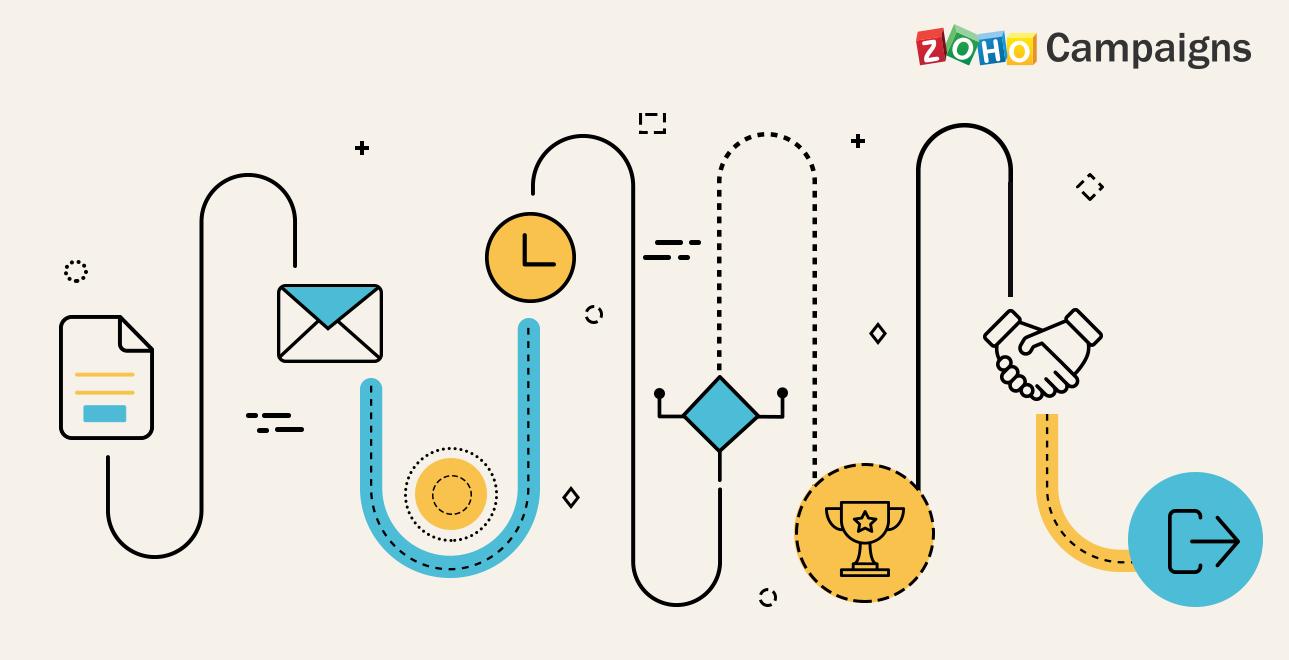
The workflow most worth building first is a welcome series. New subscribers are most engaged in the first 48 hours, so emailing them while attention is high produces the best results.
Navigate to Workflows, then click Create Workflow. Pick the “List Subscribers” trigger, which fires whenever a new contact joins your mailing list. Add a delay step (one hour is a sensible first delay), followed by an Email step containing your welcome message. Add another delay (two days), followed by a second email that introduces your most popular content or a key product. Add a final delay (three days) and a third email with a soft call to action.
The workflow builder is visual, so you can see the path each subscriber takes. You can add branching logic such as “if they opened email one, send email two, otherwise send a different version” - this kind of branching is basic on the Standard plan and more powerful on the Professional plan, which adds advanced segmentation, contact scoring, and ecommerce-aware triggers.
Save and activate the workflow. Test it by signing up through your form with a fresh email address and confirming each step lands as expected.
How Do You Verify Your Zoho Campaigns Setup?
Before declaring the project complete, run through this verification checklist. A working zoho campaigns setup means each item below passes:
- Sender email address is verified (green check in Settings)
- SPF, DKIM, and DMARC records all show verified status
- At least one mailing list contains imported contacts with the correct opt-in status
- Signup form is embedded on your website and can accept submissions
- Test submission of the signup form delivers the welcome email
- Template renders correctly on Gmail, Outlook, and a mobile inbox
- Unsubscribe link in test email opens a working preference page
- First campaign send report shows reasonable open and bounce rates
- Welcome workflow (if on Standard or Professional) is active and triggered correctly
If any item fails, fix it before moving on. Each gap above directly affects either deliverability or compliance, both of which are far harder to repair after damage is done.
Next Steps After Your First Campaign
Once the basics are running, the next priorities are building cadence and adding sophistication.
Establish a regular sending rhythm. Whether weekly, biweekly, or monthly, pick a schedule and stick to it. Inconsistent senders are flagged more aggressively by spam filters because their patterns look erratic.
Segment your list. Sending the same message to every subscriber regardless of behavior is the email equivalent of shouting in a crowded room. Basic segmentation is included with the Standard plan, while advanced segmentation, contact scoring, and dynamic content require the Professional plan.
A/B test subject lines. Even small subject line changes can move open rates. Zoho’s A/B testing feature splits your list and sends variants to determine the winner before sending to the rest.
Connect Zoho CRM. If you use Zoho CRM or are considering the broader Zoho One bundle, syncing contacts and behavior between CRM and Campaigns produces a tighter feedback loop between sales and marketing. Zoho One bundles every Zoho app, including Campaigns, through All Employee at $45/month or $37/month annual - see the Zoho One bundle review 2026.
Audit deliverability quarterly. Run a deliverability test through a tool like Mail-Tester at least every quarter to catch any drift in your authentication or content scoring.
This zoho campaigns tutorial barely scratches what the platform can do, but the foundation above is enough to run a respectable program and grow from there.
Frequently Asked Questions
Is Zoho Campaigns truly free, or is it a trial?
The Forever Free plan is genuinely free with no time limit. It supports up to 2,000 contacts, 6,000 emails per month, 5 users, basic templates, basic signup forms, and the compliance check. Zoho branding appears on emails sent from the free plan, and advanced automation, contact scoring, and dynamic content are reserved for paid tiers. Many small businesses operate indefinitely on the free plan.
How does Zoho Campaigns compare to Mailchimp for a small business?
Both platforms cover the same core ground - templates, lists, automation, and reporting. Zoho Campaigns has a more generous free tier (2,000 contacts versus Mailchimp’s 500 on the latest free plan) and lower paid pricing at comparable contact volumes. Mailchimp has a wider third-party integration ecosystem and a more polished editor. See the Mailchimp alternatives roundup for a wider comparison. The decision often comes down to whether you already use Zoho elsewhere - if you do, Campaigns is the clear winner because of native CRM and analytics integration.
Do I need to authenticate my domain if I am only sending to a small list?
Yes. Domain authentication through SPF, DKIM, and DMARC is now expected by Gmail, Yahoo, and most major mailbox providers regardless of list size. Without authentication, even legitimate small-volume senders frequently land in spam. The setup takes ten minutes and pays dividends for the life of the account.
Can I migrate my existing list from Mailchimp or Constant Contact?
Yes. Export your contacts from the previous platform as a CSV, then import the file into a Zoho Campaigns mailing list following Step 2 of this zoho email marketing guide. Engagement history does not transfer, so you will start fresh on metrics like open rates and complaint scores. Plan a re-engagement campaign during the first month after migration to identify and prune inactive subscribers.
What is the difference between the Standard and Professional plans?
The Standard plan covers unlimited emails, all templates, basic segmentation, and basic workflows for up to 10 users. The Professional plan adds advanced segmentation, contact scoring, advanced workflows, ecommerce features, dynamic content, batch sending, timezone optimization, and supports up to 20 users. Both plans are priced by subscriber volume and scale as your contact count grows. If you plan to use behavior-based automation or ecommerce flows, Professional is the right starting tier.
Is Zoho Campaigns included in Zoho One?
Yes. Zoho Campaigns is part of the Zoho One bundle, with All Employee priced at $45/month or $37/month annual. See the full Zoho One pricing page for current plan details. Zoho One includes every Zoho application, so it is the most economical choice for teams that already use two or three other Zoho products such as Zoho CRM, Zoho Mail, or Zoho Books.
The Bottom Line
A complete zoho campaigns setup gives a small team verified-domain sending, a working signup form, a sender-friendly first campaign, and a path to automated nurture workflows - all on the Forever Free plan up to 2,000 contacts and 6,000 emails per month. Above those limits, the contact-based pricing scales economically compared to most major email marketing platforms. Compare it against the wider category in our best email marketing platforms 2026 round-up, and review the Zoho One tool page if Campaigns is one of several Zoho apps you need. The Zoho One bundle review covers when the suite license beats standalone subscriptions for marketing teams.
Want to learn more about Zoho One?
Related Reading
- Zoho One Tool Page
- Best Email Marketing Platforms 2026
- Best Email Marketing Tools 2026
- Mailchimp Alternatives Compared
Related Guides
- Zoho AI Guide: Zia Across the Zoho Suite in 2026
- Zoho Analytics Dashboard Setup: First BI Dashboard
- Zoho Books Setup Guide: Small Business in 30 Minutes
- Zoho Connect Setup Guide: Internal Team Network
- Zoho CRM Setup Guide for Small Business Sales Teams
- Zoho Mail Custom Domain Setup: Migrate from Gmail
- Zoho Marketing Automation: Workflows for Lead Nurture
- Zoho One Review 2026: Is the All-in-One Suite Worth It?
- Zoho Projects Setup Guide: Tasks, Milestones, Onboarding
- Zoho Sign Setup Guide: Send Your First eSignature Fast
- Zoho Desk Setup Guide: Build Your Help Center
- Zoho Social Setup Guide: Schedule Posts Across All Networks
- Zoho Assist Setup Guide: Free Remote Support for IT Teams
- Zoho Bookings Setup: Appointment Scheduling in 15 Minutes
External Resources
- Zoho Campaigns Free Plan
- Zoho One Suite
- Zoho Campaigns Help Center
- Zoho One Suite on AI Productivity
Related Guides
- Zoho AI Agents: Step-by-Step Zia Agent Studio Setup
- Zoho AI Guide: Zia Features, Pricing, and Use Cases 2026
- Zoho Assist Setup Guide: Free Remote Support for IT
- Zoho Bookings Setup: Schedule Appointments Fast
- Zoho Cliq Setup Guide 2026: Team Chat in 20 Minutes
- Zoho Commerce Setup Guide (2026): Domain to First Sale
- Zoho Connect Setup Guide: Build a Team Network 2026
- Zoho CRM For Small Business Explained (2026 Guide)
- Zoho CRM Pricing Guide: All Tiers & Costs Compared
- Zoho Flow Tutorial: Connect Apps Without Code 2026