





The ElevenLabs getting started path does not require audio engineering experience or a background in AI. If you have ever wished you could turn written text into natural-sounding speech - for videos, podcasts, presentations, audiobooks, or accessibility - ElevenLabs is the platform that gets you there in minutes. Over a million creators and developers use it because the voice quality is a genuine step above older text-to-speech tools, and the free tier gives you enough room to evaluate it before spending anything.
This ElevenLabs tutorial walks you through the complete getting started process from account creation to your first generated audio file. You will learn how to navigate the Studio workspace, choose the right AI model for your project, generate your first voiceover, and explore the voice library. More importantly, you will understand why model selection matters - a detail that most beginners overlook and that has a direct impact on output quality.
This is written for people who are brand new to AI voice generation or switching from another platform like Murf, WellSaid Labs, or Amazon Polly. If you already have an account and want to explore advanced features, the ElevenLabs Voice Cloning Tutorial covers professional and instant cloning in depth.
Prerequisites
The elevenlabs getting started checklist below covers everything you need before account creation. Gather these items so you can move through each step without stopping.
An email address for your account. Any email works for the free tier. If you plan to use ElevenLabs for business, use your company email from the start so your account is associated with the right organization when you eventually upgrade.
A text sample to convert. Have a paragraph or two of text ready for your first generation. Something between 100 and 500 characters is ideal for testing - long enough to hear how the voice handles pacing and intonation, short enough to stay within free tier limits. A product description, blog introduction, or script excerpt all work well.
A quiet environment for playback. You will be evaluating voice quality, so use headphones or a quiet room. Subtle differences between models and voices are easier to catch without background noise.
A plan or free trial. ElevenLabs offers a free tier with 10,000 characters per month - roughly 12 to 15 minutes of generated audio. That is enough for testing and small projects. If you need commercial usage rights, the Starter plan at $5 per month unlocks a commercial license plus an ElevenLabs API key for developers, and 30,000 characters. The Creator plan at $22 per month adds professional voice cloning and 100,000 characters. Compare all tiers on the pricing page.
Create Your Account
The signup process takes under two minutes.
Step 1: Navigate to the ElevenLabs website. Go to elevenlabs.io and click the sign-up button - the same starting point referenced throughout the ElevenLabs docs and ElevenLabs API onboarding flow. You can register with your email address and a password, or sign up using your Google or GitHub account for faster access. No credit card is required for the free tier.
Step 2: Verify your email. Check your inbox for a verification email from ElevenLabs. Click the confirmation link to activate your account. If it does not arrive within a few minutes, check your spam folder.
Step 3: Complete the onboarding survey. ElevenLabs asks a few questions about how you plan to use the platform - content creation, app development, dubbing, or something else. These answers help personalize your dashboard experience but do not lock you into anything. Answer honestly and move through quickly.
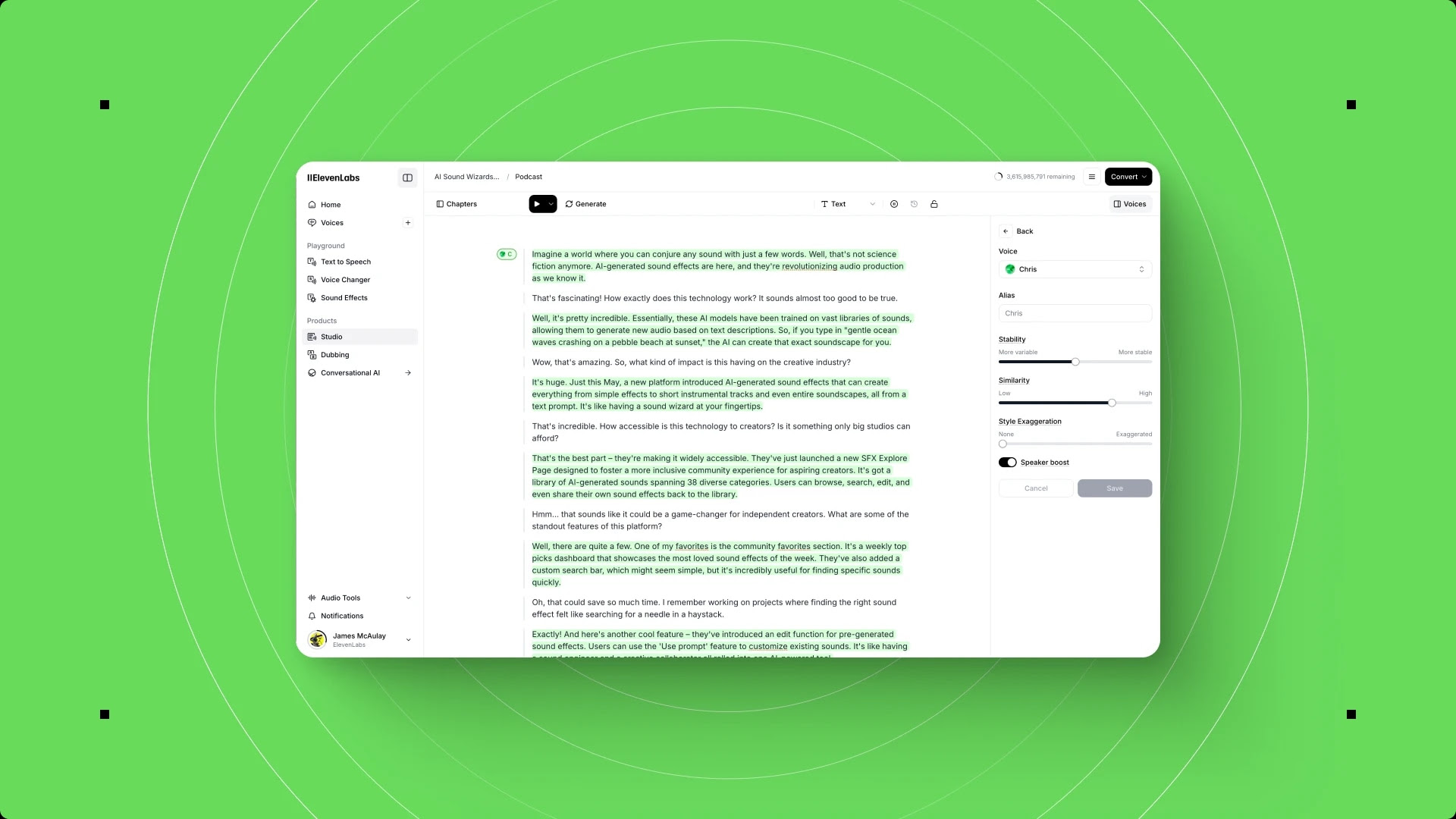
Step 4: Land in the Studio workspace. After onboarding, you arrive at the ElevenLabs Studio - the central hub where you generate speech, manage voices, and access all platform features. The Studio first project guide walks through the workspace if you want a deeper tour.
Interface Tour
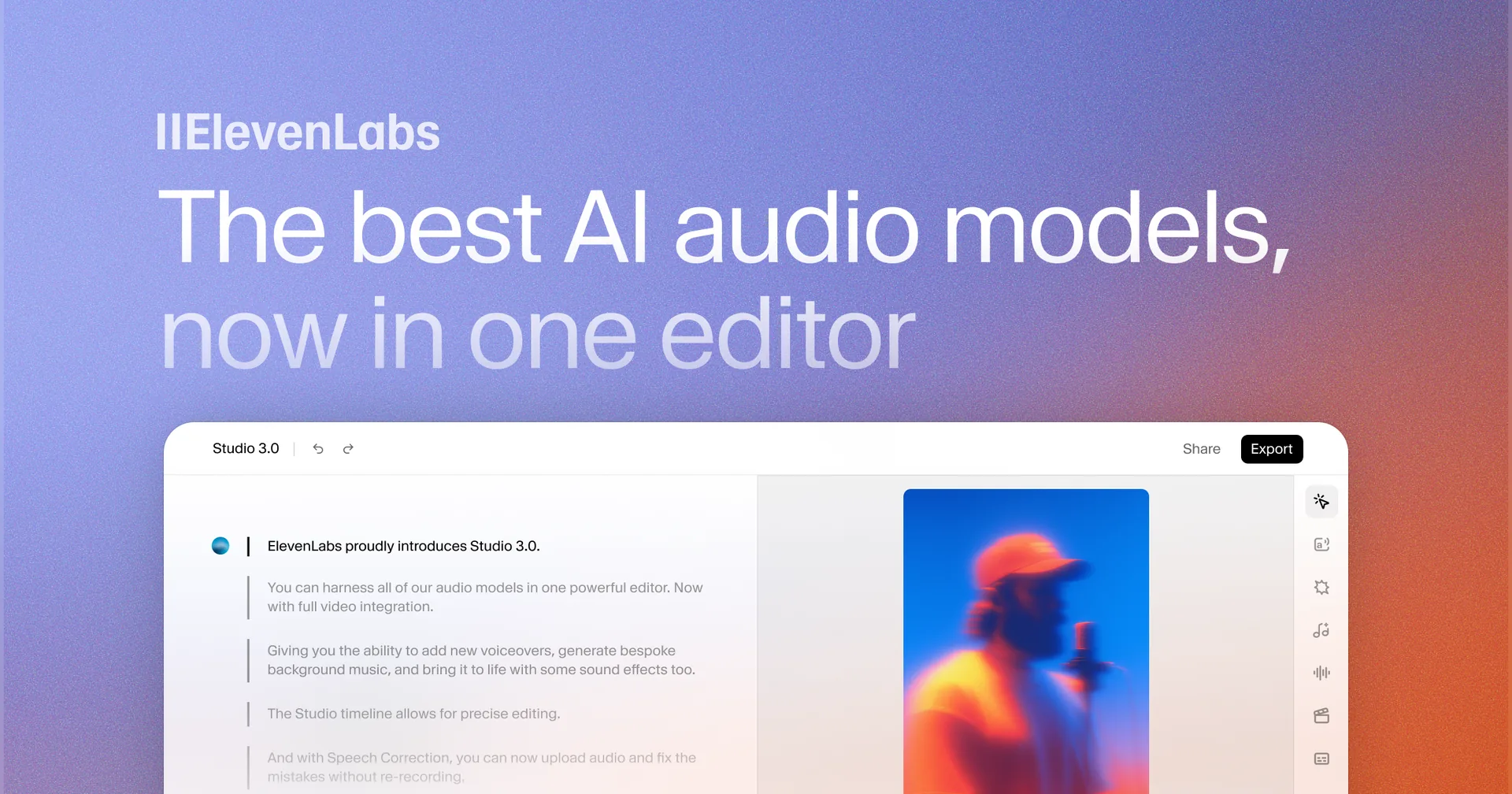
Before generating anything, take two minutes to understand where everything lives. ElevenLabs redesigned its interface with Studio 3.0, and the layout is cleaner than previous versions but still has a few areas that confuse new users.
Left sidebar navigation. This is your primary menu. The key sections you will use immediately are:
- Text to Speech - The core generation tool where you paste text and generate audio
- Speech to Speech - Convert your own voice recordings into different voices in real time
- Voice Library - Browse and save community-created and premium voices (the voice library guide covers filtering)
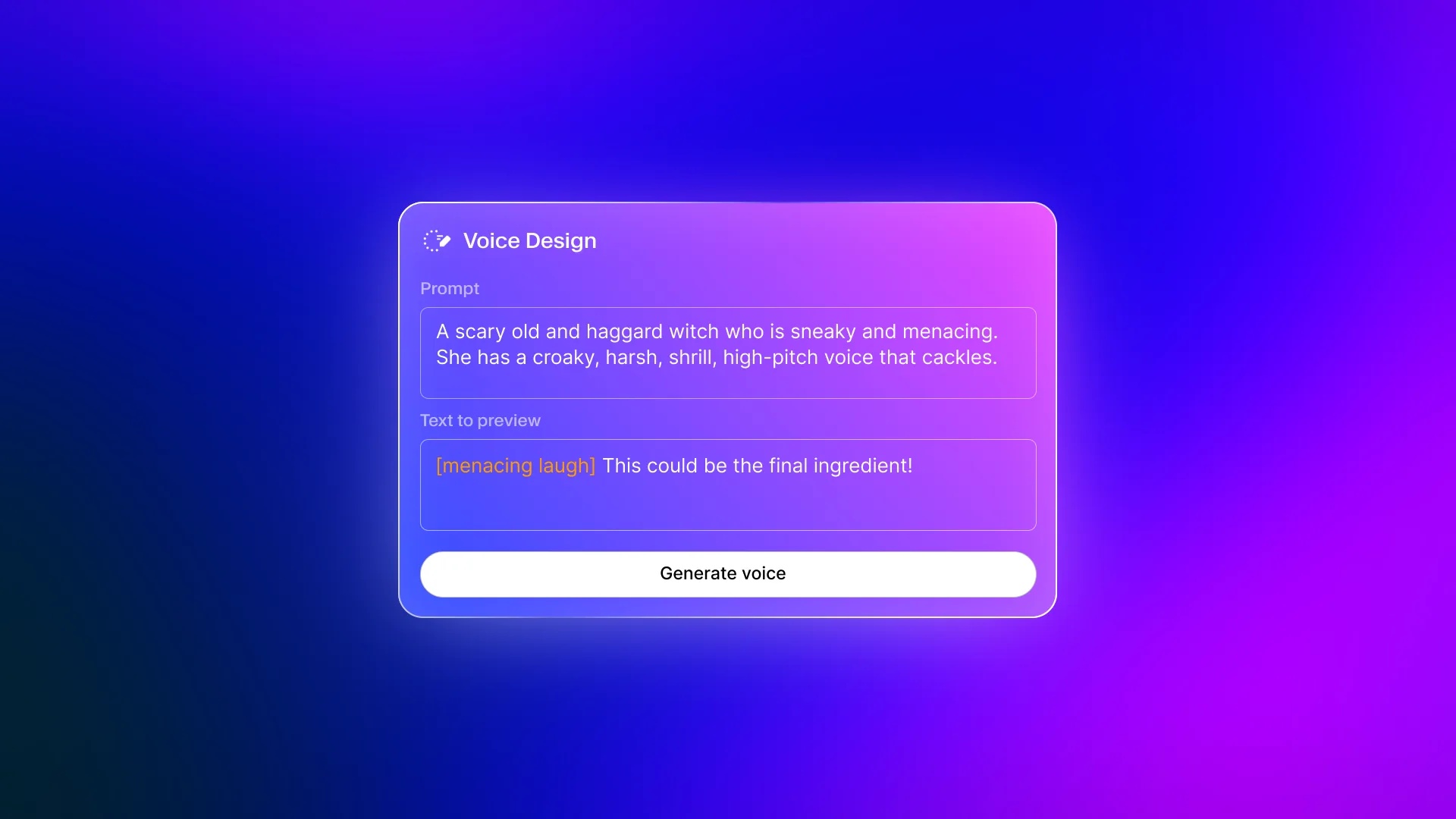
- Voice Design - Create entirely new synthetic voices by describing characteristics (voice design v3 guide)
- My Voices - Your saved voices, including any clones you create later
- Projects - Long-form content workspace for audiobooks (Projects audiobook guide), articles, and multi-section audio
The generation panel. When you open Text to Speech, the main area shows a text input field, a voice selector, model selector, and generation settings. This is where you will spend most of your time as a beginner.
Voice settings controls. Below the voice selector, you will find sliders for Stability and Similarity Enhancement. These are important but often misunderstood:
- Stability controls how consistent the voice sounds across generations. Higher values produce more predictable, uniform output. Lower values add more variation and expressiveness but can introduce artifacts.
- Similarity Enhancement (sometimes called Clarity + Similarity Enhancement) controls how closely the output matches the original voice profile. Higher values sound more like the selected voice but can amplify any noise in the voice sample.
For your first generation, leave both settings at their defaults. You can fine-tune them later once you have a baseline to compare against.
Output history. Every generation you create appears in your history panel on the right side. You can replay, download, or delete past generations. This is useful for comparing how the same text sounds with different voices or settings.
How Do You Generate Your First Voice with ElevenLabs?
Now that you know the layout, generate your first audio clip. This is the moment most elevenlabs getting started walkthroughs build toward, and the process takes about 30 seconds.
Step 1: Open Text to Speech. Click Text to Speech in the left sidebar if it is not already open. The generation panel appears in the center of the screen.
Step 2: Paste your text. Enter your prepared text sample into the input field. If you did not prepare one, try something like this: “Welcome to our product walkthrough. In the next few minutes, we will cover the key features that make this tool stand out from the competition.” That is 174 characters - well within the free tier.
Step 3: Select a voice. Click the voice selector dropdown. ElevenLabs provides several default voices to get you started. For a natural-sounding male voice, try “Adam” or “Daniel.” For female, try “Rachel” or “Sarah.” Each voice has a small play button that lets you preview a sample before committing.
Step 4: Choose your model. This is the step most beginners skip - and it matters more than voice selection. Click the model dropdown (it may say “Eleven Multilingual v2” or “Eleven Flash v2.5” by default). You will see several options, each with different strengths. The next section explains these in detail, but for your first generation, select Eleven Multilingual v2 if you want the highest quality, or Eleven Flash v2.5 if you want faster output with slightly lower quality.
Step 5: Click Generate. Hit the generate button and wait a few seconds. Your audio appears in the output panel below the text field. Click play to listen.
Step 6: Evaluate and iterate. Listen critically. Does the pacing sound natural? Is the pronunciation correct for any technical terms or proper nouns? If something sounds off, try adjusting the Stability slider down slightly (for more expressiveness) or up (for more consistency), then regenerate. Each generation consumes characters from your monthly quota.
Step 7: Download your audio. If you are satisfied with the result, click the download button on the generated clip. ElevenLabs outputs MP3 by default. If you need a different format, you can adjust this in the settings or use the API for more output options - the API developer setup guide walks through authentication and SDK options.
Model Selection - Why It Matters
Model selection is the single most impactful decision you make in ElevenLabs, and it is the one area where beginners consistently leave quality on the table. Each model handles speech synthesis differently, and choosing the wrong one for your use case produces noticeably worse results.
Here is what you need to know about each model available in 2026:
Eleven Multilingual v2
Best for: High-quality voiceovers, content creation, audiobooks, marketing materials
This is the flagship model and the default recommendation for most use cases. It supports 29+ languages with natural-sounding output and handles emotional nuance well. Generation takes a few seconds longer than Flash models, but the quality difference is audible - especially in longer passages where pacing and breath patterns matter.
Use this when: Quality is your priority and you can tolerate a few extra seconds of generation time.
Eleven v3 (Expressive)
Best for: Emotionally rich content, character voices, storytelling, dramatic narration
The v3 Expressive model represents ElevenLabs’ latest advancement in emotional speech synthesis - announced on the ElevenLabs blog. It produces output with more dynamic range - pauses feel more natural, emphasis lands correctly, and the overall cadence sounds closer to a human reading the text with genuine feeling. This model works particularly well with the audio tag system that lets you inject emotional direction into your text.
Use this when: You need voice output that conveys emotion, tells a story, or needs to sound engaging rather than just informative.
Eleven Flash v2.5
Best for: Real-time applications, chatbots, interactive voice response, prototyping
Flash prioritizes speed over maximum quality. Generation is near-instant, making it suitable for applications where latency matters - conversational AI agents, interactive experiences, or situations where you are generating many short clips rapidly. The quality is good but not as refined as the v2 or v3 models for long-form content.
Use this when: Speed matters more than achieving the absolute best voice quality, or when you are building an application that needs real-time response.
Eleven Turbo v2.5
Best for: Low-latency applications, developer integrations, high-volume generation
Turbo sits between Flash and the standard models in terms of quality and speed. It offers better quality than Flash with faster generation than the Multilingual v2 model. For developers building voice-enabled applications through the API, Turbo often represents the best balance.
Use this when: You need a middle ground between speed and quality, particularly for API-driven applications.
Choosing the Right Model
A practical approach: generate the same paragraph using two or three different models and compare the output directly. You will hear the differences immediately. For most beginners creating voiceovers, marketing content, or educational material, start with Eleven Multilingual v2 and only switch to a faster model if the generation time becomes a bottleneck in your workflow.
The model you choose also affects character consumption. All models consume characters at the same base rate, but if you find yourself regenerating frequently because a faster model did not capture the right tone, you end up using more characters than if you had started with the higher-quality model.
How Do You Explore the ElevenLabs Voice Library?
The built-in default voices are a starting point, but ElevenLabs’ Voice Library is where the platform really opens up. The library contains thousands of community-created voices spanning different accents, ages, tones, and styles.
Browsing voices. Navigate to Voice Library in the left sidebar. You can filter by language, accent, age, gender, and use case. Each voice has a preview sample so you can audition it before adding it to your collection.
Adding voices to your account. When you find a voice you like, click the Add button to save it to your My Voices collection. Added voices appear in the voice selector dropdown when you create new generations. The free tier allows up to 3 custom voices, so choose carefully until you upgrade.
Voice Design. If none of the existing voices match what you need, Voice Design lets you create a new synthetic voice by describing its characteristics. You specify the gender, age range, accent, and speaking style, and ElevenLabs generates a unique voice profile. This is different from voice cloning - Voice Design creates an entirely new voice rather than replicating an existing one.
Understanding voice quality indicators. In the library, pay attention to the usage count and rating on each voice. Voices with high usage counts and positive ratings have been tested extensively by the community and tend to perform reliably across different types of content. Newer voices with low usage counts might sound great in their preview but behave inconsistently with different input text.
Managing Your Free Tier
The free tier gives you 10,000 characters per month - approximately 12 to 15 minutes of generated audio depending on speaking speed. That resets monthly. Here is how to make the most of it.
Monitor your usage. Your remaining character count appears in the bottom left of the interface. Keep an eye on this, especially if you are experimenting with different voices and models. Each generation attempt, including ones you discard, consumes characters.
Write clean input text. Remove unnecessary punctuation, reduce filler phrases, and tighten your text before generating. Fewer characters means more generations from the same quota.
Save good takes immediately. When you get a generation you like, download it right away. You do not want to use additional characters regenerating something you already had.
Use Projects for long content. If you are creating something longer than a few paragraphs, the Projects workspace lets you break text into sections and generate them independently. This gives you more control over pacing and lets you regenerate individual sections without redoing the entire piece.
Know when to upgrade. If you consistently run out of characters before month-end or need commercial usage rights, the Starter plan at $5 per month triples your quota to 30,000 characters and unlocks a commercial license. That is the most cost-effective upgrade for creators who have validated that ElevenLabs fits their workflow.
Verify Your Results
Before using your generated audio in a project, run through this quick quality checklist - it is the part of the elevenlabs getting started workflow that prevents problems downstream.
Pronunciation accuracy. Listen for mispronounced words, especially proper nouns, technical terms, and acronyms. If something is consistently mispronounced, you can use the pronunciation dictionary feature (available on paid plans) to override how specific words are spoken.
Pacing and pauses. Check that the speech flows naturally. Overly long pauses or rushed sections can be addressed by adjusting punctuation in your input text. Adding a comma creates a brief pause. A period or line break creates a longer one.
Consistency across sections. If you generated multiple clips for the same project, listen to them back-to-back. The voice should sound consistent in tone, volume, and energy level. If one section sounds noticeably different, try regenerating it with slightly higher Stability settings.
Background artifacts. Listen with headphones for any subtle clicking, buzzing, or robotic artifacts. These are more common with lower Stability settings or when using voice clones. If you hear them, increase Stability by 5-10% and regenerate.
File format and quality. Verify that the downloaded audio file is in the format you need. MP3 is the default and works for most use cases. If you need higher quality for professional production, consider using the API to request WAV or other lossless formats - reference the official ElevenLabs API documentation.
Next Steps After ElevenLabs Getting Started
You now have a working ElevenLabs setup and your first generated audio. Here is where to go from here based on what you want to accomplish.
Explore voice cloning. If you want to generate speech that sounds like you - or like a specific speaker who has given consent - the ElevenLabs Voice Cloning Tutorial walks through both instant and professional cloning methods. Instant cloning requires just 1-2 minutes of audio and is available from the Starter plan.
Build with the API. Developers can integrate ElevenLabs directly into applications using the REST API or Python and JavaScript SDKs. The API supports all models, voices, and features available in the web interface. API access is available from the Starter plan.
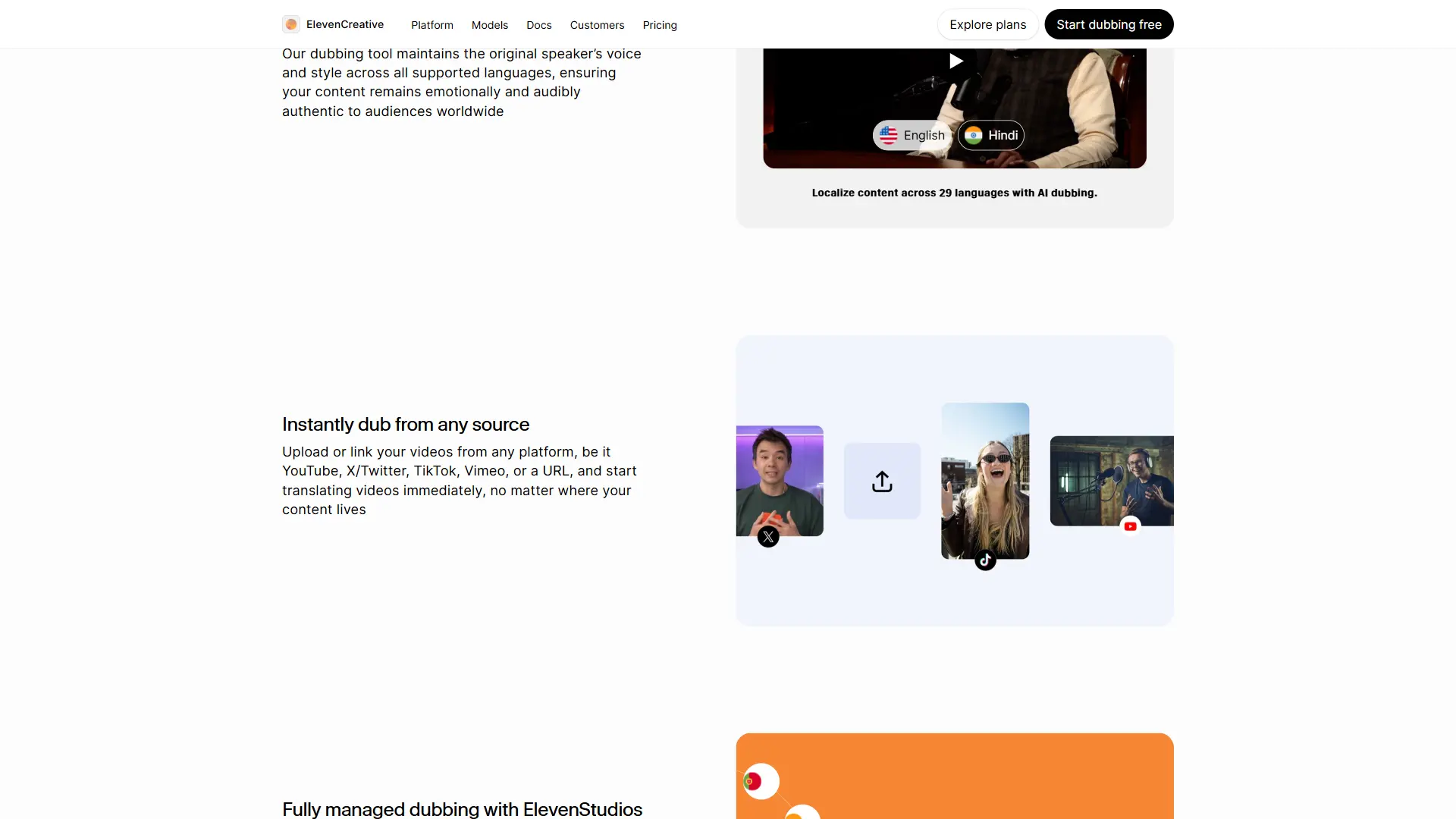
Try dubbing and translation. ElevenLabs can take existing audio or video content and dub it into 70+ languages while preserving the original speaker’s voice characteristics. This is particularly valuable for content creators who want to reach international audiences without hiring voice actors for each language - see the Dubbing Studio guide and multilingual dubbing workflow.
Experiment with Conversational AI. ElevenLabs offers a Conversational AI platform for building voice agents that can have real-time spoken conversations - the Conversational AI guide covers setup. If you are building customer service bots, interactive tutoring systems, or voice-enabled applications, this feature uses the same voice quality you experienced in text-to-speech but in an interactive context.
Connect with your existing tools. ElevenLabs integrates with video editing platforms, content management systems, and automation tools like Zapier and Make. If you produce videos, podcasts, or educational content regularly, connecting ElevenLabs to your existing workflow reduces the manual steps of generating, downloading, and importing audio files.
Frequently Asked Questions
How many characters do I get on the free plan?
The free tier includes 10,000 characters per month, which translates to approximately 12 to 15 minutes of generated audio depending on the voice and speaking speed. This resets at the beginning of each billing cycle. Every generation attempt counts toward your quota, including ones you regenerate or discard, so compose your text carefully before generating.
What is the difference between Eleven Multilingual v2 and Flash v2.5?
Multilingual v2 is the higher-quality model designed for polished voiceovers, audiobooks, and content where natural speech quality is the priority. Flash v2.5 generates audio much faster but with slightly lower quality - it is designed for real-time applications, chatbots, and situations where speed matters more than peak naturalness. For most content creation workflows, start with Multilingual v2 and only switch to Flash if generation time becomes a bottleneck.
Do I need a paid plan to use ElevenLabs commercially?
Yes. The free tier is for personal, non-commercial use only. Commercial usage rights are included starting with the Starter plan at $5 per month. If you plan to use generated audio in YouTube videos, podcasts, client projects, marketing materials, or any revenue-generating context, you need at least the Starter plan. Compare options on the pricing page.
Can I change the emotion or speaking style of a voice?
Yes, but the method depends on the model you are using. With the Eleven v3 Expressive model, you can use audio tags in your text to direct emotional delivery - specifying that a section should sound excited, calm, sad, or authoritative. With other models, you influence emotion primarily through punctuation, capitalization for emphasis, and the Stability and Similarity Enhancement sliders. The v3 model provides the most granular control over emotional output.
How does ElevenLabs compare to other text-to-speech platforms?
ElevenLabs consistently ranks among the top options for voice quality and naturalness across review platforms: . The main advantages are superior voice cloning, multilingual support across 70+ languages, and the range of AI models for different use cases. Alternatives like Murf focus more on studio-quality pre-made voices with integrated video editing - see Murf’s text-to-speech demo and the Murf pricing page for a side-by-side comparison. For a detailed breakdown, see the best AI voice generators for 2026.
Want to learn more about ElevenLabs?
Related Reading
- ElevenLabs Voice Cloning Tutorial - Professional and instant voice cloning methods
- ElevenLabs tool page - Full review with pricing, ratings, and feature breakdown
- Best AI Voice Generators 2026 - How ElevenLabs compares to Murf, LOVO, WellSaid Labs, and others
Related Guides
- ElevenLabs Studio First Project - Long-form audio in the Studio workspace
- ElevenLabs Voice Library Guide - Find and save the right voice
- ElevenLabs Voice Cloning Tutorial - Professional and instant cloning methods
- ElevenLabs API Developer Setup - Authenticate and call the REST API
- ElevenLabs Dubbing Studio Guide - Translate and dub videos into 29 languages
External Resources
- ElevenLabs API Documentation - Official text-to-speech API reference
- ElevenLabs Blog - Announcements for new models and features
- ElevenLabs Pricing Page - Compare Free, Starter, Creator, and Pro plans
Related Guides
- 15 Calendly Tips and Tricks to Save 4+ Hours Weekly
- ActiveCampaign CRM Setup: How to Set Up ActiveCampaign CRM
- ActiveCampaign Shopify Integration: Complete Setup
- ActiveCampaign WordPress: Forms, Tracking & Automation
- ActiveCampaign Zapier: 10 Automations to Build Today
- AI Agent Orchestration: Patterns That Scale in 2026
- AI Video Creation Tips: 2026 Walkthrough for Teams
- AI Voice Cloning Ethics Best Practices: Complete 2026 Guide
- AI Voiceover Corporate Training With WellSaid Labs
- AI Voiceover for YouTube Videos: Murf Workflow Guide 2026