


Creating an audiobook used to mean booking studio time, hiring voice actors, and spending weeks in post-production. ElevenLabs Projects changes that equation entirely. Projects is the platform’s long-form workspace designed specifically for content that spans thousands of words - audiobooks, documentation sets, course materials, and serialized fiction. Instead of generating audio one paragraph at a time and stitching clips together manually, you import an entire manuscript, organize it into chapters, assign voices to characters, and export a polished audiobook-ready file without leaving your browser.
This guide covers the complete ElevenLabs audiobook creation workflow from manuscript import to final export. You will learn how to structure chapters, cast multiple voices for different characters and narrators, fine-tune pronunciation for names and terminology that the audiobook generator AI might mangle, use audio tags for emotional control and pacing, and export files in formats that audiobook distributors accept. Whether you are self-publishing fiction, converting a nonfiction book into audio, or producing long-form educational content as an audio book creator, this is the practical walkthrough for AI audiobook narration that gets you from raw text to finished audiobook.
If you are brand new to ElevenLabs, start with the Getting Started with ElevenLabs guide to set up your account and understand the basics of voice generation. This guide assumes you already have an active account and are comfortable with the text-to-speech fundamentals.
Overview
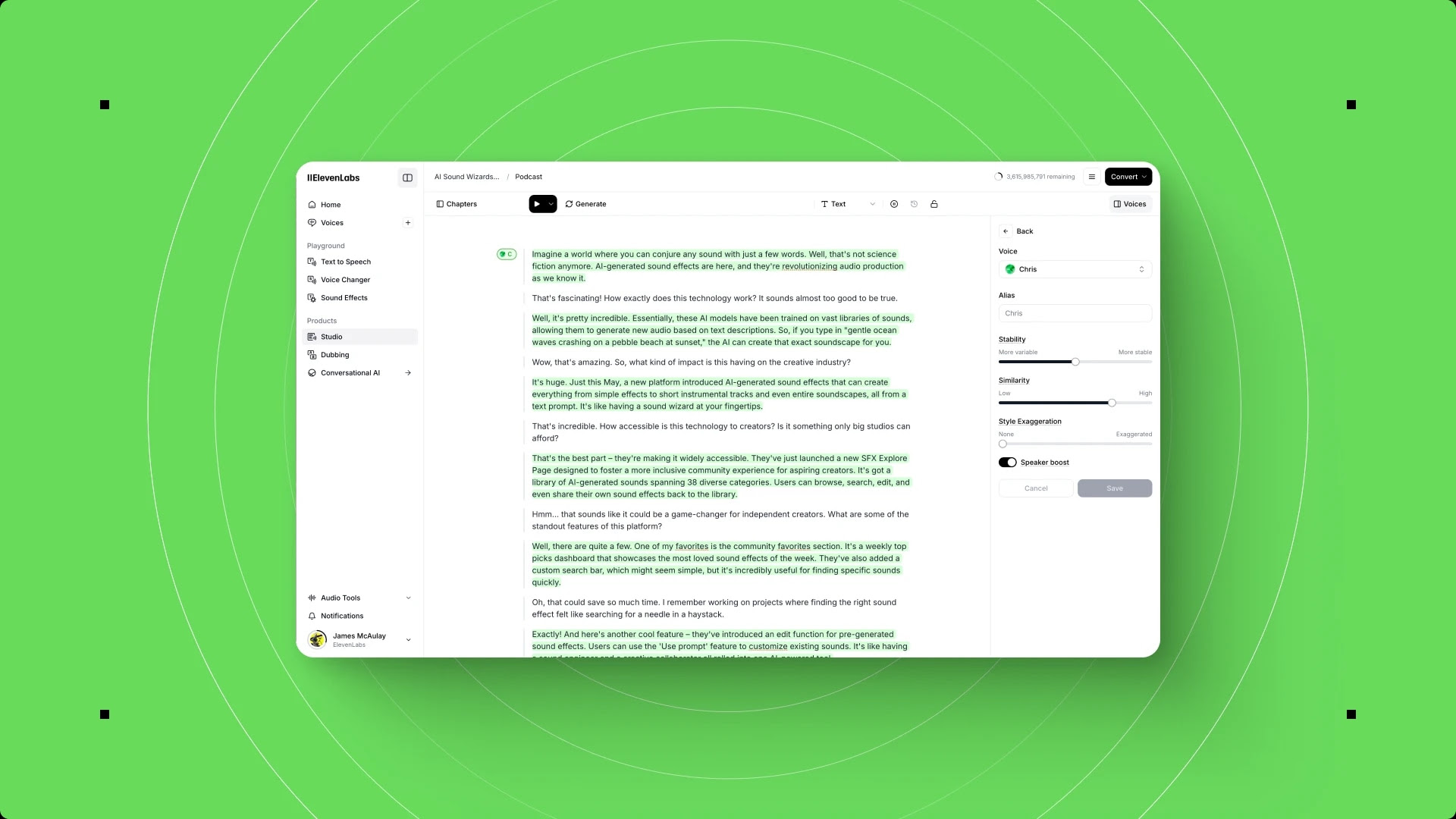
ElevenLabs Projects is the long-form production workspace that sits alongside the basic text-to-speech converter and Studio 3.0. While the basic converter handles quick one-off clips and Studio works well for shorter multi-track productions, Projects is purpose-built for content that runs tens of thousands of words - the scale where audiobooks live.
Here is what Projects offers that the standard text-to-speech tool does not:
Chapter and section management. You organize your manuscript into discrete chapters or sections, each with its own settings and voice assignments. This structure mirrors how audiobooks are consumed - listeners navigate by chapter, and your production workflow should reflect that.
Multi-voice assignment. Assign different voices to different sections or characters within a single project. A narrator voice can handle exposition while distinct character voices bring dialogue to life. You set these assignments once and Projects applies them consistently across the entire manuscript.
Pronunciation dictionaries. Link a pronunciation dictionary to your project so brand names, character names, fantasy terminology, and technical jargon are spoken correctly every time they appear - a must for any ElevenLabs audiobook creation download that needs consistent pronunciation. This is critical for fiction where invented names appear hundreds of times across a manuscript, letting you create an audiobook free of the proofing passes that typically follow a first render.
SSML and audio tag support. Insert break tags for pauses, emphasis tags for stressed words, and phoneme overrides for individual instances where the pronunciation dictionary does not apply. These inline controls give you fine-grained command over how specific passages sound. The W3C’s SSML specification documents the full tag set if you want to push beyond the basics covered in the ElevenLabs Studio tutorial.
Batch generation and export. Generate audio for the entire project or selected chapters in one operation, then export chapter-by-chapter or as a single combined file. No manual stitching required.
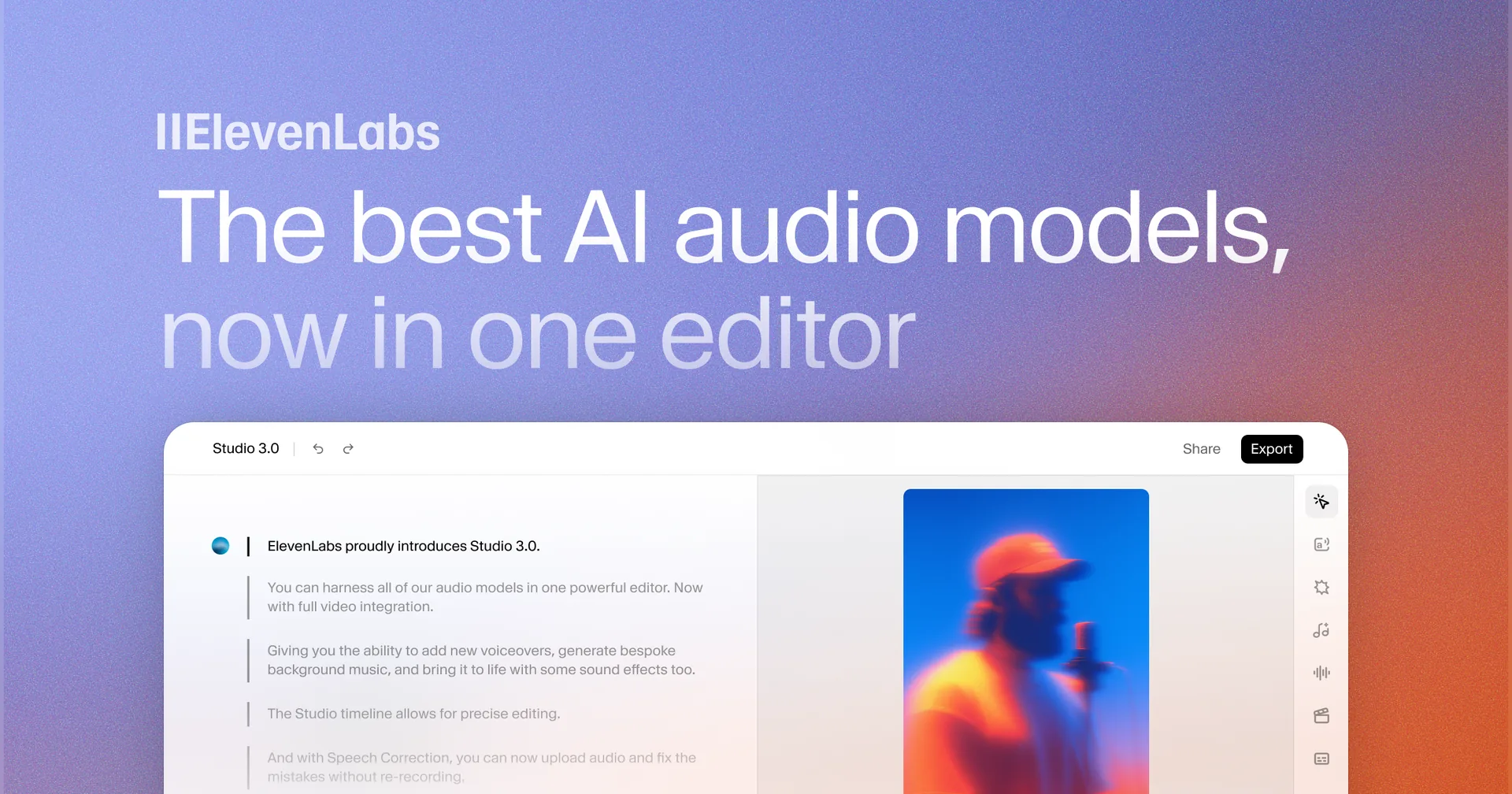
How Projects differs from Studio 3.0: Studio 3.0 is a timeline-based editor designed for multi-track audio production - layering voice, music, and effects on a visual timeline. Projects is a text-first workspace designed for managing large volumes of written content that need to be converted to speech. For audiobook production, Projects is the right tool. If you later want to add background music or layer sound effects over your narrated chapters, you can export from Projects and import into Studio 3.0 or an external audio editor. For a walkthrough of Studio 3.0, see the ElevenLabs Studio tutorial.
When to Use Projects
Projects is designed for scenarios where content length, structure, and voice consistency across a large body of text are priorities.
- Audiobooks - Fiction and nonfiction manuscripts ranging from 20,000 to 100,000+ words with chapter structure, character voices, and pronunciation consistency
- Long-form articles and blog series - Batch conversion of content libraries instead of generating each article individually
- Technical documentation - User manuals and knowledge bases where consistent pronunciation of product names and terms is essential
- Course materials - Educational content spanning multiple modules where voice and pacing must stay consistent from start to finish
- Serialized fiction and podcast scripts - Multi-episode content where characters recur across installments
When to use something else instead: For content under 2,000 words, the basic text-to-speech converter is faster. For productions that need background music or multi-track layering, start with Projects for voice generation, then move to Studio 3.0 or an external audio editor for mixing.
Plan Requirements
Not all ElevenLabs plans support Projects. Here is the breakdown:
| Plan | Price | Characters/Month | Audiobook Suitability |
|---|---|---|---|
| Free | $0 | 10,000 | No Projects access |
| Starter | $6/month | 30,000 | Testing and short chapters |
| Creator | $22/month | 100,000 | Practical entry point for production |
| Scale | $99/month | 500,000 | Full novel in one billing cycle |
| Enterprise | Custom | Custom | Publisher-grade volume |
A rough planning formula: 1,000 characters equals approximately 1 minute of audio. A 50,000-word nonfiction book contains roughly 250,000 to 300,000 characters and produces about 5 hours of audio. On the Creator plan, that takes about three months of generation. Add 10 to 20 percent for regenerations. Check the ElevenLabs pricing page for current tier details, and review the ElevenLabs Getting Started guide for plan upgrade workflows. For comparison, WellSaid Labs uses a different per-second pricing model worth weighing if budget matters more than character efficiency.
ElevenLabs Audiobook Creation: Setting Up Your First Project
This section walks through ElevenLabs audiobook creation from project setup, importing your manuscript, and organizing it into chapters. The official Projects documentation covers additional API options if you want to script the import step later.
Creating a New Project
Navigate to elevenlabs.com and log in to your account. Click Projects in the left sidebar. If you are on the Starter plan or above, you will see the Projects workspace with a New Project button.
Click New Project and configure the following settings:
Project name. Use a descriptive name that includes the book title and any version info. “The Midnight Protocol - Full Audiobook v2” is better than “Book Project.” You will accumulate projects over time, and clear naming prevents confusion.
Default voice. Select the voice that will handle the majority of narration. For multi-voice productions, pick your narrator’s voice here and assign character voices later. Browse the Voice Library (the ElevenLabs Voice Library guide covers filtering strategy in depth) and filter by language, gender, and speaking style. For audiobook narration, look for voices tagged as “warm,” “narrative,” or “expressive.”
Model selection. Choose Eleven Multilingual v2 for the best quality. It handles emotional delivery and pronunciation nuance better than faster alternatives, and supports 29 languages. The official model documentation lists current latency and quality tradeoffs across all available models.
Click Create to open your new project workspace.
Importing Your Text
Projects accepts text through three methods:
- Paste from clipboard - Copy from Google Docs, Word, or any text editor. Projects strips formatting and preserves paragraph structure. Works well for manuscripts under 20,000 words.
- File upload - Click Import and select a TXT or DOCX file. More reliable than clipboard pasting for longer manuscripts. Complex formatting (tables, images, footnotes) is stripped.
- Direct typing - Type directly into the text panel for short additions like transitions or narrator notes.
Tip: Before importing, clean your manuscript. Remove headers, footers, page numbers, and formatting artifacts. The cleaner your source text, the less cleanup you need inside Projects.
Splitting Into Chapters and Sections
After importing, your text appears as a continuous body. Split it into chapters that match your book’s structure.
Place your cursor where one chapter ends and the next begins. Click the split icon in the block toolbar to create a break. Repeat for each chapter boundary and label each section with the chapter name or number.
Within chapters, consider additional splits to separate narration from dialogue (for different voice assignments) or to break long chapters into smaller blocks for more granular regeneration control.
| Level | Content | Purpose |
|---|---|---|
| Chapter | Full chapter text | Navigation, export boundaries |
| Section | Scene breaks within chapters | Voice assignment, pacing changes |
| Block | Individual paragraphs or dialogue runs | Regeneration granularity |
For a first project, splitting at the chapter level is sufficient. Add finer splits later as you refine the production.
Voice Assignment Per Section
With your chapters in place, assign voices to each section. Click a section to select it, then use the voice dropdown to choose a voice. For a single-narrator audiobook, your default voice already covers everything. For multi-voice productions, assign the narrator voice to exposition sections and character voices to dialogue sections.
You can select multiple sections by holding Shift and clicking, then assign a voice to all selected sections at once. This is faster than clicking through each section individually when you have dozens of dialogue passages for the same character.
Multi-Voice Casting
Multi-voice audiobooks bring stories to life by giving each character a distinct voice. Projects supports unlimited voice assignments within a single project, so you are not restricted to a handful of characters.
Planning your voice cast. Before assigning voices, create a casting sheet. List every character who speaks in the book, note their traits (age, gender, accent, personality), and preview voices in the ElevenLabs Voice Library that match. Save your favorites to the My Voices section so they are easy to find during assignment.
| Character | Description | Voice Choice | Voice Style |
|---|---|---|---|
| Narrator | Neutral, authoritative | Rachel | Warm, measured pace |
| Alex (protagonist) | Male, 30s, American | Daniel | Conversational, clear |
| Dr. Chen | Female, 50s, precise | Charlotte | Professional, calm |
| Marcus | Male, 40s, British | Clyde | Deep, expressive |
Assigning character voices to dialogue. Split dialogue passages from narration. Click the dialogue block, select the character’s voice from the dropdown. If the same character speaks multiple times across different chapters, use the multi-select feature to assign their voice to all relevant blocks in one operation.
Consistency across chapters. Projects preserves voice assignments when you regenerate sections or make text edits. However, if you change a character’s voice mid-production, previously generated audio for that character still uses the old voice until you regenerate those sections. Plan your casting decisions before generating large volumes of audio to minimize wasted characters.
Voice Design for custom characters. If no existing voice matches a character, use Voice Design v3 to create one. Describe the voice characteristics you need - “a gravelly male voice in his 60s with a slight southern accent” - and ElevenLabs generates a custom voice. The official Voice Design feature page showcases sample outputs. Save it to your library and assign it like any other voice. See the Voice Design v3 guide for the full creation workflow.
Cost note: Using multiple voices does not increase the per-character cost. Whether your project uses one voice or fifteen, you pay the same rate per character generated. Industry research from the Audio Publishers Association shows multi-voice productions improve listener retention significantly versus single-narrator titles, which is one reason ElevenLabs audiobook creation has become attractive for indie publishers.
Fine-Tuning Pronunciation and Pacing
Audiobooks contain names, places, and terminology that AI models frequently mispronounce. Catching and fixing these issues before generating the full manuscript saves significant character credits.
Pronunciation Dictionary Integration
Create a pronunciation dictionary before you start generating audio for your audiobook. Navigate to the Pronunciation Dictionaries section in the left sidebar and create a new dictionary specific to your project.
Populate it with problem words. Go through your manuscript and identify every proper noun, invented term, brand name, and technical word that might trip up the AI. Common categories for audiobooks include:
- Character names - Especially non-English names, fantasy names, or names with unusual spellings
- Place names - Fictional locations, foreign cities, historical sites
- Made-up terminology - Magic systems, technology names, alien species in sci-fi
- Acronyms - Organizations, technical abbreviations
- Foreign-language phrases - Expressions used in English-language text
For each word, create either a phoneme rule (English only, maximum precision) or an alias rule (all languages, simpler to configure). The Pronunciation Dictionary Setup guide covers both rule types in detail with real examples, and the official IPA chart is a useful reference when crafting phoneme overrides.
Apply the dictionary to your project. In your project settings, select the pronunciation dictionary you created. Every voice generation within the project will reference the dictionary automatically.
Pauses and Pacing
Control pacing with break tags inserted directly into your text:
The door creaked open. <break time="2s" /> Nobody was inside.This inserts a 2-second silence between the two sentences - useful for dramatic beats, scene transitions, or giving the listener time to absorb information. Common pause durations for audiobooks:
| Context | Duration | Example |
|---|---|---|
| Sentence break (natural) | 0.5 - 0.75s | Default model behavior |
| Paragraph break | 1.0 - 1.5s | Between paragraphs within a scene |
| Scene break | 2.0 - 3.0s | Between scenes within a chapter |
| Chapter transition | 3.0 - 5.0s | Between chapters |
You do not need to insert break tags at every paragraph - the model adds natural pauses at paragraph breaks automatically. Reserve explicit break tags for moments where the default pause feels too short or too long for the narrative beat.
Audio Tags and Emotion Control
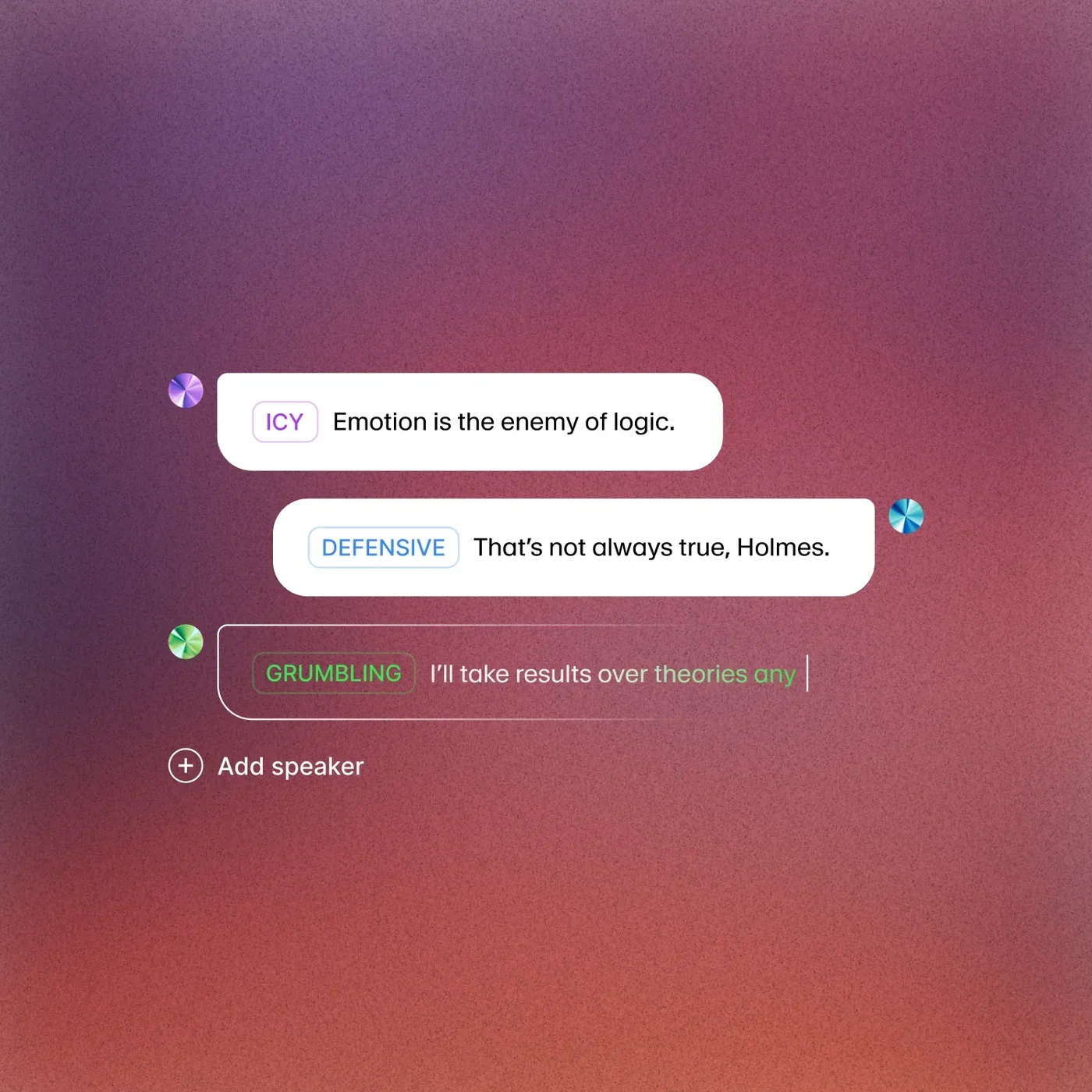
Audio tags give you precise control over how individual words and phrases are delivered. For audiobook production, they are the difference between flat narration and engaging storytelling.
Emphasis Tags
Stress specific words to convey meaning or emotion:
She said she was <emphasis level="strong">fine</emphasis>, but her voice said otherwise.Emphasis levels include reduced, moderate, and strong. Use strong sparingly - it is most effective at key dramatic moments. Overusing it makes the narration feel artificial.
Phoneme Overrides
Override pronunciation for a single instance without adding the word to your dictionary:
The <phoneme alphabet="ipa" ph="naIki">Nike</phoneme> sponsorship fell through.This is useful for words that have different pronunciations in different contexts. For example, “read” (present tense) versus “read” (past tense), or a character name that is pronounced differently than a common English word spelled the same way.
Say-As Tags
Control how the model interprets formatted content:
The manuscript was dated <say-as interpret-as="date">1847-03-15</say-as>.
Call the publisher at <say-as interpret-as="telephone">+1-212-555-0198</say-as>.
The advance was <say-as interpret-as="currency">$45,000</say-as>.
For audiobooks, the most common uses are dates, phone numbers, and currency amounts that appear in the narrative. Without say-as tags, the model may read “1847-03-15” as “one thousand eight hundred forty-seven dash zero three dash fifteen” instead of “March fifteenth, eighteen forty-seven.”
Combining Tags for Complex Passages
Tags can be nested and combined for passages that need multiple adjustments:
<emphasis level="moderate">Listen carefully.</emphasis> <break time="1.5s" /> The code is <say-as interpret-as="characters">BRAVO-7-TANGO</say-as>.Test complex tag combinations on a single block before applying them throughout the manuscript. Some combinations interact in unexpected ways, and it is cheaper to debug on a 100-character test block than on a 5,000-character chapter.
Reviewing and Editing Generated Audio
Do not skip the review step - even well-configured projects produce occasional artifacts that need fixing.
Listen chapter by chapter, not block by block. Play each chapter from start to finish to catch issues in context. The free Audacity editor is useful for chapter-level QA passes. A pronunciation that sounds acceptable in isolation might feel jarring when surrounded by natural speech.
Common issues to flag:
- Mispronounced names or terms the dictionary missed
- Unnatural pacing at section boundaries
- Inconsistent tone between regenerated blocks
- Artifacts from long sentences
Regenerating sections. Select the problem block and click Regenerate. Only that block is regenerated - the rest of the project stays unchanged. After regenerating, listen to the block in context with the surrounding blocks to confirm smooth transitions. If tone feels inconsistent, adjust the Stability slider slightly and regenerate again.
Regeneration budgeting. Plan for 10 to 20 percent of your total character budget to go toward regenerations. A 300,000-character manuscript might need 30,000 to 60,000 additional characters for revisions.
Export Settings and Formats
Once your audiobook passes review, export the final audio files.
File Formats
MP3. The standard format for audiobook distribution. Compatible with all platforms - Audible, Apple Books, Google Play Books, and direct sales through your own website. Smaller file sizes make it practical for long-form content. A 5-hour audiobook in MP3 at 128kbps runs roughly 300 MB. The ACX submission requirements are the safest reference for what audiobook distributors actually accept.
WAV. Uncompressed audio with no quality loss. Use WAV if you plan to post-process the audio in a DAW (Digital Audio Workstation) like Audacity, Logic Pro, or Adobe Audition before final distribution. WAV files are significantly larger - the same 5-hour audiobook would be roughly 3 GB - so only export WAV when you need it for editing.
FLAC. Lossless compression that preserves full quality at smaller file sizes than WAV. Good for archival copies. Not all audiobook distributors accept FLAC, so check your distribution platform’s requirements before choosing this format.
Chapter-by-Chapter vs Combined Export
For audiobook distribution, export each chapter as a separate file. Most platforms require individual chapter files with consistent naming. Click Export and select chapter-by-chapter export - Projects names files based on your chapter labels, so use clean labels during setup.
For personal use or platforms that accept a single file, export the entire project as one continuous audio file with appropriate pauses between chapters.
Quality Settings
| Bitrate | Use Case |
|---|---|
| 128 kbps | Standard for spoken-word audiobooks - Audible and most distributors accept this |
| 192 kbps | Audiobooks with music intros or sound effects between chapters |
| 320 kbps | Maximum quality - unnecessary for pure spoken word |
Sample rate: 44.1 kHz is the standard for audiobook distribution and the safe default.
Pro Tips for ElevenLabs Audiobook Creation
These ElevenLabs audiobook creation tips come from research into long-form production workflows. The official ElevenLabs blog publishes regular updates on new model releases and audiobook-specific features that change which defaults work best.
Generate a test chapter first. Before committing to the full manuscript, generate one representative chapter with dialogue, technical terms, and varied pacing. This test run establishes your workflow before you spend characters on the full book. The ElevenLabs API Developer Setup guide covers programmatic batch generation if you want to script this pipeline.
Build your pronunciation dictionary incrementally. Generate a chapter, note every mispronunciation, add corrections to the dictionary, then regenerate. After three or four chapters, your dictionary will cover most problem words in the manuscript.
Keep sections under 5,000 words. Shorter blocks give you more regeneration granularity. If a 10,000-word chapter has one bad paragraph, you regenerate everything. Split into four 2,500-word sections, and you only regenerate the one that needs fixing.
Use consistent voice settings across chapters. If you adjust the Stability or Similarity sliders for one chapter, apply the same settings everywhere. Inconsistent settings produce audible tone shifts that listeners notice.
Export WAV first, convert to MP3 later. This gives you the flexibility to normalize volume levels, add chapter markers, and trim silence before compression.
Budget characters across billing cycles. A 300,000-character manuscript does not need to be generated in one month. Generate five chapters per billing cycle on the Creator plan, and you will finish a full-length book in three months.
Back up your project settings. Document voice assignments, stability settings, and pronunciation dictionary rules. If you produce a sequel with the same voices, this documentation saves hours of reconfiguration.
Frequently Asked Questions
What are common ElevenLabs audiobook creation pitfalls to avoid?
The most frequent ElevenLabs audiobook creation mistakes are starting generation before building a pronunciation dictionary, splitting the manuscript into chapters that are too large for granular regeneration, and adjusting voice stability inconsistently between chapters. Plan a 100-character test render before committing characters to a 50,000-word manuscript.
How many characters does a typical audiobook use?
A rough benchmark is 5 to 6 characters per word. A 50,000-word nonfiction book contains approximately 250,000 to 300,000 characters. An 80,000-word novel runs closer to 400,000 to 480,000 characters. Add 10 to 20 percent for regenerations, so budget 275,000 to 575,000 characters total. On the Scale plan ($99/month, 500,000 characters), most books fit in a single billing cycle. On the Creator plan ($22/month, 100,000 characters), plan for three to five months.
Can I use a cloned voice for my audiobook?
Yes. Assign a cloned voice to your Projects narration just like any pre-made voice. Professional Voice Cloning (available on the Creator plan and above) produces better results for long-form content than Instant Voice Cloning because it captures more vocal nuance. See the Voice Cloning Tutorial for setup instructions.
Do audiobook distributors accept AI-generated audio?
Distribution policies vary by platform and are evolving. Some platforms like Google Play Books accept AI-narrated audiobooks with proper disclosure. Others have specific requirements or restrictions. Check the current terms of service for your target distribution platform before investing in production. Regardless of platform, always disclose that the audiobook uses AI-generated narration - transparency builds listener trust.
Can I edit the text after generating audio?
Yes. You can edit text in any section at any time. However, editing text in a section that has already been generated invalidates the audio for that section - you need to regenerate it to reflect the text changes. The regeneration consumes characters from your quota. For minor text corrections like typos, batch your edits and regenerate once rather than editing and regenerating repeatedly.
What is the maximum project length?
ElevenLabs does not impose a hard word limit on Projects. The practical limit is your character quota. A 100,000-word manuscript is well within the platform’s technical capabilities. For extremely long works, consider splitting into multiple projects (one per book in a series) to keep the workspace manageable.
How does Projects handle dialogue attribution tags?
Text like “she said” or “he whispered” after dialogue is read by the currently assigned voice for that block. If you have a character voice assigned to a dialogue block, that voice also reads the attribution tag. To avoid this, split the attribution into a separate block assigned to the narrator voice. For example, split "I will find you," she whispered. into two blocks: the dialogue assigned to the character voice and she whispered assigned to the narrator.
Want to learn more about ElevenLabs?
Related Guides
- Getting Started with ElevenLabs - Account setup and core text-to-speech basics
- ElevenLabs Studio First Project - Multi-track timeline editor for adding music to narration
- ElevenLabs Voice Library Guide - Find and evaluate the right narrator voice
- Pronunciation Dictionary Setup - Build dictionaries that fix proper-noun mispronunciations
- Voice Cloning Tutorial - Clone your own voice for narration
Related Reading
- ElevenLabs - Full review with pricing, ratings, and feature breakdown
- Best AI Voice Generators 2026 - How ElevenLabs compares to Murf, LOVO, WellSaid Labs, and others
- ElevenLabs Alternatives - Top competitors for AI voice generation
External Resources
- ElevenLabs Projects Documentation - Official guides for long-form content production and project management
- W3C SSML 1.1 Specification - Authoritative reference for break, emphasis, and phoneme tags
- Audio Publishers Association Research - Industry data on audiobook listener trends
Related Guides
- AI Video Creation Tips: 2026 Walkthrough for Teams
- AI Voice Cloning Ethics Best Practices: Complete 2026 Guide
- AI Voiceover Corporate Training With WellSaid Labs
- AI Voiceover Tips: Making Synthetic Voices Sound Human
- ElevenLabs API Setup: Developer Quick Start Guide (2026)
- ElevenLabs Audio Native Embed Audio on Any Website
- ElevenLabs Audio Quality Settings: Pro Tips and Settings
- ElevenLabs Conversational AI Agents: Build Voice Agents
- ElevenLabs Dubbing Studio: Video Translation and Dubbing
- ElevenLabs eLearning Narration: E-Learning Course Narration