


Zoho SalesIQ is the live chat, visitor tracking, and chatbot platform that ships inside the Zoho One bundle and also sells as a standalone product. If you have ever wanted a single tool that can pop a chat window on your pricing page, score the visitor in real time, hand the conversation to a bot when the team is offline, and then write the entire transcript back to Zoho CRM, this is that tool. The catch is that the platform has a lot of moving parts, and the order in which you turn them on matters. This Zoho SalesIQ tutorial walks through the full installation in about 25 minutes, from the signup form to the first triggered chat firing on your homepage. The full feature list is on the official Zoho SalesIQ product page.
By the end of this guide you will have a working chat widget on your site, a basic codeless chatbot handling FAQ traffic, operator hours configured, and visitor data flowing into Zoho CRM. We will also flag exactly which features sit behind which paid tier so you do not waste time configuring something the Free plan cannot deliver. For broader context on options, our best live chat software 2026 and best AI chatbots roundups compare SalesIQ against the rest of the market.
Prerequisites for Zoho SalesIQ Setup
Before you start clicking, gather a few things so you do not have to stop halfway through.
What you need:
- A Zoho account. If you already use Zoho CRM, Zoho Mail, or Zoho One, the same login works for SalesIQ.
- Admin access to your website. You will paste a small JavaScript snippet into the site head, or install a platform plugin for WordPress, Shopify, or similar.
- A logo file at 200x200 pixels or larger, and a brand color in hex format.
- A short list of the three or four questions visitors ask most often. These become your first chatbot flows.
- A decision on operator hours. Even if it is just you, knowing whether chat is staffed 9 to 5 or 24/7 changes how you configure the away message.
Decisions to make in advance:
- Will you use the Free plan as a trial, or jump straight to Basic or Professional? See the next section for the framing.
- Will the chat window appear on every page, or only on high-intent pages like pricing and product? You can change this later, but starting narrow is safer.
- Are you connecting Zoho CRM, a third-party CRM, or no CRM at all on day one?
Once you have those answers, the rest of the Zoho live chat setup is mostly clicking through guided wizards.
Sign Up and Pick Your Plan
Head to the Zoho SalesIQ signup page and create an account. The signup wizard asks for your name, work email, and country, then drops you into the Free plan by default. You can upgrade at any time from the Subscription panel inside the SalesIQ admin.
Plan summary at a glance (verified May 2026 from the official SalesIQ pricing page):
| Plan | Annual price | Monthly price | Sessions | Notable features |
|---|---|---|---|---|
| Free | $0 | $0 | 100/mo | 1 brand, 1 operator, basic tracking, no chatbot |
| Basic | $7/operator/mo | $10/operator/mo | 1,000/mo | 5 brands, triggered proactive chats, third-party CRM integrations |
| Professional | $12.75/operator/mo | $17/operator/mo | 5,000/mo | Codeless chatbot builder, audio/video chat, departments, SLA, Dialogflow |
| Enterprise | $20/operator/mo | $25/operator/mo | Unlimited | AI chatbot powered by Zia, advanced analytics |
If you already pay for Zoho One, SalesIQ is included. For teams using more than four or five Zoho apps, the bundle is usually cheaper than buying SalesIQ standalone - compare options on the Zoho One pricing page.
Free vs paid framing: The Free plan is genuinely useful for a quiet landing page or a single side project, but the 100 sessions per month cap is one slow afternoon for any commercial site. There is also no chatbot at all on Free, which means an operator has to be online for every conversation. If your site sees real inbound traffic, Basic at $7 per operator per month opens triggered proactive chats, and Professional at $12.75 per operator per month unlocks the codeless chatbot. Industry benchmarks suggest a well-tuned FAQ bot can deflect a meaningful share of repetitive questions, so Professional often pays for itself within the first month for any site doing more than light testing.
Pick a plan now, even if it is Free. You can switch tiers later without losing any configuration.
Zoho SalesIQ Setup: Configure Your First Brand
Inside the SalesIQ admin, the Brand is the unit that owns your widget appearance, operator list, and tracking domains. On Free you get one brand. On Basic you get five.
Walk through the Brand wizard:
- From the left sidebar, click Settings, then Brands, then Add Brand.
- Name the brand. Most teams use the company name. If you run multiple sites, name each brand after the site it serves.
- Add the website domain. SalesIQ uses this to validate the embed code and to scope visitor tracking.
- Upload your logo. Square at 200x200 pixels works best. The platform crops anything else.
- Set the brand color. This becomes the default chat bubble and header color, although you can override per-widget later.
- Choose a default language. SalesIQ supports more than 25 languages for the visitor side of the widget.
Add operators: From the same Brand screen, click Operators and invite teammates by email. Each operator counts against your seat license. On Free you get one operator only, so make sure that seat goes to the person who will actually staff chats. Set each operator’s role: Administrator can change settings, Supervisor can monitor and reassign chats, and Operator can only handle conversations.
Configure the chat window appearance:
- Pick a position: bottom right is the default and converts best for most sites.
- Choose a theme: light or dark, plus a color accent.
- Write a default welcome message. Keep it under 80 characters and ask a question rather than making a statement. “What brings you to the site today?” outperforms “Hi, how can we help?” by a noticeable margin.
- Decide whether to show the operator photo and name. Showing real people lifts engagement, but only if the photos look professional.
Save the brand. You are now ready to drop the widget on your site.
Add the Live Chat Widget to Your Website
This is the step that turns SalesIQ from a closed admin panel into a live tool on your site.
Get the embed code:
- From Settings, click Brands, then Installation.
- SalesIQ shows a JavaScript snippet that looks like a
<script>tag with your unique widget code inside. - Copy the entire snippet to your clipboard.
Install it on your site:
- WordPress: Install the official Zoho SalesIQ WordPress plugin, paste your portal ID, and activate. The plugin handles the script injection on every page.
- Shopify: From your Shopify theme editor, go to Online Store, then Themes, then Edit Code. Open the
theme.liquidfile and paste the SalesIQ snippet just before the closing</head>tag. - Wix, Squarespace, or other site builders: Most builders have a custom code or header injection panel under Settings. Paste the snippet there.
- Custom site: Paste the snippet in your global header template, just before
</head>. If your site uses a tag manager, you can deploy through Google Tag Manager instead, which avoids touching the codebase.
Verify the install:
- Open your site in a fresh browser window or incognito tab.
- Wait two to three seconds. The chat bubble should appear in the position you configured.
- Click the bubble. The welcome message should display.
- Inside the SalesIQ admin, open the Tracking view. Your own visit should appear as a live visitor within 10 seconds.
If the widget does not appear, check that the snippet was pasted before the closing head tag and not inside another script block. Browser ad blockers can also hide the widget on developer machines, so test in a clean profile.
Configure Visitor Tracking and Triggered Chats
Once the widget is live, SalesIQ starts logging every visitor who lands on your site. You can see them in real time on the Tracking view, including the page they are on, their country, the referrer that brought them in, and how long they have been browsing.
Set up basic tracking:
- From Settings, click Tracking, then Visitor Information. Make sure the standard fields are enabled: name, email, phone, and any custom fields you care about.
- Enable the Visitor History toggle. This is included on Professional and above. Free and Basic only show the current session.
Build your first triggered chat (Basic and above):
A triggered chat is a proactive message that fires when a visitor matches a rule you set. Done well, it lifts conversion. Done badly, it feels like a popup ad.
- From Settings, click Triggered Chats, then Add Trigger.
- Name the trigger something descriptive, like “Pricing page proactive.”
- Set the rule. A safe starter rule is “Visitor is on the pricing page for more than 30 seconds.”
- Write the message. Keep it short and helpful: “Need help comparing plans? I am happy to walk you through it.”
- Choose the operator or department to assign the chat to.
- Save and activate.
Tune the rules over time: Watch your trigger acceptance rate in the Reports panel. If fewer than 5 percent of triggered chats get accepted, the rule is firing too aggressively. Either lengthen the time threshold or narrow the page targeting.
Build Your First Chatbot
The chatbot is what turns SalesIQ from a live chat tool into a 24/7 lead capture system. Chatbots require Professional or higher.
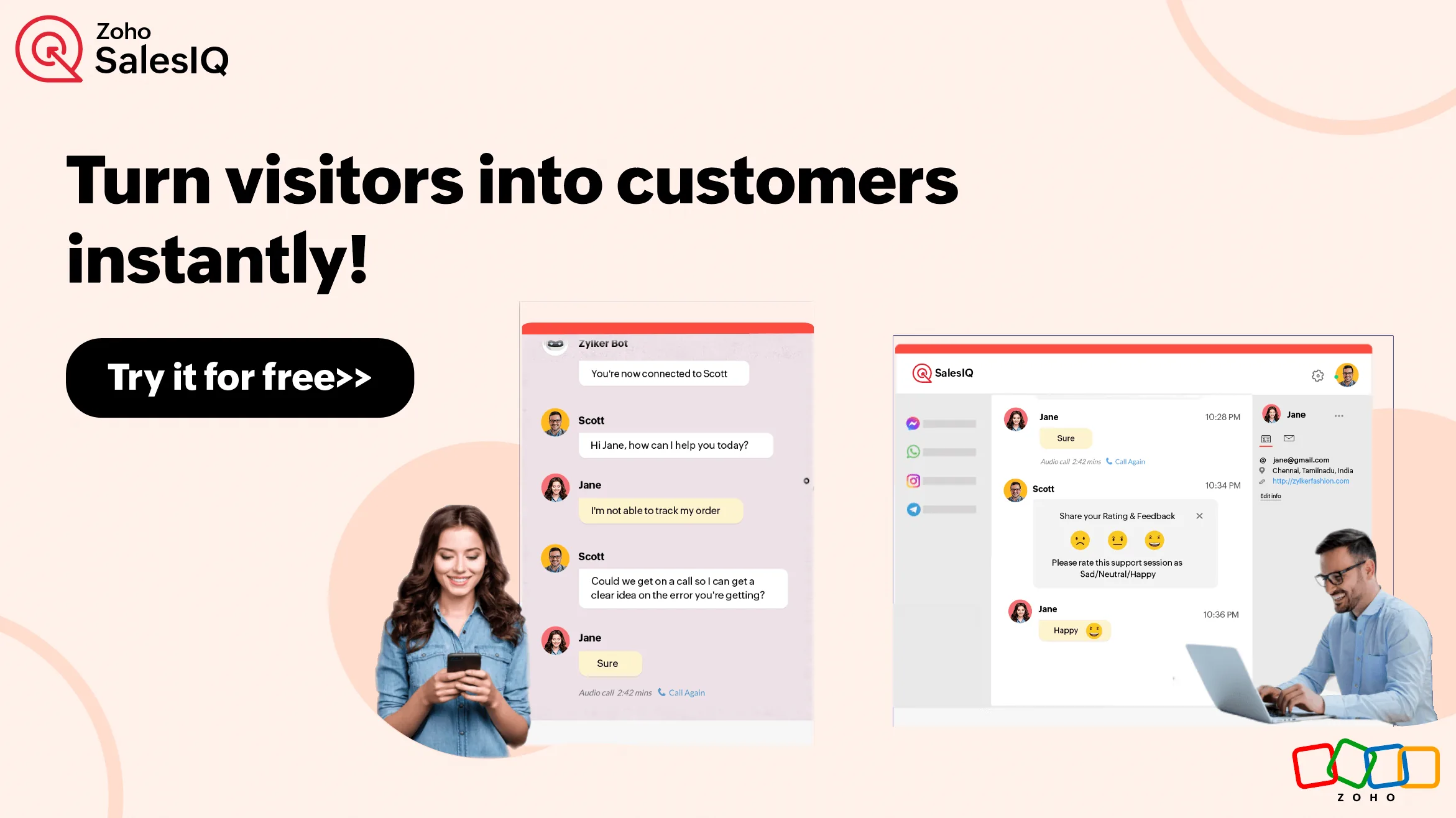
Pick a chatbot type:
- Codeless Bot: Drag and drop flow builder. Available on Professional and above. Best for FAQ deflection, lead qualification forms, and routing.
- Zobot scripted bot: Requires custom code. Available on Professional and above. Use this when you need API calls or logic the codeless builder cannot express.
- Answer Bot powered by Zia: Available on Enterprise. Trained on your knowledge base or help docs and answers questions in natural language.
- Dialogflow integration: Available on Professional and above. Connects a Google Dialogflow agent to handle conversations.
Build a codeless FAQ bot:
- From the left sidebar, click Bots, then Codeless Bot, then Create Bot.
- Name the bot, give it an avatar, and write its greeting.
- Drag a Visitor Choice block from the side panel. Add three to five buttons for your most common questions: “Pricing,” “Schedule a demo,” “Talk to a human,” and so on.
- For each button, drag a Bot Reply block and write the answer. For pricing, paste your tier summary. For demo, link to your booking page.
- Add a Forward to Operator block at the end of any branch where the visitor needs a human. The bot hands off the conversation to your team.
- Test the flow by clicking Preview. SalesIQ opens a chat window where you can run through every branch.
- Publish the bot, then assign it to the brand and the operator hours when no human is online.
For Enterprise: train the AI Answer Bot. From the Bots panel, click Answer Bot and upload your help docs, FAQs, or paste in URLs. Zia ingests the content and starts answering free-form questions. Many teams report significant deflection of repetitive questions once an AI bot is properly trained, although your mileage will depend on how clean your source content is.
Set Operator Hours, Departments, and Routing
Routing decides who gets which chat. Done right, it means the right person picks up. Done wrong, every chat lands in one inbox and either gets missed or answered by someone who cannot help.
Set operator hours:
- From Settings, click Business Hours.
- Define your default schedule, like Monday to Friday 9 to 5 in your local timezone.
- Set the away message that fires outside business hours. A good template: “Our team is offline right now. Leave your email and we will reply within one business day, or chat with our bot for instant answers.”
- Toggle the bot to take over outside business hours. This is the single biggest reason to be on Professional or above.
Create departments (Professional and above):
- From Settings, click Departments, then Add Department. Common departments are Sales, Support, and Billing.
- Add operators to each department.
- Configure routing: round-robin spreads load evenly, while least-busy sends new chats to whoever has the fewest active conversations.
Set up SLAs: On Professional and above you can define response time goals. A typical SLA is “first response within 60 seconds during business hours.” SalesIQ tracks misses and surfaces them in the Reports panel.
Connect to Zoho CRM and Other Tools
Connecting SalesIQ to your CRM is what turns chat transcripts into pipeline. Without the integration, conversations live in silos. See Zoho CRM pricing if you are not yet on a Zoho CRM plan.
Connect Zoho CRM:
- From Settings, click Integrations, then Zoho CRM, then Enable.
- Authorize the connection using your Zoho admin credentials.
- Choose what syncs: leads, contacts, both, plus chat transcripts and visitor history.
- Map the fields. SalesIQ pre-fills most mappings, but check that custom fields line up.
- Decide what triggers a CRM record. Most teams set “any chat where the visitor leaves an email” to create a lead automatically (the Zoho CRM workflow automation guide covers what to do with the lead once it lands).
Connect other tools (Basic and above):
- Slack or Microsoft Teams: Get notified when high-value visitors land or when a chat is missed.
- Google Analytics: Track chat events as goals via GA4 events.
- Mailchimp, HubSpot, Salesforce: Native connectors push contacts and conversations to your existing stack.
- Webhooks and Zapier: For anything not natively supported, fire a webhook on chat events and route through the SalesIQ Zapier integration. See our best Zapier alternatives post for other automation choices.
If you are running Zoho One, the CRM and Desk connections are free and instant. The whole point of the bundle is that this glue is already wired.
Test, Launch, and Monitor Performance
Before you announce the chat widget to the team, run through a test pass.
Pre-launch checklist:
- Visit the site as a guest and trigger every entry point: bubble click, triggered chat, and bot greeting.
- Run through every branch of your codeless bot. Make sure each handoff to a human works.
- Submit a test chat outside business hours. Confirm the away message and bot fallback fire.
- Check the Zoho CRM connection: send a chat with an email, then verify the lead appears in CRM within 60 seconds.
- Test on mobile. The widget should appear, but it should not block primary CTAs on small screens. Run a quick check with PageSpeed Insights if your site is performance-sensitive.
Monitor performance from day one:
- The Reports panel shows chat volume, response times, missed chats, bot deflection rate, and operator activity.
- Set a weekly review where you read the last 20 chat transcripts. This is the fastest way to spot bot gaps and writing tone issues.
- Watch the Visitor Insights view for high-value visitors, like returning prospects from your enterprise target list.
Iterate every week:
- Add new branches to the bot when you see the same question come up three or more times.
- Tune triggered chat rules based on acceptance rate.
- Adjust operator hours and routing as the team grows.
The Bottom Line
Zoho SalesIQ rewards a careful first 25 minutes. If you set up the brand, embed the widget, build a basic codeless bot, and connect Zoho CRM in that order, you end up with a chat system that captures leads while the team sleeps and writes everything back to the same CRM your sales team already uses. The Free plan is fine for a quiet landing page or a brief test, but the 100 sessions per month cap and the lack of a chatbot mean any commercial site is going to outgrow it within weeks. Professional at $12.75 per operator per month annual is the sweet spot for most small teams, since that is where the codeless chatbot lives. If you already pay for Zoho One, all of this is included, and the integration with the rest of the suite is the cleanest part of the experience.
For current plan details, see Zoho One pricing or Zoho CRM pricing.
Want to learn more about Zoho One?
Frequently Asked Questions
Does Zoho SalesIQ work without Zoho CRM?
Yes. SalesIQ runs as a standalone product and integrates with Salesforce, HubSpot, Mailchimp, and many other CRMs through native connectors or Zapier. The Zoho CRM integration is the deepest, but it is not required.
How much does Zoho SalesIQ cost for a small team?
The Free plan covers 1 operator and 100 chat sessions per month at no cost. Basic is $7 per operator per month on annual billing for 1,000 sessions. Professional is $12.75 per operator per month annual, which unlocks the codeless chatbot. Enterprise is $20 per operator per month annual and adds the AI bot powered by Zia.
Can the chatbot answer questions while my team is offline?
Yes, on Professional and above. The codeless bot can be set to take over outside business hours, handle FAQ traffic, capture lead details, and either schedule a callback or hand the conversation off when the team comes back online. Free and Basic do not include any chatbot, so without an operator the visitor sees only an away message.
How long does Zoho SalesIQ setup actually take?
A solo founder can complete the full setup in about 25 minutes if they have logo, brand color, and embed access ready. Adding a polished codeless bot with five or six branches usually takes another 30 to 60 minutes, and tuning the bot based on real chat data is an ongoing process across the first few weeks.
Will the chat widget slow down my site?
The SalesIQ script loads asynchronously, so it does not block your page render. On most sites the performance impact is negligible. If you are running a heavily optimized landing page and want to be careful, you can deploy the script through Google Tag Manager and gate it on user engagement to defer the load.
Related Reading
- Zoho One Bundle Review
- Best Live Chat Software 2026
- Best AI Chatbots
- Best Customer Support Software 2026
Related Guides
- Zoho AI Agents Setup Guide: Build Zia Agents 2026
- Zoho AI Guide: Zia Across the Zoho Suite in 2026
- Zoho Assist Setup Guide: Free Remote Support for IT
- Zoho Bookings Setup: Schedule Appointments Fast
- Zoho Campaigns Setup: Send Your First Email Campaign
- Zoho Cliq Setup Guide: Slack Alternative for SMBs
- Zoho Connect Setup Guide: Internal Team Network
- Zoho Marketing Automation: Workflows for Lead Nurture
- Zoho One Review 2026: Is the All-in-One Suite Worth It?
- Zoho WorkDrive Setup: Team Folders, Permissions, and Migration from Google Drive
External Resources
- Start a free Zoho SalesIQ account
- Compare Zoho SalesIQ pricing plans
- Read the official Zoho SalesIQ documentation
Related Guides
- Apollo Sequences Automated Outreach: Complete 2026 Guide
- Elevenlabs Zapier Integration: Complete 2026 Guide
- How to Summarize Meetings with AI: Never Miss Action Items
- Migrate HubSpot to Zoho CRM: Sales Team Guide 2026
- Zoho AI Agents: Step-by-Step Zia Agent Studio Setup
- Zoho AI Guide: Zia Features, Pricing, and Use Cases 2026
- Zoho Assist Setup Guide: Free Remote Support for IT
- Zoho Bookings Setup: Schedule Appointments Fast
- Zoho Books Setup Guide: Small Business in 30 Minutes
- Zoho Campaigns Setup: Send Your First Email Campaign