
What Is ActiveCampaign Conditional Content
ActiveCampaign conditional content is an email feature that shows different blocks to different recipients based on contact field values, tags, custom fields, or behavior. This guide covers when to use conditional content, plan requirements, building your first conditional block, advanced strategies, real-world examples, testing workflows, and troubleshooting so one campaign can serve multiple audiences.
Every contact on your email list has a different relationship with your business. A first-time trial user, a three-year enterprise customer, and a lapsed subscriber who has not opened an email in six months all receive fundamentally different value from the same product. Yet most ActiveCampaign marketing automation campaigns still treat them identically - same headline, same offer, same call to action. The result is predictable: lower engagement, higher unsubscribes, and revenue left on the table.
ActiveCampaign conditional content solves this by letting you build a single email - or conditional automation email - that dynamically shows or hides content blocks based on each recipient’s data. The official conditional content help article documents every supported condition type. Instead of creating five separate campaigns for five audience segments, you create one campaign with conditional blocks that adapt automatically. Enterprise-tagged recipients can see annual-plan pricing. A recipient in Germany sees the offer in euros. Someone who purchased last week sees a cross-sell recommendation instead of a first-purchase discount.
Activecampaign conditional content blocks evaluate conditions at send time. When ActiveCampaign processes the email for each recipient, it checks the conditions you have defined - tags, custom field values, list membership, geographic data, deal properties - and renders only the content that matches. Contacts who do not match any condition see either a fallback block or nothing at all, depending on how you configure it.
This is different from basic personalization tags like %FIRSTNAME%. Personalization tags insert a single value into otherwise identical content. A practical ActiveCampaign conditional content example shows the contrast clearly - conditional content controls which entire sections of an email appear, with different images, different copy blocks, different offers, and different calls to action. The structural flexibility is what makes it powerful for campaigns that serve multiple audience segments simultaneously.
When to Use Conditional Content
Conditional content is most effective when you need to send a single campaign to a broad audience but different segments within that audience need different messaging - and unlike ActiveCampaign A b testing, which splits one message across variants, it tailors several messages within one send. Here are the primary use cases where ActiveCampaign conditional content delivers measurable results:
Product recommendations by purchase history. Show different product suggestions based on what each contact has already bought. A customer who purchased running shoes sees accessories and apparel. A customer who purchased yoga equipment sees complementary items from that category.
Location-based offers. Display region-specific pricing, shipping information, event invitations, or regulatory disclosures. A UK recipient sees prices in pounds and shipping estimates via Royal Mail. A US recipient sees dollar pricing and USPS delivery windows.
Plan-tier messaging. SaaS companies can show upgrade prompts to free-tier users, feature education to mid-tier subscribers, and account management resources to Enterprise customers - all within the same campaign while keeping plan prices synced to the current ActiveCampaign data below. This is one of the features that separates ActiveCampaign from simpler email marketing platforms. New users should pair this with the ActiveCampaign getting started guide to set up the basic infrastructure first. Get hands-on by claiming the 14-day free trial.
Language variants. While ActiveCampaign supports full multi-language automation workflows (and dedicated localization tools exist for larger translation needs), conditional content provides a lighter approach for bilingual audiences. Show the English version to contacts with an English language preference field and the Spanish version to contacts tagged with Spanish.
New versus returning customer messaging. First-time buyers need onboarding guidance, product education, and trust-building content. Returning customers need loyalty rewards, advanced tips, and referral prompts. Conditional blocks let a single welcome-back campaign serve both audiences with appropriate messaging. For capturing those first-time subscribers cleanly, see the ActiveCampaign forms setup guide on building high-converting signup forms.
Which ActiveCampaign Plans Support Conditional Content?
Not every ActiveCampaign plan supports conditional content. Before you start building dynamic emails, confirm that your account includes this feature.
- Starter: $12/user/mo annual ($15 monthly)
- Email marketing
- Marketing automation
- Plus: $39/user/mo annual ($49 monthly)
- Everything in Starter
- CRM with sales automation
- Professional: $119/user/mo annual ($149 monthly)
- Everything in Plus
- Predictive sending
- Enterprise: Contact sales
- Everything in Professional
- Custom reporting
| Feature | Starter | Plus | Professional | Enterprise |
|---|---|---|---|---|
| Personalization tags (%FIRSTNAME%) | Yes | Yes | Yes | Yes |
| Conditional content blocks | No | Yes | Yes | Yes |
| Predictive content (AI-selected) | No | No | Yes | Yes |
| Dynamic product blocks | No | Yes | Yes | Yes |
| Advanced segmentation for conditions | No | Yes | Yes | Yes |
Conditional content requires the Plus plan or above. If you are on the Starter plan, you can still use basic personalization tags and segmented sends - but the conditional block functionality in the email designer is not available. The Professional plan adds predictive content, which uses machine learning to automatically select which content variant each contact is most likely to engage with - a step beyond manual conditional rules. To compare against the full feature matrix, see the official ActiveCampaign pricing page.
How Do You Build Your First Conditional Block?
Setting up your first activecampaign conditional content block takes about five minutes once you understand the workflow. Here is the step-by-step process inside the email designer.
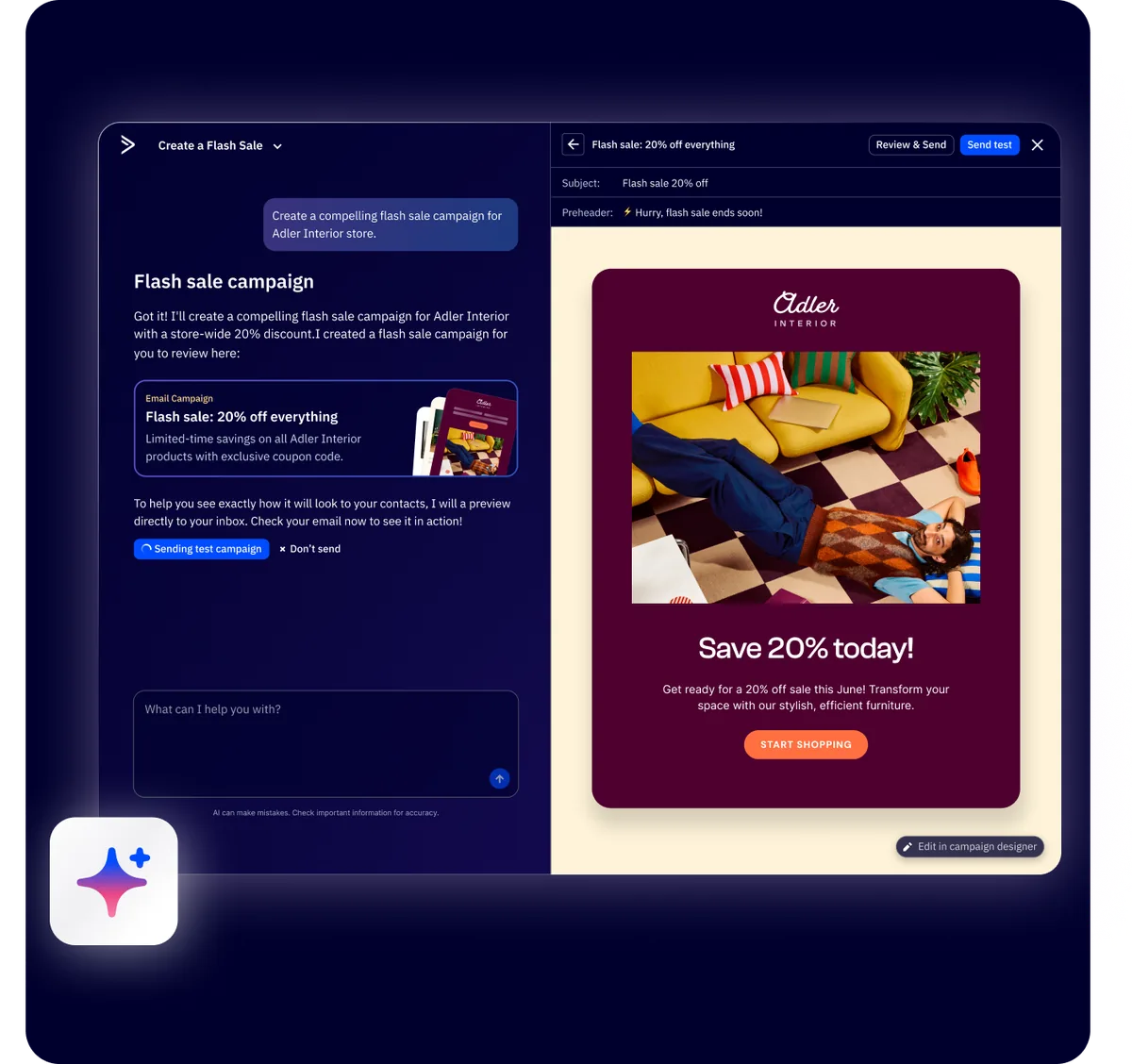
Step 1: Open the email designer. Create a new campaign or open an existing draft. Select the drag-and-drop email designer - conditional content is not available in the HTML-only editor.
Step 2: Add a content block. Drag a text block, image block, or any content element into your email layout. Position it where you want the conditional content to appear. This block will become your first variant.
Step 3: Click the Conditional icon. Select the content block you just added. In the block toolbar, click the Conditional Content icon - it looks like a small filter or funnel. This opens the conditional content panel on the right side of the designer.
Step 4: Set your first condition. Choose the condition type from the dropdown. For a simple first test, select “Tag” and then choose a specific tag - for example, “customer.” This means the content block will only display for contacts who have the “customer” tag.
Step 5: Add a variant. Click “Add another variant” to create an alternative content block for contacts who do not match the first condition. Set a different condition - for example, tag equals “prospect.” Write different copy for this variant. You can add as many variants as you need.
Step 6: Configure the default. Decide what happens when a contact does not match any of your conditions. You can set a default variant that displays as a fallback, or you can choose to show nothing. For most campaigns, setting a sensible default ensures every contact sees something relevant.
Step 7: Preview and test. Use the Preview function to check how the email renders for different contacts. ActiveCampaign lets you select specific contacts from your list to see exactly which conditional variant they would receive. For deliverability testing prior to sending, see our ActiveCampaign deliverability guide.
Condition Types Deep Dive
The power of activecampaign conditional content comes from the variety of conditions you can apply. Each condition type taps into different data about your contacts, enabling precise targeting within a single email.
Tag-Based Conditions
Tags are the simplest and most commonly used condition type. You can show or hide content based on whether a contact has a specific tag.
Example: An email promoting a webinar series shows “Register now” to contacts without the “webinar-registered” tag and shows “You are registered - add to calendar” to contacts who already have that tag. This prevents the awkward experience of asking someone to register for something they have already signed up for.
Best practice: Use descriptive, consistent tag naming conventions. Tags like “plan-enterprise”, “plan-starter”, and “plan-professional” are easier to manage in conditions than “ent”, “start”, and “pro.” Pair tag-based conditional content with ActiveCampaign segmentation strategies to keep your tag library manageable as it grows.
Custom Field Conditions
Custom fields store structured data - text, numbers, dates, dropdowns - that you can evaluate with operators like “equals”, “contains”, “is greater than”, and “is before date.”
Example: A SaaS company stores each contact’s subscription plan in a custom field called “Current Plan.” The monthly newsletter shows a feature spotlight for advanced features to contacts where Current Plan equals “Professional” and shows an upgrade CTA to contacts where Current Plan equals “Starter.”
List Membership Conditions
Show content based on which list a contact belongs to. This is useful when you maintain separate lists for different products, business units, or communication types.
Example: A company with both a B2B and B2C product line sends a quarterly company update. The product roadmap section shows enterprise features to contacts on the “Business Customers” list and consumer features to contacts on the “Personal Users” list.
Geographic Conditions
ActiveCampaign captures geographic data from contact IP addresses and form submissions. You can conditionally display content based on country, state, or city.
Example: A global ecommerce brand sends a holiday sale email. Contacts in the US see Thanksgiving sale messaging with dollar pricing. Contacts in the UK see Black Friday messaging with pound pricing. Contacts in Australia see summer sale messaging since their seasons are reversed.
Deal Data Conditions
If you use ActiveCampaign’s CRM, you can base conditions on deal properties - deal value, deal stage, pipeline, and custom deal fields.
Example: A B2B sales team sends a monthly product newsletter. Contacts with deals in the “Negotiation” stage see case studies and ROI data to support their buying decision. Contacts with deals in the “Onboarding” stage see implementation guides and training resources.
Date-Based Conditions
Use date custom fields to trigger content based on anniversaries, renewal dates, trial expiration dates, or any date your business tracks.
Example: A subscription service stores each contact’s renewal date. The monthly newsletter shows an early renewal discount to contacts whose renewal date is within 30 days and shows standard content to everyone else. To set this up end-to-end, our email automation workflows guide walks through renewal sequences in detail.
Advanced Conditional Strategies
Once you are comfortable with basic conditions, these advanced techniques let you build sophisticated personalization logic within a single email campaign.
Nested Conditions
You can nest conditional blocks inside other conditional blocks to create multi-layered logic. The outer condition might filter by customer type (B2B vs B2C), and the inner condition might filter by engagement level within each customer type.
How it works: Add a conditional content block for your outer condition - for example, tag equals “b2b-customer.” Inside that variant, add another content block and make it conditional on a second criterion - for example, custom field “Company Size” is greater than 100. This creates a block that only appears for B2B customers at companies with more than 100 employees.
Caution: Nested conditions add complexity quickly. Test every combination thoroughly. If you need more than two levels of nesting, consider whether a segmented automation with separate emails would be clearer and easier to maintain.
Multiple Condition Groups (AND/OR Logic)
Each conditional variant can use multiple conditions combined with AND or OR operators. AND logic requires all conditions to be true. OR logic requires at least one condition to be true.
AND example: Show a VIP discount block only when the contact has the tag “loyalty-member” AND the custom field “Total Purchases” is greater than 10. Both conditions must be met. For the full list of field types you can use in conditions, see the conditional content help documentation.
OR example: Show a product recommendation block when the contact has the tag “interested-in-analytics” OR the contact visited the analytics product page in the last 14 days. Either condition triggers the content.
Fallback Content for Unmatched Contacts
Always configure a default variant for contacts who do not match any of your conditions. Without a default, unmatched contacts see a gap in the email where the conditional block should be - which looks like a broken email.
Best practice: Your fallback content should be generic but valuable. If your conditional block shows personalized product recommendations, the fallback might show your top three bestsellers. If the conditional block shows plan-specific pricing, the fallback might show a “View our plans” button that links to your pricing page.
Combining with Personalization Tags
Conditional content and personalization tags are complementary. Use conditional blocks to control which sections appear, and use personalization tags within those sections to insert individual data points.
Example: A conditional block shows different onboarding content based on the contact’s plan tier. Within the block for Professional plan users, the copy reads: “Welcome to your Professional account, %FIRSTNAME%. As a Professional user, you have access to advanced reporting, API integrations, and priority support.” The conditional block controls which plan message appears. The personalization tag inserts the contact’s name within that message.
Real-World Examples
These five examples demonstrate how businesses use activecampaign conditional content to solve specific personalization challenges. Each example includes the conditions used and the content strategy behind them.
Example 1: SaaS Trial vs Paid Messaging
Scenario: A project management tool sends a weekly tips email to all users.
Conditions:
- Variant A: Custom field “Account Type” equals “Trial” - Show content focused on getting started, feature discovery, and a CTA to upgrade before the trial ends
- Variant B: Custom field “Account Type” equals “Paid” - Show content focused on advanced workflows, integrations, and a CTA to refer a colleague
- Default: Show general product tips with a CTA to visit the help center
Why it works: Trial users need conversion-focused content. Paid users need retention-focused content. Sending the same tips to both audiences misses both targets.
Example 2: Ecommerce Product Recommendations
Scenario: An online retailer sends a monthly “New Arrivals” email.
Conditions:
- Variant A: Tag “category-electronics” - Show new tech products and accessories
- Variant B: Tag “category-home” - Show new home and kitchen products
- Variant C: Tag “category-fitness” - Show new fitness equipment and apparel
- Default: Show the top 5 bestselling new arrivals across all categories
Why it works: Tags are applied automatically through purchase automations and tracked via the ActiveCampaign Shopify integration. Each contact sees products relevant to their demonstrated interests instead of a generic product grid. For retailers looking to go further with personalized recommendations, see our roundup of ecommerce personalization tools.
Example 3: Event Invite by Location
Scenario: A company hosting regional meetups in three cities sends a single invitation email.
Conditions:
- Variant A: Geographic condition - State equals “California” - Show San Francisco event details with local venue information
- Variant B: Geographic condition - State equals “New York” - Show New York City event details
- Variant C: Geographic condition - State equals “Texas” - Show Austin event details
- Default: Show a virtual attendance option with a livestream link
Why it works: One campaign replaces three separate sends. The default ensures contacts outside the three event cities still receive value instead of an irrelevant local event invitation.
Example 4: Renewal Reminder by Plan Tier
Scenario: A SaaS company sends renewal reminders 30 days before subscription expiration.
Conditions:
- Variant A: Custom field “Plan” equals “Starter” - Show an upgrade incentive alongside the renewal prompt, highlighting features they are missing
- Variant B: Custom field “Plan” equals “Professional” - Show renewal with loyalty discount and a summary of their usage stats
- Variant C: Custom field “Plan” equals “Enterprise” - Show renewal with dedicated account manager contact details and a custom renewal proposal link
Why it works: The renewal conversation is fundamentally different at each tier. Starter users need a reason to stay and upgrade. Enterprise users need a white-glove experience that matches their investment level.
Example 5: Onboarding by Signup Source
Scenario: A platform acquires users from multiple channels - organic search, paid ads, partner referrals, and webinar attendees.
Conditions:
- Variant A: Tag “source-webinar” - Reference the specific webinar they attended and continue the educational thread
- Variant B: Tag “source-partner” - Welcome them with a co-branded message and mention the partner’s integration
- Variant C: Tag “source-paid” - Lead with the specific value proposition from the ad they clicked
- Default: Standard onboarding welcome with a general platform overview
Why it works: First impressions matter. When a new user’s first email references how they discovered the product, it creates continuity and builds trust faster than a generic welcome message. The ActiveCampaign forms setup guide covers how to capture source attribution at signup so this conditional logic has clean data to work with.
How Do You Test Conditional Content?
Testing is the most critical step in any activecampaign conditional content workflow. A mistake in your conditional logic means the wrong content reaches the wrong audience - and unlike a broken link that can be fixed in the next send, personalization errors actively damage trust.
Preview with Different Contacts
ActiveCampaign’s email preview tool lets you select specific contacts from your list and see exactly how the email renders for them. Use this for every conditional variant:
- Identify one contact who matches each condition you have set
- Preview the email for each of those contacts
- Verify that the correct variant appears and the incorrect variants are hidden
- Check that fallback content renders correctly for a contact who matches no conditions
Using Test Contacts
Create a set of dedicated test contacts in your ActiveCampaign account - one for each conditional variant you frequently use. Apply the appropriate tags, populate the relevant custom fields, and set geographic data manually. These test contacts let you quickly verify conditional logic without searching through your real contact list every time.
Recommended test contacts:
- Test Contact - Enterprise, US, Active
- Test Contact - Starter, UK, Trial
- Test Contact - No Tags, No Custom Fields (tests your fallback content)
- Test Contact - Multiple Matching Conditions (tests priority logic)
Checking All Variants Render
A common mistake is testing only the first variant and the default. Every variant needs verification:
- Confirm the correct content appears for each condition
- Confirm no variant is accidentally visible to the wrong audience
- Check that images, buttons, and links within conditional blocks work correctly
- Verify that the email layout does not break when conditional blocks are hidden - check for unexpected gaps or spacing issues
Common Testing Mistakes
Testing only in preview mode. The preview is a simulation. Always send actual test emails to your test contacts to verify rendering across email clients (Gmail, Outlook, Apple Mail). Conditional content can render differently in different clients.
Forgetting to test the fallback. The default variant often receives the least attention during testing, but it is what your unmatched contacts see. If 20% of your audience does not match any condition, that is 20% of recipients seeing your least-tested content.
Not testing after edits. Every time you modify a condition or edit content within a variant, re-test all variants. Changes to one variant can inadvertently affect others, especially with nested conditions.
Troubleshooting Common Issues
Even with careful setup, activecampaign conditional content can behave unexpectedly. Here are the five most common problems and how to fix them.
Problem 1: Content not displaying for any contact. The most common cause is a condition that references a tag or custom field that no contacts actually have. Double-check the exact spelling and capitalization of the tag or field name in your condition. ActiveCampaign conditions are exact-match - “Enterprise” is not the same as “enterprise.” Navigate to Contacts, search for the tag or custom field value, and confirm contacts actually have that data.
Problem 2: Wrong variant showing for a contact. When a contact matches multiple variants, ActiveCampaign displays the first matching variant in the order they are listed. Reorder your variants so the most specific conditions come first and the most general conditions come last. For example, place “Plan equals Enterprise AND Region equals EMEA” before “Plan equals Enterprise” to ensure the region-specific variant takes priority.
Problem 3: Blank blocks appearing in the email. If a conditional block has no fallback configured and a contact matches no conditions, the block renders as empty space. This creates visible gaps in your email layout. Either add a default variant to every conditional block or restructure your conditions so that every contact matches at least one variant.
Problem 4: Performance issues with many conditions. Emails with more than 10 conditional blocks can be slower to send because ActiveCampaign evaluates every condition for every contact at send time. If you find yourself building very complex conditional emails, consider whether a segmented automation with separate email branches would be more efficient and maintainable. As a rule of thumb, keep conditional blocks under 8 per email.
Problem 5: Custom field mismatches. Custom fields with inconsistent data formats cause silent failures. If your “Country” field contains a mix of “US”, “USA”, “United States”, and “us”, your condition checking for “US” misses three-quarters of your American contacts. Standardize custom field data using dropdown fields instead of free-text fields wherever possible, and use automations to normalize existing data. The official conditional content help article documents the exact-match operator behavior, and our CRM setup guide covers how to design custom fields that hold up to conditional logic. For ecommerce stores syncing product data into custom fields, the ActiveCampaign Shopify integration guide explains how purchase fields populate so your conditions reference reliable values.
Frequently Asked Questions
How many activecampaign conditional content blocks can I add to a single email?
ActiveCampaign does not impose a hard limit on the number of conditional blocks per email. However, practical performance and maintainability suggest keeping it under 8 blocks per email. Each conditional block adds evaluation complexity at send time, and emails with more than 10 blocks become difficult to test thoroughly. If you need more than 8 conditional sections, consider splitting the campaign into segment-specific automations using the automation builder where each branch handles its own variant. This usually performs better and is easier for the next person on your team to debug.
Can I use activecampaign conditional content in automation emails or only in campaigns?
Conditional content works in both one-off campaigns and automation emails. In automation emails, you set up conditional blocks the same way - open the email in the designer, add blocks, and configure conditions. This is particularly useful in onboarding automations where you want a single email template to adapt to different user types without building separate automation branches for each variant. Many teams pair conditional content with lead scoring so the same nurture email shows different copy based on score thresholds.
What happens if a contact matches more than one conditional variant?
ActiveCampaign displays the first matching variant in the order your variants are listed. It does not show multiple variants simultaneously. This means the order of your variants matters - place the most specific or highest-priority conditions first. If you need a contact to see content from multiple conditions, use separate conditional blocks for each piece of content rather than multiple variants within a single block. Document the priority order in a comment for each conditional block so future edits do not accidentally reshuffle the matching logic.
Can I combine activecampaign conditional content with A/B testing?
Yes, but with a caveat. You can A/B test subject lines and send times on emails that contain conditional content. However, A/B testing the conditional content itself - comparing different personalization strategies against each other - requires a more manual approach. Create two separate emails with different conditional logic, split your audience, and compare the results. ActiveCampaign does not natively support A/B testing between conditional variants within the same block. For higher-tier accounts, predictive content (Professional and above) automates this comparison using machine learning.
Do conditional content blocks affect email deliverability?
Conditional blocks themselves do not negatively affect deliverability. In fact, they typically improve it because more relevant content leads to higher engagement rates, which signals positive sender reputation to email providers. The only potential issue is if conditional blocks produce very short emails for some contacts - an email with most blocks hidden might look sparse or trigger spam filters if the remaining content is minimal. Always ensure that your fallback and minimum content create a substantive email regardless of which conditions match. Our ActiveCampaign deliverability guide covers the broader inbox-placement levers you should pair with conditional content.
Is there a way to preview all conditional variants at once?
ActiveCampaign’s built-in preview shows one contact’s view at a time. There is no native “show all variants side by side” feature. The most efficient workaround is to create your set of test contacts (one per variant) and quickly cycle through them in the preview tool. Some teams export screenshots of each variant into a shared document for stakeholder review before sending. For high-stakes campaigns, send actual test emails to each test contact and review them in real email clients - rendering can vary between Gmail, Outlook, and Apple Mail.
Want to learn more about ActiveCampaign?
Related Guides
- ActiveCampaign Email Campaign Setup
- ActiveCampaign Segmentation Strategies
- ActiveCampaign AI Features Guide
- ActiveCampaign Automation Builder Guide
- ActiveCampaign Predictive Sending Guide
Related Reading
External Resources
- ActiveCampaign Conditional Content Help Center - Official documentation for setup, conditions, and troubleshooting
- ActiveCampaign Email Marketing Platform - Overview of email features including conditional content
- ActiveCampaign Help Center - Complete platform documentation
Related Guides
- Activecampaign AI Content Generation: Complete 2026 Guide
- ActiveCampaign AI Features: Active Intelligence Guide
- Activecampaign Automation Builder: Complete 2026 Guide
- Activecampaign Brand Kit: 2026 Walkthrough for Teams
- ActiveCampaign CRM Setup: How to Set Up ActiveCampaign CRM
- ActiveCampaign Deals Pipeline: Stages & Automation
- ActiveCampaign Deliverability: Best Practices Guide
- ActiveCampaign Email Automation: 10 Workflows That Work
- ActiveCampaign Email Campaign Setup: Step-by-Step Guide
- ActiveCampaign Forms: Types, Setup, and Conversion Tips