
Why Deliverability Matters More Than Open Rates
ActiveCampaign deliverability is the measure of whether emails sent through the platform actually reach recipients’ inboxes - and understanding deliverability meaning in practical terms is essential before optimizing any campaign. ActiveCampaign reports a platform-wide rate of 94.2%, among the industry’s highest. Deliverability depends on three pillars - authentication via SPF, DKIM, and DMARC, sender reputation, and content quality - all evaluated by ISPs for every message sent.
Open rates measure who engaged with your email. Deliverability determines whether anyone had the chance to engage at all. An email that lands in spam is invisible - your subject line, your offer, your call-to-action never get seen. For every 1,000 emails that miss the inbox, you lose clicks, conversions, and revenue that no amount of copywriting optimization can recover.
The cost compounds over time. ISPs track your sending reputation across weeks and months. A single campaign that generates a spike in spam complaints can depress inbox placement for every subsequent email. Recovering from a damaged reputation takes weeks of careful remediation.
ActiveCampaign reports a 94.2% deliverability rate across its platform - among the highest in the industry, and a key reason ActiveCampaign deliverability ranks well in our best email marketing tools roundup. Its built-in ActiveCampaign omnichannel capabilities and spam check tools help senders stay above inbox thresholds. Senders who follow best practices consistently exceed 97%. Those who neglect fundamentals can drop below 80%, effectively wasting one in five emails.
This guide covers five principles that determine whether your ActiveCampaign deliverability stays above 95% and your messages reach the inbox.
ActiveCampaign Deliverability: The Three Pillars
Email deliverability rests on three pillars that ISPs evaluate for every message you send.
Authentication proves you are who you claim to be. SPF, DKIM, and DMARC records in your DNS tell receiving mail servers that ActiveCampaign is authorized to send on your behalf. Without authentication, your emails look identical to phishing attempts - Gmail’s 2024 sender requirements made this baseline non-negotiable for any sender exceeding 5,000 emails per day.
Sender reputation is the score ISPs assign to your sending domain and IP address. High bounce rates, spam complaints, and sending to inactive addresses damage your reputation - Validity’s Sender Score is one widely-used metric you can check for free. A strong reputation means ISPs give your emails the benefit of the doubt. You can compare which ActiveCampaign plans include dedicated sending infrastructure on the pricing page.
Content quality encompasses everything inside the email - subject line, body text, images, links, and code structure. Spam filters analyze content patterns to catch messages that look like spam even from authenticated senders.
These pillars work together. Authentication gets you through the front door. Reputation determines whether you are welcomed or watched. Content quality ensures you stay welcome.
Principle 1: Email Authentication
The single most important step is authenticating your sending domain. Without proper authentication, you are sending emails that ISPs have no reason to trust.
SPF Setup in ActiveCampaign
SPF (Sender Policy Framework) tells receiving servers which mail servers are authorized to send email for your domain. ActiveCampaign DNS configuration provides the SPF record you need to add to your DNS - and the ActiveCampaign SMTP infrastructure relies on this record being correctly in place before any mail is trusted by ISPs.
- Log in to your ActiveCampaign account
- Navigate to Settings > Advanced > I want to manage how my emails are authenticated
- Find the SPF record value - it will look like
v=spf1 include:emsd1.com ~all - Log in to your domain registrar (GoDaddy, Cloudflare, Namecheap, etc.)
- Add a TXT record to your domain’s DNS settings with the SPF value
- If you already have an SPF record, add
include:emsd1.comto the existing record rather than creating a second one - DNS only allows one SPF record per domain
DKIM Configuration
DKIM (DomainKeys Identified Mail) adds a cryptographic signature to your emails that proves they have not been tampered with in transit.
- In ActiveCampaign, navigate to Settings > Advanced > I want to manage how my emails are authenticated
- Copy the DKIM CNAME records provided - you will typically need to add two CNAME entries
- Add these CNAME records in your domain registrar’s DNS settings
- Allow 24-48 hours for DNS propagation
- Return to ActiveCampaign and click Verify to confirm the records are detected
DMARC Policy
DMARC (Domain-based Message Authentication, Reporting and Conformance) tells ISPs what to do when an email fails SPF or DKIM checks. Add a TXT record to your DNS at _dmarc.yourdomain.com:
Starting policy: v=DMARC1; p=none; rua=mailto:[email protected] - Monitors failures without blocking email. Review reports for 2-4 weeks.
Enforcement policy: v=DMARC1; p=quarantine; rua=mailto:[email protected] - Sends failing emails to spam. Move here after confirming all legitimate email passes authentication.
Full enforcement: v=DMARC1; p=reject; rua=mailto:[email protected] - Rejects failing emails entirely. Only use when confident in your setup. DMARC.org’s official overview walks through every tag and policy permutation if you need a deeper reference.
Custom Sending Domain
For an end-to-end domain reputation primer, see Cloudflare’s email authentication learning hub.
Configure a custom sending domain so your emails come from mail.yourdomain.com rather than a shared ActiveCampaign domain. This isolates your reputation from other senders on the platform. Navigate to Settings > Advanced > Custom Mailserver Domain and follow the setup wizard. Available on all plans. If you run WordPress, the ActiveCampaign WordPress setup guide covers domain configuration alongside plugin installation.
Principle 2: Sender Reputation Management
ISPs maintain reputation scores for every sending domain and IP address. Your reputation directly controls whether your emails land in the inbox, the spam folder, or get rejected outright.
What ISPs Track
ISPs monitor these signals across every email you send:
- Bounce rate - The percentage of emails that fail to deliver. Hard bounces (invalid addresses) damage reputation faster than soft bounces (temporary failures like full inboxes).
- Spam complaint rate - The percentage of recipients who click “Report Spam.” Google and Yahoo require this to stay below 0.3%. Exceeding 0.1% should trigger immediate action.
- Engagement metrics - Gmail in particular tracks whether recipients open, click, reply to, or move your emails out of spam. Low engagement signals low value.
- Sending consistency - Erratic volume patterns - nothing for weeks, then a massive blast - look like spammer behavior.
- Spam trap hits - Emails sent to addresses specifically created or repurposed to catch spammers. Even one spam trap hit can severely damage your reputation.
Warming Up a New Sending Domain
If you are setting up a new domain or switching to a custom domain, warm it up gradually. ISPs are suspicious of domains that suddenly start sending high volumes.
Week 1: Send to your 100-200 most engaged contacts only - people who opened or clicked your last several emails.
Week 2: Expand to anyone who opened an email in the last 30 days. Stay under 1,000 sends per day.
Week 3-4: Increase volume by 25-50% per day. If bounce rates or complaints spike, pause and investigate.
Week 5+: Send to your full active list. Continue monitoring for 30 days before considering the warmup complete.
For more on how list quality intersects with sending volume, our segmentation strategies guide covers building tiered audiences that protect reputation.
Bounce Rate Management
Keep your overall bounce rate below 2%. Hard bounces above 0.5% require immediate attention. ActiveCampaign automatically marks hard-bounced contacts and excludes them from future sends. Proactively validate addresses before importing using tools like NeverBounce or ZeroBounce.
Principle 3: List Hygiene
Your contact list degrades over time. People change email addresses, abandon accounts, and lose interest in your content. Sending to these inactive addresses drags down your engagement metrics and damages your sender reputation.
Removing Inactive Contacts
Define “inactive” for your business. A reasonable starting point is any contact who has not opened or clicked an email in the last 90-180 days. In ActiveCampaign, create a segment with these conditions:
- Navigate to Contacts > Advanced Search
- Set condition: Email activity > Has not opened any campaign in the last 120 days
- AND: Email activity > Has not clicked any campaign in the last 120 days
- Save this segment as “Inactive - 120 Days”
Do not delete these contacts immediately. Run a re-engagement campaign first.
Re-engagement Before Removal
Before removing inactive contacts, give them one last chance. Create a 2-3 email re-engagement automation:
The email campaign setup guide covers how to design the actual emails inside this re-engagement series.
Email 1: “We miss you” - Offer something valuable to re-engage (discount, exclusive content, useful resource).
Email 2 (3-5 days later): “Last chance” - Tell them you will stop emailing if they do not respond. Include a “Keep me subscribed” link.
Email 3 (3-5 days later): “Goodbye for now” - Anyone who does not engage gets tagged as “sunset” and excluded from regular campaigns.
Sunset Policies
Establish a recurring schedule: monthly review of engagement segments and quarterly re-engagement campaigns for borderline contacts. Document your sunset policy so your team follows consistent criteria.
Handling Bounces
Hard bounces (invalid addresses, non-existent domains) should be removed immediately. ActiveCampaign does this automatically after the first hard bounce.
Soft bounces (full inbox, temporary server issues) get multiple retry attempts. ActiveCampaign retries soft bounces over 72 hours before marking them. A contact that consistently soft bounces across multiple campaigns should be investigated - their address may be abandoned.
Double Opt-In Benefits
Double opt-in requires new contacts to confirm their email address before being added to your list. This adds friction but dramatically improves list quality - zero typo addresses, zero fake signups, and ISPs view double opt-in lists more favorably. Enable it in ActiveCampaign under Settings > Lists > Edit for each list. If you want to test these features before committing, start a 14-day free trial with full access to authentication, list hygiene tools, and deliverability reporting.
Principle 4: Content Best Practices
Even with perfect authentication and a clean list, poorly constructed email content can trigger spam filters. Modern spam filters use machine learning and pattern matching to evaluate content, so the old advice of “avoid the word free” is oversimplified - but certain content patterns still cause problems.
Spam Trigger Words to Avoid
Spam filters do not block individual words in isolation. They look for patterns of spammy language combined with other signals. That said, emails that heavily use these patterns face more scrutiny:
- Excessive urgency: “ACT NOW”, “LIMITED TIME”, “EXPIRES TODAY” in all caps
- Financial claims: “earn money fast”, “double your income”, “no credit check”
- Deceptive phrases: “this is not spam”, “you have been selected”, “congratulations you won”
- Excessive punctuation: multiple exclamation marks, question marks, or dollar signs
Use natural language that matches how you would speak to a colleague. If your subject line reads like a late-night infomercial, rewrite it.
Text-to-Image Ratio
Emails that are mostly images with little text trigger spam filters. Maintain a minimum 60/40 text-to-image ratio. Never put critical information like discount codes or CTAs inside images alone - image-heavy emails also fail when images are blocked, which is the default in many email clients.
Subject Line Best Practices
Your subject line affects deliverability directly through spam filter analysis and indirectly through engagement rates.
- Keep subject lines under 50 characters for full mobile visibility
- Avoid ALL CAPS and excessive punctuation
- Be specific - “Your March analytics report” outperforms “Check this out!”
- Use ActiveCampaign personalization tags sparingly
- Test subject lines with split testing before sending to your full list - the getting started guide walks through enabling split tests on your first campaigns
Avoiding URL Shorteners
Never use bit.ly, tinyurl, or other URL shorteners in marketing emails. Spammers abuse shorteners to mask malicious links, so spam filters flag them aggressively. ActiveCampaign’s click tracking wraps your links automatically - you do not need shorteners for analytics.
Personalization Impact
Personalized emails generate higher engagement, which feeds back into better deliverability. Start with first name in greetings and subject lines, then advance to conditional content blocks based on tags, custom fields, or purchase history. The ActiveCampaign Conditional Content Guide covers the full setup.
Principle 5: Engagement-Based Sending
Sending every email to your entire list is the fastest way to damage your deliverability. Engagement-based sending targets your most active contacts first, uses their positive signals to build momentum, and gradually expands reach to less engaged segments.
Using ActiveCampaign Segments to Target Engaged Contacts
Create tiered engagement segments in ActiveCampaign based on recent activity:
- Tier 1 - Highly Engaged: Opened or clicked in the last 30 days
- Tier 2 - Moderately Engaged: Opened or clicked in the last 31-90 days
- Tier 3 - Low Engagement: Last activity 91-180 days ago
- Tier 4 - Unengaged: No activity in 180+ days
Send campaigns to Tier 1 first. Wait 12-24 hours, then send to Tier 2. Only include Tier 3 if the campaign is particularly relevant or you are running a re-engagement effort. Tier 4 should receive dedicated re-engagement sequences, not regular campaigns.
This approach mirrors how deliverability experts at major ESPs recommend structuring sends. The ActiveCampaign Segmentation Strategies guide covers the full segment setup process.
Predictive Sending for Optimal Timing
ActiveCampaign’s predictive sending feature analyzes each contact’s historical engagement patterns and delivers your email at the time they are most likely to open it. Instead of choosing a single send time for your entire list, predictive sending distributes delivery across a 24-hour window optimized per recipient.
Enable predictive sending when scheduling a campaign by selecting the Predictive Sending option instead of a specific date and time. This feature is available on the Plus plan and above. See the ActiveCampaign Predictive Sending Guide for a detailed setup walkthrough.
For deeper coverage of suppression patterns inside the automation builder, see our automation builder guide.
Suppressing Unengaged Contacts
Create an automation that tags contacts as “suppress-from-campaigns” after 120 days of no opens or clicks, then exclude this tag from all regular campaign sends. Suppressed contacts remain in your database for reactivation through re-engagement automations - you are simply protecting your regular campaigns from low-engagement drag.
If you also need to capture those new contacts cleanly, the forms setup guide covers double opt-in defaults.
Gradual List Expansion
When you acquire a large batch of new contacts, do not add them to your full campaign schedule immediately. Create a dedicated onboarding automation that sends 3-5 emails over 2-3 weeks. Contacts who engage graduate to your regular list. Those who do not should be evaluated before inclusion.
How Do You Implement ActiveCampaign Deliverability Best Practices?
Use this checklist to work through the most important deliverability changes first.
Must-Do (Complete This Week)
- Set up SPF record in your DNS for ActiveCampaign
- Configure DKIM by adding CNAME records
- Add a DMARC record starting with
p=nonefor monitoring - Set up a custom sending domain in ActiveCampaign email marketing
- Remove any contacts that have hard bounced
- Enable double opt-in on all signup forms - the forms setup guide shows where to toggle this
Should-Do (Complete This Month)
- Create engagement-tiered segments (Highly Engaged, Moderate, Low, Unengaged)
- Build and launch a re-engagement automation for inactive contacts
- Establish a sunset policy and document it for your team
- Audit your last 10 campaigns for spam trigger patterns in subject lines and content
- Set up Google Postmaster Tools for your sending domain
- Review and clean your contact list - remove anyone inactive for 180+ days who does not re-engage
Nice-to-Have (Complete This Quarter)
- Implement BIMI to display your logo in supported inboxes
- Tighten DMARC policy from
p=nonetop=quarantinethenp=reject - Set up a dedicated sending IP (Enterprise plans or through ActiveCampaign support)
- Create a deliverability dashboard combining ActiveCampaign reports with Google Postmaster data
Monitoring Your Deliverability
Ongoing monitoring ensures problems are caught early before they compound into serious reputation damage.
ActiveCampaign Built-In Reports
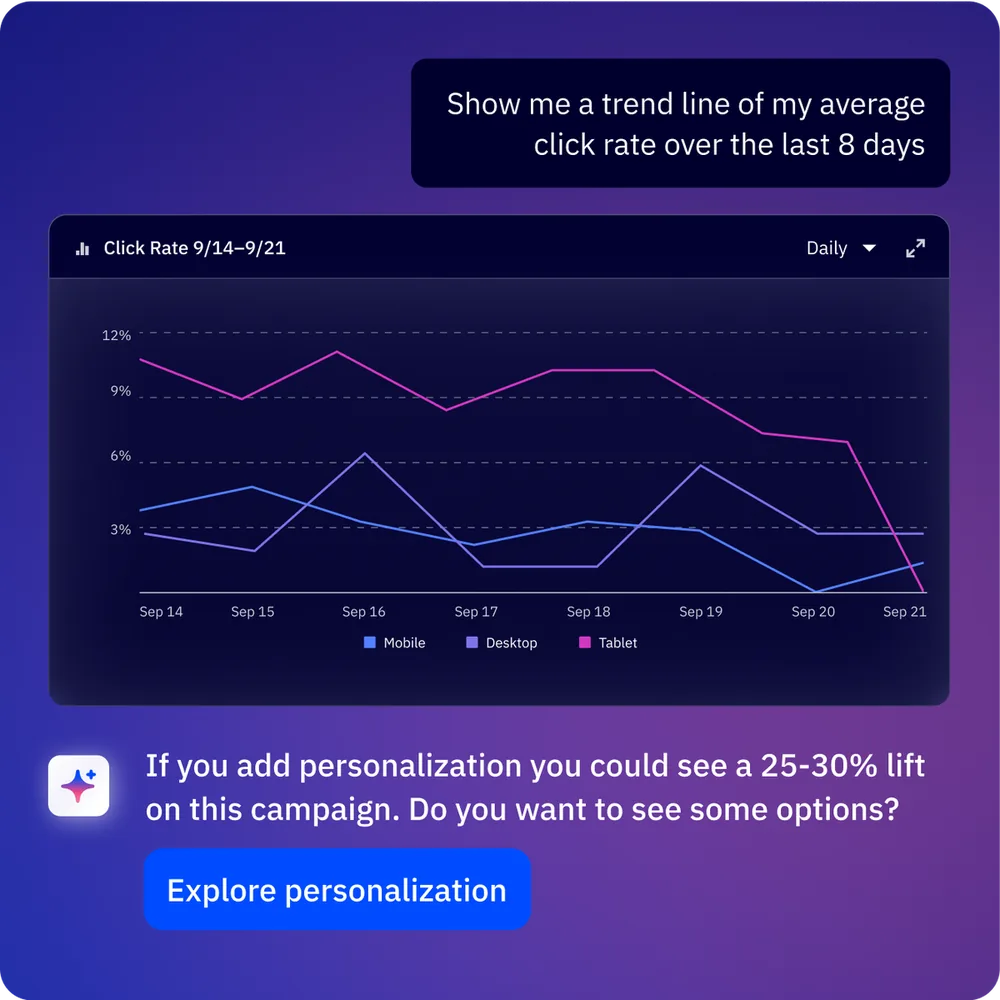
ActiveCampaign provides campaign-level metrics that serve as deliverability proxies:
- Open rate trends - A sustained decline across campaigns signals deliverability issues, not just content problems
- Bounce rate - Available in each campaign report. Flag any campaign with a bounce rate above 2%
- Unsubscribe rate - Track per campaign. Spikes above 0.5% warrant investigation
- Spam complaint rate - ActiveCampaign shows this in campaign reports. Keep it below 0.1%
Navigate to Reports > Campaign Reports for aggregate data across all campaigns. Look for trends over 30-60 day windows rather than reacting to individual campaign fluctuations.
Third-Party Monitoring Tools
Google Postmaster Tools (free) - Shows your domain reputation, spam rate, and authentication success rate for Gmail recipients. Set up at postmaster.google.com.
MXToolbox (free tier available) - Checks your domain and IP against 100+ blacklists. Run monthly or set up automated monitoring.
Mail-Tester (free) - Send a test email and get a deliverability score with specific recommendations. Useful for pre-flight checks before major campaigns.
Key Metrics to Track
| Metric | Healthy Range | Action Threshold |
|---|---|---|
| Inbox placement rate | Above 95% | Investigate below 90% |
| Bounce rate | Below 2% | Pause and clean list above 3% |
| Spam complaint rate | Below 0.1% | Immediate action above 0.3% |
| Open rate trend | Stable or improving | Investigate 3+ consecutive declines |
| Unsubscribe rate | Below 0.3% per campaign | Review content if consistently above 0.5% |
| Blacklist status | Not listed | Immediate delisting request if found |
Common Deliverability Mistakes
These five mistakes account for the majority of deliverability problems.
1. Buying or renting email lists. Purchased lists contain spam traps and non-consenting contacts. A single send can damage your reputation for months. ActiveCampaign’s terms of service prohibit purchased lists.
2. Inconsistent sending patterns. Going silent for weeks then blasting a massive campaign looks like spammer behavior. Maintain a consistent cadence and increase volume gradually. Setting up automated email workflows helps maintain steady sending patterns without manual effort.
3. Ignoring bounce management. ActiveCampaign handles hard bounces automatically, but proactively validate addresses before importing and monitor soft bounce trends.
4. Incomplete authentication. Setting up SPF but skipping DKIM, or adding DKIM but ignoring DMARC. Each layer builds on the previous one - gaps give ISPs reasons to distrust your emails.
5. Heavy image emails with minimal text. An email that is one large image with a link looks identical to spam. It also fails completely for recipients with images disabled.
Troubleshooting Deliverability Drops
Sudden Drops
A sharp decline after a specific campaign usually points to:
- Spam complaint spike - Check campaign report complaint rates. Above 0.3% means something was wrong with the audience, content, or timing
- Blacklisting - Run your domain and IP through MXToolbox. If listed, follow the blacklist’s removal process immediately
- Authentication failure - DNS records can be accidentally modified. Verify SPF, DKIM, and DMARC under Settings > Advanced
- List quality issue - New contacts from untested sources can contain spam traps
Gradual Declines
A slow decline over weeks has multiple possible causes:
- Engagement decay - Your active audience is shrinking. Tighten engagement segments and increase re-engagement frequency
- Content fatigue - Recipients are ignoring emails without unsubscribing. Test new formats and survey your audience
- Reputation erosion - Review Google Postmaster Tools for domain reputation trends over the past 30-60 days
Recovery Steps for ActiveCampaign Deliverability
- Immediately reduce sending to Tier 1 (highly engaged) contacts only
- Within 24 hours audit all DNS records and custom sending domain status
- Within 48 hours clean your list and run bounce verification on recent imports
- Over 1-2 weeks gradually expand back to Tier 2, then Tier 3, monitoring at each stage
- Ongoing maintain engagement-tiered sending permanently
Frequently Asked Questions
What is a good email deliverability rate in ActiveCampaign?
A healthy account should see inbox placement above 95%. The platform average is 94.2%, but well-maintained accounts exceed 97%. If open rates are declining across multiple campaigns, ActiveCampaign deliverability is likely the cause. Use Google Postmaster Tools alongside ActiveCampaign reports for the full picture, and benchmark your numbers against industry-wide averages from a third-party report each quarter to know whether a drop is local to your account or a wider trend.
How long does it take to set up email authentication in ActiveCampaign?
Configuration takes about 15 minutes inside ActiveCampaign plus 10-15 minutes at your domain registrar. DNS propagation can take 24-48 hours, so complete setup at least 48 hours before any major campaign send. If you manage multiple sending domains, factor in extra time per domain - each one needs its own DKIM key pair and DMARC policy. The work is one-time, but the propagation window is the binding constraint on your launch schedule.
Should I use a shared or dedicated IP address for ActiveCampaign sending?
Shared IP pools work well for most users because ActiveCampaign actively monitors their reputation. A dedicated IP only makes sense above 100,000 emails per month - below that, you cannot generate enough engagement signals to maintain a dedicated IP reputation. Dedicated IPs are available through ActiveCampaign Enterprise plans, and ActiveCampaign’s deliverability team will help warm the IP if you commit to one.
How often should I clean my email list in ActiveCampaign?
Run a formal audit quarterly. Between audits, use automated processes: hard bounce removal (automatic in ActiveCampaign), re-engagement automations after 90 days of inactivity, and sunset automations at 180 days. Monthly, review engagement segment sizes for trends. A shrinking Tier 1 segment is the earliest warning that engagement decay is setting in - catch it here and you can adjust frequency or content before it shows up in a deliverability drop.
What is BIMI and should I set it up for ActiveCampaign?
BIMI displays your brand logo next to emails in supported inboxes (Gmail, Yahoo, Apple Mail). It requires DMARC at p=quarantine or stricter, a trademarked logo, and a Verified Mark Certificate. Complete your SPF, DKIM, and DMARC setup first - BIMI is a “nice-to-have” that builds on full authentication. The VMC certificate runs $1,000-$1,500 per year, so the cost-benefit usually only makes sense for B2C senders who lean heavily on visual brand recognition.
Does ActiveCampaign throttle sending for new accounts?
Yes. New accounts start with lower daily sending limits that increase over 2-4 weeks as ActiveCampaign monitors your engagement and complaint rates. Follow the warmup schedule in Principle 2 and limits increase naturally. If you need to send a large volume immediately after onboarding, contact ActiveCampaign support before your first campaign so they can pre-approve the higher volume rather than auto-throttling you mid-send.
Want to learn more about ActiveCampaign?
The Bottom Line
If you treat ActiveCampaign deliverability as a one-time DNS task, expect inbox placement to drift down over time. Treat it as ongoing maintenance - quarterly list audits, monthly engagement reviews, weekly bounce/complaint checks - and you can sustain 97%+ inbox placement on ActiveCampaign indefinitely.
Related Guides
- ActiveCampaign Getting Started Guide
- ActiveCampaign Email Campaign Setup
- ActiveCampaign Segmentation Strategies
- ActiveCampaign Predictive Sending AI Guide
- ActiveCampaign Email Automation Workflows
Related Reading
External Resources
- Google Postmaster Tools - Free Gmail-side deliverability dashboard for your sending domain
- ActiveCampaign Deliverability Help Center - Official authentication, reputation, and troubleshooting documentation
- DMARC.org Specification Overview - Authoritative reference for DMARC policy syntax and reporting
- M3AAWG Published Documents - Industry best-practice papers from the Messaging, Malware and Mobile Anti-Abuse Working Group
Related Guides
- Activecampaign AI Content Generation: Complete 2026 Guide
- ActiveCampaign AI Features: Active Intelligence Guide
- Activecampaign Automation Builder: Complete 2026 Guide
- Activecampaign Brand Kit: 2026 Walkthrough for Teams
- ActiveCampaign Conditional Content: Personalization Guide
- ActiveCampaign CRM Setup: How to Set Up ActiveCampaign CRM
- ActiveCampaign Deals Pipeline: Stages & Automation
- ActiveCampaign Email Automation: 10 Workflows That Work
- ActiveCampaign Email Campaign Setup: Step-by-Step Guide
- ActiveCampaign Forms: Types, Setup, and Conversion Tips