



Creating corporate training videos used to mean booking a studio, hiring voice talent, coordinating schedules, and waiting weeks for a five-minute module. Elai AI training videos change that equation entirely. With text-to-video generation, 80+ AI avatars, and voice cloning in 28 languages, you can go from a written script to a polished training module in under 30 minutes - without a camera, microphone, or editing software.
This step-by-step guide covers everything from your first project setup to advanced workflows like SCORM export for LMS integration, multi-language deployment, and voice cloning. Whether you are building onboarding sequences for a 50-person startup or rolling out compliance training across a multinational organization, this is the practical walkthrough that gets you producing real output.
Why Elai AI Training Videos Stand Out
There are dozens of AI video tools on the market, but most are built for marketing clips and social media content. Elai was designed from the ground up for corporate learning and development. That distinction matters because training videos have requirements that generic video tools do not handle well:
- SCORM and xAPI export for direct integration with learning management systems like Cornerstone, Docebo, and SAP SuccessFactors
- Multi-avatar conversations for scenario-based training where learners see realistic dialogue between characters
- PowerPoint-to-video conversion that turns existing slide decks into narrated video modules without rebuilding content from scratch
- SOC 2 compliance on Team and Enterprise tiers, which is a non-negotiable requirement for many enterprise L&D teams
- Voice cloning in 28 languages for consistent brand voice across global training programs
The platform was acquired by Panopto in October 2024, which adds enterprise video management infrastructure behind it. Elai currently holds across review platforms, with users consistently praising the training-focused feature set and customer support.
Step 1: Setting Up Your Elai Account
Head to elai.io and sign up for a free account. The free tier gives you access to 80+ AI avatars, 75+ languages, and text-to-video conversion with a 1-minute-per-slide limit. This is enough to build a test video and evaluate whether the platform fits your workflow before committing to a paid plan.
First-time setup checklist:
- Workspace name - Set this to your company or team name. Enterprise users will eventually create collaboration workspaces, so naming conventions matter early
- Default language - Choose your primary training language. You can always add translationlaterer, but setting the default correctly avoids re-rendering your first projects
- Brand assets - Upload your company logo, brand colors, and any standard backgrounds. Enterprise tier includes a full brand kit, but even on Creator you can apply consistent visual identity to every video
The free tier is genuinely useful for evaluation - not a crippled demo. You get real output at standard resolution with the full avatar library. The main limitations are video length (1 minute per slide) and resolution (standard definition). For a proof-of-concept to show stakeholders, that is plenty.
Step 2: Choosing the Right AI Avatar
Avatar selection is the first creative decision you will make, and it has a bigger impact on training effectiveness than most people expect. Research from Computers & Education shows that learners retain more information from video content with a visible presenter compared to voice-over-slides alone.
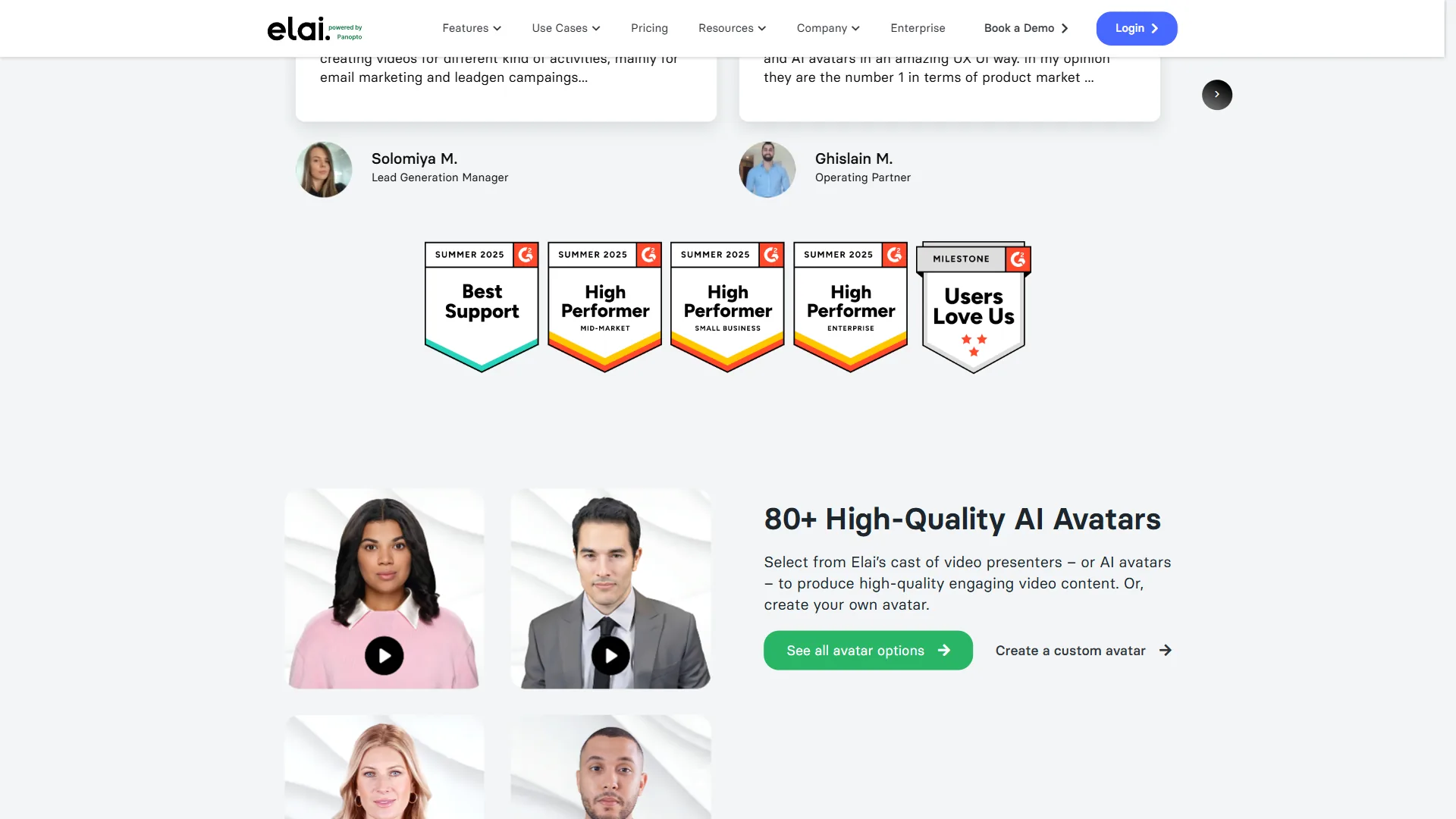
Avatar selection best practices for training content:
- Match the avatar to your audience - A formal presenter in business attire works for executive-level compliance training. A casual, younger avatar fits better for onboarding new hires at a tech startup
- Use consistent avatars across a series - Learners build familiarity with a presenter over time. Switching avatars between modules in the same training path creates cognitive friction
- Consider multi-avatar conversations - For scenario-based training like customer service simulations or sales objection handling, use two or three different avatars playing distinct roles. This feature is available on Creator tier and above
- Test gesture and expression range - Each avatar has different gesture sets. Preview your top three choices with a sample script before committing to a full production run
Enterprise custom avatars: If your organization needs a specific presenter - perhaps your CEO for company announcements or a recognized subject matter expert - Enterprise tier allows custom avatar creation. This requires professional video recording following Elai’s specifications and includes consent documentation for legal compliance.
Step 3: Writing Training Scripts That Work with AI
The script is where most Elai AI training videos succeed or fail. AI avatars deliver exactly what you write, so the script quality directly determines the output quality. Unlike recording with a human presenter who adds natural variations, AI narration requires deliberate writing for spoken delivery.
Script structure for a 5-minute training module:
- Hook (15-20 seconds) - State the learning objective and why it matters to the viewer. “By the end of this module, you will know how to process refund requests in under two minutes.”
- Core content (3-4 minutes) - Break into 3-5 key points. Each point gets its own slide in Elai. Keep individual slide scripts under 90 seconds for best avatar pacing
- Summary and action (30-45 seconds) - Recap the key points and state the next step. “Now open [system name] and complete the practice exercise before moving to Module 4.”
Writing tips specific to AI narration:
- Use short sentences. AI voices handle 10-15 word sentences better than complex 30-word constructions with multiple clauses
- Write numbers as words. “Twenty-five percent” renders more naturally than “25%” in AI voice output
- Spell out acronyms on first use. Write “Learning Management System, or L-M-S” so the avatar pronounces both forms correctly
- Add natural pauses. Insert a period or ellipsis where you want a breath pause. AI narration does not add pauses on its own, so dense text sounds rushed
AI Storyboard with ChatGPT integration: On the entry-paid tier and above, Elai includes an AI Storyboard feature powered by ChatGPT. You can describe your training topic in plain language - “Create a 5-slide onboarding module about our company’s security policies” - and the AI generates a full slide-by-slide script with presenter notes. This is a genuine time-saver for first drafts, though you should always review and customize the output for your specific context.
Step 4: Building Your First Training Video
With your avatar selected and script ready, here is the step-by-step process for creating your first training video in Elai.
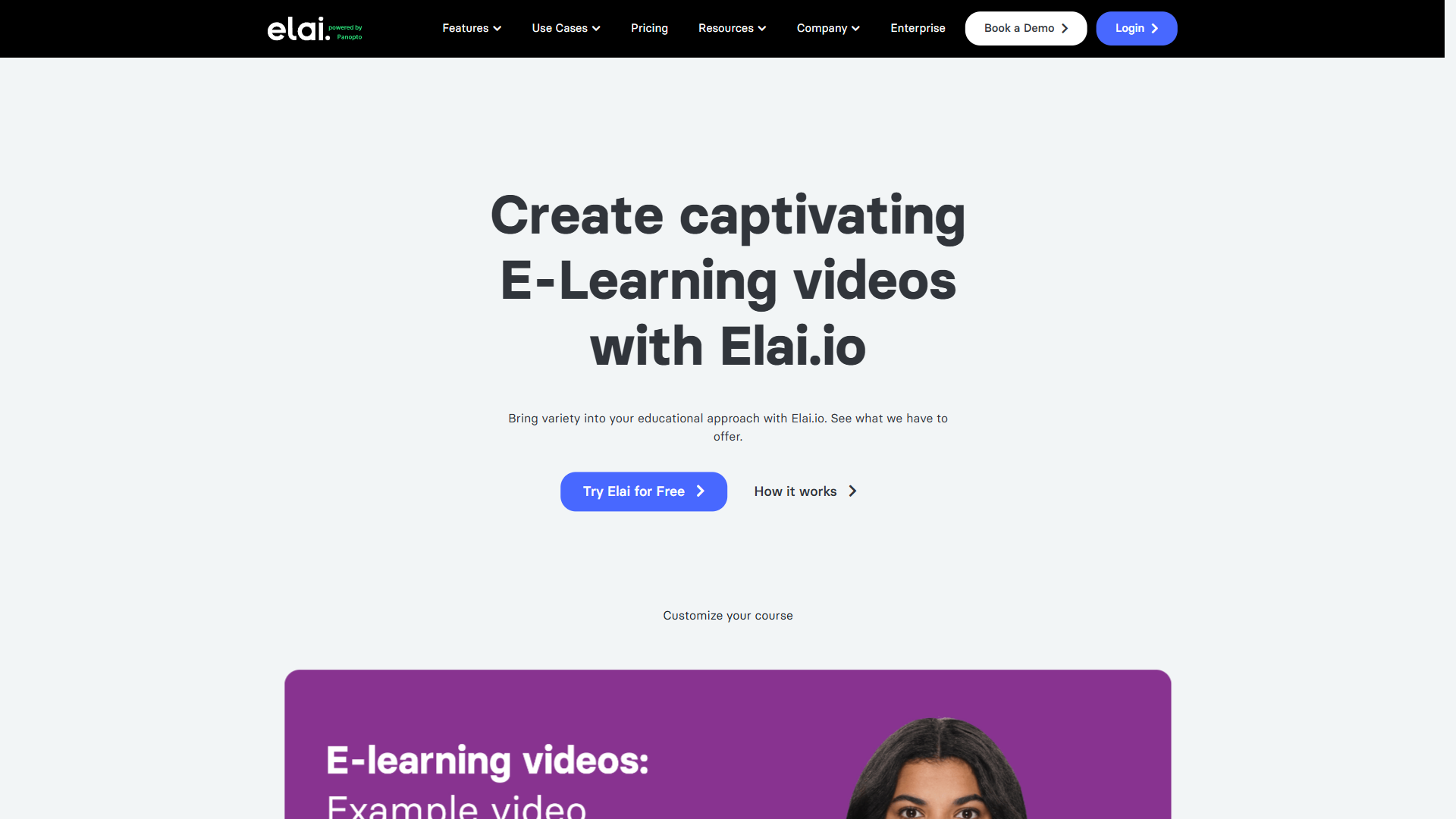
4.1 Create a New Project
Click “Create Video” from the dashboard. You have three starting points:
- Blank project - Start with an empty canvas and build each slide manually
- Template - Choose from Elai’s template library for common training formats like onboarding, product training, or compliance modules
- PowerPoint upload - Upload an existing .pptx file and Elai converts each slide into a video scene automatically. This is the fastest path if you already have training decks
For this walkthrough, start with a blank project to understand how each element works. Once you have built one video from scratch, templates and PowerPoint conversion will make more sense.
4.2 Add Slides and Assign Avatars
Each slide in Elai represents one scene in your video. For a 5-minute training module, plan for 5-7 slides (roughly 45-90 seconds each).
For each slide:
- Paste your script into the narration text field
- Select your avatar and position them on the canvas. You can place the avatar on the left, right, center, or as a small picture-in-picture overlay
- Add visual elements - Upload diagrams, screenshots, or process flows. Training videos that show and tell simultaneously produce better retention than talking-head-only content
- Choose background - Use a solid color, gradient, uploaded image, or one of Elai’s stock backgrounds
4.3 Select Voice and Adjust Narration
Elai offers premium voice options on Team and Enterprise tiers. For training content, prioritize:
- Clarity over character - Choose a voice that enunciates clearly at normal speed. Avoid overly dramatic or emotional voices for instructional content
- Speed consistency - Preview the full script at the default speed before adjusting. Most training content works best at 0.9x to 1.0x speed
- Language matching - If your avatar appears to be a specific demographic, match the voice accent accordingly. Mismatched visual and audio cues distract learners
4.4 Preview and Render
Click “Preview” to watch the full video before rendering. Check for:
- Pacing - Does the avatar rush through critical content? Add pauses in the script
- Visual alignment - Are text overlays readable? Do diagrams appear at the right moment?
- Transitions - Elai adds transitions between slides automatically. Adjust if they feel too abrupt or too slow
When satisfied, click “Render.” A typical 5-minute training video renders in 5-10 minutes. Creator tier renders in Full HD. Team and Enterprise tiers render in Ultra 4K HD.
Step 5: Voice Cloning for Brand Consistency
Voice cloning is available on Enterprise tier, and it is the feature that separates casual use from professional training production. Instead of choosing from the stock voice library, you record 2-3 minutes of audio reading a provided script, and Elai’s AI creates a custom voice model that sounds like you - or anyone in your organization who consents.
Voice cloning setup process:
- Record the sample audio following Elai’s script prompts. Use a quiet room and a decent microphone. Phone recordings work but produce lower-quality voice models
- Submit for processing - Voice model creation takes a few hours. Elai handles this on their servers
- Test with sample text - Once your clone is ready, generate a short clip and compare it to your natural voice. Adjustments to pitch and pace are possible before committing
- Deploy across projects - Your cloned voice becomes available in the voice selector for all future videos
Why this matters for training at scale: When your L&D team produces 10-20 modules per month, voice consistency across every video creates a professional, branded experience. Human voice actors get sick, change rates, or become unavailable. A cloned voice is always available, always consistent, and costs nothing extra per use.
Voice cloning works across 28 languages. You can record your voice in English, and Elai generates a version that speaks French, German, Spanish, or any of the other supported languages while retaining your vocal characteristics. For a detailed look at voice synthesis techniques, see our ElevenLabs voice cloning tutorial. This is particularly powerful for executives who want their voice on global training content without re-recording in every language.
Step 6: Multi-Language Deployment
For multinational organizations, creating Elai AI training videos in multiple languages is one of the platform’s strongest capabilities. The auto-translation feature on Team and Enterprise tiers converts your completed video into other languages automatically.
Multi-language workflow:
- Create the master video in your primary language - Get the content, pacing, and visuals finalized in one language first
- Click “Translate” and select target languages. Elai translates the script, generates new narration, and re-syncs the avatar lip movements
- Review each translation - Auto-translation handles 90% of the work, but always have a native speaker review for technical terminology and cultural nuances
- Render all versions - Each language version renders independently. Queue them up and let Elai process overnight for large batches
Elai supports 75+ languages for translation and text-to-speech, making it one of the stronger options in the AI translation tools space. Voice cloning works in 28 of those languages. Case study data from Elai’s published examples shows SmartExpert produced over 10,000 minutes of multilingual video content using this workflow.
Lip-sync quality note: Compared to alternatives like Synthesia and HeyGen, English and major European languages produce excellent lip-sync accuracy. Less common languages can show inconsistencies - a limitation shared across all AI video platforms currently. For languages where lip-sync is less accurate, consider positioning the avatar as a smaller picture-in-picture overlay rather than full-screen.
Step 7: SCORM Export and LMS Integration
SCORM export is available on Enterprise tier and is the feature that makes Elai a serious contender for corporate L&D teams rather than just another video creation tool.
What SCORM export gives you:
- Direct LMS upload - Package your video as a SCORM 1.2 or SCORM 2004 compliant file that uploads directly to Cornerstone, Docebo, SAP SuccessFactors, Workday Learning, or any compliant LMS
- Completion tracking - The LMS records who watched the video, how far they progressed, and whether they completed it. This data feeds into compliance reporting
- Interactivity hooks - On Team and Enterprise tiers, you can add interactive elements like quizzes, branching scenarios, and knowledge checks within the video. These interactions report results back to the LMS via SCORM
Integration workflow:
- Render your final video in Elai
- Select “Export as SCORM” and choose your SCORM version (check your LMS requirements - most modern systems support SCORM 2004)
- Download the .zip package
- Upload to your LMS as a new learning object
- Assign to learners through your normal LMS workflow
For teams not on Enterprise tier, you can still export standard MP4 videos and embed them in your LMS manually. You lose completion tracking granularity, but the video content works identically.
Real Pricing: What Each Tier Actually Gets You
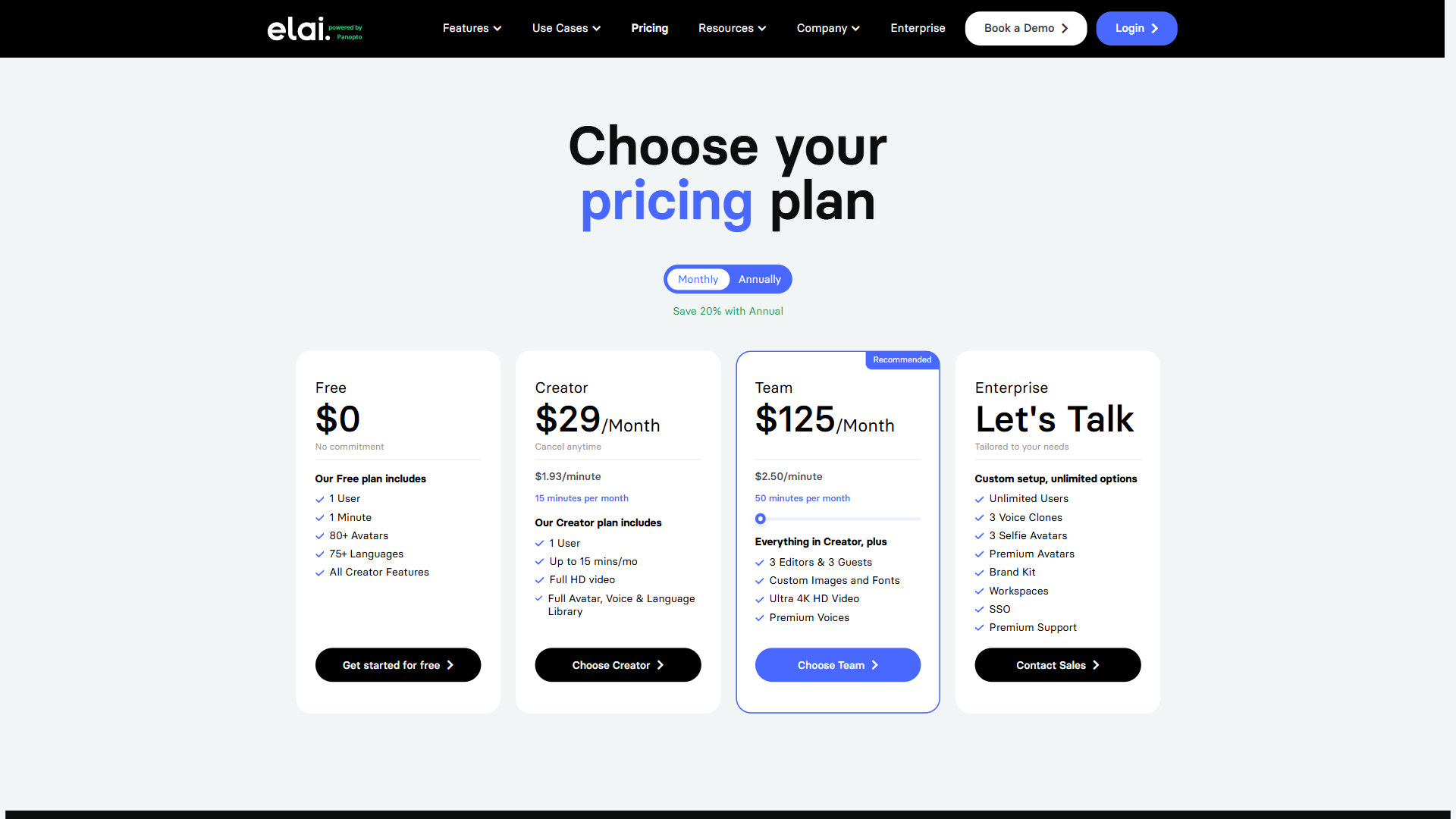
Understanding Elai’s pricing is essential for building a business case. The current tiers pull straight from our canonical tool data, so this view stays in sync with vendor changes:
Pricing verified April 2026 from Elai.io's pricing page:
- Free: $0/mo
- 1 user
- 1 min per slide
- Standard video resolution
- Basic: $23/user/mo annual ($29 monthly)
- 1 user
- 40 minutes of video per month
- Full HD video resolution
- Advanced: $80/user/mo annual ($99 monthly)
- 3+ users
- 100 minutes per user per month
- 4K Ultra HD video resolution
- Enterprise: Contact sales
- Unlimited users
- Unlimited video minutes
- 4K Ultra HD video resolution
Which tier for which team size:
- Individual L&D creator (1-3 videos/month): the entry-paid tier covers several short training modules per month and unlocks the full avatar library
- Small L&D team (5-15 videos/month): the mid-tier adds Ultra 4K HD output, multi-seat collaboration, and premium voices for consistent production
- Enterprise L&D department (20+ videos/month): Enterprise tier with custom pricing - voice clones, premium avatars, SSO, workspaces, and dedicated support are included. Elai’s sales team provides volume quotes tailored to team size
Annual billing saves up to 20%. For budget-conscious teams, that is meaningful savings across all paid plans.
The Cost Savings in Practice
The financial case for Elai AI training videos is straightforward. Traditional training video production costs break down roughly like this:
- Script development takes 4-8 hours of SME and instructional designer time
- Video recording typically runs $500 to $2,000 per session (studio, equipment, talent)
- Voice-over talent invoices around $12.25 per minute for professional narration
- Post-production editing absorbs another 8-16 hours per finished module
- Revisions add roughly $200 to $500 per round (re-recording, re-editing)
With Elai, voice-over costs drop to $1.58/minute - an 87% reduction. Production time drops from weeks to hours. Case studies show SendPulse saves two weeks of production time per course, and MacPaw eliminated 100% of their external video production costs.
For a team producing 10 training modules per month at 5 minutes each, the math looks like this: traditional production runs approximately $5,000-15,000/month. Elai’s mid-tier plan costs $99/month with premium features included. Even accounting for the time your L&D team spends writing scripts and reviewing output, the savings are substantial.
Common Mistakes to Avoid
Based on user feedback, these are the recurring mistakes that waste time and produce lower-quality output:
Writing scripts for reading, not speaking. Training scripts that read well on paper often sound stilted when spoken by an AI avatar. Our AI content writing workflow covers techniques that translate well to spoken delivery. Read your script aloud before pasting it into Elai. If you stumble over anphrasese while reading it naturally, rewrite that phrase.
Skipping the preview step. Rendering takes several minutes. Previewing takes 30 seconds. Always preview before rendering. Catching a pacing issue or visual misalignment in preview saves you an entire re-render cycle.
Using too many different avatars. Variety feels creative, but in training content it creates inconsistency. Pick one or two primary avatars for your training library and use them consistently. Reserve additional avatars for specific scenario-based content where multiple characters are necessary.
Ignoring mobile playback. Many learners consume training on phones and tablets. Test your videos on mobile before deploying using Chrome DevTools device mode or a real device. Text overlays that are readable on a desktop monitor can be illegible on a phone screen. Use larger fonts and simpler visual layouts.
The Bottom Line
Elai delivers a purpose-built platform for teams that create training videos at any scale. The combination of 80+ avatars, voice cloning in 28 languages, PowerPoint-to-video conversion, and SCORM export creates a workflow that replaces most of what traditional video production teams do - at a fraction of the cost and timeline.
The platform is not the cheapest option for casual video creation, and it does not have the largest template library or the fastest rendering speeds. But for L&D teams focused on building a consistent, scalable training video pipeline, the training-specific features justify the investment. Start with the free tier to test the platform, move to the entry-paid tier once you are producing regularly, and evaluate the team tier when premium voices and Ultra 4K HD output become priorities.
Want to learn more about Elai.io?
Frequently Asked Questions
How long does it take to make a training video with Elai?
You can go from a written script to a finished training module in under 30 minutes. Once you click Render, a typical 5-minute video processes in 5-10 minutes. No camera, microphone, or editing software is required.
Does Elai have a free plan for training videos?
Yes. The free tier includes 80+ AI avatars, 75+ languages, and text-to-video conversion at standard resolution. The main limits are a 1-minute-per-slide cap and standard definition output - enough to build a proof-of-concept and evaluate the platform before committing to a paid plan.
Which Elai tier supports SCORM export for LMS integration?
SCORM export is available on the Enterprise tier. Teams on lower tiers can still export standard MP4 files and embed them manually in their LMS, though they lose the granular completion tracking that SCORM provides.
How many languages does Elai support for training videos?
Elai supports 75+ languages for translation and text-to-speech. Voice cloning - where the AI replicates a specific person’s vocal characteristics - works across 28 of those languages, allowing executives to appear on global training content without re-recording in each language.
What does Elai voice cloning require and who can use it?
Voice cloning is available on the Enterprise tier. The process involves recording 2-3 minutes of audio from a provided script, after which Elai builds a custom voice model. Consent documentation is included for legal compliance, and the cloned voice can be used across all 28 supported languages.
Related Guides
- AI Video Creation Tips: Produce Better Content Faster
- How to Use AI Voiceovers for Corporate Training
- AI Avatar Video Marketing Guide
- Text-to-Video Tools Comparison
External Resources
- Elai Case Studies - Real-world examples from SendPulse, MacPaw, SmartExpert, and Sonovision
- Elai Blog - Platform updates, new avatar releases, and training video best practices
- ADL SCORM Documentation - Official SCORM specification for LMS integration standards
- Panopto Acquires Elai Announcement - Background on the October 2024 acquisition and Elai’s enterprise roadmap
Related Guides
- Activecampaign AI Content Generation: Complete 2026 Guide
- AI Avatar Video Marketing: 2026 Walkthrough for Teams
- AI Content Writing Workflow: 2026 Walkthrough for Teams
- AI Product Discovery Ecommerce: Lift Revenue in 2026
- AI Productivity Trends 2026: 6 Real Shifts, No Hype
- AI Video Creation Tips: 2026 Walkthrough for Teams
- AI Voiceover Corporate Training With WellSaid Labs
- AI Workflow Automation Maturity Model: 5 Levels
- Building AI First Workflows: A Practitioner's 2026 Guide
- ChatGPT Custom GPTs Guide - Save 130+ Hours a Year