



Switching from Murf AI to ElevenLabs is a decision that many voiceover producers reach after hitting the ceiling on emotional range, voice cloning quality, or language coverage. Murf AI is a capable platform - especially for volume production and e-learning narration - but ElevenLabs has pulled ahead in voice realism, multilingual support, and the granular emotional controls that separate acceptable AI voiceovers from genuinely convincing ones. If you have been thinking about making the move, this murf to elevenlabs migration guide gives you a repeatable process to do it without losing projects, wasting time, or disrupting active production schedules.
This guide is written for current Murf users who have evaluated the differences and decided to switch - or who are actively comparing the two platforms before committing. You do not need technical experience beyond basic familiarity with text-to-speech tools. If you have never used either platform, start with the Getting Started with ElevenLabs guide instead, which covers account creation and platform basics from scratch.
The migration itself takes about 25 minutes of focused work, though you may spend additional time matching voices and fine-tuning settings to replicate the output quality you are accustomed to. The goal is to keep the migration free of lost projects and wasted effort - not a perfect one-to-one clone of your Murf setup, but a repeatable path that gets you producing at the same speed or faster on a platform with more headroom for quality.
Why the Murf to ElevenLabs Migration Makes Sense
The most common reasons producers run a murf to elevenlabs migration fall into four categories: voice quality, emotional control, language support, and pricing flexibility.
Voice quality and realism. ElevenLabs’ Eleven v3 model produces voices that are consistently more natural than Murf’s Speech Gen 2 technology. The difference is most noticeable in longer passages where Murf voices can develop a subtle mechanical cadence - particularly in conversational or narrative content. ElevenLabs handles pauses, breath sounds, and micro-variations in pitch more convincingly, which matters for audiobook narration, podcast production, and any content where listeners spend more than 30 seconds with the voice.
Emotional control. This is the gap that pushes most users to switch. Murf offers basic emotion sliders - Happy, Sad, Excited, Serious - that adjust the overall tone of a generation. ElevenLabs takes a fundamentally different approach with inline audio tags like [whispers], [excited], [laughs], and [sighs] that you embed directly in your script at the exact point where the emotional shift should occur. This means a single paragraph can shift from conversational to excited to reflective, rather than applying one emotion to the entire clip.
Language coverage. Murf supports 35 languages with its MultiNative technology. ElevenLabs supports over 70 languages with authentic accents and dialects. If your content targets markets beyond Murf’s language list - or if you need higher-quality output in languages where Murf’s pronunciation feels unnatural - the broader language model gives you more room to grow.
Pricing structure. Murf’s Basic plan starts at $29 per month (or $19 annually) for 2 hours of voice generation. ElevenLabs uses a character-based model starting at $5 per month for 30,000 characters on the Starter tier, with API access included. For developers and teams that need programmatic voice generation, ElevenLabs offers API access at a price point that Murf cannot match without an Enterprise contract. Compare both platforms on the ElevenLabs pricing page and the Murf pricing page. The murf to elevenlabs migration usually pays for itself within the first month for users on Murf’s Basic or Pro tiers.
Pre-Migration Checklist
Before exporting anything or creating a new account, spend ten minutes organizing what you have in Murf so the transition is structured rather than improvised.
Inventory your active projects. Open the Murf Studio and list every project you are currently working on or may need to revisit. This inventory is the backbone of any successful murf to elevenlabs migration. Note the project name, the voice assigned to each, and whether the project is complete, in progress, or archived. Projects that are finished and exported do not need to be migrated - only projects where you expect to make future edits or generate new audio.
Document your voice preferences. For each voice you use regularly in Murf, write down the voice name, the language, and any style settings you apply (emotion, speed, pitch adjustments). This inventory becomes your shopping list when you search for equivalent voices in the ElevenLabs Voice Library.
Check your subscription and billing cycle. Note when your current Murf subscription renews. You want to avoid paying for overlapping subscriptions longer than necessary. If your billing date is more than a week away, you have time to complete the migration before the next charge.
Confirm commercial license requirements. If you use Murf voiceovers commercially - in YouTube videos, client deliverables, courses, or marketing - verify that the ElevenLabs plan you choose includes a commercial license. All paid ElevenLabs plans from Starter ($5 per month) and above include commercial usage rights. The free tier is personal use only.
Review API dependencies. If you use the Murf Falcon API in any applications, document the endpoints, authentication flow, and request formats. ElevenLabs’ API is structured differently, so you will need to update integration code. The ElevenLabs API Developer Setup Guide covers the full configuration process.
Backup Your Murf Projects
Murf does not offer a one-click export for all projects, so you need to back up each one individually. This is the most time-consuming step of the migration, but it protects you from losing work if you cancel your Murf subscription.
Step 1: Export all generated audio files. Open each project in Murf Studio and download the final audio output. Use the highest quality export setting available - WAV format if your plan supports it, MP3 at 320kbps as a fallback. Save files with descriptive names that include the project title and voice used. For example: product-demo-marcus-en.wav.
Step 2: Save your scripts. Copy the text content from each Murf project into a plain text file or document. Include any pronunciation notes, SSML markup, or emphasis instructions you added. These scripts will be your starting point when you recreate projects in ElevenLabs.
Step 3: Screenshot your voice settings. For each project, take a screenshot of the voice configuration panel showing the selected voice, speed, pitch, emotion settings, and any other customizations. These screenshots serve as reference when you configure equivalent settings in ElevenLabs.
Step 4: Export any custom voice clones. If you created custom voices using Murf’s Voice Cloning 2.0, you cannot transfer the voice model itself between platforms. However, the original audio samples you uploaded to Murf can be reused to create a new clone in ElevenLabs. Locate those original recordings on your computer or re-record fresh samples using the same microphone and environment.
Step 5: Document team access. If you are on a Murf Business or Enterprise plan with team members, note who has access and what roles they hold. You will need to set up equivalent access in your new ElevenLabs workspace.
Setting Up Your ElevenLabs Account
With your Murf data backed up, create your ElevenLabs account and select the plan that matches your production needs. This is the active cutover phase of the murf to elevenlabs migration.
Step 1: Create your account. Navigate to elevenlabs.io and click the sign-up button. Register with your email, or use Google or GitHub for faster access. No credit card is required for the free tier.
Step 2: Complete the onboarding survey. ElevenLabs asks a few questions about your use case during signup. Select the options that best match your work - content creation, app development, localization, or similar. This personalizes your dashboard but does not restrict your access.
Step 3: Choose the right plan based on your Murf usage. Use this mapping to find the closest equivalent:
| Your Murf Plan | Monthly Murf Cost | Recommended ElevenLabs Plan | Monthly ElevenLabs Cost |
|---|---|---|---|
| Free (10 min) | $0 | Free (10,000 chars) | $0 |
| Basic (2 hrs/month) | $29 | Creator (100,000 chars) | $22 |
| Pro (voice cloning, all voices) | $39 | Creator (pro cloning, 30 voices) | $22 |
| Business (team, 8 hrs) | $99 | Independent Publisher (500,000 chars) | $99 |
| Enterprise | Custom | Scale or Business | $330+ |
The Creator plan at $22 per month is the sweet spot for most migrating Murf users. It includes professional voice cloning, 100,000 characters per month (roughly 125 to 165 minutes of audio), 30 custom voices, and the Projects workspace for long-form content.
Step 4: Navigate the Studio workspace. After signup, you land in the ElevenLabs Studio. The left sidebar contains the key sections you will use: Text to Speech, Speech to Speech, Voice Library, Voice Design, My Voices, and Projects. Take two minutes to click through each section so you understand where everything lives before importing content.
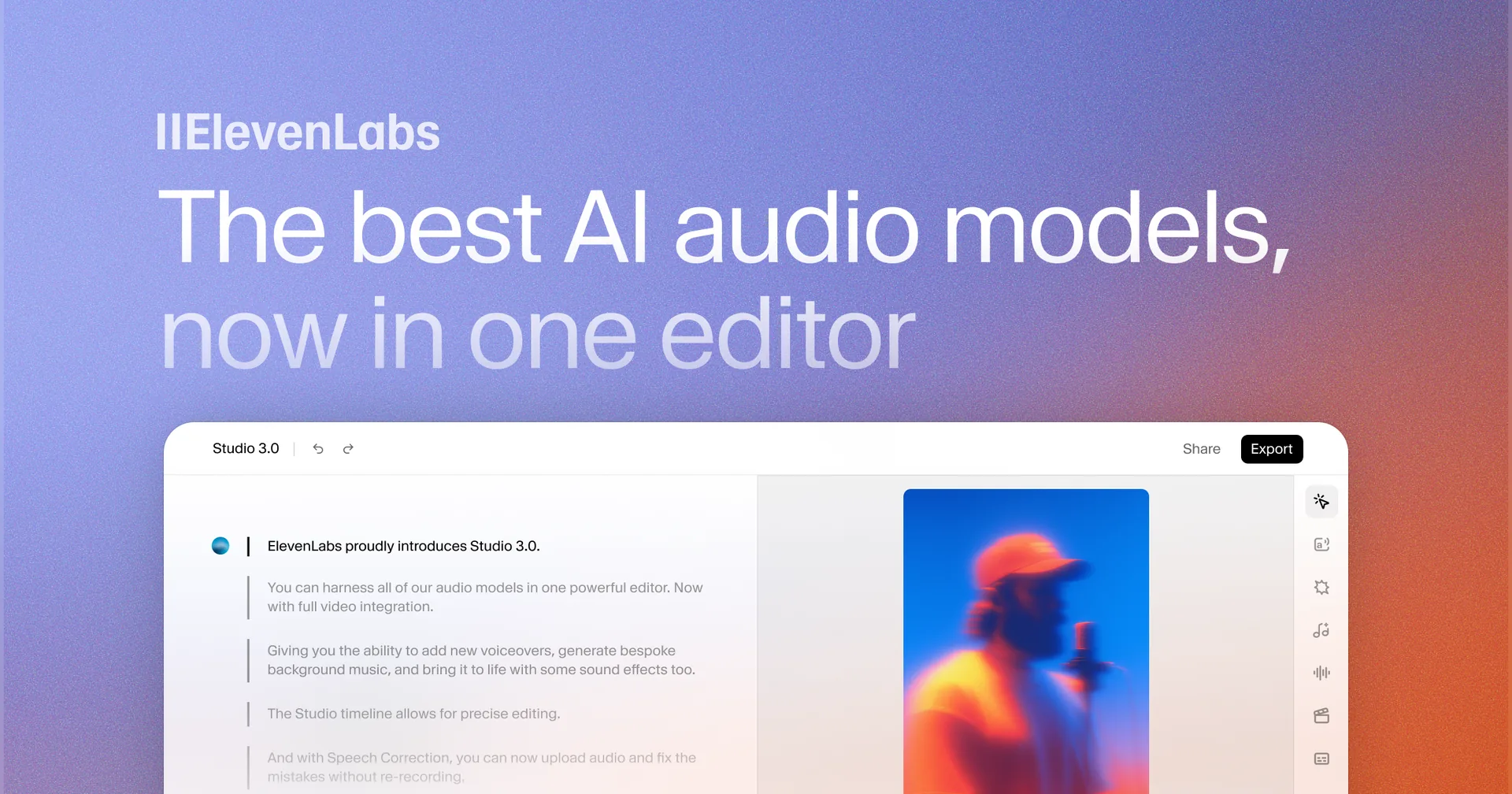
Feature Map: Murf vs ElevenLabs
The two platforms organize their features differently, so knowing where to find the equivalent of each Murf tool speeds up your transition.
Murf Studio to ElevenLabs Studio and Projects
Murf Studio is the central workspace where you write scripts, assign voices, and generate audio. In ElevenLabs, this maps to two separate tools depending on your content length.
For short-form content (single clips, ad reads, social media audio), use the Text to Speech page. Paste your script, select a voice, choose a model, and generate. This is the closest equivalent to Murf’s quick generation workflow.
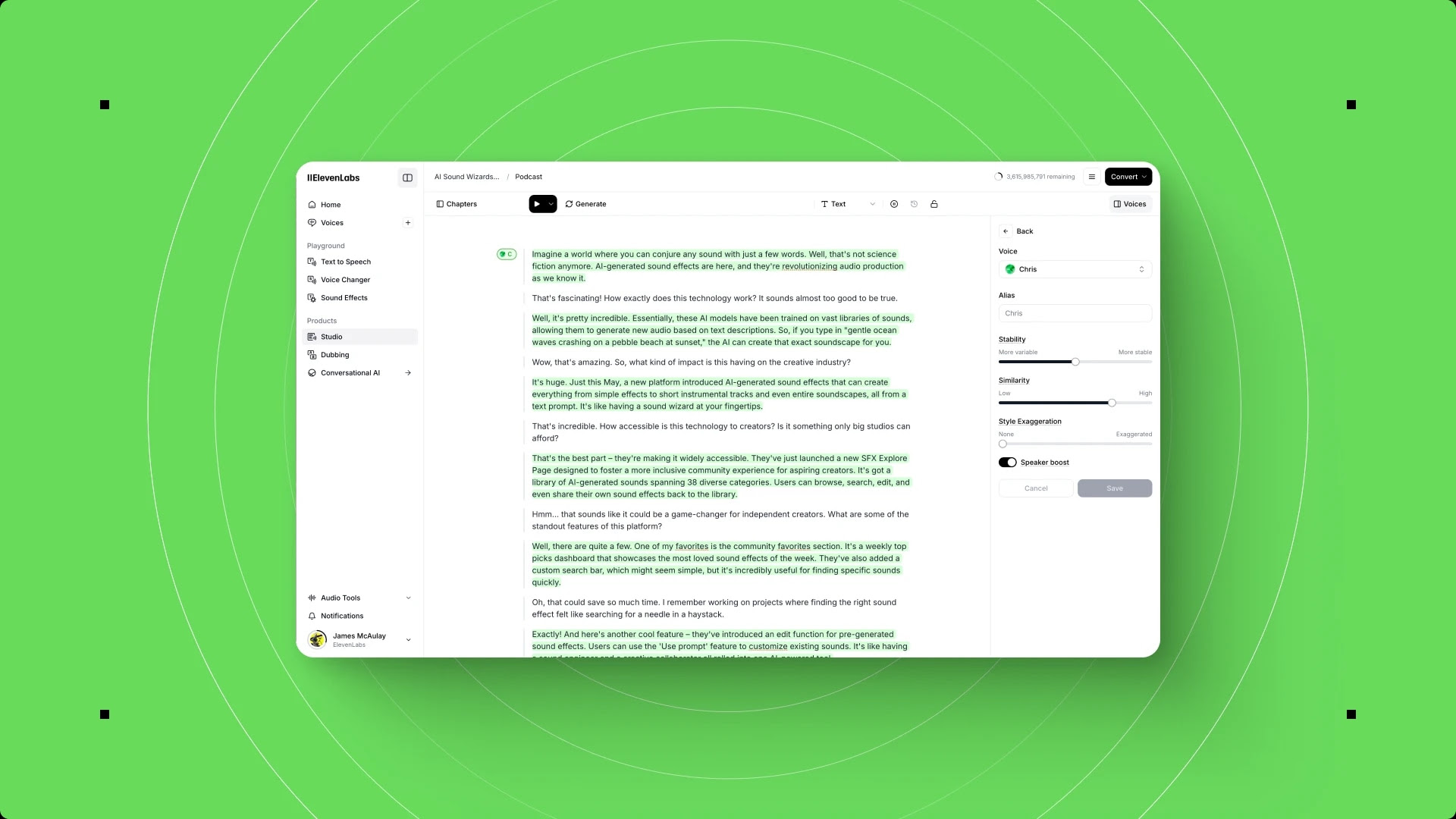
For long-form content (audiobooks, course modules, multi-section scripts), use Projects. The Projects workspace lets you organize content into chapters, assign different voices to different sections, and manage the entire production from a single interface. This is more powerful than Murf’s project system because each section can use a different voice and different settings without creating separate projects.
Murf Voice Changer to ElevenLabs Speech to Speech
Murf’s Voice Changer lets you upload a recording and convert it into a different AI voice. ElevenLabs calls this Speech to Speech - you record or upload audio, select a target voice, and the platform converts your delivery into the selected voice while preserving your pacing, emphasis, and rhythm.
Speech to Speech is particularly useful during migration because you can upload your existing Murf audio exports and hear how they sound when processed through ElevenLabs voices. This gives you a direct comparison without re-scripting anything.
Murf AI Translate to ElevenLabs Dubbing Studio
Murf’s translation features handle basic multilingual voice generation. ElevenLabs’ Dubbing Studio is a dedicated workspace for translating and dubbing audio and video content into 29 languages with automatic speaker detection, transcript editing, and voice-matched output. It is significantly more capable than Murf’s translation tools - the Dubbing Studio guide covers the full workflow.
Murf Voices to ElevenLabs Voice Library
Murf offers around 200 voices across 35 languages. The ElevenLabs Voice Library contains over 10,000 voices created by both the ElevenLabs team and the community, covering 70+ languages. The library includes pre-made voices, community-created voices, and character voices for creative projects. Browse the full library using the search and filter system described in the Voice Library guide.
Voice Matching Guide
Finding ElevenLabs equivalents for your favorite Murf voices is the step that makes or breaks the migration experience. A systematic approach saves you from aimless browsing.
Step 1: Open your voice inventory. Pull up the list of Murf voices you documented during the pre-migration checklist. For each voice, note the gender, approximate age, accent, and the type of content you use it for (narration, conversational, instructional, character work).
Step 2: Search the ElevenLabs Voice Library. Navigate to the Voice Library from the left sidebar. Use the filters to narrow results:
- Language - Match the primary language of your Murf voice
- Gender - Male, female, or non-binary
- Age - Young, middle-aged, or old
- Accent - American, British, Australian, and many more
- Use case - Narration, conversational, characters, news, or meditation
Start with language and gender, then add accent if you have a preference. Two or three filters usually gives you a manageable list of 20 to 50 voices to preview.
Step 3: Preview with your actual scripts. Do not judge voices using the default preview samples alone. Copy a paragraph from one of your real projects into the Text to Speech editor, select a candidate voice, and generate. Listen for pacing, pronunciation of any technical terms, and how the voice handles sentence transitions. Real content reveals differences that preview samples hide.
Step 4: Test across content types. If you use a voice for both short clips and long narration, test both. Some voices that sound excellent in 30-second clips develop noticeable patterns over 3 to 5 minutes. The Stability slider in ElevenLabs controls this - higher values produce more consistent output, while lower values add natural variation.
Step 5: Save your matches. When you find a voice that works, click the star icon to add it to your My Voices collection. Name the saved entry with a reference to the Murf voice it replaces - for example, “Marcus replacement - Daniel” - so you can quickly find the right voice when recreating projects.
Here are common Murf voice archetypes and where to start in ElevenLabs:
| Murf Voice Type | ElevenLabs Starting Point |
|---|---|
| Professional male narrator (e.g., Marcus) | Try “Daniel” or “Adam” in pre-made voices |
| Warm female narrator (e.g., Natalie) | Try “Rachel” or “Sarah” in pre-made voices |
| Energetic marketing voice | Search “energetic” or “upbeat” in Voice Library |
| Calm instructional voice | Filter by “narration” use case, sort by popularity |
| Character or creative voice | Browse the Character Voices category |
Importing and Recreating Projects
With your voices matched, recreate your active Murf projects in ElevenLabs. The workflow differs enough from Murf that following a structured process prevents frustration.
Step 1: Create a new project in the Projects workspace. Click Projects in the left sidebar, then create a new project. Name it to match the original Murf project for easy reference.
Step 2: Paste your script. Copy the script text from your backup files into the project editor. ElevenLabs Projects support section breaks, so split longer scripts into logical chapters or segments. Each section can use a different voice if needed.
Step 3: Assign voices to each section. Select the ElevenLabs voice you matched for each section. If the original Murf project used a single voice throughout, assign the same ElevenLabs voice to all sections.
Step 4: Adjust voice settings. ElevenLabs uses two primary sliders instead of Murf’s emotion presets:
- Stability controls consistency. Higher values (0.7 to 1.0) produce uniform, predictable output - good for corporate narration and e-learning. Lower values (0.3 to 0.5) add natural variation - better for storytelling and conversational content.
- Similarity Enhancement controls how closely the output matches the voice profile. Keep this at 0.7 to 0.8 for most use cases. Going above 0.9 can amplify artifacts.
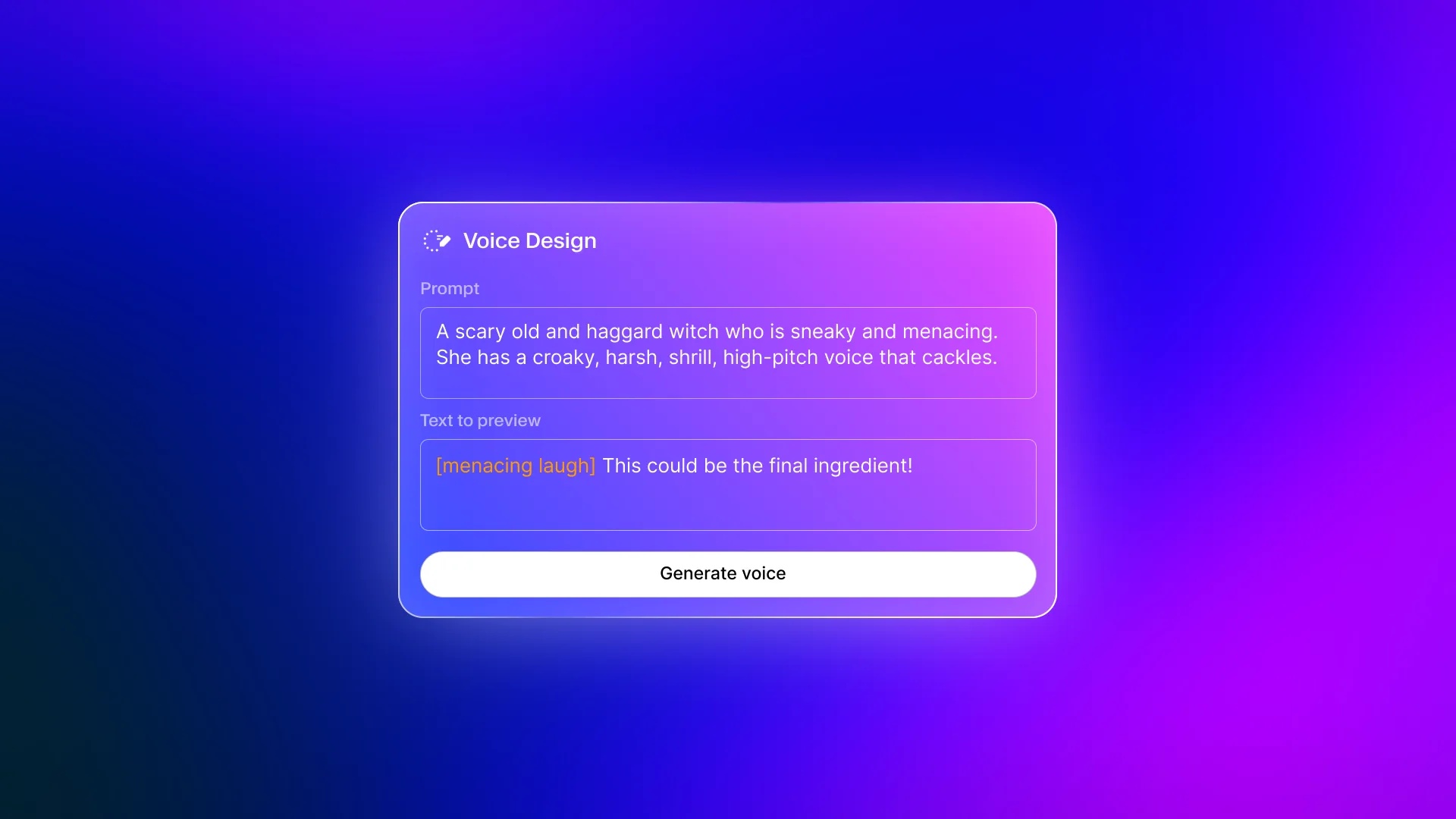
Step 5: Add emotional direction with audio tags. This is where ElevenLabs gives you capabilities that Murf does not offer. Instead of applying a single emotion to an entire clip, insert inline tags directly in your script:
[whispers]before a phrase makes the voice drop to a whisper[excited]increases energy and pace[laughs]adds a natural laugh[sighs]inserts a sigh before the next phrase
Place these tags at the exact point in the script where you want the emotional shift. This takes practice - the voice cloning tutorial covers audio tag best practices in detail.
Step 6: Generate and compare. Generate the audio for each section and compare it against your original Murf exports. Listen for pronunciation accuracy, pacing, and overall quality. If something sounds off, adjust the Stability slider first, then try a different model (Eleven Multilingual v2 for highest quality, Eleven Flash v2.5 for faster output with slightly lower quality).
Step 7: Choose the right model. ElevenLabs offers multiple models optimized for different use cases:
- Eleven Multilingual v2 - Highest quality, supports 29 languages, best for polished final output
- Eleven Flash v2.5 - Lower latency (75ms), good quality, best for iterating quickly or real-time applications
- Eleven v3 - Latest model with the best emotional control via audio tags, ideal for expressive content
Start with Eleven Multilingual v2 for your first recreations, then experiment with v3 for content that benefits from emotional nuance.
Key Differences to Know
Several workflow differences between Murf and ElevenLabs catch migrating users off guard. Knowing these upfront prevents confusion.
Character-based vs time-based limits. Murf measures usage in minutes of generated audio. ElevenLabs measures usage in characters of input text. A 10-minute voiceover might use 8,000 to 12,000 characters depending on speaking speed. Track your character usage in the dashboard to avoid running out mid-project.
No integrated video editor. Murf includes basic video editing tools within the Studio. ElevenLabs is a pure audio platform - you generate the voiceover, download it, and sync it with video in an external editor like DaVinci Resolve, Premiere Pro, or CapCut. If the built-in video timeline was central to your Murf workflow, plan for this additional step in the murf to elevenlabs migration.
Voice cloning differences. Murf’s Voice Cloning 2.0 requires a 2-minute audio sample and takes 24 to 48 hours to process. ElevenLabs offers two modes: Instant cloning (available from Starter tier) creates a usable clone from about 1 minute of audio in seconds. Professional cloning (Creator tier and above) uses 5 to 10 minutes of audio and takes longer to process but produces significantly better results. If you cloned your voice in Murf, you will want to use Professional cloning in ElevenLabs for comparable quality.
Pronunciation controls. Murf uses its AI Script Assistant for pronunciation corrections. ElevenLabs offers Pronunciation Dictionaries - custom dictionaries where you define exactly how specific words, acronyms, or names should be pronounced. This is more powerful than Murf’s approach for technical content with specialized terminology. The Pronunciation Dictionary setup guide walks through configuration.
Team collaboration structure. Murf’s Business plan supports 3 editors and 5 viewers. ElevenLabs’ team features are available on the Scale plan ($330 per month) and above, with more granular permission controls. If you are migrating a team, evaluate whether the Scale plan’s collaboration features meet your needs before committing.
Verifying Your Migration
Before canceling your Murf subscription, verify that your ElevenLabs setup matches or exceeds your previous production quality.
Quality comparison checklist. For each migrated project, answer these questions:
- Does the ElevenLabs voice sound as natural or better than the original Murf voice?
- Are technical terms, brand names, and proper nouns pronounced correctly?
- Does the pacing match your expectations? (Adjust Stability if not.)
- Does the emotional tone feel right for the content? (Add audio tags if flat.)
- Is the audio output format compatible with your editing workflow?
A/B test with real listeners. If possible, play the Murf and ElevenLabs versions of the same script to a colleague or friend without telling them which is which. Ask them to identify which sounds more natural. This removes your own bias from the evaluation - migrating users sometimes prefer the familiar sound simply because they are used to it.
Test your full production pipeline. Generate a complete project from script to final export. Import the audio into your video editor or publishing platform. Confirm that file formats, sample rates, and quality levels work with your existing tools. Catching a compatibility issue now is far better than discovering it during a deadline.
Verify API integrations. If you migrated API-dependent workflows, run end-to-end tests with the ElevenLabs API. Confirm that authentication, request formatting, and response handling work correctly. The ElevenLabs API uses a different authentication pattern (API keys in headers) and response format than Murf’s Falcon API.
Monitor character usage for one billing cycle. Track how many characters you consume in your first month on ElevenLabs. If you are consistently hitting your limit before the billing cycle resets, upgrade to the next tier. It is better to have a buffer than to run out of characters during a production deadline.
Once you are confident that your ElevenLabs setup meets your needs, cancel your Murf subscription. Remember that any audio files you already generated and downloaded from Murf are yours to keep - you retain commercial rights to previously generated content even after canceling.
Frequently Asked Questions
Can I transfer my Murf voice clones directly to ElevenLabs?
No. Voice clone models are proprietary to each platform and cannot be exported or transferred. However, the original audio recordings you used to create your Murf clone can be uploaded to ElevenLabs to create a new clone. Use the Professional cloning option on the Creator plan or above for the best results. The process takes longer than Murf’s 2-minute requirement - plan for 5 to 10 minutes of clean audio - but the output quality is typically higher.
Will my ElevenLabs voiceovers sound the same as my Murf voiceovers?
They will not sound identical because the underlying voice models and synthesis engines are different. Most users find that ElevenLabs output sounds more natural and expressive, but the character of each voice is distinct. Plan for a brief adjustment period where your audience notices the change. In practice, listeners adapt within one or two episodes or videos and the feedback is almost always positive when moving to ElevenLabs’ more realistic output.
How do ElevenLabs character limits compare to Murf’s time-based limits?
As a rough guide, 10,000 characters produces approximately 12 to 15 minutes of audio, depending on speaking speed and the voice selected. Murf’s Basic plan gives you 2 hours per month. To match that in ElevenLabs, you would need roughly 80,000 to 100,000 characters per month, which falls within the Creator plan’s 100,000-character allowance at $22 per month - less than Murf’s $29 per month Basic plan.
Should I keep my Murf subscription during the migration?
Yes. Maintain both subscriptions for at least one billing cycle of the murf to elevenlabs migration while you verify that your ElevenLabs setup meets your production needs. Cancel Murf only after you have successfully recreated your active projects, matched your voices, and confirmed that the output quality satisfies your requirements. The overlapping cost is a small price for avoiding production disruptions.
Does ElevenLabs offer a free tier to test before committing?
Yes. The ElevenLabs free tier includes 10,000 characters per month - roughly 12 to 15 minutes of generated audio - with access to pre-made voices and the Voice Library. This is enough to test voice quality, experiment with audio tags, and verify that the platform meets your needs before upgrading to a paid plan. No credit card is required to sign up.
What about Murf’s Canva integration - does ElevenLabs have similar integrations?
Murf’s Business plan includes a Canva integration for adding voiceovers directly within Canva designs. ElevenLabs does not have a Canva integration but offers the Audio Native feature for embedding generated audio on websites, plus a comprehensive API and SDKs for building custom integrations. If the Canva workflow was important to you, plan to export audio from ElevenLabs and import it into Canva separately - an extra step, but one that takes under a minute.
Want to learn more about ElevenLabs?
Related Guides
- Getting Started with ElevenLabs
- ElevenLabs Voice Cloning Tutorial
- ElevenLabs Voice Library Guide
- ElevenLabs Studio First Project
- ElevenLabs Pronunciation Dictionary Setup
Related Reading
- Best AI Voice Generators for 2026 - Full comparison of the top voice synthesis platforms
- ElevenLabs Alternatives: Best AI Voice Generators - How ElevenLabs compares to other options
- AI Voiceover Tips: Making Synthetic Voices Sound Human - Techniques for natural-sounding AI audio
- Murf AI Voiceover Guide - Getting the most from Murf if you decide to stay
- Murf AI - Full Murf AI review and pricing breakdown
External Resources
- ElevenLabs Official Website - Create your account and explore the platform
- ElevenLabs Pricing - Compare all tiers and find the right plan for your usage
- Murf AI Official Website - Manage your existing Murf account and export projects
- Murf Text-to-Speech - Reference for the source platform you are migrating from
Related Guides
- AI Video Creation Tips: 2026 Walkthrough for Teams
- AI Voice Cloning Ethics Best Practices: Complete 2026 Guide
- AI Voiceover Corporate Training With WellSaid Labs
- AI Voiceover for YouTube Videos: Murf Workflow Guide 2026
- AI Voiceover Tips: Making Synthetic Voices Sound Human
- Atlassian Tools for Developers: Jira, Confluence & Bitbucket
- Bitbucket Pipelines Guide: Compare CI/CD Tools in 2026
- Claude Code Ultraplan & Plan Mode: Complete Guide (2026)
- Cursor AI Productivity Tips 2026 - 12 Hacks Compared
- ElevenLabs API Setup: Developer Quick Start Guide (2026)