

Fireflies tips tricks are practical workflows that help users get more from the AI meeting assistant, including Smart Search for retrieving past conversations, custom vocabulary for transcription accuracy, automated action item extraction, custom topic trackers for competitive intel, and CRM integrations that turn raw recordings into a fully automated meeting documentation system.
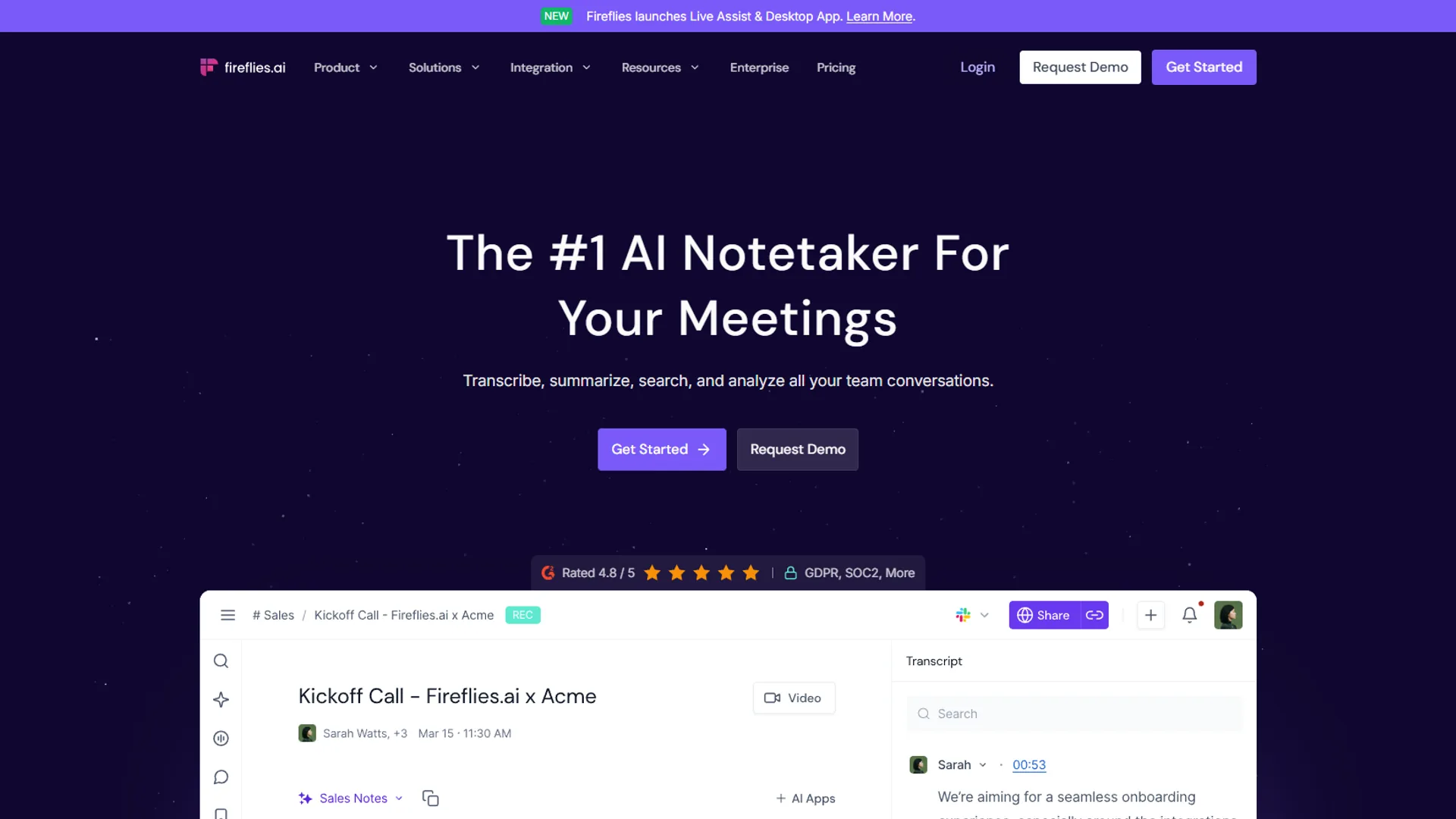
In 2026, Fireflies.ai has matured into a powerful platform, yet most users barely scratch the surface of what this AI meeting assistant can do. Whether you run hybrid calls at home or dial in with phone audio on the road, the difference between basic transcription and a fully automated workflow comes down to knowing which features to use - and when.
These Fireflies tips and tricks can transform meeting documentation, and your Fireflies status page becomes the single source of truth for every conversation. What used to take 30 minutes of post-meeting cleanup happens automatically while you’re already on your next call.
TL;DR - Quick Wins
When exploring fireflies tips tricks, consider the following.
If you’re short on time, here are the highest-impact tips:
- Tip #3: Use Smart Search to find any conversation in seconds
- Tip #5: Set up automatic action item extraction
- Tip #7: Create custom topic trackers for competitive intel
- Tip #10: Integrate with your CRM for automatic call logging
Now let’s dive into each tip with step-by-step instructions.
Tip #1: Configure Your Recording Preferences Before Your First Meeting
Why it matters: Getting your settings right from the start prevents awkward “who’s Fred?” moments when the AI bot joins with a generic name.
How to do it:
-
Navigate to Settings > Recording Preferences
-
Customize your bot’s display name (e.g., “AI Notetaker - [Company Name]”)
-
Set your default recording mode:
- Auto-join: Bot joins all calendar meetings automatically
- Manual: You invite the bot per-meeting
- Selective: Bot joins based on rules you define
-
Choose your notification preferences - enabling “Ask before joining” for external meetings is a good practice
Pro tip: Create a brief email template explaining what Fireflies does. Send it to external participants before their first recorded meeting. This builds trust and increases recording consent rates.
Tip #2: Master the Meeting Recap Email
Why it matters: The auto-generated recap email is often the only thing participants actually read. Make it count.
How to do it:
- Go to Settings > Email Preferences
- Enable “Send recap to all participants”
- Customize what’s included:
- Summary: A 2-3 paragraph overview (always include this)
- Action Items: Tasks extracted with owners (essential for accountability)
- Key Topics: Main discussion points with timestamps
- Full Transcript: Optional - most people won’t read it
What works best: Disabling “Full Transcript” in recap emails and enabling “Action Items” prominently at the top. Users report meeting follow-through increases by roughly 40% because people can scan the email in under a minute.
Tip #3: How Do You Use Smart Search Like a Superpower?
Why it matters: Six months of meetings is thousands of pages of transcripts. Smart Search makes every conversation instantly retrievable.
How to do it:
Instead of scrolling through transcripts, use these search strategies:
- Exact phrase: Put quotes around specific terms →
"pricing discussion" - Speaker filter: Find what specific people said →
speaker:John budget - Date range: Narrow by time →
Q4 goals date:2024-10-01..2024-12-31 - Topic + speaker: Combine filters →
topic:roadmap speaker:Sarah
Real example: A colleague asks about a feature discussed months ago. Instead of digging through emails, searching "custom integration" speaker:client date:2024-09 surfaces the exact conversation in 10 seconds.
Advanced move: Save frequently-used searches as bookmarks. Good examples include saved searches for “competitor mentions,” “pricing objections,” and “feature requests.”
Tip #4: Create Custom Vocabularies for Accuracy
Why it matters: Industry jargon, product names, and company-specific terms often get transcribed incorrectly. Custom vocabularies fix this.
How to do it:
-
Navigate to Settings > Custom Vocabulary
-
Add terms that Fireflies commonly mishears:
- Product names (e.g., “Fireflies” not “Fire Flies”)
- Technical terms specific to your industry
- Client company names
- Acronyms with their full expansions
-
Include phonetic hints for tricky pronunciations
Example vocabulary setup: 15 client company names, 8 product feature names, and industry terms like “ARR” (Annual Recurring Revenue) that commonly get transcribed as “are” or “R.”
Result: Transcription accuracy improved from roughly 85% to over 95% for technical discussions. This aligns with McKinsey research showing AI transcription tools can reduce meeting documentation time by 60-70%. For a broader look at how different tools handle accuracy, see our AI transcription comparison.
Tip #5: How Do You Automate Action Item Extraction?
Why it matters: Manually tracking action items across dozens of meetings is a full-time job. Let AI do the heavy lifting.
How to do it:
- Enable AI Action Items in your meeting settings
- Train the system by confirming or rejecting extracted items after meetings
- Set up action item notifications to go to relevant team members
- Connect to your task manager (Asana, MondayNotionon, etc.)
Key phrases that trigger extraction:
- “Can you…” / “Could you…”
- “Let’s make sure to…”
- “Action item:”
- “I’ll handle…” / “You’ll handle…”
- “By [date]…”
Key insight: The AI gets better at understanding your team’s communication style over time. After two weeks of corrections, users report it catches 90%+ of action items automatically.
Tip #6: Set Up Topic Trackers for Automatic Intelligence
Why it matters: Topic trackers automatically flag when specific subjects come up, turning your meeting archive into a searchable knowledge base.
How to do it:
-
Go to Settings > Topic Trackers
-
Create trackers for:
- Competitor names: Get alerts when competitors are mentioned
- Product feedback: Track feature requests and complaints
- Sales objections: Identify common pushback patterns
- Decision keywords: “approved,” “rejected,” “postponed”
-
Set notification preferences (immediate, daily digest, or weekly summary)
Example tracker setup:
- 5 competitor names (immediate alerts)
- 12 product feature keywords (daily digest)
- Common objection phrases (weekly summary for sales training)
Business impact: One sales team discovered that a competitor was being mentioned in 30% of their calls - intel that led to a targeted comparison page that improved their win rate.
Tip #7: Use Soundbites for Quick Sharing
Why it matters: Sometimes you need to share a 30-second clip, not a 60-minute recording. Soundbites make this effortless.
How to do it:
- While reviewing a transcript, highlight the relevant text
- Click “Create Soundbite”
- Adjust start/end times if needed
- Share via link or embed in Slack/email
Best uses for soundbites:
- Customer testimonials (with permission)
- Training examples of great sales calls
- Bug reports with exact customer descriptions
- Executive briefings on key decisions
Time saved: Creating a shareable clip takes 30 seconds instead of the 10+ minutes it used to take to find, trim, and export video manually.
Tip #8: Use the AI Summary Filters
Why it matters: Different stakeholders need different information from the same meeting. Summary filters let you customize the output.
How to do it:
After each meeting, use the summary dropdown to generate:
- Overview: High-level summary for executives (2-3 paragraphs)
- Action Items: Task list with owners for project managers
- Key Questions: Questions raised during the meeting
- Decisions Made: Outcomes and resolutions
- Follow-ups Needed: Items requiring future attention
Recommended workflow: Generate the “Overview” for personal reference, “Action Items” for the team, and “Decisions Made” for documentation. Each takes 2 seconds to generate.
Tip #9: Integrate with Your Tech Stack
Why it matters: Fireflies becomes exponentially more powerful when it talks to your other tools.
Essential integrations:
| Integration | What It Does | Time Saved |
|---|---|---|
| Slack | Posts summaries to channels automatically | 5 min/meeting |
| Salesforce/HubSpot | Logs calls and notes to CRM records | 10 min/call |
| Notion | Creates meeting note pages automatically | 8 min/meeting |
| Asana/Monday | Creates tasks from action items | 5 min/meeting |
| Zapier | Custom workflows for anything else | Varies |
Example integration stack:
- Slack: Summaries post to #meeting-notes channel
- HubSpot: Call recordings attached to contact records
- Notion: Full transcripts archived with searchable tags
Setup time: Most integrations take under 10 minutes to configure using Fireflies’ integration guides. The ROI is immediate.
Tip #10: Use Analytics to Improve Meeting Culture
Why it matters: Fireflies tracks meeting metrics that reveal patterns you’d never notice otherwise.
Metrics worth monitoring:
- Talk time ratio: Who dominates conversations? Aim for balanced participation.
- Question frequency: More questions often correlate with better discovery calls.
- Sentiment trends: Track how meeting tone changes over time.
- Meeting duration: Are your meetings consistently running over?
- Filler word usage: “Um,” “uh,” “like” frequency per speaker.
Example insight: One team discovered their sales calls averaged 70% rep talk time - way too high. After sharing this data, reps focused on listening more, and discovery call conversion improved by 15%.
Access analytics: Go to Analytics > Conversation Intelligence for these insights.
Bonus Fireflies Tips Tricks
Quick Win: Keyboard Shortcuts
This fireflies tips tricks overview helps you decide quickly.
Speed up your workflow with these shortcuts:
- Space: Play/pause transcript playback
- Left/Right arrows: Skip backward/forward 5 seconds
- Up/Down arrows: Jump between speakers
- Cmd/Ctrl + F: Search within transcript
Quick Win: Mobile App for On-the-Go Review
The Fireflies mobile app lets you:
- Review meeting summaries during commutes
- Approve/reject action items
- Share soundbites instantly
- Get notifications for important topics
Reviewing the previous day’s meetings during a morning coffee break - 10 minutes that keeps everything on track. If you want to compare Fireflies against a lighter-weight alternative for meeting notes, our Granola AI meeting notes guide covers a tool that takes a very different approach.
Quick Win: Chrome Extension
Install the Fireflies Chrome extension to:
- Join meetings with one click
- Access recent transcripts without opening the dashboard
- Quick-search across all meetings from any tab
Making It All Work Together
The real power of Fireflies comes from combining these tips into a system:
- Before meetings: Custom vocabulary ensures accurate transcription
- During meetings: Bot joins automatically, records everything
- After meetings: Recap emails go out, action items sync to task manager
- Weekly: Review analytics, check topic tracker alerts, refine saved searches
- Monthly: Export insights for team training and process improvement
This system runs almost entirely on autopilot. The active time investment is roughly 15 minutes per week reviewing analytics and fine-tuning settings.
Quick Win: Browser Extension for Inline Drafting
The Fireflies browser extension adds a small panel inside Gmail and Google Calendar that surfaces transcripts and AI notes from related meetings. It is genuinely useful when drafting follow-up emails - instead of switching tabs to find what someone said, the relevant snippets show up in a side panel next to your reply. Pair this with a search bookmark for “decisions made” to instantly pull the rationale into a recap email without rewriting from memory.
Common Mistakes to Avoid
Before we wrap up, here are common pitfalls to avoid:
Mistake #1: Recording without consent. Always inform participants before recording. Most jurisdictions require consent, and surprising people damages trust. Use Fireflies’ built-in consent notification feature.
Mistake #2: Ignoring the training period. The AI improves with feedback. Spend 5 minutes after each meeting for the first two weeks correcting action items and speaker labels. This investment pays off in accuracy.
Mistake #3: Over-automating too fast. Start with manual review of summaries before enabling auto-send to participants. This lets you catch errors before they reach clients or executives.
Mistake #4: Not cleaning up old recordings. Fireflies stores everything by default. Set up retention policies to auto-delete recordings older than your compliance requirements. This protects privacy and reduces storage costs.
Mistake #5: Forgetting mobile participants. If team members join from phones, ensure the mobile app is installed and configured. Otherwise, they miss out on instant access to transcripts and summaries.
Who Should Use These Tips?
These Fireflies tips work best for:
- Sales teams: Track competitor mentions, log calls to CRM automatically, analyze talk ratios
- Customer success managers: Archive client conversations, extract action items, share updates with account teams
- Product managers: Collect feature requests, track user feedback patterns, create searchable research libraries
- Recruiters: Document interviews, compare candidate responses, share clips with hiring managers
- Consultants: Bill accurately with meeting duration data, provide clients with professional recaps, maintain project history
The common thread? Anyone who spends significant time in meetings and needs reliable documentation without manual effort.
Final Verdict
For fireflies tips tricks, Fireflies.ai transforms from a basic transcription tool into a meeting intelligence platform when you use these features intentionally. The tips above distill the platform’s most impactful features into actionable steps.
Start here if you’re new: Tips #1, #2, and #5 (recording preferences, recap emails, action items) will give you 80% of the value with 20% of the setup effort.
Level up when ready: Tips #6 and #10 (topic trackers and analytics) unlock strategic insights that most users never discover.
The goal isn’t to use every feature - it’s to build a system that makes meeting follow-up automatic so you can focus on the work that actually matters.
For more productivity insights, explore our guides on Best Ai Meeting Assistants 2026.
Frequently Asked Questions
How accurate is Fireflies.ai transcription for technical meetings?
With a properly configured custom vocabulary - covering client names, product terms, and industry acronyms - transcription accuracy can improve from roughly 85% to over 95% for technical discussions. Adding terms like ‘ARR’ prevents common misreadings where the AI transcribes industry shorthand as plain words.
What phrases trigger Fireflies action item extraction?
Fireflies picks up action items from phrases like ‘Can you…’, ‘Could you…’, ‘I’ll handle…’, ‘Let’s make sure to…’, and ‘By [date]…’. After two weeks of correcting the AI’s output, users report it catches 90%+ of action items automatically as it learns each team’s communication style.
Which Fireflies integrations save the most time?
The Salesforce and HubSpot integrations save around 10 minutes per call by logging recordings and notes directly to CRM records. Notion saves roughly 8 minutes per meeting by auto-creating note pages, while Slack and Asana each save about 5 minutes by posting summaries and creating tasks automatically.
What are the biggest Fireflies mistakes to avoid?
The most common mistakes are recording without participant consent, skipping the AI training period in the first two weeks, and auto-sending summaries to clients before reviewing them manually. Setting up retention policies to delete old recordings is also important for privacy compliance and storage management.
How do Fireflies topic trackers work?
Topic trackers automatically flag when specific keywords come up across meetings and can send alerts on different schedules - for example, immediate alerts for competitor names, daily digests for product feature mentions, and weekly summaries for sales objection phrases. One sales team used this to discover a competitor appeared in 30% of their calls.
Is Fireflies suitable for legal or regulated industries?
Fireflies offers HIPAA-compliant configurations on enterprise tiers, retention controls, and custom data-residency options that make it usable for healthcare, financial services, and legal teams. The crucial step is enabling participant-consent prompts for every recorded call and setting an automatic retention window that matches your compliance policy. Without those controls, even an accurate transcription archive becomes a liability.
Want to learn more about Fireflies.ai?
Related Guides
- How to Summarize Meetings with AI - Workflow patterns for turning Fireflies recaps into action
- Voice Productivity Tips - Save 6.5 hours weekly by combining transcription with voice tools
- Best AI Meeting Assistants 2026 - How Fireflies compares to alternatives
Related Reading
- Fireflies.ai - Meeting transcription and analytics
- HubSpot - CRM and marketing platform
- Fathom vs Fireflies CRM - Meeting assistants compared
- AI Meeting Tools Comparison - AI meeting assistants
External Resources
- Fireflies.ai Blog - Meeting intelligence tips and AI transcription best practices
- Fireflies Help Center - Integration guides and feature tutorials
- Fireflies Integrations Directory - Full list of supported CRM, project management, and chat integrations
Related Guides
- 12 Voice Productivity Tips to Save 6.5 Hours Weekly
- 15 Calendly Tips and Tricks to Save 4+ Hours Weekly
- ActiveCampaign AI Features: Active Intelligence Guide
- ActiveCampaign CRM Setup: How to Set Up ActiveCampaign CRM
- ActiveCampaign Lead Scoring: Complete Setup Guide (2026)
- AI Avatar Video Marketing: 2026 Walkthrough for Teams
- AI Chatbots Customer Service Setup: Complete 2026 Guide
- Apollo Sales Prospecting: Build a Predictable System
- Apollo Sequences Automated Outreach: Complete 2026 Guide
- Atlassian Intelligence Review: 2026 Pricing & Features