



Most people type at 40-60 words per minute. With voice dictation, you can speak at 150-200 words per minute. That’s a 4x productivity boost hiding in plain sight.
Many professionals switch to voice productivity tools after developing wrist pain from typing 8+ hours daily. The results are striking: producing the same amount of content in half the time, with zero hand strain. But the transition isn’t automatic - most people make every mistake in the book before discovering what actually works.
This guide shares 12 practical voice productivity tips that transform daily workflows, plus the AI dictation tools that make it possible.
Why Voice Productivity Matters More Than Ever
Voice productivity isn’t just about typing faster. It unlocks three critical benefits that compound over time:
1. Health Protection: Repetitive strain injuries (RSI) affect 1.8 million U.S. workers annually, according to the Bureau of Labor Statistics. Voice dictation eliminates the repetitive motion that causes carpal tunnel syndrome, tendonitis, and chronic wrist pain.
2. Multitasking Freedom: Dictate emails while reviewing documents. Draft reports during your commute. Capture ideas while cooking dinner. Voice productivity lets you work during moments when typing is impossible.
3. Cognitive Flow: Speaking engages different neural pathways than typing. Many users report that dictation helps them think more clearly and write more naturally because they’re not translating thoughts through keyboard mechanics. Our AI transcription accuracy benchmarks show how far modern speech models have come compared to the 1990s desktop dictation era.
The math is compelling: if you write 2 hours daily at 50 WPM typing, switching to 150 WPM dictation saves 1.3 hours per day - over 6.5 hours per week. That’s 338 hours annually, or 8.5 full work weeks.
12 Voice Productivity Tips That Actually Work
1. Start with Short Dictation Sessions
Don’t try to dictate a 3,000-word report on day one. Your brain needs time to adapt to composing verbally instead of visually.
Start with 5-10 minute dictation sessions for simple tasks:
- Email responses
- Meeting notes
- Task list updates
- Social media captions
Gradually increase session length as speaking feels more natural. Most users hit their stride after 2-3 weeks of consistent practice.
2. Create a Voice-Friendly Environment
Background noise is the enemy of accurate dictation. Here’s how to optimize your space:
Physical Setup:
- Use a directional microphone or quality headset (built-in laptop mics struggle with accuracy)
- Position yourself 6-8 inches from the microphone
- Face away from fans, air conditioners, and open windows
- Close doors to reduce hallway noise and conversation bleed
Software Settings:
- Enable noise cancellation in your dictation tool
- Set microphone sensitivity to medium (too high picks up background noise, too low misses words)
- Use push-to-talk mode in noisy environments to control when audio is captured
A $30 USB microphone dedicated to dictation is a worthwhile investment. It typically pays for itself in improved accuracy within the first week. For meeting-focused workflows, see our best AI meeting assistants 2026 roundup, which covers integrated noise-suppression options.
3. Speak Punctuation Commands Explicitly
Most dictation tools recognize verbal punctuation, but you need to speak the commands clearly:
- “period” or “full stop”
- “comma”
- “question mark”
- “exclamation point”
- “new line” or “new paragraph”
- “open quote” and “close quote”
Practice this sentence: “I asked comma are you coming to the meeting question mark She said comma yes exclamation point”
Output: “I asked, are you coming to the meeting? She said, yes!”
It feels awkward initially, but becomes automatic within days. Modern AI dictation tools like Wispr Flow handle punctuation context automatically, reducing the need for explicit commands.
4. Build a Personal Command Vocabulary
Create custom voice commands for phrases you use repeatedly:
Text Expansion:
- “my email” → your full email address
- “signature block” → your standard email signature
- “company name” → “Acme Corporation LLC”
Navigation:
- “next field” → Tab key
- “submit form” → Enter key
- “go back” → Backspace
Formatting:
- “make that bold” → applies bold formatting to last sentence
- “cap that” → capitalizes last word
Most dictation tools support custom commands. Spend 30 minutes setting up your top 10-15 phrases - you’ll save hours over the next year. For more keyboard-replacement workflows, our AI transcription comparison breaks down which platforms support custom commands beyond basic dictation.
5. Use AI Auto-Editing to Fix Grammar on the Fly
First-generation dictation tools transcribed exactly what you said, including filler words, false starts, and grammatical errors. Modern AI-powered tools clean up your speech in real-time.
What AI Auto-Editing Fixes:
- Removes “um,” “uh,” “like,” and other filler words
- Corrects grammar errors (“I seen” becomes “I saw”)
- Adjusts sentence structure for clarity
- Normalizes capitalization and punctuation
This feature alone makes modern voice productivity tools 10x more useful than traditional speech-to-text. You can speak naturally without obsessing over perfect grammar - the AI handles cleanup automatically. Compare this to older voice generation models in our best AI voice generators 2026 roundup - the editing layer is what flipped dictation from typing-replacement into thinking-aid.
6. Dictate in Your Natural Speaking Voice
Early dictation users learned to speak slowly and enunciate every syllable. Modern AI models trained on millions of hours of natural speech understand conversational speaking patterns.
Best Practices:
- Speak at your normal conversational pace (not robotic slow speech)
- Use your natural tone and inflection
- Don’t over-enunciate or adopt an “announcer voice”
- Pause naturally between thoughts (the AI interprets pauses as punctuation cues)
The more naturally you speak, the better AI dictation performs. These tools are trained on podcast conversations, video transcripts, and phone calls - not stilted robot speech.
7. Use Command Mode for AI Tasks
Advanced dictation tools include command modes that go beyond transcription. You can:
- “Summarize the last paragraph”
- “Rewrite this in a professional tone”
- “Expand on this idea”
- “Translate this to Spanish”
This transforms dictation from a typing replacement into an AI writing assistant. Instead of dictating every word, you draft ideas verbally and let AI handle refinement.
Example workflow:
- Dictate rough draft: “Tell them we need to reschedule because of the budget meeting conflict”
- Command: “Make that a professional email”
- AI output: “I wanted to reach out regarding our scheduled meeting. Unfortunately, I have a budget planning conflict and need to reschedule. Would next Tuesday at 2pm work for you?”
This hybrid approach - dictate ideas, AI refines prose - is the future of voice productivity. For tone-shifting workflows, our best AI voice to text tools comparison covers which platforms support inline editing commands.
8. Create Dictation-Specific Writing Templates
Some content types work better with dictation than others. Create templates for high-frequency tasks:
Email Response Template:
- Greeting
- Acknowledge their question/request
- Provide answer or information
- Next action item
- Sign-off
Meeting Notes Template:
- Date and attendees
- Key decisions made
- Action items with owners
- Open questions
Blog Post Template:
- Hook/problem statement
- Context and background
- 3-5 main points with examples
- Conclusion and call-to-action
Templates provide structure so you’re not starting from a blank page verbally. Your brain can focus on content, not organization.
9. Train Your Tool on Domain-Specific Vocabulary
Generic dictation tools struggle with technical terms, product names, and industry jargon. Most tools let you add custom vocabulary:
- Company names and product names
- Technical terminology
- Industry acronyms
- Client and colleague names
- Project codenames
Adding 50 words to a custom dictionary in the first month - “API,” “HIPAA,” “stakeholder,” “ROI calculator,” client names, and software products - typically jumps accuracy from 90% to 98% for work content.
Spend 15 minutes building your domain vocabulary list. The tool learns your language instead of forcing you to speak its language.
10. Use Voice for First Drafts, Keyboard for Editing
Voice dictation excels at generating content quickly. Keyboards excel at precise editing and formatting. Use both tools for their strengths:
Voice for:
- Brain dumps and idea capture
- First drafts of emails, articles, and reports
- Meeting notes and transcription
- Long-form content where speed matters
Keyboard for:
- Fine-tuning word choice
- Adjusting sentence structure
- Formatting (bold, italics, links)
- Code snippets and technical syntax
A proven workflow: Dictate the first draft in 20 minutes, then spend 10 minutes editing at the keyboard. Total time: 30 minutes for content that would take 60 minutes typing from scratch. The U.S. NIOSH ergonomics guidance recommends mixing input methods exactly like this to reduce repetitive strain.
11. Practice Thinking Before Speaking
The biggest mistake new dictation users make? Starting to speak before they know what they want to say. This creates rambling, unfocused content full of false starts and backtracking.
Better Approach:
- Think through your complete thought (takes 5-10 seconds)
- Visualize the sentence structure
- Speak the full sentence confidently
- Pause briefly before the next thought
This “think, then speak” pattern produces cleaner first drafts that require less editing. You’re not transcribing your thinking process - you’re articulating conclusions.
Professional podcasters and voice actors use this technique naturally. It takes practice, but the quality improvement is dramatic.
12. Set Up Hotkey Activation for Instant Capture
The friction of opening an app kills voice productivity. Set up global hotkeys that activate dictation instantly from any application:
- Hotkey to start/stop recording
- Hotkey to insert last dictation
- Hotkey to activate command mode
Example setup:
Ctrl + Shift + Space→ Start dictationCtrl + Shift + V→ Paste transcribed textCtrl + Shift + C→ Activate AI command mode
This eliminates context switching. You’re writing an email, need to add more content, tap the hotkey, dictate three sentences, tap again to stop - done. No app switching, no workflow interruption.
The Best Voice Productivity Tool: Wispr Flow
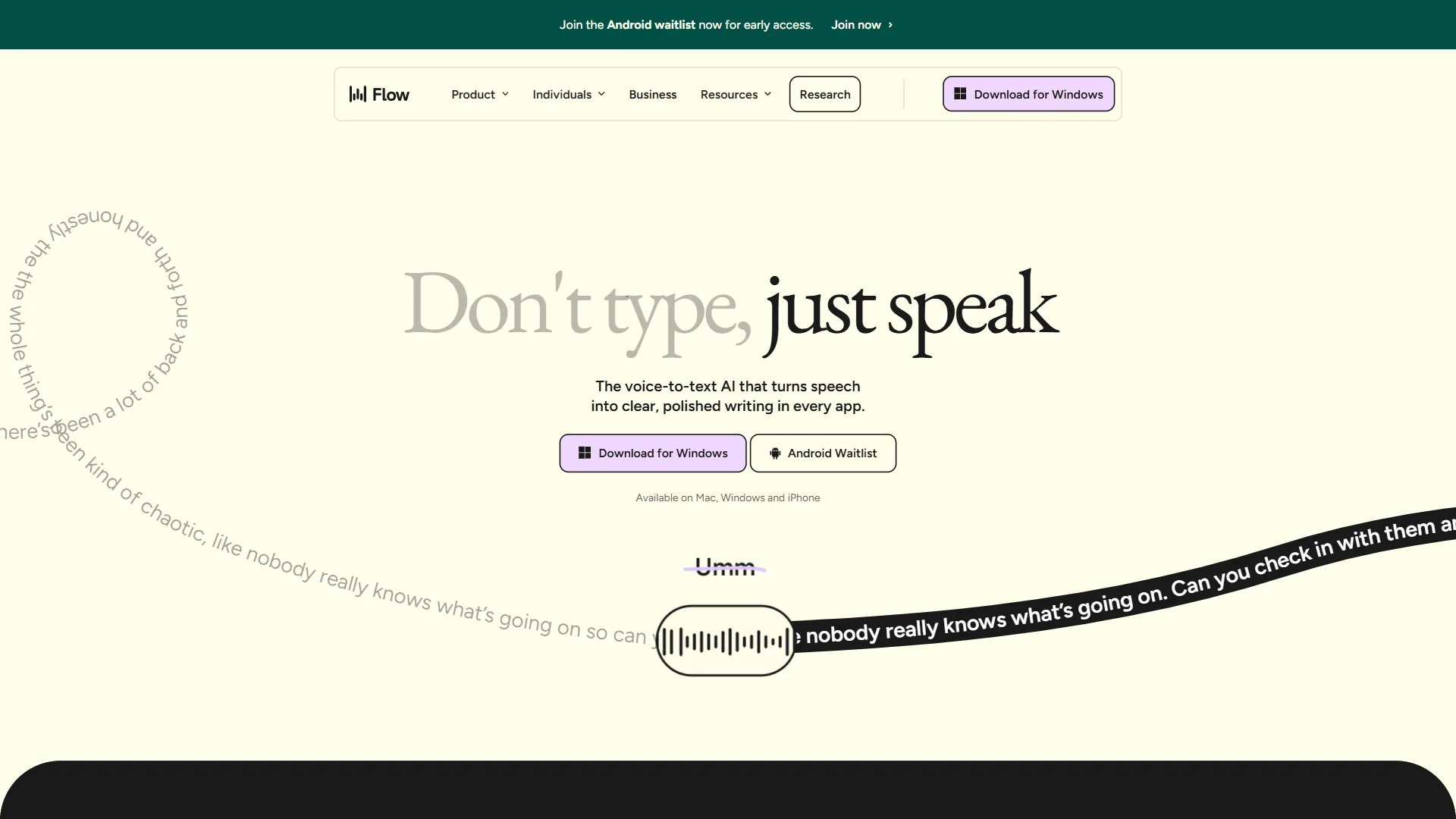
Among the leading dictation tools available, Wispr Flow stands out as the most powerful voice productivity solution for 2026.
What Makes Wispr Flow Different:
AI Auto-Editing: The AI doesn’t just transcribe - it cleans up grammar, removes filler words, and improves readability automatically. You speak naturally; it outputs polished prose.
Command Mode: Issue AI instructions verbally. “Rewrite this professionally,” “translate to French,” “summarize this.” Your voice controls both transcription and AI editing.
Speed: 4x faster than typing with 98%+ accuracy out of the box. The tool learns your voice patterns and improves over time.
Accessibility: 100+ language support, HIPAA compliance for healthcare professionals, and designed specifically for users with RSI or mobility limitations.
Universal Compatibility: Works across all applications - email, docs, Slack, CRM systems, code editors. No app-specific integrations required.
Pricing That Makes Sense:
- Free tier: 2,000 words per week (enough for most email users)
- Pro: $15/month for unlimited dictation
At $15/month, if Wispr Flow saves you just 2 hours monthly (conservative estimate), you’re valuing your time at a very low rate. Most professionals save 20+ hours monthly, making this a 100x ROI investment.
Real ROI Numbers: Users report saving an average of 22 hours per week by switching from typing to Wispr Flow dictation. That’s 1,144 hours annually - 28.6 full work weeks. Even if you captured just 10% of that time savings (114 hours/year), the tool pays for itself in the first week. For automation pairings, see our AI workflow automation tools 2026 guide.
Best For:
- Writers and content creators producing high volumes of text
- Professionals with wrist pain, RSI, or carpal tunnel syndrome
- Busy executives who need to capture ideas during commutes
- Healthcare workers requiring HIPAA-compliant dictation
- Anyone who wants to work faster without sacrificing quality
The free tier is generous enough to test the tool thoroughly. Two weeks of use before upgrading is a solid evaluation period - most users know within 5-7 days if voice productivity fits their workflow.
What Are the Most Common Voice Productivity Mistakes to Avoid?
Mistake 1: Expecting Perfect Accuracy on Day One
Even the best AI dictation tools require 1-2 weeks to learn your voice patterns, accent, and vocabulary. Initial accuracy might be 85-90%, but it climbs to 95-98% with regular use.
Solution: Don’t judge the tool based on your first session. Give it 10-15 hours of training time before deciding if it works for you.
Mistake 2: Dictating in Noisy Environments Without Adjusting Settings
Background noise confuses AI models. Dictating in a coffee shop without enabling noise cancellation produces unusable transcripts.
Solution: Use push-to-talk mode in noisy environments, or wait until you’re in a quieter space for longer dictation sessions.
Mistake 3: Speaking Too Slowly or Over-Enunciating
This is a holdover from 1990s dictation software that required stilted speech. Modern AI expects natural speaking patterns.
Solution: Speak at your normal conversational pace. The AI handles casual speech better than formal “dictation voice.”
Mistake 4: Not Reviewing Transcripts Before Sending
AI dictation is 95-98% accurate, not 100%. Skipping review leads to embarrassing errors like “their” becoming “there” or “compliance” becoming “compliments.”
Solution: Spend 60 seconds reviewing important content (emails to clients, published articles). For internal notes, full review isn’t necessary.
Mistake 5: Using Low-Quality Microphones
Built-in laptop microphones are designed for video calls, not precision dictation. They pick up keyboard noise, fan hum, and room echo.
Solution: Invest $30-50 in a USB microphone or quality headset. The accuracy improvement justifies the cost within days.
Mistake 6: Trying to Dictate Complex Formatting
Voice dictation excels at content generation but struggles with complex formatting (tables, bullet indentation, code syntax).
Solution: Dictate the content, then handle formatting at the keyboard. Don’t fight the tool’s strengths.
How Do You Get Started with Voice Productivity Today?
You don’t need expensive equipment or weeks of training to start benefiting from voice productivity. Here’s your first-week action plan:
Day 1-2: Install a dictation tool (Wispr Flow’s free tier is perfect for testing). Practice dictating simple emails and messages. Focus on speaking punctuation commands explicitly.
Day 3-4: Add your top 20 custom vocabulary words (names, technical terms, product names). Practice dictating for 15-20 minutes daily - long enough to build comfort, short enough to avoid frustration.
Day 5-7: Expand to longer content like meeting notes or blog drafts. Experiment with command mode for AI editing. Notice which content types work best with dictation versus typing.
Week 2+: Integrate dictation into your daily workflow. Use voice for first drafts, keyboard for editing. Track time savings to quantify the productivity gain.
Most users see measurable productivity improvements within 10-14 days. The key is consistent practice, not perfection. For broader productivity stack ideas, our guide on AI tools for content creators shows where dictation fits in modern publishing workflows.
For more productivity insights, explore our guides on Best Ai Voice Generators 2026, Ai Transcription Comparison, Best Business Intelligence Tools 2026. For AI transcription alternatives, see Otter AI for meeting notes or Fireflies AI for conversation intelligence.
Final Thoughts
Voice productivity isn’t just a nice-to-have feature - it’s a fundamental shift in how we interact with computers. The ability to speak 4x faster than you type, combined with AI that cleans up grammar and executes commands, creates a productivity multiplier effect that compounds over time.
Remember these core principles:
- Start small with short dictation sessions and simple content
- Optimize your environment (good microphone, quiet space, proper settings)
- Speak naturally at conversational pace - AI expects casual speech
- Use AI auto-editing to handle grammar and cleanup automatically
- Combine voice for drafting with keyboard for editing (use both tools’ strengths)
- Practice “think then speak” to produce cleaner first drafts
- Give yourself 2-3 weeks to build comfort before judging results
The professionals saving 20+ hours weekly with voice productivity didn’t get there overnight. They committed to learning a new skill that pays dividends for the rest of their careers.
If you write more than an hour daily, voice productivity should be in your toolkit. The time savings, health benefits, and workflow flexibility make it one of the highest-ROI productivity investments you can make. Most heavy users land on a stack: Wispr Flow for daily dictation, Otter for meeting transcripts, and Fireflies for conversation intelligence and CRM sync.
Try Wispr Flow’s free tier for two weeks. Track your time savings. Measure your accuracy improvement. Then decide if 4x faster writing is worth 30 minutes of practice. If your workflow is meeting-heavy more than draft-heavy, start with Otter instead and add Wispr Flow once dictation feels native.
Most people never go back to typing-only workflows once they experience the freedom of voice productivity. The question isn’t whether voice will replace some of your typing - it’s how much time you’ll save once you make the switch.
Want to learn more about Wispr Flow?
Frequently Asked Questions
How much time can voice productivity actually save?
If you write 2 hours daily at 50 WPM typing, switching to 150 WPM dictation saves about 1.3 hours per day - over 6.5 hours per week, or 338 hours annually, which works out to roughly 8.5 full work weeks. The productivity gain comes from speaking at 150-200 words per minute versus typing at 40-60 WPM, a 4x boost.
What equipment do I need to get started with voice dictation?
A $30 USB microphone or quality headset is the main investment. Built-in laptop mics struggle with accuracy because they pick up keyboard noise, fan hum, and room echo. Position yourself 6-8 inches from the mic, face away from fans and open windows, enable noise cancellation, and set microphone sensitivity to medium for best results.
How long does it take before voice dictation feels natural?
Most users hit their stride after 2-3 weeks of consistent practice. Initial accuracy might be 85-90%, but it climbs to 95-98% once the tool learns your voice patterns, accent, and vocabulary. Give the tool 10-15 hours of training time before judging results, and start with short 5-10 minute sessions on simple tasks like emails.
Should I speak slowly and enunciate every word?
No. Speaking slowly or over-enunciating is a holdover from 1990s dictation software. Modern AI models are trained on millions of hours of natural speech - podcasts, video transcripts, phone calls - and perform best at your normal conversational pace. Use your natural tone and inflection, pause naturally between thoughts, and avoid adopting an announcer voice.
What is AI auto-editing and why does it matter?
AI auto-editing cleans up your speech in real-time. It removes filler words like um, uh, and like, corrects grammar errors such as I seen becoming I saw, adjusts sentence structure for clarity, and normalizes capitalization and punctuation. This feature makes modern voice productivity tools 10x more useful than traditional speech-to-text because you can speak naturally without obsessing over perfect grammar.
Related Guides
External Resources
- Harvard Business Review - Productivity
- McKinsey Organizational Performance
- Asana Anatomy of Work Report
Related Guides
- Atlassian Intelligence Review: 2026 Pricing & Features
- Fireflies Tips Tricks: Smart Search, Action Items in 2026
- Granola AI Meeting Notes: 2026 Walkthrough for Teams
- How to Summarize Meetings with AI: Never Miss Action Items
- Wispr Flow Professional Writing: Complete 2026 Guide
- Wispr Flow Voice Dictation Guide: Cut Writing Time 60%