



Learning how to organize files with AI starts from a hard number: the average knowledge worker spends 2.5 hours per day searching for information, according to a McKinsey report on workplace productivity. That is 12.5 hours per week - roughly 30% of a full workweek - lost to hunting for files you already created, saved somewhere, and forgot about. Over a year, that adds up to more than 600 hours. At $50/hour, you are burning $30,000 annually on file disorganization.
The problem is not that you are lazy or careless. It is that the old approach - manually creating folders, inventing naming conventions on the fly, and hoping future-you remembers where past-you put things - does not scale. It worked when you had 50 files. It collapses when you have 5,000.
This guide teaches you how to organize files with AI by building a complete system: naming conventions, folder taxonomies, automation workflows, and AI-powered search that finds anything in seconds. Not a listicle of apps. A system you can implement this weekend.
Why Manual File Organization Fails
Before jumping to solutions, understanding the specific failure modes helps you appreciate why AI changes the equation.
Naming conventions drift. You start with a clean naming format like 2026-02-15_Project-Brief_ClientName.pdf. Three busy weeks later, you are saving files as brief final FINAL v3.pdf. Without enforcement, naming conventions erode within days. Every person on a team invents their own scheme, and none of them match. Our Notion AI workflows guide shows how to enforce naming through database property validation.
Folder depth explodes. The classic folder hierarchy seems logical at first: Work > Clients > ClientA > Projects > Project1 > Deliverables > Final. Six levels deep, you are spending more time navigating to the file than reading it. And half your files logically belong in two different folders, so you duplicate them - creating a second organizational problem. The Nielsen Norman Group’s research on file system usability documents this pattern across thousands of knowledge workers.
Search only works if you remember the words. Built-in file search relies on exact filename or content matches. If you named a proposal “Q4 Growth Strategy” but search for “revenue plan,” you get nothing. Traditional search has no concept of meaning - it only understands strings.
The compound cost is staggering. A survey by Egnyte found companies lose roughly $10,000 per employee annually to disorganized digital files. For a 10-person team, that is $100,000 in wasted productivity. AI file organization is not a nice-to-have - it is a financial decision.
The AI File Organization System (Overview)
Here is the complete system you are going to build. Each component reinforces the others.
| Component | What It Does | Tool |
|---|---|---|
| Naming Engine | AI generates consistent, searchable filenames | ChatGPT or Claude prompts |
| Folder Taxonomy | Smart folder structure with cross-references | Notion databases |
| Auto-Sort Rules | Files route to correct locations automatically | Dropbox automations |
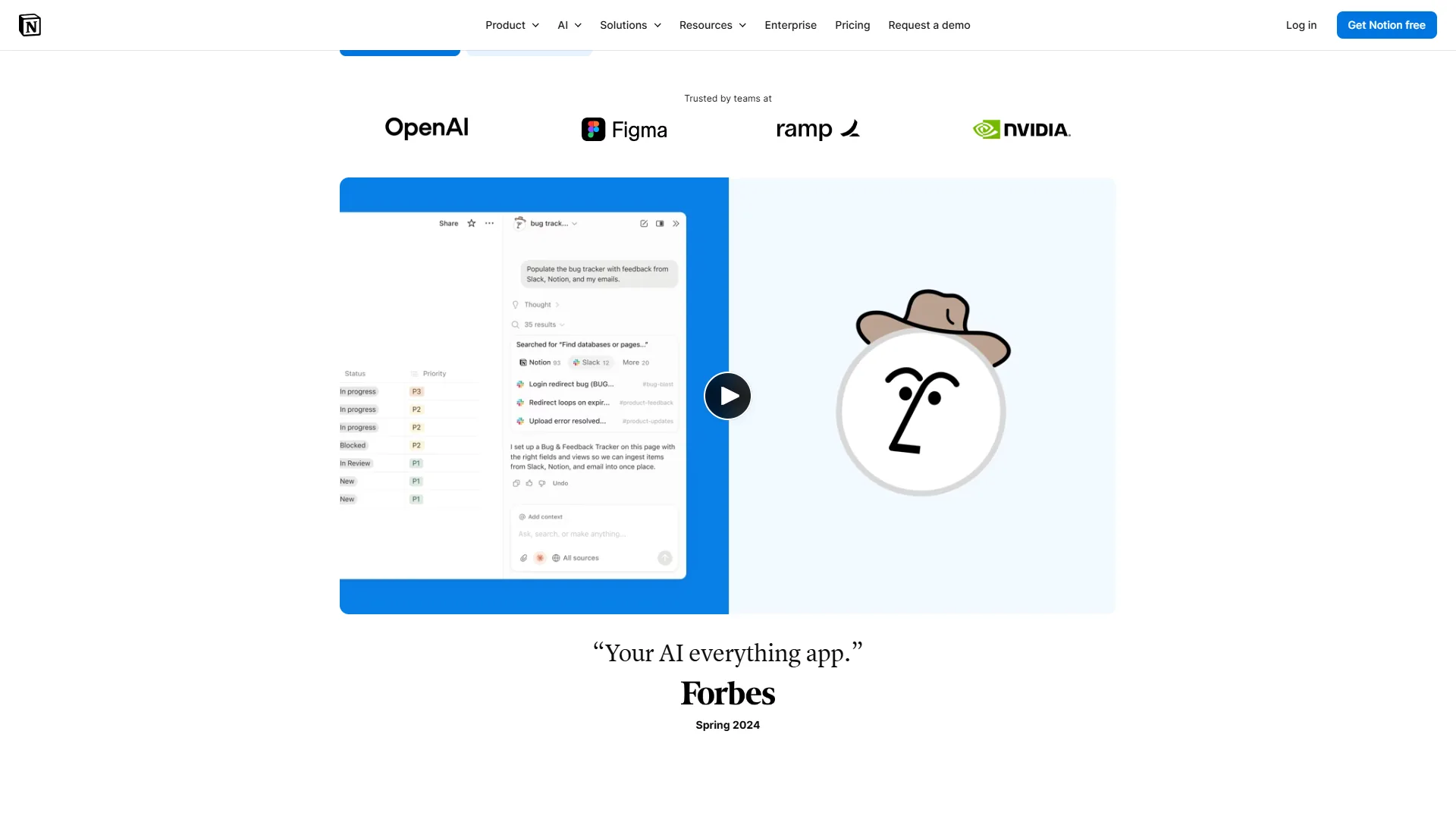
| Semantic Search | Find files by meaning, not exact names | Dropbox Dash AI + Notion AI |
| Maintenance Loop | Weekly AI audit catches misplaced files | Scheduled prompts |
The key insight: AI does not just help you find files faster. It prevents disorganization from happening in the first place by enforcing rules you set once and never think about again.
Step 1: Build Your AI-Powered Naming Convention
A consistent naming convention is the single highest-ROI change you can make. Every other part of the system works better when filenames are predictable.
The Universal Naming Formula
[DATE]_[CATEGORY]_[PROJECT]_[DESCRIPTOR]_[VERSION].[ext]Examples:
2026-02-15_proposal_acme-redesign_technical-spec_v2.pdf2026-01-08_invoice_freelance_january-retainer_final.pdf2026-02-10_meeting-notes_product-launch_kickoff_v1.md
AI Prompt for Batch Renaming
You do not need to rename thousands of files manually. Use this prompt with ChatGPT or Claude to generate a rename script. For more prompt patterns, see our ChatGPT prompts for productivity collection:
“I have the following files in my Downloads folder. Rename each one using this format: [YYYY-MM-DD]_[category]_[project]_[descriptor]_[version].[ext]. Categories are: proposal, invoice, contract, meeting-notes, design, report, presentation. Infer the project name from the filename. If unclear, use ‘general’. Output as a list of ‘old name -> new name’ pairs.”
Then paste your file list. The AI will generate the mapping in seconds. You can review and adjust before executing.
Why Dates Come First
Leading with YYYY-MM-DD means files sort chronologically by default in every operating system and cloud storage tool. No more hunting for “that proposal from last month.” Sort by name and your most recent files float to the top of each category.
Step 2: Design Your Folder Taxonomy in Notion
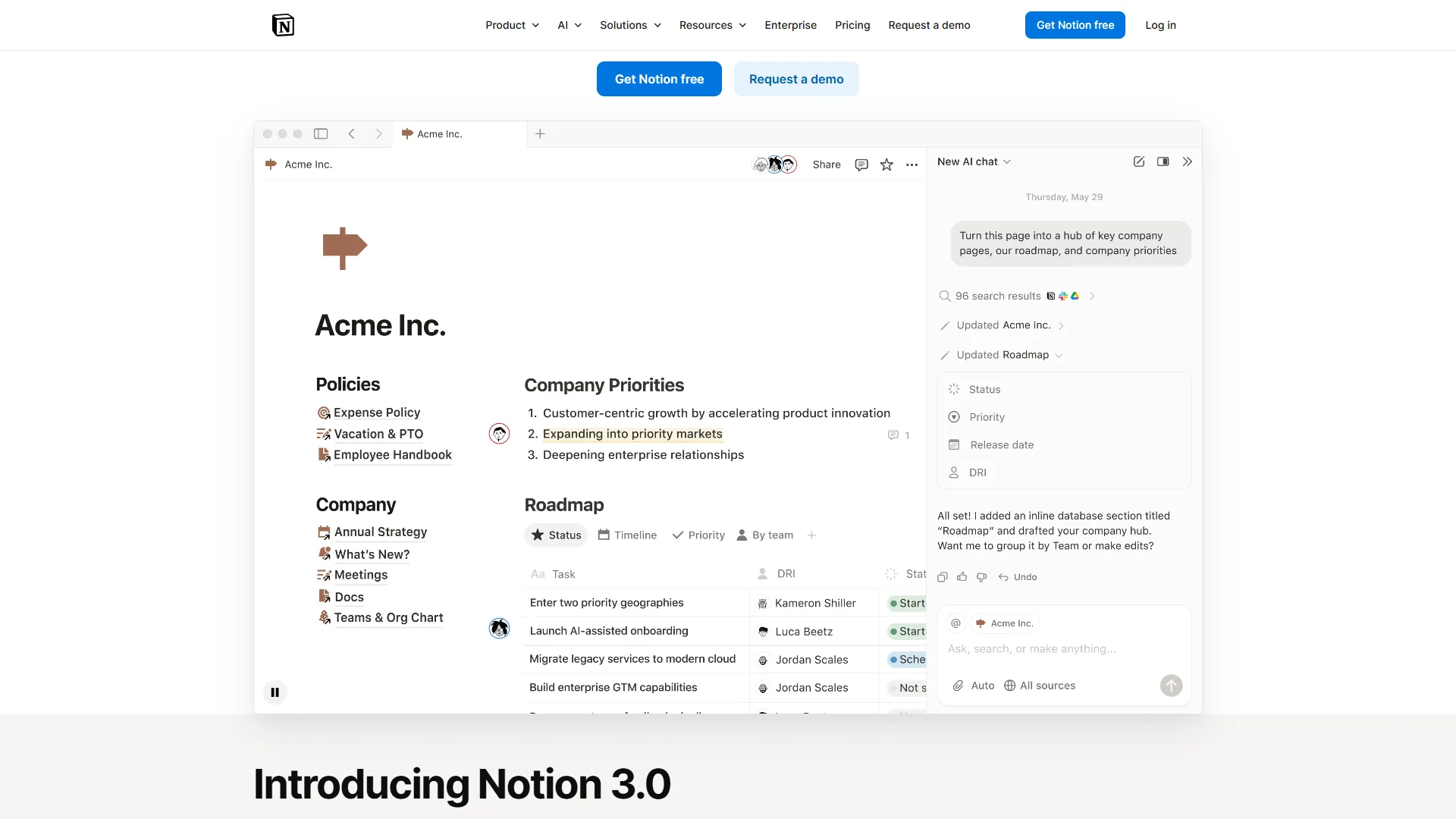
Traditional folder trees break because they force files into a single hierarchy. Notion’s database approach solves this by letting you tag, filter, and view files from multiple angles without duplicating anything. If you are new to Notion databases, our Notion AI workflows guide covers the fundamentals.
Create a File Index Database
Set up a Notion database with these properties:
| Property | Type | Purpose |
|---|---|---|
| File Name | Title | Searchable file name |
| Category | Select | proposal, invoice, contract, design, report, notes |
| Project | Relation | Links to your Projects database |
| Status | Select | draft, review, final, archived |
| Tags | Multi-select | Cross-cutting labels (client name, department, topic) |
| Storage Location | URL | Link to file in Dropbox/Google Drive |
| Date Created | Date | When the file was created |
| Last Accessed | Date | When you last needed this file |
This database becomes your single source of truth. You never wonder where a file is - you search Notion, find the entry, and click the storage link.
Set Up Views for Different Workflows
Create these saved views in your File Index:
- Active Projects - Filter: Status is not “archived,” sorted by Last Accessed
- By Category - Group by Category, sorted by Date Created
- Client Files - Filter by client tag, sorted chronologically
- Recent Files - Sorted by Date Created (descending), limit to 50
Each view answers a different question. “What did I work on this week?” “Where are all the Acme Corp files?” “What proposals are still in draft?” You build the views once and they update automatically.
AI Prompt for Populating Your File Index
Rather than manually entering hundreds of files, use this AI prompt:
“I’m creating a Notion database to track my files. Here’s a list of my current files with their paths. For each file, suggest: Category (proposal/invoice/contract/design/report/notes/other), a Project name inferred from the path, Status (draft/review/final/archived based on version indicators), and 2-3 Tags. Format as a table I can paste into Notion.”
This turns a multi-hour data entry task into a 10-minute review session.
Step 3: Configure Dropbox as Your Storage Engine
While Notion tracks and organizes your file metadata, Dropbox handles the actual file storage, syncing, and AI-powered search.
Folder Structure That Scales
Keep your Dropbox folder structure shallow - three levels maximum:
Dropbox/
├── 01_Active/
│   ├── ProjectAlpha/
│   └── ProjectBeta/
├── 02_Reference/
│   ├── Templates/
│   ├── Brand-Assets/
│   └── SOPs/
├── 03_Archive/
│   ├── 2025/
│   └── 2024/
└── 04_Inbox/
The numbered prefixes keep folders in order. The 04_Inbox folder is critical - it is where every new file lands before getting sorted. Think of it as a file triage zone.
Use Dropbox Dash for Semantic Search
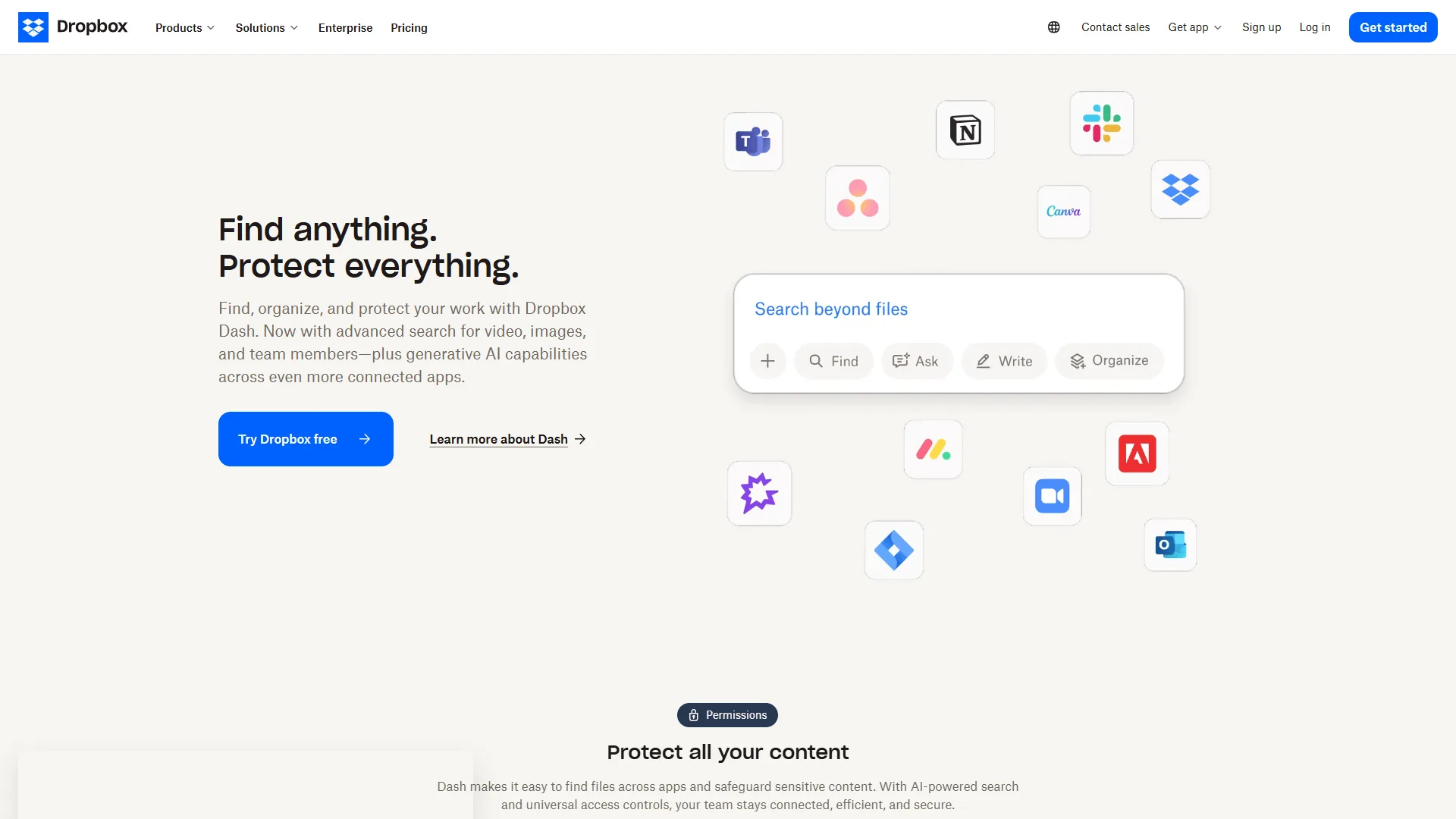
Dropbox Dash uses AI to search across your files by meaning rather than exact filename. Ask it “find the budget spreadsheet from the Q3 planning meeting” and it understands what you mean, even if the file is named q3-financials-draft.xlsx.
This is where how to organize files with AI shifts from “sorting” to “finding.” With semantic search, perfect organization becomes less critical because you can locate any file by describing what it contains.
Smart Sync Saves Disk Space
Dropbox’s Smart Sync keeps older files in the cloud while keeping recent files on your local drive. For a file organization system, this means your 03_Archive folder does not consume local storage - but every file is still instantly accessible and searchable.
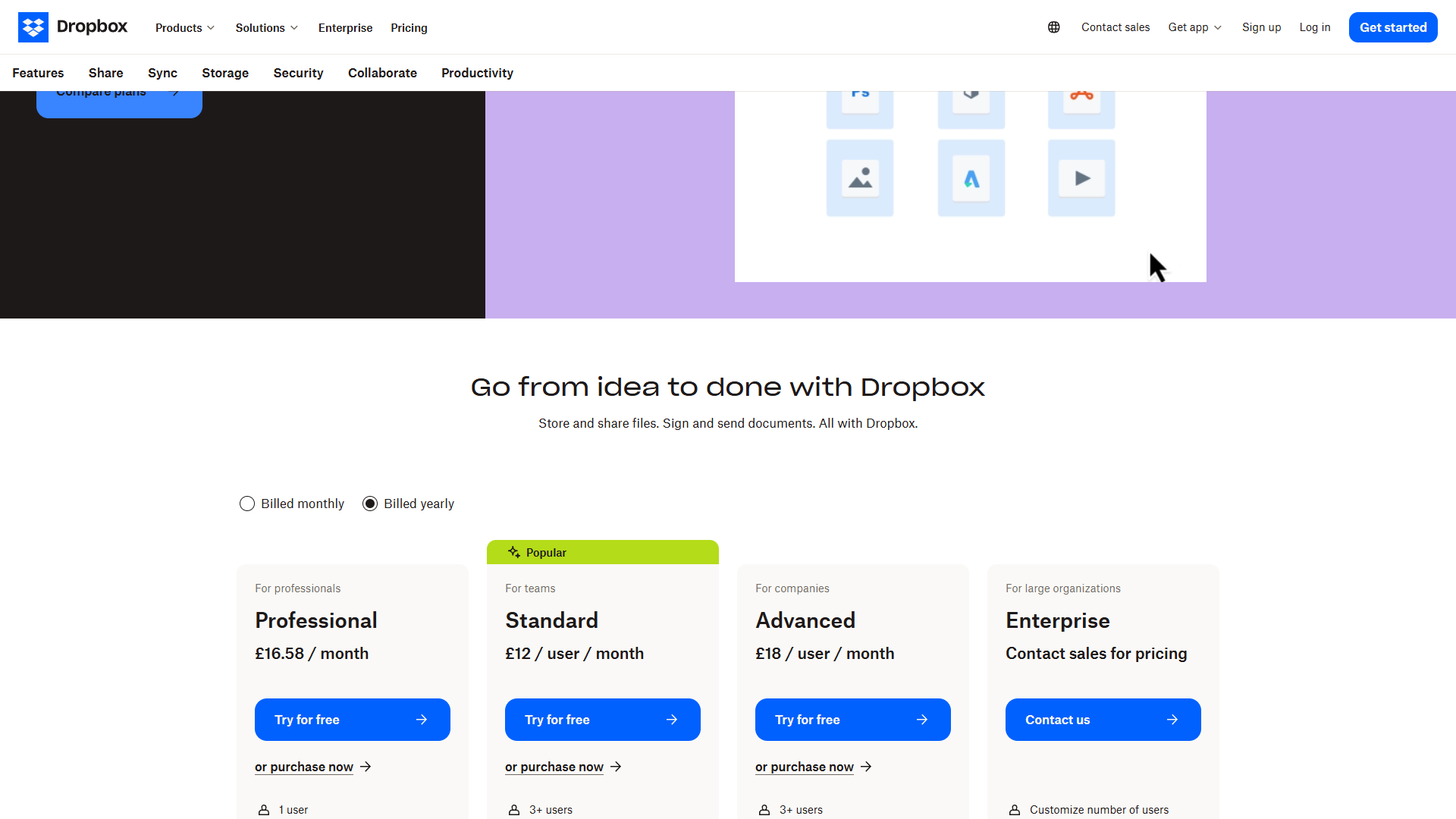
Pricing context: Dropbox Plus starts at $9.99/month annual (annual billing) and includes 2 TB of storage - enough for most individuals. Teams can use Dropbox Business at $15/month annual/user (annual) for 9 TB of shared storage with admin controls.
Step 4: Build Automation Workflows
Manual sorting is the enemy of sustained organization. The goal is to set up rules that route files automatically, so your system stays clean without daily effort.
AI Prompt for Creating Sort Rules
Use this prompt to design your automation logic:
“I receive these types of files regularly: client proposals (PDF), meeting recordings (MP4), invoices (PDF), design mockups (PNG/Figma), and project documents (DOCX/Google Docs). Create a set of sorting rules based on file type, name patterns, and source folder. Each rule should specify: trigger condition, destination folder, and naming transformation. Format as an if-then table.”
Example output:
| Trigger | Condition | Destination | Rename Pattern |
|---|---|---|---|
| New PDF in Inbox | Name contains “invoice” | 01_Active/[project]/Invoices | YYYY-MM-DD_invoice_[project].pdf |
| New MP4 in Inbox | Any video file | 02_Reference/Recordings | YYYY-MM-DD_recording_[source].mp4 |
| New PNG in Inbox | Size > 1MB | 01_Active/[project]/Design | Keep original name |
| File not accessed 90 days | In 01_Active | 03_Archive/YYYY | Prefix with archive date |
You can implement these rules using Dropbox’s built-in automation features, or pair Dropbox with a tool like Zapier or Make for more complex workflows. Our best workflow automation tools guide covers these platforms in depth, and the Dropbox automation documentation details every native trigger available without third-party tools.
The Inbox Zero Method for Files
Every file enters through 04_Inbox. Once a week - or daily if your volume is high - you process the inbox:
- AI Categorize - Paste your inbox file list into ChatGPT/Claude with the sorting rules prompt above
- Move files - Follow the AI’s recommendations (or run the automation)
- Update Notion - Add new file entries to your File Index database
- Empty the inbox - If a file does not fit any category, create one or delete it
This process takes 10-15 minutes per week. Compare that to the 12+ hours per week spent searching for misplaced files.
Step 5: Set Up Notion AI for Cross-Platform Search
With your file metadata in Notion and actual files in Dropbox, you now have two search layers that complement each other.
How It Works Together
- Need a specific file? Search Dropbox Dash with a natural language description
- Need all files for a project? Open your Notion File Index and filter by project
- Need to answer a question about your files? Ask Notion AI to summarize entries in your database
- Need to find something across multiple platforms? Dropbox Dash searches across connected apps (Google Drive, Slack, Notion)
AI Prompt for Weekly File Audit
Schedule this prompt as a weekly habit. Paste your recent file list and ask:
“Here are the files I created or modified this week. Check each one against my naming convention: [YYYY-MM-DD]_[category]_[project]_[descriptor]_[version].[ext]. Flag any files that don’t match the convention, suggest corrections, and identify any files that might be duplicates based on similar names or content descriptions. Also flag any files in my Inbox that haven’t been sorted.”
This 5-minute weekly audit prevents naming drift - the number one reason file systems degrade over time. For email-driven file flows specifically, our how to automate email with AI guide covers triage rules that route attachments straight into your 04_Inbox folder.
Step 6: Advanced Techniques
Once the basic system is running, these techniques push your file organization from good to excellent.
Version Control Without Chaos
Stop appending _v2, _v3, _FINAL, _FINAL-FINAL to filenames. Instead:
- Use Dropbox version history - Every file in Dropbox automatically saves version history (180 days on Plus, 1 year on Business Plus). Access previous versions by right-clicking any file.
- Use a single filename - The file is always
2026-02-15_proposal_acme_technical-spec.pdf. When you update it, Dropbox stores the previous version automatically. - Log major changes in Notion - Add a “Version Notes” text property to your File Index. When you make a significant update, note what changed.
Tag-Based Organization in Notion
Tags beat folders for cross-cutting concerns. A contract with Acme Corp for the website redesign project belongs to:
- Category: Contract
- Project: Website Redesign
- Client: Acme Corp
- Department: Legal
In a folder system, this file can only live in one location. In Notion’s database, it appears in every relevant view simultaneously. This is how to organize files with AI in a way that matches how your brain actually thinks about information - not in rigid hierarchies, but in overlapping contexts. Our Notion database templates guide walks through the multi-tag pattern step by step.
Team File Governance
For teams, add a “File Owner” property to your Notion database. This creates clear accountability:
- Every file has one owner responsible for keeping it current
- Owners get a weekly Notion reminder to review their files
- Files without owners get flagged in your audit
AI Prompt for Team File Policy:
“Create a one-page file management policy for a team of [X] people. Include: naming convention rules, folder structure guidelines, file ownership rules, archive policy (when and how to archive), and a list of prohibited practices (like saving files to Desktop or using vague names). Keep it under 500 words so people will actually read it.”
Notion vs. Dropbox: When to Use Each
Both tools play distinct roles in this system. Here is when to reach for each one.
| Scenario | Use Notion | Use Dropbox |
|---|---|---|
| Tracking file metadata | Yes | No |
| Storing actual files | Small files only (under 5 MB) | Yes - primary storage |
| Searching by meaning | Notion AI for database queries | Dropbox Dash for file content |
| Collaborating on documents | Yes - native docs and wikis | Yes - file sharing and comments |
| Automating file workflows | Limited | Built-in + Zapier integrations |
| Version history | Manual (via database notes) | Automatic (180 days - 1 year) |
Notion (free for individuals, $10/month annual/user for teams on annual billing) is your organizational brain - it tracks what files exist, where they live, and how they relate to projects. Learn more about Notion’s workspace capabilities on their official site.
Dropbox (free for 2 GB, $9.99/month annual for 2 TB on annual billing) is your storage backbone - it holds the actual files, handles syncing, and provides AI-powered search. See current plans on the Dropbox pricing page.
Together, they create a system where every file is both findable and contextualized.
Quick-Start Implementation Plan
If the full system feels overwhelming, here is the priority order. Each step builds on the previous one, and you can stop at any point and still see meaningful improvement.
Week 1: Naming Convention + Inbox Folder
- Create the
04_Inboxfolder in Dropbox - Start saving all new files to Inbox first
- Use the AI naming prompt to rename files before moving them
- Time investment: 30 minutes setup, 10 minutes daily
Week 2: Notion File Index
- Create the database with the properties listed above
- Use the AI population prompt to bulk-add your existing files
- Set up 2-3 views (Active Projects, By Category, Recent Files)
- Time investment: 2 hours setup, 15 minutes weekly
Week 3: Automation + Search
- Enable Dropbox Dash for semantic search
- Set up 2-3 automation rules for common file types
- Establish the weekly audit habit with the AI audit prompt
- Time investment: 1 hour setup, 5 minutes weekly
Week 4: Refinement
- Review what is working and what is not
- Adjust categories, tags, and views based on actual usage
- Archive old files from
01_Activeto03_Archive - Time investment: 30 minutes
Total investment: about 5 hours over four weeks. Compare that to the 50+ hours you would otherwise spend searching for files during the same period. Pair this with our knowledge sharing best practices playbook so the system survives team turnover.
Frequently Asked Questions
How many files can Notion’s database handle?
Notion databases can handle tens of thousands of entries without performance issues. For most individuals and small teams, you will never hit a limit. If you have 100,000+ files, consider only tracking active and frequently accessed files in Notion, with archived files tracked in a separate database.
Does Dropbox Dash work with files stored outside Dropbox?
Yes. Dropbox Dash can search across connected applications including Google Drive, Gmail, Slack, Notion, and more. This makes it a universal search layer even if you store files across multiple platforms.
What if I already use Google Drive instead of Dropbox?
The system adapts easily. Replace Dropbox with Google Drive for storage, use Google Drive’s built-in AI search (which improved significantly in 2025-2026), and keep Notion as your organizational database. The naming conventions, folder taxonomy, and AI prompts all work regardless of storage provider.
Can I use this system for personal files too?
Absolutely. The same principles apply - naming conventions, shallow folder hierarchies, and an inbox-first workflow. For personal use, you might simplify the categories (photos, documents, finances, projects) and skip the team governance layer. Notion’s free tier and Dropbox’s free 2 GB tier are enough to get started with zero cost.
How do I handle files shared by other people?
Files received from others go to your 04_Inbox like everything else. When processing the inbox, rename them to match your convention and add them to your Notion database. If you are collaborating on shared Dropbox folders, agree on naming conventions upfront using the team policy AI prompt. This is where learning how to organize files with AI pays the biggest dividends for teams - one shared convention eliminates the chaos of everyone using their own system.
The Bottom Line: How to Organize Files with AI Without Burning Out
Learning how to organize files with AI is not about finding the perfect app. It is about building a system that does the tedious parts automatically so you can focus on actual work. The naming convention prevents chaos at the source. The Notion database gives you multiple ways to find anything without duplicating files. The Dropbox storage layer provides AI-powered search that understands meaning, not just keywords. And the weekly audit keeps the whole system from degrading.
The tools are straightforward: Notion for organization and metadata tracking (free to $10/month annual/user), and Dropbox for storage and AI-powered search (free to $9.99/month annual). Both have generous free tiers, so you can build the complete system without spending a dollar.
Start with the naming convention this week. It takes 30 minutes to set up and saves hours immediately. Then layer in the Notion database and Dropbox automations over the following weeks. Within a month, you will have a file organization system that actually works - and keeps working without constant maintenance.
Want to learn more about Notion?
Related Guides
- Notion Database Templates Guide
- Knowledge Sharing Best Practices
- How to Automate Email with AI: Save Hours Every Week
- Notion AI Workflows Guide
Related Reading
- Notion - All-in-one workspace for file tracking, databases, and AI-powered search
- Dropbox - Cloud storage with Smart Sync, version history, and AI search via Dash
- Obsidian vs Notion: Which Note-Taking Tool Fits Your Workflow?
- Best AI Automation Tools in 2026
External Resources
- Notion - Your Connected Workspace
- Dropbox - Cloud Storage and File Sharing
- McKinsey: The Social Economy - Productivity and Information Workers
Related Guides
- 15 Calendly Tips and Tricks to Save 4+ Hours Weekly
- Activecampaign AI Content Generation: Complete 2026 Guide
- ActiveCampaign CRM Setup: How to Set Up ActiveCampaign CRM
- ActiveCampaign Shopify Integration: Complete Setup
- ActiveCampaign WordPress: Forms, Tracking & Automation
- ActiveCampaign Zapier: 10 Automations to Build Today
- AI Agent Orchestration: Patterns That Scale in 2026
- AI Content Writing Workflow: 2026 Walkthrough for Teams
- AI Product Discovery Ecommerce: Lift Revenue in 2026
- AI Productivity Trends 2026: 6 Real Shifts, No Hype