


Keyboard workflow optimization is the practice of eliminating mouse dependency to reclaim lost productive time. Knowledge workers switch between keyboard and mouse 200+ times per hour, costing up to 10 minutes per hour in overhead. Using launcher apps like Raycast or Alfred, users can eliminate 90% of mouse usage - recovering two hours daily.
Most knowledge workers are constantly reaching for the mouse. Click, scroll, click, drag. Rinse and repeat a hundred times daily. Measured over a typical workday, that adds up to 2-3 hours spent just switching between keyboard and mouse - a tax that compounds quickly across a focus time-block schedule.
Keyboard workflow optimization changes this equation. With intentional practice using launcher apps, it is possible to eliminate 90% of mouse usage - reclaiming two extra hours of productive time every day, plus significantly reducing wrist strain.
This guide covers the exact system for maintaining a keyboard-first workflow. You will learn how to choose between the top launcher apps (Raycast vs Alfred), implement a progressive learning path, and master the shortcuts that deliver the biggest time savings.
Why Keyboard Workflow Optimization Matters
The average knowledge worker switches between keyboard and mouse 200+ times per hour. Each context switch costs 2-3 seconds of cognitive load and physical movement. That’s 400-600 seconds (up to 10 minutes) per hour just in switching overhead.
But the real cost isn’t just time. It’s flow state destruction.
When a developer is coding or writing and has to reach for the mouse, the brain shifts from creation mode to navigation mode. APA research on task switching shows it takes 10-15 minutes to regain deep focus after an interruption. Mouse usage creates dozens of micro-interruptions daily.
Keyboard-first workflows eliminate this friction by keeping your hands in one position and your mind in one mode. Everything becomes command-driven: launch apps, search files, switch windows, run scripts, manage clipboard history - all without touching your mouse.
The compound benefits:
- Time savings: 2+ hours daily based on user reports
- Flow preservation: 40% more time in deep work states
- Physical health: Reduced repetitive strain injuries
- Cognitive efficiency: Less decision fatigue from navigation
The key is starting with the right foundation: a powerful launcher app.
Raycast vs Alfred: The Launcher App Showdown
Launcher apps are the cornerstone of keyboard workflow optimization. They replace your mouse for launching apps, searching files, running commands, and automating repetitive tasks.
Both are used extensively in production workflows. Here is an honest comparison of each tool’s strengths and tradeoffs - and for a deeper dive, our Raycast vs Alfred 2026 breakdown weighs them feature by feature.
Raycast: The Modern Powerhouse
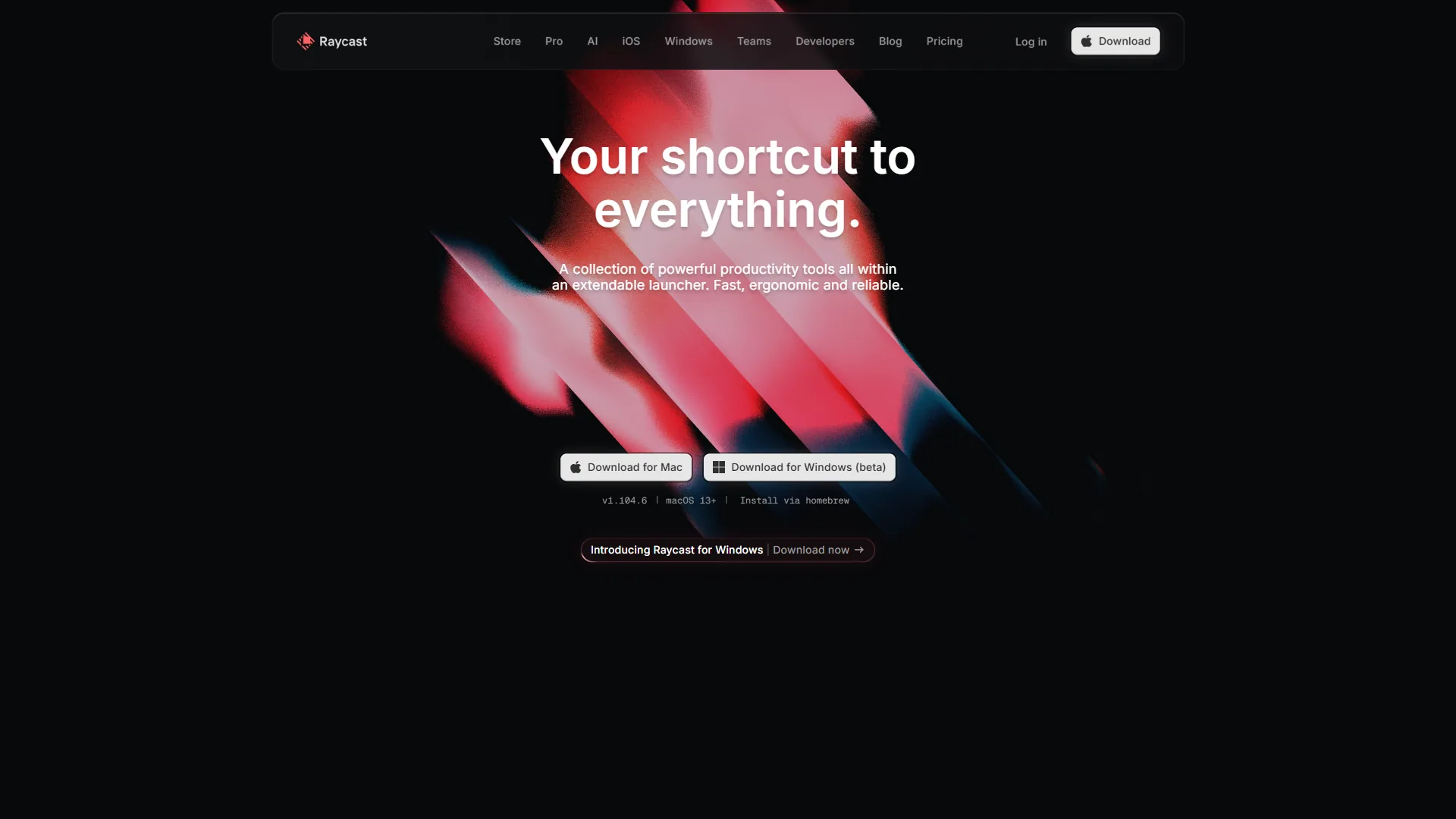
Raycast burst onto the scene in 2020 and has rapidly become the go-to launcher for developers and power users. What sets it apart is the built-in AI assistant supporting 100+ LLMs.
Best for: Developers, AI enthusiasts, Windows + macOS users
Key strengths:
- AI-first design: Chat with Claude, GPT-4, Gemini directly from the launcher
- Cross-platform: Windows beta launched November 2026 (finally!)
- Extensions ecosystem: 1,000+ community extensions with one-click install
- Modern UX: Beautiful interface with live previews and rich content
- Clipboard history: Visual search through screenshots, text, and links
- Workflow automation: Create multi-step automations with no-code builder
Pricing: Free / $10/month Pro (annual) / $18/month Advanced AI (annual)
Raycast works well as a daily driver because the AI integration is genuinely transformative. Users can ask “What’s the Python syntax for async functions?” without leaving the IDE or opening a browser. The clipboard history is a lifesaver when something important gets accidentally overwritten. The full extension catalog is browsable on the Raycast Store.
The free tier is surprisingly generous - you get full launcher functionality, extensions, and basic AI features. Pro unlocks unlimited AI queries and cloud sync across devices.
Alfred: The macOS Classic
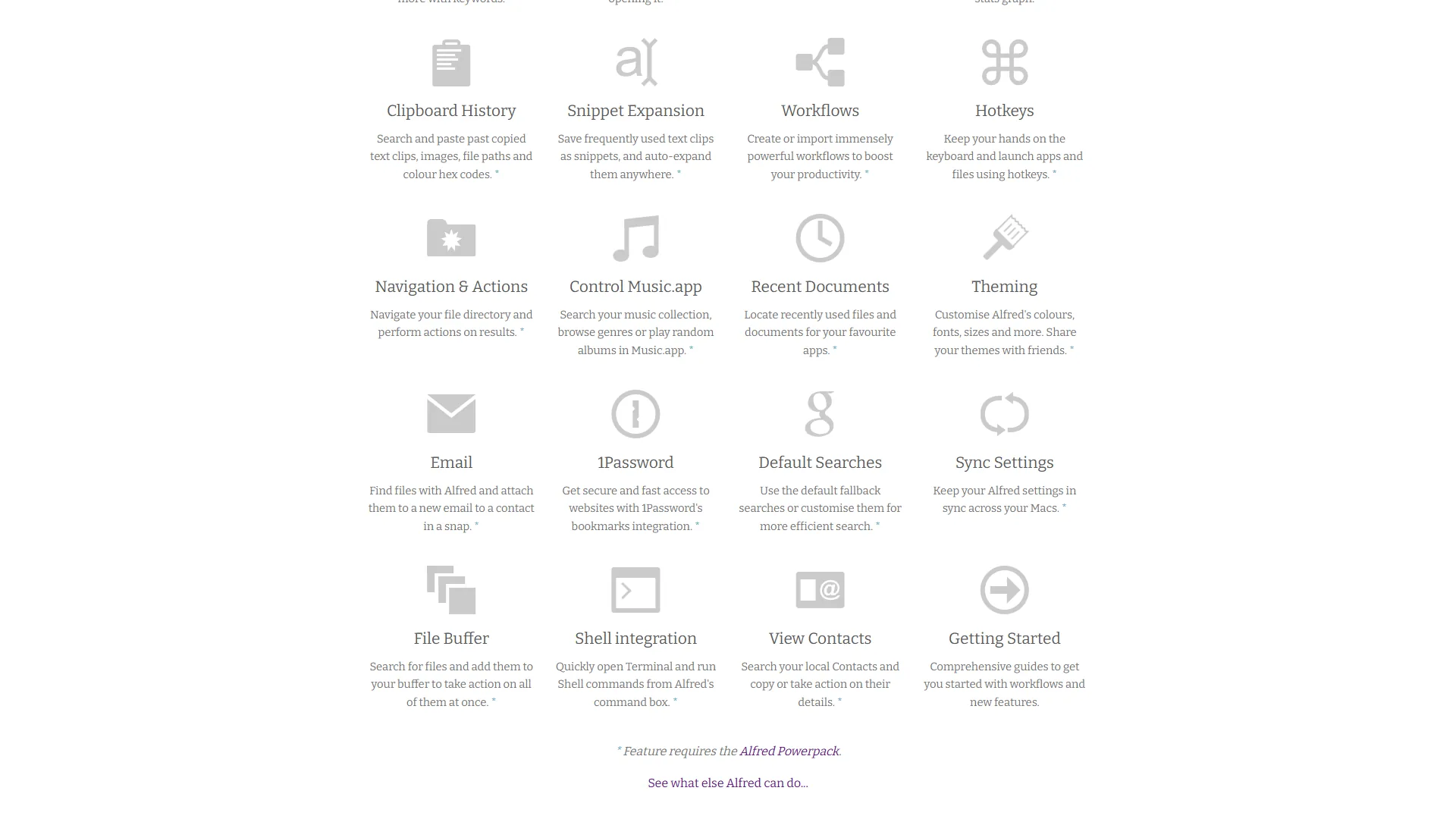
Alfred has been the gold standard for macOS power users since 2010. It’s incredibly polished, deeply integrated with macOS, and offers unmatched workflow customization. The official Alfred Workflows documentation covers the visual editor in depth.
Best for: macOS purists, workflow automation experts, one-time purchase fans
Key strengths:
- Deep macOS integration: Builds on Spotlight, Shortcuts, and system APIs
- Custom workflows: Build complex automations with visual workflow editor
- One-time pricing: £34 Powerpack (lifetime license, no subscription)
- Grid view: Visual file browser for quick navigation
- Snippet expansion: Text expansion and clipboard management
- Proven stability: 15 years of refinement and reliability
Pricing: Free / £34 Powerpack / £59 Mega Supporter (one-time)
Many power users have switched from Alfred to Raycast since 2023, but Alfred remains the better choice for anyone who:
- Prefers one-time purchases over subscriptions
- Lives entirely in the macOS ecosystem
- Wants maximum workflow customization depth
- Values battle-tested stability over cutting-edge features
Alfred’s workflow editor is more powerful than Raycast’s automation builder. If you’re automating complex multi-app processes, Alfred gives you more control.
The Verdict
| Feature | Raycast | Alfred |
|---|---|---|
| Platform | macOS + Windows | macOS only |
| Pricing Model | Subscription | One-time |
| AI Features | Built-in (100+ LLMs) | Via extensions |
| Learning Curve | Gentle | Moderate |
| Workflow Power | Good | Excellent |
| Extensions | 1,000+ | 2,000+ |
Choose Raycast if: You want AI integration, use Windows + Mac, or prefer modern UX.
Choose Alfred if: You’re macOS-only, prefer one-time purchases, or need maximum workflow depth. For Mac users layering AI on top of either launcher, our best Mac productivity tools breakdown covers companion apps.
Both are excellent. Raycast wins on AI features, but Alfred remains installed on many power users’ machines for specific workflows it handles better (complex file operations with custom filters). For a more detailed head-to-head comparison, read our Raycast vs Alfred 2026 breakdown.
Your 4-Week Keyboard-First Implementation Roadmap
Don’t try to learn everything at once. A common mistake is going too fast and getting overwhelmed. Here is the progressive learning path that actually works.
Week 1: Master the Launcher Foundation
Goal: Replace mouse for launching apps and searching files.
Essential shortcuts to practice:
⌘ Space(or custom hotkey): Open launcher- Type app name → Enter: Launch any application
- Type filename → Enter: Open any file
⌘ K: Open actions menu for selected item
Daily practice:
- Launch every app via launcher (no Dock clicking)
- Search for files via launcher (no Finder navigation)
- Track: Count how many times you reach for mouse (aim for under 20/day by Friday)
Pro tip: Remapping Raycast to ⌘ Space (replacing Spotlight) reuses existing muscle memory. Alfred users typically use ⌥ Space.
Week 2: Window Management & Navigation
Goal: Control your workspace without touching mouse or trackpad.
Shortcuts to add:
- Window management via Rectangle or Magnet:
⌃ ⌥ ←/→: Snap window left/right⌃ ⌥ F: Fullscreen⌃ ⌥ C: Center window
- Application switching:
⌘ Tab: Switch apps (but use launcher search instead for precision)- Raycast/Alfred → type app name: Faster than ⌘ Tab hunting
Daily practice:
- Arrange all windows using keyboard shortcuts
- Switch between apps via launcher search
- Never use window buttons (minimize/maximize/close via
⌘ W,⌘ M,⌘ Q)
Pro tip: Install Rectangle (free) for window management. It’s the missing piece that makes keyboard-only window control practical.
Week 3: Clipboard History & Snippets
Goal: Supercharge copy/paste and text entry.
Both Raycast and Alfred include powerful clipboard managers. This is where keyboard-first workflows become genuinely faster than mouse-based work.
Clipboard history shortcuts:
- Raycast: Open launcher → type “clipboard” → Enter
- Alfred:
⌘ ⌥ C(default, customizable)
Daily practice:
- Enable clipboard history in your launcher
- Set clipboard search hotkey (
⌘ ⌥ Vis a popular choice) - Create 5 text snippets for common phrases:
- Your email signature
- Code boilerplate (import statements, function templates)
- Meeting notes templates
- Common responses (“Thanks for reaching out…”)
Pro tip: Review clipboard history every Friday to identify repeated text. If the same thing gets pasted 3+ times, it should become a snippet. For a broader text-expansion approach, our how to write faster guide covers template libraries that pair well with launcher snippets.
Week 4: Custom Workflows & Automation
Goal: Automate your most frequent multi-step tasks.
This is where Raycast and Alfred diverge. Raycast uses “Quicklinks” and “Script Commands.” Alfred uses “Workflows.”
Workflows to build:
-
Daily standup note creator:
- Trigger: Type “standup”
- Action: Create new note with template (Yesterday/Today/Blockers)
- Open in your note app
-
Screenshot → compress → copy:
- Trigger: Capture screenshot
- Action: Auto-compress via TinyPNG API
- Copy URL to clipboard
-
Quick meeting notes:
- Trigger: Type “meeting [topic]”
- Action: Create note with timestamp, attendees template, action items
- Open in note app
Daily practice:
- Build one workflow per day (Mon-Fri)
- Use each workflow 3+ times
- Refine based on friction points
Pro tip: Start with Raycast’s built-in templates (they have 50+ pre-made). Fork and customize rather than building from scratch.
Quick Wins: Essential Shortcuts to Learn Today
Not ready for a 4-week commitment? These 10 shortcuts deliver 80% of the time savings with 20% of the learning effort.
Universal (works in most apps):
⌘ F: Find in current context⌘ ,: Open preferences⌘ W: Close tab/window⌘ Q: Quit application- `⌘ “: Cycle between windows of same app
Launcher-specific (Raycast/Alfred):
⌘ Space→ type app name: Launch any application⌘ Space→ type filename: Open any file⌘ Space→ “clipboard”: Search clipboard history⌘ Space→ “kill [app name]”: Force quit frozen apps⌘ Space→ math expression (e.g., “1920/2”): Instant calculator
Browser (Chrome/Safari/Arc):
⌘ L: Focus address bar⌘ T: New tab⌘ W: Close tab⌘ [number]: Jump to tab (⌘ 1 = first tab)⌘ Shift T: Reopen closed tab
Text editing:
⌥ ←/→: Move by word⌘ ←/→: Move to start/end of line⌥ Backspace: Delete word⌘ Backspace: Delete to start of line
Top picks:
⌘ Space to app name is easily used 50+ times daily (launching apps). ⌥ ←/→ for word navigation saves 30+ seconds per hour of writing/coding. Clipboard history (⌘ ⌥ V) is a weekly lifesaver for retrieving something from 20 pastes ago.
Practice these daily for one week. You’ll notice the time savings immediately.
Advanced Workflows That Save Hours
Once you’re comfortable with basics, these advanced techniques unlock the next level of efficiency.
1. Chained Automation Sequences
Create multi-step workflows that execute complex operations with a single trigger.
Example: “Deploy blog post” workflow (Raycast Script Command):
#!/bin/bash
# Run tests
npm run test

# Build production
npm run build

# Commit changes
git add .
git commit -m "Deploy: $(date)"

# Push to production
git push origin main

# Notify team on Slack
curl -X POST -H 'Content-type: application/json' \
  --data '{"text":"Blog deployed!"}' \
  $SLACK_WEBHOOK_URL
Trigger: Type “deploy” → runs entire sequence. Saves 5 minutes per deployment, 25 minutes weekly. The same chained-step pattern shows up in our best workflow automation tools 2026 breakdown for higher-level automation.
2. Context-Aware Snippets
Snippets that change based on current context (app, date, time).
Example: Meeting notes with auto-populated attendees:
Alfred can detect active Calendar event and pull attendees. Type “meeting” → auto-creates note with participant names, agenda from calendar, action items template.
Saves 2-3 minutes per meeting, 15+ minutes weekly.
3. Clipboard History as Second Brain
Both Raycast and Alfred store text, images, links, and code snippets. Clipboard history functions as a temporary working memory.
Recommended workflow:
- Morning: Copy all relevant links/snippets for the day’s work
- Throughout day: Clipboard search (
⌘ ⌥ V) retrieves them instantly - Evening: Review clipboard, save important items to permanent notes
This eliminates 20+ browser tab switches daily. Saves 15-20 minutes. Tab overload is a known concentration drain - Harvard Business Review research documents how interruption density compounds across the day.
4. File Navigation with Fuzzy Search
Instead of clicking through Finder directories:
⌘ Space→ type filename fragment⌘ Kto reveal actions (move, copy, reveal in Finder)- Select action → done
Finding files this way is 5-10x faster than manual navigation. This alone saves 30+ minutes weekly.
5. Global Hotkeys for Common Actions
Assign hotkeys to your most frequent actions:
⌃ ⌥ N: Create new note in Obsidian⌃ ⌥ T: Create new task in Todoist⌃ ⌥ S: Take screenshot and compress⌃ ⌥ C: Open clipboard history⌃ ⌥ E: Create new email draft
Raycast makes this trivial (each command has assignable hotkey). Alfred requires Powerpack. For task-capture hotkeys specifically, our best productivity apps for ADHD roundup highlights low-friction capture tools that pair well with launchers.
Average time saved per action: 3-5 seconds. Used 50+ times daily = 4+ minutes saved.
How Do You Measure Your Keyboard Workflow Progress?
Track these metrics to quantify your keyboard workflow optimization results:
Week 1 baseline:
- Mouse clicks per hour (use app like Time Sink to track)
- Average task completion time for common operations
Monthly check-ins:
- Mouse usage reduction (target: -80% by month 3)
- Time saved per day (target: 90+ minutes by month 3)
- Flow state frequency (subjective: do you feel more in the zone?)
Typical results after 6 months:
- Mouse clicks: 200/hour → 25/hour (-87.5%)
- Time saved: 2.2 hours daily average
- Flow state: Increased from 2-3 hours daily to 5-6 hours
Your results will vary, but even 50% reduction in mouse usage should yield 60+ minutes of daily savings.
What Are the Most Common Keyboard Workflow Mistakes?
These are the most common pitfalls:
1. Learning too many shortcuts at once
Trying to memorize 50 shortcuts in week one leads to overwhelm and giving up after 3 days.
Fix: Master 3-5 shortcuts per week. Use them 20+ times daily until muscle memory forms.
2. Not customizing default hotkeys
Default hotkeys often conflict with existing habits or other apps.
Fix: Spend 30 minutes mapping shortcuts to patterns that make sense for your workflow. A useful convention is the ⌃ ⌥ prefix for all global actions (clipboard, notes, screenshots).
3. Keeping mouse too accessible
If mouse is easily reachable, you’ll unconsciously grab it.
Fix: During learning phase, physically move mouse to less convenient location. Forces you to use keyboard.
4. Skipping the practice phase
Reading about shortcuts doesn’t build muscle memory.
Fix: Set timer for 15 minutes daily. Practice navigating, launching, searching using only keyboard. Deliberately slow at first.
5. Not building progressive habits
Jumping to advanced workflows before mastering basics leads to frustration.
Fix: Follow the 4-week roadmap strictly. Don’t move to next phase until current habits are automatic.
Your Next Steps
Ready to reclaim 2+ hours daily? Start here:
Today:
- Install Raycast (or Alfred if macOS-only)
- Launch every app via launcher (zero Dock clicks)
- Practice the 10 essential shortcuts from “Quick Wins” section
This week:
- Follow Week 1 of the implementation roadmap
- Track mouse usage (aim for under 50 clicks per hour by Friday)
- Set one global hotkey for your most common action
This month:
- Complete the full 4-week roadmap
- Build 3 custom workflows for your most repetitive tasks
- Measure time saved (target: 60+ minutes daily)
The transition to keyboard-first workflows requires intentional practice. But after 6 months, most converts genuinely cannot imagine going back. The time savings are real, the flow state preservation is transformative, and wrists everywhere are grateful.
Start small. Build momentum. Let muscle memory do the work.
Final Thoughts
Keyboard-first workflows require upfront investment in learning, but the payoff is substantial. Two extra hours of productive time daily, fewer repetitive strain injuries, and longer stretches of deep focus work make the transition well worth the effort.
Frequently Asked Questions
What is an example of workflow optimization?
Launcher apps are a clear example. They replace your mouse for launching apps, searching files, running commands, and automating repetitive tasks - turning multi-step navigation into a single keystroke. Other examples include text expansion (snippets that auto-expand into full email signatures), window management hotkeys, and chained automations triggered by a custom command.
What are the most important keyboard shortcuts to learn first?
Start with five universal shortcuts: launcher hotkey (open with ⌘ Space), text navigation (⌥ ←/→ to move by word, ⌘ ←/→ to jump to line ends), tab switching (⌘ [number] in browsers), and clipboard history. These five cover roughly 80% of daily keyboard time savings.
How much time can keyboard workflow optimization actually save?
Switching between keyboard and mouse adds up to 2-3 hours lost per workday. With intentional practice using launcher apps, it is possible to eliminate 90% of mouse usage - reclaiming roughly two extra hours of productive time daily, while also reducing wrist strain.
Is Raycast or Alfred better for keyboard-first workflows?
Both are strong choices. Raycast wins on AI features, with built-in support for 100+ LLMs, a gentle learning curve, and a generous free tier. Alfred edges ahead for complex multi-app automation, has 2,000+ extensions, and uses a one-time payment model rather than a subscription - but it is macOS only.
Does Raycast have a free plan?
Yes. Raycast’s free tier includes full launcher functionality, extensions, and basic AI features. The Pro plan unlocks unlimited AI queries and cloud sync across devices.
Want to learn more about Raycast?
Related Guides
- Focus Time Productivity Tips
- How to Write Faster
- Voice Productivity Tips
- How to Schedule Smarter with AI
Related Reads
- Raycast Tool Page - Features, pricing, and ROI calculator
- Best Mac Productivity Tools 2026
- Best Workflow Automation Tools 2026
- Zapier vs Make: Automation Showdown
External Resources
For official documentation from these keyboard productivity tools:
- Raycast Blog - AI features, extension updates, and keyboard productivity guides
- Alfred Blog - Powerpack workflow tutorials and macOS automation tips
Related Guides
- AI Workflow Automation Maturity Model: 5 Levels
- ChatGPT Tips And Tricks: 2026 Walkthrough for Teams
- Meeting Culture Reform AI: 2026 Walkthrough for Teams
- Obsidian Daily Notes Workflow: Build It From Scratch
- OpenClaw Guide: Open-Source AI Assistant Setup (2026)
- Perplexity Tips and Tricks: 2026 Walkthrough for Teams
- Tana Supertags Guide 2026: Build a Queryable Knowledge Graph
- Warp Terminal Guide 2026: Blocks, AI Commands, Agents