





OpenClaw is an open-source autonomous AI personal assistant that executes tasks on your behalf rather than just chatting. This OpenClaw AI guide covers the project’s naming history from Clawdbot to Moltbot to its current branding, its local-first architecture, plugin system, messaging integrations, the OpenClaw install path with Node.js or Bun, and security considerations for self-hosting the assistant on your infrastructure.
The project has become one of the most talked-about AI initiatives of 2026. Originally released as Clawdbot by OpenClaw founder Peter Steinberger, then renamed to Moltbot, and finally settling on its current name, this open-source AI assistant has captured developer attention with its autonomous capabilities and self-hostable architecture. With over 100,000 GitHub stars in just months, it is one of the fastest-growing repositories in GitHub history, and sustained discussion on X and Reddit has compounded that momentum. For broader context on the autonomous-agent landscape, our AI agent orchestration patterns guide covers similar architectural decisions.
This guide covers everything you need to know - from its turbulent naming history to practical setup instructions and security considerations.
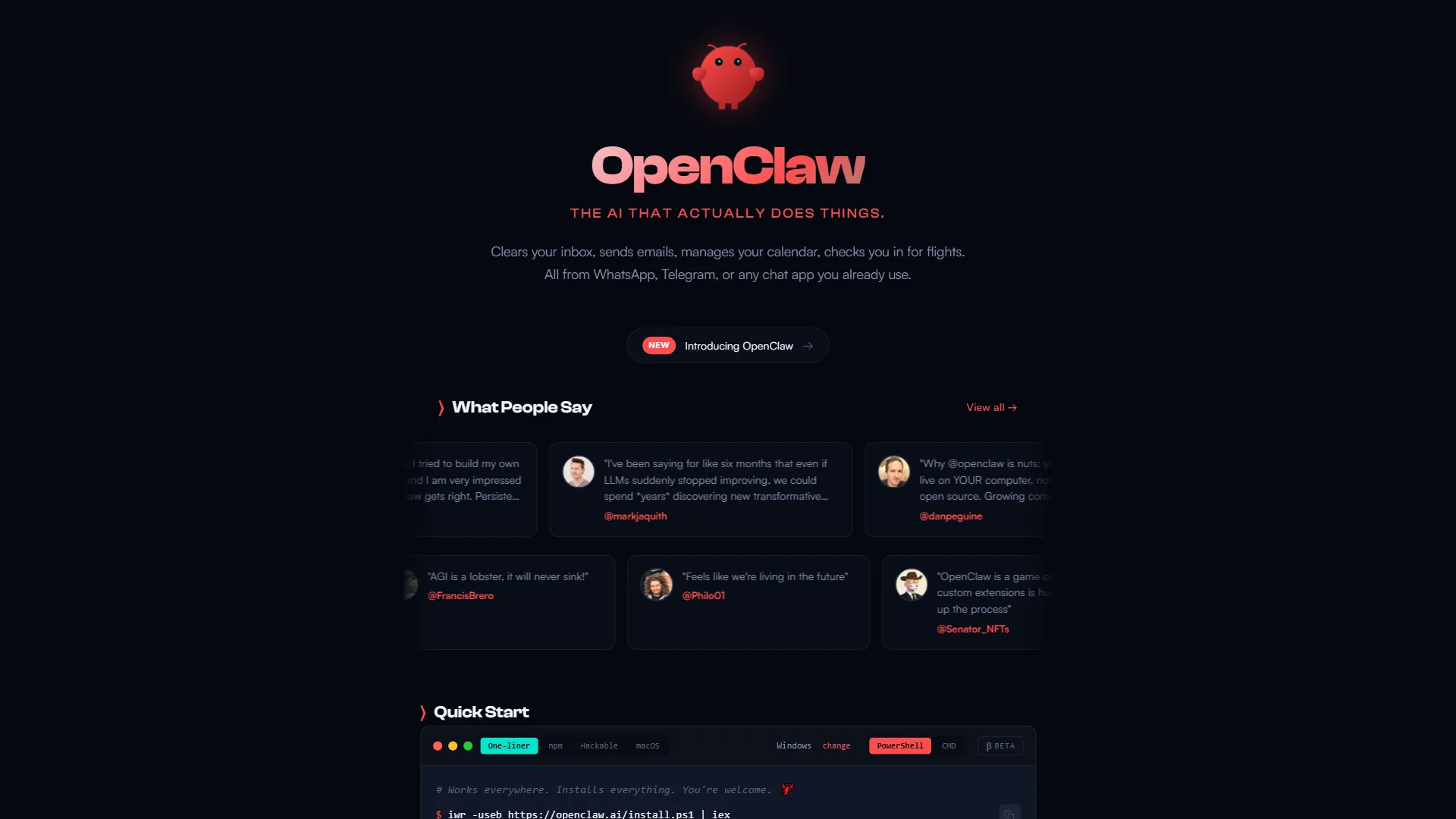
What is OpenClaw?
This guide walks through the practical steps from setup through advanced optimization on macOS and Windows, the in-progress Android client, and the strategies and integrations that deliver real productivity gains in this space.
The project is an open-source autonomous AI personal assistant designed to execute tasks on your behalf rather than just chat. Built on top of foundation models from providers like Claude and OpenAI, it differs from traditional AI chatbots that only answer questions. Instead, the tool can:
- Manage your calendar - Schedule meetings, move appointments, send invites
- Send messages - Compose and send messages through WhatsApp, Telegram, Signal
- Conduct research - Search the web, summarize findings, compile reports
- Automate workflows - Connect services together, trigger actions based on events
- Execute code - Run scripts, manage files, interact with APIs
The key differentiator is autonomy. You tell the assistant what you want to accomplish, and it figures out the steps to get there - often completing multi-step tasks without constant supervision.
The Name Changes: A Brief History
Clawdbot (Late 2025)
Peter Steinberger, a well-known iOS developer, released Clawdbot in late 2025. The name was a playful nod to its “claw-like” ability to grab and manipulate data across services, combined with common chatbot naming conventions.
The project exploded in popularity. Developers loved the self-hostable architecture, the ability to connect it to their own AI API keys, and the extensible plugin system.
Moltbot (Early 2026)
Just as Clawdbot hit 100,000 GitHub stars, Anthropic’s legal team sent a trademark request. The name “Clawdbot” was considered too similar to “Claude,” Anthropic’s AI assistant brand. To avoid confusion and potential legal issues, Steinberger renamed the project to Moltbot - referencing how crustaceans molt their shells.
OpenClaw (Current)
The Moltbot name didn’t stick. Community feedback suggested it lacked memorability, and the molting metaphor didn’t resonate. After a community poll, the project settled on its current branding - keeping the “claw” identity while emphasizing its open-source nature and distancing from any Claude association.
The renaming saga itself generated significant publicity, arguably accelerating the project’s growth.
Core Architecture
The project’s architecture explains both its power and its security considerations.
Local-First Design
The platform runs on your own infrastructure:
- Local machine - Personal laptop or desktop
- Home server - Raspberry Pi, NAS, dedicated server
- Cloud VPS - DigitalOcean, Linode, AWS EC2
- Hosted platform - The project’s own hosted service (launched January 2026)
This local-first approach means your data stays under your control, and you choose which AI providers to use.
Plugin Architecture
The platform’s functionality comes through plugins:
┌─────────────────────────────────────────────────┐
│                   OpenClaw Core                  │
├─────────────────────────────────────────────────┤
│  ┌──────────┐ ┌──────────┐ ┌──────────┐        │
│  │ Calendar │ │ Messaging│ │ Research │  ...   │
│  │  Plugin  │ │  Plugin  │ │  Plugin  │        │
│  └──────────┘ └──────────┘ └──────────┘        │
├─────────────────────────────────────────────────┤
│           AI Provider Integration               │
│  (Claude API, OpenAI, Anthropic, Local LLMs)   │
└─────────────────────────────────────────────────┘
Each plugin handles a specific domain, and the AI core orchestrates them based on your requests.
Messaging Integration
The assistant accepts commands through messaging platforms:
- WhatsApp - Personal or business accounts
- Telegram - Bots or personal accounts
- Signal - Privacy-focused messaging
- Discord - Server bots or DMs
- Slack - Workspace integration
This means you can control it from your phone, treating it like texting a very capable assistant.
Getting Started
Prerequisites
- Node.js 20+ or Bun 1.0+
- API keys for your preferred AI provider
- Optional: Messaging platform API access
Installation
Using npm:
npx create-openclaw my-assistant
cd my-assistant
npm install
Using Bun (recommended):
bunx create-openclaw my-assistant
cd my-assistant
bun install
Configuration
Create a .env file with your settings:
# AI Provider (choose one or multiple)
ANTHROPIC_API_KEY=sk-ant-...
OPENAI_API_KEY=sk-...

# Messaging (optional)
TELEGRAM_BOT_TOKEN=...
WHATSAPP_PHONE_ID=...

# Security
OPENCLAW_SECRET=your-random-secret
ALLOWED_USERS=your-telegram-id,another-id
Running
# Development
npm run dev

# Production
npm run build && npm start
The assistant will start and connect to your configured messaging platforms. Send it a message to begin.
Key Capabilities
Calendar Management
You: "Schedule a call with Alex next Tuesday at 2pm"
Assistant: I'll schedule that. Which calendar should I use?
You: "Work calendar"
Assistant: Done. Created "Call with Alex" on Tuesday, Feb 4 at 2:00 PM
         on your Work calendar. Want me to send Alex an invite?
The tool integrates with:
- Google Calendar
- Microsoft Outlook
- Apple Calendar (via CalDAV)
- Calendly (for scheduling links)
Research Tasks
You: "Research the top 5 project management tools for small teams
      and create a comparison"
Assistant: Starting research. I'll search for recent reviews,
           compare features, and compile a summary. This may take
           a few minutes.

[5 minutes later]
Workflow Automation
The platform can chain actions together:
You: "When I get an email from @important-client.com, summarize it
      and send me a Telegram message"
Assistant: I've created that automation. When emails arrive from
           @important-client.com, I'll:
           1. Read the email content
           2. Generate a summary
           3. Send it to you on Telegram

           Want me to activate it now?
Multi-Step Task Execution
The real power shows in complex requests:
You: "Plan my trip to Tokyo next month"
Assistant: I'll help plan your Tokyo trip. Let me gather some info:

          1. What dates are you traveling?
          2. What's your budget range?
          3. Any must-see places or activities?

You: "March 15-22, mid-range budget, want to see temples and
      try local food"

Assistant: Perfect. I'm researching flights, hotels near temple
          areas, and restaurant recommendations. I'll have a
          complete itinerary shortly.

[10 minutes later]

Assistant: Here's your Tokyo trip plan:

          **Flights:** [Options with prices]
          **Hotels:** [3 options in Asakusa area]
          **Daily Itinerary:** [Day-by-day plan]
          **Food Spots:** [Restaurant recommendations]
          **Budget Estimate:** $2,400 total

          Want me to book any of these?
Security Considerations
The platform’s power comes with responsibility. Security researchers have raised valid concerns.
Supply Chain Risks
The plugin architecture means third-party code runs with the assistant’s permissions. A compromised plugin could:
- Access your API keys
- Read your messages
- Execute arbitrary code
- Exfiltrate data
Mitigation:
- Only install plugins from trusted sources
- Review plugin code before installation
- Use the official plugin registry with verified plugins
Credential Exposure
The tool needs API keys and account access to function. These credentials are valuable targets.
Mitigation:
- Use environment variables, never hardcode credentials
- Rotate API keys regularly
- Use separate API keys for the assistant (not your main ones)
- Enable API key usage alerts
Sandbox Recommendations
Security consultants recommend:
- Run in isolated environments - Docker, VMs, or dedicated machines
- Avoid production credentials - Use test/sandbox accounts where possible
- Network isolation - Limit the tool’s network access to required services
- Audit logging - Log all actions for review
The Hosted Platform
In January 2026, the project launched a hosted platform addressing these concerns:
- Managed infrastructure with security updates
- Plugin sandboxing
- Credential encryption
- Audit logs
- SOC 2 compliance (in progress)
For users who want these capabilities without self-hosting complexity, the hosted platform offers a middle ground.
Comparison With Other AI Assistants
vs. ChatGPT/Claude
| Feature | OpenClaw | ChatGPT/Claude |
|---|---|---|
| Autonomous execution | Yes | Limited |
| Self-hostable | Yes | No |
| Custom integrations | Unlimited | Via official plugins |
| Data control | Full | Provider-controlled |
| Messaging integration | Native | Third-party tools |
| Cost | API costs only | Subscription |
vs. Zapier/Make
| Feature | OpenClaw | Zapier/Make |
|---|---|---|
| Natural language control | Yes | No |
| AI reasoning | Yes | No |
| Complex decisions | Yes | Rule-based only |
| Setup complexity | Higher | Lower |
| Pricing | API costs | Per-task pricing |
vs. Other Open-Source Agents
The project’s advantages:
- Largest community (100k+ stars)
- Most active development
- Best documentation
- Widest plugin ecosystem
Best Practices
Start Small
Don’t connect everything at once:
- Week 1: Calendar integration only
- Week 2: Add one messaging platform
- Week 3: Try research tasks
- Week 4: Add automations
This lets you understand the assistant’s behavior before giving it more access.
Use Confirmation Mode
The platform supports a confirmation mode for sensitive actions:
CONFIRM_ACTIONS=send_message,create_event,delete_*With this setting, the tool will ask for confirmation before sending messages, creating calendar events, or deleting anything.
Set Clear Boundaries
Define what the assistant should and shouldn’t do:
You: "Never send messages to my boss without explicit confirmation"
Assistant: Understood. I'll always ask before messaging contacts
          in your "Work" group or anyone with a work email domain.
Regular Reviews
Periodically review:
- What automations are running
- What accounts are connected
- Plugin update availability
- Action logs for unexpected behavior
Common Issues and Solutions
”The assistant isn’t responding”
- Check your messaging platform connection
- Verify API keys are valid
- Check logs for errors:
npm run logs
”Actions are failing”
- Verify the integration is properly configured
- Check API rate limits
- Review permissions for connected accounts
”Responses are slow”
- AI provider latency varies by load
- Consider using a local LLM for faster responses
- Enable response caching for repeated queries
”Plugin won’t install”
- Check Node.js/Bun version compatibility
- Verify plugin is in official registry
- Review plugin requirements in documentation
The Future of the Project
The roadmap includes:
Q1 2026:
- Mobile apps (iOS and Android)
- Voice command support
- Enhanced plugin sandboxing
Q2 2026:
- Team collaboration features
- Enterprise deployment options
- Advanced automation builder
Q3 2026:
- Local LLM optimization
- Hardware integrations (smart home)
- Developer SDK improvements
The community is actively contributing, with new plugins appearing weekly and core improvements happening regularly.
Should You Use It?
The platform is ideal for:
- Developers comfortable with self-hosting
- Users who want maximum control over their AI assistant
- People with specific automation needs
- Privacy-conscious users
- Tinkerers who enjoy customization
Consider alternatives if:
- You want zero setup complexity
- Security concerns outweigh benefits
- You need enterprise support
- You’re not comfortable with command-line tools
Pro Tips From Power Users
After watching the community Discord for the past few months, a handful of patterns consistently separate users who get real value from those who burn out within a week.
Pin Your Plugin Versions
The plugin ecosystem moves fast. A breaking change in a calendar plugin you rely on can derail your entire morning routine. Lock plugin versions in your config and treat upgrades like dependency bumps - test on a sandbox profile, run a few days of routine tasks, then promote. The community-maintained registry exposes both latest and pinned semver tags for this reason.
Treat the Assistant Like a Junior Hire
Power users describe the right mental model as “junior assistant who needs onboarding,” not “magic genie.” That framing changes how you write instructions. Instead of “book a flight to Tokyo,” start with “draft three flight options under $1500 from SFO to NRT, paste them in chat, and wait for my pick.” Specificity dramatically reduces failed automations and surprise charges on connected accounts.
Pair It With a Notes Workspace
The assistant excels at action, but it’s weak at long-term memory across topics. Many power users wire it up to push completed task summaries into a notes tool like Obsidian or Notion so the historical record lives outside the assistant’s chat history. That separation also helps when you eventually rotate API keys or rebuild the configuration from scratch.
Run a Weekly Audit
Once a week, pull the action log and skim what the assistant did on your behalf. The community recommends a simple Sunday-evening ritual: 10 minutes scrolling through the previous week of automated actions, deactivating any plugins that misbehaved, and rotating credentials for any service that shows unexpected activity. This small habit catches problems early - long before they become “why did my assistant just send 47 emails to my boss” stories on Reddit.
Common Pitfalls to Avoid
Three failure patterns dominate the GitHub issue tracker. First, users hand the assistant production database credentials in their .env file without scoping them - one prompt-injection from a malicious email and the assistant runs DROP TABLE users. Always use scoped, read-only credentials wherever possible. Second, the messaging integrations sometimes loop on themselves: a Telegram message triggers an action that posts back to Telegram, which is interpreted as another command. Add explicit IGNORE_OWN_MESSAGES=true settings or filter on sender ID. Third, users forget that the assistant burns LLM tokens on every interaction - a chatty plugin can run up a $200 monthly bill on Anthropic credits without anyone noticing. Set hard spending caps on your provider dashboards and add usage alerts.
When to Stick With ChatGPT or Claude Instead
For pure question-and-answer workflows, the self-hosted assistant is overkill. If you mostly need a smart chat interface for research and writing, Claude or ChatGPT directly will be faster, cheaper, and require zero setup. The autonomous-execution layer only earns its complexity once you have repeatable, multi-step tasks that touch external services - calendar bookings, message dispatching, file synchronization, scheduled research digests, or workflow automations across SaaS apps. Below that threshold, a chat interface plus a few Zapier Zaps or Make scenarios will get the job done with less risk.
Conclusion
The project represents a new category of AI tool - the autonomous personal assistant that actually does things rather than just talking about them. Its turbulent naming history (Clawdbot to Moltbot to its current name) reflects the rapid pace of AI development and the growing importance of these tools.
With proper security practices, the tool can significantly automate your digital life. The key is starting small, understanding what you’re connecting, and maintaining healthy skepticism about what any AI system should control.
The 100,000+ developers who starred the repository aren’t wrong - the project is genuinely useful. Whether it’s right for you depends on your comfort with self-hosting and your automation needs.
Important Note: We don’t currently feature OpenClaw as a reviewed tool on this site. The project is still in early stages of development and can be potentially dangerous if not configured correctly - misconfigured plugins or overly permissive access could expose your credentials or allow unintended actions. We recommend it only for advanced developers who are comfortable reviewing source code, managing security configurations, and troubleshooting complex self-hosted systems. That said, it’s an exciting project with a passionate community, and the pace of development is impressive. Before considering whether to set it up, do thorough research on the current security posture, read through recent GitHub issues, and start with minimal permissions in an isolated environment.
Frequently Asked Questions
What is the OpenClaw project?
The platform is an open-source autonomous AI personal assistant designed to execute tasks on your behalf rather than just chat. It can manage your calendar, send messages through WhatsApp, Telegram, or Signal, conduct research, automate workflows by connecting services, and execute code. You tell the assistant what you want to accomplish and it figures out the steps to get there.
Why was the project renamed from Clawdbot and Moltbot?
Peter Steinberger released the project as Clawdbot in late 2025. When it hit 100,000 GitHub stars, Anthropic’s legal team sent a trademark request because Clawdbot was considered too similar to Claude. The project was renamed to Moltbot, but community feedback found the molting metaphor unmemorable. A community poll settled on the current name, keeping the claw identity while emphasizing its open-source nature.
Is the platform safe to install?
The tool uses a local-first design that runs on your own infrastructure - personal laptop, home server, cloud VPS, or its hosted platform launched January 2026. Your data stays under your control and you choose which AI providers to use. The .env configuration supports a secret token and an ALLOWED_USERS list to restrict access, and you bring your own API keys for Anthropic, OpenAI, or local LLMs.
How do you install the platform?
You need Node.js 20+ or Bun 1.0+ and API keys for your preferred AI provider. Using Bun is the recommended path - run bunx create-openclaw my-assistant, then cd my-assistant and bun install. The npm path uses npx create-openclaw my-assistant followed by npm install. After installation, create a .env file with your AI provider keys and optional messaging platform tokens.
Which AI providers does it work with?
The assistant supports any LLM provider you configure via API key. Most users connect Claude or ChatGPT through the Anthropic and OpenAI APIs respectively, but local LLMs running through Ollama or LM Studio are also supported. Multiple providers can be configured simultaneously, and the routing logic picks the best model for each task type.
How does it compare to Zapier or Make?
Both Zapier and Make are excellent rule-based automation platforms - you build flows by connecting triggers to actions through a visual editor. The self-hosted assistant differs because it interprets natural-language requests and decides on the steps itself. That AI reasoning layer is more flexible for ambiguous tasks but harder to predict than a deterministic Zap or Make scenario.
Want to learn more about Claude?
Related Guides
More AI automation and agent guides on this site:
- AI Agent Orchestration Patterns - Architectural patterns for multi-agent systems
- Make AI Agents Guide - Build AI-powered Make scenarios
- Building MCP Servers Guide - Extend Claude Code with custom integrations
- Claude Code Hooks Deep Dive - Automate pre/post tool execution
Related Reading
Tools mentioned in this article:
- Claude Review - Anthropic’s AI assistant
- ChatGPT Review - OpenAI’s conversational AI
- Zapier Review - No-code automation platform
- Make Review - Visual workflow automation
External Resources
For official documentation and updates:
- Official Documentation - Setup guides and API reference
- GitHub Repository - Source code and 100k+ stars
- Community Discord - Support and discussions
- Plugin Registry - Official and community plugins
Related Guides
- 15 Calendly Tips and Tricks to Save 4+ Hours Weekly
- Activecampaign AI Content Generation: Complete 2026 Guide
- ActiveCampaign CRM Setup: How to Set Up ActiveCampaign CRM
- ActiveCampaign Shopify Integration: Complete Setup
- ActiveCampaign WordPress: Forms, Tracking & Automation
- ActiveCampaign Zapier: 10 Automations to Build Today
- AI Agent Orchestration: Patterns That Scale in 2026
- AI Content Writing Workflow: 2026 Walkthrough for Teams
- AI Product Discovery Ecommerce: Lift Revenue in 2026
- AI Productivity Trends 2026: 6 Real Shifts, No Hype