


Obsidian daily notes workflow is a structured system for capturing ideas, tasks, and observations through a daily note that connects to the rest of your vault via backlinks and templates. A solid Obsidian daily notes workflow template makes this architecture concrete - without it, daily notes become isolated entries you never revisit, but with a workflow template and a weekly review loop, knowledge compounds over hundreds of entries.
Most people who try daily notes in Obsidian - or in alternatives like Notion - open a blank page, type a few bullets, and abandon the habit within two weeks. The problem isn’t discipline - it’s architecture. Without a system connecting today’s notes to everything else in your vault, daily notes become isolated journal entries that you never revisit.
A well-maintained Obsidian daily notes workflow can span hundreds of entries, and this guide distills key lessons from sustained daily note-taking practice - serving as a practical workflow example drawn from real vault structures shared across the Obsidian daily notes workflow GitHub community. The difference between a failed first attempt and a system that sticks? Templates, backlinks, and a weekly review loop that surfaces forgotten ideas at exactly the right moment. This guide walks you through building that system from scratch - no coding required, no paid plugins needed.
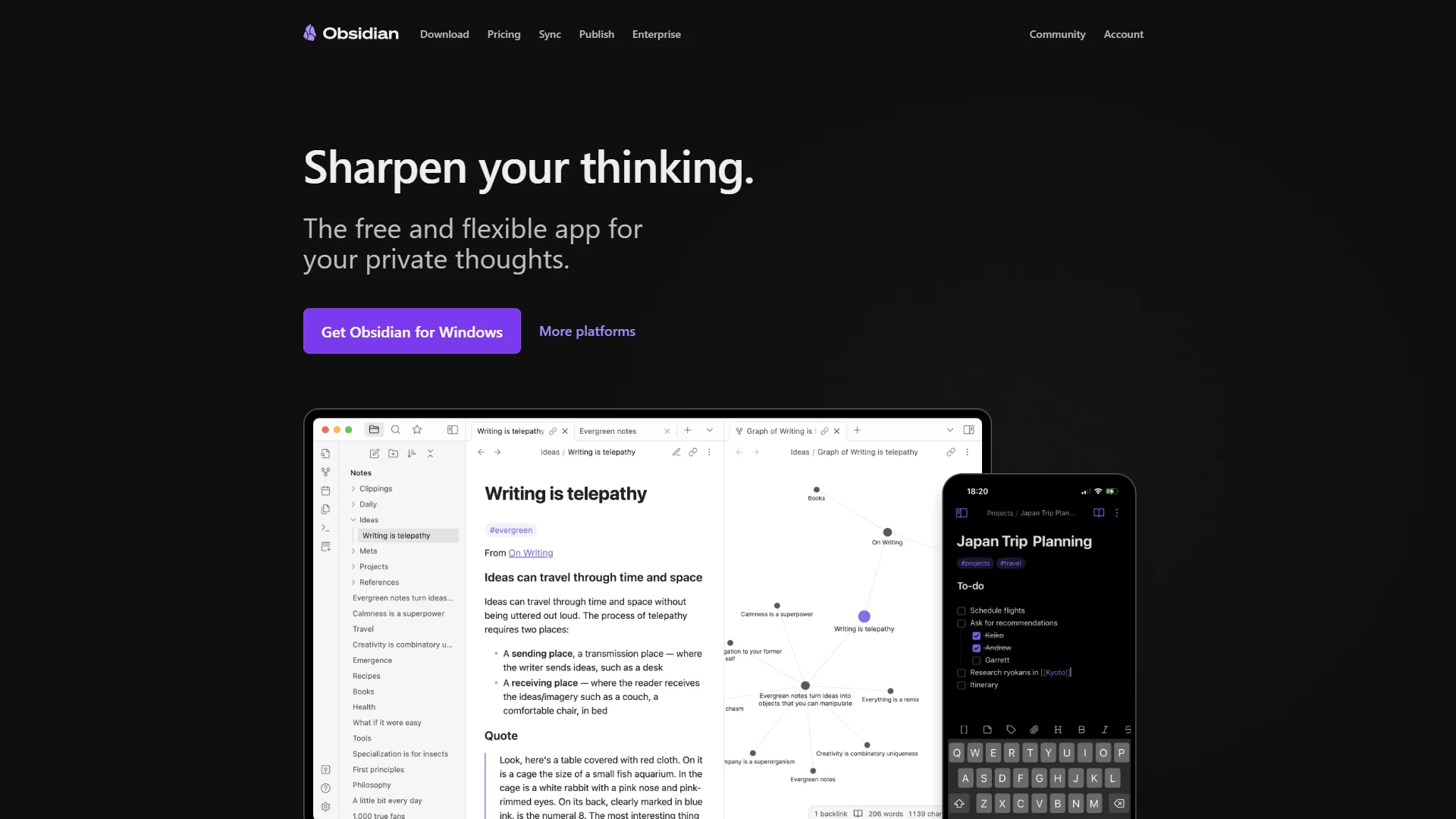
Why Daily Notes Are the Foundation of Personal Knowledge Management
Daily notes aren’t a journal. They’re the intake layer of your entire knowledge management system. Every idea, meeting note, task, and observation enters through your daily note and gets routed to permanent notes through links and tags.
This approach is rooted in the Zettelkasten method - a system developed by sociologist Niklas Luhmann, who produced 70 books and 400 scholarly articles using interconnected index cards. Obsidian’s bidirectional linking turns that analog method into something far more powerful - and it is one of the key reasons many knowledge workers choose Obsidian over Notion for personal knowledge management.
What a mature daily notes system gives you:
- Zero-friction capture - Open today’s note and start writing. No folder decisions, no categorization overhead
- Automatic context trails - Backlinks connect today’s thoughts to past and future notes without manual filing
- Compounding knowledge - Weekly reviews transform scattered daily entries into polished permanent notes
- Accountability tracking - Built-in habit and task tracking without a separate app
Setting Up the Daily Notes Core Plugin
Obsidian ships with a Daily Notes core plugin that handles the basics. Here’s how to configure it properly.
Step 1: Enable the plugin. Open Settings > Core plugins > toggle Daily Notes on. You’ll also want to enable the Templates core plugin while you’re here.
Step 2: Configure settings. In Settings > Daily Notes, set these options:
| Field | Value |
|---|---|
| Date format | YYYY-MM-DD (e.g., 2026-02-10). This format sorts chronologically in your file explorer and prevents naming conflicts |
| New file location | Create a folder called Daily Notes or Journal - keeping daily notes separate from permanent notes prevents clutter |
| Template file location | Point to your daily note template (we’ll create this next) |
| Open daily note on startup | Enable this. It removes the friction of navigating to today’s note |
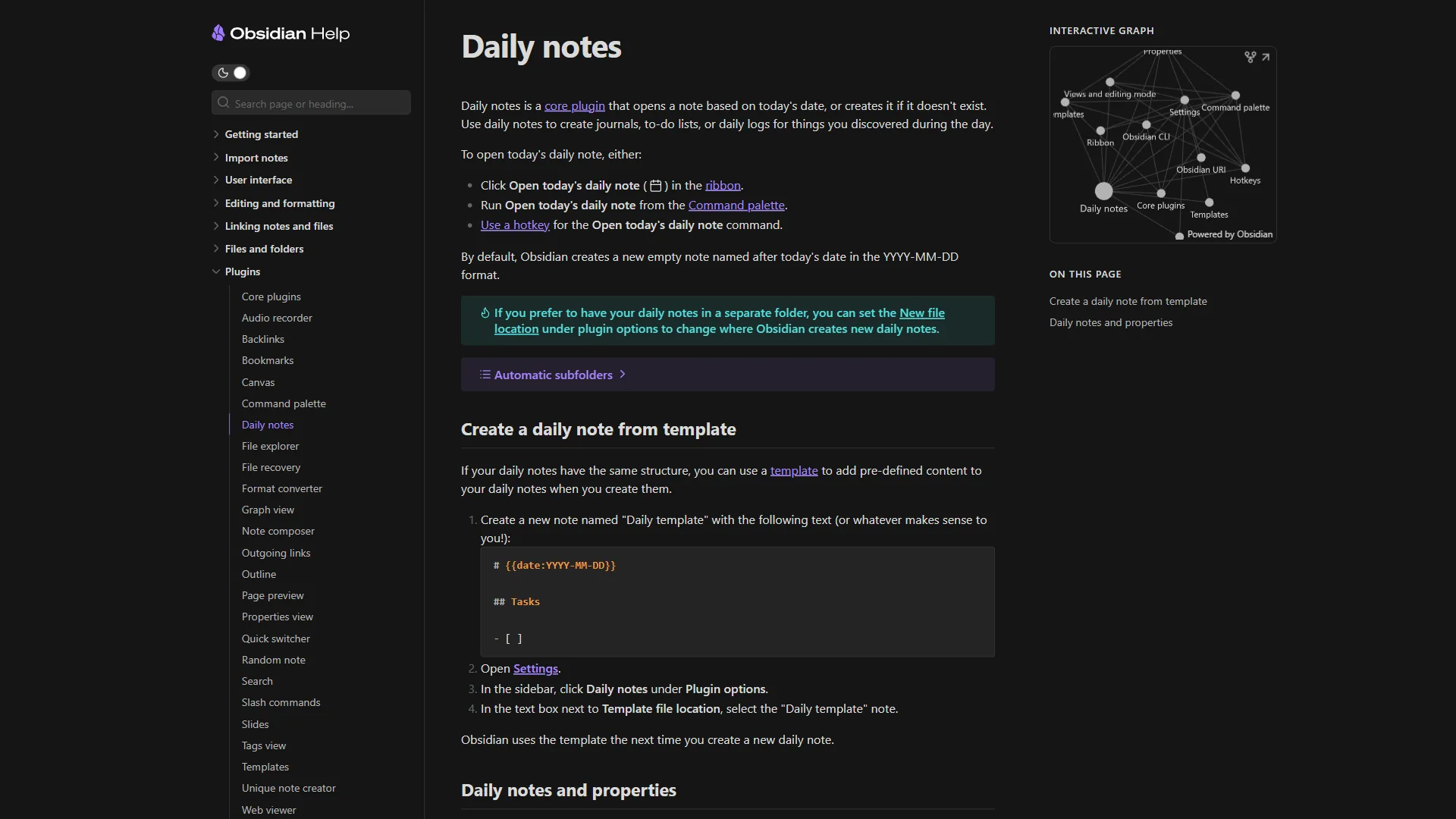
Step 3: Set a hotkey. Go to Settings > Hotkeys and search for “Daily Notes: Open today’s daily note.” Assign something fast like Ctrl+D (or Cmd+D on Mac). You’ll use this dozens of times per day.
How Do You Build an Obsidian Daily Note Template?
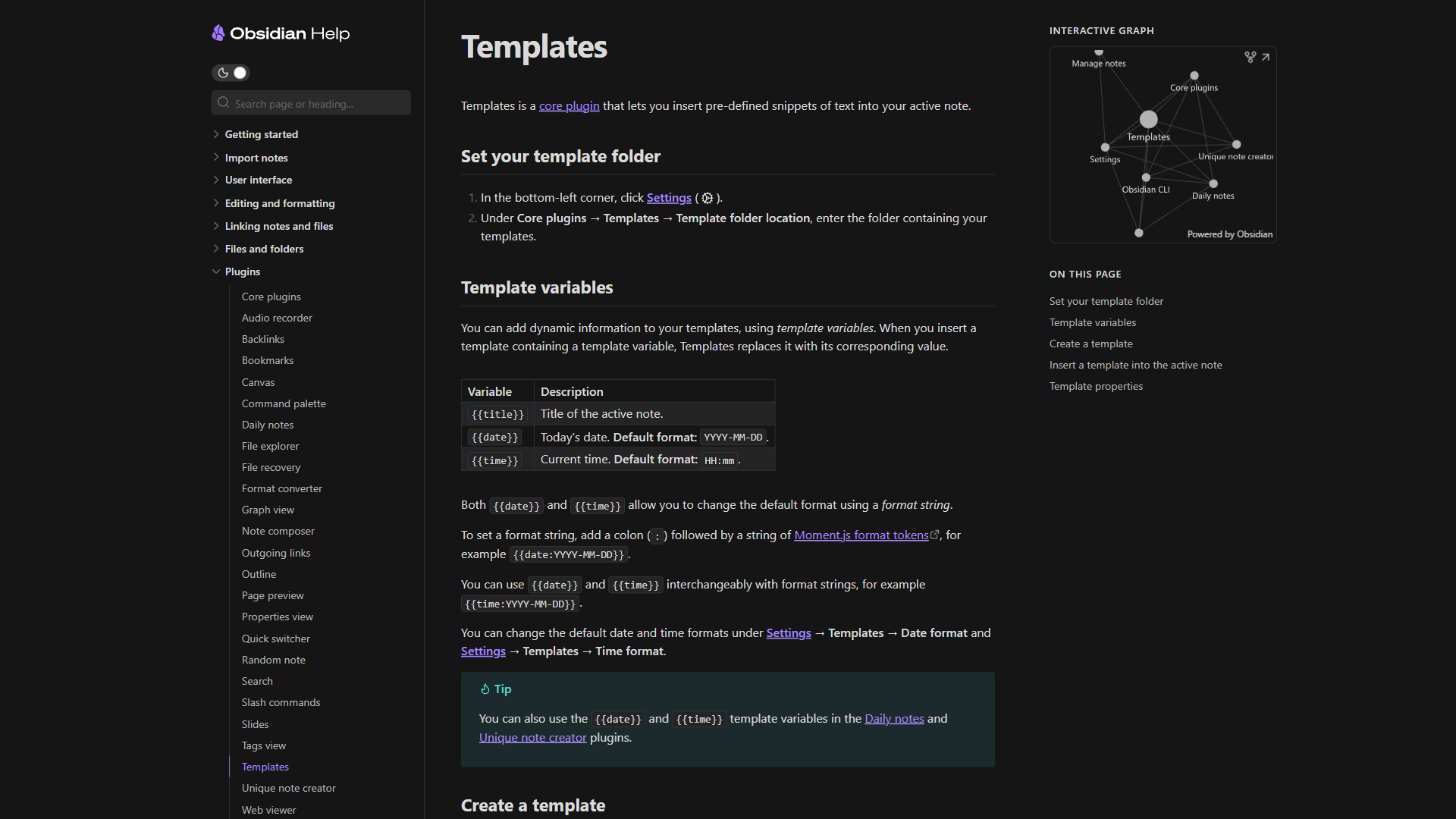
The Obsidian Daily notes template is where most people either under-engineer or over-engineer their system. Reviewing Obsidian daily note template examples can help you calibrate - too bare, and you forget what to capture; too complex, and opening the template feels like homework.
Here’s a template that balances structure with flexibility:
# {{date:dddd, MMMM D, YYYY}}

## Morning Setup
- [ ] Review yesterday's open items
- [ ] Check calendar for today's meetings
- [ ] Set top 3 priorities:
  1.
  2.
  3.

## Capture
> Quick thoughts, ideas, and observations go here.
> Link to relevant notes with [[double brackets]].

## Meeting Notes
### Meeting:

## Tasks
- [ ]
- [ ]

## End of Day
- What went well today?
- What could improve?
- Ideas to develop: [[]]

## Links Created Today
Save this template in your templates folder (e.g., Templates/Daily Note Template.md). The double-brace date syntax uses Obsidian’s built-in template variables to insert a human-readable date like “Monday, February 10, 2026.”
Why This Template Structure Works
Morning Setup forces intentional planning. The “review yesterday’s open items” checkbox creates a natural bridge between consecutive days - you won’t lose tasks in the gaps.
Capture is the critical section. It’s intentionally unstructured because ideas don’t arrive in neat categories. The reminder to use [[double brackets]] trains the linking habit that makes Obsidian powerful. Every link you create in this section becomes a backlink on the target note, building your knowledge graph automatically.
End of Day drives reflection and note development. The “Ideas to develop” field with an empty [[]] prompt encourages you to create or link to permanent notes - the bridge from daily capture to lasting knowledge.
The Linking System: From Daily Chaos to Connected Knowledge
Daily notes generate value through links, not through the notes themselves. Here’s the linking discipline that transforms daily entries from disposable logs into knowledge infrastructure.
Three Types of Links to Use Daily
1. Topic links. When you mention a concept, project, or person, wrap it in [[double brackets]]. Even if the target note doesn’t exist yet, Obsidian creates a placeholder. Later, when you create that note, all your daily references appear as backlinks automatically.
Example: “Had a great call with the design team about [[responsive design patterns]]. They mentioned [[atomic design]] as a framework worth exploring.”
2. Block references. When a specific paragraph in today’s note is valuable enough to reference elsewhere, use Obsidian’s block reference syntax. Type ^ at the end of a paragraph to give it a block ID, then reference it from other notes with [[2026-02-10#^block-id]].
3. Tag-based context. Use tags like #idea, #question, #followup to mark items that need future attention. These tags become searchable across your entire vault, letting you pull up every unresolved question or undeveloped idea across months of daily notes.
The Backlink Habit
Here’s the key insight: every link you create today is a gift to your future self. When you open a project note six months from now, the backlinks panel shows every daily note where you mentioned that project - complete with context. You don’t need to remember when you had an insight. The links remember for you.
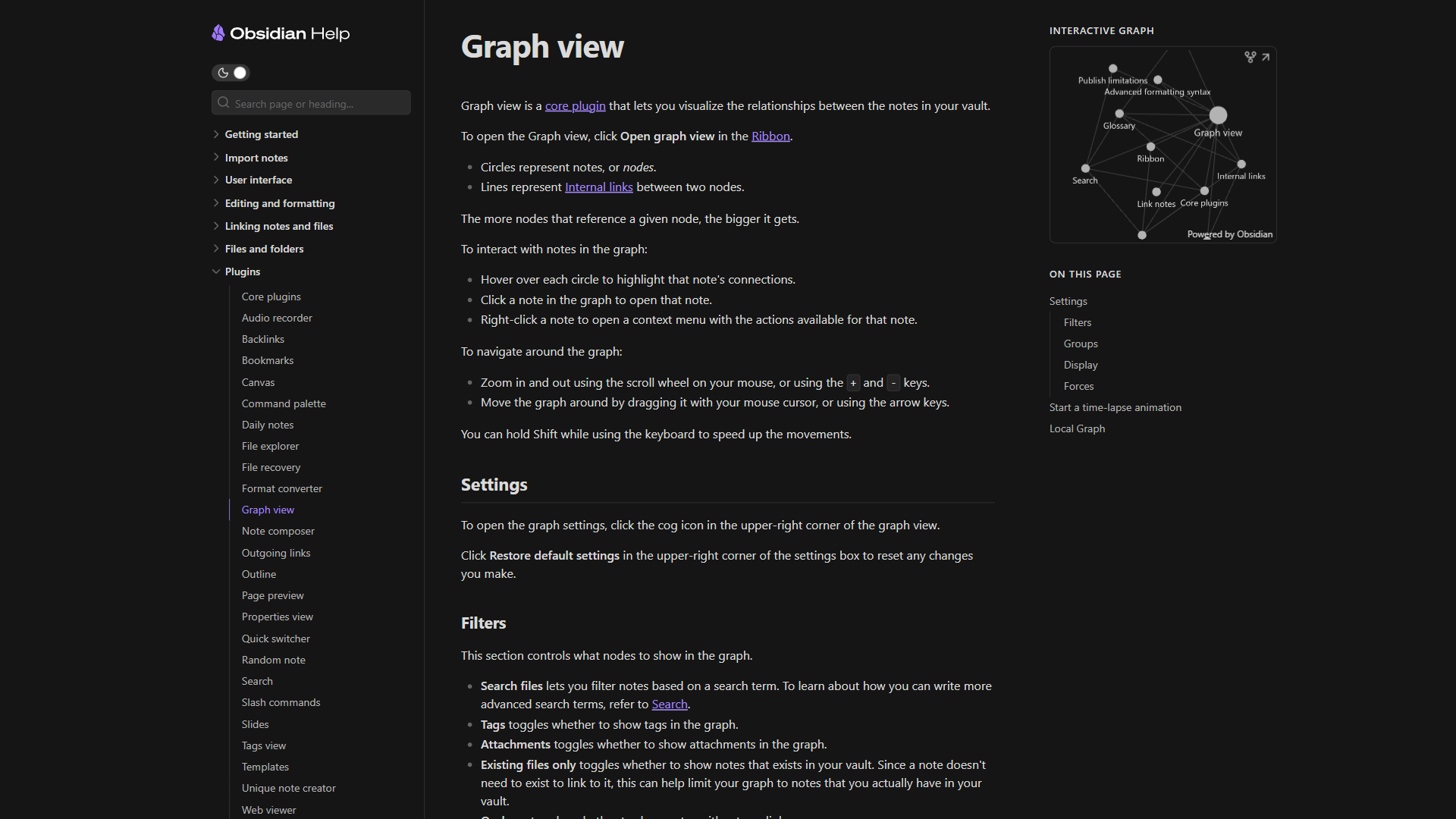
This is where Obsidian’s graph view becomes practical rather than decorative. After a few weeks of consistent linking, your graph reveals clusters of related thinking. Topics you didn’t realize were connected start showing up as neighboring nodes.
Supercharging Daily Notes with Community Plugins
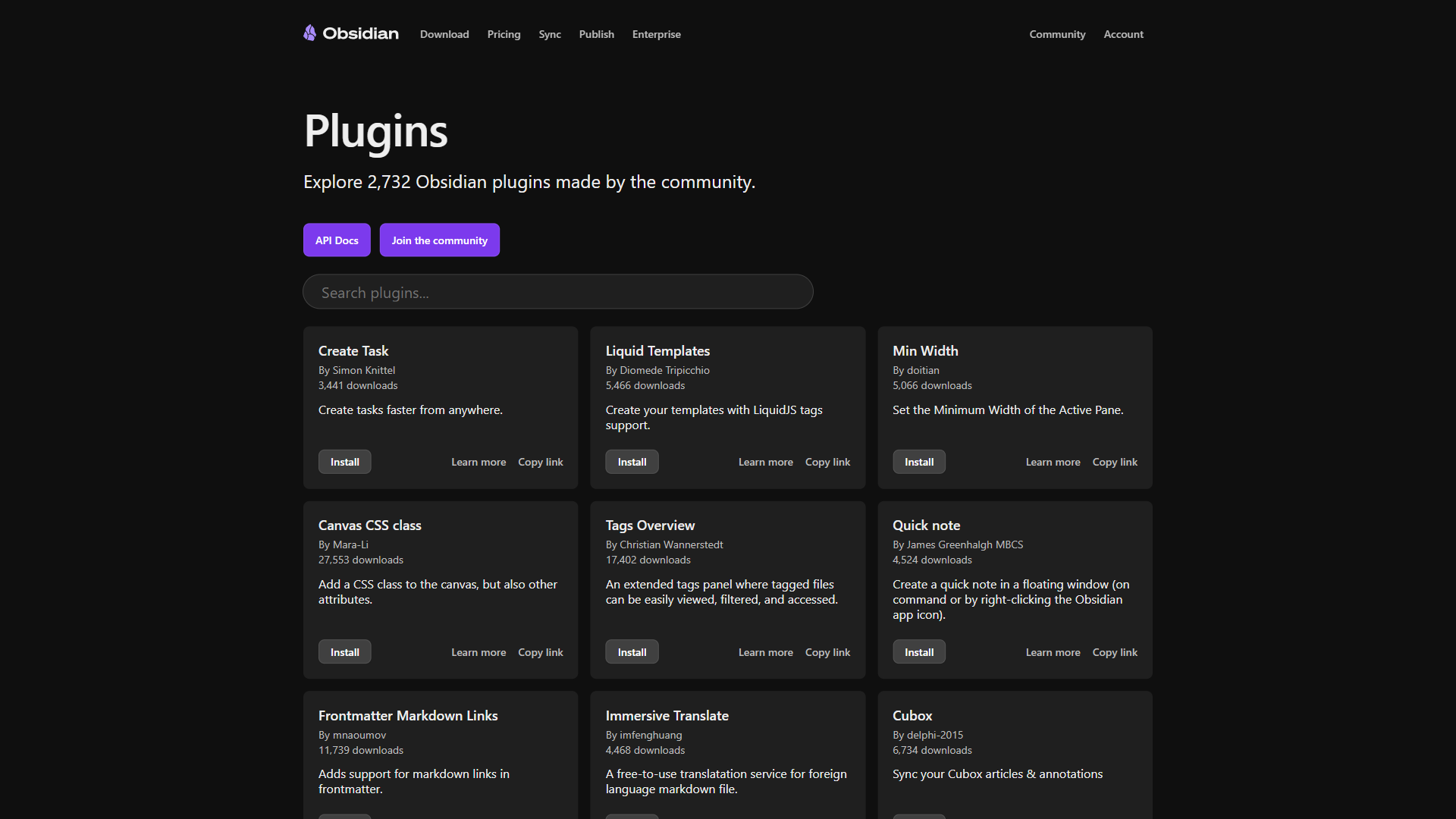
The core Daily Notes plugin handles the basics, but three community plugins take the workflow to another level. For a broader look at the plugin ecosystem, see our best Obsidian plugins for productivity roundup. Install them from Settings > Community Plugins > Browse.
1. Templater: Dynamic Templates
The Templater plugin replaces Obsidian’s basic template engine with full JavaScript-powered templates. This lets your daily notes auto-populate with dynamic data.
Practical examples:
- Auto-insert yesterday’s unfinished tasks. Templater can query yesterday’s note and pull forward any unchecked task items
- Dynamic date calculations. Insert “Days until project deadline: X” automatically
- Weather and context data. Pull in location, weather, or calendar data via API calls
A Templater-enhanced morning section might look like this:
## Morning Setup
> <% tp.date.now("dddd, MMMM D, YYYY") %>
> Week <% tp.date.now("ww") %> of <% tp.date.now("YYYY") %>

### Carried Over from Yesterday
<% tp.file.include("[[<% tp.date.now('YYYY-MM-DD', -1) %>]]") %>
2. Dataview: Query Your Daily Notes
The Dataview plugin turns your vault into a queryable database. For daily notes, this means you can create dashboards that aggregate information across hundreds of entries.
The Dataview documentation covers DQL syntax in depth, but a few queries cover 90% of daily-notes use cases.
Useful Dataview queries for daily notes:
- Unfinished tasks across all daily notes: Show every unchecked task from the past 30 days in one view
- Ideas tagged for development: Pull every
#ideamention into a single list, sorted by date - Meeting frequency tracker: Count how many meetings you logged per week to spot overload patterns
- Habit tracking: Track completion of recurring checklist items across weeks
Example query that pulls incomplete tasks from the last 7 days:
```dataview
TASK FROM "Daily Notes"
WHERE !completed
AND file.cday >= date(today) - dur(7 days)
SORT file.cday DESC
```
This single query eliminates the need for a separate task manager for most people. Your daily notes become the source of truth for what needs doing.
3. Calendar Plugin: Visual Navigation
The Calendar plugin adds a sidebar calendar that shows dots on dates that have daily notes. Click any date to open its note. This seems simple, but it eliminates the friction of navigating through folders to find a specific day’s entries.
The calendar also highlights days with more content (larger dots), giving you a visual pattern of your note-taking consistency. After a month, you can see at a glance which weeks were productive and which had gaps.
How Does the Weekly Review Turn Daily Notes into Knowledge?
Daily notes without a review process are a write-only system. The weekly review is where captured thoughts graduate to permanent notes, tasks get resolved, and patterns emerge.
The 30-Minute Weekly Review Process
Block 30 minutes every Friday or Sunday. Create a weekly review template:
# Weekly Review - {{date:YYYY-[W]ww}}

## Review Daily Notes
- [ ] Read through each daily note from this week
- [ ] Highlight ideas worth developing
- [ ] Close or carry forward open tasks

## Permanent Notes Created
- [[]]

## Patterns Noticed
-

## Next Week's Focus Areas
1.
2.
3.
The review loop works in three passes:
Pass 1 - Scan and flag (10 minutes). Skim each daily note from the week. Bold or highlight anything that still feels relevant. Most daily entries will be routine - that’s fine. You’re looking for the 10-20% that deserves a longer life.
Pass 2 - Create permanent notes (15 minutes). Take flagged items and develop them into standalone notes. A two-sentence observation about a design pattern becomes a 200-word note with examples and links to related concepts. This is the Zettelkasten process in action: fleeting notes become literature notes become permanent notes.
Pass 3 - Plan forward (5 minutes). Review incomplete tasks. Decide what carries into next week and what gets dropped. Set focus areas based on patterns you noticed.
Monthly and Quarterly Reviews
Once a month, review your weekly review notes (yes, it’s recursive). Look for:
- Recurring themes that deserve their own Map of Content (MOC) note
- Abandoned ideas that might be worth revisiting with fresh eyes
- Workflow bottlenecks where your template needs adjustment
For deeper review frameworks, the knowledge management ROI guide covers how teams quantify the value of structured note review.
Every quarter, audit your template itself. Add sections you keep manually adding. Remove sections you consistently skip. Your daily note template should evolve with your needs.
Obsidian daily notes workflow: Advanced Patterns for Power Users
Once the core system is running, these patterns add significant value.
Maps of Content (MOCs)
Create hub notes for major topics that link to both permanent notes and relevant daily note entries. For example, a [[Project Alpha MOC]] note might contain:
- Project goals and timeline
- Links to meeting notes from daily entries
- Decision log entries pulled from daily captures
- Links to related research notes
MOCs give you topic-level entry points into your daily note archive without requiring rigid folder hierarchies.
Daily Note Queries in Project Notes
Embed Dataview queries in project notes that automatically pull relevant daily note entries:
```dataview
LIST FROM "Daily Notes"
WHERE contains(file.outlinks, [[Project Alpha]])
SORT file.cday DESC
```
This query shows every daily note that links to your project - creating an automatic activity log without any manual tracking.
Interstitial Journaling
Instead of writing at fixed morning and evening times, practice interstitial journaling - add timestamped entries throughout the day as context switches happen:
**10:15** - Finished code review. The auth module needs refactoring.
  See [[authentication patterns]] for reference.

**11:30** - Product sync call. Decision: push launch to March.
  [[Project Alpha]] timeline updated.

**14:00** - Deep work block on documentation.
  Created [[API versioning guide]] from scattered notes.
This captures not just what you did, but the transitions between tasks - often where the most interesting observations live.
Common Pitfalls and How to Avoid Them
Over-templating. If your template has more than 10 sections, you’ll dread opening it. Start minimal and add structure only when you find yourself repeatedly creating sections manually.
Linking anxiety. Don’t stress about whether a link is “correct.” Link generously. Obsidian’s strength is that you can always refine connections later. An imperfect link today is better than no link.
Skipping the review. The weekly review is non-negotiable. Without it, daily notes become a growing pile of unprocessed thoughts. If 30 minutes feels like too much, start with 15 minutes reviewing just the last three days.
Trying every plugin. Obsidian’s 2,690+ plugin ecosystem is both a strength and a trap. Start with core plugins only. Add Templater and Dataview after your basic habit is solid - usually after 3-4 weeks of consistent daily notes.
Perfectionism. Some daily notes will be three bullet points. Others will be 500 words. Both are fine. Consistency matters more than quality in daily capture. The review process is where quality happens.
Getting Started: Your First Week
Day 1: Enable Daily Notes and Templates core plugins. Create your template. Write your first daily note using only the Capture section.
Day 2-3: Practice linking. Every time you mention a topic, person, or project, wrap it in [[brackets]]. Don’t worry about whether the target note exists.
Day 4-5: Add the Calendar plugin. Start using the morning setup section to plan your day. Notice which template sections you use and which you skip.
Day 6-7: Do your first weekly review. Create at least one permanent note from something you captured during the week. Adjust your template based on what worked. For pairing daily review with broader weekly planning, see our best note-taking apps 2026 roundup for tools that complement Obsidian.
Week 2 onward: Install Templater if you want dynamic templates. Install Dataview when you have enough daily notes to query meaningfully (usually after 2-3 weeks).
The goal of any Obsidian daily notes workflow isn’t a perfect system on day one. It’s a system that improves every week because you’re reviewing and refining it. After a month, your daily notes workflow will be uniquely yours - shaped by your actual habits, not someone else’s template.

The Bottom Line
A well-designed Obsidian daily notes workflow isn’t just about recording what happened today. It’s about building a system where every thought, meeting note, and fleeting idea has the potential to connect with everything else you know. The combination of templates for consistent capture, backlinks for automatic context, plugins for dynamic queries, and weekly reviews for knowledge development creates a personal knowledge management system that genuinely compounds over time.
The best part? Obsidian is free for personal use. You don’t need a subscription to start building your second brain - just a blank daily note and the willingness to link generously.
Frequently Asked Questions
Why do most people fail at Obsidian daily notes?
The problem is architecture, not discipline. Without a system connecting daily notes to the rest of your vault, entries become isolated journal fragments you never revisit. Templates, backlinks, and a weekly review loop are what separate a habit that sticks from one abandoned within two weeks.
What plugins are most useful for a daily notes workflow?
Three community plugins stand out: Templater adds JavaScript-powered dynamic templates, Dataview turns your vault into a queryable database so you can surface tasks and ideas across hundreds of entries, and Calendar adds a sidebar view that lets you click any date to open its note. Start with core plugins first, then add these after 3-4 weeks.
How do backlinks make daily notes more valuable over time?
Every time you wrap a topic in [[double brackets]], Obsidian creates a backlink on the target note. Six months later, opening a project note shows every daily entry where you mentioned it - complete with context. You don’t need to remember when an insight happened; the links do that automatically.
What does a weekly review look like for Obsidian daily notes?
A three-pass process works well: spend 10 minutes scanning and flagging the 10-20% of entries still worth developing, then 15 minutes turning flagged items into standalone permanent notes, then 5 minutes reviewing incomplete tasks and setting focus areas for the coming week. Without this review, daily notes become a write-only system.
How complex should an Obsidian daily note template be?
Keep it minimal. If your template has more than 10 sections, you’ll dread opening it. Start with just a Capture section, then add Morning Setup and End of Day reflection. Add new sections only when you find yourself repeatedly creating them manually - and remove any sections you consistently skip.
Want to learn more about Obsidian?
Related Guides
- Knowledge Management ROI - Measuring the value of structured note-taking
- Notion AI Workflows 2026 - Compare a Notion-based PKM workflow with Obsidian’s local-first approach
- AI Content Writing Workflow - How daily-notes capture feeds into longer-form drafting
Related Reading
Tools covered in this article:
- Notion - AI-powered workspace for notes, docs, and databases
- Craft - Beautiful AI writing and note-taking app
More knowledge management and note-taking guides:
- Obsidian vs Logseq - Choosing between document-first and outliner-first PKM
- Best Note-Taking Apps with Graph Views - Graph-based PKM tools compared
- Best Note-Taking Apps 2026 - Craft vs Notion vs Obsidian
- Knowledge Management ROI - Measuring the value of structured note-taking
External Resources
- Obsidian Daily Notes - Official Documentation
- Obsidian Templates - Official Documentation
- Building a Second Brain - Tiago Forte’s PKM Methodology
Related Guides
- AI Workflow Automation Maturity Model: 5 Levels
- Atlassian Intelligence Review: 2026 Pricing & Features
- Atlassian Tools for Developers: Jira, Confluence & Bitbucket
- Bitbucket Pipelines Guide: Compare CI/CD Tools in 2026
- Building AI First Workflows: A Practitioner's 2026 Guide
- ChatGPT Tips And Tricks: 2026 Walkthrough for Teams
- Claude Code Ultraplan & Plan Mode: Complete Guide (2026)
- Client Onboarding Automation: Automate Client Onboarding
- Craft Tips and Tricks: 12 Expert Hacks for Faster Docs
- Cursor AI Productivity Tips 2026 - 12 Hacks Compared