


In 2026, after exploring Later’s full feature set, there are capabilities that most users completely miss. Whether you are looking for Later tips and tricks 2022 carry-overs that still hold up or brand-new AI features, the visual calendar is just the beginning - the real power lies in Later’s AI-powered tools, bulk workflows, and engagement optimizations that can save you 5+ hours weekly.
TL;DR: Master the visual calendar’s drag-and-drop planning, use AI Caption Writer strategically (not for every post), enable Best Time to Post on everything, and build a saved hashtag system. These four habits alone can cut posting time by 60%.
Here are 12 tips to transform Later from a simple scheduler into your Instagram growth engine - covering Later tips and tricks instagram strategies, Later tips and tricks tiktok scheduling, and Later tips and tricks youtube publishing, so every platform you manage gets the same efficiency boost.
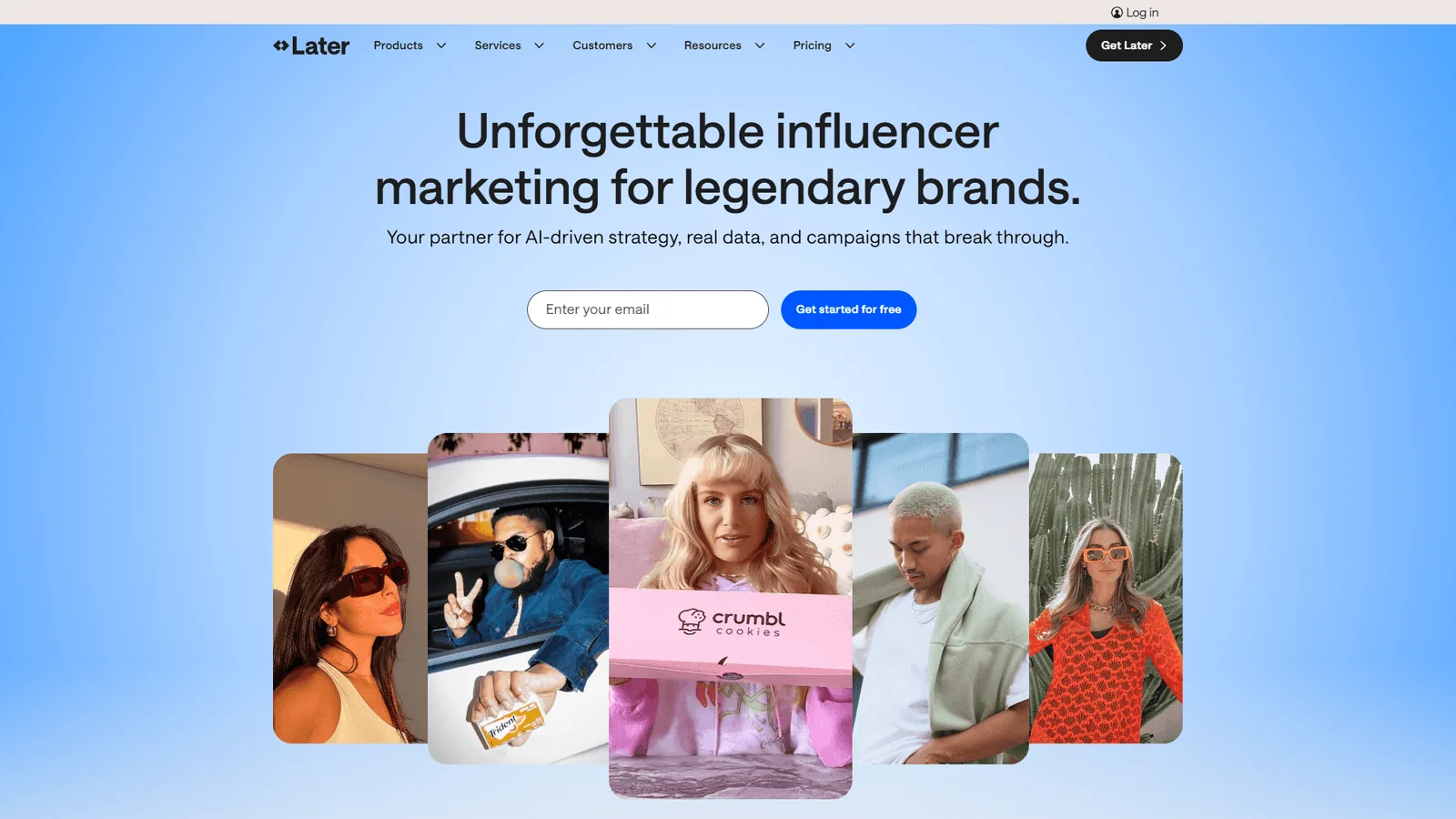
Later Tips and Tricks #1: Master the Visual Calendar Drag-and-Drop
When exploring later tips and tricks, consider the following.
Later’s visual calendar isn’t just for viewing your content - it’s the fastest way to plan an entire week’s posts in minutes, and it doubles as one of the best social media blog examples of how a drag-and-drop interface can replace a cluttered spreadsheet workflow.
How to use it effectively:
- Upload your week’s content in bulk (up to 20 images at once)
- Drag posts directly onto calendar slots to schedule
- Rearrange your grid preview by dragging between days
- Use the month view to spot gaps in your posting schedule
Pro tip: Before dragging posts, switch to the Instagram grid preview. This shows you exactly how your feed will look, letting you balance product shots, lifestyle images, and user-generated content visually.
This single workflow can save 2+ hours weekly compared to scheduling posts individually.
2. Set Up Saved Hashtag Groups
Typing the same hashtags repeatedly is a massive time sink. Later’s saved hashtag feature eliminates this entirely.
How to set it up:
- Go to Settings > Saved Hashtags
- Create groups by content type (e.g., “ProductPosts”, “BehindTheScenes”, “UserGenerated”)
- Include 20-30 hashtags per group (Instagram’s limit)
- Mix popular hashtags (1M+ posts) with niche ones (10K-100K posts)
Smart strategy: Create 5-6 groups and rotate between them. This prevents Instagram’s algorithm from flagging you for repetitive hashtag use while maintaining discoverability.
One click applies all hashtags instead of typing each time - a small change that saves 15+ minutes daily.
3. Enable Best Time to Post on Every Scheduled Post
Later’s AI analyzes your specific audience’s activity patterns to recommend optimal posting times. Most users ignore this feature completely.
How to enable it:
- When scheduling a post, look for “Best Time to Post” toggle
- Enable it to see your personalized recommendation
- Later shows your top 7 posting times based on historical engagement
For example, Best Time to Post recommendations often shift posting from morning creation hours to evening audience peak times. This kind of shift can increase engagement by 15% or more, a pattern echoed in Later’s own posting time research.
The AI gets smarter over time as it collects more data from your posts. Give it at least 2 weeks of consistent posting to calibrate.
4. Use AI Caption Writer Strategically (Not for Every Post)
Later’s Caption Writer AI generates 3 caption ideas per credit, with tone customization (casual, professional, custom). But here’s the thing - using it on every post wastes credits and produces generic content.
When to use AI captions:
- Product announcements where you need multiple angle options
- Days when you’re batch-creating content and need variety
- Posts where you’re stuck on the hook
When to skip AI captions:
- Personal stories or behind-the-scenes content (authenticity matters)
- Response posts or timely content (needs your voice)
- Highly niche content the AI won’t understand well
Credit management tip: Starter tier gives you 5 credits (15 caption ideas) monthly. Save them for your highest-stakes posts like product launches or promotional content. The same “AI for ideation, not final copy” rule applies in our LinkedIn content tips 2026 guide - generic AI copy underperforms on every major platform.
How Do You Bulk Upload a Month’s Content in Later?
Instead of uploading images one at a time, batch your entire content creation session.
The workflow:
- Create all your month’s visual content in one session
- Export to a dedicated folder on your computer
- In Later, click “Add Media” > “From Computer”
- Select all images at once (Ctrl+A or Cmd+A)
- Later uploads them to your Media Library
From there: Open your visual calendar and drag images onto schedule slots. One afternoon of content creation + 30 minutes of scheduling = an entire month handled.
This batch approach eliminates the daily “what should I post?” anxiety completely.
6. Create Linkin.bio Pages That Actually Convert
Linkin.bio isn’t just a link-in-bio tool - it’s a shoppable mini-store when connected to Shopify.
Setup checklist:
- Connect your Shopify store in Later’s integrations
- Enable “Shoppable Linkin.bio” in settings
- Tag products in your Instagram posts
- Create featured link sections for current promotions
Optimization tips:
- Put your highest-priority link at the top (sales page, new collection)
- Use post-specific links - each image can link to a different product
- Check Linkin.bio analytics weekly to see which posts drive clicks
Fashion retailer case study: One brand using Linkin.bio with Later achieved 168% ROI on their shoppable feed. The key was tagging every product post, not just promotional ones.
7. Use Later’s Conversations for Instagram DM Management (Growth Tier)
If you’re on the Growth tier ($50/month) or higher, Conversations lets you manage Instagram comments and DMs from Later’s dashboard - similar in spirit to dedicated tools covered in our best Instagram scheduler 2026 roundup.
Why this matters:
- Respond to comments without opening Instagram (fewer distractions)
- Use saved replies for common questions
- Track which posts generate the most engagement conversations
Saved replies setup:
- Create templates for FAQs: shipping questions, pricing inquiries, sizing guides
- Use placeholders like
{name}for personalization - Keep replies under 100 characters for authentic feel
Responding to comments within 1 hour signals Instagram’s algorithm that your content generates engagement - boosting your reach.
8. Schedule Instagram Stories with Auto-Publish
Yes, Later can auto-publish Instagram Stories now. This feature alone justifies the paid tier for many creators.
How it works:
- Upload vertical content (9:16 ratio) to your media library
- Schedule as “Story” instead of “Post”
- Add stickers, text, and interactive elements in Later
- Later publishes automatically - no phone notification required
Story scheduling strategy:
- Schedule 3-5 Stories per day, spread across morning, afternoon, and evening
- Use the first Story to drive traffic to your latest feed post
- End with a question sticker or poll for engagement
9. Create Content Pillars in Your Media Library
Later’s media library supports folders and labels. Use this to build a content pillar system - the same approach we recommend in the LinkedIn content tips 2026 guide for cross-platform creators.
Folder structure example:
Media Library/
├── Educational/
├── Product Features/
├── Behind-the-Scenes/
├── User-Generated/
├── Quotes & Tips/
└── Promotional/
The workflow:
- When you upload content, immediately sort into folders
- When planning your week, pull 2-3 pieces from each pillar
- This ensures variety without overthinking
Visual brands that maintain content diversity see 23% higher engagement than those posting repetitive content types.
10. Use Instagram Grid Preview Before Publishing
Later shows you exactly how your next 9-18 posts will look as an Instagram grid. This is crucial for brand consistency.
What to check:
- Color balance (not too many similar colors adjacent)
- Content type variety (product, lifestyle, UGC mixed)
- White space distribution
- Overall aesthetic cohesion
Pro tip: Plan your grid a week ahead, then use the preview to identify any visual clashes. It’s much easier to swap two posts’ positions in Later than to realize your feed looks off after publishing.
11. Set Up Approval Workflows for Teams (Growth Tier)
If you work with a team or clients, approval workflows prevent accidental posts.
How to configure:
- Go to Settings > Team > Approval Workflows
- Assign roles: Creator (can draft), Approver (can publish)
- Set notification preferences for pending approvals
For agency workflows:
- Client creates content or uploads from their phone
- You review in Later’s dashboard
- One-click approve sends to schedule
- Client never touches publishing settings
This eliminates the “wait, that wasn’t supposed to go live” panic that every social media manager knows.
12. Track Your Analytics Weekly (Not Daily)
Later’s analytics are powerful but checking daily creates anxiety without actionable insights.
Weekly review checklist:
- Top 3 performing posts (by engagement rate, not just likes)
- Worst 3 performers (learn what to avoid)
- Best posting times (has the AI recommendation changed?)
- Follower growth trend
- Linkin.bio click-through rate
Monthly review additions:
- Content pillar performance (which type gets most engagement?)
- Hashtag group effectiveness
- Carousel vs. single image performance
Later’s Growth tier gives you 1 year of data retention. Use this to spot seasonal trends - your best-performing content type in December might differ from July.
What Hidden Later Settings Do Most Users Miss?
These small tweaks make a big difference:
| Field | Value |
|---|---|
| Auto-post timezone | Set to your audience’s timezone, not yours |
| First comment auto-publish | Schedule hashtags as a first comment instead of in caption |
| Media Library cleanup | Delete unused uploads monthly to keep library organized |
| Instagram Insights sync | Connect for deeper analytics (requires Instagram Business account) |
Common Pitfalls That Slow Later Users Down
Even seasoned schedulers run into the same handful of friction points. Avoiding these cuts hours off your weekly workflow:
Skipping the media library. Some users upload images one-at-a-time at scheduling time. The whole batch model breaks if you do this. Always upload to the library first, then drag from there to calendar slots. Our best social media management tools roundup compares this batch-first approach against competing platforms.
Treating AI captions as a final draft. Caption Writer is a brainstorming tool. The first 3 suggestions are starting points, not publishable copy. Edit for voice, add specific numbers, and trim filler before scheduling. Generic AI captions get the same algorithmic suppression as recycled content.
Ignoring Linkin.bio analytics. Most users set up Linkin.bio once and never check the click-through data. Reviewing weekly tells you which feed posts actually drive traffic, which is worth more than vanity metrics like reach or impressions.
Posting without grid preview. Two posts published back-to-back can clash visually even if each looks great alone. The grid preview catches these issues. Skipping it means publishing a feed that looks accidentally chaotic to new visitors landing on your profile.
Mixing scheduled timezones. Later defaults to your account timezone. If your audience is on the US east coast and you’re traveling in Europe, a 7am-EST scheduled post will misfire if you forget to switch the account timezone. Set the audience timezone once and forget about it.
Hoarding old hashtags. Saved hashtag groups go stale. Run a quarterly review of which groups still bring in reach. Instagram’s hashtag policy guidance explains why irrelevant hashtags actually drag posts down, so a #shopsmall group from 2023 may now be hurting visibility rather than helping it. For platforms beyond Instagram, our best social media scheduling tools 2026 roundup covers how Buffer, Hootsuite, and others handle the same hashtag staleness problem.
The Bottom Line
You don’t need to implement all 12 tips at once. Start with:
- This week: Set up saved hashtag groups and enable Best Time to Post
- Next week: Bulk upload your content and master the visual calendar
- Week three: Connect Linkin.bio with product tagging
- Week four: Review your first month’s analytics with fresh eyes
Later’s power isn’t in any single feature - it’s in how these features compound. Visual planning + AI timing + saved hashtags + batch scheduling = a social media workflow that runs itself.
If you want a single starting point, open Later and enable Best Time to Post on your next 5 scheduled posts - that one toggle alone is responsible for most of the engagement lift readers report. From there, layer in saved hashtag groups, then graduate into the later tips and tricks guide areas you have not yet touched.
For more information about later tips and tricks, see the resources below.
Frequently Asked Questions
How much does Later cost per month?
Later’s Starter plan begins at $25/month with 1 social set and the AI Caption Writer included. Growth ($50/month) adds Conversations for DM management, approval workflows, and longer analytics retention. Advanced and Agency tiers scale up to multiple social sets and team seats. Check the current Later pricing page before committing - tier inclusions shift periodically.
How much time can Later tips and tricks actually save?
Mastering four core habits - visual calendar drag-and-drop planning, strategic AI Caption Writer use, enabling Best Time to Post, and building a saved hashtag system - can cut posting time by 60%. Combined with batch scheduling, one afternoon of content creation plus 30 minutes of scheduling can cover an entire month.
How does Later’s Best Time to Post feature work?
When scheduling a post, toggle on Best Time to Post to see your top 7 personalized posting times based on historical engagement data. The AI refines its recommendations over time - give it at least 2 weeks of consistent posting to calibrate. Shifting to audience peak times can increase engagement by 15% or more.
How many AI caption credits does Later’s Starter tier include?
Later’s Starter tier provides 5 credits monthly, each generating 3 caption ideas, for a total of 15 caption options. To avoid wasting credits on generic content, save them for high-stakes posts like product launches or promotional content rather than using AI captions on every post.
What is the best way to use Later’s saved hashtag groups?
In Settings > Saved Hashtags, create 5-6 groups organized by content type, each containing 20-30 hashtags that mix popular tags (1M+ posts) with niche ones (10K-100K posts). Rotating between groups prevents Instagram’s algorithm from flagging repetitive hashtag use while keeping your content discoverable.
Does Later auto-publish Instagram Reels and Stories?
Yes. Later supports auto-publishing for Instagram feed posts, Reels, and Stories without push-notification reminders. Upload vertical 9:16 content, schedule it as the appropriate format, and Later handles publishing on your behalf - no phone tap required at the scheduled time.
Can Later schedule TikTok and YouTube Shorts together?
Yes. Later auto-publishes TikTok videos and YouTube Shorts directly from the same calendar you use for Instagram. The visual calendar lets you cross-post a single piece of vertical video to all three networks in one drag, which is the fastest way to multiply reach without duplicating creative work.
Related Guides
- LinkedIn Content Tips 2026
- Social Media ROI Calculator
- Predis AI Social Media Content Guide
- Fliki Social Media Videos Tutorial
Want to learn more about Later?
Related Reads
Tools covered in this article:
- Later - Visual social media scheduler
- Buffer - Social media management
- Hootsuite - Enterprise social platform
More social media guides:
- Best Instagram Scheduler 2026 - Instagram tools compared
- Best Social Media Management Tools 2026 - Social platforms
- Hootsuite Alternatives - Top Hootsuite competitors compared
External Resources
For official Later documentation and updates:
- Later Blog - Visual content planning strategies and Instagram marketing tips
- Later Help Center - Feature tutorials and Linkin.bio setup guides