


Claude Code hooks are user-defined shell commands that execute automatically at specific points during Claude’s operation. They act as middleware for your AI coding assistant, intercepting actions, modifying behavior, and providing feedback without manual intervention. This guide covers the four hook types - PreToolUse, PostToolUse, Notification, and Stop - plus configuration, practical examples, matchers, and debugging.
In 2026, Claude Code hooks represent one of the most powerful yet underutilized features for developers seeking to customize their AI coding experience. By intercepting tool executions at strategic points, hooks enable you to enforce coding standards, automate repetitive tasks, and create sophisticated workflows that would otherwise require manual intervention.
This deep dive explores every aspect of Claude Code’s hook system, from basic configuration to advanced patterns that can transform how you interact with AI-assisted development.
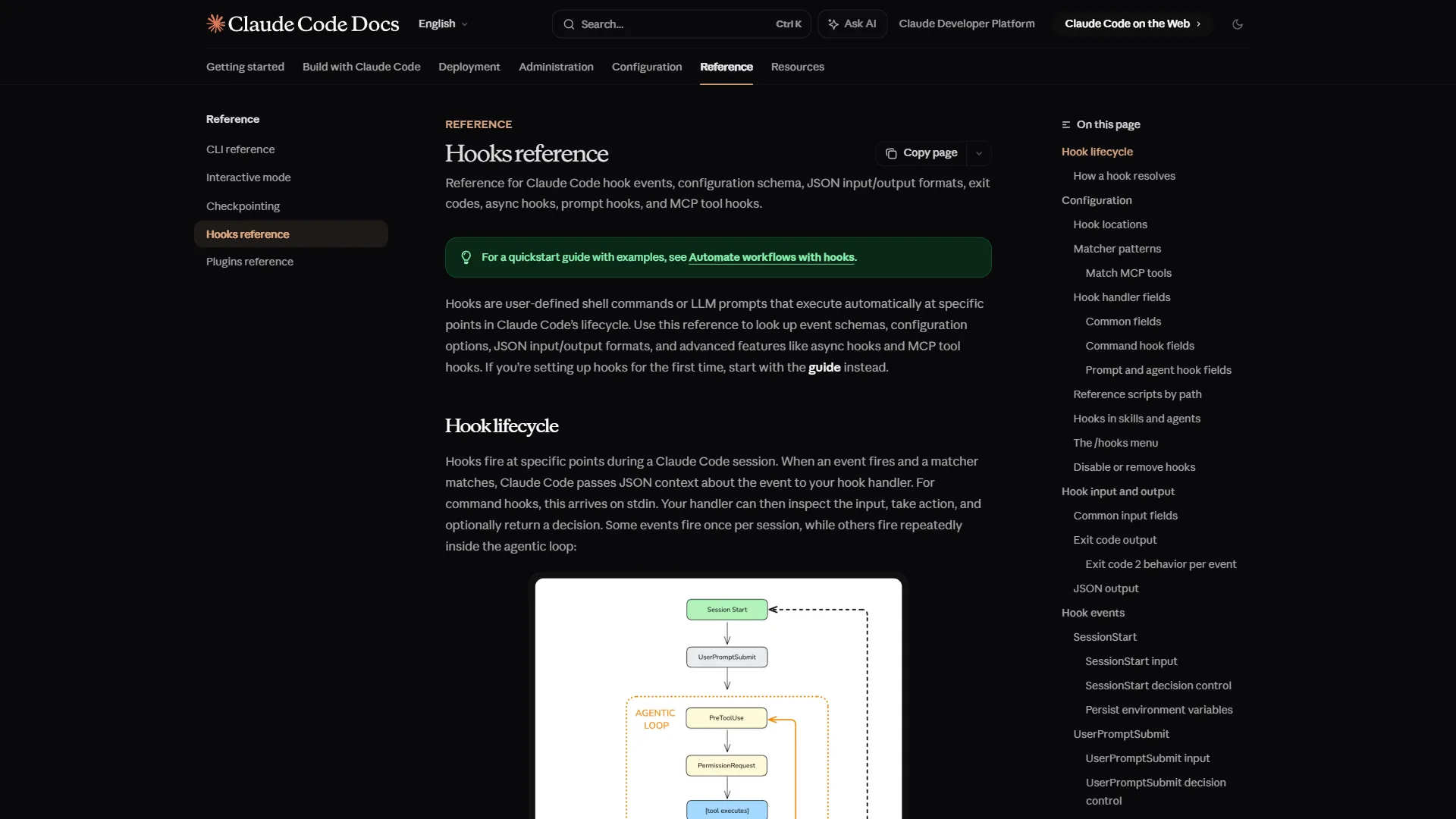
What Are Claude Code Hooks and Why Do They Matter?
Claude Code Hooks covers the strategies and tools that deliver real productivity gains in this space. In 2026, Claude Code hooks represent one of the most powerful yet underutilized features for. This guide walks through the practical steps from setup through advanced optimization.
Hooks in Claude Code are user-defined shell commands that execute automatically at specific points during Claude’s operation. Think of them as middleware for your AI coding assistant - they intercept actions, can modify behavior, and provide feedback without requiring you to manually intervene each time. The concept is similar to Git hooks, which automate tasks at key points in the Git workflow.
Why Hooks Matter
Without hooks, every interaction with Claude Code is isolated. You might want to:
- Automatically format code after Claude edits a file
- Run linters before committing changes
- Log all file modifications for audit purposes
- Block certain operations in production directories
- Enforce team coding standards automatically
Hooks make all of this possible through a declarative configuration that runs behind the scenes.
Hook Types Explained
Claude Code supports four distinct hook types, each serving a specific purpose in the execution lifecycle.
PreToolUse Hooks
PreToolUse hooks execute before Claude runs any tool. They’re your first line of defense for validation and can completely block operations.
{
  "hooks": {
    "PreToolUse": [
      {
        "matcher": "Edit",
        "command": "python validate_edit.py \"$FILE_PATH\""
      }
    ]
  }
}
Common use cases include:
- Validating file paths before edits
- Checking permissions
- Enforcing file naming conventions
- Blocking edits to protected files
PostToolUse Hooks
PostToolUse hooks run after a tool completes successfully. They’re ideal for cleanup, formatting, and verification tasks.
{
  "hooks": {
    "PostToolUse": [
      {
        "matcher": "Edit",
        "command": "prettier --write \"$FILE_PATH\""
      }
    ]
  }
}
Use PostToolUse hooks for:
- Auto-formatting edited files
- Running tests after code changes
- Updating documentation
- Triggering build processes
Notification Hooks
Notification hooks fire when Claude sends messages or completes significant milestones. They’re perfect for external integrations.
{
  "hooks": {
    "Notification": [
      {
        "matcher": "*",
        "command": "notify-send 'Claude Code' \"$MESSAGE\""
      }
    ]
  }
}
Stop Hooks
Stop hooks execute when Claude completes a task or conversation. Use them for cleanup, logging, or triggering follow-up processes.
{
  "hooks": {
    "Stop": [
      {
        "command": "python log_session.py \"$SESSION_ID\""
      }
    ]
  }
}
How Do You Configure Hooks in settings.json?
Hooks are configured in your Claude Code settings file, typically located at .claude/settings.json in your project root or ~/.claude/settings.json for global settings.
Basic Configuration Structure
{
  "hooks": {
    "PreToolUse": [],
    "PostToolUse": [],
    "Notification": [],
    "Stop": []
  }
}
Hook Object Properties
Each hook object supports these properties:
| Property | Type | Description |
|---|---|---|
matcher | string | Pattern to match tool names or events |
command | string | Shell command to execute |
timeout | number | Maximum execution time in milliseconds |
environment | object | Additional environment variables |
What Are Some Practical Claude Code Hook Examples?
Let’s explore real-world hooks that solve common development challenges.
Auto-Formatting After Edits
Keep your codebase consistently formatted without manual intervention:
{
  "hooks": {
    "PostToolUse": [
      {
        "matcher": "Edit",
        "command": "npx prettier --write \"$FILE_PATH\" 2>/dev/null || true"
      },
      {
        "matcher": "Write",
        "command": "npx prettier --write \"$FILE_PATH\" 2>/dev/null || true"
      }
    ]
  }
}
The || true ensures the hook doesn’t fail if Prettier encounters an unsupported file type.
Enforcing Workflow Steps Before Commits
Prevent commits without proper validation:
{
  "hooks": {
    "PreToolUse": [
      {
        "matcher": "Bash",
        "command": "python check_commit_ready.py \"$COMMAND\""
      }
    ]
  }
}
The validation script (check_commit_ready.py):
import sys
import json

command = sys.argv[1] if len(sys.argv) > 1 else ""

if "git commit" in command:
    # Check if tests passed
    # Check if linting passed
    # Verify changelog updated
    checks_passed = run_all_checks()
    if not checks_passed:
        print("BLOCK: Pre-commit checks failed")
        sys.exit(1)

sys.exit(0)
Custom Notifications on Task Completion
Get notified when Claude finishes significant work:
{
  "hooks": {
    "Stop": [
      {
        "command": "curl -X POST https://your-webhook.com/claude-complete -d '{\"session\": \"$SESSION_ID\"}'"
      }
    ]
  }
}
Blocking Dangerous Operations
Protect production directories from accidental modifications:
{
  "hooks": {
    "PreToolUse": [
      {
        "matcher": "Edit",
        "command": "python block_production.py \"$FILE_PATH\""
      },
      {
        "matcher": "Write",
        "command": "python block_production.py \"$FILE_PATH\""
      },
      {
        "matcher": "Bash",
        "command": "python check_safe_command.py \"$COMMAND\""
      }
    ]
  }
}
Hook Matchers Deep Dive
Matchers determine which tools trigger your hooks. Understanding matcher patterns is crucial for precise hook targeting.
Exact Tool Matching
Match specific tools by name:
{
  "matcher": "Edit"
}
Wildcard Matching
Match all tools:
{
  "matcher": "*"
}
Multiple Tool Matching
Use arrays for multiple tools (when supported):
{
  "matcher": ["Edit", "Write", "NotebookEdit"]
}
Pattern-Based Matching
Some configurations support glob-style patterns:
{
  "matcher": "Bash:*git*"
}
Environment Variables in Hooks
Claude Code passes contextual information to hooks through environment variables:
| Variable | Description |
|---|---|
$FILE_PATH | Path to the file being operated on |
$TOOL_NAME | Name of the tool being executed |
$COMMAND | For Bash hooks, the command being run |
$SESSION_ID | Current session identifier |
$MESSAGE | For notification hooks, the message content |
Custom Environment Variables
Add your own variables for hook scripts:
{
  "hooks": {
    "PostToolUse": [
      {
        "matcher": "Edit",
        "command": "python format_with_config.py",
        "environment": {
          "CONFIG_PATH": "/path/to/config",
          "STRICT_MODE": "true"
        }
      }
    ]
  }
}
Advanced Hook Patterns
Chaining Multiple Hooks
Execute multiple actions in sequence:
{
  "hooks": {
    "PostToolUse": [
      {
        "matcher": "Edit",
        "command": "prettier --write \"$FILE_PATH\""
      },
      {
        "matcher": "Edit",
        "command": "eslint --fix \"$FILE_PATH\""
      },
      {
        "matcher": "Edit",
        "command": "python update_docs.py \"$FILE_PATH\""
      }
    ]
  }
}
Hooks execute in order, and a failure in one doesn’t prevent subsequent hooks from running (unless configured otherwise).
Conditional Execution
Build intelligence into your hooks:
#!/usr/bin/env python
# conditional_format.py
import sys
import os

file_path = os.environ.get('FILE_PATH', '')

# Only format TypeScript and JavaScript
if file_path.endswith(('.ts', '.tsx', '.js', '.jsx')):
    os.system(f'prettier --write "{file_path}"')
elif file_path.endswith('.py'):
    os.system(f'black "{file_path}"')
elif file_path.endswith('.go'):
    os.system(f'gofmt -w "{file_path}"')

sys.exit(0)
Stateful Hooks with External Storage
Track state across hook executions:
#!/usr/bin/env python
# track_edits.py
import json
import os
from datetime import datetime

STATE_FILE = '.claude/edit_history.json'

def load_state():
    if os.path.exists(STATE_FILE):
        with open(STATE_FILE) as f:
            return json.load(f)
    return {'edits': []}

def save_state(state):
    os.makedirs(os.path.dirname(STATE_FILE), exist_ok=True)
    with open(STATE_FILE, 'w') as f:
        json.dump(state, f, indent=2)

state = load_state()
state['edits'].append({
    'file': os.environ.get('FILE_PATH'),
    'timestamp': datetime.now().isoformat(),
    'tool': os.environ.get('TOOL_NAME')
})
save_state(state)
Debugging Hooks
When hooks don’t behave as expected, use these debugging strategies.
Enable Verbose Logging
Add logging to your hook scripts:
import sys
import os
import logging

logging.basicConfig(
    filename='.claude/hooks.log',
    level=logging.DEBUG,
    format='%(asctime)s - %(message)s'
)

logging.debug(f"Hook triggered: {os.environ}")
logging.debug(f"Arguments: {sys.argv}")
Test Hooks Manually
Run hook commands directly to verify they work:
FILE_PATH="test.ts" python your_hook.pyCheck Exit Codes
Hooks use exit codes to communicate:
0: Success, continue execution- Non-zero: For PreToolUse, blocks the operation
Common Issues
Hook not triggering:
- Verify matcher spelling matches exact tool name
- Check file path in settings.json is correct
- Ensure the command is executable
Hook blocking unexpectedly:
- Add
|| trueto commands that might fail - Check script exit codes
- Review stderr output
Best Practices
Keep Hooks Fast
Hooks run synchronously and can slow down your workflow. Keep them under 1-2 seconds:
{
  "timeout": 2000
}
Fail Gracefully
Never let a hook break your entire workflow:
prettier --write "$FILE_PATH" 2>/dev/null || trueUse Project-Level Hooks
Keep hooks in .claude/settings.json within your project for team consistency rather than global settings.
Version Control Hook Scripts
Store hook scripts in your repository:
.claude/
├── settings.json
└── hooks/
    ├── format.py
    ├── validate.py
    └── notify.sh
Document Hook Behavior
Add comments explaining what each hook does:
{
  "hooks": {
    "PostToolUse": [
      {
        "_comment": "Auto-format TypeScript files after editing",
        "matcher": "Edit",
        "command": "prettier --write \"$FILE_PATH\""
      }
    ]
  }
}
Common Pitfalls and How to Avoid Them
After running hooks across several large repos with Claude Code, the same handful of mistakes show up again and again. Reviewing them here will save you a debugging session later.
Pitfall 1: Hooks that block silently. If a PreToolUse hook exits non-zero with no stderr output, Claude Code blocks the operation but the user has no idea why. Always print a one-line reason to stderr before exiting non-zero, even in the happy-path “I am intentionally blocking this” case. The reason text shows up in the Claude UI and gives the human a clear repair action.
Pitfall 2: Synchronous hooks that touch the network. A PostToolUse hook that POSTs to a webhook on every Edit feels harmless until your network has a 30-second timeout and every file save stalls the entire session. If a hook needs to call out, fork it into the background ((curl ... &) >/dev/null 2>&1) or buffer the events to disk and flush them via a Stop hook.
Pitfall 3: Path-based logic that breaks on Windows. Hook scripts written on macOS often use POSIX path separators and $HOME. On Windows under Git Bash or WSL, $FILE_PATH may arrive with backslashes or a C:\Users\... prefix. Normalize paths inside the script (os.path.normpath in Python, path.resolve in Node) before any string comparisons.
Pitfall 4: Hooks that grow into bash megaliths. If your hook command line is more than two pipes long, move it into a versioned script under .claude/hooks/ and call the script from the JSON. Inline shell pipelines are unreadable and impossible to test in isolation; an extracted script can be unit-tested with mocked environment variables.
Pitfall 5: Forgetting to reload settings. Edits to .claude/settings.json only take effect on a fresh Claude Code session. Many “my hook isn’t firing” tickets are really “you edited settings mid-session and the harness still has the old config cached.” Always restart the session after settings changes before debugging further.
How Do Claude Code Hooks Compare to Other AI Coding Tools?
Claude Code’s hook system is notably more flexible than alternatives. GitHub Copilot lacks user-configurable hooks entirely, while Cursor provides limited customization through settings but nothing approaching the programmatic control of Claude Code hooks. This aligns with developer surveys showing that customization and control are top priorities when adopting AI coding tools.
Conclusion
Claude Code hooks transform your AI coding assistant from a reactive tool into a proactive development partner. By automating formatting, enforcing standards, and integrating with your existing toolchain, hooks eliminate repetitive tasks and ensure consistency across your codebase. Teams already running Cursor or GitHub Copilot alongside Claude Code can use the same Prettier/ESLint commands across all three so output stays consistent regardless of which assistant made the edit.
Start with simple PostToolUse hooks for auto-formatting, then gradually add PreToolUse validation as you identify patterns in your workflow. Our Claude Code prompt engineering guide pairs well with hooks - prompts shape intent, hooks enforce output. The investment in hook configuration pays dividends every time Claude makes a change that automatically conforms to your team’s standards.
For more Claude Code customization, explore the official documentation and consider combining hooks with custom slash commands for even more powerful automation.
Frequently Asked Questions
What are Claude Code hooks?
Claude Code hooks are user-defined shell commands that execute automatically at specific points during Claude’s operation. They act as middleware for your AI coding assistant, intercepting actions, modifying behavior, and providing feedback without manual intervention. The concept is similar to Git hooks, which automate tasks at key points in the Git workflow. Unlike Git hooks, Claude Code hooks fire on tool-level events - every Edit, Write, or Bash invocation - giving you fine-grained control over how Claude interacts with your codebase.
What types of Claude Code hooks are available?
Claude Code supports four hook types. PreToolUse hooks run before a tool executes and can block operations entirely by exiting non-zero. PostToolUse hooks run after a tool completes successfully and are ideal for cleanup or formatting. Notification hooks fire on messages and milestones for external integrations like Slack or webhooks. Stop hooks execute when Claude completes a task or conversation, perfect for cleanup, audit logging, or triggering follow-up workflows like CI runs.
Where do you configure Claude Code hooks?
Hooks are configured in your Claude Code settings file, typically located at .claude/settings.json in your project root for project-specific behavior, or ~/.claude/settings.json for global settings. The configuration uses a JSON structure with PreToolUse, PostToolUse, Notification, and Stop arrays. Each hook object supports matcher, command, timeout, and environment properties. Project-level configuration is the better choice for team consistency since the file can be checked into version control.
Can Claude Code hooks enforce coding standards automatically?
Yes. PostToolUse hooks can auto-format edited files with tools like Prettier, and PreToolUse hooks can validate file paths, check permissions, enforce naming conventions, or block edits to protected files. A common pattern is running npx prettier --write on every Edit or Write tool use, with || true appended so the hook does not fail on unsupported file types. For stricter enforcement, combine a PreToolUse validator (rejects bad input) with a PostToolUse formatter (cleans up acceptable input).
How do I debug a hook that is not firing?
Three things to check. First, verify the matcher spelling matches the exact tool name (case-sensitive Edit, not edit). Second, confirm the settings file path is correct - project hooks live at .claude/settings.json and global hooks at ~/.claude/settings.json. Third, run the hook command directly in your shell with the relevant environment variables set (for example, FILE_PATH=test.ts python your_hook.py) to confirm the script itself works. Add file logging to the script for ongoing visibility.
Want to learn more about Claude Code?
Related Guides
- Claude Code Prompt Engineering - The CRISP framework for better coding prompts
- Claude Code Skills Tutorial - Build custom automation with reusable skills
- Claude Code Simplifier Pre-Commit Hook - A practical hook that enforces code cleanup
- Building MCP Servers Guide - Extend Claude Code with custom data sources
- AI Agent Orchestration Patterns - Coordinating multi-step AI workflows
External Resources
For official documentation and updates:
- Claude Code Documentation - Official Anthropic docs
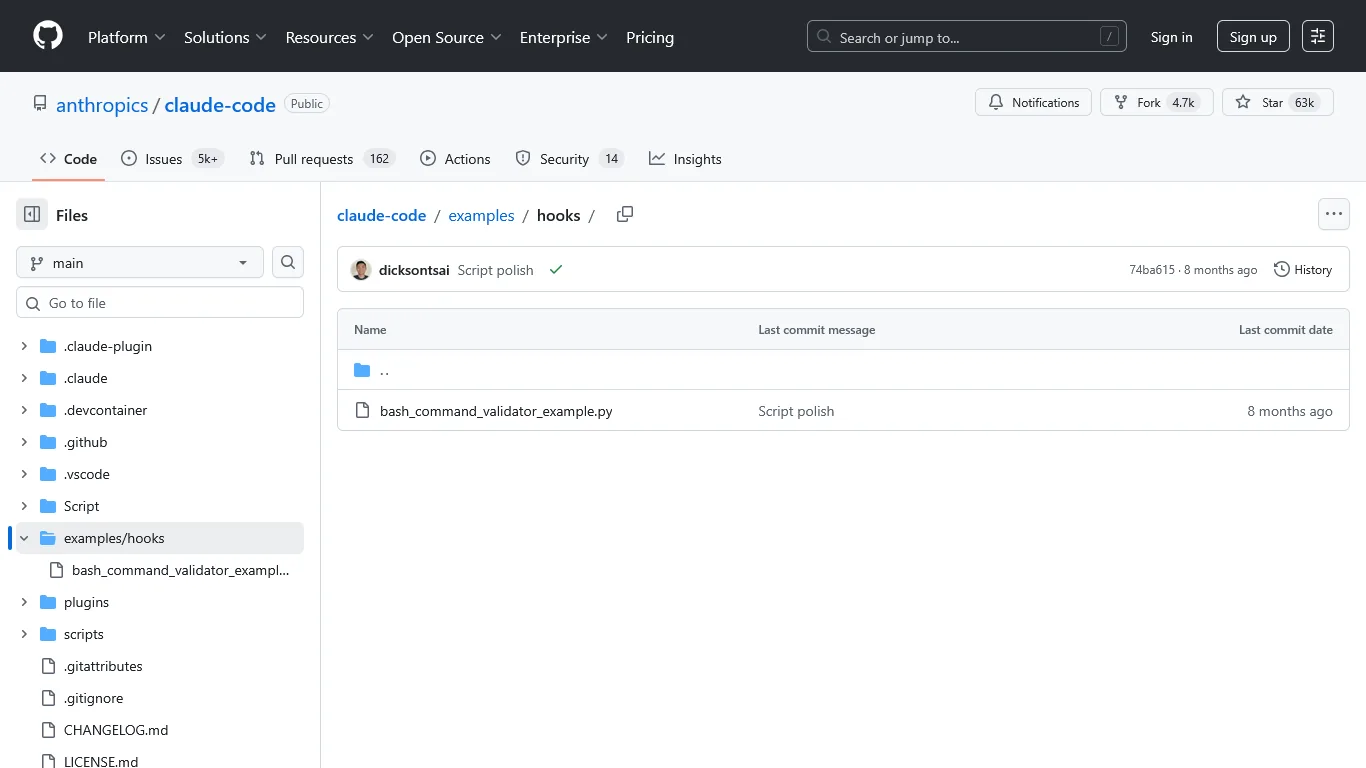
- Claude Code GitHub - Source code and examples
- GitHub Copilot - Official website
- Cursor - Official website
Related Guides
- AI Agent Orchestration: Patterns That Scale in 2026
- AI Productivity Trends 2026: 6 Real Shifts, No Hype
- Building AI First Workflows: A Practitioner's 2026 Guide
- Building Mcp Servers Guide: 2026 Walkthrough for Teams
- ChatGPT Custom GPTs Guide - Save 130+ Hours a Year
- Claude Code Simplifier Pre-commit Hook: Complete 2026 Guide
- Claude Code Skills Tutorial: 2026 Walkthrough for Teams
- Claude Code Tips and Tricks (2026): 10 Power Workflows
- Claude Code Ultraplan & Plan Mode: Complete Guide (2026)
- Cursor AI Productivity Tips 2026 - 12 Hacks Compared