



A Wispr Flow voice dictation guide describes how to replace typing with speaking across emails, documentation, and Slack messages. Used correctly, Wispr Flow cuts writing time by 60 to 75 percent. This guide walks through initial setup, advanced workflows, and role-specific strategies for writers, developers, and project managers who create text daily.
If you spend more than two hours a day writing emails, documentation, Slack messages, or content, this Wispr Flow voice dictation guide will show you how to cut that time by 60-75%. I have been using Wispr Flow for several months, and the shift from typing everything to speaking naturally has changed how I approach writing entirely. The speed gains are real - but only if you set it up correctly and learn the features that matter.
This guide walks through everything from initial setup to advanced workflows, with role-specific strategies for writers, developers, project managers, and anyone else who creates text for a living.
What Makes Wispr Flow Different from Built-In Dictation
Before diving into the setup, it is worth understanding why Wispr Flow exists when every operating system already has dictation built in. Apple Dictation and Google Voice Typing handle basic speech-to-text, but they stop there. You get raw transcription with no formatting, no punctuation intelligence, and no ability to edit what you just said using your voice.
Wispr Flow adds three layers on top of raw transcription:
- AI auto-editing - Automatically inserts punctuation, removes filler words like “um” and “uh,” and structures your speech into clean sentences. You speak naturally and the output reads like you typed it carefully.
- Context-aware formatting - The tool detects whether you are writing in Slack, Gmail, Notion, or a code editor and adjusts tone and formatting accordingly. A Slack message comes out casual. An email comes out professional.
- Command Mode - Instead of reaching for the keyboard to fix a sentence, you say things like “rewrite the last paragraph to be more concise” or “capitalize the word ‘enterprise’ in the previous sentence.” This keeps you in voice mode for both creation and editing.
Wispr Flow currently holds across review platforms, reflecting strong enthusiasm from power users alongside some growing pains around resource usage and support responsiveness.
Getting Started: Setup and First Dictation
Installation and Configuration
Wispr Flow runs on Mac, Windows, and iOS. The desktop app installs like any other application - download from the Wispr Flow website, grant microphone permissions, and you are ready to go. The Wispr Flow professional writing setup guide covers configuration in greater depth.
Key setup steps:
- Microphone selection - If you use an external mic (recommended for accuracy), select it in Wispr Flow’s settings rather than relying on system default
- Activation shortcut - The default hotkey works across all applications. I suggest keeping the default at first and only customizing once you have built muscle memory
- Custom dictionary - Add names, technical terms, and brand names that standard speech recognition would miss. This step alone prevents 80% of early frustration
- Language preference - Set your primary language, though Wispr Flow automatically detects and switches between 100+ languages during dictation
Your First Dictation Session
Start with something low-stakes. Open a notes app or a draft email and hold the activation key. Speak at your normal pace - do not slow down or over-enunciate. Wispr Flow’s AI model is trained on natural speech patterns, so speaking normally actually produces better results than speaking robotically.
Common first-session mistakes to avoid:
- Speaking too slowly - The AI handles natural speed. Slowing down creates awkward spacing and worse punctuation predictions
- Saying punctuation aloud - You do not need to say “period” or “comma.” The AI adds these automatically based on your speech patterns
- Stopping after every sentence - Dictate in longer bursts. The AI uses surrounding context to improve accuracy, so longer passages produce cleaner output than individual sentences
The official demo above shows how dictation flows across different apps in real time. What it does not cover - and what makes the difference between casual use and genuine productivity transformation - is how to structure your dictation sessions around specific work types. That is what the rest of this Wispr Flow voice dictation guide focuses on.
Mastering Command Mode
Command Mode is the feature that separates Wispr Flow from every other dictation tool I have tested. Without it, voice dictation is a one-way street: you speak, text appears, and then you grab the keyboard to fix things. Command Mode keeps you in voice mode for the entire writing process.
How Command Mode Works
After dictating text, activate Command Mode and speak instructions about what you want to change. The AI interprets your intent and modifies the text accordingly.
Editing commands that work well:
- “Make the last sentence shorter”
- “Rewrite the previous paragraph in a more formal tone”
- “Delete the last two sentences”
- “Move the bullet about pricing to the top of the list”
- “Fix the grammar in the last paragraph”
Formatting commands:
- “Turn the last three sentences into bullet points”
- “Add a heading before the paragraph about security”
- “Bold the phrase ‘enterprise-grade compliance‘“
Command Mode Limitations
Command Mode works best for local edits - modifying text you just dictated or text that is currently visible. It struggles with instructions that reference content far above the current cursor position or that require understanding complex document structure. For those situations, you are better off using keyboard shortcuts to navigate first, then activating Command Mode for the specific edit.
Wispr Flow Voice Dictation Guide for Specific Roles
The biggest mistake I see new users make is treating voice dictation the same way regardless of what they are writing. A developer dictating code comments needs a different approach than a marketer drafting social posts. Here are role-specific workflows that I have refined through daily use.
For Writers and Content Creators
Voice dictation transforms long-form writing from a grind into a flow state. If you already rely on AI writing tools for drafting and editing, adding voice input on top of that stack is a natural next step. The key is separating the drafting phase from the editing phase completely.
Workflow: First Draft Sprint
- Outline your piece with bullet points (keyboard is fine here)
- For each section, activate Wispr Flow and speak your thoughts without worrying about perfection
- Move to the next section immediately - do not stop to read what you just dictated
- After completing all sections, switch to keyboard mode for structural editing
- Use Command Mode for sentence-level rewrites during the polishing pass
This approach works because it uses the natural speed advantage of voice (150+ words per minute versus 40-60 typing) while avoiding the temptation to self-edit during the creative phase. I consistently produce 2,000-word first drafts in 25-30 minutes using this method, compared to 90+ minutes typing.
For Developers
Voice dictation for coding sounds counterintuitive, but it excels in specific developer workflows. You are not going to dictate raw code faster than you type it - the precision required for syntax makes that impractical. Where Wispr Flow shines for developers is everywhere around the code.
High-value developer use cases:
- Code comments and documentation - Dictate doc strings, README content, and inline comments at 3x typing speed
- Pull request descriptions - Explain what your PR does and why, speaking naturally rather than typing terse bullet points
- Slack and email responses - Technical discussions, code review feedback, and team communication
- Jira and Linear tickets - Write detailed acceptance criteria and bug reports by describing the issue conversationally
- AI prompts - When using Cursor, Windsurf, or Claude, dictate your prompts instead of typing them. Spoken prompts tend to be more detailed and produce better AI output - see our best AI coding assistants roundup for more pairings
Wispr Flow includes developer-specific features like file tagging (reference files by name when working in Cursor or Windsurf) and variable recognition that preserves camelCase and snake_case formatting when you dictate variable names.
For Project Managers and Team Leads
PMs write more text than almost anyone in an organization - status updates, meeting notes, project briefs, stakeholder emails, and specification documents. If you manage projects full-time, the best AI tools for project managers already handle task tracking and scheduling; voice dictation compresses the writing that fills the gaps between those tools.
PM-specific workflow:
- Meeting follow-ups - Immediately after a meeting, dictate action items and decisions while they are fresh. This takes 2-3 minutes versus 10-15 minutes of typing
- Weekly status updates - Speak through project status conversationally and let Wispr Flow format it. Then use Command Mode to restructure into your standard template
- Spec documents - Dictate the first draft as a stream of consciousness, then use keyboard editing to add structure. The initial brain dump captures details you might forget while typing slowly
- Stakeholder emails - Dictate the message in a casual tone, then use Command Mode: “Rewrite this in a more professional tone for executive stakeholders”
For Email-Heavy Professionals
If you send 50+ emails daily, voice dictation offers the highest ROI. Pairing it with an AI email cleanup tool for inbox triage and Wispr Flow for outbound replies covers both sides of the email bottleneck. The best AI email assistants roundup reviews complementary tools. Each email that takes 3 minutes to type takes 45 seconds to dictate.
Email dictation tips:
- Start with the key point. Say the most important thing first, then add context. Wispr Flow’s formatting will structure it clearly
- Use natural transition phrases like “additionally” and “on a separate note” - the AI recognizes these as paragraph breaks
- For recurring email types (meeting requests, status updates, follow-ups), create Wispr Flow snippets that insert template text you can customize with voice commands
Optimizing Accuracy and Speed
After the initial setup phase, most users hit a plateau where dictation is faster than typing but still requires more corrections than they would like. Here are the optimizations that push accuracy from “good enough” to “rarely needs editing.”
Environment Optimization
- Microphone quality matters - A $30 USB microphone dramatically outperforms laptop built-in mics. The improvement in accuracy pays for the hardware within a week - see our remote work audio setup guide for specific model recommendations
- Background noise - Wispr Flow handles moderate background noise well, but consistent noise sources (fans, AC units) reduce accuracy. Position your microphone closer to your mouth rather than trying to eliminate all background sound
- Whisper Mode - If you work in a shared office, enable Whisper Mode. You can speak at a low volume and Wispr Flow compensates. The accuracy takes a small hit, but it is far better than not using dictation at all
Training the AI to Your Voice
Wispr Flow learns your vocabulary and speaking patterns over time. You can accelerate this process:
- Custom dictionary - Add every proper noun, technical term, and brand name you use regularly. Review and update this list monthly
- Consistent phrasing - The AI learns your patterns. If you always start emails with a specific greeting, it will start predicting and formatting that pattern automatically
- Correction feedback - When Wispr Flow gets a word wrong, correct it using Command Mode rather than keyboard deletion. This teaches the model your preferred terms
Pricing: Which Tier Do You Actually Need?
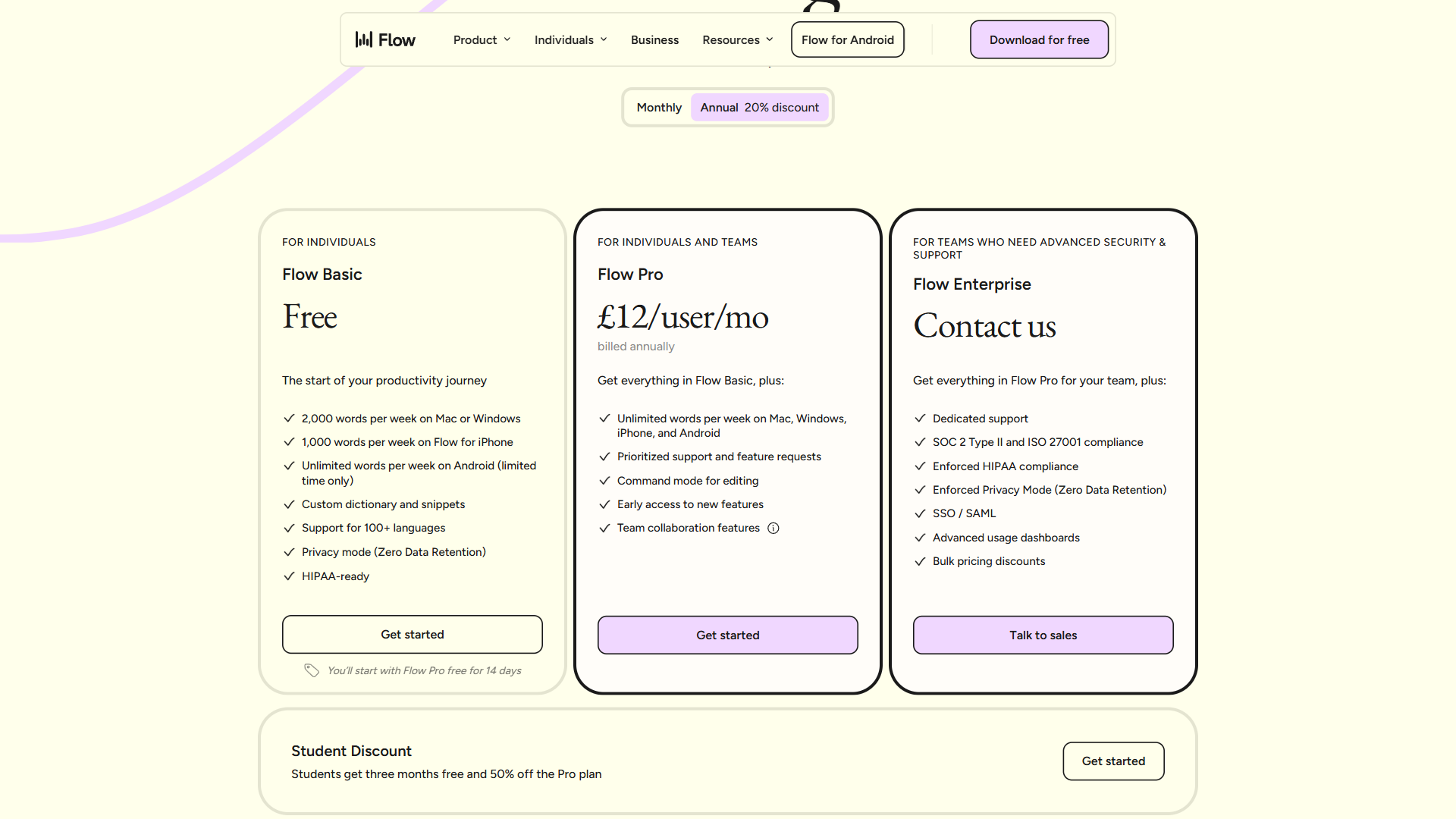
Wispr Flow offers three tiers, and the right choice depends on your daily dictation volume.
Flow Basic (Free):
- 2,000 words/week on Mac or Windows
- 1,000 words/week on iPhone
- Custom dictionary and snippets
- 100+ language support
The free tier is genuinely useful for testing, but 2,000 words per week translates to roughly 400 words per workday. That is about 3-4 emails. For any professional use, you will hit the cap within a day or two.
Flow Pro ($15/month):
- Unlimited words across all platforms
- Command Mode for voice editing
- Priority support and early feature access
- Student discount: 3 months free plus 50% off
Pro is where the value lives for individual users. The unlimited words and Command Mode access make this the tier where Wispr Flow becomes a genuine productivity tool rather than a novelty. Check the current pricing page for the latest rates and student discounts.
Flow Enterprise (custom pricing):
- SOC 2 Type II and ISO 27001 compliance
- Enforced HIPAA compliance
- Zero data retention (enforced Privacy Mode)
- SSO/SAML, usage dashboards, bulk pricing
Enterprise is purpose-built for organizations in regulated industries. Healthcare teams dictating patient notes and legal teams drafting case briefs get the compliance guarantees their organizations require.
Mobile Workflow: Wispr Flow on iOS
The iOS app extends voice dictation beyond your desk. Common uses include:
- Capturing ideas on the go - Open the app, dictate a thought, and it syncs to Flow Notes accessible from your desktop
- Responding to messages - Draft emails and Slack messages while walking or commuting
- Meeting prep - Dictate talking points and agendas before meetings, then polish on desktop
The mobile experience is solid but not identical to desktop. The free tier limits you to 1,000 words/week on iPhone (versus 2,000 on desktop), and Command Mode is only available on Pro.
The official demo above shows how the iOS experience works in practice. The mobile app mirrors the core dictation features - speak naturally, get clean text - while Flow Notes keeps everything synced with your desktop for seamless transitions between devices.
Troubleshooting Common Issues
Even with a smooth setup, you will encounter friction points. Here are the most common issues and their fixes.
Accuracy drops during long sessions: The AI performs best with dictation bursts of 30-60 seconds. If you dictate for several minutes continuously, accuracy can degrade. Pause briefly between paragraphs to give the model a natural reset point.
Delayed text appearance: During peak server times, longer dictations can experience 20-30 second delays. If this happens frequently, try dictating in shorter bursts. The cloud processing model means server load affects everyone.
High resource usage: Wispr Flow can use up to 800MB of RAM and 8% CPU. Close unnecessary browser tabs and applications if you notice system slowdowns. The 8-10 second startup time is normal and unavoidable.
Windows-specific quirks: Some Windows users report setup inconsistencies. If the app does not detect your microphone, check that your audio input device is set correctly in both Windows Sound Settings and within the Wispr Flow app. Running the app as administrator can resolve permission issues.
Incorrect formatting in specific apps: If Wispr Flow’s auto-formatting clashes with an application’s own formatting (common in rich-text editors), try dictating in a plain text editor first and pasting the result. This is a workaround for the rare apps where context-aware formatting produces unexpected results.
Building a Daily Voice Dictation Habit
The transition from full-time typing to voice-first writing takes about two weeks of consistent use. For a deeper look at configuring Wispr Flow for professional documents, see the Wispr Flow professional writing setup guide. To get the most from this Wispr Flow voice dictation guide, follow this structured ramp-up:
Week 1: Use Wispr Flow for emails and messages only. These are low-stakes, high-volume, and build muscle memory quickly.
Week 2: Expand to longer documents - meeting notes, project updates, first drafts. Start using Command Mode for edits instead of reaching for the keyboard. The how to summarize meetings with AI guide pairs well with this stage.
Week 3 onward: Voice becomes your default input method for everything except code syntax and spreadsheets. You will know the habit has formed when you instinctively reach for the activation key instead of positioning your fingers on the home row.
The Bottom Line
Wispr Flow delivers on its core promise: voice dictation that is fast enough and accurate enough to replace typing for most text creation. The 3-4x speed improvement is real once you move past the initial learning curve.
The tool is not perfect. Cloud dependency means occasional delays, resource usage can strain older machines, and the free tier is too restrictive for daily professional use. But for knowledge workers willing to invest two weeks in building the habit, Wispr Flow transforms how you interact with every text field on your computer.
At $15/month for Pro, the ROI math works for anyone spending more than 30 minutes daily on text creation.
Start with the free tier, commit to using it for all emails for one week, and you will know within five days whether voice dictation fits your workflow. Most people who try it properly never go back to typing everything.
Frequently Asked Questions
Is Wispr Flow better than Apple Dictation?
Apple Dictation handles basic speech-to-text but stops there - offering raw transcription with no formatting, no punctuation intelligence, and no ability to edit using your voice. Wispr Flow goes further with AI-powered formatting, context-aware punctuation, and Command Mode for voice editing, making it a more capable tool for professional writing workflows.
How do you use voice dictation effectively?
To use voice dictation with Wispr Flow, hold the activation key in any app and speak at your normal pace. Do not slow down or over-enunciate - the AI model is trained on natural speech patterns, so speaking naturally produces better results than speaking robotically. Starting with low-stakes tasks like notes or draft emails helps build the habit.
Can Wispr Flow do text-to-speech?
No. Wispr Flow is a voice-to-text (dictation) tool. It converts what you say into typed text in any application. For text-to-speech (turning written content into audio), you need a separate tool. The two technologies are complementary but solve opposite problems.
Does Wispr Flow work on Linux or Android?
Wispr Flow currently runs on macOS, Windows, and iOS. Linux is not supported, and the Android app has not been released yet. The iOS app syncs with desktop via Flow Notes, but Android users will need to wait for official support.
What makes Wispr Flow different from Apple Dictation?
Apple Dictation and Google Voice Typing deliver raw transcription with no formatting, no punctuation intelligence, and no voice editing. Wispr Flow adds AI-powered formatting, Command Mode for editing text by voice, and context-aware output - making it a full writing tool rather than a basic speech-to-text converter.
Want to learn more about Wispr Flow?
Related Guides
- Wispr Flow Professional Writing Setup - Configure for daily professional use
- Voice Productivity Tips - General voice productivity strategies
- Remote Work Audio Setup - Microphone and acoustic setup
- How to Write Faster - Pair voice dictation with other writing techniques
Related Reading
- Wispr Flow Tool Page
- Best Voice Dictation Tools for 2026: Complete Guide
- Voice Productivity Tips: Work Faster with AI Dictation
- Wispr Flow Alternatives: Top Voice Dictation Tools
- AI Transcription Tools Compared
External Resources
- Wispr Flow Features - Official features page with demos of auto-editing, Command Mode, and personalization
- Wispr Flow Setup Guide - Official documentation for installation and configuration across all platforms
- Wispr Flow Pricing - Current pricing tiers and student discounts
- Wispr Flow Multi-Language Documentation - List of 100+ supported languages and switching behavior
Related Guides
- 12 Voice Productivity Tips to Save 6.5 Hours Weekly
- AI Workflow Automation Maturity Model: 5 Levels
- Atlassian Intelligence Review: 2026 Pricing & Features
- Atlassian Tools for Developers: Jira, Confluence & Bitbucket
- Building AI First Workflows: A Practitioner's 2026 Guide
- Building Mcp Servers Guide: 2026 Walkthrough for Teams
- ChatGPT Prompts 2026: Basic vs Engineered, 18 Examples
- ChatGPT Tips And Tricks: 2026 Walkthrough for Teams
- Claude Code Hooks Guide: PreToolUse, PostToolUse, Stop
- Client Onboarding Automation: Automate Client Onboarding