


ElevenLabs elearning narration is an AI-powered workflow that helps instructional designers and course creators produce consistent, professional voiceover without hiring voice talent for every revision cycle. It supports multi-module courses in authoring tools like Articulate Storyline and Adobe Captivate, handles technical terminology through pronunciation dictionaries, and exports audio compatible with SCORM packages for LMS deployment.
ElevenLabs elearning narration solves a problem that instructional designers and course creators deal with constantly: producing hours of consistent, professional voiceover without hiring voice talent for every revision cycle. When a compliance module changes quarterly or a product training course needs updating after each release, re-recording with a human narrator costs time and money that most L&D budgets cannot absorb. ElevenLabs is an ElevenLabs AI voice platform that generates narration natural enough to hold learner attention across a full course, and updating a single slide’s audio takes minutes instead of weeks.
This workflow guide walks you through narrating a complete multi-module e-learning course with ElevenLabs - from script preparation through LMS upload. As a full-featured ElevenLabs elearning narration app, it lets you maintain voice consistency across dozens of lessons, handle technical terminology with pronunciation dictionaries, and export audio in formats that work with SCORM packages. The ElevenLabs text to Speech engine integrates with authoring tools like Articulate Storyline and Adobe Captivate, making the process practical for instructional designers, corporate L&D teams, course creators on platforms like Teachable or Kajabi, and anyone producing educational content at scale.
If you are new to ElevenLabs, start with the Getting Started guide to set up your account and understand the interface basics before continuing here.
The ElevenLabs eLearning Narration Scenario
You are building a multi-module e-learning course - the kind with a structured curriculum, slide-based lessons, knowledge checks, and a final assessment. The course has 8 to 12 modules, each containing 5 to 15 slides with narration. Total narration time is 60 to 90 minutes across all modules. Your authoring tool is Articulate Storyline, Adobe Captivate, or Rise 360, and the finished course will be deployed as a SCORM package to your organization’s LMS.
The narration needs to sound like a single instructor teaching the entire course. Learners should not notice voice inconsistencies between modules recorded on different days. Technical terms, product names, and acronyms need to be pronounced correctly every time. And when the product team updates a feature three months from now, you need to regenerate only the affected slides without re-narrating the entire course.
This is the exact scenario where AI narration outperforms traditional recording workflows. Here is how to execute it from start to finish.
Prerequisites
Before starting this workflow, make sure you have everything in place to move through each step without stopping.
An ElevenLabs account on the Creator plan or above. The Creator plan at $22 per month includes 100,000 characters - roughly 100 minutes of generated audio. For a full e-learning course with 60 to 90 minutes of narration, this is tight but workable if your scripts are efficient. The Pro plan at $99 per month provides 500,000 characters and is more comfortable for ongoing course production. Compare tiers on the ElevenLabs pricing page. To explore voices before committing, the ElevenLabs Library offers a wide range of options, and the Elevenlabs elearning narration free tier’s 10,000 characters are not enough for a full course, though they work for testing the workflow with a single module.
Finalized course scripts. Your narration scripts should be reviewed, approved, and locked before you start generating audio. Every regeneration consumes characters from your monthly quota, so generating audio from draft scripts wastes budget. Each slide should have its own script block - more on formatting in Step 1. For general AI-assisted writing of course scripts, the AI content writing workflow guide covers prompting and editing patterns.
An e-learning authoring tool. This guide covers integration with Articulate Storyline 360, Adobe Captivate, and Articulate Rise 360. The exported audio files work with any authoring tool that accepts MP3 or WAV imports, including iSpring, Lectora, and Camtasia.
LMS access for testing. You will need access to your learning management system to verify that SCORM packages play audio correctly. Common platforms include Cornerstone, Docebo, TalentLMS, Moodle, and Blackboard. If you do not have an LMS yet, SCORM Cloud offers a free testing environment.
Headphones for quality review. Learners will hear your narration through laptop speakers, headphones, and phone speakers. Review with monitor-grade headphones (the Sony MDR-7506 is a budget industry standard) to catch subtle artifacts that consumer speakers might mask.
Workflow Overview
The complete e-learning narration workflow follows six stages. Each stage builds on the previous one, and skipping steps leads to rework later.
- Script Preparation - Format course scripts for TTS with slide markers, pacing directives, and pronunciation notes
- Voice Selection - Choose a voice that matches your audience and lock in settings for the entire course
- Module Recording - Generate narration module by module using ElevenLabs Projects for organization
- Pronunciation and Terminology Control - Create a pronunciation dictionary for technical terms, acronyms, and product names
- Quality Review - Listen through every slide, checking timing against visuals and catching artifacts
- Export and LMS Integration - Export in the right format, build SCORM packages, and test in your LMS
Plan for about 30 minutes per module once you have the workflow established. The first module takes longer as you configure voice settings and build your pronunciation dictionary.
Step 1: Preparing Course Scripts for AI Narration
Human narrators can interpret poorly formatted scripts. AI models cannot. The quality of your generated narration depends directly on how you prepare your text. Spending 15 minutes formatting scripts properly saves hours of regeneration later.
One Script Block Per Slide
Organize your master script so each slide’s narration is a clearly separated block. Use a consistent delimiter - a heading, horizontal rule, or numbered label. For example:
--- SLIDE 1.03: Introduction to Data Privacy ---
Every employee handles sensitive data, whether you realize it or not. From customer email addresses in your inbox to financial records in shared drives, data privacy is part of your daily work. This module covers the three core principles that guide how we handle information at this organization.

--- SLIDE 1.04: The Three Principles ---
Our data privacy framework rests on three principles: minimize collection, restrict access, and encrypt storage. We will walk through each one with real scenarios from departments across the company.
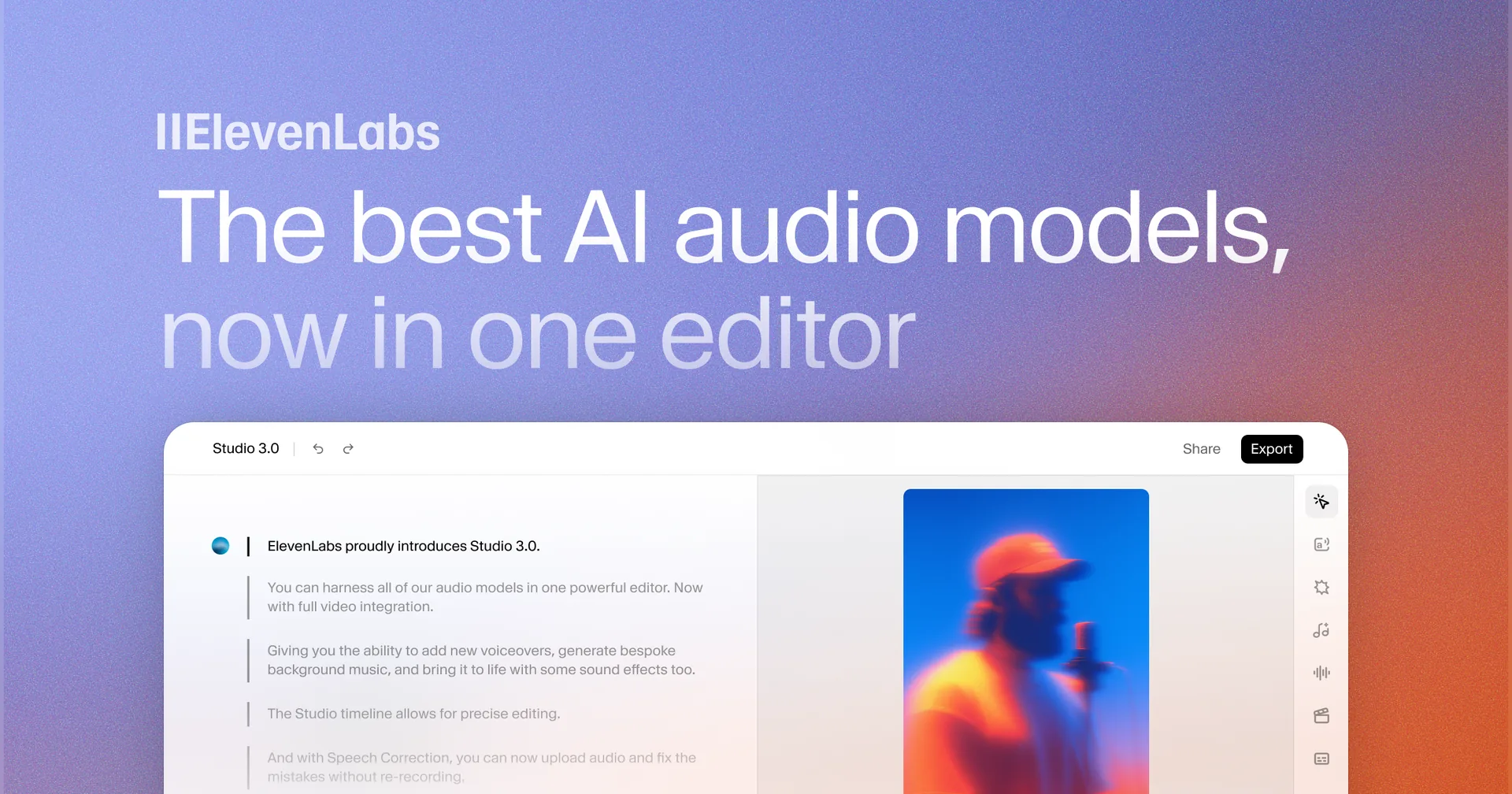
This structure maps directly to how you will organize text blocks in ElevenLabs Studio, making it easy to generate, review, and replace individual slides without touching the rest of the module.
Pacing and Pause Directives
ElevenLabs interprets punctuation as pacing cues. Use this to control delivery speed and pauses.
- Periods create natural pauses. Break long sentences into shorter ones where you want the narrator to pause. “Click the submit button. Wait for the confirmation screen to appear.” reads more naturally than a single compound sentence.
- Commas create brief pauses. Use them where a human speaker would take a breath.
- Ellipses create longer pauses. “Before you proceed… make sure you have saved your work.” inserts a deliberate pause for emphasis.
- Paragraph breaks create section pauses. Separate conceptual shifts with a blank line so the narration has a clear transition point.
Avoid Problematic Formatting
Strip out any formatting that AI narration handles poorly:
- Remove bullet point markers. Characters like ”•” or ”-” at the start of lines can cause the model to say “bullet” or “dash.” Rewrite lists as flowing sentences or short paragraphs.
- Spell out abbreviations on first use. Write “Learning Management System (LMS)” instead of just “LMS” the first time it appears. After that, the pronunciation dictionary handles the acronym.
- Replace special characters. Use “percent” instead of ”%”, “dollars” instead of ”$”, and “at” instead of ”@” unless you have tested that the model handles them correctly with your chosen voice.
- Write numbers as words for small values. “Three modules” reads more naturally than “3 modules.” For larger numbers, test both formats with your selected voice and use whichever sounds better.
Step 2: Voice Selection for E-Learning
The voice you select will narrate every minute of your course. Learners will hear it for 60 to 90 minutes, so the choice matters more than in a 30-second marketing clip. A voice that sounds great for one paragraph can become fatiguing over a full module if the tone is too dramatic or the pace too slow.
Matching Voice to Audience
Think about who is taking the course and in what context.
Corporate compliance training benefits from a clear, neutral, authoritative voice. Avoid overly warm or casual tones that undermine the seriousness of the content. Voices like “Daniel” or “Rachel” from the ElevenLabs default library strike a good balance.
Customer onboarding courses can use a warmer, more conversational voice. The goal is approachability, not authority. Browse the ElevenLabs Voice Library for voices tagged as “friendly” or “conversational” - the voice library guide walks through filter techniques.
Technical training for developers or engineers works best with a measured, clear voice that does not rush through complex concepts. Avoid voices with strong emotional expressiveness - they distract when the content is already dense.
Higher education or certification prep should match the formality of the institution. A community college’s continuing education course can be casual, while a professional certification program needs more formality. The Quality Matters higher-ed standards are a useful reference when calibrating tone for accredited courses.
Locking Voice Settings
Once you select a voice, document the exact settings you use. You will need to replicate these settings every time you generate new audio - whether that is next week or six months from now when the course needs updating.
Record these values:
- Voice name and ID (copy from the voice settings panel)
- Model (Eleven Multilingual v2, Flash v2.5, or English v1)
- Stability setting (default is 50 percent - for e-learning, 55 to 65 percent produces more consistent output)
- Similarity Enhancement (default is 75 percent - keep it here unless you hear artifacts)
- Style Exaggeration (keep at 0 for e-learning unless you want deliberate expressiveness)
Save these settings in a document alongside your course project files. When a colleague needs to regenerate audio months later, they should be able to replicate your exact output.
Testing Before Committing
Before narrating the full course, generate a test passage of about 500 characters using your selected voice and settings. Listen for:
- Listenability over time. Does the voice hold up after two minutes, or does something about it start to grate?
- Clarity at normal playback speed. Can you understand every word without concentrating?
- Handling of your specific terminology. Generate a passage with your most technical terms and listen for mispronunciations.
- Consistency across regenerations. Generate the same text twice and compare. With higher Stability settings, the outputs should sound nearly identical.
Step 3: Recording Module by Module
With your scripts formatted and your voice selected, it is time to generate audio. Use ElevenLabs Studio’s Projects feature to keep multi-module courses organized.
Project Structure
Create one ElevenLabs Project per course module. Name each project with a consistent convention that matches your course structure:
[Course Code] Module 01 - Introduction to Data Privacy
[Course Code] Module 02 - Collection and Consent
[Course Code] Module 03 - Access Controls
This naming convention pays for itself when you have 10 or more modules. Alphabetical sorting keeps them in order, and the module number makes it easy to find what you need.
Generating Slide Narration
Open your first module project in Studio and add your script text. Each slide’s narration should be a separate text block in the editor. Here is the process for each module:
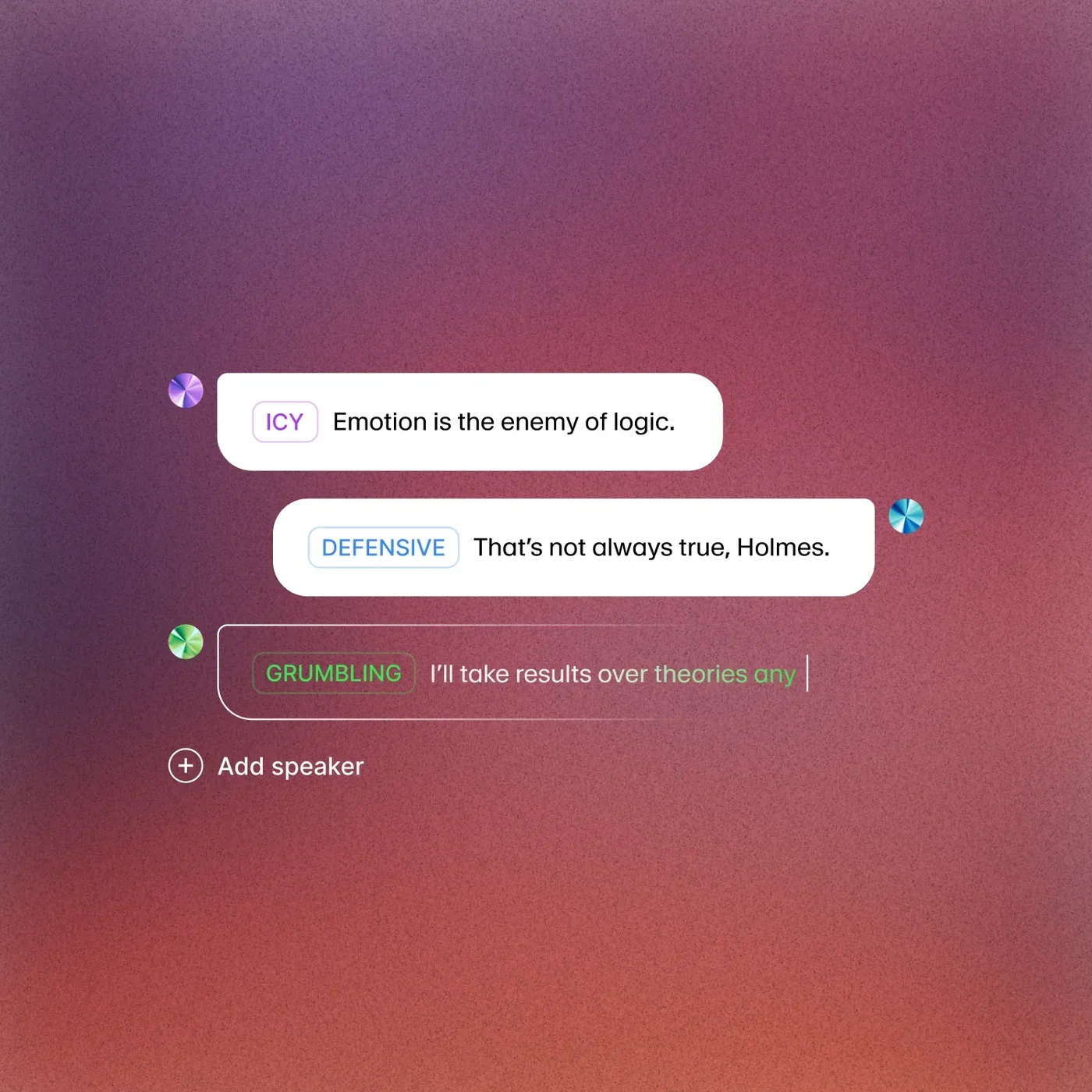
Step 1: Paste the module’s script into the Studio text panel. Studio splits text into blocks at paragraph breaks, which should align with your slide-per-block formatting from Step 1.
Step 2: Verify that each text block maps to exactly one slide. If Studio merged two slides into one block, click the split tool to separate them. If it created extra blocks from blank lines, merge them back together.
Step 3: Assign your selected voice to the first block. Studio applies the same voice to all blocks by default, but verify this - especially if you have previously used different voices in the same account.
Step 4: Generate audio for the entire module. Studio processes all blocks sequentially, applying your voice settings consistently. For a 10-slide module with about 5,000 characters, generation takes 30 to 60 seconds. The Studio first project guide walks through the same workspace from a different angle if you need additional context, and the ElevenLabs Projects audiobook guide covers the same long-form organization patterns from a book-production perspective.
Step 5: Label each audio block with the slide number it corresponds to. This is critical for the export step and for future updates.
Batch Generation Tips
When narrating multiple modules in a single session, keep these practices in mind.
Do not change voice settings between modules. Even small adjustments to Stability or Similarity Enhancement can create audible differences between Module 3 and Module 4. Lock your settings once and leave them alone.
Generate a reference passage at the start of each session. Before starting a new module, regenerate one paragraph from a previous module using your documented settings. Compare it to the original. If they sound consistent, proceed. If not, something changed in your settings or ElevenLabs updated their model, and you need to investigate before continuing.
Work in order. Generate Module 1 first, review it, then move to Module 2. Catching issues early means you fix them once rather than regenerating an entire course.
Step 4: Pronunciation and Terminology Control
E-learning content is full of specialized vocabulary - product names, industry acronyms, regulatory terms, internal jargon. ElevenLabs’ default pronunciation handles common words well, but domain-specific terms frequently need correction.
Building a Course Pronunciation Dictionary
Navigate to the Pronunciation Dictionaries section in your ElevenLabs dashboard and create a new dictionary named after your course. For detailed setup instructions, see the ElevenLabs Pronunciation Dictionary guide and the official ElevenLabs pronunciation dictionary docs.
Start with three categories of problem words.
Acronyms and initialisms. Decide whether each should be spelled out or pronounced as a word. Create alias rules for each:
- “SCORM” should be pronounced as a word (rhymes with “storm”), not spelled out
- “LMS” should be spelled out as “L-M-S”
- “GDPR” should be spelled out as “G-D-P-R”
- “SQL” is pronounced “sequel” in some organizations and “S-Q-L” in others - match your organization’s convention
Product and brand names. These are the most common source of mispronunciation:
- Company-specific software names
- Vendor product names (Kubernetes, OAuth, PostgreSQL)
- Internal system names that follow non-standard spelling
Domain terminology. Industry-specific terms with non-obvious pronunciation:
- Medical terms in healthcare training (the Merriam-Webster Medical Dictionary is a good pronunciation reference)
- Legal terminology in compliance courses
- Financial instruments in banking training
Applying the Dictionary
After building your dictionary, assign it to the voice you are using for the course. Every subsequent generation - including regenerations of individual slides - will use the corrected pronunciations automatically. This is why you create the dictionary before generating all your modules, even if it means going back to regenerate your test module.
Test the dictionary by generating a passage dense with your problem words. Listen carefully and add corrections for any terms the dictionary does not yet cover.
Step 5: Quality Review Checklist
Generating audio is only half the work. Reviewing it against your slides is what separates usable narration from production-ready narration. Use this checklist for every module.
Audio Quality Pass
Listen to each slide’s narration with headphones and check for:
- Artifacts and glitches. Occasional metallic sounds, clicks, or unnatural pitch shifts. If you find them, regenerate the affected slide. Most artifacts are random and disappear on regeneration.
- Pronunciation accuracy. Even with a dictionary, listen for terms that slipped through. Add corrections to the dictionary and regenerate.
- Pacing consistency. Does the narration speed feel consistent across slides? Significant speed changes between slides are jarring. Adjust your script text - shorter sentences slow the pace, longer sentences speed it up.
- Volume levels. Each slide’s audio should be at a consistent volume. ElevenLabs output is generally level, but if you notice differences, normalize in post-production before importing into your authoring tool. The ElevenLabs audio quality optimization guide covers normalization and other post-production settings in depth.
Timing Against Slides
This step requires your authoring tool open alongside your audio files.
- Import each audio file into its corresponding slide. Play through the slide and verify that the narration length matches the slide’s visual content. Narration that finishes while the learner is still reading the slide, or narration that runs long after the visual content is complete, creates a poor experience.
- Adjust for animations. If a slide has build animations that reveal content sequentially, verify that the narration timing aligns with each reveal step. You may need to add pause markers in your script (ellipses or extra paragraph breaks) to create gaps that align with animation timing.
- Check transition timing. The gap between the end of one slide’s narration and the start of the next should feel natural. Most authoring tools let you set a delay after audio completes before advancing. One to two seconds works for most content.
Consistency Check
Listen to 30 seconds of audio from Module 1, then 30 seconds from the latest module you generated. Do they sound like the same speaker? If the voice drifted, regenerate the inconsistent module using your documented settings.
Step 6: Export for LMS Compatibility
E-learning audio has specific format requirements that differ from podcast or video voiceover work. Getting the export format right avoids playback issues inside your LMS.
Audio Format Requirements
MP3 at 128 kbps is the standard for SCORM-packaged e-learning - the official SCORM specification covers compatible formats. This format is universally supported by LMS platforms, keeps file sizes manageable (about 1 MB per minute of audio), and provides sufficient quality for speech narration. ElevenLabs exports in MP3 by default.
WAV (uncompressed) is useful if your authoring tool will re-encode the audio during SCORM packaging. Storyline and Captivate both compress audio during publish, so importing WAV gives them the highest quality source to work from. The tradeoff is larger project files during development.
Sample rate: 44.1 kHz, mono. Stereo adds file size without benefit for speech narration. If your authoring tool offers channel options during import, select mono.
File Naming Convention
Name exported files to match your slide structure:
M01-S01-introduction.mp3
M01-S02-three-principles.mp3
M01-S03-data-collection.mp3
This makes it trivial to match audio files to slides during import, and it helps colleagues identify which files need replacing when content updates happen.
File Size Optimization
SCORM packages have practical size limits depending on your LMS. Most platforms handle packages up to 500 MB comfortably, but some older systems struggle above 100 MB. A 90-minute course with MP3 audio at 128 kbps produces roughly 90 MB of audio files, which is well within limits. If your course includes video or heavy imagery, audio file size becomes more important.
To reduce audio file size without perceptible quality loss:
- Export at 96 kbps instead of 128 kbps. For speech, the difference is negligible.
- Use mono encoding. Speech narration does not benefit from stereo.
- Trim silence from the beginning and end of each file. ElevenLabs sometimes adds a brief silence at the start.
Step 7: Integration with Authoring Tools
The final step is getting your audio into your authoring tool and publishing a working SCORM package. Here is how the process works with the three most common tools.
Articulate Storyline 360
Storyline provides the most straightforward audio import workflow.
Step 1: Open your Storyline project and navigate to the first slide that needs narration.
Step 2: Click Insert > Audio > Audio from File. Select the MP3 or WAV file for that slide. The audio appears on the slide’s timeline.
Step 3: Drag the audio clip on the timeline to align it with your slide animations. If the narration should start after a title animation, move the audio start point to match.
Step 4: Repeat for each slide in the module. With consistent file naming, this process is fast - select the file, position it, move to the next slide.
Step 5: Publish as SCORM 1.2 or SCORM 2004 depending on your LMS requirements - the differences are documented in the SCORM versions reference. During publish, Storyline compresses audio to its own internal format. The published output is a ZIP file you upload to your LMS.
Tip: If you need to update a single slide’s narration later, right-click the audio on the timeline, select Replace Audio, and import the new file. Storyline preserves the timing position.
Adobe Captivate
Captivate handles audio import at the slide level or project level.
Step 1: Open your Captivate project and select the target slide.
Step 2: Navigate to Audio > Import to Slide. Select your audio file. Captivate places it on the slide’s audio layer.
Step 3: Use the Audio Editor panel to trim or adjust timing if needed. Captivate includes a built-in waveform editor that shows the audio alongside your slide timeline.
Step 4: After importing audio for all slides, publish as SCORM. Select File > Publish and choose your SCORM version. Captivate packages the audio, slides, and interaction data into a single ZIP file.
Articulate Rise 360
Rise 360 is a cloud-based authoring tool with a simpler audio workflow.
Step 1: Open your Rise course and navigate to the lesson where you want to add narration.
Step 2: Add an Audio block to the lesson. Click the upload area and select your MP3 file. Rise does not support WAV uploads, so ensure you export as MP3.
Step 3: Rise places the audio player inline with your lesson content. Learners click play to hear the narration for that section.
Note: Rise does not support automatic slide-level narration the way Storyline does. Audio is added as content blocks within lessons, so learners control playback manually. This works well for self-paced learning but differs from the synchronized narration experience in Storyline or Captivate.
Edge Cases
Updating Courses When Content Changes
This is where AI narration delivers its biggest advantage over recorded voiceover. When a product feature changes or a compliance regulation updates:
- Update only the affected slide scripts in your master document.
- Open the corresponding ElevenLabs Project and regenerate only those text blocks.
- Export the updated audio files with the same filenames.
- Replace the audio in your authoring tool and republish the SCORM package.
Because ElevenLabs uses your saved voice settings and pronunciation dictionary, the regenerated audio matches the rest of the course. No need to re-narrate unaffected slides.
Multi-Language Courses
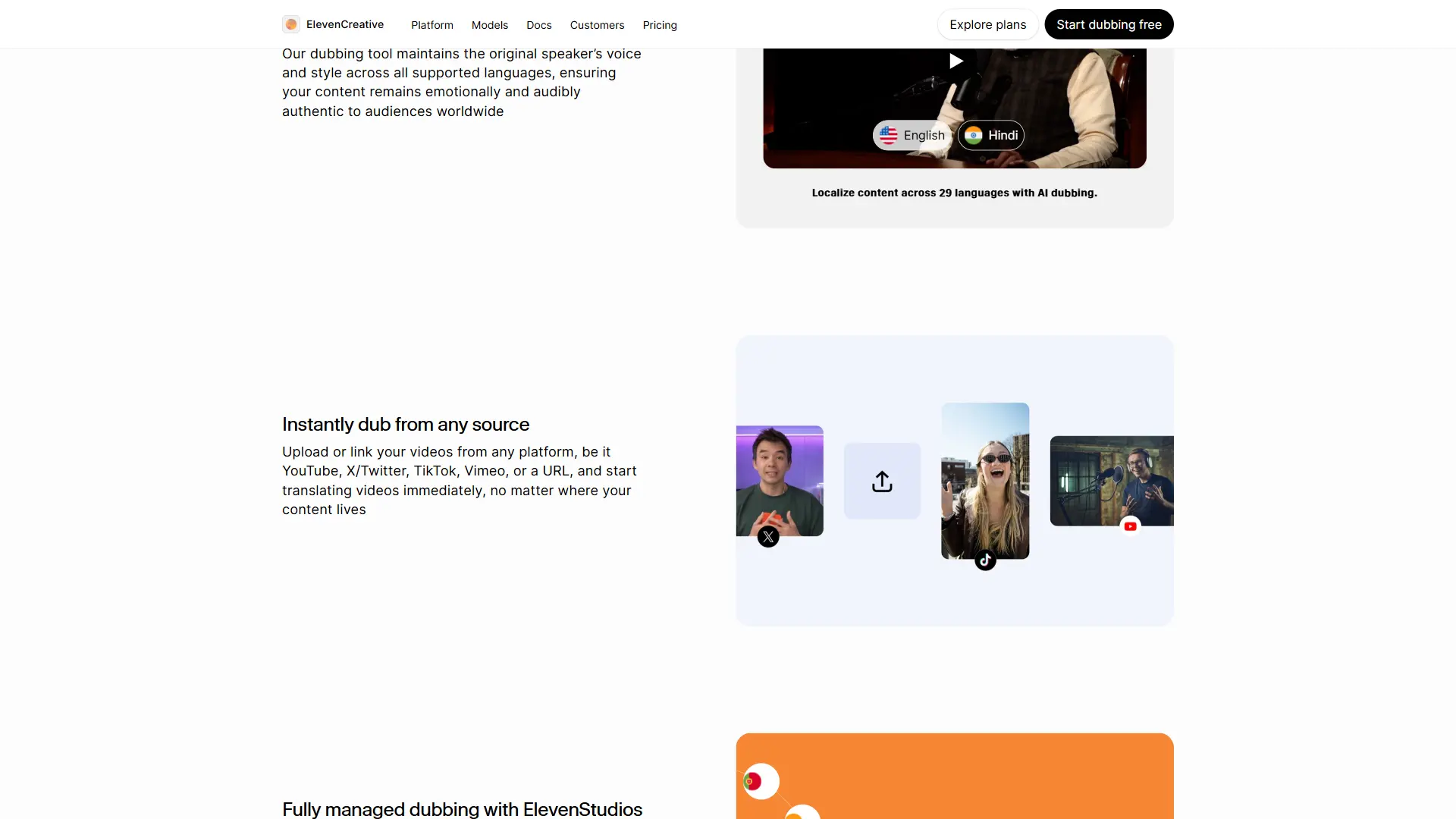
If your course needs narration in multiple languages, ElevenLabs supports over 30 languages with Multilingual v2 - the multilingual dubbing workflow covers full localization. The workflow is:
- Translate your scripts into each target language.
- Select a voice appropriate for each language from the Voice Library.
- Create a separate pronunciation dictionary for each language (acronyms and product names often differ in pronunciation across languages).
- Generate each language version as a separate set of Projects.
- Create parallel SCORM packages - one per language - or use your LMS’s multi-language support to serve the right version based on learner profile settings.
For a deeper look at multilingual audio workflows, see the ElevenLabs Dubbing Studio guide.
Accessibility Compliance
E-learning narration needs to meet accessibility standards, particularly Section 508 and WCAG 2.1. AI-generated narration satisfies the audio component, but you also need:
- Synchronized captions or transcripts. ElevenLabs Studio generates captions automatically. Export them as SRT files and import into your authoring tool. Most authoring tools also accept manual caption entry. Refer to WCAG 2.1 success criteria for compliant caption formatting.
- Audio descriptions for visual content. If slides contain images, charts, or diagrams that are not described in the narration script, add audio description text to your script so the narration covers what sighted learners see on screen. Section508.gov publishes federal accessibility requirements.
- Playback controls. Ensure your SCORM package includes play, pause, rewind, and volume controls. Storyline and Captivate include these by default.
Handling Very Long Courses
For courses exceeding 200,000 characters (roughly three to four hours of narration), the Creator plan’s 100,000-character monthly limit is insufficient. Options include:
- The Pro plan at $99 per month provides 500,000 characters - enough for most single courses (see the pricing page).
- Spread generation across months. If your timeline allows, generate three to four modules per month on the Creator plan.
- Use the API for batch processing. The ElevenLabs API allows programmatic generation, which is faster for courses with many short slides. The Python SDK guide covers automated narration scripts, and the ElevenLabs Zapier automations guide shows how to wire generation into a no-code pipeline if your team prefers visual orchestration over scripting.
Frequently Asked Questions
How much does it cost to narrate a full e-learning course with ElevenLabs?
A typical e-learning course with 60 to 90 minutes of narration requires 60,000 to 90,000 characters. The Creator plan at $22 per month includes 100,000 characters, so most single courses fit within one month’s allocation (compare options on the pricing page). If you produce multiple courses per month, the Pro plan at $99 per month with 500,000 characters is more cost-effective. Compare this to professional voice talent, which typically costs $250 to $1,000 per finished hour according to Voices.com pricing data, and the savings are substantial - especially for courses that need frequent updates.
Can learners tell that the narration is AI-generated?
With ElevenLabs’ Multilingual v2 model and proper script formatting, most learners do not notice. Internal testing by L&D teams consistently shows that learner satisfaction scores for well-produced AI narration are comparable to human narration. The key factors are voice selection (choose a natural-sounding voice, not a robotic one), script quality (conversational writing sounds better than stiff corporate prose), and pronunciation accuracy (a single mispronounced term breaks the illusion more than anything else).
What happens if ElevenLabs updates their models and the voice sounds different?
Model updates occasionally change how a voice sounds. To protect against this, ElevenLabs allows you to pin a specific model version in your voice settings. If you are generating a course over several months, verify consistency at the start of each session by regenerating a reference passage from a previous module and comparing. If the output has shifted, contact ElevenLabs support or use a pinned model version.
Can I use a cloned voice for e-learning narration?
Yes. If your organization has a designated instructor or spokesperson, you can clone their voice using ElevenLabs Professional Voice Cloning (available on the Creator plan and above - see voice cloning ethics for consent considerations) and use the clone for all course narration. This gives you the benefits of AI generation - instant updates, no scheduling, consistent output - with a familiar voice that learners associate with your organization. See the voice cloning tutorial for setup instructions. Make sure you have written consent from the voice owner before cloning.
Is AI-generated narration compliant with corporate training standards?
AI narration meets the audio requirements of SCORM 1.2 and SCORM 2004 standards - those specifications concern package structure and data tracking, not audio source (the ADL SCORM project publishes the formal spec). For accessibility standards like Section 508 and WCAG 2.1, what matters is that narration is available, synchronized with visual content, and accompanied by captions or transcripts. AI-generated audio satisfies all of these when paired with proper captioning. Some regulated industries (healthcare, finance) may have internal policies about AI-generated content - check with your compliance team before deploying. For a broader look at AI tools suited to course production, see the AI tools for course creators roundup.
Want to learn more about ElevenLabs?
Related Reading
- ElevenLabs - Full review with pricing, ratings, and feature breakdown
- Best AI Voice Generators 2026 - How ElevenLabs compares to Murf, LOVO, WellSaid Labs, and others
- AI Tools for Course Creators - Broader toolkit for building and selling online courses
- Best AI Training Video Tools 2026 - Video generation platforms for corporate training
Related Guides
- Getting Started with ElevenLabs - Account setup and first generation
- ElevenLabs Pronunciation Dictionary Setup - Lock pronunciations for technical vocabulary
- ElevenLabs Voice Library Guide - Find the right narrator voice
- ElevenLabs Studio First Project - Long-form audio production basics
- ElevenLabs Voice Cloning Tutorial - Professional and instant cloning methods
External Resources
- ElevenLabs Studio Projects Documentation - Official guides for the Projects workspace
- SCORM Explained - Reference documentation for SCORM standards
- WCAG 2.1 Quick Reference - Web accessibility guidelines for narrated content
Related Guides
- AI Video Creation Tips: 2026 Walkthrough for Teams
- AI Voice Cloning Ethics Best Practices: Complete 2026 Guide
- AI Voiceover Corporate Training With WellSaid Labs
- AI Voiceover Tips: Making Synthetic Voices Sound Human
- ElevenLabs API Setup: Developer Quick Start Guide (2026)
- ElevenLabs Audio Native Embed Audio on Any Website
- ElevenLabs Audio Quality Settings: Pro Tips and Settings
- ElevenLabs Audiobook Creation: Long-Form Audiobook
- ElevenLabs Conversational AI Agents: Build Voice Agents
- ElevenLabs Dubbing Studio: Video Translation and Dubbing