

Most written content never reaches its full audience. You publish a blog post, it gets some organic traffic, and then it sits there. Meanwhile, video content on YouTube, LinkedIn, and social platforms consistently outperforms text in engagement, shares, and time-on-page metrics. The disconnect is not a content quality problem. It is a format problem. Converting pictory articles to videos bridges that gap in minutes rather than hours.
Pictory can be used to repurpose blog posts, newsletters, and long-form articles into video content. The article-to-video workflow replaces what would typically be a full afternoon of manual editing with a process that takes under 15 minutes per video. This tutorial walks through every step of that process, from pasting your first article to exporting a polished video with AI voiceover and branded visuals. For the wider category landscape, see our best AI video generators 2026 roundup, and our blog-to-video tools comparison covers Pictory alongside other platforms in this niche.
What You Need Before Starting
Pictory Articles to Videos covers the strategies and tools that deliver real productivity gains in this space. Most written content never reaches its full audience. You publish a blog post. This guide walks through the practical steps from setup through advanced optimization.
Gather these items before opening Pictory so you can move through the workflow without stopping to hunt for assets:
Required:
- A Pictory account - sign up at pictory.ai to get started
- A published article or blog post (URL or full text)
Recommended:
- Your brand colors and logo file (PNG with transparency works best)
- 2-3 preferred AI voice options previewed in advance
- A list of key points you want the video to emphasize (the AI does a good job, but your editorial judgment improves the output)
Plan context for this tutorial: You can follow every step on the Starter plan at $29/month, which includes 200 video minutes per month and access to the blog-to-video workflow. For watermark-free output and higher quality voiceover, the Professional plan at $59/month is the practical minimum for production use.
Step 1: Choose Your Article-to-Video Workflow
Pictory offers several creation modes, and choosing the right one determines how much control you get over the final product. For turning articles into videos, you have two primary paths:
Blog-to-Video (URL method): Paste your article URL directly into Pictory. The AI reads the page, extracts key points, selects relevant stock footage, and builds a draft video automatically. This is the fastest path and works well for standard blog posts with clear structure.
Script-to-Video (text method): Copy your article text and paste it into the script editor. This gives you more control over what content makes it into the video, because you can edit the text before Pictory processes it. Use this when your article has sections you want to skip or when the URL method pulls in navigation elements and sidebar content.
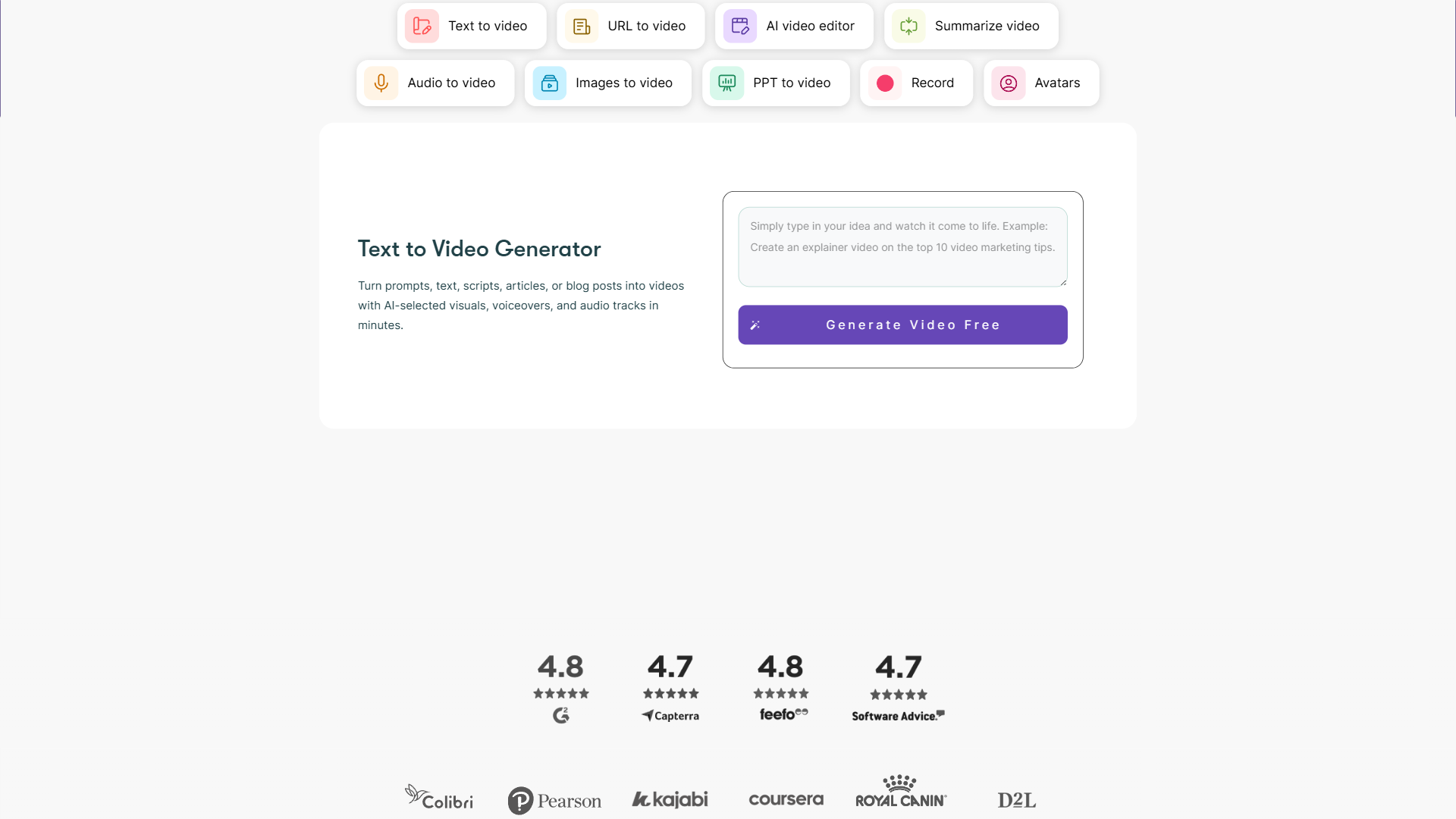
Which should you pick? Start with Blog-to-Video for your first attempt. If the AI misidentifies the main content area of your page (it happens with heavily templated sites), switch to Script-to-Video and paste the cleaned text manually.
Pro tip: For articles over 2,000 words, the Script-to-Video method produces better results. Long articles often lose focus when the AI tries to condense everything. Paste only the sections you want in the video and cut the rest before processing. Our AI video creation tips walkthrough covers script-tightening tricks specifically for video adaptation.
Step 2: Let the AI Generate Your First Draft
After selecting your workflow and providing the article content, Pictory processes the text through several AI layers simultaneously:
- Content extraction - The AI identifies the article’s main arguments, supporting points, and conclusion
- Scene creation - Each key point becomes a separate scene with its own visual, voiceover segment, and on-screen text
- Visual matching - The AI searches Pictory’s stock library (2 million+ clips on Starter, 12 million+ on Professional) to find footage that matches each scene’s topic
- Timing - Scene durations are calculated based on the voiceover length for each text block
This process takes 2-5 minutes depending on article length. The result is a rough draft that typically needs 10-15 minutes of refinement.
What to expect from the first draft:
The AI gets the structure right about 70-80% of the time. The opening and closing scenes usually work well. Middle scenes are where you will spend most of your editing time, swapping stock footage that misses the mark and adjusting text overlays that try to cram too much information into a single frame.
Do not expect perfection from the first pass. The value of Pictory is not that it creates a finished video automatically. The value is that it gives you a 70% complete draft in 3 minutes instead of starting from a blank timeline. The Adobe video editing workflow guide covers the same draft-then-refine pattern that professional editors use across all platforms.
Step 3: Refine Scenes and Swap Visuals
The scene editor is where your article becomes a real video. Each scene displays its text, the matched visual, and timing controls. Here is an effective editing workflow for every article-to-video conversion:
Text editing (5 minutes):
- Read through every scene’s text and cut anything that sounds unnatural when spoken aloud
- Shorten sentences. Written articles use complex sentence structures that sound awkward as voiceover. Break long sentences into two shorter ones
- Remove transition phrases like “In this section” or “As mentioned above” that make sense in text but sound strange in video
Visual swaps (5-8 minutes):
- Flag scenes where the stock footage feels generic or unrelated
- Search Pictory’s media library using specific terms rather than broad ones. “Team reviewing analytics dashboard” produces better results than “business meeting”
- Upload your own images or screenshots for scenes that reference your specific product or brand. A dedicated screen recording tool can help capture higher-quality interface footage
On-screen text optimization:
- Limit text overlays to 5-7 words per scene. Viewers cannot read a full paragraph while watching footage and listening to voiceover simultaneously
- Use text overlays for statistics, key terms, and calls to action. Not for repeating what the voiceover already says
- Bold the most important word in each overlay. Pictory’s text formatting tools support font weight, color, and size adjustments
Scene ordering: The AI follows the article’s original structure, which may not be the best video structure. Articles often build to a conclusion, while videos need to front-load value. Consider moving your most compelling point to scene 2 or 3, right after the hook.
Step 4: Add AI Voiceover and Music
Voice selection has an outsized impact on how professional the final video feels. Pictory provides two tiers of voice quality:
Starter voices (34 options): Functional but noticeably synthetic. Adequate for internal content or drafts, but the robotic quality undermines credibility for public-facing videos.
Professional voices (51 ElevenLabs options): These are the reason to upgrade. See our ElevenLabs voice cloning tutorial for a deeper look at how these voices work. The hyper-realistic voices support six languages (Dutch, French, German, Italian, Portuguese, Spanish) with authentic accents. Our AI voice generators roundup compares quality across the leading platforms. Custom pronunciation lets you correct how the AI handles brand names, technical terms, and acronyms. If your videos lean heavily on long-form narration, Murf AI is worth a side-by-side test - their text-to-speech studio gives you per-syllable pacing controls that Pictory’s voiceover layer does not expose. See Murf’s pricing plans to compare tiers before committing.
Voice selection tips for article-to-video:
- Preview at least 3 voices with a paragraph from your actual article before committing
- Match voice energy to your article’s tone. Thought leadership pieces need measured authority. How-to articles benefit from an upbeat, encouraging pace
- Use custom pronunciation for any term the AI mispronounces. Add a phonetic spelling in the pronunciation editor and it persists across future videos
Adding background music:
Pictory includes 5,000+ royalty-free music tracks (10,000+ on Professional). Music should support the voiceover, not compete with it. Keep the music volume at 10-15% of voiceover volume. For informational content, ambient or lo-fi tracks work better than high-energy music. The YouTube Creator Academy audio guide documents how music levels affect viewer retention across content categories.
Step 5: Apply Branding and Auto-Captions
Consistent branding turns one-off videos into a recognizable content series. Pictory’s brand kit feature lets you save your visual identity and apply it across every video you create.
Brand kit setup (one-time, 10 minutes):
- Upload your logo
- Set primary, secondary, and accent colors
- Choose heading and body fonts
- Create an intro bumper (3-5 seconds with your logo animation)
- Create an outro bumper with a call to action
Once saved, your brand kit applies to every new video with one click. This is particularly valuable when you are converting multiple articles into a video series. Viewers recognize the consistent visual style across videos, which builds channel identity.
Auto-captions are mandatory, not optional. According to 3Play Media research, a significant majority of social media video views begin without sound. Pictory generates captions automatically from the voiceover. Customize the caption font, size, position, and background color to match your brand. Place captions in the lower third of the frame to avoid blocking key visuals.
Caption styling tips:
- Use a semi-transparent background behind caption text for readability across varying footage
- Keep font size large enough to read on mobile (most social video consumption happens on phones)
- Choose a sans-serif font for captions. Serif fonts become illegible at small sizes on screens
Step 6: Export and Optimize for Each Platform
The final step is exporting your video in the right format for each platform where you plan to publish. One article can produce multiple video versions:
| Platform | Aspect Ratio | Recommended Length | Notes |
|---|---|---|---|
| YouTube | 16:9 | 3-8 minutes | Full article conversion works well |
| 16:9 or 1:1 | 1-3 minutes | Condense to key insights | |
| Instagram Reels | 9:16 | 30-90 seconds | Extract one compelling section |
| TikTok | 9:16 | 30-60 seconds | Hook in first 2 seconds |
| Twitter/X | 16:9 | 30-60 seconds | Focus on a single takeaway |
Export workflow:
- Finalize your video in 16:9 (the most versatile starting format)
- Duplicate the project and adjust for 9:16 if you need vertical versions
- Trim scenes for shorter platform requirements
- Export at 1080p (available on all paid plans)
File management tip: Name your exported files with a consistent convention: [article-slug]-[platform]-[date].mp4. When you are converting 3-5 articles per week, organized files prevent the chaos of searching through dozens of generically named exports.
Pictory Pricing for Article-to-Video Workflows
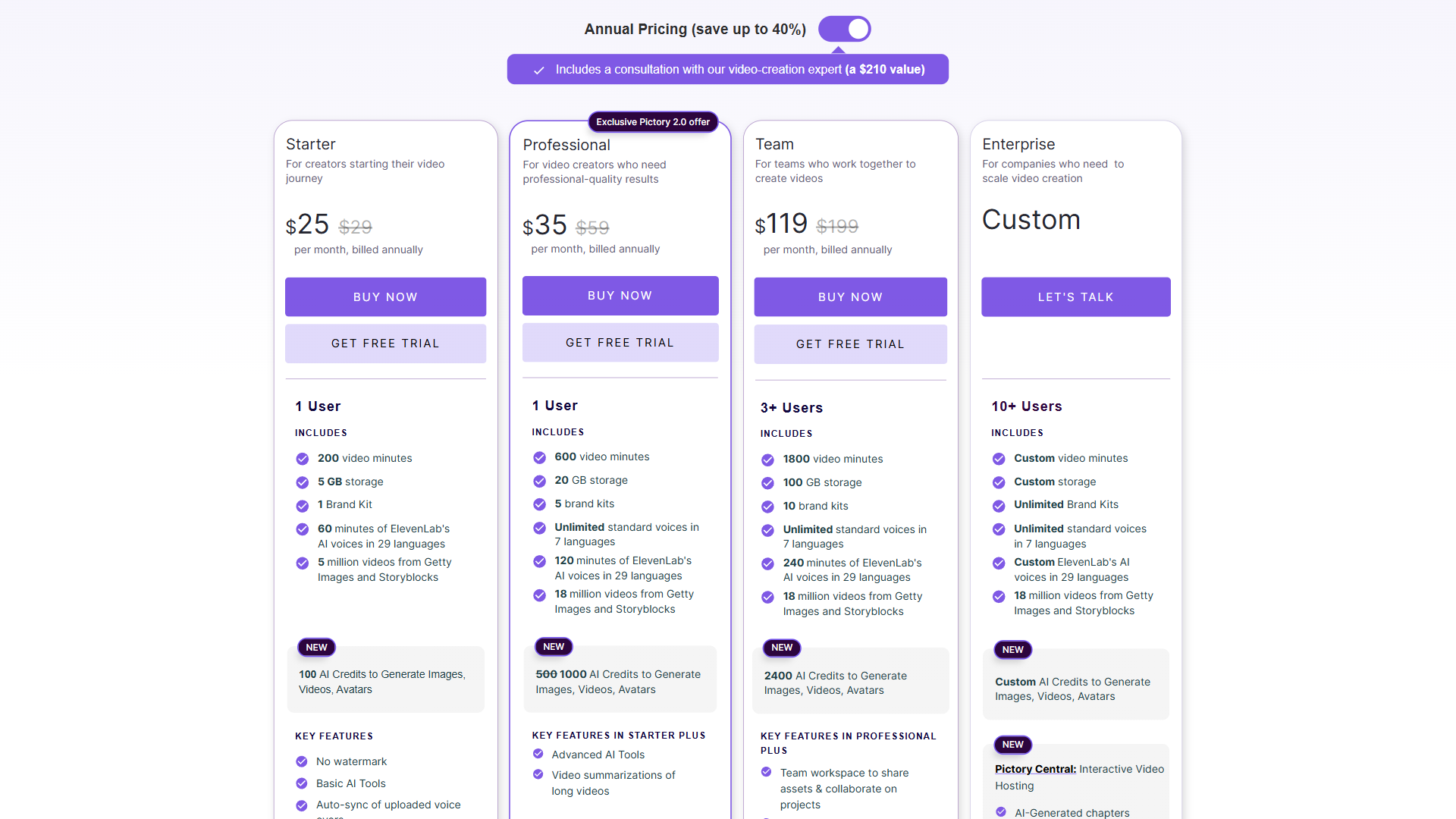
Choosing the right plan depends on your conversion volume and quality requirements:
| Plan | Monthly Price | Videos/Month | Best For |
|---|---|---|---|
| Starter | $29/month/mo | 200 min | Testing the workflow, internal content |
| Professional | $59/month/mo | 600 min | Production content, client work |
| Team | $199/month/mo | 1,800 min | Agencies, marketing departments |
| Enterprise | Custom | Custom | High-volume operations |
The Starter-to-Professional decision: The Starter plan at $29/month lets you follow this entire tutorial and create real videos. However, the watermark on Starter videos makes them unsuitable for professional or client-facing content. If you plan to publish videos publicly, the Professional plan at $59/month is the realistic minimum. It also unlocks 51 ElevenLabs hyper-realistic voices and 12 million+ premium stock clips from Getty and Storyblocks.
Annual savings: All plans offer significant savings with annual billing. Starter drops to $25/month annual, Professional to $35/month annual, and Team to $119/month annual when billed annually. Pictory’s full pricing breakdown is worth reviewing in detail before committing - if you switch after your first month, annual billing makes financial sense.
Advanced Tips for Better Article-to-Video Results

These techniques consistently produce better output when converting articles to videos:
Front-load the value. Articles build to a conclusion. Videos need to deliver value in the first 5-10 seconds or viewers leave. Restructure your scenes so the article’s most compelling insight appears in scene 2, not scene 15. The same principle applies to thumbnails - see YouTube’s research on thumbnail design for what drives click-through.
One idea per scene. When the AI converts a long paragraph into a single scene, the visual becomes generic because it cannot represent multiple ideas simultaneously. Split multi-idea scenes into separate scenes, each with a focused visual.
Use the AI Script Generator for hooks. Even when converting an existing article, the opening scene benefits from a fresh hook written specifically for video. Pictory’s AI Script Generator can create punchy opening lines from your article’s main theme. Paste your article title and ask for a 15-second hook.
Batch your conversions. Converting one article takes 15 minutes. Converting five articles takes 50 minutes, not 75, because you develop a rhythm with the editing tools. Dedicating one afternoon per week to article-to-video conversion can produce all the video content needed for the following week. For training and onboarding videos specifically, see our AI training video tools roundup.
Repurpose the repurposed content. A 5-minute YouTube video created from an article can be trimmed into three 30-second clips for Reels, TikTok, and Shorts. One article becomes four or more pieces of video content across different platforms and formats. For more strategic guidance, our AI video marketing guide walkthrough covers cross-platform repurposing in depth.
Common Mistakes to Avoid
Converting the entire article verbatim. Written articles contain nuance, caveats, and transitions that work in text but drag in video. Cut 30-40% of your article’s word count before converting. Focus on the insights, not the supporting paragraphs.
Ignoring the first frame. Social platforms show a static thumbnail before the video plays. If your first scene is a slow title card or generic stock footage, viewers scroll past before the content starts. Make the opening frame visually specific and text-overlay driven.
Using Starter voices for public content. The 34 standard voices on the Starter plan sound noticeably synthetic. For any content your audience will see, the ElevenLabs voices on Professional are worth the upgrade. This is the single biggest quality difference between plans.
Skipping the caption step. Every article-to-video conversion should include captions. Not as an accessibility afterthought, but as a primary content delivery mechanism. According to W3C accessibility guidelines, captions are essential for inclusive content delivery, and a large portion of your viewers will read the captions rather than listen to the voiceover.
The Bottom Line on Pictory Articles to Videos
Turning pictory articles to videos is the most practical way to multiply the reach of your written content without multiplying your production time. The article-to-video workflow in Pictory handles the mechanical work of scene creation, visual matching, and voiceover generation. Your job is the editorial refinement: tightening the script, swapping generic visuals, and structuring scenes for video-first consumption.
The Professional plan at $59/month is the sweet spot for most content creators and marketers converting articles regularly. It removes the watermark, unlocks premium voices and stock footage, and supports 600 video minutes per month. If you are testing the concept, the Starter plan at $29/month lets you run through this full tutorial without a large commitment.
Start with one article you have already published. Follow the pictory articles to videos steps above, spend 15 minutes on refinement, and compare the finished video against what it would have taken to produce manually. That comparison is what convinces many users to make Pictory a permanent part of their content workflow.
Frequently Asked Questions
How do you convert an article into a video with Pictory?
Paste the article URL or full text into Pictory’s Text-to-Video Generator. The AI extracts key points, breaks them into scenes, matches each scene to stock footage from a library of 2 to 12 million clips, and generates an AI voiceover. The result is a draft video in 2-5 minutes that needs roughly 10-15 minutes of refinement (text edits, visual swaps, caption styling) before export.
What is the difference between Blog-to-Video and Script-to-Video?
Blog-to-Video accepts a published article URL - Pictory reads the page, extracts the main content area, and generates the draft. Script-to-Video accepts cleaned-up text directly, giving you more control over what makes it into the video. Use Blog-to-Video for fast first attempts on standard blog posts; switch to Script-to-Video when the URL method pulls in navigation or sidebar content, or when your article runs over 2,000 words.
Does Pictory include AI voiceover?
Yes - Pictory includes 34 standard AI voices on the Starter plan and 51 hyper-realistic ElevenLabs voices on the Professional plan. The ElevenLabs voices support six languages with authentic accents and are the single biggest quality upgrade between plans. For dedicated voice cloning, pair Pictory with Murf AI - their text-to-speech engine handles longer narrations - or use ElevenLabs directly.
How much does Pictory cost for article-to-video work?
The Starter plan at $29/month includes 200 video minutes per month but applies a watermark - acceptable for internal content or testing, but not for public publishing. The Professional plan at $59/month removes the watermark, triples the monthly video allotment, unlocks the ElevenLabs voice library, and is the realistic minimum for client work or published videos. Annual billing reduces costs significantly across all tiers.
Can Pictory generate captions automatically?
Yes - Pictory generates captions automatically from the AI voiceover and lets you customize font, size, position, and background color. Captions are essential for social platforms where most viewing starts without sound. Place captions in the lower third of the frame and use a semi-transparent background for readability across varying footage.
Related Guides
- 12 AI Video Creation Tips for Better Results in 2026 - Broader strategies that apply across AI video tools
- AI Video Marketing Guide: From Concept to Campaign - Integrate Pictory into your marketing workflow
- Text-to-Video Tools Comparison - How Pictory compares to Synthesia, Lumen5, and other text-to-video platforms
- Synthesia Tutorial & Tips - When you need talking-head AI avatars instead of stock footage
Want to learn more about Pictory?
Related Reading
- Pictory Tool Page - Full review with pricing, features, and ratings
- Best Blog-to-Video Tools: Turn Posts into Social Content - Pictory vs alternatives
- Best AI Video Generators in 2026 - Side-by-side benchmarks of the leading platforms
External Resources
- Pictory Blog-to-Video Guide - Official walkthrough of the article conversion workflow with examples
- Wyzowl Video Marketing Statistics 2026 - Data on video engagement rates, viewer behavior, and content format performance
- HubSpot Video Marketing Guide - Strategy framework for integrating video into your content marketing funnel
Related Guides
- AI Voiceover Corporate Training With WellSaid Labs
- AI Voiceover for YouTube Videos: Murf Workflow Guide 2026
- AI Voiceover Tips: Making Synthetic Voices Sound Human
- ElevenLabs Getting Started: Complete Beginners Guide
- ElevenLabs Voice Cloning Tutorial: Complete 2026 Guide
- Fliki Blog to Video: Step-by-Step Tutorial for 2026
- Luma Dream Machine Video Tutorial 2026: Text-to-Video & Ray3
- Master AI Video Marketing: Workflow and Top Tools 2026
- Murf AI Canva Integration: Add Voiceovers to Designs
- Murf AI Custom Pronunciation: Say It My Way Guide (2026)