
Murf AI custom pronunciation refers to the Say It My Way feature that lets you override how Murf voices pronounce specific words, names, and acronyms. This guide covers selecting the problem word in the Studio editor, typing the phonetic spelling you want the voice to use, and applying the override everywhere the word appears.
Your voiceover sounds polished across most of the script - and then the AI mispronounces your client’s brand name on the very first slide. Or it reads a standard industry acronym as a word instead of individual letters. Or it mangles a product name that appears forty times across a thirty-minute training course. These are not edge cases. They are the most consistent friction point in AI voiceover production, and they have a precise solution.
Murf AI built Say It My Way specifically to solve this problem. Rather than accepting whatever pronunciation the AI defaults to, you define the correct pronunciation yourself - using phonetic spelling, IPA notation, or a voice recording - and Murf applies it consistently every time that word appears in your project. The result is a murf ai custom pronunciation dictionary that eliminates mispronunciation errors before they reach your final export.
This guide walks through the complete Say It My Way workflow, from opening the pronunciation editor to building a reusable library that travels with you across projects. New to the platform? Start with the Murf AI getting started guide, then come back here. The companion Murf pronunciation and emphasis guide covers the related word-stress controls.
What Is Say It My Way in Murf AI?
Murf AI Custom Pronunciation covers the strategies and tools that deliver real productivity gains in this space. Your voiceover sounds polished across most of the script - and then the AI mispronounces your. This guide walks through the practical steps from setup through advanced optimization.
Say It My Way is Murf’s dedicated custom pronunciation engine, accessible directly inside Murf Studio. At its core, it is a per-project dictionary that overrides the AI’s default phonetic interpretation for any word or phrase you specify. When the AI encounters a word in your script that matches an entry in your Say It My Way dictionary, it uses your defined pronunciation instead of its trained default.
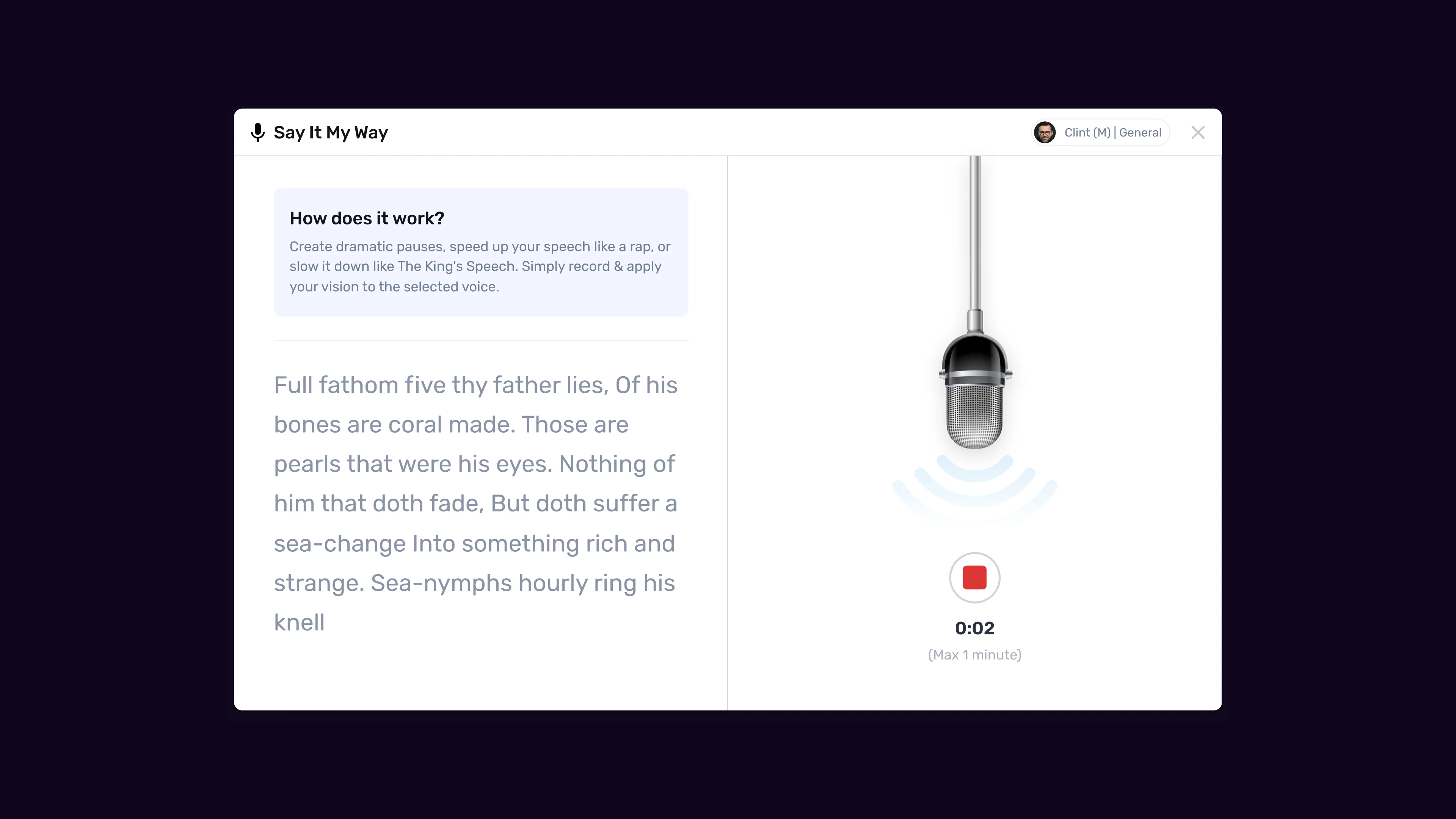
The feature supports three input methods for defining how a word should sound:
Phonetic spelling is the most common approach. You type a simplified phonetic version of the word - writing “AY-sah-nah” instead of “Asana,” for example - and Murf maps that spelling to the original word in your script. The Merriam-Webster pronunciation guide is a useful reference for English phonetic conventions. This method works well for brand names, product names, and proper nouns where the correct pronunciation is intuitive but the standard spelling misleads the AI.
IPA (International Phonetic Alphabet) input gives you character-level precision. IPA notation is language-agnostic, which makes it the right tool for names from tonal languages, foreign terms with sounds that English phonetics cannot represent, and cases where two different phonetic spellings would produce subtly different results and you need the specific one.
Voice recording is the most direct option. You click the microphone icon, say the word exactly as it should sound, and Murf analyzes your recording to extract the pronunciation pattern. The Murf voice cloning setup guide covers a deeper voice-recording use case. This is ideal for names you can pronounce naturally but cannot easily represent in text - a client’s name in a language you speak but cannot spell phonetically.
Once a word is in your Say It My Way dictionary, the definition applies globally across your entire project. Every occurrence of that word in every scene, slide, or segment uses the correct pronunciation automatically. For projects with repeated proper nouns or technical terms, this consistency is the main value. You define it once rather than catching mispronunciations one at a time during review.
When to Use murf ai custom pronunciation
Not every script needs pronunciation intervention. Murf’s Speech Gen 2 engine achieves strong baseline accuracy on standard English words, and most scripts with common vocabulary produce correct output without any custom entries. The scenarios that consistently require custom pronunciation follow predictable patterns.
Brand names and company names are the most frequent trigger. AI voice models trained on English text have never encountered most brand names as spoken words, so they apply phonetic rules that may or may not match how the brand is actually pronounced. “Figma” might come out as “fig-mah.” “Asana” might receive a hard first syllable. “Canva” might get a long “a” instead of the short flat one used in Australia where the company is based. If your script mentions any client brand or product name that is not a standard English word, plan to use Say It My Way. The Murf marketing voiceover workflow covers brand-name handling in ad contexts.
Technical acronyms cause systematic problems because the correct pronunciation varies by industry convention. “SQL” is pronounced “sequel” by most database professionals but “S-Q-L” by others. “YAML” is a word to some developers and a spelled-out acronym to others. The Murf Falcon API quickstart covers programmatic pronunciation overrides for tutorial content with heavy acronym density. Without explicit guidance, Murf makes a default choice that may contradict your audience’s expectations. Medical, legal, engineering, and finance content typically contains dozens of these ambiguous acronyms.
Foreign words embedded in English scripts require explicit pronunciation guidance because the AI interpolates from its primary training language. Restaurant names, place names, loanwords, and personal names from non-English languages consistently receive anglicized pronunciations unless you specify otherwise. The difference between a passable pronunciation and a respectful one often comes down to a single phoneme.
Initialisms spoken as letters need definition regardless of field. “API,” “CEO,” “HTML,” and “KPI” should all be spoken as individual letters, but without guidance Murf may attempt to treat them as words. Adding these to your dictionary upfront prevents the review step where you discover the AI read “HTML” as a single syllable. The Murf podcast intro guide covers acronym handling in spoken-word contexts.
Product-specific terminology in SaaS onboarding videos, software tutorials, and technical documentation often includes feature names, keyboard shortcuts written as text, and UI labels that the AI has never encountered in its training data. Define these at the start of production rather than after the first full generation run. The Murf eLearning course narration guide covers terminology handling for educational content.
What Plan You Need
Say It My Way requires a Pro plan or higher. The feature is not available on the Free tier or the Creator plan.
| Feature | Free | Creator | Pro | Enterprise |
|---|---|---|---|---|
| Say It My Way | No | No | Yes | Yes |
| IPA phoneme input | No | No | Yes | Yes |
| Voice recording input | No | No | Yes | Yes |
| Pronunciation library export | No | No | Yes | Yes |
| Word-level emphasis | No | Yes | Yes | Yes |
See the Murf pricing page for current plan pricing. Word-level emphasis - a related but separate feature for adjusting stress on individual words - is available on Creator and above, so if you only need emphasis control and not custom pronunciation, the Creator plan is sufficient. The Murf free plan tips guide covers what is included on each tier.
Check the Murf pricing page for current rates and any active promotions before upgrading.
Step 1: Open the Pronunciation Editor in Murf
The Say It My Way pronunciation editor lives inside the Murf Studio project interface. Here is how to access it.
1. Open your project. Log into your Murf AI account and open the project you want to work on. The Murf Studio workspace walkthrough covers the editor environment. If you are starting a new project, create it first and paste in your script text before opening the pronunciation editor - you will want to see your actual script content to identify which words need custom entries.
2. Navigate to the pronunciation settings. In the Murf Studio editor, look for the pronunciation or voice settings panel. The exact location depends on your Studio version, but it is typically accessible from the top toolbar or the right-side settings panel. Look for a label like “Pronunciation,” “Custom Pronunciation,” or “Say It My Way.”
3. Open the Say It My Way dictionary. Click the pronunciation option to open the dictionary interface. You will see a panel where existing entries are listed and a button to add new entries. If this is a new project, the list will be empty.
4. Review your script first. Before adding entries, scan your full script and identify every word or phrase that might be mispronounced - brand names, acronyms, proper nouns, technical terms, and foreign words. Make a quick list. Doing this upfront means you enter the pronunciation editor once with a complete list rather than returning to it repeatedly after each generation run.
5. Confirm your plan access. If you see a lock or upgrade prompt on the Say It My Way interface, you are on a Free or Creator plan. The feature requires Pro or Enterprise access to add custom entries.
Step 2: Add a Custom Pronunciation
Adding a pronunciation entry takes about thirty seconds per word once you know the correct pronunciation. Here is the complete process.
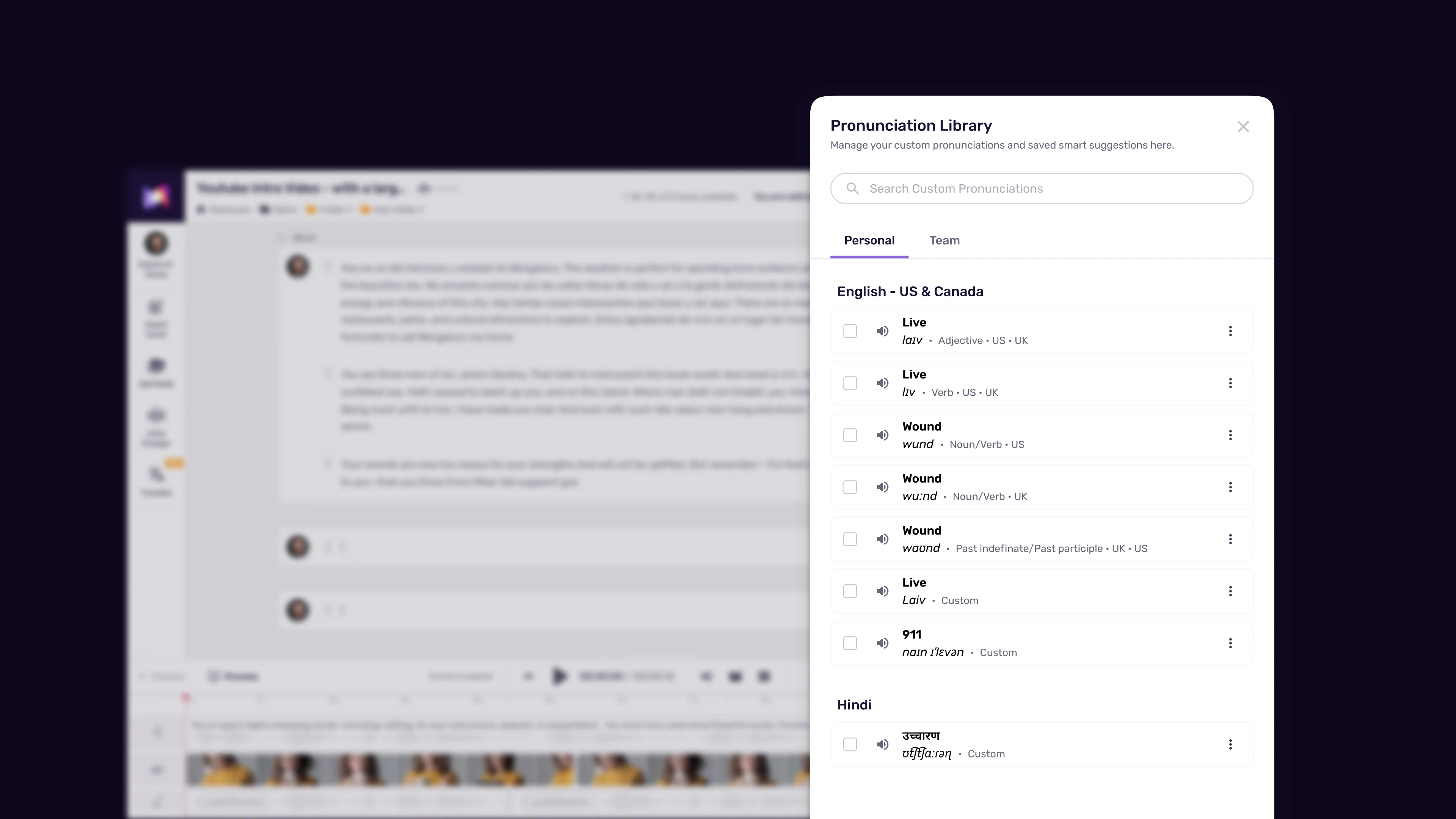
1. Click “Add Pronunciation” or the equivalent button in the Say It My Way dictionary panel. A form opens with fields for the original word and your custom pronunciation.
2. Enter the word exactly as it appears in your script. Capitalization and spacing matter. If your script contains “Asana” with a capital A, enter “Asana” - not “asana” or “ASANA.” The dictionary matches words based on how they appear in the text.
3. Choose your input method. Select from phonetic spelling, IPA notation, or voice recording based on what works best for the specific word:
- Phonetic spelling: Type the pronunciation as it should sound using familiar English spelling patterns. Separate syllables with hyphens for clarity: “AY-sah-nah” or “fig-muh” or “KOO-ber-neh-tees.” Capitalize the stressed syllable to indicate where emphasis falls.
- IPA notation: Switch to IPA input mode and enter the phonetic characters. Most browsers support copy-pasting IPA characters from a reference chart - the interactive IPA chart at ipachart.com is a useful reference. The IPA input field validates your entry and shows a preview.
- Voice recording: Click the microphone icon and say the word naturally. Murf captures your recording, processes it, and extracts the pronunciation. Speak at a normal pace in a quiet environment - background noise degrades the extraction accuracy.
4. Preview the pronunciation. Before saving, click the preview button to hear how Murf will render the custom entry. Listen carefully. The preview plays the word in isolation - also listen to how it sounds in a full sentence by closing the dialog and running a short preview generation on a sentence containing the word. The Murf pacing pauses speed tips guide covers using preview without spending generation minutes.
5. Adjust if needed. If the preview does not sound right, modify your phonetic spelling and preview again. Common adjustments: shifting which syllable is capitalized to change stress, adding more explicit vowel sounds, or switching to IPA for sounds that English spelling cannot represent accurately.
6. Save the entry. Click Save or Confirm. The word is now in your project dictionary. Every occurrence of that word across the project will use your defined pronunciation on the next generation run.
7. Regenerate the affected segments. Custom pronunciation entries apply when you regenerate audio. If you already generated audio before adding the entry, regenerate the segments containing that word to apply the new pronunciation.
Step 3: Handle Acronyms
Acronyms need their own approach because the decision between spelling out letters versus pronouncing as a word is not about phonetics - it is about convention. The same acronym may be correct to speak differently depending on your audience and industry.
Decide first: letters or word. Before opening the pronunciation editor, settle on which treatment each acronym in your script requires. Industry convention should guide this, not personal preference. When in doubt, ask a subject matter expert from your target audience. Getting this wrong signals that the content was produced without domain knowledge. The Murf script writing tips guide covers acronym handling alongside other TTS-friendly conventions.
Acronyms that should be spoken as individual letters (initialisms):
These include “API,” “CEO,” “CTA,” “HTML,” “KPI,” “ROI,” “SEO,” “SQL” (in many contexts), “UX,” and most government agency acronyms like “FDA,” “SEC,” and “IRS.” The Say It My Way approach: enter the acronym as it appears in your script and type the phonetic spelling with each letter separated by a hyphen or space: “A-P-I” or “ay-pee-eye.” Both approaches signal to Murf that the letters should be pronounced individually.
Alternatively, write the acronym in your script with periods between letters - “A.P.I.” or “H.T.M.L.” - and Murf will typically render them as letters without a custom dictionary entry. The Say It My Way approach is cleaner because it keeps your script text readable.
Acronyms that should be spoken as words:
These include “HIPAA” (hip-uh), “CAPTCHA” (kap-chuh), “OSHA” (oh-shuh), “NASA” (naz-uh), “SCUBA” (skoo-buh), and field-specific ones like “EBITDA” (ee-bit-duh) in finance. Wikipedia maintains a cross-industry list of acronyms that is useful for cross-checking domain conventions. Murf usually handles these correctly because they follow recognizable English phonetic patterns. Add a custom entry only if you preview and the pronunciation sounds wrong.
Industry-specific conventions worth noting:
- Tech: “GUI” - “gooey” in most contexts, “G-U-I” in some developer communities; “SQL” - “sequel” is dominant in data engineering circles; “AWS,” “GCP,” “API” always letters - reference the AWS documentation for vendor-preferred forms
- Medical: “HIPAA” always a word; “MRI,” “CT,” “IV” always letters; “CPAP” - “see-pap”
- Finance: “EBITDA” - “ee-bit-duh”; “GAAP” - rhymes with “gap”; “IPO,” “SEC,” “SPAC” always letters
- Marketing: “SEO,” “CRO,” “CTA,” “CPM” always letters; “ROAS” - “row-as” in performance marketing
Handling mixed scripts. If your script contains the same acronym in contexts where it should sometimes be letters and sometimes a word, use Say It My Way to define the standard treatment and then handle outlier occurrences by modifying the script text for those specific instances - writing “S-Q-L” directly in the script where you want letter pronunciation rather than relying on the global dictionary entry.
Step 4: Manage Your Pronunciation Library
A single Say It My Way dictionary for one project is useful. A reusable library that travels across projects is genuinely valuable - it represents every pronunciation decision you have ever made, applied automatically to every new project.
Export your dictionary. After building out the custom pronunciations for a project, export the dictionary using the export option in the Say It My Way panel. The Murf export formats and quality guide covers related export options. Save the file with a descriptive name: “ClientName-pronunciations.json” or “TechIndustry-pronunciations.json” depending on how you plan to organize it.
Import into new projects. When starting a project that shares vocabulary with a previous one - same client, same industry, same product suite - import your existing dictionary before generating any audio. The import populates your new project’s dictionary with all previously defined pronunciations. This eliminates the rediscovery process where you find the same mispronounced brand names on review and have to fix them project by project.
Organize by use case. Most producers benefit from maintaining two or three separate dictionaries rather than one large universal one:
- A client-specific dictionary for each long-term client, containing their brand names, product names, and internal terminology
- An industry dictionary for your primary content category (medical terms, tech jargon, legal vocabulary)
- A personal names dictionary if you produce content that regularly references the same people
For team-level dictionary sharing, see the Murf team collaboration guide.
Keep entries current. Brands rename products, companies rebrand, and industry pronunciation conventions shift. Review your dictionaries periodically - once a quarter is usually sufficient - and remove or update entries that no longer apply. A stale entry that defines a discontinued product name is harmless, but one that defines a word that has shifted pronunciation convention can cause subtle errors.
Document your decisions. Alongside each dictionary export, maintain a simple notes file recording why you chose a specific pronunciation for entries where the decision was not obvious. The Murf marketing voiceover workflow covers brand-name documentation patterns for ad campaigns. “Asana - confirmed with client, first syllable stress” or “SQL - audience is data engineers, used S-Q-L.” These notes are invaluable six months later when a client questions why their brand name sounds a certain way, or when a new team member inherits your production workflow.
Test imported entries with your current voices. A pronunciation defined using one Murf voice may sound slightly different when applied to a different voice, because different voice models interpret phonetic input with subtle variation. After importing a dictionary into a new project, preview the custom entries with your chosen voice before generating the full project. Adjust any entries that sound slightly off with the new voice. The Murf voice selection tips guide covers how voice models differ in their phonetic interpretation.
Real Examples
Seeing custom pronunciation applied to specific cases makes the feature more concrete than any general description.
Company names:
The Murf AI review and the best AI voice generators roundup both reference these brand names in production contexts.
- Twilio - The AI often produces “TWILL-ee-oh” when the correct pronunciation is “TWILL-ee-oh” - actually correct - but common mispronunciations target the “tw” onset. Add “TWILL-ee-oh” explicitly to prevent variation.
- Figma - Default AI output: “FIG-mah.” Correct pronunciation: “FIG-muh.” Dictionary entry: “FIG-muh”
- Canva - Default: “KAN-vuh” with long A. Correct (Australian English origin): “KAN-vuh” with flat A. The distinction is subtle but noticeable to frequent users of the product. Dictionary entry: “KAN-vuh”
- Asana - Default: variable. Correct: “ah-SAH-nuh.” Dictionary entry: “ah-SAH-nuh”
- Hootsuite - Default: usually correct. But “hoot-sweet” variants appear in some voice models. Dictionary entry: “HOOT-soot”
Medical terms:
- Psoriasis - Default output frequently adds an extra syllable. Correct: “suh-RY-uh-sis.” Dictionary entry: “suh-RY-uh-sis”
- Ophthalmologist - One of the most commonly mispronounced medical terms in AI voice. Correct: “off-thuh-MOL-uh-jist.” Dictionary entry: “off-thuh-MOL-uh-jist”
- Ischemia - Default: “is-KEE-mee-uh” - usually correct, but some voice models drop the middle vowel. Dictionary entry confirms: “is-KEE-mee-uh”
- Myocardial - Default AI often stresses the wrong syllable. Correct: “my-oh-KAR-dee-ul.” Dictionary entry: “my-oh-KAR-dee-ul”
Tech jargon:
- Kubernetes - Default: extremely variable. Correct: “koo-ber-NET-eez.” Dictionary entry: “koo-ber-NET-eez” - this one is worth adding to every tech content dictionary, and the Kubernetes project documentation uses this pronunciation throughout
- Nginx - Default: “EN-ginx” or “en-GINX.” Correct: “EN-jin-ex.” Dictionary entry: “EN-jin-ex”
- GitHub - Default: usually correct as “GIT-hub.” Add if you are producing for an audience that uses “git-HUB” - the variation exists.
- Terraform - Default: “TAIR-uh-form” - correct. Add only if your specific voice model produces variation.
- PostgreSQL - Default: highly variable. Correct: “POST-gres-kew-el.” Dictionary entry: “POST-gres-kew-el”
Foreign names in English scripts:
The Murf MultiNative multilingual guide covers cross-language voice synthesis when foreign words become more than occasional inserts.
- Nguyen - The most commonly mispronounced Vietnamese surname in English contexts. The standard English approximation is “win” or “nwin.” Dictionary entry with IPA: /wɪn/
- Renault - Default: “ren-AWL-T” with the T pronounced. Correct French: “ruh-NOH.” Dictionary entry: “ruh-NOH”
- Xiaomi - Default: various. Correct Mandarin-influenced English: “show-MEE.” Dictionary entry: “show-MEE”
- Lviv - Ukrainian city name. Default: “el-VIV” or “EL-viv.” Closer approximation: “LVIV” as “luh-VEEV.” Dictionary entry: “luh-VEEV”
FAQ
Does Say It My Way require a Pro plan, or is it available on free accounts?
Say It My Way requires a Pro plan or higher. The Free tier and Creator plan both support word-level emphasis adjustments, but the custom pronunciation dictionary feature is locked to Pro and Enterprise. If you are currently on a Creator plan and running into pronunciation problems, see the Murf pricing page for current upgrade pricing and any available promotions.
How is Say It My Way different from just respelling a word in the script?
Respelling a word directly in your script text - typing “fig-muh” instead of “Figma” - is a quick workaround, but it has real limitations. The misspelled version appears in any transcript, subtitle, or closed caption output generated from your project. It does not carry across projects - you would need to change the script text in every new project. And it is difficult to represent complex pronunciations through English respelling alone, particularly for names from tonal languages. Say It My Way stores the correct pronunciation separately from your script text, keeping the written content clean while the audio output reflects your exact pronunciation requirement. The definition also applies globally across the entire project, so you define it once regardless of how many times the word appears.
Can I use Say It My Way for multi-word phrases, not just individual words?
Yes. Say It My Way supports multi-word phrases as entries - useful for product names, company names, and technical terms that span two or three words and where the AI consistently mispronounces the combination even when individual words would be fine. The Murf Google Slides voiceover guide covers a related use case for product-name-heavy presentations. Enter the full phrase in the original word field and define the pronunciation for the phrase as a unit. This is particularly helpful for brand names like “Adobe Acrobat” where individual word pronunciations may be correct but the combined phrase receives incorrect stress.
Do custom pronunciations persist when I switch voices mid-project?
Yes. Custom pronunciations defined in Say It My Way apply to the project’s pronunciation dictionary, not to a specific voice. When you switch voices, the same dictionary entries carry over and Murf applies them using the new voice’s phonetic system. The practical caveat is that a pronunciation that sounds exactly right with one voice may sound slightly off with another - different voice models interpret identical phonetic input with subtle variation. After switching voices, preview your custom entries and adjust any that do not transfer cleanly.
Can I export and reuse my pronunciation library across multiple projects?
Yes - and this is one of the most practical features in the Say It My Way system. After building a pronunciation library for a project, use the export option to save the dictionary as a file. Import it at the start of any new project that shares vocabulary with the original - same client, same industry, same product category. The imported entries populate your new project’s dictionary immediately. For agencies producing ongoing content for the same clients, maintaining an exportable dictionary per client is one of the best time-saving habits you can build into your production workflow.
Want to learn more about Murf AI?
Related Reading
Related Guides
- Getting Started with Murf AI
- Murf Studio Interface Walkthrough
- How to Clone Your Voice with Murf AI
- Murf Text-to-Speech Tutorial
- Choosing the Right AI Voice in Murf
- Murf AI Emotion Controls
- Murf AI Pronunciation and Emphasis
- Mastering Pacing in Murf AI
- Murf MultiNative: Multilingual Voiceovers
- Murf AI Dubbing Walkthrough
- AI Voiceover for YouTube Videos: Murf Workflow
- Murf AI eLearning Narration: Educator’s Guide
- Murf AI Canva Integration
- Murf Falcon API Tutorial
- Murf AI Free Plan Tips
- Murf AI Voice Changer Guide
- Murf AI Podcast Intro Guide
- Murf AI Google Slides Voiceover
- Murf AI Voice Agent API
- Write Scripts for AI Voice: Murf Tips
- Murf AI Team Collaboration Guide
- Murf AI Marketing Voiceover Workflow
External Resources
- Murf AI Pricing Plans - Compare Pro and Enterprise tier access to custom pronunciation
- Murf AI Text-to-Speech Overview - Voice library and platform capabilities
- Official IPA Chart - International Phonetic Association reference for IPA notation
Related Guides
- AI Voiceover Corporate Training With WellSaid Labs
- AI Voiceover for YouTube Videos: Murf Workflow Guide 2026
- AI Voiceover Tips: Making Synthetic Voices Sound Human
- ElevenLabs Getting Started: Complete Beginners Guide
- ElevenLabs Voice Cloning Tutorial: Complete 2026 Guide
- Luma Dream Machine Video Tutorial 2026: Text-to-Video & Ray3
- Murf AI Canva Integration: Add Voiceovers to Designs
- Murf AI Dubbing: Complete Walkthrough | Complete Guide 2026
- Murf AI eLearning Narration: Educator's Guide | Review 2026
- Murf AI Emotion Control: Voice Guide | Review 2026