
A claude code skills tutorial is a step-by-step walkthrough for building reusable instruction sets that extend Claude Code’s capabilities for specific tasks. Skills are structured across three files - SKILL.md, reference.md, and templates - and encode domain knowledge so Claude handles task execution consistently, eliminating the need to re-explain workflows every time.
This tutorial covers claude code skills tutorial with practical examples and production-tested patterns.
This claude code skills tutorial for beginners and experienced developers alike covers one of the most powerful yet underutilized features available today. Custom skills transform Claude Code from a helpful assistant into a domain-specific expert that knows exactly how you work. This approach to documentation as code ensures your development knowledge is preserved and executable.
This tutorial walks you through everything you need to build your first skill, from folder structure to production deployment - and if you prefer offline reference material, the full Claude Code skills tutorial pdf export covers every section. By the end, you’ll have a working skill and the knowledge to create more.
TL;DR: What You’ll Learn
Claude Code Skills Tutorial walks through the complete process from initial configuration to advanced usage patterns. Whether you are setting up for the first time or optimizing an existing workflow, this step-by-step walkthrough covers every decision point and common pitfall.
| Section | Key Takeaway |
|---|---|
| Skill Architecture | Three files: SKILL.md + reference.md + templates/ |
| SKILL.md Structure | Frontmatter with metadata, Quick Start, execution flow, quality gates |
| Reference Files | Domain knowledge explaining “why” not “how” |
| Templates | Code patterns, schemas, and reusable content libraries |
| Testing | Invoke via slash commands, validate outputs, iterate |
| Best Practices | Keep SKILL.md under 500 lines, separate knowledge from instructions |
What Are Claude Code Skills?
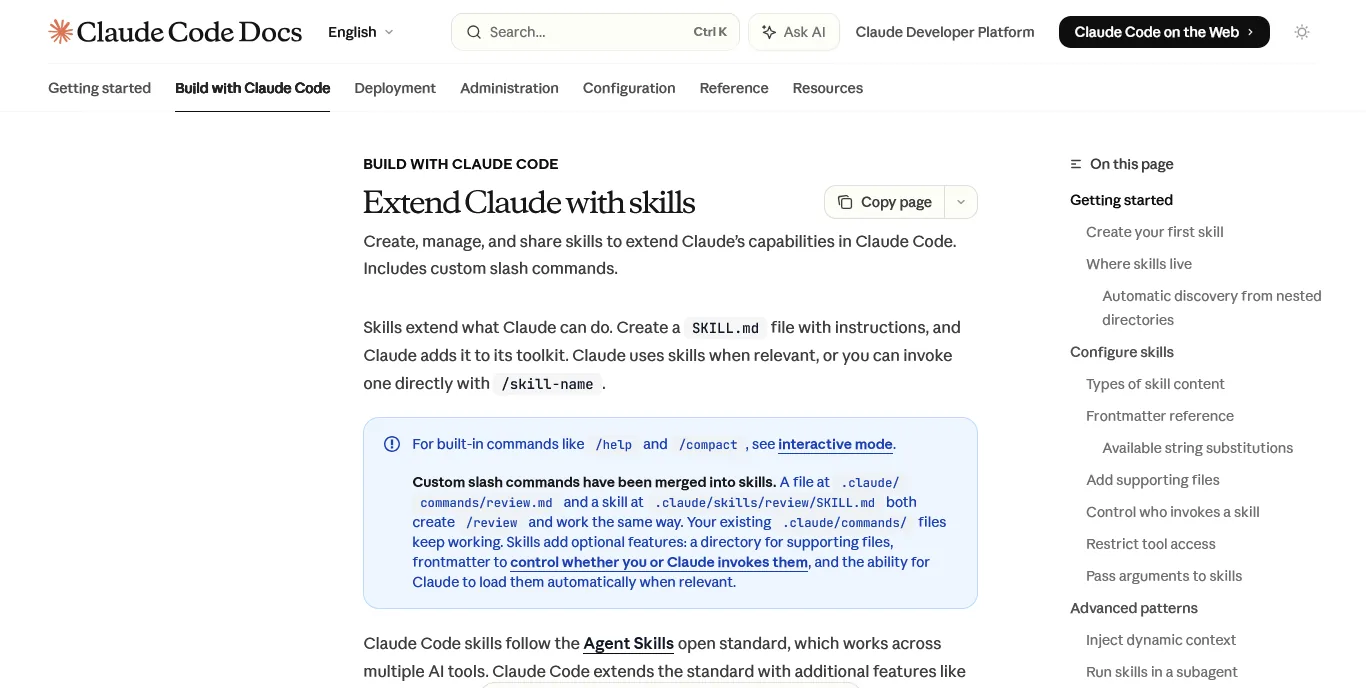
Skills are reusable instruction sets that extend Claude Code’s capabilities for specific tasks. Think of them as specialized modules you can plug in when needed. Instead of re-explaining your workflow every time you ask Claude for help, you create a skill once and invoke it whenever that task comes up.
A skill tells Claude:
- What the task is and what inputs it expects
- How to execute the task step by step
- Why certain decisions matter (domain knowledge)
- What good output looks like (quality gates)
For example, a “screenshot capture” skill might know how to bypass cookie consent dialogs, handle dark mode, validate image dimensions, and save files to the correct directory. Without the skill, you’d explain all this every time. With the skill, you just invoke it and let Claude handle the details. The same pattern applies whether you’re using Claude Code’s CLI or a paired workflow alongside AI pair programming techniques.
Why Build Custom Skills?
The real power comes from encoding your team’s specific knowledge:
Consistency: Every team member uses the same workflow. No more “how do we do X again?” conversations.
Speed: Complex multi-step tasks become single commands. What took 15 minutes of prompting becomes a 30-second invocation.
Quality: Built-in validation catches errors before they ship. Quality gates ensure output meets your standards every time.
Knowledge Preservation: When an expert leaves, their knowledge stays in the skill files. New team members benefit immediately - and because skills live in version-controlled directories, a Claude Code skills tutorial github repository makes sharing and collaborating on them straightforward. This addresses what GitHub’s research identifies as one of the biggest challenges in software teams: knowledge transfer and onboarding.
Prerequisites
Before building your first skill, you’ll need:
- Claude Code CLI installed and configured
- A working project with a
.claude/directory - Basic understanding of Markdown (skills are written in Markdown)
- A specific task you want to automate
This tutorial assumes you have Claude Code running and can invoke it from your terminal. If not, check the official Claude Code documentation first. For more on extending the assistant beyond skills, see our Claude Code hooks deep dive and the Claude Code simplifier pre-commit hook setup guide.
How Does the Three-File Skill Architecture Work?
Every Claude Code skill follows the same architecture. Understanding this pattern is key to building effective skills.
.claude/skills/{skill-name}/
    SKILL.md              # Core instructions (<500 lines)
    reference.md          # Domain knowledge
    templates/            # Code patterns and schemas
        schema.md
        examples.md
What Goes in SKILL.md?
This is the main file Claude reads when executing your skill. It contains:
- Frontmatter: Metadata about the skill (name, description, allowed tools)
- Quick Start: Minimal commands to accomplish the task
- Execution Flow: Step-by-step instructions
- Quality Gates: Validation checklists
- Anti-Patterns: Common mistakes to avoid
Critical constraint: Keep SKILL.md under 500 lines. If it’s longer, move content to reference.md or templates.
reference.md - Domain Knowledge
This file explains the “why” behind decisions. It contains:
- Background context Claude needs to understand the domain
- Decision trees for handling edge cases
- Troubleshooting guides for common problems
- Historical notes on why certain approaches were chosen
Think of reference.md as the knowledge an expert would share over coffee - context that makes the instructions make sense.
templates/ - Reusable Content
This directory holds rich content that would bloat SKILL.md:
- Schemas: JSON/TypeScript definitions for data structures
- Code patterns: Boilerplate code to copy/adapt
- Examples: Sample inputs and outputs
- Lookup tables: Reference data (e.g., API endpoints, regex patterns)
Claude Code Skills Tutorial: Creating Your First Skill Step-by-Step
Now for the hands-on part of this claude code skills tutorial. Let’s build a real skill from scratch. We’ll create a “changelog generator” skill that creates consistent changelog entries from git commits.
Step 1: Create the Directory Structure
First, create the skill folder and files:
mkdir -p .claude/skills/changelog-generator/templates
touch .claude/skills/changelog-generator/SKILL.md
touch .claude/skills/changelog-generator/reference.md
touch .claude/skills/changelog-generator/templates/entry-format.md
Step 2: Write the SKILL.md File
Here’s a complete SKILL.md for our changelog generator:
---
name: changelog_generator
description: Generate consistent changelog entries from git commits. Use when preparing releases or documenting changes.
allowed-tools: Bash, Read, Write, Edit
---

# Changelog Generator Skill

Generate standardized changelog entries from git commit history.

## Quick Start

```bash
# Get commits since last tag
git log $(git describe --tags --abbrev=0)..HEAD --oneline

# Generate changelog entry
# (Claude will format based on templates/entry-format.md)
Overview
This skill creates changelog entries following the Keep a Changelog format. It categorizes commits, formats them consistently, and updates CHANGELOG.md.
Input Parameters
| Parameter | Required | Description |
|---|---|---|
since | No | Git reference to start from (default: last tag) |
version | Yes | Version number for this release |
date | No | Release date (default: today) |
Execution Flow
Phase 1: Gather Commits
- Identify the starting point (last tag or specified ref)
- Get all commits since that point
- Parse commit messages for type prefixes
git log $(since)..HEAD --format="%s|%h|%an" --no-mergesPhase 2: Categorize Changes
Sort commits into categories based on prefixes:
| Prefix | Category |
|---|---|
feat: | Added |
fix: | Fixed |
docs: | Documentation |
refactor: | Changed |
perf: | Performance |
BREAKING: | Breaking Changes |
Phase 3: Format Entry
Use template from templates/entry-format.md to structure the entry.
Phase 4: Update CHANGELOG.md
- Read existing CHANGELOG.md
- Insert new entry below header
- Validate format
- Write updated file
Quality Gates
Before marking complete, verify:
- Version number follows semver (X.Y.Z)
- Date is in ISO format (YYYY-MM-DD)
- All commits are categorized
- No duplicate entries
- CHANGELOG.md passes markdown lint
Anti-Patterns
| Don’t | Do Instead |
|---|---|
| Include merge commits | Use --no-merges flag |
| Use vague descriptions | Extract clear action from commit message |
| Mix categories | One commit = one category |
| Forget breaking changes | Always check for BREAKING prefix |
Notice the structure:
- Clear frontmatter with metadata
- Quick Start for immediate action
- Phased execution with specific steps
- Quality gates as a checklist
- Anti-patterns table for common mistakes

### Step 3: Write the reference.md File

Now add domain knowledge:

```markdown
---
name: changelog_generator
description: Domain knowledge for changelog generation
version: 1.0.0
category: documentation
---

# Changelog Generator - Domain Knowledge

> **This file contains domain expertise, NOT execution instructions.**
> The SKILL.md file handles execution logic.

---

## Why Keep a Changelog Format?

We use the Keep a Changelog format because:

1. **Consistency**: Same structure across all projects
2. **Automation**: Tools can parse it reliably
3. **Human readable**: Clear categories make scanning easy
4. **Industry standard**: Most developers recognize it

### Format Specification

The format follows semantic versioning with categories:
- **Added**: New features
- **Changed**: Changes to existing functionality
- **Deprecated**: Features to be removed
- **Removed**: Removed features
- **Fixed**: Bug fixes
- **Security**: Vulnerability fixes

---

## Commit Message Conventions

This skill assumes conventional commit format:
type(scope): description
[optional body]
[optional footer]
### Type Prefixes

| Type | When to Use |
|------|-------------|
| feat | New feature for users |
| fix | Bug fix for users |
| docs | Documentation only |
| style | Formatting, no logic change |
| refactor | Code change, no feature/fix |
| perf | Performance improvement |
| test | Adding/fixing tests |
| chore | Maintenance tasks |

---

## Edge Cases

### Multiple Types in One Commit

If a commit spans categories (bad practice but happens):
- Prioritize user-facing changes (feat > fix > refactor)
- Split into multiple entries if significant

### Commits Without Prefixes

If commit lacks prefix:
1. Check body for keywords
2. Look at files changed
3. Default to "Changed" category
4. Flag for manual review

### Breaking Changes

Breaking changes MUST be called out:
- Prefix commit with `BREAKING:`
- Add dedicated section in changelog
- Include migration notes if possible

---

## Troubleshooting

### No Tags Found

```bash
# If no tags exist, use first commit
git log --reverse --format="%H" | head -1
Merge Commits Appearing
Ensure --no-merges flag is used. Merge commits clutter changelogs.
Duplicate Entries
Check for cherry-picked commits appearing multiple times. Use commit hash comparison to deduplicate.
### Step 4: Create Template Files

Add the entry format template:

```markdown
# Changelog Entry Format

## Template

```markdown
## [VERSION] - DATE

### Added
ADDED_ITEMS

### Changed
CHANGED_ITEMS

### Fixed
FIXED_ITEMS

### Security
SECURITY_ITEMS
Examples
Minimal Entry
## [1.2.0] - 2026-02-01

### Added
- User authentication via OAuth2
Full Entry
## [2.0.0] - 2026-02-01

### Breaking Changes
- Removed deprecated `/v1/` API endpoints
- Changed authentication from API key to OAuth2

### Added
- New dashboard with real-time analytics
- Export functionality for reports
- Dark mode support

### Changed
- Improved search performance by 40%
- Updated dependencies to latest versions

### Fixed
- Fixed memory leak in background worker
- Resolved timezone issues in date picker

### Security
- Patched XSS vulnerability in comment system
Category Rules
- Added = completely new functionality
- Changed = modified existing functionality
- Fixed = bug that was broken, now works
- Security = only security-related fixes
<figure class="blog-image">
  <img src="/images/guides/claude-code-skills-tutorial/screenshots/claude-code-github.webp" alt="Claude Code GitHub repository showing skill examples" width="1280" height="720" loading="lazy" decoding="async" />
  <figcaption>The Claude Code repository contains example skills to reference</figcaption>
</figure>

## SKILL.md Deep Dive: Writing Effective Instructions

The SKILL.md file is where most developers struggle. Here's how to write instructions that Claude can actually follow.

### Frontmatter Requirements

Every SKILL.md starts with YAML frontmatter:

```yaml
---
name: skill_name_with_underscores
description: One sentence describing when to use this skill
allowed-tools: Bash, Read, Write, Edit, WebSearch
---
The allowed-tools field is critical. It tells Claude which capabilities it can use:
| Tool | Use Case |
|---|---|
Bash | Running shell commands |
Read | Reading file contents |
Write | Creating new files |
Edit | Modifying existing files |
WebSearch | Searching the web |
WebFetch | Fetching URL content |
Only include tools the skill actually needs. Fewer tools = more focused execution.
Quick Start Section
The Quick Start should let experienced users immediately execute the skill:
## Quick Start

```bash
# Single command to accomplish the core task
your-command --with --flags
If the task requires multiple steps, show the minimal sequence:
## Quick Start

```bash
# 1. Gather data
command-one

# 2. Process data
command-two --input data.json --output result.json

# 3. Verify
command-three --validate result.json
### Execution Phases

Break complex tasks into phases. Each phase should:

1. Have a clear objective
2. Include specific commands or actions
3. Define success criteria

```markdown
### Phase 1: Setup

**Objective**: Prepare the environment

1. Check prerequisites exist
2. Create working directory
3. Initialize configuration

```bash
mkdir -p ./output
cp ./templates/config.json ./output/Success: ./output/config.json exists
### Quality Gates

Quality gates are checklists Claude uses to validate output. Use checkbox format:

```markdown
## Quality Gates

Before marking complete:

- Output file exists at expected path
- File size is within expected range
- No error messages in output
- Validation script passes
- Visual verification confirms correctness
Claude will literally check each box as it verifies. This prevents premature “done” responses.
Anti-Patterns Table
Include common mistakes and their corrections:
## Anti-Patterns

| Don't | Do Instead |
|-------|------------|
| Hardcode paths | Use variables |
| Skip validation | Always verify output |
| Ignore errors | Handle every error case |
| Assume state | Check prerequisites first |
This format is scannable and prevents repeated mistakes.
Reference Files: Adding Domain Knowledge
Reference files answer the question: “Why do we do it this way?”
Structure
---
name: skill_name
description: Domain knowledge for [skill purpose]
version: 1.0.0
category: [content|assets|research|validation]
---

# Skill Name - Domain Knowledge

> **This file contains domain expertise, NOT execution instructions.**

---

## Background

[Why this task matters, history, context]

---

## Decision Framework

[How to make choices when executing]

---

## Edge Cases

[Unusual situations and how to handle them]

---

## Troubleshooting

[Common problems and solutions]
What Goes in Reference vs. SKILL.md
| Content Type | Goes In |
|---|---|
| Step-by-step commands | SKILL.md |
| Why we use this approach | reference.md |
| Quality checklist | SKILL.md |
| Edge case explanations | reference.md |
| Code snippets to run | SKILL.md |
| Historical context | reference.md |
| Validation commands | SKILL.md |
| Troubleshooting decision trees | reference.md |
Templates: Code Patterns and Schemas
Templates hold content too large for SKILL.md but too important to omit.
Common Template Types
Schema Templates - Data structure definitions:
# User Data Schema

```typescript
interface User {
  id: string;
  email: string;
  name: string;
  created_at: string; // ISO 8601
  settings: {
    theme: 'light' | 'dark';
    notifications: boolean;
  };
}
**Code Pattern Templates** - Reusable code blocks:

```markdown
# API Handler Pattern

```python
from fastapi import APIRouter, HTTPException

router = APIRouter(prefix="/api/v1")

@router.get("/{resource_id}")
async def get_resource(resource_id: str):
    resource = await fetch_resource(resource_id)
    if not resource:
        raise HTTPException(status_code=404, detail="Not found")
    return resource
**Example Templates** - Sample inputs and outputs:

```markdown
# Example: Blog Post Frontmatter

## Input
- Title: "Getting Started with Claude Code"
- Author: "Dev Team"
- Date: 2026-02-01

## Output
```yaml
---
title: "Getting Started with Claude Code"
author: "Dev Team"
date: "2026-02-01"
slug: "getting-started-with-claude-code"
---
## Testing Your Skill

Once you've created your skill files, test them:

### Manual Invocation

Start a Claude Code session and reference your skill:

```bash
claude

> I need to generate a changelog. Use the changelog_generator skill
> in .claude/skills/changelog-generator/
Claude will read your SKILL.md and follow the instructions.
Slash Command Integration
For frequently used skills, create a slash command:
# .claude/commands/changelog.md
Generate a changelog entry using the changelog_generator skill.

Version: $ARGUMENTS

Follow the skill at .claude/skills/changelog-generator/SKILL.md
Now you can invoke with:
/changelog 1.5.0Validation Checklist
After running your skill:
- Did Claude follow the phases? Check that it executed in order
- Did it check quality gates? Each checkbox should be addressed
- Is the output correct? Manually verify the result
- Were there errors? Note what went wrong for improvement
Best Practices from Production Use
Based on production use patterns, here are the key best practices:
Keep SKILL.md Under 500 Lines
This isn’t arbitrary. Longer files:
- Dilute important instructions
- Increase processing time
- Make updates harder
If you’re over 500 lines, refactor:
- Move explanations to reference.md
- Move code samples to templates/
- Simplify instructions
Use Tables for Reference Data
Tables are faster to scan than paragraphs:
| Input | Type | Required | Default |
|-------|------|----------|---------|
| version | string | Yes | - |
| date | string | No | today |
| format | enum | No | markdown |
Include Verification Commands
Every skill should have commands to verify success:
## Verification

```bash
# Check file exists
ls -la ./output/result.json

# Validate format
jq '.' ./output/result.json > /dev/null && echo "Valid JSON"

# Check content
grep -c "expected_field" ./output/result.json
### Version Your Skills

Track changes in your skill files:

```markdown
---

## Version History

| Version | Date | Changes |
|---------|------|---------|
| 1.0.0 | 2026-01-15 | Initial release |
| 1.1.0 | 2026-01-28 | Added edge case handling |
| 2.0.0 | 2026-02-01 | Complete rewrite for new workflow |
Link Related Skills
Skills often work together. Reference them:
## Related Skills

| Skill | When to Use |
|-------|-------------|
| `release_manager` | Full release workflow |
| `version_bumper` | Updating version numbers |
| `git_tagger` | Creating release tags |
Common Mistakes to Avoid
Mistake 1: Instructions Too Vague
Bad:
## Execution
Process the data and save it.
Good:
## Execution
1. Read input from `./data/input.json`
2. Transform using `jq '.items | map(.name)'`
3. Save to `./output/names.json`
4. Verify with `jq length ./output/names.json`
Mistake 2: Missing Error Handling
Bad:
## Phase 2: Download
Download the file.
Good:
## Phase 2: Download
1. Attempt download with curl
2. Check HTTP status code
3. If 404: Log error, skip to fallback
4. If 5xx: Retry up to 3 times
5. If success: Verify file size > 0
Mistake 3: No Quality Gates
Without quality gates, Claude may declare success prematurely. Always include verification:
## Quality Gates

- Output file exists
- Output file > 0 bytes
- Output passes validation
- No error messages in log
Mistake 4: Mixing Instructions and Knowledge
SKILL.md should be actionable. If you find yourself explaining history or background, move it to reference.md.
Conclusion
This claude code skills tutorial has shown how building custom skills transforms how you work with AI assistants. Instead of re-explaining your workflow every session, you encode it once and invoke it whenever needed.
Start small: Build one skill for a task you do weekly. Get the structure right before scaling up.
Iterate: Your first version won’t be perfect. Run the skill, note what Claude missed, and refine.
Share: Skills are just Markdown files. Share them with your team, contribute to communities, and learn from others. Reading other developers’ prompt-engineering patterns is a fast way to spot conventions worth adopting.
The skills architecture - SKILL.md for instructions, reference.md for knowledge, templates for patterns - provides the perfect balance of guidance and flexibility. Claude gets clear directions while having the context to handle edge cases intelligently.
Ready to build your first skill? Create the .claude/skills/ directory in your project and start with something simple. A “commit message generator” or “code review checklist” makes a great first project.
For more on Claude Code capabilities, explore Claude Code directly and check out related guides on AI coding assistants and AI pair programming.
Frequently Asked Questions
What files make up a Claude Code skill?
A skill uses three core files: SKILL.md for instructions, reference.md for domain knowledge, and a templates/ folder for code patterns and reusable content. SKILL.md includes frontmatter metadata, a Quick Start section, phased execution steps, and quality gates. Keeping SKILL.md under 500 lines is a recommended best practice.
How do you invoke a custom skill in Claude Code?
Skills are invoked via slash commands from the terminal. For example, running /changelog 1.5.0 triggers a changelog generator skill by pointing Claude to the SKILL.md file at .claude/skills/changelog-generator/. You can also prompt Claude directly, asking it to use a named skill stored in your .claude/skills/ directory.
Why use skills instead of re-explaining your workflow each time?
Skills are reusable instruction sets you create once and invoke whenever a specific task comes up. Rather than re-explaining steps, context, and quality expectations every session, the skill encodes all of that permanently - covering what the task is, how to execute it, why certain decisions matter, and what good output looks like.
How do Claude Code skills help with team knowledge transfer?
When an expert leaves a team, their workflow knowledge stays preserved inside the skill files rather than walking out the door with them. New team members can benefit from that expertise immediately by invoking the same skills, which directly addresses the knowledge transfer and onboarding challenges identified in GitHub’s research on software teams.
What is a good first skill to build in Claude Code?
Starting with something simple is recommended - a commit message generator or a code review checklist makes a great first project. The process begins by creating a .claude/skills/ directory in your project, then building out the three-file structure: SKILL.md, reference.md, and a templates/ folder.
Want to learn more about Claude Code?
Related Guides
- Claude Code Hooks Deep Dive - Automate workflows with pre/post tool execution hooks
- Claude Code Prompt Engineering - Advanced techniques for better results from Claude Code
- Claude Code Tips and Tricks - Power user workflows that save hours
- Claude Code Simplifier Pre-Commit Hook - Auto-clean code before every commit
- Building MCP Servers Guide - Connect Claude Code to external data sources
External Resources
For official documentation and community skills:
- Claude Code Documentation - Official setup and reference
- Claude Code GitHub - Source code and examples
Related Guides
- AI Agent Orchestration: Patterns That Scale in 2026
- AI Productivity Trends 2026: 6 Real Shifts, No Hype
- Building AI First Workflows: A Practitioner's 2026 Guide
- Building Mcp Servers Guide: 2026 Walkthrough for Teams
- ChatGPT Custom GPTs Guide - Save 130+ Hours a Year
- Claude Code Hooks Guide: PreToolUse, PostToolUse, Stop
- Claude Code Simplifier Pre-commit Hook: Complete 2026 Guide
- Claude Code Tips and Tricks (2026): 10 Power Workflows
- Claude Code Ultraplan & Plan Mode: Complete Guide (2026)
- How to Learn Faster with AI: Master Any Skill in 2026