


Claude Code tips and tricks are techniques that unlock the tool’s most powerful features beyond basic chat interactions. Key examples include running /init to generate a CLAUDE.md project file for persistent context, using Plan Mode for complex tasks, configuring hooks automation, and integrating MCP servers - capabilities most users never configure but that save real hours weekly.
Most developers install Claude Code and start chatting with it like any other AI assistant. That works for quick questions, but it leaves the most powerful features completely untouched. The real productivity gains come from features like CLAUDE.md project files, hooks automation, Plan Mode for complex tasks, and MCP server integrations that most users never configure. Anthropic’s official Claude Code overview is a useful primer for context.
These claude code tips and tricks cover everything from first-day setup to advanced power user workflows. Each tip includes the exact commands and configuration you need, plus a realistic estimate of time saved. Whether you are on the free tier exploring what is possible or a Max subscriber pushing the tool to its limits, this guide will transform your Claude Code workflow.
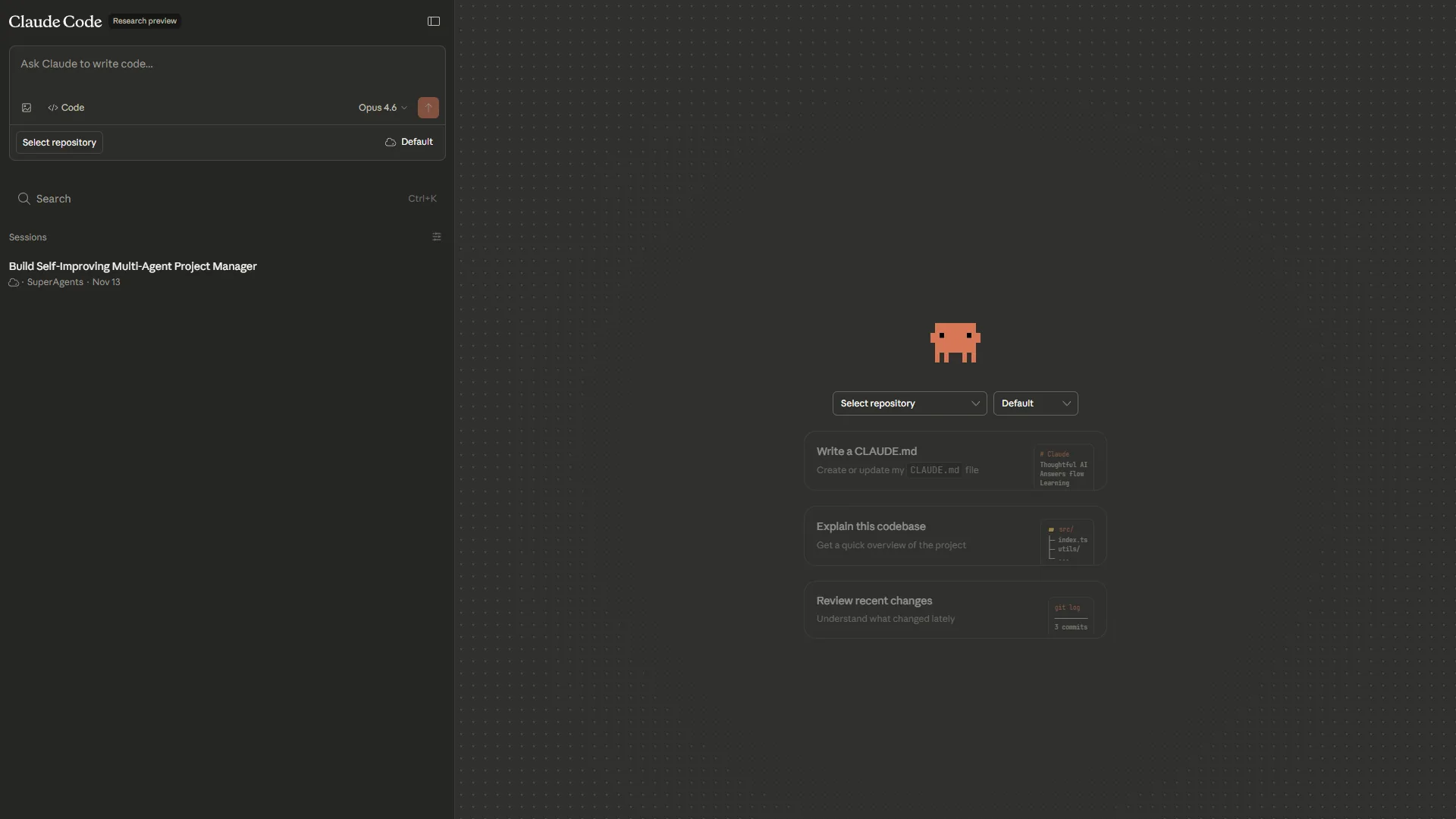
What Is Claude Code?
Claude Code is Anthropic’s official CLI for AI-assisted coding. It runs directly in your terminal and can read, write, and execute code across your entire project. Unlike IDE-based tools like Cursor or GitHub Copilot, Claude Code works alongside any editor you already use - VS Code, Vim, Emacs, or anything else. The 200K token context window means it understands your full codebase, not just the file you have open.
Current Pricing (February 2026):
| Plan | Price | What You Get |
|---|---|---|
| Free | Free | Basic access, limited daily usage |
| Pro | $20/month | Full access, higher usage limits, priority |
| Max | $100/month | Unlimited usage, highest priority, extended context |
Claude Code is included with your Anthropic Claude subscription - no separate purchase needed. The Pro tier at $20/month is the sweet spot for most developers - our Claude Code review walks through what each tier unlocks. Now let me walk you through the claude code tips and tricks that will save you real hours every week.
Getting Started Tips (1-4): First Day Setup
1. Run /init to Generate Your CLAUDE.md File
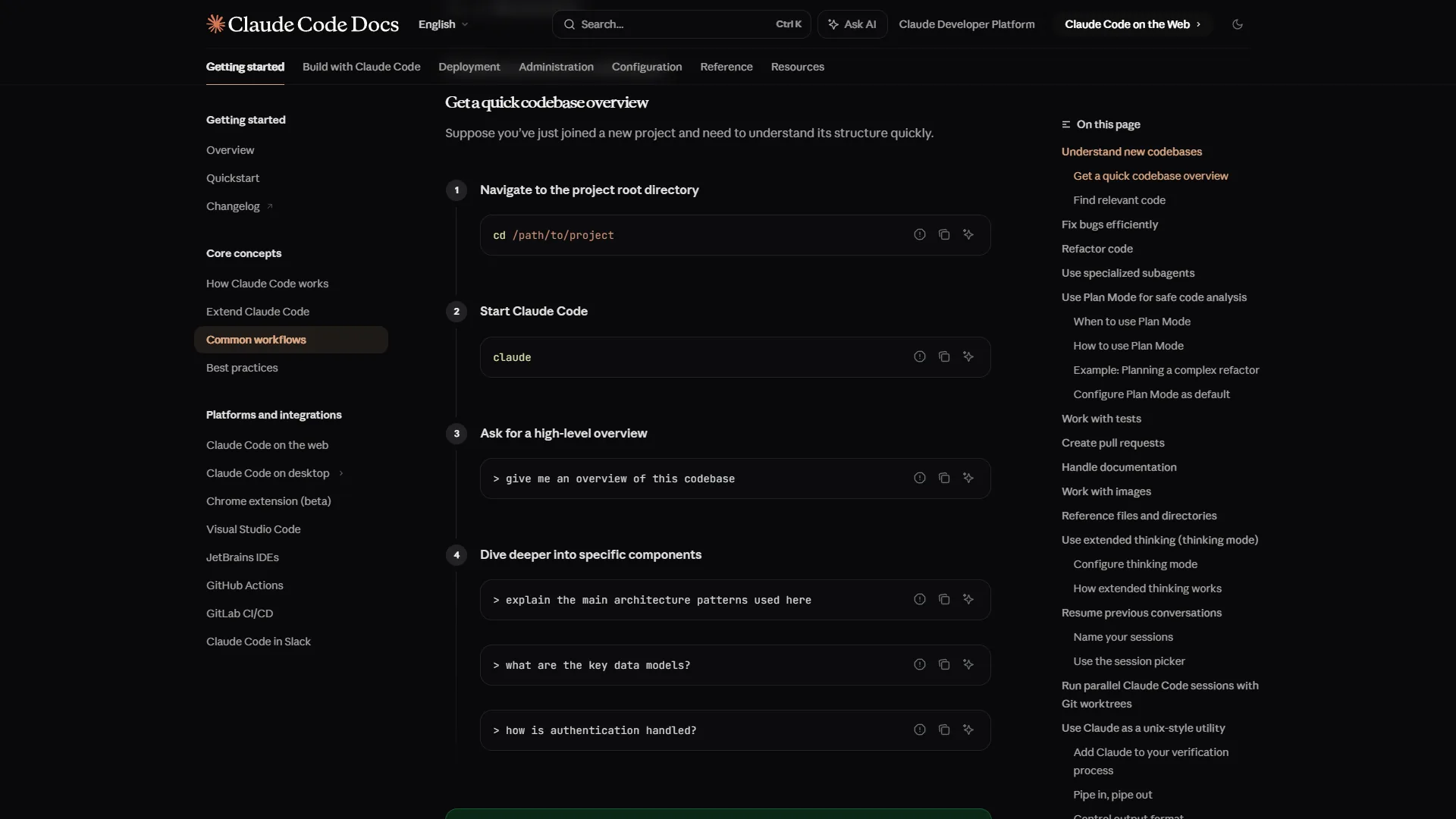
This is the single most impactful thing you can do in your first five minutes. The /init command scans your project and generates a CLAUDE.md file in the root directory. This file gives Claude Code persistent context about your project - tech stack, coding conventions, file structure, and preferences.
claude
> /init
Claude Code analyzes your codebase and produces a markdown file that it reads at the start of every session. Without it, you are re-explaining your project every time. With it, every response matches your conventions from the first prompt.
Time saved: 5-10 minutes per session (no more explaining your tech stack repeatedly)
2. Customize CLAUDE.md With Team Rules
The auto-generated CLAUDE.md is a starting point. The real power comes from adding your own rules. Think of it as a .cursorrules-style file for your entire team - anyone who opens Claude Code in this repo gets the same instructions.
# CLAUDE.md

## Project
This is an Astro + TypeScript site using TailwindCSS.
Package manager: npm (not yarn, not pnpm).

## Code Style
- Prefer named exports over default exports
- Use TypeScript strict mode everywhere
- Error handling: use Result types, not try/catch
- All API calls go through src/lib/ service files

## Testing
- Use Vitest, not Jest
- Co-locate test files next to source files

## Do NOT
- Add console.log statements to committed code
- Use any type - always type explicitly
- Create new files without checking for existing ones first
Every Claude Code session reads this file automatically. Your team gets consistent AI-assisted code without any manual coordination.
Time saved: 15-20 minutes per day across a team (eliminates style correction rework)
3. Learn the Essential Slash Commands
Claude Code includes built-in slash commands that most users never discover. These are faster than typing natural language for common operations - the full list lives in the slash commands reference:
/init          # Generate CLAUDE.md for your project
/clear         # Reset conversation context
/compact       # Compress conversation to save context window
/cost          # Show token usage and spending
/help          # List all available commands
/review        # Request a code review
/bug           # Report/debug an issue
The most underused command is /compact. When your conversation gets long and Claude Code starts losing context, /compact compresses the history while preserving key information. This is essential during long coding sessions.
Time saved: 2-3 minutes per session (faster than typing out equivalent requests)
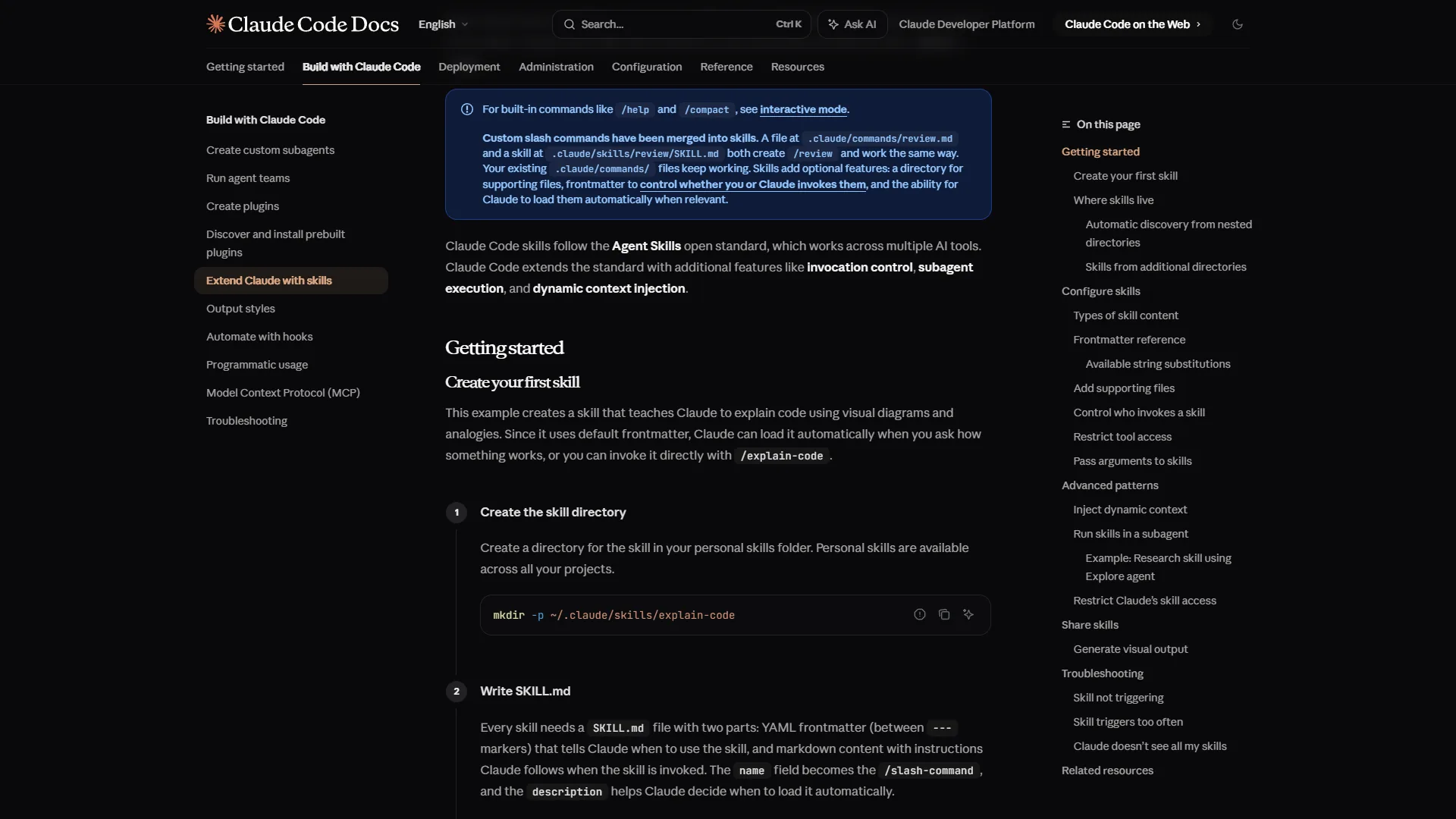
4. Configure Permissions for Autonomous Execution
By default, Claude Code asks permission before running shell commands. For trusted operations in your development environment, you can pre-approve specific commands to let Claude Code work autonomously:
# Allow common dev commands without prompting
claude config set allowedTools "bash(npm run test)" "bash(npm run build)" "bash(npm run lint)"
This turns Claude Code from a suggestion engine into an autonomous agent. Tell it to “fix the failing tests” and it will run them, read the output, fix the code, and re-run until they pass - all without interrupting you for permission at each step. The Ralph Wiggum loop guide shows how to chain these autonomous runs across multiple sessions.
Time saved: 10-15 minutes per debugging session (no manual permission clicks)
Daily Workflow Tips (5-8): Consistent Speed Gains
5. Use Plan Mode for Complex Tasks
Plan Mode is one of the most powerful claude code tips and tricks for multi-step work. Instead of diving straight into code changes, Plan Mode makes Claude Code outline its approach first, wait for your approval, then execute.
# Activate Plan Mode with the --plan flag or shift+tab in chat
claude --plan "Refactor the authentication module to use JWT tokens instead of session cookies"
For a complex refactor, Plan Mode might produce (see Anthropic’s Plan Mode docs for activation details):
- Update the auth middleware to validate JWT tokens
- Create a token generation utility in
src/lib/auth.ts - Modify the login endpoint to return JWT instead of setting cookies
- Update all protected routes to use the new middleware
- Add tests for token validation and expiry
You review the plan, adjust if needed, then let Claude Code execute each step. This prevents the common problem where Claude Code makes overly broad changes because it misunderstood your intent.
Time saved: 20-30 minutes per complex task (avoids rework from misunderstood requirements)
6. Reference Files Strategically in Prompts
Claude Code can read your entire project, but explicitly pointing it to relevant files produces better results faster. Instead of “fix the login bug,” try:
Look at src/lib/auth.ts and src/pages/api/login.ts.
The login endpoint returns a 500 when the user doesn't exist
instead of a 401. Fix the error handling.
Specific file references reduce hallucination and ensure Claude Code focuses on the right code. For large codebases, this is the difference between a 30-second response and a 2-minute one because it skips the codebase search step.
Time saved: 1-2 minutes per prompt (faster, more accurate responses)
7. Chain Tasks With Context Continuity
Claude Code maintains context within a session, so you can build on previous work without re-explaining. Use this to chain related tasks efficiently:
# Session flow
> "Add input validation to the user registration form"
# Claude Code adds validation...

> "Now add matching validation tests"
# It already knows which validation was added...

> "Add error messages to the UI for each validation rule"
# It knows both the validation rules and the form structure...
Each prompt builds on the previous context. Trying to do all three at once often produces worse results because the scope is too broad. Chaining gives Claude Code a clear, focused task at each step while maintaining the full picture.
Time saved: 5-10 minutes per feature (no re-explaining context between related tasks)
8. Use /compact Before Context Window Overflows
Long sessions degrade Claude Code’s performance as the context window fills up. The symptom is obvious: responses start ignoring earlier parts of the conversation, or Claude Code “forgets” changes it made 20 prompts ago.
# When you notice degraded responses
> /compact

# Or proactively after ~30 prompts
> /compact
Run /compact proactively every 25-30 prompts rather than waiting for degraded output. It compresses the conversation while keeping the essential information. Think of it as garbage collection for your session.
Time saved: 5-15 minutes per long session (prevents wasted prompts from context degradation)
Power User Tips (9-12): Advanced Workflows
9. Set Up Hooks for Automated Quality Gates
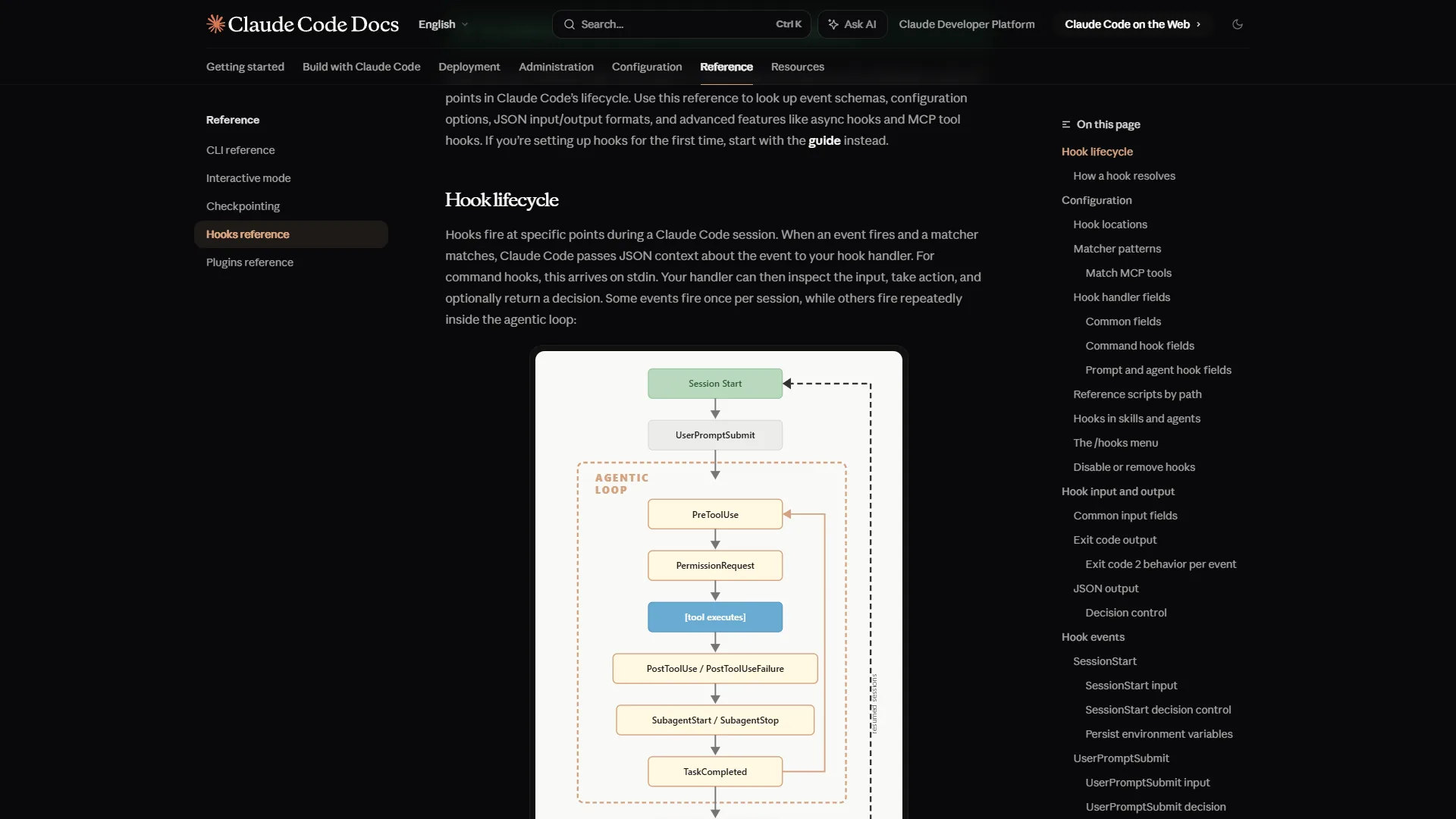
Hooks are one of the most underutilized claude code tips and tricks. They let you run custom scripts at specific points in Claude Code’s workflow - before a command runs, after a file is saved, or when a session starts. Here is a practical example:
Configure hooks in your project’s .claude/settings.json:
{
  "hooks": {
    "PostToolUse": [
      {
        "matcher": "write|edit",
        "command": "npx eslint --fix ${file}"
      }
    ]
  }
}
This automatically runs ESLint after every file Claude Code writes or edits. You can chain multiple hooks - run linting, then type checking, then tests. The result is code that meets your standards before you even look at it.
Other practical hook ideas (the Claude Code hooks deep dive covers each in more detail):
- Auto-format with Prettier after every file edit
- Run type checking after TypeScript file changes
- Trigger test suites after source file modifications
- Send notifications when long tasks complete
Time saved: 10-20 minutes per day (automated quality checks catch issues immediately)
10. Connect MCP Servers for External Tool Integration
MCP (Model Context Protocol) servers extend Claude Code’s capabilities by connecting it to external tools and data sources. Instead of switching between your terminal and a browser to check documentation or manage databases, you can bring those tools directly into your Claude Code session.
// .claude/settings.json
{
  "mcpServers": {
    "github": {
      "command": "npx",
      "args": ["-y", "@modelcontextprotocol/server-github"],
      "env": { "GITHUB_TOKEN": "your-token" }
    },
    "postgres": {
      "command": "npx",
      "args": ["-y", "@modelcontextprotocol/server-postgres"],
      "env": { "DATABASE_URL": "your-connection-string" }
    }
  }
}
With MCP servers configured, Claude Code can query your database directly, create GitHub issues, read documentation, and interact with APIs - all without you leaving the terminal. The MCP server registry has dozens of pre-built integrations for common tools. For a deeper walkthrough on creating your own integrations, see our guide to building MCP servers.
Time saved: 15-30 minutes per day (eliminates context switching between tools)
11. Optimize Costs With Model Selection and /cost
Claude Code uses different models depending on the task. For cost-conscious users, understanding the model hierarchy helps you get better results without burning through your usage limits:
# Check your current spending
> /cost

# Use Haiku for quick questions (lower cost)
# Use Sonnet for standard coding tasks
# Use Opus for complex architecture decisions
Practical cost optimization strategies:
- Use
/compactregularly to reduce token usage on long sessions - Be specific in prompts to avoid wasted generation tokens
- Break large tasks into focused sub-tasks instead of one massive prompt
- Use Plan Mode to review the approach before expensive execution
- Check
/costperiodically to understand your usage patterns - Choose the right model for the task - our guide on which Claude model to use for coding breaks down when Haiku, Sonnet, and Opus each make sense
For teams, setting up a shared CLAUDE.md with cost guidelines helps everyone stay within budget while still getting productive results. Anthropic’s pricing page documents per-token costs across the model lineup.
Time saved: $50-100/month in reduced API costs for heavy users
12. Master Git Integration for Faster Reviews
Claude Code’s git integration goes far beyond basic commits. Use it for the entire git workflow:
# Generate a commit with a meaningful message
> "Commit these changes with a descriptive message"

# Create a pull request description
> "Generate a PR description for the current branch changes"

# Review staged changes before committing
> "Review my staged changes and flag any issues"

# Interactive rebase assistance
> "Help me squash the last 5 commits into a clean history"
The PR description generation alone saves 10-15 minutes per pull request. Claude Code reads the diff, understands the context from your CLAUDE.md, and writes a description that explains both what changed and why. Our AI pair programming guide covers the broader review-and-ship workflow.
Time saved: 15-20 minutes per PR cycle (automated descriptions, review assistance)
Windows-Specific Tips (13-14)
13. Fix Hook Paths for Windows Environments
If you are running Claude Code on Windows, hooks require absolute paths with escaped backslashes. This trips up nearly every Windows user (see the relevant GitHub issue thread for the full diagnosis):
{
  "hooks": {
    "PostToolUse": [
      {
        "matcher": "write|edit",
        "command": "C:\\Users\\YourName\\project\\.venv\\Scripts\\python.exe C:\\Users\\YourName\\project\\scripts\\lint.py"
      }
    ]
  }
}
Common mistakes to avoid:
- Relative paths like
python scripts/lint.pywill fail - Git Bash format paths like
/c/Users/...are not recognized - Environment variables like
$CLAUDE_PROJECT_DIRmay not expand correctly on Windows
Always use full Windows paths with double backslashes in JSON configuration files.
Time saved: 30-60 minutes of debugging (avoids the most common Windows setup pitfall)
14. Use Git Bash Shell Syntax in Terminal Commands
Claude Code on Windows runs under Git Bash, not cmd.exe. This means you should use Unix-style commands:
# Correct (Git Bash syntax)
ls src/components/
cat package.json | grep "version"

# Incorrect (Windows cmd syntax)
dir src\components\
type package.json | findstr "version"
If you need to run Windows-native commands, prefix them with cmd //c:
cmd //c "tasklist | findstr node"Time saved: 5-10 minutes per session (no failed commands from wrong syntax)
Team Workflow Tips (15-16)
15. Create Shared CLAUDE.md Standards Across Repos
For teams, CLAUDE.md becomes your AI coding standard. Maintain a base template that every repository starts with, then customize per-project:
# Team Standards (copy to every repo's CLAUDE.md)

## Architecture Decisions
- All API endpoints return { data, error } envelope format
- Use dependency injection for service classes
- Database migrations use sequential numbering, not timestamps

## PR Requirements
- Every PR must include tests for new functionality
- Breaking changes require a migration guide in the PR description
- No direct commits to main - always use feature branches
When every developer on the team gets the same AI-assisted coding conventions, code reviews become faster because the AI-generated code already follows your standards. New team members ramp up faster because Claude Code teaches them your conventions through its suggestions.
Time saved: 2-4 hours per week per team (consistent code, faster reviews)
16. Use Claude Code in CI/CD Pipelines
Claude Code is not just an interactive tool. You can run it in headless mode for CI/CD automation:
# Run Claude Code non-interactively
claude -p "Review the changes in this PR and output a JSON report of issues found" --output-format json

# Use in GitHub Actions
claude -p "Generate a changelog entry for the commits since the last release"
Practical CI/CD use cases (see the Claude Code CLI reference for headless flags):
- Automated PR review comments
- Changelog generation from commit messages
- Migration script validation before deployment
- Documentation updates when API contracts change
Time saved: 30-60 minutes per release cycle (automated review and documentation)
Quick Reference: All 16 Tips at a Glance
Here is every tip with its estimated time savings, so you can prioritize which claude code tips and tricks to implement first:
| Tip | Category | Time Saved |
|---|---|---|
| 1. Run /init | Setup | 5-10 min/session |
| 2. Customize CLAUDE.md | Setup | 15-20 min/day |
| 3. Learn slash commands | Setup | 2-3 min/session |
| 4. Configure permissions | Setup | 10-15 min/debug session |
| 5. Use Plan Mode | Daily | 20-30 min/complex task |
| 6. Reference files explicitly | Daily | 1-2 min/prompt |
| 7. Chain tasks with context | Daily | 5-10 min/feature |
| 8. Use /compact proactively | Daily | 5-15 min/long session |
| 9. Set up hooks | Advanced | 10-20 min/day |
| 10. Connect MCP servers | Advanced | 15-30 min/day |
| 11. Optimize costs | Advanced | $50-100/month |
| 12. Master git integration | Advanced | 15-20 min/PR |
| 13. Fix Windows hook paths | Windows | 30-60 min debugging |
| 14. Use Git Bash syntax | Windows | 5-10 min/session |
| 15. Shared CLAUDE.md | Team | 2-4 hrs/week/team |
| 16. CI/CD integration | Team | 30-60 min/release |
Conservative total: 3-5 hours saved per week for an individual developer using tips 1-12. Teams implementing tips 15-16 can multiply that across every team member.
The Bottom Line on Claude Code Tips and Tricks
These 16 claude code tips and tricks represent the progression from “another AI chat tool” to a genuine force multiplier for your development workflow. The setup tips take 15 minutes and pay dividends on every session. The daily workflow tips compound into hours saved each week. And the power user tips - hooks, MCP servers, git automation - transform Claude Code from a coding assistant into an automated development pipeline.
Start with tip 1: run /init in your current project. You will notice the difference in your very next interaction. Then work through the daily tips as you settle into a rhythm, and graduate to hooks and MCP servers when you are ready to automate. For a deeper look at Claude Code’s capabilities and how it compares to other tools, check out our full Claude Code review.
The developers getting the most out of Claude Code are not the ones writing the cleverest prompts. They are the ones who invested 30 minutes in setup - CLAUDE.md, permissions, hooks - and then let the tool work for them. These claude code tips and tricks are that 30-minute investment.
Frequently Asked Questions
What is CLAUDE.md and why does it matter?
CLAUDE.md is a project file generated by the /init command that gives Claude Code persistent context about your codebase - tech stack, coding conventions, file structure, and preferences. Without it, you re-explain your project every session. With it, every response matches your conventions from the first prompt, saving an estimated 15-20 minutes per day.
What does the /compact command do in Claude Code?
The /compact command compresses your conversation history while preserving key information. Long sessions degrade performance as the context window fills up - Claude Code starts ignoring earlier parts of the conversation or forgets changes made earlier. Running /compact proactively every 25-30 prompts acts like garbage collection for your session.
How much does Claude Code cost per month?
Claude Code is included with your Anthropic Claude subscription - no separate purchase needed. Plans range from Free (limited daily usage) to Pro ($20/month with higher usage limits) to Max ($100/month with unlimited usage and highest priority). The Pro tier is described as the sweet spot for most developers.
What are Claude Code hooks used for?
Hooks let you run custom scripts at specific points in Claude Code’s workflow - before a command runs, after a file is saved, or when a session starts. Practical uses include auto-running ESLint after every file edit, formatting with Prettier, triggering type checks after TypeScript changes, or sending notifications when long tasks complete.
What are MCP servers in Claude Code?
MCP (Model Context Protocol) servers extend Claude Code by connecting it to external tools and data sources. With MCP servers configured, Claude Code can query your database directly, create GitHub issues, read documentation, and interact with APIs - all without leaving the terminal. A pre-built registry offers dozens of integrations for common tools.
Which of these claude code tips and tricks should I implement first?
Start with /init to generate a CLAUDE.md file - that single setup step pays back on every subsequent prompt. Then add a few coding-specific rules (style preferences, package manager, test framework) to that file. Once those two are in place, the slash commands and Plan Mode tips deliver the next biggest jump in day-to-day speed.
Want to learn more about Claude Code?
Related Guides
- Claude Code Hooks Deep Dive - Advanced hook configuration and automation
- Claude Code Prompt Engineering - Write better prompts for faster, more accurate results
- Building MCP Servers Guide - Create your own MCP integrations for Claude Code
- Ralph Wiggum Loop Guide - Build persistent, multi-session AI coding workflows
Related Reading
Tools covered in this article:
- Claude Code - Anthropic’s terminal-based AI coding assistant
More Claude Code and AI coding guides:
- Claude Code vs Cursor 2026 - Complete comparison of terminal vs IDE approaches
- Claude Code Hooks Deep Dive - Advanced hook configuration and automation
- Claude Code Prompt Engineering - Write better prompts for faster, more accurate results
- Best AI Coding Assistants - Complete guide to AI coding tools in 2026
- AI Pair Programming Guide - How to work effectively with AI coding assistants
- Ralph Wiggum Loop Guide - Build persistent, multi-session AI coding workflows
External Resources
For official Claude Code documentation and community resources:
- Claude Code Documentation - Official setup guides, feature reference, and configuration details
- MCP Server Registry - Community-maintained directory of MCP server integrations
- Anthropic Research - Latest updates on Claude models powering Claude Code
Related Guides
- AI Agent Orchestration: Patterns That Scale in 2026
- AI Productivity Trends 2026: 6 Real Shifts, No Hype
- Building AI First Workflows: A Practitioner's 2026 Guide
- Building Mcp Servers Guide: 2026 Walkthrough for Teams
- ChatGPT Custom GPTs Guide - Save 130+ Hours a Year
- Claude Code Hooks Guide: PreToolUse, PostToolUse, Stop
- Claude Code Simplifier Pre-commit Hook: Complete 2026 Guide
- Claude Code Skills Tutorial: 2026 Walkthrough for Teams
- Claude Code Ultraplan & Plan Mode: Complete Guide (2026)
- ElevenLabs API Setup: Developer Quick Start Guide (2026)