


How to analyze data with AI means uploading a spreadsheet to a tool like ChatGPT or Notion, asking a question in plain English, and getting charts, summaries, and recommendations in minutes - no Python, SQL, or statistics degree needed. ChatGPT handles deep analysis and visualizations, while Notion organizes and tracks data for teams.
You have a spreadsheet with 10,000 rows of sales data, and your boss wants “actionable insights” by Friday. Five years ago, that meant hiring a data analyst or spending a weekend learning pivot tables. In 2026, you can upload that file to an AI tool, ask a question in plain English, and get charts, summaries, and recommendations in under two minutes.
Learning how to analyze data with AI is no longer a nice-to-have skill - it is the single biggest productivity multiplier available to non-technical professionals, whether they are working with spreadsheets, databases, or AI data analysis Excel files. A McKinsey study found that employees using AI for data tasks completed analyses 40% faster with comparable accuracy to dedicated analysts. The gap between “data-savvy” and “data-challenged” teams is closing fast, and many of the tools driving that shift are available to explore how to analyze data with AI free of charge.
This guide walks you through the exact process using two tools you may already have: ChatGPT and Notion. No Python. No SQL. No statistics degree. Just practical workflows you can use today.
How to Analyze Data with AI: Tools Compared
How to Analyze Data with AI is easier than most people expect with the right tools and approach. This guide walks through the practical steps to analyze data with AI, from choosing the right platform to building workflows that save hours each week.
Before diving into the step-by-step process, here is how ChatGPT and Notion stack up for data analysis:
| Feature | ChatGPT | Notion |
|---|---|---|
| Best For | Deep analysis, charts, pattern detection | Organizing data, team dashboards, ongoing tracking |
| Starting Price | Free (Plus: $20/month) | Free (Plus: $12/month/user) |
| Data Import | CSV, Excel, JSON file upload | CSV import, API integrations, manual entry |
| AI Strength | Python execution, chart generation, statistical analysis | Natural language Q&A, formula generation, summarization |
| Max File Size | 512 MB per file (Plus/Pro) | No hard limit (practical limit around 10,000 rows) |
| Chart Types | Bar, line, scatter, heatmap, histogram, and more | Built-in views: table, board, calendar, gallery, chart |
| Learning Curve | Low - just describe what you want | Low - familiar database interface |
| Rating |
The short version: use ChatGPT when you need to explore unfamiliar data, find patterns, and generate visualizations quickly. Use Notion when you need to organize, track, and share data with your team over time. Together they represent the best AI for data analysis free tier combination available - ChatGPT for the heavy analysis, Notion for the ongoing system.
What AI Data Analysis Can (And Cannot) Do
AI data analysis falls into three tiers. Tier 1 - Descriptive (what happened): AI summarizes data, calculates averages, identifies outliers, and creates charts. This is where ChatGPT and Notion excel. Tier 2 - Diagnostic (why it happened): AI finds correlations, compares segments, and identifies contributing factors. ChatGPT handles this well with the right prompts. Tier 3 - Predictive (what will happen): Forecasting models and simulations. ChatGPT can do basic predictions, but serious forecasting still requires dedicated tools like Tableau or Power BI.
This guide focuses on Tiers 1 and 2 - where non-technical users get the most value with the least friction. For Tier 3 forecasting workflows, our best AI data visualization tools roundup covers dedicated platforms.
Step 1: Prepare Your Data (10 Minutes)
The single biggest mistake people make when learning how to analyze data with AI is uploading messy files. AI tools are powerful, but they are not mind readers. Spending ten minutes on data prep saves you thirty minutes of confusion later.
Clean your spreadsheet before uploading:
- Use clear column headers. “Q1_Rev_2026” is less useful than “Revenue_Q1_2026” or simply “Revenue.” AI interprets headers literally, so make them descriptive.
- Remove merged cells. Merged cells break CSV parsing. Unmerge everything and fill in the blank cells with the correct repeated values.
- Standardize date formats. Pick one format (YYYY-MM-DD per ISO 8601 works best) and apply it consistently. Mixed formats like “Jan 5, 2026” and “1/5/26” in the same column confuse AI tools.
- Handle blank cells intentionally. Either fill blanks with “N/A” or “0” (whichever is accurate), or delete rows with critical missing data. Do not leave them ambiguous.
- Save as CSV. While ChatGPT can handle Excel files, CSV is the most universally compatible format and avoids issues with formulas, macros, or complex formatting.
Quick check: Before uploading, verify that every row has data in every column, dates use one consistent format, and there are no hidden summary rows at the bottom (like “Total” rows that would skew AI calculations).
Step 2: Upload and Explore with ChatGPT
ChatGPT’s Advanced Data Analysis feature (available on Plus, Pro, Team, and Enterprise plans) is the fastest path from raw data to meaningful insights. OpenAI’s data analysis documentation walks through the full capabilities. It runs Python code behind the scenes, but you never see or write any of it.
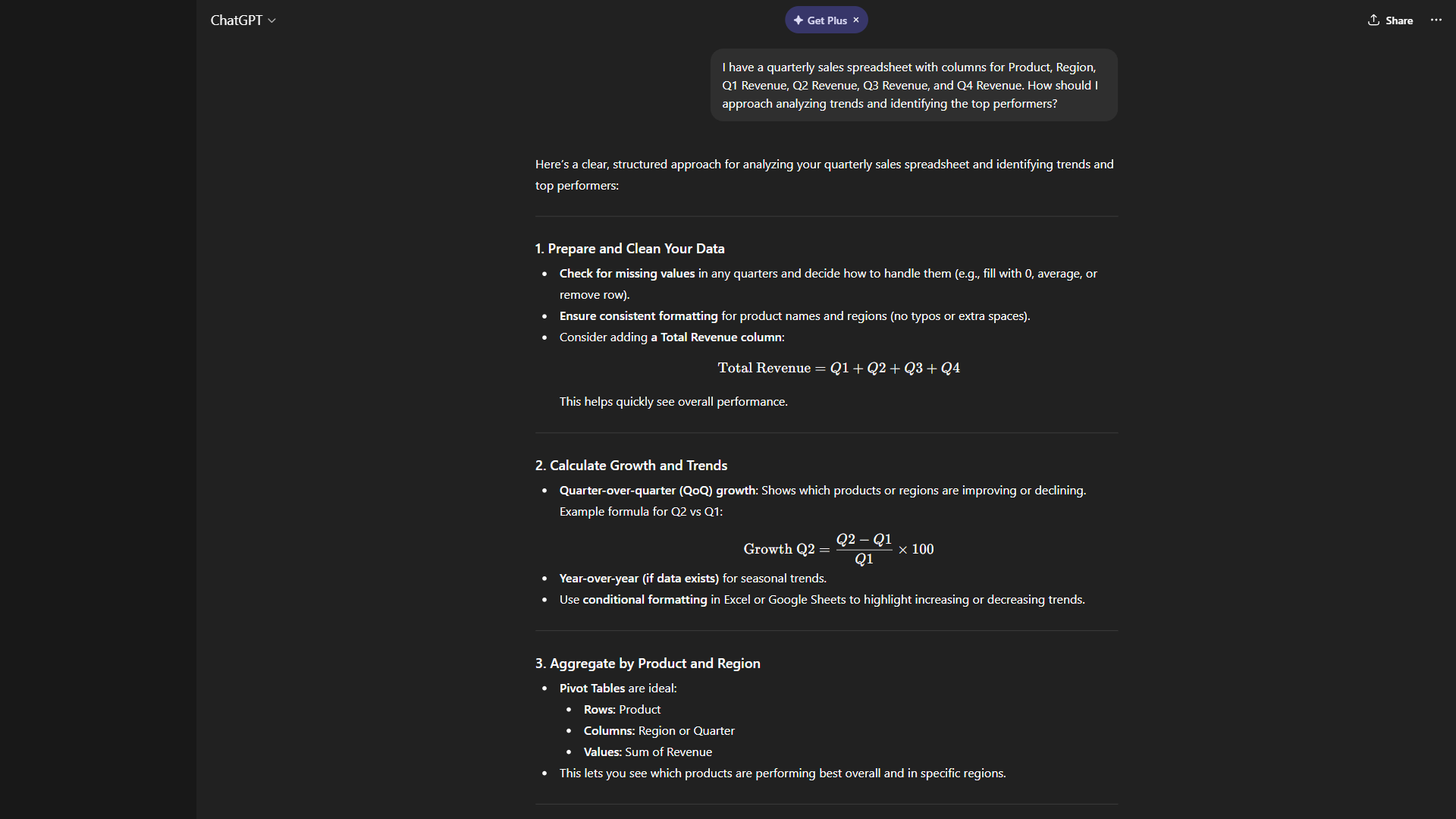
Here is the exact workflow:
- Open ChatGPT and start a new conversation.
- Click the attachment icon and upload your CSV or Excel file. The official OpenAI data analysis docs list every supported file type.
- Start with an overview prompt. Type: “Summarize this dataset. Tell me how many rows and columns there are, what each column contains, and flag any data quality issues.”
- Wait for the initial analysis. ChatGPT will read your file, run Python code automatically, and return a plain-English summary including row count, column types, missing values, and basic statistics.
This first step is critical because it catches problems early. If ChatGPT reports that your “Revenue” column has 47 blank values, you know to fix that before running deeper analysis.
Follow-up prompts that unlock real insights:
- “What are the top 5 products by total revenue? Show me a bar chart.”
- “Compare monthly revenue trends across regions. Create a line chart for each region.”
- “Are there any outliers in units sold? What makes them unusual?”
- “What is the correlation between customer type and average order value?”
- “Group the data by quarter and show me the growth rate between periods.”
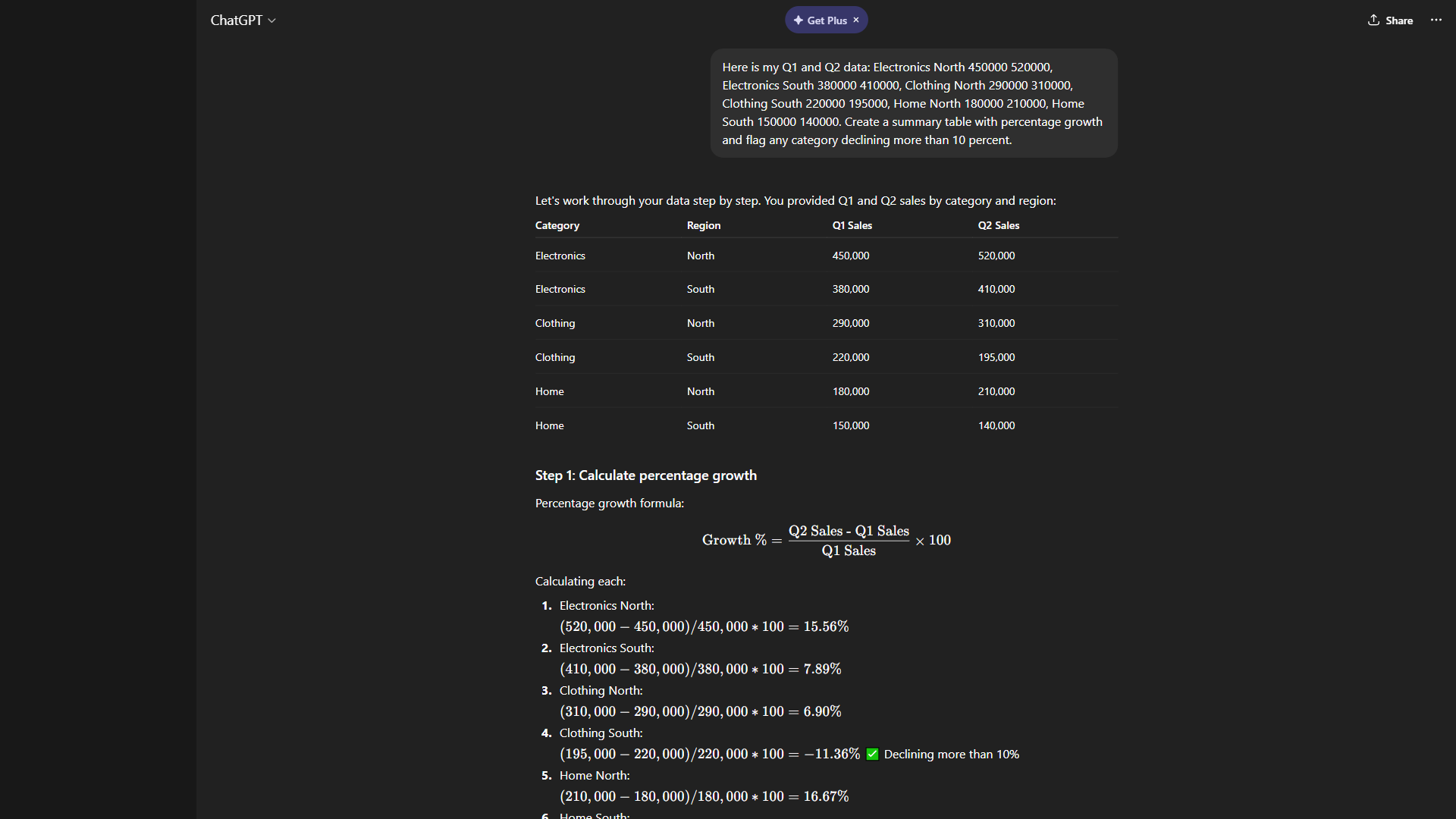
Pro tips for better results:
- Be specific about what you want to see. “Analyze this data” produces vague results. “Show me the month-over-month change in revenue for the Northeast region as a line chart” produces exactly what you need.
- Ask for the methodology. After any analysis, ask “Explain how you calculated this.” This helps you verify the results and learn the underlying logic.
- Iterate, don’t restart. ChatGPT remembers the entire conversation. Build on previous results: “Now break that same chart down by product category” works perfectly without re-uploading the file.
- Download your charts. Every chart ChatGPT generates can be downloaded as a high-resolution PNG. Click the download icon below the chart to save it for presentations or reports.
ChatGPT handles financial data (revenue trends, budget comparisons), sales data (pipeline analysis, win/loss patterns), marketing data (campaign ROI, engagement metrics), survey data (response distributions, sentiment), and operations data (cycle time, bottleneck identification) - all without writing a single line of code.
Step 3: How Do You Organize Ongoing Data in Notion?
ChatGPT excels at one-off analysis - upload a file, ask questions, get answers. But if you need to track data over time, share dashboards with your team, or build repeatable reporting workflows, that is where Notion comes in.
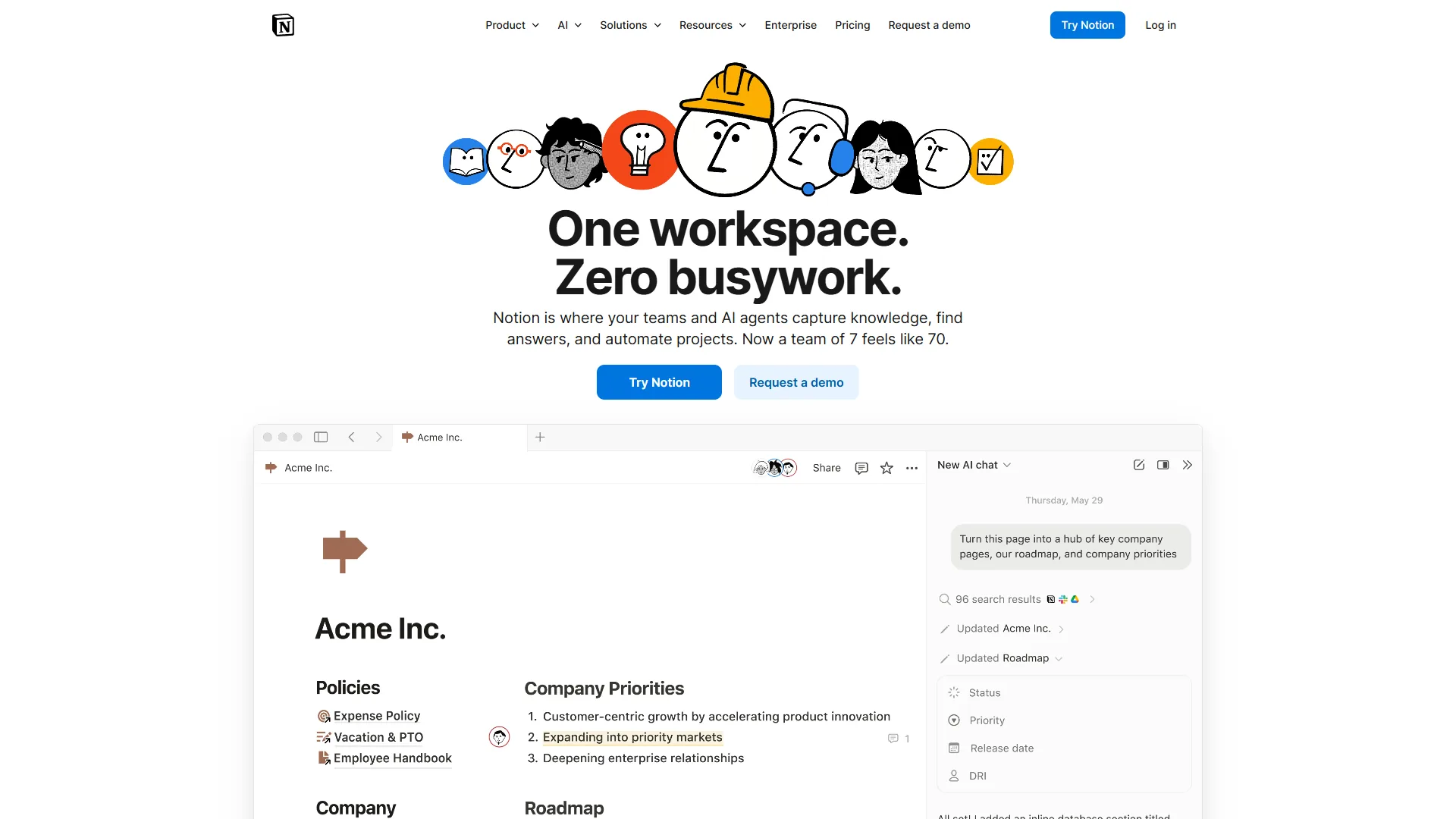
Notion’s strength for data analysis - as described in their databases documentation - is not raw computational power but structured organization with AI layered on top. Think of it as the system that holds your data, while ChatGPT is the analyst you bring in for deep dives.
Setting up a Notion data dashboard:
- Create a new database. In Notion, click “New page” and select “Table.” This creates a structured database you can filter, sort, and visualize.
- Import your CSV. Click the three-dot menu in your table, select “Import,” and upload your CSV. Notion will automatically detect column types (text, number, date, etc.).
- Add formula properties. Need a calculated column like profit margin or growth rate? Click ”+” to add a new property, select “Formula,” and describe what you want to calculate. Notion AI can generate the formula from a plain-English description.
- Create views for different audiences. One database can have multiple views - a table view for raw data, a board view for pipeline stages, a chart view for trends, and a calendar view for time-based data. Each view is just a different lens on the same underlying data.
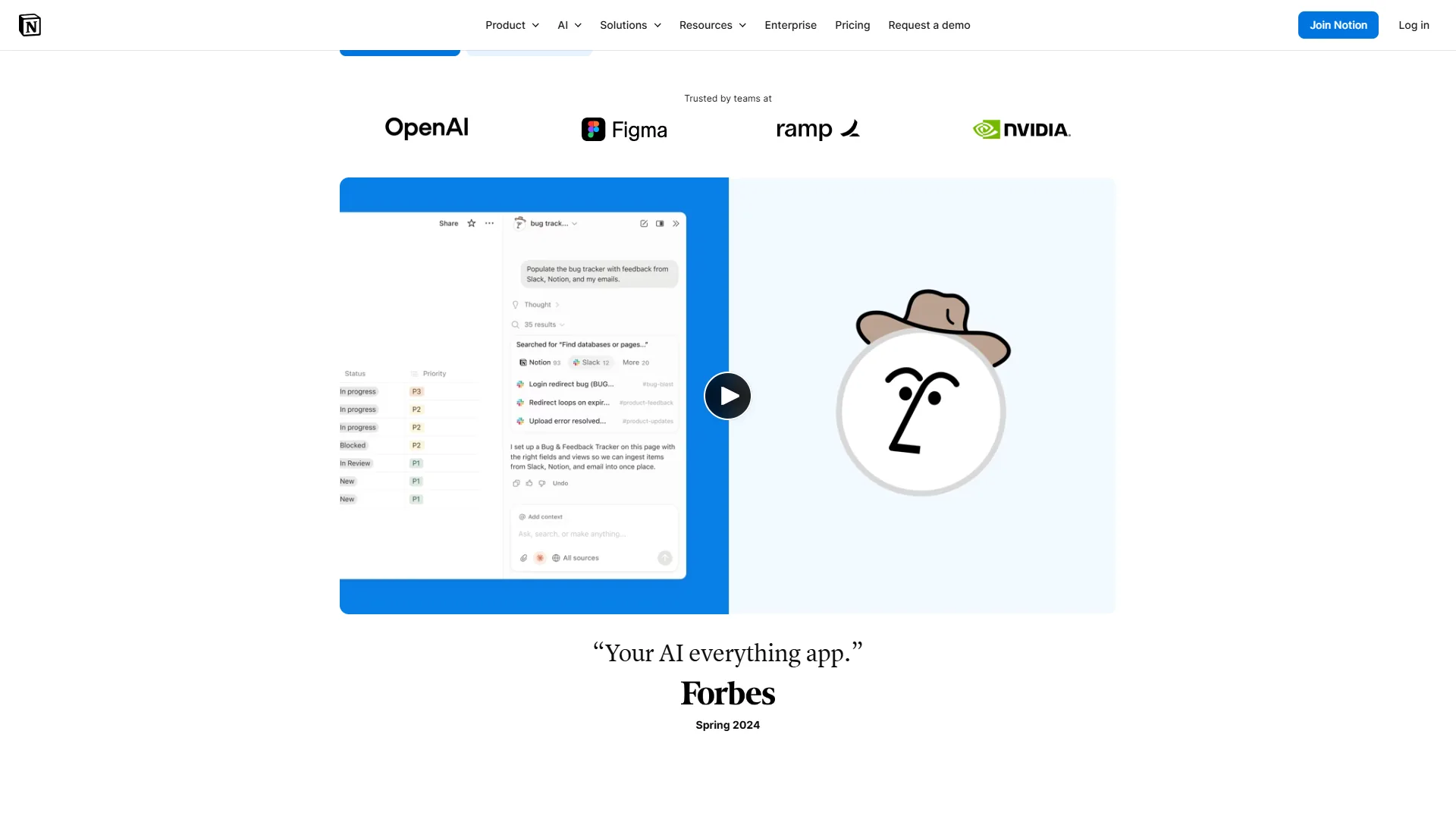
Using Notion AI for data questions:
Once your data is in a Notion database, you can use Notion AI to query it without any technical knowledge:
- “What is the average deal size this quarter?”
- “Which sales rep has the highest close rate?”
- “Summarize the key trends in this database.”
- “Create a formula that calculates the percentage change between this month and last month.”
Notion AI searches across your entire workspace, pulling context from related pages and documents - not just the raw numbers in your database.
How Does the ChatGPT + Notion Workflow Work?
The most powerful approach combines both tools. Here is how the integrated workflow looks in practice:
- Collect raw data in Notion. Use Notion databases as your central data repository. Import CSVs, connect integrations, or have team members enter data directly.
- Export for deep analysis. When you need to run complex analysis, export the Notion database as CSV and upload it to ChatGPT.
- Ask ChatGPT the hard questions. Use ChatGPT for statistical analysis, pattern detection, forecasting, and chart generation - the heavy analytical work.
- Bring insights back to Notion. Copy key findings, charts, and recommendations back into a Notion page linked to the original database. This creates a searchable archive of your analyses.
- Set up recurring reviews. Create a Notion template for weekly or monthly data reviews, with a checklist of standard analyses to run each cycle.
This workflow combines ChatGPT’s analytical power with Notion’s organizational structure - no code required.
Step 4: How Do You Build Repeatable AI Analysis Templates?
The real time savings come from turning one-off analyses into repeatable templates. Once you have found an analysis workflow that works, systematize it so you can run it again in minutes instead of building from scratch.
ChatGPT template approach:
Save your best prompts in a document. For example, if you run a monthly sales analysis, your template might look like this:
Monthly Sales Analysis Template
- Upload: [current month] sales data CSV
- Prompt: “Summarize this month’s sales data. Compare total revenue, units sold, and average order value to [previous month’s numbers]. Highlight any products with more than 20% change in either direction.”
- Prompt: “Create a bar chart comparing revenue by region for this month vs. last month.”
- Prompt: “Identify the top 3 factors driving any significant changes.”
- Prompt: “Generate an executive summary in 3 bullet points.”
Notion template approach:
Create a Notion template page with pre-built sections for each part of your analysis. Include linked database views filtered to the relevant time period and placeholders for ChatGPT charts. When it is time to run the analysis, duplicate the template and fill in the current data.
What Are the Most Common Pitfalls When Analyzing Data with AI?
Trusting AI output without verification. AI tools can make calculation errors or misinterpret column headers. Always spot-check key numbers against your source data before presenting findings. The Nielsen Norman Group’s research on AI hallucinations covers why this matters even for numerical work.
Asking vague questions. “Analyze this data” produces generic results. Be specific: “What is the average time between first contact and closed deal, broken down by lead source?” gives you something actionable. Our ChatGPT tips and tricks guide covers prompt patterns that translate directly to data analysis.
Ignoring data quality. AI amplifies whatever you feed it. Duplicates, missing values, and inconsistent formatting produce wrong results that look confident. Always run the data quality check in Step 2 first.
Not saving your work. Running a brilliant analysis in ChatGPT and then closing the tab is surprisingly common. Always export charts and copy findings into Notion for future reference - our Notion AI workflows 2026 coverage shows how to structure a persistent analysis archive.
What This Costs
The practical recommendation: Start with ChatGPT Plus ($20/month) and Notion Free. That gives you full data analysis capabilities and basic data organization for around $20 per month total. Upgrade Notion to Plus ($12/month/user) when you need unlimited AI queries or team collaboration. The official ChatGPT pricing page and Notion pricing page have current tier details.
Compare that to hiring a data analyst (around $60,000 to $90,000 per year) or a freelance analyst (around $75 to $150 per hour). For routine data analysis tasks, AI tools deliver 80% of the value at less than 1% of the cost.
The Bottom Line
Learning how to analyze data with AI is not about becoming a data scientist - it is about eliminating the gap between having data and actually using it. The workflow is straightforward: clean your data, upload it to ChatGPT for analysis and visualization, organize your findings in Notion, and build templates so you can repeat the process in minutes.
The tools are accessible (starting at free), the learning curve is minimal (if you can write a sentence, you can prompt an AI), and the results are immediate. The professionals who adopt this workflow now will have a significant advantage over those still manually sorting spreadsheets by hand.
Start with one dataset you have been meaning to analyze. Upload it to ChatGPT. Ask it a question. Organize your findings in Notion. You will be surprised how quickly “I should really look at this data” turns into “here is exactly what the data is telling us.”
Frequently Asked Questions
Can I use ChatGPT to analyze data without writing code?
Yes. ChatGPT’s Advanced Data Analysis feature (available on Plus, Pro, Team, and Enterprise plans) handles the entire analysis pipeline for you. Upload a CSV or Excel file, ask questions in plain English, and ChatGPT runs Python in the background to produce summary statistics, pivot tables, charts, and pattern analysis. You never see or write a line of code. The model executes the actual analysis in a sandboxed Python environment, then translates the results back into plain language and downloadable visualizations. For most non-technical users, this replaces the entire spreadsheet-pivot-chart workflow with a conversation.
Which AI tool is best for data analysis - ChatGPT or Notion?
It depends on what you need. Use ChatGPT when you need deep analysis, statistical work, pattern detection, or chart generation from a one-off dataset. Use Notion when you need to organize data over time, build team dashboards, or run repeated reporting workflows. The most powerful approach combines them: store and track data in Notion databases, then export to CSV and run heavy analysis in ChatGPT. Each tool covers what the other does poorly. Notion’s strength is structured organization and persistent tracking; ChatGPT’s strength is computational analysis and visualization.
What are the four types of data analysis?
The four standard categories are descriptive (what happened), diagnostic (why it happened), predictive (what will happen), and prescriptive (what should we do). AI tools like ChatGPT handle descriptive and diagnostic analysis well - summarizing data, finding correlations, identifying outliers. They can do basic predictive work (trend extrapolation, simple forecasting) but serious predictive modeling still benefits from dedicated tools like Tableau, Power BI, or Python notebooks. Prescriptive analysis (recommending specific actions) is where AI tools shine because they can combine analysis with reasoning to suggest next steps.
Do I need to know how to code to analyze data with AI?
No. Tools like ChatGPT and Notion let you describe what you want in plain English. ChatGPT executes Python code automatically in the background based on your prompt, and Notion AI generates database formulas from natural language descriptions. You do not need Python, SQL, R, or statistics background to get meaningful insights. Writing clear, specific prompts (like “show me month-over-month revenue change for the Northeast region as a line chart”) is the only skill that matters - and that improves with practice. Most users get useful results from their first session.
How much does it cost to analyze data with AI tools?
A practical starting setup costs around $20 per month - ChatGPT Plus at $20/month paired with Notion’s free tier covers most data analysis needs for individuals and small teams. Notion Plus, which adds unlimited AI queries and team collaboration, adds $12/month per user. Compare that to hiring a freelance analyst at $75 to $150 per hour, or a full-time data analyst at $60,000 to $90,000 per year. For routine analysis tasks (monthly reports, ad-hoc questions, dashboard maintenance), AI tools deliver around 80% of the value at less than 1% of the cost.
What kinds of files can I upload to ChatGPT for analysis?
ChatGPT Advanced Data Analysis accepts CSV, Excel (XLSX), JSON, TSV, and plain text files up to 512 MB per file on Plus and Pro plans. You can upload multiple files in a single conversation - useful when you need to join or compare datasets. The tool also handles PDFs (text extraction), images (chart and table OCR), and ZIP archives containing multiple files. For best results, upload clean CSVs with descriptive column headers and consistent date formats. Skip files with merged cells, hidden formulas, or summary rows that would skew calculations.
Want to learn more about ChatGPT?
Related Guides
- ChatGPT Tips and Tricks: Get More From Every Prompt
- ChatGPT Custom GPTs Guide
- ChatGPT Prompts for 2026
- Notion AI Workflows 2026
Related Reading
External Resources
- The State of AI - McKinsey Global Survey
- ChatGPT Advanced Data Analysis Documentation
- Notion Database Documentation
Related Guides
- Activecampaign AI Content Generation: Complete 2026 Guide
- AI Content Writing Workflow: 2026 Walkthrough for Teams
- AI Product Discovery Ecommerce: Lift Revenue in 2026
- AI Productivity Trends 2026: 6 Real Shifts, No Hype
- AI Workflow Automation Maturity Model: 5 Levels
- Atlassian Intelligence Review: 2026 Pricing & Features
- Building AI First Workflows: A Practitioner's 2026 Guide
- ChatGPT Custom GPTs Guide - Save 130+ Hours a Year
- ChatGPT Prompts 2026: Basic vs Engineered, 18 Examples
- ChatGPT Tips And Tricks: 2026 Walkthrough for Teams