



This guide covers the Ralph Wiggum Loop pattern - a workflow technique that enables persistent, multi-session AI coding workflows.
If you’ve used AI coding assistants like Claude Code for extended sessions, you’ve likely hit the wall: your AI loses context mid-task, forgets what it was working on after hitting rate limits, or simply gives up when a complex workflow spans multiple hours. This ralph wiggum loop guide and broader Ralph Wiggum software practice walks you through building a self-sustaining feedback mechanism that preserves state across sessions and automatically continues work until completion.
Named after the Simpsons character known for his persistent, single-minded focus (and memorable quotes), this Ralph Wiggum AI pattern transforms episodic AI interactions into continuous, goal-oriented workflows. Whether you’re generating dozens of blog posts, researching hundreds of tools, or executing complex multi-step automations, the Ralph Wiggum Loop keeps your AI assistant on track.
TL;DR: Ralph Wiggum Loop Quick Facts
| Feature | Details |
|---|---|
| Purpose | Enable persistent AI workflows that survive context compaction and session boundaries |
| Key Components | State files, Stop/PreCompact hooks, progress tracking, completion promises |
| Best For | Multi-hour tasks, batch operations, workflows requiring human-away automation |
| Prerequisites | Claude Code CLI, Python 3.10+, understanding of hooks system |
| Complexity | Intermediate - requires configuration but not deep coding knowledge |
The Problem: Context Compaction and Session Boundaries
Before diving into the solution covered in this ralph wiggum loop guide, let’s understand why persistent AI workflows are difficult.
Context Windows Are Finite
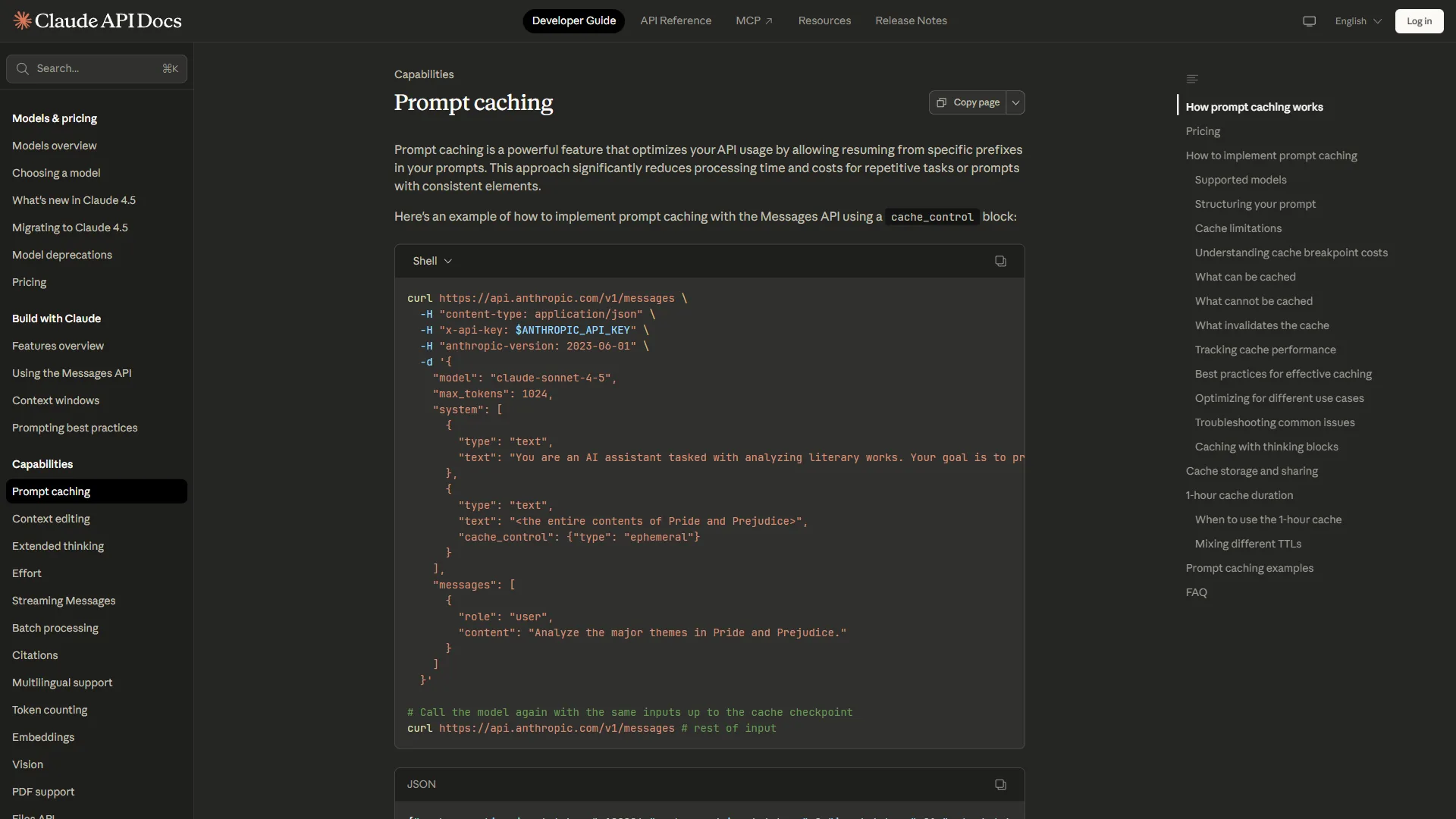
Every AI assistant operates within a context window - the amount of conversation history it can “remember” at once. Claude Code’s context window is substantial (200K tokens), but even that fills up quickly when you’re:
- Reading multiple large files
- Generating extensive code output
- Maintaining conversation history across dozens of interactions
- Working with complex multi-file codebases
When the context window fills, the AI performs context compaction - summarizing earlier conversation to make room for new content. This is where things go wrong. (For a deeper dive on how compaction interacts with Claude Code sessions, see our Claude Code prompt engineering guide.)
What Gets Lost During Compaction
During compaction, the AI loses:
- Detailed task state - Which specific items have been processed
- Intermediate progress - Partial work that hasn’t been saved to files
- Learned patterns - Insights about your codebase discovered during the session
- Error history - What didn’t work and shouldn’t be tried again
- Execution context - Where exactly in a multi-step workflow you are
After compaction, you’ll often see the AI:
- Re-attempting work it already completed
- Forgetting validation rules it learned
- Losing track of batch operations mid-way
- Asking questions you already answered
Rate Limits End Sessions
Beyond compaction, rate limits create hard boundaries. After 5 hours of intensive use, Claude Code hits usage limits and the session ends. Anthropic’s usage limits documentation covers the specifics. Without persistent state, all progress tracking exists only in the AI’s (now cleared) context.
The Solution: Persistent State + Hook-Based Continuation
The Ralph Wiggum Loop addresses these problems through three mechanisms:
- Persistent state files that survive context compaction and session boundaries
- Hooks that inject state back into context when compaction occurs
- Session blocking that prevents exit until work is complete
How It Works
When you start a Ralph loop:
- A state file is created with your task prompt and completion criteria
- The Stop hook activates, blocking session exit
- As you work, progress files track completed items and learnings
- When context compacts, the PreCompact hook injects state back into context
- When you try to exit, the Stop hook re-injects the prompt and continues
- Only outputting the completion promise allows the loop to end
This creates a self-referential Ralph Wiggum plugin system where the AI continuously rediscovers its task and progress, even across compaction events and rate limit resets.
Architecture Deep Dive
Let’s examine each component of the Ralph Wiggum Loop.
Component 1: Loop State File
The loop state file lives at .claude/state/ralph_loops/[loop_id].md and contains:
---
active: true
loop_id: "20260201-143022-m2k6"
session_id: "243c1ef1-4ac8-4404-93d4-7c35452725b0"
created_at: "2026-02-01T14:30:22Z"
iteration: 3
max_iterations: 25
completion_promise: "TASK_COMPLETE"
last_activity_at: "2026-02-01T15:45:00Z"
---

Create 10 blog posts about AI productivity tools. Use the blog-creation
workflow for each. Verify screenshots exist before marking complete.
Key fields:
| Field | Purpose |
|---|---|
active | Whether the loop is currently running |
loop_id | Unique identifier (timestamp + random chars) |
session_id | Claimed by the first session that uses this loop |
iteration | How many times the stop hook has fired |
max_iterations | Safety limit to prevent infinite loops |
completion_promise | Magic phrase that signals work is done |
last_activity_at | Staleness detection (loops inactive >2 hours are abandoned) |
The prompt body (everything after the frontmatter) contains your actual task instructions.
Component 2: Progress Tracking File
For workflow-specific tracking, progress files at .claude/state/ralph_progress_[workflow].json maintain detailed state:
{
  "session_id": "blog-20260201-153000",
  "iteration": 1,
  "blogs_requested": [
    "ralph-wiggum-loop-guide",
    "claude-code-skills-tutorial",
    "building-mcp-servers-guide"
  ],
  "blogs_completed": ["ralph-wiggum-loop-guide"],
  "blogs_in_progress": ["claude-code-skills-tutorial"],
  "last_action": "Step 7 complete - wrote MDX content",
  "current_step": "capture_screenshots",
  "current_step_index": 8,
  "learnings": [
    "STD-053: No G2/Capterra links - use ToolRating component",
    "Category must be enum: guides|tutorials|comparisons|tips|news",
    "Screenshots need cookie consent dismissed before capture"
  ],
  "fix_attempts": {},
  "timestamp": "2026-02-01T15:30:00Z"
}
This progress file serves multiple purposes:
- Tracks completed items so the AI doesn’t re-process them
- Records learnings that persist across context compaction
- Maintains step position within multi-step workflows
- Logs fix attempts to prevent infinite retry loops
Component 3: The Stop Hook
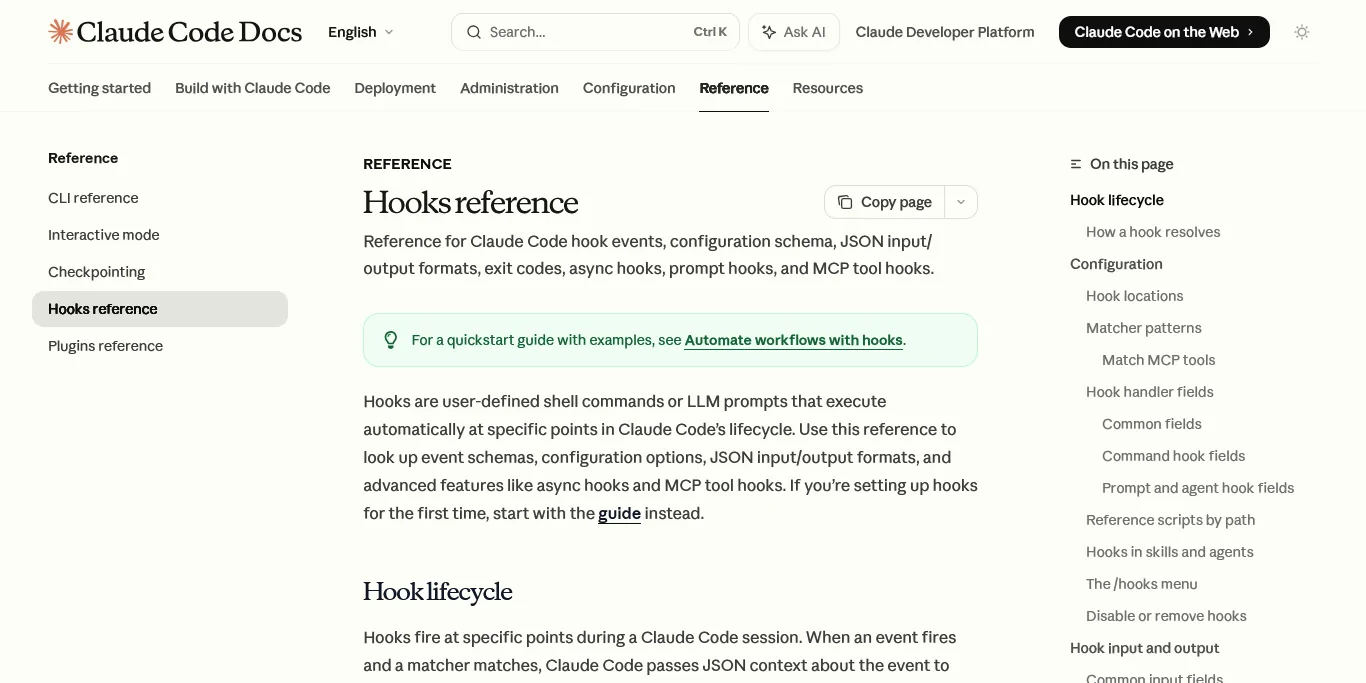
The Stop hook is the heart of the loop. It fires when Claude tries to exit and decides whether to allow it:
def on_ralph_stop(hook_input: dict[str, Any]) -> dict[str, Any] | None:
    session_id = hook_input.get("session_id", "")
    stop_hook_active = hook_input.get("stop_hook_active", False)
    transcript_path = hook_input.get("transcript_path")

    # Prevent infinite loops - if already blocked once, allow exit
    if stop_hook_active:
        state = find_active_state_file(session_id, CLAIM_WINDOW_PRECOMPACT)
        if state:
            deactivate_file(state)
        return None  # Allow exit

    # Find active loop state
    state = find_active_state_file(session_id, CLAIM_WINDOW_STOP)
    if not state:
        return None  # No active loop, allow exit

    # Check max iterations
    if state.iteration >= state.max_iterations:
        deactivate_file(state)
        return None  # Max iterations reached

    # Check completion promise in transcript
    if state.completion_promise and transcript_path:
        if check_completion_promise_in_transcript(transcript_path, state.completion_promise):
            deactivate_file(state)
            return None  # Task complete!

    # Block exit and continue
    update_iteration(state, state.iteration + 1)
    return {
        "decision": "block",
        "reason": state.prompt_body,
        "systemMessage": f"RALPH LOOP CONTINUATION - Iteration {state.iteration + 1}"
    }
The hook returns three possible outcomes:
None- Allow exit (task complete, max iterations, or no active loop){"decision": "block", ...}- Block exit and re-inject prompt
Component 4: The PreCompact Hook
When context compaction occurs, the PreCompact hook preserves state:
def on_ralph_precompact(hook_input: dict[str, Any]) -> dict[str, Any] | None:
    session_id = hook_input.get("session_id", "")
    state = find_active_state_file(session_id, CLAIM_WINDOW_PRECOMPACT)

    if not state:
        return None

    # Build comprehensive context message
    message = build_precompact_message(state)
    return {"systemMessage": message}
The build_precompact_message function constructs a detailed context injection:
## RALPH LOOP CONTEXT (Preserved Through Compaction)

### Loop State
- **Loop ID:** 20260201-143022-m2k6
- **Iteration:** 3 / 25
- **Session ID:** 243c1ef1-4ac8-4404-93d4-7c35452725b0
- **Completion Promise:** TASK_COMPLETE

When you complete the task, output `TASK_COMPLETE` to signal completion.

### Original Prompt
Create 10 blog posts about AI productivity tools...

### Blog Creation Progress
- **Current Step:** capture_screenshots
- **Items In Progress:** claude-code-skills-tutorial
- **Learnings:** Screenshots need cookie consent dismissed before capture

### Instructions
Continue the loop by working on the original prompt.
You are on iteration 3 of 25.
This injection ensures the AI knows:
- What task it’s working on
- How to signal completion
- What progress has been made
- What it learned during previous iterations
Implementation Guide
Now let’s put this ralph wiggum loop guide into practice and implement the pattern in your project.
Step 1: Set Up the Directory Structure
Create the required directories:
mkdir -p .claude/state/ralph_loops
mkdir -p .claude/state
Step 2: Create the Hooks Configuration
In .claude/settings.json, add the hook configurations:
{
  "hooks": {
    "Stop": [
      {
        "matcher": "",
        "hooks": [
          {
            "type": "command",
            "command": "python scripts/pm/ralph_hooks.py ralph_stop",
            "timeout": 30
          }
        ]
      }
    ],
    "PreCompact": [
      {
        "matcher": "",
        "hooks": [
          {
            "type": "command",
            "command": "python scripts/pm/ralph_hooks.py ralph_precompact",
            "timeout": 10
          }
        ]
      }
    ]
  }
}
Windows users: Use absolute paths with escaped backslashes:
{
  "hooks": {
    "Stop": [
      {
        "matcher": "",
        "hooks": [
          {
            "type": "command",
            "command": "C:\\path\\to\\python.exe C:\\path\\to\\ralph_hooks.py ralph_stop",
            "timeout": 30
          }
        ]
      }
    ]
  }
}
Step 3: Install Dependencies
The hook scripts require Python 3.10+ with no external dependencies (uses only stdlib).
Step 4: Create the Hooks Script
Create scripts/pm/ralph_hooks.py with the hook implementations. The key functions are:
#!/usr/bin/env python3
"""Ralph Wiggum Loop Hooks"""

import json
import sys
from pathlib import Path
from datetime import datetime, UTC

LOOPS_DIR = Path(".claude/state/ralph_loops")

def parse_state_file(path: Path):
    """Parse loop state from markdown file with YAML frontmatter."""
    content = path.read_text()
    # Parse frontmatter between --- markers
    # Return state object with active, loop_id, session_id, etc.
    ...

def on_ralph_stop(hook_input):
    """Stop hook - blocks exit to continue loop."""
    ...

def on_ralph_precompact(hook_input):
    """PreCompact hook - preserves context."""
    ...

def main():
    hook_name = sys.argv[1]
    hook_input = json.load(sys.stdin)

    if hook_name == "ralph_stop":
        result = on_ralph_stop(hook_input)
    elif hook_name == "ralph_precompact":
        result = on_ralph_precompact(hook_input)

    if result:
        print(json.dumps(result))

if __name__ == "__main__":
    main()
Step 5: Create a Slash Command
Add .claude/commands/ralph-loop.md:
---
description: "Start Ralph Wiggum loop"
argument-hint: "PROMPT [--max-iterations N] [--completion-promise TEXT]"
---

# Ralph Loop Command

## Setup Instructions

1. Generate a unique loop ID: `YYYYMMDD-HHMMSS-4random`
2. Create state file at `.claude/state/ralph_loops/LOOP_ID.md`
3. Parse arguments for max_iterations and completion_promise
4. Begin working on the PROMPT

## State File Format

```yaml
---
active: true
loop_id: "20260201-143000-a1b2"
session_id: ""
created_at: "2026-02-01T14:30:00Z"
iteration: 1
max_iterations: 25
completion_promise: "TASK_COMPLETE"
---

Your task prompt goes here
Begin
Parse arguments: $ARGUMENTS
### Step 6: Start Your First Loop

Run the command:

```bash
claude "/ralph-loop Create 5 blog posts --max-iterations 10 --completion-promise BLOGS_COMPLETE"
The loop will:
- Create the state file
- Begin working on your task
- Block exit attempts until you output
BLOGS_COMPLETE - Preserve context through compaction events
Advanced: Multi-Session Runner
For tasks that span multiple rate limit windows (5+ hours), use the multi-session runner:
// scripts/ralph-runner.mjs
// Orchestrates multiple Claude sessions with automatic rate limit handling

const CONFIG = {
  plansDir: '.claude/state/plans',
  maxSessions: 50,
  extraWaitSeconds: 120,
  heartbeatTimeoutMs: 30 * 60 * 1000,  // 30 minutes
};

async function runPlan(planPath) {
  const plan = parseYaml(readFileSync(planPath));

  while (sessionNumber <= CONFIG.maxSessions) {
    const result = await runClaudeSession(prompt, sessionNumber, progress);

    if (result.reason === 'completion') {
      return { success: true };
    }

    if (result.reason === 'rate_limit') {
      await sleepUntil(result.resetTime);
      sessionNumber++;
      continue;
    }
  }
}
Create a plan file (plan.yaml):
name: "Create Q1 Blogs"
completion_promise: "Q1_BLOGS_COMPLETE"
workflow: blog_creation
prompt: |
  Create all blog posts following the blog-creation workflow.
  Verify screenshots exist before marking complete.
items:
  - ai-image-generation-tips
  - github-copilot-vs-cursor
  - obsidian-vs-logseq
Run with:
node scripts/ralph-runner.mjs plan.yamlThe runner will:
- Create the Ralph loop file
- Spawn Claude with the plan prompt
- Parse output markers (
[ITEM_COMPLETE: slug]) - Detect rate limits and wait for reset
- Resume with verification of completed work
- Continue until completion promise detected
Best Practices
Based on real-world usage patterns, here are key learnings. For general productivity shortcuts, the Claude Code tips and tricks guide covers complementary techniques that pair well with persistent loops.
1. Set Realistic Max Iterations
Start with max_iterations: 25 for complex tasks. This provides:
- Enough retries for rate limits and compaction
- Safety valve against infinite loops
- Room for the AI to learn and adapt
2. Use Specific Completion Promises
Bad: --completion-promise "DONE"
Good: --completion-promise "BLOG_BATCH_2026_01_COMPLETE"
Specific promises prevent accidental early termination from natural language containing generic words. The Claude Code hooks deep dive covers exit-control patterns in more depth.
3. Track Learnings in Progress Files
Include a learnings array in your progress tracking:
{
  "learnings": [
    "Tool X requires OAuth - skip automated screenshots",
    "Blog images must be 1200x630 for social sharing",
    "Category enum is strict: guides|tutorials|comparisons"
  ]
}
After compaction, these learnings are injected back into context, preventing repeated mistakes.
4. Implement Session Isolation
Each terminal should run its own independent loop. The state file’s session_id field ensures one terminal doesn’t interfere with another:
Terminal A                    Terminal B
/ralph-loop "Task A"          /ralph-loop "Task B"
    |                             |
Creates: loop_abc123.md       Creates: loop_xyz789.md
    |                             |
Claims session_id: A          Claims session_id: B
    |                             |
Only processes its loop       Only processes its loop
5. Use Output Markers for Progress
When working with the multi-session runner, emit markers:
[ITEM_START: blog-slug]
...working...
[STEP: capturing_screenshots]
...working...
[ITEM_COMPLETE: blog-slug]
[VERIFIED: blog-slug]
The runner parses these to update progress tracking, enabling accurate resume after rate limits.
6. Handle Staleness Gracefully
Loops inactive for 2+ hours are automatically marked stale. This prevents old loops from capturing new sessions. The last_activity_at field is updated on each iteration.
Troubleshooting
No ralph wiggum loop guide would be complete without common issues and fixes. Here are the most frequent problems you’ll encounter.
Why Is My Ralph Loop Not Continuing?
Symptoms: Claude exits normally despite active loop
Check:
- State file has
active: true session_idmatches or is empty (claimable)- Hook script path is correct in settings.json
- Python is accessible from the hook command
Debug with:
cat .claude/state/ralph_loops/*.md  # Check state files
tail -50 .claude/state/ralph_hook_debug.log  # Check hook logs
Why Is Context Not Preserved After Compaction?
Symptoms: AI forgets task after context compaction
Check:
- PreCompact hook is configured in settings.json
- State file contains the full prompt in the body
- Progress file is being updated
Infinite Loop
Symptoms: Loop never completes even when task is done
Check:
- Completion promise is being output exactly as configured
max_iterationsis set (not 0/unlimited)- Transcript contains the promise (check transcript_path)
The Bottom Line: Ralph Wiggum Loop Guide Recap
This pattern transforms Claude Code from an episodic tool into a persistent workflow engine. By combining state files, hooks, and progress tracking, you can execute multi-hour, multi-session tasks with confidence that work won’t be lost.
Key takeaways:
- Context compaction is inevitable - design for it with persistent state
- Hooks are powerful - Stop blocks exit, PreCompact preserves context
- Progress tracking is essential - track completed items and learnings
- Completion promises signal done - specific phrases prevent accidents
- Multi-session runner handles rate limits - fully automated overnight runs
The pattern works best for:
- Batch content generation (blogs, documentation)
- Multi-tool research and data collection
- Complex multi-step workflows
- Any task requiring “set and forget” automation
For developers building AI-powered automation, the Ralph Wiggum Loop is a foundational pattern that unlocks truly persistent AI workflows. Start with simple single-session loops, then graduate to the multi-session runner for overnight batch operations. Our Claude Code skills tutorial and building MCP servers guide cover the complementary techniques that pair best with persistent loops.
Ready to implement persistent AI workflows? Start with the basic /ralph-loop command and experiment with different task types. As you encounter edge cases, the hook system provides the flexibility to handle them gracefully.
If you’re maintaining a fleet of automation scripts, pair the loop with version control on GitHub so each plan file is reviewable. The loop output also tends to be noisy - capture it in structured logs that another Claude Code session can replay later when debugging.
Frequently Asked Questions
What is the Ralph Wiggum Loop pattern?
It’s a workflow technique that uses persistent state files plus Claude Code’s Stop and PreCompact hooks to keep a single AI task running across context compaction events and rate-limit boundaries. The state file stores the original prompt, iteration counter, and completion promise so each new session rediscovers the task.
Why is it called “Ralph Wiggum”?
The pattern is named after the Simpsons character known for his persistent, single-minded focus and memorable one-liners. The metaphor fits: the loop refuses to give up on its task, even when context compaction threatens to wipe progress.
Do I need Claude Code specifically, or can I use other AI assistants?
The pattern depends on Claude Code’s hooks system - specifically the Stop and PreCompact hook events. Other AI assistants don’t currently expose equivalent hooks, so the loop pattern is Claude Code-specific. If you’re evaluating which assistant to start with, see our Claude Code tips and tricks guide for a broader overview.
How long can a Ralph loop run?
In a single session, the loop runs until you hit Claude Code’s 5-hour rate limit or your max_iterations ceiling. With the multi-session runner, loops can span days - the runner detects rate limits, sleeps until reset, and resumes automatically. Most production loops run 25-50 iterations across 1-3 sessions.
What happens if my computer restarts mid-loop?
The state file persists on disk, so the loop survives shutdowns. When Claude Code starts again with the same project directory, the next session will see the active loop file and resume work. The last_activity_at timestamp protects against zombie loops - anything inactive for over 2 hours is automatically marked stale.
Can I run multiple loops in parallel?
Yes, each terminal session claims its own loop ID. The state file’s session_id field locks one terminal to one loop, preventing crosstalk. This is how power users run “create blogs,” “fix tool issues,” and “research vendors” workflows simultaneously without interference.
Want to learn more about Claude Code?
Related Guides
More Claude Code and automation guides on this site:
- Claude Code Hooks Deep Dive - Master the hooks system that powers the loop
- Claude Code Skills Tutorial - Build reusable skill modules
- Claude Code Prompt Engineering - The CRISP framework for better outputs
- Claude Code Simplifier Pre-Commit Hook - Auto-clean code before every commit
- Building MCP Servers Guide - Extend Claude Code with Model Context Protocol servers
Related Reading
Tools covered in this article:
- Claude Code - Anthropic’s CLI coding assistant
- GitHub - Version control for plan files and state archives
External Resources
For official documentation and related tools:
- Claude Code Documentation - Official Anthropic docs
- Claude Code on GitHub - Source code and issues
- Claude Code Hooks Reference - Stop, PreCompact, and other event documentation
Related Guides
- AI Agent Orchestration: Patterns That Scale in 2026
- AI Productivity Trends 2026: 6 Real Shifts, No Hype
- Atlassian Tools for Developers: Jira, Confluence & Bitbucket
- Bitbucket Pipelines Guide: Compare CI/CD Tools in 2026
- Building AI First Workflows: A Practitioner's 2026 Guide
- Building Mcp Servers Guide: 2026 Walkthrough for Teams
- ChatGPT Custom GPTs Guide - Save 130+ Hours a Year
- Claude Code Hooks Guide: PreToolUse, PostToolUse, Stop
- Claude Code Simplifier Pre-commit Hook: Complete 2026 Guide
- Claude Code Skills Tutorial: 2026 Walkthrough for Teams