


You have a polished script, a great voice selected, and the output sounds almost perfect - except the AI keeps butchering your company name, emphasizing the wrong word in a sentence, or treating an acronym like a regular word. Murf AI pronunciation control exists to fix exactly these problems. These small pronunciation mistakes are the difference between voiceover that sounds professional and voiceover that sounds like a machine reading a teleprompter.
The Murf AI voice generator gives you granular tools to fix exactly these problems. Between word-level emphasis, the Say It My Way feature for custom pronunciations, and IPA phoneme support, you can fine-tune how every single word sounds in your final audio. Murf already achieves 99.38% pronunciation accuracy out of the box, but for the remaining fraction - proper nouns, technical jargon, brand names, and emphasis patterns - you need to know how to use these Murf AI pronunciation control online tools effectively.
This guide walks through each pronunciation and emphasis feature in Murf AI, with practical workflows you can apply immediately to your projects. If you are new to the platform, start with the Murf AI voiceover guide for a tour of the studio, then come back here once you need precise word-level control.
Overview: Murf AI Pronunciation Control Features
Before diving into specific techniques, here is a quick map of what Murf offers for pronunciation and emphasis control.
Word-Level Emphasis lets you click on individual words in your script to add stress or de-emphasize them. This changes how the AI voice delivers a sentence without altering the text itself. A sentence like “We need to focus on quality” sounds completely different when you emphasize “quality” versus “need” versus “focus.” The Murf AI pronunciation control app surfaces this emphasis tool on all Murf plans, including the Murf AI pronunciation control free starter tier - see the Murf pricing page for a full breakdown of what each tier includes.
Say It My Way is Murf’s custom pronunciation engine. When the AI mispronounces a proper noun, brand name, or technical term, you record or specify the correct pronunciation and Murf applies it consistently across your entire project. This feature is available on Pro plans and above.
IPA Phoneme Input takes custom pronunciation a step further by letting you specify exact phonetic spellings using the International Phonetic Alphabet. This is particularly useful for names from languages the AI may not handle natively, or for very specific pronunciation requirements.
Multi-Language Support means all of these controls work across Murf’s 35 supported languages - so whether you are producing content in English, Japanese, or Portuguese, the same pronunciation tools apply. The complete list of voices and languages is documented on the Murf text-to-speech platform page.
When You Need Murf AI Pronunciation Control
Not every project requires pronunciation tweaking. The 99.38% baseline accuracy means most scripts sound correct without any manual intervention. But certain content types consistently need attention.
Murf AI pronunciation control matters most in the categories below.
Brand names and product names are the most common trigger. Unless a brand name happens to be a common English word, the AI has to guess at pronunciation - and it frequently guesses wrong. “Figma” might come out as “fig-mah” instead of “fig-muh.” “Canva” might get a hard “a” instead of the flat one. If your voiceover mentions client brands or product names, plan to use Say It My Way.
Technical acronyms and abbreviations cause similar problems. Should “API” be spoken as three letters or as a word? What about “SQL” - “sequel” or “S-Q-L”? The AI makes a default choice, but it may not match your audience’s expectations. Medical, legal, and engineering content is especially prone to these issues.
Emphasis for meaning is subtler but equally important. Consider the difference between “I did not say he stole the money” with emphasis on different words - each version implies something completely different. For instructional content, marketing scripts, and narrative voiceovers, controlling which words carry emphasis directly affects how your message lands.
Foreign words in English scripts - restaurant names, loanwords, place names - often trip up AI voices trained primarily on English phonemes. Words like “croissant,” “schadenfreude,” or “Nguyen” need explicit pronunciation guidance. The same problem appears in multilingual web content, which is why pronunciation dictionaries matter for any global production workflow.
Numerical and date formats can also benefit from control. “1/2” could be “one half,” “January second,” or “one slash two” depending on context. While Murf handles most common formats automatically, edge cases in financial or scientific content may need intervention - the script writing tips guide covers script-level conventions that minimize these ambiguities.
How Does Word-Level Emphasis Work in Murf AI?
Word-level emphasis is the most frequently used pronunciation control, and it is also the simplest to learn. Here is how it works in practice.
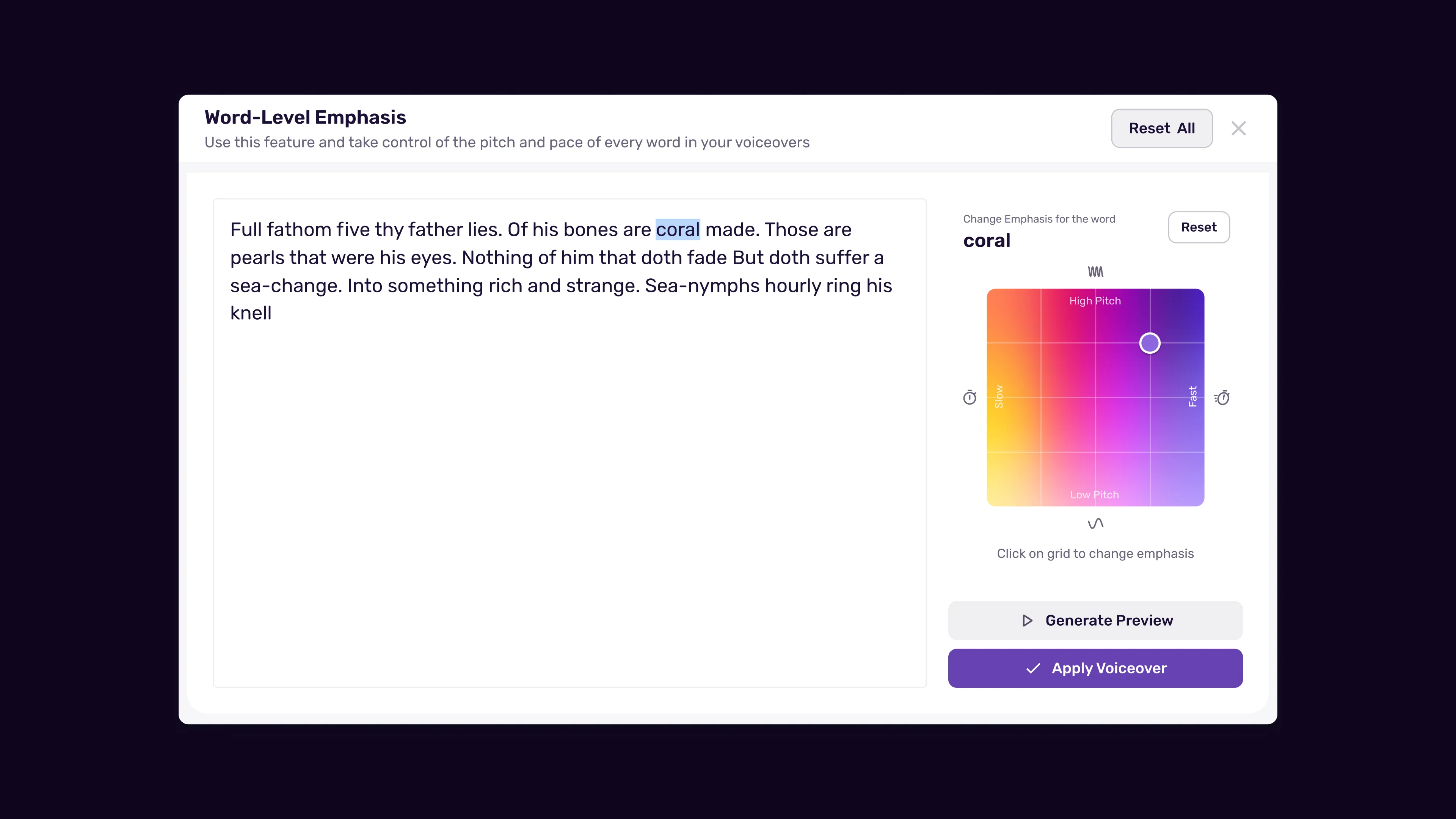
Step 1: Generate your base audio. Start by typing or pasting your script into the Murf Studio editor and generating the voiceover with your chosen voice. Listen to the full output first before making any emphasis changes - you need to hear the AI’s default interpretation to know what needs adjusting.
Step 2: Identify emphasis targets. Listen for sentences where the wrong word carries the stress. Common patterns include the AI emphasizing articles (“THE product”) when you want the noun emphasized (“the PRODUCT”), or stressing conjunctions when the meaning requires stress on a verb or adjective.
Step 3: Click the word to emphasize. In the Murf Studio timeline, click on the specific word you want to modify. A control panel appears with emphasis options. You can increase emphasis to make the word more prominent in the sentence, or decrease it to make the word pass more quickly.
Step 4: Regenerate and compare. After applying emphasis changes, regenerate the audio for that segment. Listen to the before and after. The change should be natural - emphasis that sounds forced or robotic means you have pushed the control too far.
Step 5: Layer with pacing. Emphasis works best when combined with subtle pacing adjustments. A slightly longer pause before an emphasized word creates a natural build-up that makes the emphasis feel intentional rather than mechanical. Murf’s pause controls sit right next to the emphasis options in the timeline editor.
Practical tips for emphasis:
- Less is more. Emphasizing every other word defeats the purpose. Pick the one or two words per sentence that carry the core meaning and leave the rest at default
- Read it aloud first. Before adjusting emphasis in Murf, read your script aloud and notice which words you naturally stress. Then match that pattern in the editor
- Context matters across sentences. If two consecutive sentences both emphasize the last word, it sounds repetitive. Vary your emphasis placement for a more natural rhythm
- Test with different voices. Some Murf voices respond to emphasis adjustments more dramatically than others. If a voice feels too reactive to emphasis changes, try reducing the intensity before switching voices entirely - the voice selection guide covers how to pick voices with predictable emphasis behavior
Say It My Way Feature
Say It My Way is where Murf’s pronunciation control gets truly powerful. Instead of accepting the AI’s best guess at an unusual word, you define exactly how it should sound - and that definition applies everywhere the word appears in your project.
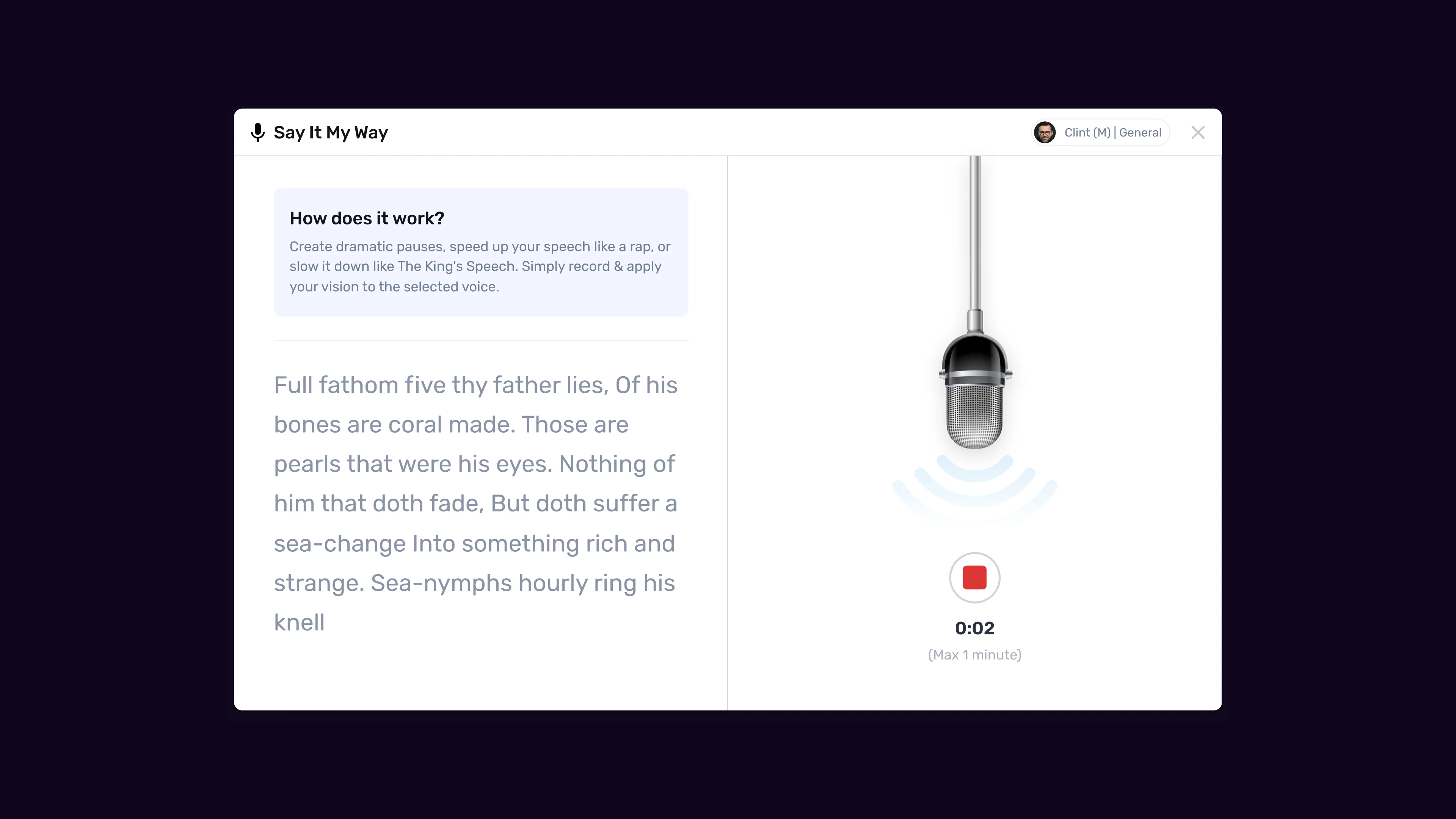
Accessing Say It My Way: Open your project in Murf Studio, navigate to the pronunciation settings, and select “Say It My Way.” You will see a dictionary interface where you can add custom pronunciation entries. This feature requires a Pro plan or higher.
Adding a custom pronunciation:
- Type the word or phrase as it appears in your script
- Choose your input method - you can either type a phonetic spelling, use IPA notation, or record yourself saying the word correctly
- Preview the pronunciation to verify it sounds right
- Save the entry to your project dictionary
The phonetic spelling approach is the fastest method for most people. If “Asana” is being pronounced “ah-SAH-nah” but you want “AH-sah-nah,” you type the phonetic version and Murf maps it. This works well for brand names and proper nouns where the correct pronunciation is intuitive but the spelling misleads the AI.
The recording approach is more precise. Click the microphone icon, say the word exactly as it should sound, and Murf analyzes your recording to extract the pronunciation pattern. This is ideal for names from languages you speak but cannot easily represent phonetically in English - say a client’s name into the microphone and Murf captures the nuance.
Project-wide consistency is the key advantage. Once a word is in your Say It My Way dictionary, every instance of that word across every slide, scene, or segment in your project uses the correct pronunciation automatically. For a 30-minute training video that mentions “Kubernetes” forty times, defining the pronunciation once saves you from checking every occurrence manually.
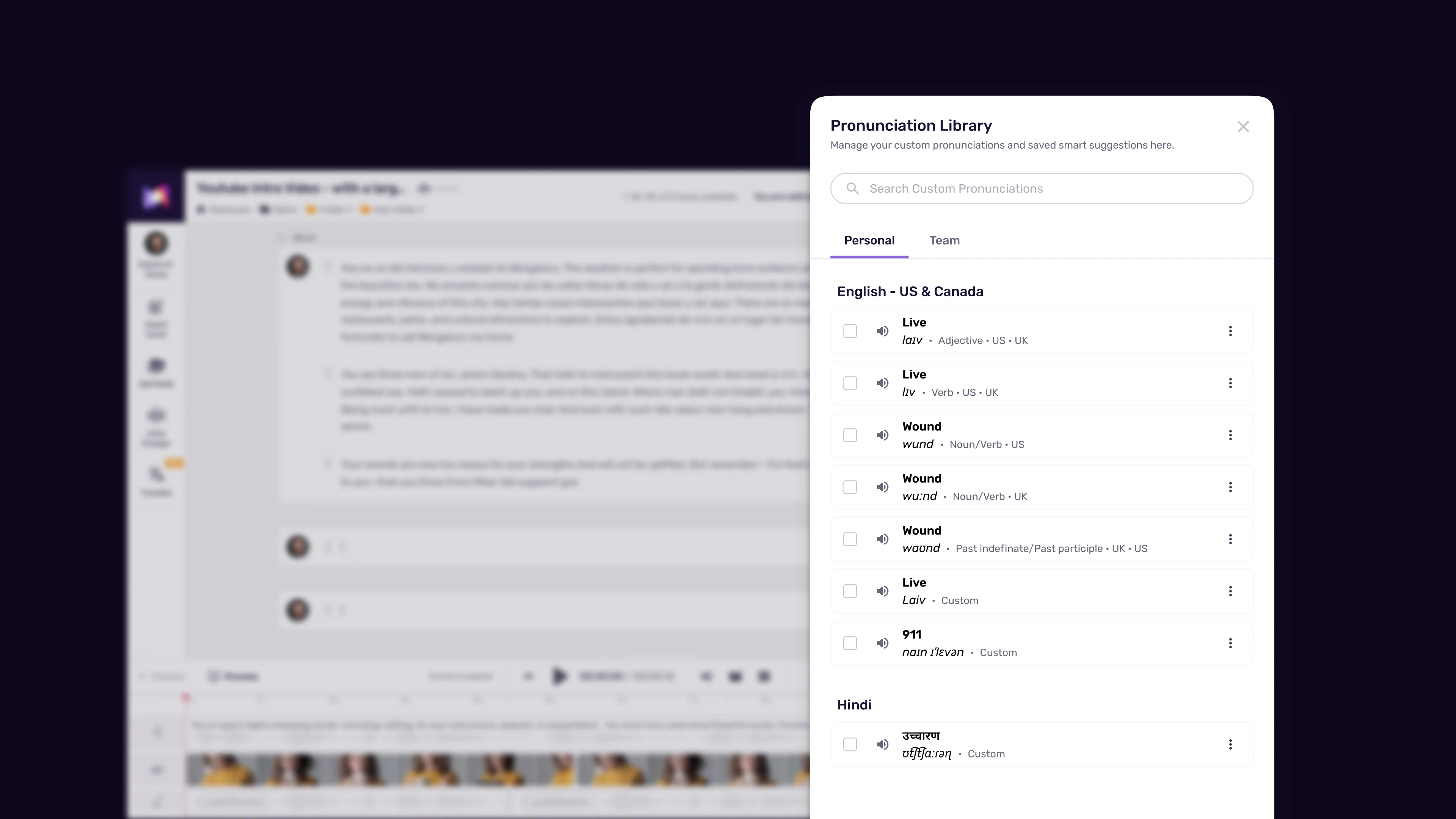
Building a reusable dictionary: If you work with the same brand names, technical terms, or client names across multiple projects, export your Say It My Way dictionary and import it into new projects. This is especially valuable for agencies producing content for the same client over time - build the pronunciation dictionary once, reuse it for every deliverable.
Custom Pronunciation for Acronyms
Acronyms deserve their own discussion because they are one of the most common pronunciation problems in professional voiceover, and Murf gives you specific controls for handling them.
The core problem: Every industry has acronyms that can be spoken as either individual letters or as words, and the convention varies. “NASA” is always spoken as a word. “FBI” is always spoken as letters. “GIF” is spoken as a word by most people but letters by some - the Merriam-Webster entry lists both pronunciations as valid. “SCUBA” started as an acronym and became a word so thoroughly that most people do not even know it stands for something.
Your audience has expectations about how acronyms in your field should sound. Getting it wrong signals that the content was generated without human oversight.
Letter-by-letter acronyms (initialisms):
For acronyms that should be spoken as individual letters - like “API,” “CEO,” “HTML,” or “KPI” - add spaces or periods between the letters in your script or use Say It My Way to define the pronunciation. Writing “A.P.I.” or “A P I” in your script is the quick fix. Using Say It My Way to define “API” as letter-by-letter is the cleaner solution because it keeps your script text readable.
Word-form acronyms:
For acronyms spoken as words - like “HIPAA,” “CAPTCHA,” or “OSHA” - Murf usually handles these correctly because they follow standard phonetic patterns. If it does not, use the phonetic spelling approach in Say It My Way to define how the word should sound.
Industry-specific conventions:
| Field | Value |
|---|---|
| Tech | ”SQL” (sequel vs. S-Q-L), “OS” (always letters), “AWS” (always letters), “GUI” (gooey vs. G-U-I) |
| Medical | ”HIPAA” (word), “MRI” (letters), “CPAP” (see-pap), “STAT” (word, from Latin “statim”) |
| Finance | ”EBITDA” (ee-bit-dah), “GAAP” (gap), “SEC” (letters), “IPO” (letters) |
| Marketing | ”SEO” (letters), “CTA” (letters), “ROAS” (row-as), “CPM” (letters) |
IPA input for precision: When the phonetic spelling approach does not capture the exact pronunciation you want, switch to IPA (International Phonetic Alphabet) input. IPA gives you character-level control over every sound. For example, the word “Nguyen” can be precisely defined using IPA notation as /wɪn/ for the common English approximation, or with more phonetic detail for a closer Vietnamese pronunciation. This level of control is rare in AI voice tools - most competitors force you to work around pronunciation issues rather than solving them directly.
Batch handling for acronym-heavy content: If your script contains dozens of acronyms - common in technical documentation, compliance training, or medical content - set up your Say It My Way dictionary before generating any audio. Go through the script, identify every acronym, define the pronunciation for each one, and then generate. This front-loaded approach is far faster than discovering pronunciation issues one at a time during review.
How Do You Combine Pronunciation Control With Other Murf Settings?
Pronunciation and emphasis controls are most powerful when used alongside Murf’s other voice tuning features. Here is how they interact.
Emphasis plus pacing: Adding a micro-pause (0.3 to 0.5 seconds) before an emphasized word creates a natural delivery pattern that mirrors how human speakers actually stress important points. In Murf Studio, use the pause control immediately before the emphasized word. The combination sounds significantly more polished than emphasis alone.
Pronunciation plus emotion: Murf’s emotion controls affect the overall tone of a passage - warm, serious, excited, calm. Custom pronunciations defined through Say It My Way maintain their phonetic accuracy regardless of which emotion setting you apply. This means you can switch a paragraph from “professional” to “friendly” delivery without re-checking whether your brand names still sound correct.
Emphasis plus speed: Slowing down slightly on emphasized words and speeding up slightly on surrounding filler words creates a rhythm pattern that professional voice actors use instinctively. In Murf, you can adjust speed at the word level alongside emphasis. A 5 to 10 percent speed reduction on the emphasized word paired with a matching speed increase on the preceding article or preposition produces a remarkably natural effect.
Multi-language pronunciation: For scripts that mix languages - an English presentation that references French cuisine terms, a German technical document with English tech jargon - use Say It My Way to define the foreign-language words with their native pronunciation. Murf’s MultiNative technology means the voice can handle the language switches, but the AI needs pronunciation guidance for words it might try to force into the primary language’s phonetic patterns.
Layering order matters. When fine-tuning a complex passage, work in this order:
- Set the correct pronunciation for all unusual words first (Say It My Way)
- Generate the audio with base settings
- Add emphasis to key words based on what you hear
- Adjust pacing and pauses around the emphasized words
- Apply emotion settings last, since they affect the overall passage
- Final listen-through to verify everything still sounds cohesive
This sequence prevents the common mistake of tweaking emphasis before fixing pronunciation - you will end up re-doing the emphasis work once the pronunciation changes alter the sentence rhythm. The pacing and pauses guide covers the timing controls in step 4 in more depth.
Pro Tips for Murf AI Pronunciation Control
Build a master pronunciation dictionary. If you produce voiceover content regularly, maintain a single master dictionary with every custom pronunciation you have defined. Import it at the start of every new project. Over time, this dictionary becomes one of your most valuable production assets - it represents hundreds of small decisions you never have to make again.
Use emphasis to guide the listener’s attention, not to add energy. The most common emphasis mistake is treating it like a volume knob - making words louder to sound more engaging. Emphasis should guide comprehension, not simulate excitement. If you want more energy, use Murf’s emotion controls and speed controls. Reserve emphasis for meaning.
Test pronunciations with multiple voices. A pronunciation that sounds perfect with one Murf voice may sound slightly off with another, because different voice models interpret phonetic input with subtle variations. If you plan to use multiple voices in a project - a narrator and a character, for example - verify your Say It My Way dictionary with each voice before committing to full production.
Check your acronyms against your audience. Before defining acronym pronunciations, confirm the convention your specific audience uses. “SQL” pronounced as “sequel” is standard in some database communities and considered incorrect in others. When in doubt, ask a subject matter expert from your target audience.
Preview in context, not in isolation. A word pronounced correctly in isolation may sound unnatural in a full sentence because of how it flows with surrounding words. Always preview pronunciation changes within the full sentence or paragraph, not just the individual word.
Use IPA for names from tonal languages. For names from Mandarin, Vietnamese, Thai, and other tonal languages, phonetic spelling in English cannot capture the tonal distinctions. IPA notation includes tone markers that let you represent these sounds more accurately. The difference between a passable pronunciation and a respectful one often comes down to these tonal details.
Document your pronunciation decisions. Keep a simple spreadsheet (or Notion table) alongside your Murf projects that records why you chose a specific pronunciation for each custom entry. Six months later, when a client asks why “Accenture” is pronounced one way in their training videos, you will have the reference.
Frequently Asked Questions
Does word-level emphasis work on all Murf plans?
Yes. Word-level emphasis is available on every Murf plan, including the free tier. You can click individual words in your script to add or reduce stress without upgrading. The Say It My Way custom pronunciation feature, however, requires a Pro plan or higher. Check Murf pricing for current plan details and feature availability. The underlying engine is documented on the Murf text-to-speech overview page.
How does Say It My Way differ from simply respelling a word in the script?
Respelling a word in your script - typing “fig-muh” instead of “Figma” - is a quick hack, but it has limitations. The misspelling appears in any transcript or subtitle output, it does not carry across projects, and complex pronunciations are hard to represent through respelling alone. Say It My Way stores the correct pronunciation separately from your script text, so your written content stays clean while the audio output sounds exactly right. It also applies the pronunciation globally across your project, so you only define it once regardless of how many times the word appears.
Can I use IPA phonemes if I do not know the International Phonetic Alphabet?
You do not need to be an IPA expert. For most pronunciation corrections, the phonetic spelling or recording methods in Say It My Way work perfectly well. IPA is there for precision cases - names from tonal languages, very specific sound distinctions, or professional linguists who already work in IPA. If you want to learn the basics, the IPA chart with audio examples at the International Phonetic Association website lets you hear each symbol. But for typical use cases like brand names and acronyms, the simpler input methods handle the job.
Do custom pronunciations carry over between projects?
Custom pronunciations defined through Say It My Way are saved at the project level by default. However, you can export your pronunciation dictionary and import it into new projects. For teams producing content regularly for the same client or industry, this export-import workflow means you build the dictionary once and reuse it indefinitely. Each new project starts with all your previous pronunciation decisions already in place.
Does pronunciation control work across all 35 Murf languages?
Yes. Word-level emphasis and pronunciation controls work across all 35 languages that Murf supports. The IPA input method is especially useful for multilingual projects because IPA notation is language-agnostic - the same phonetic symbols describe sounds in any language. Keep in mind that some voices respond to emphasis adjustments more noticeably than others, so test emphasis behavior with your specific language and voice combination before committing to a full production run.
Want to learn more about Murf AI?
Related Guides
- Murf AI Voiceover Guide - Complete walkthrough of Murf’s full feature set and pricing tiers
- Murf Say It My Way Custom Pronunciation - Deeper dive into the custom pronunciation engine
- Murf MultiNative Multilingual Guide - Pronunciation control across 35 languages
- Murf Emotion Control Guide - Pair emphasis with emotion settings
- Murf Pacing, Pauses, and Speed Tips - Time pauses around emphasized words
Related Reading
- Murf AI - Full review with pricing, features, and ratings
- Best AI Voice Generators 2026 - How Murf compares to the competition
External Resources
- Murf AI Help Center - Official documentation for Say It My Way, word-level emphasis, and pronunciation features
- International Phonetic Alphabet Chart - Reference for IPA notation when defining custom pronunciations
- IPA for English - Wikipedia primer on using IPA symbols for English pronunciation
Related Guides
- Activecampaign AI Content Generation: Complete 2026 Guide
- ActiveCampaign CRM Setup: How to Set Up ActiveCampaign CRM
- AI Presentation Creation Guide: Gamma, Beautiful.ai
- AI Voiceover Corporate Training With WellSaid Labs
- AI Voiceover for YouTube Videos: Murf Workflow Guide 2026
- AI Voiceover Tips: Making Synthetic Voices Sound Human
- AI Workflow Automation Maturity Model: 5 Levels
- Atlassian Intelligence Review: 2026 Pricing & Features
- Building AI First Workflows: A Practitioner's 2026 Guide
- Client Onboarding Automation: Automate Client Onboarding