
Murf AI voice speed pauses are the three pacing controls - speed from 0.5x to 2x, pause durations from 100 milliseconds to 5 seconds, and natural variability - that transform flat, monotone output into voiceovers with professional rhythm. Tuned together, they match pacing to content type, from 30-second ads to 20-minute e-learning lessons.
The difference between a voiceover that sounds like a robot reading a teleprompter and one that sounds like a human telling a story comes down to three things - speed, pauses, and the rhythm between them. Murf AI gives you granular control over all three, but most users never move past the default settings. That is a mistake. A 30-second ad and a 20-minute e-learning lesson demand fundamentally different pacing strategies, and the tools to execute those strategies are already built into the platform.
This guide covers murf ai voice speed pauses and pacing techniques that transform flat, monotone output into voiceovers with natural rhythm and professional timing. You will learn how speed controls work at a technical level, where to place pauses for maximum impact, and how to match pacing to specific content types. If you have already completed the Murf AI Getting Started Guide and can generate basic voiceovers, you are ready for this.
Why Pacing Matters More Than Voice Selection
Most users spend 15 minutes picking the perfect voice and zero minutes adjusting pacing, often treating the Murf AI voice changer controls as a one-time setup step. The irony is that pacing has a bigger impact on listener engagement than the voice itself. Research on audio listening speed shows that listeners disengage when narration speed stays constant for more than 90 seconds. Their brains interpret uniform pacing as monotonous, regardless of how pleasant the voice sounds. The deeper Murf voice selection tips guide covers when voice character matters most.
In Murf AI, pacing covers three distinct controls that work together:
- Speed - The overall words-per-minute rate, adjustable from 0.5x to 2x. The Murf text-to-speech overview documents the supported speed range across voice models
- Pauses - Silence gaps inserted between words, phrases, or sentences, ranging from 100 milliseconds to 5 seconds
- Variability - The natural fluctuation in delivery speed that prevents the “metronome effect” where every syllable takes exactly the same time
When these three elements are tuned correctly, the output stops sounding like text-to-speech and starts sounding like a person who understands the material. The Voice Consistency Engine in Murf maintains rhythm patterns across longer projects, keeping your pauses free of the drift that creeps into longer narration, so the pacing choices you make at the beginning carry through to the end without breaking.
Professional voiceover artists instinctively adjust all three of these elements based on context. They slow down for important points, pause before key reveals, and speed up through transitional phrases. The goal with Murf is to replicate those instincts using the platform’s controls, whether you are generating with the standard roster or with the newer Murf AI Falcon voices, rather than leaving everything to the AI’s default interpretation. The Murf Falcon API quickstart covers programmatic access to the same voice engine.
Murf AI Voice Speed Pauses: Speed Controls Explained
The speed slider in Murf AI operates on a scale from 0.5x (half speed) to 2x (double speed), with 1.0x as the default. But these numbers are more nuanced than they appear, and understanding what happens at each level prevents common mistakes.
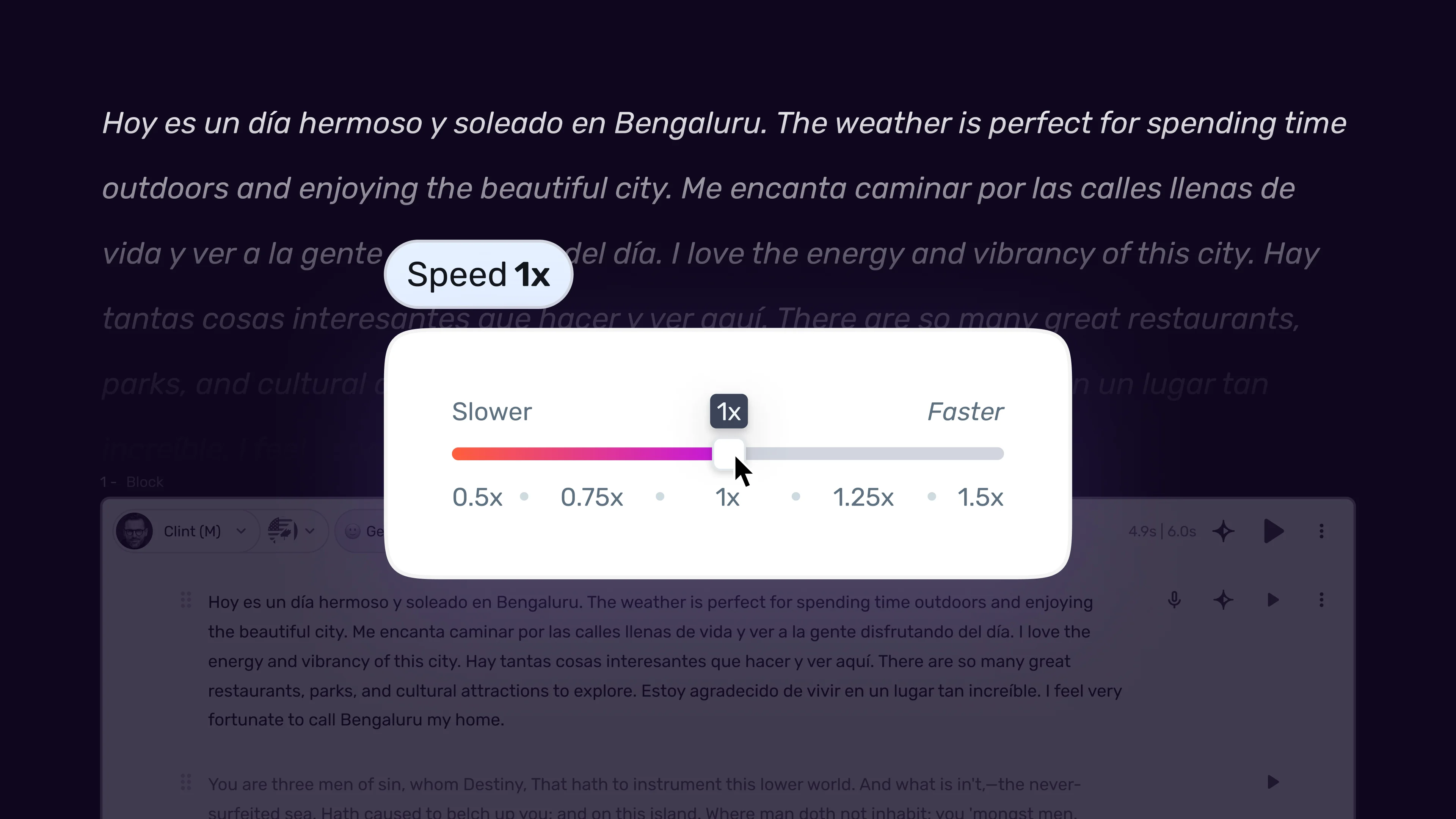
Speed ranges and their practical uses:
| Speed Range | Words Per Minute (approx.) | Best For | Watch Out For |
|---|---|---|---|
| 0.5x - 0.7x | 75 - 105 | Dramatic narration, meditation content | Can sound artificially slow, unnatural stretching |
| 0.8x - 0.9x | 120 - 135 | E-learning, technical walkthroughs | Still noticeably slower than natural speech |
| 1.0x | 150 | General-purpose default | May feel flat without pause adjustments |
| 1.1x - 1.2x | 165 - 180 | Conversational explainers, YouTube narration | Sweet spot for most content types |
| 1.3x - 1.5x | 195 - 225 | Ads, promos, energetic content | Risk of losing clarity on complex words |
| 1.6x - 2.0x | 240 - 300 | Recap sections, disclaimers | Most listeners cannot absorb content at this speed |
How to adjust speed effectively:
The Murf Studio workspace walkthrough covers the editor layout if you are new to it. The Murf AI getting started guide is the best entry point for first-time users.
- Open your project in the Murf Studio editor
- Select the text block you want to adjust - you can set speed per sentence, paragraph, or the entire script
- Use the speed slider in the voice controls panel
- Generate a preview of just that section before applying to the full project
- Compare the adjusted version against the default to confirm the change improves delivery
The most common mistake is applying a single speed to an entire script. Natural speech varies between 130 and 180 words per minute depending on the sentence. A flat 1.0x across a five-minute voiceover sounds mechanical precisely because real speakers do not maintain constant speed. Instead, set your baseline speed for the bulk of the content, then adjust individual sentences or paragraphs up or down by 0.1x to 0.2x to create natural variation.
Per-section speed strategy:
- Opening hook - 1.1x to 1.2x. Start with energy to capture attention
- Core explanations - 0.9x to 1.0x. Slow down so listeners can absorb complex information
- Transitions - 1.2x to 1.3x. Move quickly through connecting phrases that do not carry critical content
- Key takeaways - 0.8x to 0.9x. Deliberate pacing signals importance
- Closing call-to-action - 1.1x. Confident and clear, not rushed
Adding Strategic Pauses for Natural Delivery
Pauses are the single most underused feature in Murf AI. The platform supports custom pauses from 100 milliseconds to 5 seconds, insertable at any point in your script. Yet most users generate their voiceover without adding a single one, relying entirely on the AI to figure out where silence belongs.
The AI does a reasonable job with sentence-ending pauses, but it consistently underperforms in three areas where manual pause insertion makes a dramatic difference.
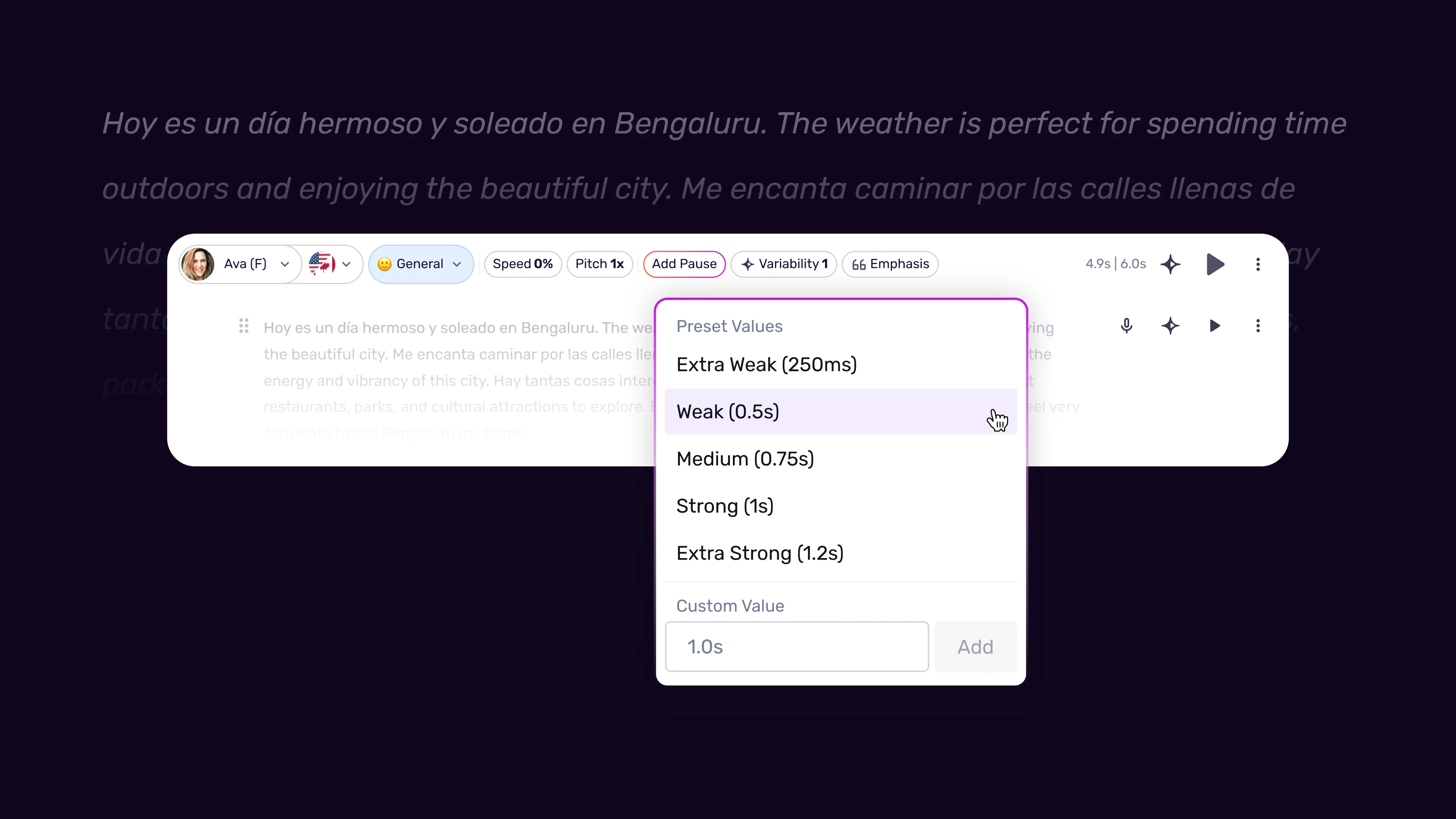
Where to add pauses manually:
Before important statements. A 500ms to 800ms pause before a key point creates anticipation. The listener’s brain registers the silence and pays closer attention to what comes next. This technique is especially effective in sales and marketing voiceovers where you want a specific line to land with impact.
After questions. When your script includes rhetorical questions, a 300ms to 600ms pause after the question mark gives the listener time to mentally formulate their own answer before you provide yours. Without this pause, rhetorical questions lose their persuasive effect because the answer arrives before the brain processes the question.
At topic transitions. When your script shifts from one subject to another, a longer pause of 800ms to 1200ms acts as an audible paragraph break. This is critical for e-learning content where listeners need to mentally file one concept before absorbing the next.
Between list items. If your script reads through a numbered list or a series of features, 200ms to 400ms pauses between items prevent them from blurring together. The default AI behavior often rushes through lists, making it hard for listeners to distinguish individual items.
Pause duration reference:
| Pause Type | Duration | When to Use |
|---|---|---|
| Micro pause | 100 - 200ms | Between list items, after commas in complex sentences |
| Short pause | 300 - 500ms | After rhetorical questions, before emphasis words |
| Medium pause | 600 - 800ms | Before key statements, after section transitions |
| Long pause | 1000 - 1500ms | Between major topics, after critical information |
| Dramatic pause | 2000 - 5000ms | Rare - storytelling beats, meditation content only |
How to insert pauses in Murf:
- Place your cursor at the exact point in the script where you want the pause
- Use the pause insertion tool in the toolbar - select duration or type a custom value
- The pause appears as a visual marker in the timeline, making it easy to adjust later
- Generate a preview to verify the pause feels natural in context
- Use the auto-trim silence feature afterward to remove any unintentional dead air that the AI added separately
One important detail - the auto-trim silence feature and manual pauses work independently. Auto-trim removes silence that the AI generated on its own, but it will not touch pauses you inserted manually. This means you can safely use auto-trim to clean up the AI’s default behavior without losing your intentional pacing decisions.
Combining Speed, Pauses, and Emotion for Expressive Delivery
Speed and pauses handle the mechanical side of pacing, but combining them with Murf’s emotion controls and variability settings is what produces voiceovers that sound genuinely expressive. Think of it as three layers working together - speed sets the tempo, pauses create the rhythm, and emotion adds the dynamics.
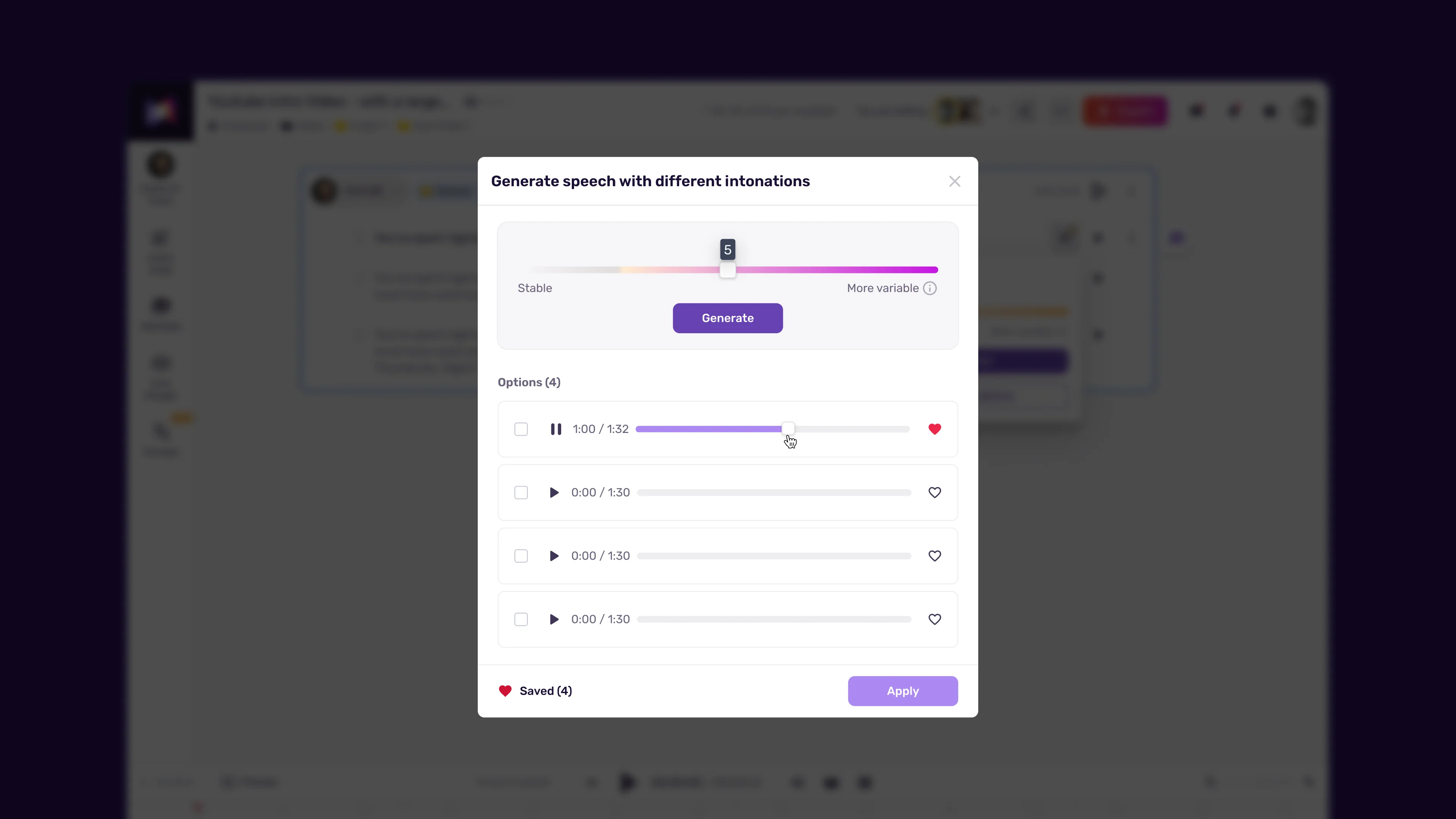
The variability setting is particularly important here. When variability is low, the voice maintains a steady pace throughout each sentence. When variability is higher, the voice naturally speeds up through less important words and lingers on significant ones - the way a human speaker emphasizes meaning through timing rather than volume.
Recommended combinations by content mood:
Authoritative and professional - Speed 1.0x, low variability, 500ms pauses between paragraphs, emotion set to Serious. Works for corporate training, financial reports, and legal disclosures. The steady delivery communicates reliability. The Murf eLearning course narration guide covers the corporate-training application.
Conversational and engaging - Speed 1.1x to 1.2x, medium variability, 300ms pauses after key points, emotion set to Conversational. Ideal for YouTube narration, podcast intros, and blog-to-audio conversions - see the Murf podcast intro guide for podcast-specific patterns. The slight speed increase prevents the voiceover from dragging.
Energetic and persuasive - Speed 1.2x to 1.3x, high variability, 600ms pauses before calls-to-action, emotion set to Excited or Happy. Best for product demos, promotional videos, and social media ads - see the Murf marketing voiceover workflow for the full ad-specific pipeline. The faster pace conveys enthusiasm without sounding frantic.
Calm and instructional - Speed 0.9x, medium variability, 800ms pauses between steps, emotion set to neutral or slightly Conversational. The right approach for meditation guides, technical tutorials where users follow along, and accessibility-focused content - the W3C WCAG accessibility guidelines document the relevant criteria.
Layering technique for longer scripts:
Rather than applying one combination to an entire voiceover, professional results come from shifting combinations across sections. A product explainer video might open with the energetic combination for the first 15 seconds, shift to conversational for the feature walkthrough, drop to calm and instructional for the how-to section, and return to energetic for the closing CTA.
In Murf Studio, you can set speed and emotion per text block, so implementing these shifts is straightforward. Select the text for each section, apply the appropriate speed and emotion settings, add your pauses at transition points, and generate the full voiceover. The Voice Consistency Engine ensures the voice character stays consistent even as the pacing and emotion change.
Content-Specific Pacing Strategies
Different content types have different pacing expectations, and getting this wrong is immediately noticeable to your audience. A training video that moves at ad-read speed feels frantic and stressful. An ad that moves at tutorial speed feels boring and loses the viewer in seconds.
E-learning and course narration:
Teachers and course creators should target 130 to 150 words per minute - slower than natural conversation to give learners processing time. The Murf eLearning course narration guide covers educator-specific patterns. Insert 800ms to 1200ms pauses between concept sections and 400ms pauses after any terminology or definition. When walking through step-by-step instructions, pause 600ms between each step so learners can complete the action before the next instruction arrives. If the course includes quizzes or reflection points, a 2000ms pause before “the answer is…” gives learners time to think.
Speed adjustments for course content: set the baseline to 0.9x, increase to 1.1x for recaps of previously covered material, and drop to 0.8x when introducing new or complex concepts for the first time.
Advertising and promotional content:
The full Murf marketing voiceover workflow covers ad-specific production end-to-end. Ads operate under extreme time constraints - 15, 30, or 60 seconds. Every millisecond matters. Set the baseline speed to 1.2x to 1.4x depending on the ad length. Use 400ms to 600ms pauses only at the most critical moments - typically before the product name, before the CTA, and after the primary value proposition. Remove pauses everywhere else. The goal is information density without sacrificing clarity.
For marketers producing variations, generate the same script at 1.2x, 1.3x, and 1.4x speed, then pick the version that fits the time slot while maintaining comprehension. The difference between these speeds at ad length is only a few seconds, but it can determine whether your CTA makes it into the final cut.
Narration and storytelling:
Long-form narration for audiobooks, documentaries, and branded storytelling needs the widest pacing range within a single piece. Dialogue sections should sit around 1.0x to 1.1x with natural variability. Descriptive passages work best at 0.9x with medium variability. Dramatic moments call for dropping to 0.8x with strategic 800ms to 1500ms pauses before and after climactic sentences.
The key to narration pacing is contrast. If the entire piece sits at one speed, nothing feels important. Slow sections create impact only because faster sections preceded them. Map your script’s emotional arc and assign speed ranges to each phase before generating anything.
YouTube and social media:
The Murf YouTube voiceover workflow covers the full creator pipeline. Online audiences have shorter attention spans and expect faster pacing than traditional media. Set your baseline to 1.1x to 1.2x. Vary speed within paragraphs - speed up through context-setting and slow down for the payoff. For content creators, the “hook fast, explain steady, CTA clear” pattern translates to: 1.3x for the first two sentences, 1.1x for the body, and 1.0x for the closing with a 500ms pause before the call-to-action.
Common Pacing Mistakes and How to Fix Them
Even intermediate Murf users fall into patterns that undermine their voiceovers. Here are the most frequent pacing errors and specific fixes for each.
Mistake 1: Using the same speed for the entire script. This is the most common error. The output sounds flat and mechanical because natural speech constantly fluctuates. Fix this by varying speed by 0.1x to 0.3x across different sections. At minimum, use a different speed for your opening, body, and closing.
Mistake 2: Not using pauses at all. Many users treat the pause feature as optional. Without manually placed pauses, the AI generates voiceovers that rush through important moments. Fix this by adding at least one strategic pause per 30 seconds of audio - before key points, after questions, and between topics.
Mistake 3: Making speed changes too dramatic. Jumping from 0.7x to 1.5x between adjacent sentences sounds jarring and unnatural. Fix this by limiting speed changes between consecutive sections to 0.2x to 0.3x maximum. If you need a bigger shift, insert a 1000ms pause at the transition to reset the listener’s expectations.
Mistake 4: Ignoring the preview before full generation. Generating the entire voiceover without previewing individual sections means you discover pacing problems only after waiting for the full render. Fix this by previewing each major section separately, adjusting speed and pauses, and then generating the complete project.
Mistake 5: Using extreme speeds without testing comprehension. Content at 0.5x sounds unnaturally stretched, and content above 1.5x sacrifices intelligibility for most listeners. Fix this by staying within the 0.8x to 1.3x range for most content types. Reserve speeds outside this range for very specific use cases like disclaimers at 1.5x or meditation scripts at 0.6x.
Mistake 6: Placing pauses only at sentence boundaries. The most powerful pauses happen mid-sentence - before a key word, after a question within a compound sentence, or between items in a list. Fix this by reading your script aloud and noting where you naturally pause, then replicate those pauses in Murf regardless of punctuation.
Frequently Asked Questions
What is the default voice speed in Murf AI and should I change it?
The default speed is 1.0x, which produces approximately 150 words per minute. For most content types, 1.0x is a reasonable starting point but not the optimal setting. Conversational content typically sounds more natural at 1.1x to 1.2x, while educational content benefits from 0.9x. The default works best as a baseline that you adjust up or down based on your content type and audience.
Can I set different speeds for different parts of the same script?
Yes. Murf Studio allows you to select individual sentences, paragraphs, or text blocks and assign different speed values to each. This per-section control is one of the platform’s strongest pacing features. Select the text you want to adjust, modify the speed slider, and the change applies only to that selection. This is how you create the natural speed variation that prevents monotone output.
How do I know if my pauses are the right length?
The simplest test is the “read aloud” method. Read your script out loud at the pace you want the voiceover to follow. Use a stopwatch to measure how long you naturally pause at each point. Most people pause 300ms to 500ms between sentences and 800ms to 1200ms between topic changes without realizing it. Match your manual Murf pauses to those natural durations. If a pause feels too long when you preview the audio - if you find yourself waiting impatiently for the next word - shorten it by 200ms.
Does changing speed affect voice quality or introduce artifacts?
Within the 0.7x to 1.5x range, speed changes in Murf sound natural and do not introduce noticeable artifacts. The Speech Gen 2 engine handles speed adjustments by modifying the timing model rather than simply stretching or compressing the audio waveform - the underlying technique is closer to the phase-vocoder approach to time stretching than to crude resampling, which is why it avoids the “chipmunk” or “slow motion” effects that older TTS systems produce. At extreme speeds below 0.6x or above 1.7x, you may notice slight degradation in naturalness, which is another reason to stay within the recommended range for production content.
How do pauses interact with the auto-trim silence feature?
Manually inserted pauses and auto-trim silence operate on separate layers. Auto-trim removes unintentional silence that the AI generates between sentences and paragraphs - the small gaps that add up and make a voiceover feel sluggish. Your manually placed pauses are preserved because the system recognizes them as deliberate insertions. This means you can safely run auto-trim after inserting your pauses without losing your pacing decisions. Use auto-trim first to clean up the AI’s default spacing, then add your strategic pauses on top.
Can pacing settings be saved and reused across projects?
Yes. Once you establish a pacing configuration that works for a specific content type - say, your standard YouTube narration settings - you can save the voice settings as a preset. The Murf team collaboration guide covers shared presets across team members. This includes speed, emotion, and variability values. Pauses are script-specific and cannot be templated, but your speed and emotion presets carry forward. For freelancers producing voiceovers for multiple clients, maintaining separate presets for each client’s brand voice and pacing preferences saves significant setup time.
Want to learn more about Murf AI?
Related Reading
- Murf AI Tool Page - Full review with pricing, features, and ratings
- Murf AI Emotion Controls Guide - Fine-tune emotional delivery alongside pacing
- Murf AI Pronunciation and Emphasis Guide - Control how individual words are stressed and spoken
- AI Voiceover Tips for Professional Audio Content - General voiceover best practices across platforms
Related Guides
- Getting Started with Murf AI
- Choosing the Right AI Voice in Murf
- Murf AI Emotion Controls
- Murf AI Pronunciation and Emphasis
- Murf AI Marketing Voiceover Workflow
External Resources
- Murf AI Pricing Plans - Compare tier features that affect pacing controls
- Murf AI Text-to-Speech Overview - Voice library and platform capabilities
- Murf AI Help Center - Official documentation for studio editor and voice controls
Related Guides
- AI Voiceover Corporate Training With WellSaid Labs
- AI Voiceover for YouTube Videos: Murf Workflow Guide 2026
- AI Voiceover Tips: Making Synthetic Voices Sound Human
- ElevenLabs Getting Started: Complete Beginners Guide
- ElevenLabs Voice Cloning Tutorial: Complete 2026 Guide
- Luma Dream Machine Video Tutorial 2026: Text-to-Video & Ray3
- Murf AI Canva Integration: Add Voiceovers to Designs
- Murf AI Custom Pronunciation: Say It My Way Guide (2026)
- Murf AI Dubbing: Complete Walkthrough | Complete Guide 2026
- Murf AI eLearning Narration: Educator's Guide | Review 2026