


Tidio Flows automation gives you a visual drag-and-drop builder for creating rule-based chatbot conversations that run 24/7 on your website. Unlike Lyro AI - which reads your knowledge base and generates conversational responses - Flows follow predefined decision trees where you control every branch, every button, and every outcome. They are the backbone of structured customer interactions, and common Tidio flows automation examples include welcome messages, lead capture forms, order status lookups, product recommendation quizzes, and routing conversations to the right team member. Most businesses running Tidio with Lyro AI use Flows and Lyro together, letting each handle what it does best.
This Tidio flows automation tutorial walks you through the complete Flows builder - from understanding when to use Flows over Lyro, to building your first automation, configuring advanced branching logic, connecting Tidio Integrations, and measuring performance. By the end, you will have the skills to build any Flow your business needs.
If you have not set up your Tidio account yet, start with the Getting Started with Tidio guide first.
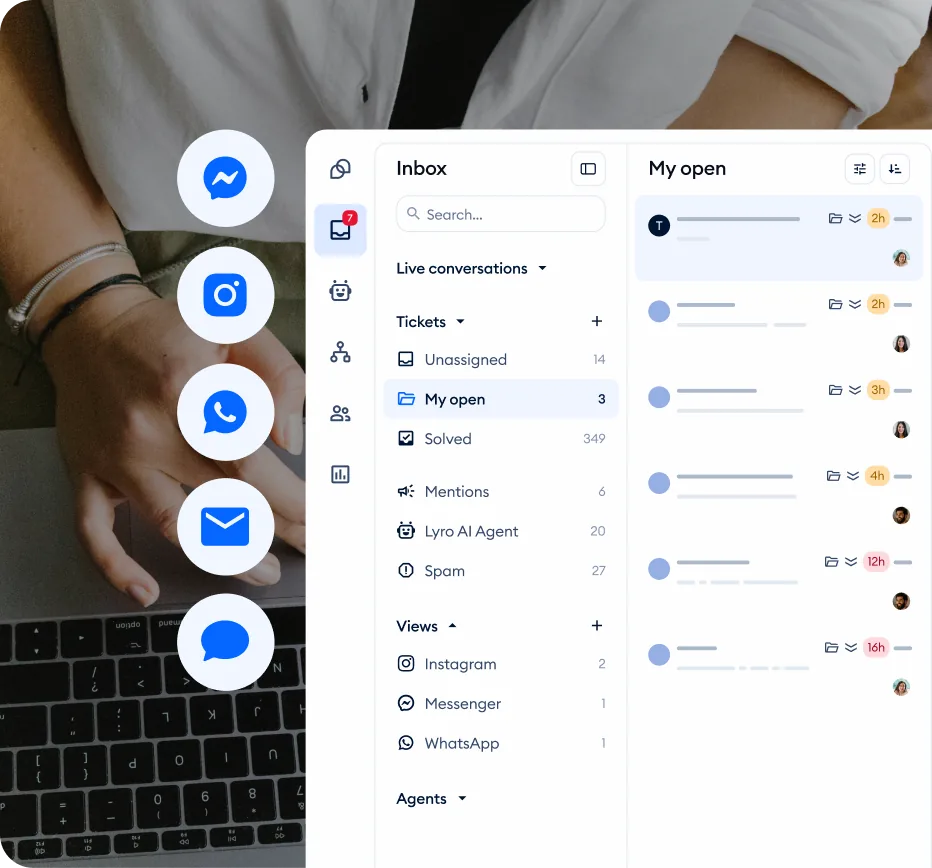
Flows vs Lyro AI: When to Use Each
Both tools live inside Tidio and can run simultaneously, but they solve different problems.
Flows are rule-based. You design every conversation path in advance using a visual builder. The visitor clicks buttons, selects options, and follows a structured path. Nothing is generated on the fly - making Flows predictable and ideal for collecting specific data in a specific order.
Lyro AI is conversational. It reads your knowledge base and generates natural-language responses to open-ended questions. Visitors type in their own words and Lyro finds the relevant answer.
When to use Flows:
- Lead capture - Collect name, email, phone number, and company size through a guided form
- Welcome messages - Greet visitors with buttons leading to common actions
- Product recommendation quizzes - Guide customers through a series of questions to suggest the right product
- Order status checks - Ask for an order number and route the conversation accordingly
- Appointment booking - Walk visitors through date and time selection
- Routing - Ask what department a visitor needs and transfer to the right agent
- Discount code delivery - Offer a code in exchange for an email address
When to use Lyro AI:
- Open-ended customer questions about your products or services
- FAQ-style support where customers type naturally
- Multilingual conversations where you cannot build Flows in every language
- Complex topics where building every possible path would be impractical
Best results come from combining both. Use a Flow to greet visitors and offer structured options (chat with support, browse products, track an order), then hand off to Lyro when visitors choose the support option and start asking questions in their own words. The Flow handles the structured intake, Lyro handles the conversation.
Accessing the Flows Builder
The Flows builder is a dedicated section inside your Tidio dashboard where you create, edit, and manage all your automated chatbot sequences.
Step 1: Open the Flows section. In the left sidebar of your Tidio dashboard, click on Flows. This opens the Flows management interface where you can see all existing Flows, access templates, and create new automations from scratch.
Step 2: Explore the template library. Tidio provides over 40 pre-built Flow templates organized by use case - lead generation, customer support, ecommerce, feedback collection, and more. Each template is a fully functional Flow that you can activate immediately or customize to match your business. Templates are the fastest way to get started because the trigger logic, branching, and messaging are already configured.
Step 3: Decide between a template and a blank canvas. For your first Flow, starting with a template is usually faster. You can see how experienced builders structure their automations and modify the template to fit your needs. For unique use cases that do not match any template, click Build from scratch to open a blank canvas.
Step 4: Understand the builder interface. The visual builder uses a canvas where you drag and drop nodes - visual blocks that represent triggers, conditions, actions, and messages. Nodes connect to each other with lines that show the conversation path. You zoom in and out with your scroll wheel, drag the canvas to navigate, and click any node to edit its settings in a side panel.
Anatomy of a Flow
Every Flow is built from four types of nodes that you connect in sequence. Understanding what each node type does is essential before you start building.
Triggers
Triggers define what starts the Flow. A Flow does nothing until its trigger condition is met. Common trigger types include:
- First visit on site - Fires when a new visitor loads your website for the first time
- Visitor returns to site - Fires when a returning visitor comes back
- Visitor opens a specific page - Fires when someone visits a URL you specify (product pages, pricing pages, checkout)
- Visitor clicks the chat widget - Fires when someone actively opens the chat window
- Visitor sends a message - Fires when someone types and sends a message
- Operator does not respond - Fires after a set time if no human agent replies (useful for after-hours automation)
- Contact event - Fires based on CRM events like a tag being added or a property changing
Each Flow needs exactly one trigger. The trigger type determines when the automation activates, so choose carefully based on the behavior you want to respond to.
Conditions
Conditions are branching nodes that split the conversation into different paths based on criteria you define. They are the “if/then” logic of your Flow.
- Page URL contains - Route visitors differently based on which page they are viewing
- Contact property - Branch based on whether the visitor is a new or returning contact, their country, language, or any custom property
- Day and time - Show different messages during business hours vs after hours
- Shopify-specific - Branch based on cart value, number of orders, or customer tags (requires Shopify integration)
Conditions create two or more output paths. For example, a “business hours” condition creates a “Yes” path (route to live agent) and a “No” path (collect contact info for follow-up).
Actions
Actions are the things your Flow does - the outputs that affect the visitor’s experience or your internal workflow. The most commonly used actions include:
- Send a chat message - Display a text message in the chat window
- Ask a question - Display a message with a text input field for the visitor to type a response
- Decision (quick replies) - Display buttons the visitor clicks to choose an option
- Transfer to operator - Hand the conversation to a human agent
- Transfer to Lyro - Hand off to the Lyro AI agent
- Delay - Wait for a specified time before continuing
- API call - Send data to an external service via webhook
Additional actions include sending emails, adding CRM tags, setting contact properties, subscribing visitors to mailing lists, and closing conversations.
Connecting Nodes
Drag nodes from the sidebar onto the canvas and connect them by drawing lines between output ports (bottom edge) and input ports (top edge). Click an output port and drag to an input port to create a connection. Delete connections by clicking the line and pressing the delete key.
Building Your First Flow: Welcome Message
A welcome message Flow is the most common starting point. It greets new visitors, offers quick navigation options, and captures interest before they leave. Here is how to build one step by step.
Step 1: Create a new Flow. Navigate to Flows in the left sidebar and click Build from scratch. Name your Flow something descriptive like “Welcome - New Visitors.”
Step 2: Set the trigger. The builder opens with a trigger node already on the canvas. Click it to configure. Select First visit on site as the trigger type. This ensures the Flow only fires for new visitors who have not seen it before.
Step 3: Add a delay. Drag a Delay action onto the canvas and connect it to the trigger. Set the delay to 3-5 seconds. Firing the welcome message instantly can feel intrusive - a short delay gives visitors time to start reading your page before the chat appears.
Step 4: Add the welcome message. Drag a Send a chat message action and connect it to the delay. Write your greeting. Keep it concise and relevant to your business. For example: “Hi there! Welcome to [Your Store]. I can help you find the right product, check your order status, or connect you with our team. What would you like to do?”
Step 5: Add decision buttons. Drag a Decision (quick replies) action and connect it to the message. Create three to four button options:
- “Browse products”
- “Track my order”
- “Talk to support”
- “Just looking”
Each button creates a separate output path on the decision node.
Step 6: Build each path. Connect each button output to the appropriate next step. “Browse products” leads to a message with popular categories. “Track my order” asks for the order number, then routes accordingly. “Talk to support” transfers to an operator during business hours or collects contact info after hours. “Just looking” sends a friendly closing message.
Step 7: Save and activate. Click Save in the top-right corner, then toggle the Flow to Active. The Flow is now live on your website.
Flow Templates Worth Using
Tidio’s template library saves significant building time. Here are the templates that deliver the most value across different business types.
Lead Capture. Asks qualifying questions (industry, company size, budget), collects email and phone number, and tags contacts based on responses. Pair the captured leads with a CRM workflow so qualified contacts route automatically.
Returning Visitor Greeting. Triggers when a recognized contact returns, referencing their previous interaction and offering personalized options based on contact properties.
Abandoned Cart Reminder. Shopify-specific template that triggers on cart abandonment, offers assistance with checkout objections, and delivers discount codes. Requires the Shopify integration.
Product Recommendation Quiz. Guides visitors through preference questions and suggests products using conditional branching. Ideal for stores with large catalogs where AI product discovery matters.
Appointment Booking. Collects preferred date, time, and contact information. Integrates with calendar tools via API calls or sends booking requests to your team email.
Feedback Collection. Triggers after a conversation or purchase, asks for a rating and optional comments, and tags responses to the contact record. The same data can flow into your CSAT tracking workflow.
Advanced Flow Techniques
Once you are comfortable with basic Flows, these techniques let you build more sophisticated automations.
Conditional Branching with Multiple Criteria
You can stack conditions to create detailed routing logic. For example, build a Flow that checks the current page URL, then checks whether it is business hours, then checks whether the visitor is a returning contact - each condition creating a different conversation path. This lets you deliver highly targeted messages without overwhelming any single Flow with complexity.
Working with Variables
Variables let you save visitor responses and use them later in the conversation. When you use an Ask a question node, the visitor’s typed response is stored in a variable that you name. You can then reference that variable in subsequent messages using curly brace syntax.
For example, ask “What is your name?” and save the response to a variable called visitor_name. In the next message, write “Thanks, {visitor_name}! How can I help you today?” The Flow inserts the visitor’s actual name into the message.
Variables are also useful for collecting structured data - order numbers, email addresses, product preferences - that you can pass to your CRM or use in email follow-ups.
API Calls and Webhooks
The API call action lets your Flows communicate with external services. Send collected data to your CRM, trigger events in Zapier or Make, check inventory levels, or verify order status. Configure the call by specifying the endpoint URL, HTTP method, headers, and request body. Include variables in the request body to send visitor data collected earlier in the Flow.
Multi-Step Forms and Timing
Instead of using a single long form, break data collection into a conversational sequence. Ask one question at a time, store each response in a variable, and use conditions to skip irrelevant questions based on previous answers. This approach has higher completion rates because it feels like a conversation rather than a form, and works particularly well alongside team management routing rules.
Use delays strategically between messages - a 1-2 second delay mimics natural typing speed, while longer delays (minutes or hours) can trigger follow-up messages like “Still need help?” after a visitor goes quiet.
Flows for Ecommerce
Ecommerce businesses get the most measurable ROI from Flows because every automation can directly impact revenue. Here are the highest-value ecommerce Flows to build.
Abandoned Cart Recovery
This is the single most valuable ecommerce Flow. When a visitor adds items to their cart but does not complete checkout, the Flow triggers and offers assistance. The sequence is straightforward: trigger on cart abandonment (Shopify integration required), delay 30-60 seconds, display a message acknowledging the cart, offer decision buttons for common objections (shipping questions, discount requests), and route each response to the appropriate path. Businesses using abandoned cart Flows typically recover 5-15% of abandoned carts. For a deeper look at chatbot-driven ecommerce strategies, see our ecommerce chatbot roundup.
Post-Purchase Follow-Up
Trigger a Flow after order confirmation to thank the customer, set shipping expectations, offer related products, and invite them to your email list or loyalty program. This touchpoint drives repeat purchases and positive reviews, and pairs well with a structured ticketing workflow for any post-purchase issues.
Product Recommendation Quiz
Build a quiz Flow that asks about the visitor’s needs and recommends products based on their answers. Use conditional branching to create unique paths for different answer combinations - each question narrows down the options until you can suggest specific products.
Discount Code Delivery
Offer a first-time purchase discount in exchange for an email address. Trigger on first visit, delay 15-30 seconds, display the offer, collect the email, deliver the code, and tag the contact for email marketing. This Flow captures leads and incentivizes purchases simultaneously.
Connecting Flows with Lyro
The combination of Flows and Lyro AI is where Tidio’s automation becomes particularly powerful. Each tool covers the other’s weakness.
Flow-to-Lyro Handoff
Use a Flow to handle structured intake - greet the visitor, identify intent through button clicks, collect required information - then use a Transfer to Lyro action to hand the conversation to the AI agent. A support Flow might offer buttons for “Product question,” “Shipping inquiry,” and “Return request,” with each leading to Lyro with topic context.
Lyro-to-Flow Routing
Configure Lyro’s guidance rules to recognize when a conversation needs a structured process. When a customer asks about returns, Lyro provides general policy information and suggests starting the return process - handled by a Flow that collects order number, reason, and preferred resolution. For more on configuring what Lyro can do independently, see the Lyro Tasks and Actions guide.
Shared Triggers
Both Flows and Lyro can be active simultaneously. Use Flows for proactive engagement (welcome messages, cart abandonment, page-specific offers) and Lyro for reactive support (visitor-initiated questions). This avoids conflicts because Flows respond to behavioral triggers while Lyro responds to typed messages.
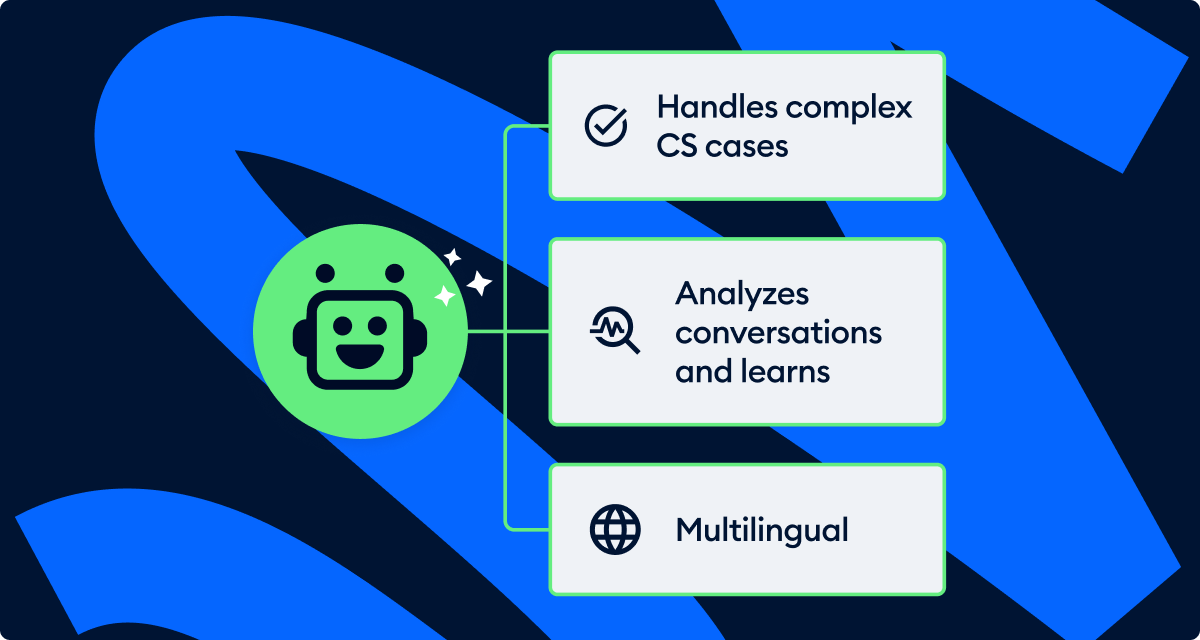
Testing and Publishing Flows
Never publish a Flow without testing it thoroughly. A broken Flow creates a worse customer support experience than no automation at all.
Preview Mode
Click Test it out in the Flow builder to open a preview window that simulates the visitor experience. You can also use the Lyro Playground to test how Flows and Lyro hand off between each other. Walk through every path in your Flow - click every button, enter sample responses to every question, and verify that every message displays correctly. Check that variables are populated with the values you entered and that conditional branches route to the correct paths.
Test as a Real Visitor
After testing in preview mode, test on your actual website. Open your site in an incognito browser window (so you appear as a new visitor) and trigger the Flow naturally. This reveals issues that preview mode might miss - timing conflicts with other Flows, widget positioning problems, or trigger conditions that do not fire as expected.
Publishing and A/B Testing
Toggle a Flow between Active and Inactive using the switch in the Flows list. Inactive Flows do not trigger for visitors, so you can safely make changes without affecting the live experience.
Tidio does not have built-in A/B testing for Flows, but you can test variations manually. Create two versions with different messaging, run version A for one week, switch to version B the next, and compare metrics. Alternatively, use page-specific triggers to run different Flow versions on different landing pages simultaneously.
Measuring Flow Performance
Building Flows is only half the work. Monitoring their performance tells you what is working and where visitors drop off.
Key Metrics to Track
Navigate to your Tidio analytics to review Flow performance data. Focus on these metrics:
- Trigger rate - How often the Flow fires compared to total page visits. A low trigger rate might mean your trigger conditions are too restrictive.
- Completion rate - The percentage of visitors who reach the end of the Flow. A healthy welcome Flow should see 40-60% completion. Lead capture Flows typically see 15-30%.
- Drop-off points - Identify which nodes cause visitors to abandon the Flow. If most visitors drop off at a specific question, that question might be too intrusive, confusing, or unnecessary.
- Conversation volume - Total number of Flow-initiated conversations per day, week, and month. Track trends to identify seasonal patterns.
- Conversion impact - For ecommerce Flows, track how many Flow interactions lead to purchases. Compare conversion rates for visitors who engaged with a Flow vs those who did not.
Optimizing Underperforming Flows
When a Flow underperforms, check these common issues: too many steps causing abandonment, vague button labels that reduce clicks, wrong trigger timing (too early feels intrusive, too late misses visitors), and missing exit paths that make visitors feel trapped. Always include a “No thanks” option and use specific, action-oriented button labels.
The Bottom Line on Tidio Flows Automation
A polished tidio flows automation setup pays for itself within weeks once you stop drafting the same canned reply over and over. Start with one Flow - the abandoned cart recovery template if you sell online, or a welcome message Flow if you don’t - then layer additional Flows over the next month as you see what visitors actually need. Pair Flows with Tidio Lyro AI for open-ended questions and you cover both structured intake and conversational support without bloating your team. Review live pricing tiers against your projected conversation volume so you don’t outgrow the Free plan in your first busy week, and consider the Lyro AI agent add-on once you exceed 50 monthly conversations.
Frequently Asked Questions
How many Flows can I create?
There is no hard limit on the number of Flows you can create. Each Flow interaction counts as a conversation against your plan’s monthly allowance (50 on Free, 100 on Starter, 250 on Growth), so the practical limit depends on conversation volume rather than Flow count.
Do Flows cost extra beyond my Tidio plan?
No. Flows are included in all Tidio plans, including the free tier. The conversations generated by Flows count toward your monthly conversation limit, but there is no separate charge for the Flows builder or template library. The Lyro AI add-on is priced separately, but Flows themselves are part of the core platform.
Can Flows trigger Lyro AI?
Yes. Use the Transfer to Lyro action node in your Flow to hand a conversation to the Lyro AI agent. This is useful for structured intake followed by conversational support - the Flow collects initial information and context, then Lyro takes over for open-ended questions. The visitor experiences a seamless transition.
What happens on the free tier?
The free Tidio plan includes access to the Flows builder, the template library, and the ability to create unlimited Flows. The limit is on conversations - 50 per month on the Free plan. Once you hit that limit, Flows stop triggering for new visitors until the next billing cycle. If you need more volume, the Starter plan at $29 per month provides 100 conversations, and the Growth plan at $59 per month includes 250. Check the pricing page for current tiers.
Can I import or export Flows?
Tidio does not currently support importing or exporting Flows as files. You cannot transfer a Flow from one Tidio account to another directly. However, you can recreate Flows using the template library as a starting point, and the visual builder makes it straightforward to rebuild a Flow by following screenshots or documentation from another account.
Can I use Flows without Lyro AI?
Yes. Flows and Lyro are independent features. Many businesses use only Flows for structured automation (lead capture, routing, order inquiries) without needing AI conversation. You can add Lyro later when needed.
Do Flows work on mobile devices?
Yes. Flows render inside the Tidio chat widget, which is fully responsive. Buttons, quick replies, and text inputs all work on mobile browsers identically to the desktop experience.
Want to learn more about Tidio?
Related Guides
- Getting Started with Tidio - Account creation, widget installation, and initial setup
- Tidio Lyro AI Setup Guide - Configure the AI agent that complements your Flows
- Tidio Instagram DM Automation - Build automated DM Flows for Instagram using the same visual builder
- Tidio Live Chat Customization - Brand the chat widget that hosts your Flows
- Tidio Lyro Knowledge Base - Train Lyro to handle the questions Flows hand off
Related Reading
- Tidio - Full platform review with pricing breakdown and feature analysis
- Best AI Chatbot Platforms 2026 - How Tidio compares to Intercom and other platforms
- Best Customer Support Software 2026 - Complete roundup of AI-powered support tools
External Resources
- Tidio Help Center: Chatbots - Official documentation for the Flows builder, triggers, and node types
- Tidio Blog: Chatbot Flowchart Guide - Visual templates for designing decision trees before you build them
- Meta Messenger Platform Docs - API reference for the Messenger channel that Flows can route to
Related Guides
- 15 Calendly Tips and Tricks to Save 4+ Hours Weekly
- ActiveCampaign CRM Setup: How to Set Up ActiveCampaign CRM
- ActiveCampaign Shopify Integration: Complete Setup
- ActiveCampaign WordPress: Forms, Tracking & Automation
- ActiveCampaign Zapier: 10 Automations to Build Today
- AI Agent Orchestration: Patterns That Scale in 2026
- AI Chatbots Customer Service Setup: Complete 2026 Guide
- AI Customer Service Automation: Chatbots vs Agentic AI
- AI Workflow Automation Maturity Model: 5 Levels
- Automate Approval Process No Code: Complete 2026 Guide