
Tidio Instagram DM automation is a feature that connects your Instagram Business or Creator account to Tidio’s shared inbox, letting your team manage direct messages alongside live chat, email, and Messenger conversations from a single dashboard. It supports auto-replies, visual chatbot flows, and Lyro AI responses to handle common customer inquiries without manual intervention.
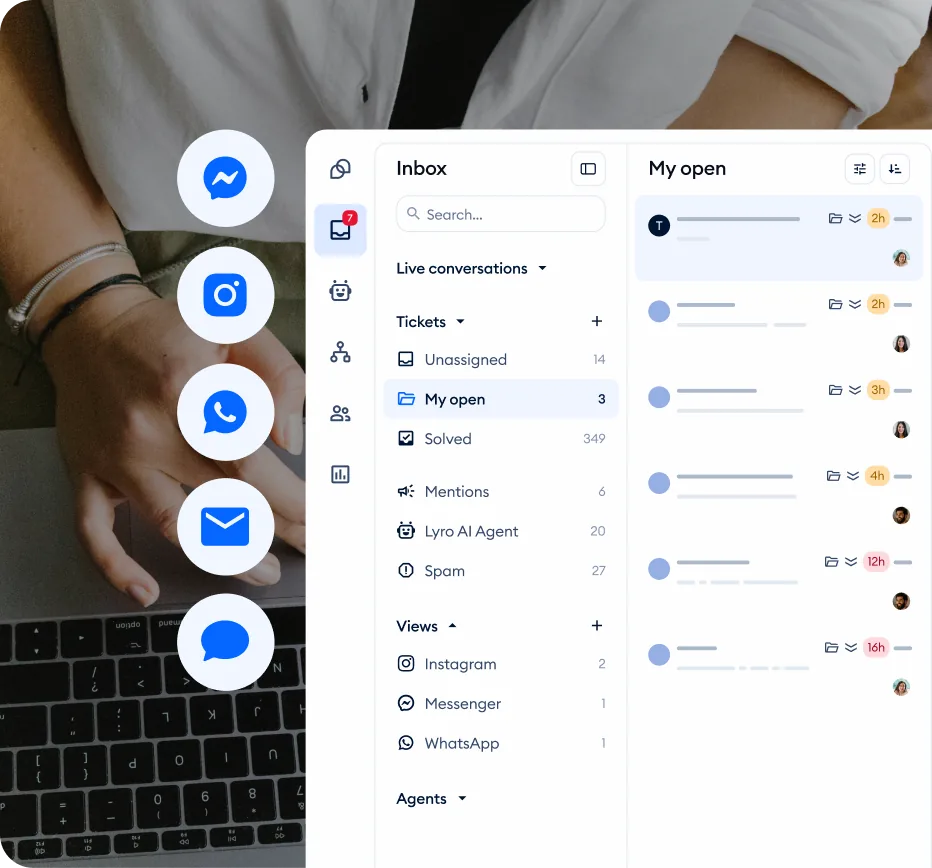
Tidio Instagram DM automation lets you manage every incoming direct message from your Instagram Business or Creator account inside a shared inbox - alongside live chat, email, and Messenger conversations. Instead of switching between apps and losing track of threads, your team handles all customer messages from a single dashboard. If you are already using social media management tools to schedule posts and monitor engagement, adding Instagram chat automation closes the loop on customer communication. You can set up instant auto-replies for common questions, build visual chatbot flows that guide customers through purchases or support requests, and let Lyro AI handle repetitive inquiries without human intervention. For businesses that receive more than a handful of Instagram DMs per day, this integration keeps Instagram DM automation free from the bottleneck of manual responses and keeps customers from waiting hours for an answer.
This guide walks you through the complete Tidio Instagram DM automation setup - from connecting your Instagram account to building your first automated DM flow and testing everything before going live. The process takes about 25 minutes if you have your Instagram Business account and Facebook Page ready. By the end, you will have auto-replies responding to common messages, a chatbot flow handling structured interactions, and your entire team managing Instagram DMs without sharing login credentials.
If you are new to Tidio and have not created an account yet, start with the Getting Started with Tidio guide first. This guide assumes you already have a working Tidio account with the basic setup complete.
Tools Needed
Before starting the integration, confirm you have the following accounts and access levels in place. Missing any of these will block the connection process.
An Instagram Business or Creator account. Personal Instagram accounts cannot connect to third-party messaging platforms - this is an Instagram API restriction, not a Tidio limitation. If your account is currently set to personal, you can switch it to a Business or Creator account in the Instagram app under Settings > Account > Switch to Professional Account. The conversion is free and takes about 30 seconds. Business and Creator accounts also keep Instagram AI chat private through Meta’s permissioned API, so conversations stay within your connected tools rather than open to unverified third parties.
A Facebook Page linked to your Instagram account. Instagram’s Messenger API requires a connected Facebook Page as an intermediary. If you do not have one, create a Facebook Business Page and link it to your Instagram account through Instagram Settings > Account > Linked Accounts > Facebook. The page does not need to be active or have followers - it just needs to exist and be connected.
Admin access to the Facebook Page. You need to be an admin (not just an editor or moderator) on the linked Facebook Page. Tidio requests permissions through Facebook’s API during the connection process, and only admins can grant those permissions.
A Tidio account on a compatible plan. Instagram DM integration is available on Tidio’s paid plans. The free plan does not include social media channel integrations or the automation bot features that handle incoming DMs. Check the pricing page for current plan details. The integration is chat safe for business use under Meta’s API terms. If you are evaluating the platform, the 7-day free trial gives you access to all premium features including Instagram integration.
Prerequisites
With the tools above ready, handle these configuration prerequisites before starting the connection.
Enable Instagram messaging for connected tools. In the Instagram app, navigate to Settings > Privacy > Messages and confirm that the option to receive messages from connected tools is turned on. Without this setting enabled, Tidio cannot receive or send Instagram DMs through the API, and the integration will appear connected in your dashboard but fail to deliver messages.
Review your message request settings. Instagram separates messages from people you follow and message requests from everyone else. For a business account, you want to receive messages from all users, not just people you follow. Go to Settings > Privacy > Messages in the Instagram app and configure your preferences so that potential customers can reach you without restrictions.
Familiarize yourself with Tidio Flows. Instagram DM automations are built using the same visual Flows builder used for website chat. If you have not used Flows before, reading the Tidio Flows: Visual Automation Builder Guide first will help you move through the chatbot setup steps faster. You do not need to complete that guide to follow along here, but familiarity with triggers, conditions, and action nodes saves time.
Tidio Instagram DM Automation: Connect Instagram to Tidio
The connection process uses Facebook’s OAuth authorization to give Tidio access to your Instagram messaging inbox. It takes about five minutes.
Step 1: Open channel settings. Log into your Tidio dashboard at app.tidio.com. In the left sidebar, click Settings, then navigate to Channels. You will see a list of available communication channels including Live Chat, Email, Messenger, and Instagram.
Step 2: Select Instagram. Click the Instagram channel option. Tidio displays an overview of what the integration includes - receiving and replying to Instagram DMs, sending automated responses, and using chatbot flows on the Instagram channel.
Step 3: Click Connect. Click the Connect Instagram button. Tidio redirects you to Facebook’s authorization page. If you are not already logged into Facebook in your browser, you will be prompted to sign in.
Step 4: Grant permissions. Facebook asks you to select which Facebook Page to connect and what permissions to grant Tidio. Select the Facebook Page that is linked to your Instagram Business account. Grant all requested permissions - these include reading and sending messages on Instagram, accessing page information, and managing conversations. Denying any permission will prevent the integration from functioning correctly.
Step 5: Select your Instagram account. After granting Facebook Page permissions, you will see a list of Instagram accounts connected to that page. Select the Instagram Business or Creator account you want to integrate with Tidio.
Step 6: Confirm the connection. Complete the authorization flow and you will be redirected back to your Tidio dashboard. The Instagram channel should now show a connected status with your account name displayed. Tidio begins syncing your recent Instagram DMs into the shared inbox.
Verify the connection works. Send a test DM to your Instagram Business account from a different Instagram account (a personal account or a colleague’s account). Within a few seconds, the message should appear in your Tidio inbox under the Instagram channel. Reply to it from Tidio and confirm the reply shows up in the sender’s Instagram DMs.
Troubleshooting common issues:
- Instagram account not appearing during setup: Confirm your Instagram account is set to Business or Creator (not Personal) and is linked to the Facebook Page you selected during the authorization step.
- Connection failing after authorization: Disconnect the integration in Settings > Channels > Instagram, then reconnect from scratch. Also verify that no other third-party app has exclusive messaging access on your Instagram account.
- Messages not arriving in Tidio: Check that Allow Access to Messages is enabled in Instagram’s privacy settings. Confirm that no other tool (like a CRM or separate helpdesk) is set as the primary messaging handler for your account.
What Should Trigger Your Automatic Instagram DM?
Auto-replies are the simplest form of Instagram DM automation - they send an instant response when someone messages your account, without requiring a full chatbot flow. This is the fastest way to acknowledge incoming messages and set expectations.
Step 1: Navigate to automation settings. In your Tidio dashboard, go to Settings > Channels > Instagram. Look for the auto-reply or automated responses section within the channel configuration.
Step 2: Enable the welcome message. Turn on the auto-reply for new conversations. This message fires immediately when someone sends you a DM for the first time or starts a new conversation thread. Write a message that acknowledges the customer and sets clear expectations:
Thanks for reaching out! We typically respond within 15 minutes during business hours (9 AM - 6 PM EST). If your question is about an order, include your order number and we will get back to you faster.
Keep the welcome message concise. Instagram is a mobile-first platform, and long paragraphs feel overwhelming on phone screens. Two to three sentences is the right length.
Step 3: Configure away messages. Set up a separate auto-reply for messages received outside business hours. Navigate to Settings > Operating Hours to define your schedule first, then configure the away message to trigger when no agents are online:
We are currently offline and will respond first thing tomorrow morning. For urgent order issues, email [email protected].
This simple message prevents customers from feeling ignored during off-hours and gives them an alternative channel for urgent matters.
Step 4: Set up keyword-based quick replies. Beyond welcome and away messages, you can configure quick replies that trigger based on specific words in incoming messages. Common keyword triggers include:
- “hours” or “open” - Reply with your business hours and location
- “shipping” or “delivery” - Send shipping policy details or a tracking page link
- “price” or “cost” - Direct customers to your product catalog or pricing page
- “return” or “refund” - Share your return policy or link to the return request form
- “size” or “sizing” - Send your sizing chart or measurement guide
Each keyword trigger saves your team from typing the same response dozens of times per day. For even faster manual responses, set up canned responses and macros that agents can use when the conversation goes beyond what auto-replies cover. Review your most common DM topics to identify which keywords will have the highest impact.
How Do You Build a DM Chatbot Flow for Instagram?
While auto-replies handle simple one-off responses, chatbot Flows let you build structured, multi-step conversations that guide Instagram DM users through a complete interaction. Flows use a visual drag-and-drop builder where you design every conversation path, button option, and branching condition. For a comprehensive walkthrough of the builder itself, see the Tidio Flows: Visual Automation Builder Guide.
Step 1: Open the Flows builder. In your Tidio dashboard, click Flows in the left sidebar. Click Build from scratch to start with a blank canvas. Name the Flow something descriptive like “Instagram DM - Welcome and FAQ.”
Step 2: Select an Instagram trigger. Every Flow starts with a trigger - the event that activates the automation. For Instagram DM automation, select one of these trigger types:
- Visitor sends a message (Instagram) - Triggers when any new DM arrives on your Instagram account
- Visitor sends a message containing a keyword - Triggers only when the message includes specific words you define
- First message in a conversation - Triggers on the opening message of a new conversation thread only
Choose the trigger that matches your use case. For a general welcome flow, use “First message in a conversation.” For targeted responses about specific topics like a promotion or product launch, use the keyword trigger.
Step 3: Add a greeting message. After the trigger, add a Send a chat message node. This is the first thing the customer sees after their DM triggers the flow. Write a greeting and present clear options:
Hi there! How can I help you today?
Keep the tone conversational. Instagram DMs are a casual channel, and overly formal messaging feels out of place compared to how people naturally communicate there.
Step 4: Add decision buttons. Connect a Decision (quick replies) node to the greeting. Create three to four button options based on your most common DM topics:
- Browse products
- Track my order
- Shipping and returns
- Talk to a human
Buttons keep the conversation structured and prevent the customer from typing an ambiguous message that the bot cannot parse. Limit yourself to four options maximum - too many choices cause decision fatigue on a small mobile screen.
Step 5: Build branching paths. Connect each button to a different conversation branch:
- Browse products - Send a message with links to popular product categories or a follow-up question about what they are looking for
- Track my order - Add an Ask a question node that requests the order number, then either display tracking information or route to a human agent
- Shipping and returns - Deliver your policy summary in a concise message, followed by options like “Start a return” or “Back to menu”
- Talk to a human - Add a Transfer to operator action that assigns the conversation to your next available team member
Step 6: Add data collection where needed. If your Flow captures information like name, email address, or order numbers, use the Ask a question node with input validation. Tidio stores collected data in the customer’s contact profile, making it available to agents when they pick up the conversation and accessible for export to your CRM or email marketing platform. Pair this with a visitor tracking workflow to enrich the contact record.
Step 7: Set the channel scope. In the Flow’s settings, make sure the channel scope includes Instagram. Some Flows are configured to run only on the website chat widget by default. Expand the scope to include the Instagram channel so the Flow activates for DM conversations. You can also restrict a Flow to Instagram only if you want different automations on different channels.
Step 8: Activate the Flow. Toggle the Flow to active status. From this point forward, any Instagram DM that matches your trigger conditions will enter the Flow and receive the automated conversation sequence.
Test the Integration
Testing before going live protects you from sending broken or confusing automated messages to real customers. Run through each scenario methodically before considering the integration complete.
Test auto-replies. Send a DM to your Instagram Business account from a personal or secondary account. Verify the welcome message appears instantly. Check the formatting, spelling, and tone. If you configured keyword triggers, send messages containing each keyword and confirm the correct reply fires for each one.
Test chatbot Flows. Trigger each Flow by sending the appropriate message or keyword from a test account. Walk through every branch - click every button option, enter sample data in collection fields, and follow each path to its endpoint. Verify that:
- Button labels display correctly in the Instagram DM interface
- Question prompts are clear and properly formatted
- Data collection works (check the contact profile in Tidio for captured information)
- Human handoff routes the conversation to the correct operator or team
- Fallback messages appear when the bot cannot understand a response
Test the shared inbox experience. Confirm that every Instagram DM appears in your Tidio inbox with the correct channel label. Reply to a test message from within Tidio and verify the response shows up in the sender’s Instagram DM thread. Check that conversation history is preserved - if a customer interacts with a chatbot Flow and then gets transferred to a human agent, the agent should see the full conversation transcript including the bot’s messages and the customer’s responses.
Test on mobile. Open the Instagram app on a phone and send DMs to your business account. Mobile testing matters even more if you also run WordPress integration where the same widget needs to feel responsive. Chatbot messages, buttons, and quick replies can render differently on mobile than on the desktop web interface. Verify that everything is readable, tappable, and functional on smaller screens. Pay attention to message length - what looks like a reasonable paragraph on desktop may require scrolling on mobile.
Test with multiple team members. If more than one person handles Instagram DMs, have a colleague log into Tidio and verify they can see and reply to Instagram conversations. Test the assignment and routing rules to confirm conversations reach the right person based on your configuration.
Advanced Tidio Instagram DM Automation Tips
Once the basic integration is working, these strategies help you get significantly more value from your tidio instagram dm automation setup.
Let Lyro AI Handle Open-Ended Questions
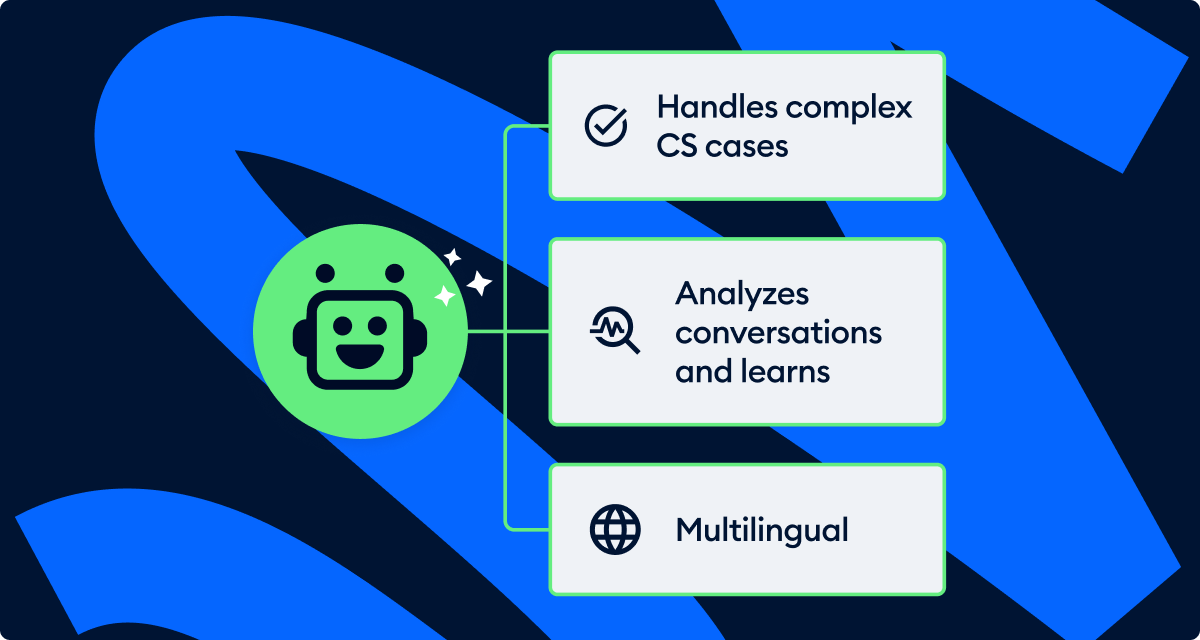
Instead of building a separate Flow branch for every possible FAQ topic, enable Lyro AI on the Instagram channel. Lyro reads your knowledge base and responds to conversational questions in natural language - no decision tree required. It handles variations in how customers phrase their questions and hands off to a human when it does not have the answer. The most effective setup combines both: use a Flow to greet customers and offer structured button options, then route free-form questions to Lyro when customers choose an open-ended path. See the Tidio Lyro AI Setup Guide for complete configuration steps.
Use Story Reply Triggers
When followers reply to your Instagram Stories, those replies land in your DMs. You can create Flows that respond to story replies with a warm acknowledgment and a nudge toward further engagement. Story replies represent high-intent interactions because the person already engaged with your content voluntarily. A response that offers a discount code or exclusive content in exchange for a story reply can turn casual engagement into a sale.
Segment Contacts by Channel
Tidio tags conversations with their source channel, so you can filter your entire contact list by Instagram-origin conversations. Use this segmentation to analyze Instagram-specific support volume, understand which types of questions come through DMs versus your website chat, and identify patterns in what your Instagram audience cares about. The Tidio analytics dashboard gives you detailed breakdowns of conversation volume by channel. This data informs both your automation strategy and your content calendar.
Route Conversations to Specialists
If different team members handle different inquiry types - sales questions go to one person, support issues go to another - configure department-based routing under Settings > Team > Departments. The Tidio team management guide covers department creation, role assignment, and routing rules in detail. You can route Instagram conversations to a dedicated social media team or split them by topic using the Flow branch the customer followed. Combine this with canned responses and macros so agents can reply quickly to repetitive DMs without retyping. Proper routing reduces internal handoffs and gets customers to the right person faster.
Respect the 24-Hour Messaging Window
Meta’s API enforces a 24-hour messaging window for Instagram. You can only send messages to a user within 24 hours of their last message to you. After that window closes, you cannot initiate new messages. Design your Flows to capture the information you need within the first interaction rather than relying on follow-up messages days later. If you need to collect an email address for later communication, do it early in the conversation.
Monitor and Iterate
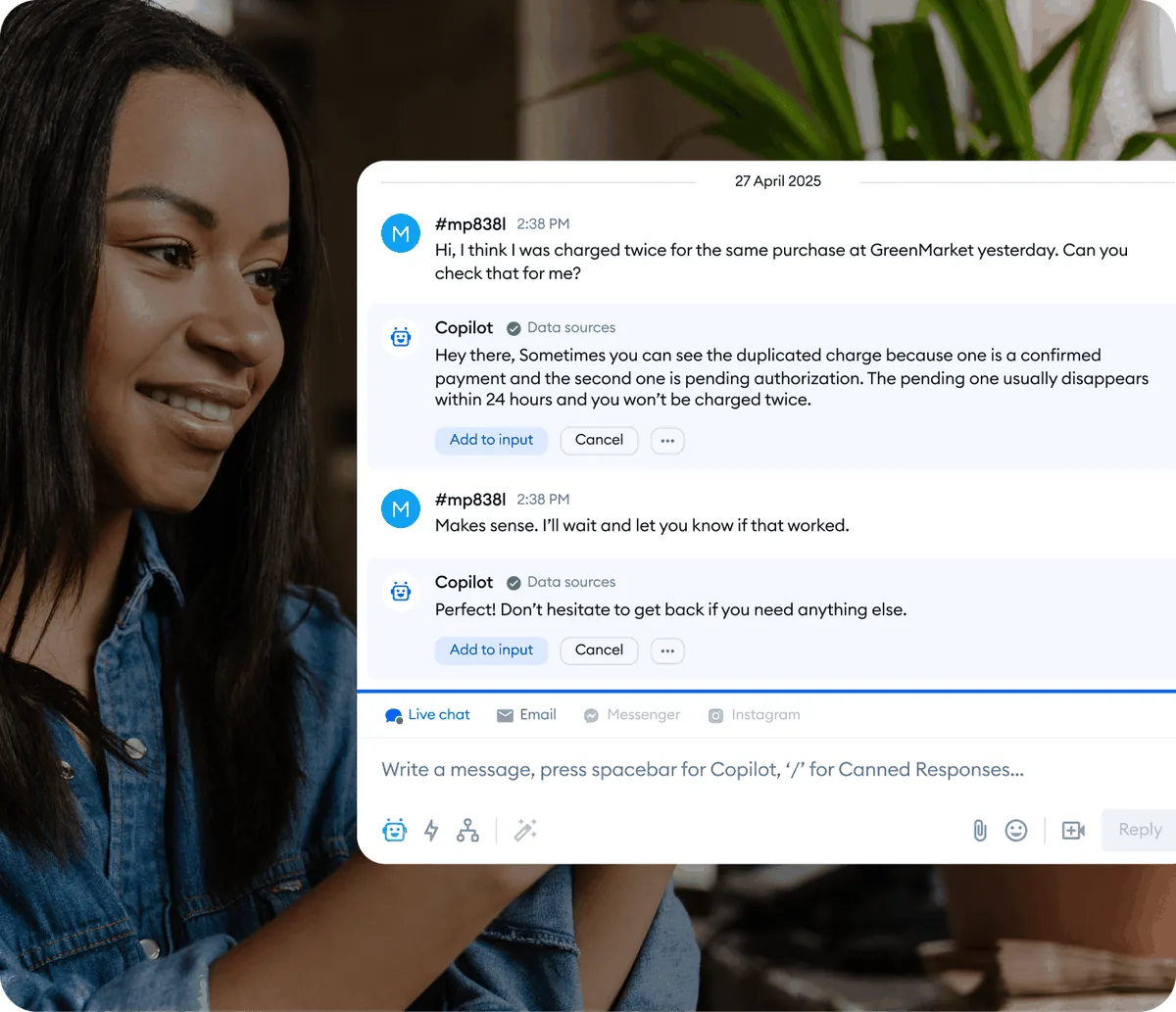
Track your average first response time for Instagram DMs in the Tidio Analytics dashboard. Review which Flow paths customers use most frequently and which ones lead to the most human handoffs. Flows that consistently transfer to agents may need more detailed automated responses, or a fresh pass over your Lyro knowledge base. Flows that nobody uses may need better button labels or different trigger conditions. Review your active Instagram Flows monthly and update messaging to reflect current promotions, policies, and product information - the copilot agent assist workflow is helpful for spotting recurring DM patterns worth automating.
Frequently Asked Questions
Does Tidio Instagram integration work with personal accounts?
No. Instagram’s Messenger API only supports Business and Creator accounts. Personal accounts cannot connect to third-party messaging platforms like Tidio. Converting to a Business or Creator account is free and takes about 30 seconds in your Instagram settings under Account > Switch to Professional Account. You do not lose any followers, posts, or content during the conversion.
Can Lyro AI respond to Instagram DMs automatically?
Yes. Once you enable Lyro AI on the Instagram channel and configure your knowledge base, Lyro handles incoming DMs the same way it handles website chat messages. It reads the customer’s question, finds the relevant answer in your knowledge base, and responds in natural language. If Lyro cannot answer, it hands the conversation to a human agent. See the Lyro AI Setup Guide for the full configuration walkthrough.
Can I send the first message to someone on Instagram through Tidio?
No. Meta’s API does not allow businesses to initiate Instagram DM conversations. You can only respond to messages that customers send first. This is a platform-level restriction that applies to all third-party tools, not just Tidio. Design your strategy around encouraging customers to message you first - through post calls-to-action, story question stickers, and engagement prompts in your content.
Will customers know they are talking to a bot?
Tidio sends messages from your Instagram business account, so the customer sees your brand name and profile picture regardless of whether a human or bot is responding. However, transparency is a good practice. Most businesses add a brief note in their welcome message along the lines of “Our assistant can help with common questions, or connect you with a team member.” This sets expectations without discouraging engagement.
Do I need a Facebook Page to connect Instagram to Tidio?
Yes. Instagram’s API routes through Facebook (Meta), so a linked Facebook Page is required for the integration. The page does not need to be active, have any followers, or have published content - it serves as the technical bridge between Instagram and Tidio. If you already manage a Facebook Business Page for your brand, use that one.
How many automated conversations can I run per month?
Each automated conversation counts toward your Tidio plan’s monthly conversation allowance. The specific limit depends on your plan tier - check the pricing page for current numbers. There is no limit on the number of Flows you can create, but monitor your conversation usage in the analytics dashboard to avoid hitting limits during high-engagement periods like product launches or sales events.
Want to learn more about Tidio?
The Bottom Line on Tidio Instagram DM Automation
A polished tidio instagram dm automation setup turns Instagram from a one-way broadcast channel into a structured support and sales pipeline. Connect your Business account, set a welcome message, build a single Flow with three to four button options, and let Tidio handle the routing while you focus on the conversations that actually need a human. Verify current pricing tiers against your projected DM volume - the Free plan caps you at 50 conversations per month, which most active Instagram accounts blow through quickly. Once you hit that ceiling, the Lyro AI agent add-on handles the open-ended product and policy questions that pure Flows cannot.
Related Guides
- Tidio Multi-Channel Support - Complete multichannel inbox setup across Messenger, Instagram, and Email
- Tidio Flows: Visual Automation Builder Guide - Build chatbot flows for any channel
- Tidio Lyro AI Setup Guide - Configure AI to handle DMs automatically
- Tidio Live Chat Customization - Brand the chat widget that pairs with DM automation
- Tidio Lyro Knowledge Base Guide - Train Lyro on the FAQs that come through Instagram
Related Reading
- Tidio - Full platform review with pricing and features
- Best Instagram Scheduler 2026 - Scheduling tools that complement DM automation
- Best AI Chatbot Platforms 2026 - How Tidio compares to Intercom and other platforms
External Resources
- Tidio Help Center: Chatbots - Official documentation for Flows and channel setup
- Meta Instagram Messaging API Docs - Permissions, message windows, and platform restrictions
- Instagram Business Account Help - Switching to a Business or Creator account and connecting a Facebook Page
Related Guides
- AI Chatbots Customer Service Setup: Complete 2026 Guide
- AI Customer Service Automation: Chatbots vs Agentic AI
- Tidio Abandoned Cart Recovery: Automation Workflows
- Tidio Analytics Dashboard: 2026 Walkthrough for Teams
- Tidio Canned Responses and Macros for Faster Support
- Tidio Copilot Agent Assist: AI-Powered Agent Assist Guide
- Tidio CSAT Tracking: CSAT Tracking and Improvement
- Tidio Ecommerce Chatbot: Tidio Chatbot Flows for Ecommerce
- Tidio Ecommerce Support Automation: Automation Best
- Tidio Flows Automation: Visual Automation Builder Guide