

Setting up the Tidio Lyro AI chatbot is one of the fastest ways to add a genuinely useful AI agent to your customer support workflow. Unlike rule-based chatbots that follow rigid decision trees, this Lyro chatbot is powered by Claude (Anthropic) and reads your knowledge base to answer customer questions in natural language. Businesses using Lyro report an average 67% automation rate on incoming inquiries - meaning two out of every three customer messages get resolved without a human agent touching them.
This guide covers the complete Tidio Lyro AI setup process from accessing the Lyro panel to testing responses in the Playground. You will configure your knowledge base using multiple source methods, set the AI’s tone and behavior rules, activate it across your support channels, and learn how to monitor and improve performance over time. The entire setup takes about 25 minutes if you have your content ready.
Whether you are adding Lyro to an existing Tidio account or starting fresh, this walkthrough covers every configuration option so you can go live with confidence.
Prerequisites
Before starting the Lyro AI setup, make sure you have the following ready so you can move through each step without interruptions.
An active Tidio account with the chat widget installed. Lyro AI is a feature within the Tidio platform, not a standalone product. If you have not completed a Tidio install or created your account yet, use the app.tidio.com login page to sign up and follow the Getting Started with Tidio guide first. Your chat widget should already be live on your website before configuring Lyro.
Knowledge about your products or services. Lyro only answers questions based on the information you provide. You will need access to your FAQ content, help center articles, product documentation, shipping policies, return procedures, and any other information customers regularly ask about. The more comprehensive your knowledge base, the higher your automation rate. See our Lyro Knowledge Base Guide for detailed strategies on structuring this content.
FAQ content or help center URLs. If you already have a help center or FAQ page on your website, Lyro can scrape those URLs directly. If you do not have a published help center, prepare a list of your most common customer questions and answers - you will enter these manually during setup.
A plan that includes Lyro conversations. The Tidio setup free plan includes 50 one-time Lyro conversations, which is enough to test and evaluate the AI agent. After those are used, the Lyro add-on (see current pricing on the pricing page) unlocks additional monthly conversations. The Premium plan includes unlimited Lyro conversations and guarantees a 50% resolution rate. Compare all tiers on the pricing page.
What Is Lyro AI and How Does It Work?
Before diving into the configuration, it helps to understand what Lyro actually is and how it differs from other automation options inside Tidio.
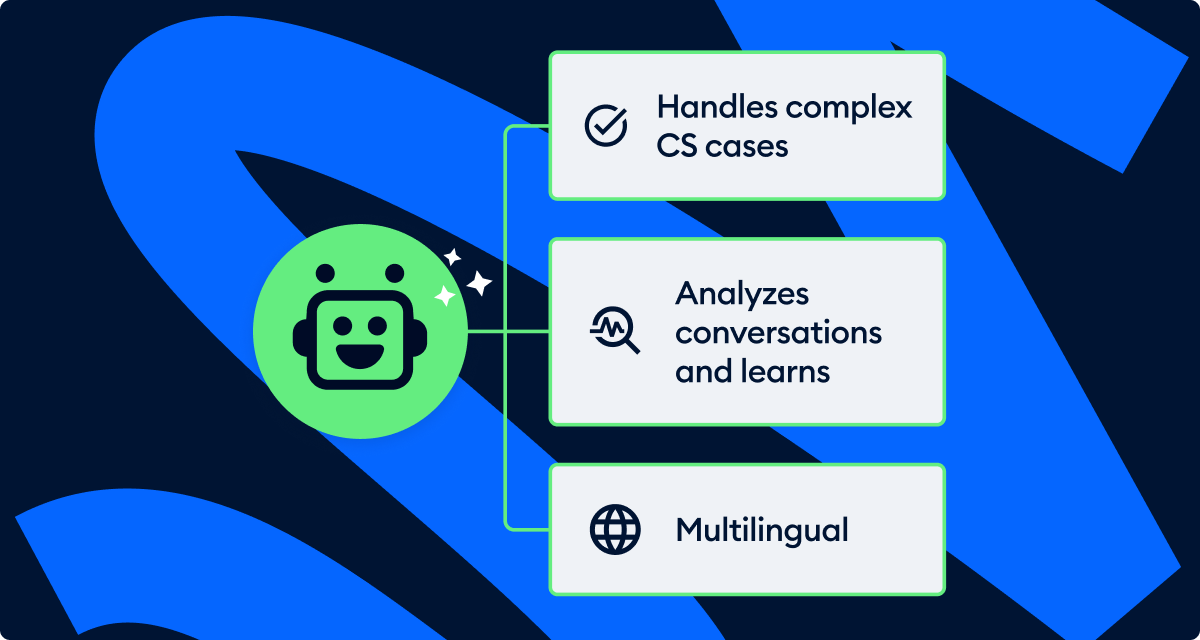
Lyro is a conversational AI agent, not a rule-based chatbot. Traditional chatbots - including Tidio’s own Flows feature - follow predefined decision trees where you map out every possible conversation path. Lyro works differently. It reads your knowledge base, understands intent behind customer questions, and generates natural-language responses. Customers can ask questions in their own words and Lyro finds the relevant answer.
Lyro is powered by Claude from Anthropic. The underlying language model is Claude, known for following instructions precisely and avoiding harmful or misleading outputs. This matters for customer support where accuracy is essential.
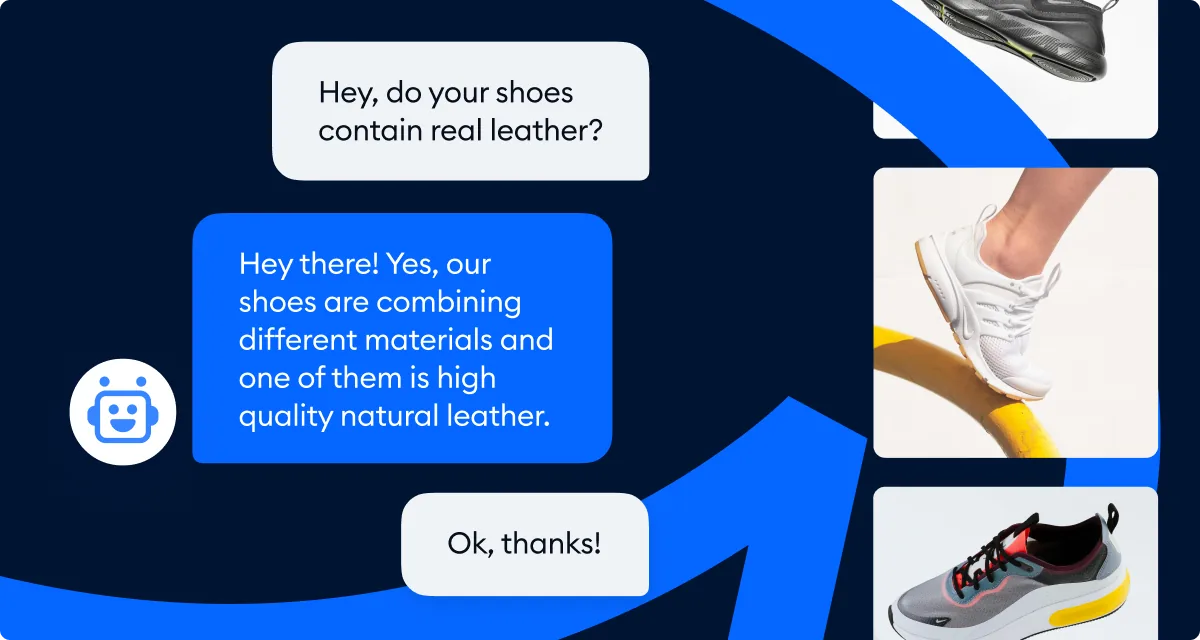
Lyro only answers from your knowledge base. This is a critical distinction from general-purpose AI chatbots. Lyro will not make up information or hallucinate answers. If a customer asks a question that is not covered in your knowledge base, Lyro acknowledges that it does not have the answer and hands the conversation off to a human agent. This design prevents the AI from providing incorrect information about your products, pricing, or policies.
Lyro supports multilingual conversations. It automatically detects the language a customer is writing in and responds in that same language. You do not need to create separate knowledge bases for each language - Lyro translates from your source content on the fly. Our Lyro Multilingual Guide covers language-specific configuration in detail.
How Lyro differs from Flows. Use Flows for structured, button-driven interactions like qualifying leads or guiding customers through a return process. Use Lyro for open-ended questions where customers type in their own words. Many businesses run both simultaneously - our guide on AI chatbot customer service explains how to combine these approaches effectively.
Tidio Lyro AI Setup: Access the Lyro Panel
The tidio lyro ai setup configuration lives in its own dedicated section of the Tidio dashboard.
Step 1: Log into your Tidio account. Navigate to your Tidio dashboard at app.tidio.com and sign in with your credentials.
Step 2: Open the Lyro panel. In the left sidebar, click on Lyro AI. This opens the Lyro management interface where you configure all aspects of the AI agent - knowledge base, behavior settings, channels, and analytics.
Step 3: Review the overview screen. The Lyro panel opens to an overview that shows your current conversation usage, resolution rate, and quick access links to key configuration areas. If this is your first time accessing Lyro, you will see a setup prompt guiding you through the initial configuration steps.
The main sections within the Lyro panel include Knowledge (your content sources), Tasks (actions Lyro can perform), Guidance (behavioral rules), and Playground (testing environment). You will configure each of these in the following steps.
Add Knowledge Base Sources
The knowledge base is the foundation of everything Lyro does. The quality and completeness of your knowledge base directly determines how well Lyro performs, so invest time here.
Navigate to Lyro AI > Knowledge to access the knowledge management interface.

Method 1: Website URL Scraping
This is the fastest method if you already have a help center, FAQ page, or product documentation published on your website.
Step 1: Click “Add Knowledge” and select “Website URL.” Lyro presents a text field where you can paste one or more URLs.
Step 2: Paste your URLs. Enter the URLs of your help center pages, FAQ sections, product pages, or any other pages containing information customers ask about. You can add multiple URLs at once.
Step 3: Let Lyro process the content. Lyro crawls each URL, extracts the relevant text content, and converts it into question-and-answer pairs. This process takes a few minutes depending on how many pages you submit.
Step 4: Review the generated Q&A pairs. After processing, Lyro shows you the extracted questions and answers. Review each one for accuracy. Edit any entries where the AI misinterpreted the content or where the answer needs refinement. Delete entries that are irrelevant or duplicated.
Best practices for URL scraping: Use pages with clear headings and structured content. Avoid pages with heavy JavaScript rendering or content behind login walls, as the scraper may not access all the text.
Method 2: Manual Q&A Pairs
If you do not have published help content or you want to add specific questions that are not covered on your website, enter Q&A pairs manually.
Step 1: Click “Add Knowledge” and select “Manual.” This opens an editor where you type a question and its corresponding answer.
Step 2: Write the question as a customer would phrase it. Think about how real customers ask this question - use natural language, not formal documentation headings. For example, use “How long does shipping take?” rather than “Shipping Policy Overview.”
Step 3: Write a clear, complete answer. Include all relevant details a customer would need. If shipping takes 3 to 5 business days domestically and 7 to 14 days internationally, state both. If there are exceptions or conditions, mention them.
Step 4: Add variations. For important questions, add multiple phrasings. Customers might ask “What is your return policy?” or “Can I return this?” or “How do refunds work?” Adding variations helps Lyro recognize the same question regardless of how it is phrased.
Best practices for manual Q&A: Keep answers concise but complete - aim for 2 to 4 sentences per answer. Update entries whenever your policies or products change.
Method 3: File Upload (Plus Plans and Above)
If you are on a Plus plan or higher, you can upload documents directly.
Step 1: Click “Add Knowledge” and select “File Upload.” Supported formats include PDF, DOCX, and TXT files.
Step 2: Upload your documents. This works well for product manuals, detailed policy documents, or internal knowledge bases that are not published on your website.
Step 3: Review the extracted content. Just like with URL scraping, Lyro processes the file and generates Q&A pairs. Review and edit as needed.
Method 4: Historical Conversations
Lyro can learn from your past support conversations to identify common questions and effective answers.
Step 1: Enable conversation learning. In the Knowledge section, look for the option to import from historical conversations. Lyro analyzes your existing chat transcripts to identify frequently asked questions.
Step 2: Review suggestions. Lyro presents suggested Q&A pairs based on patterns in your conversation history. Approve the ones that are accurate and relevant, edit those that need adjustment, and reject any that are not useful.
This method is particularly valuable if you have been using Tidio for live chat before enabling Lyro - your agents’ best answers become the AI’s training data.
How Do You Configure Lyro Behavior?
Once your knowledge base is populated, configure how Lyro interacts with customers. Navigate to Lyro AI > Guidance to access behavior settings.
Tone of Voice
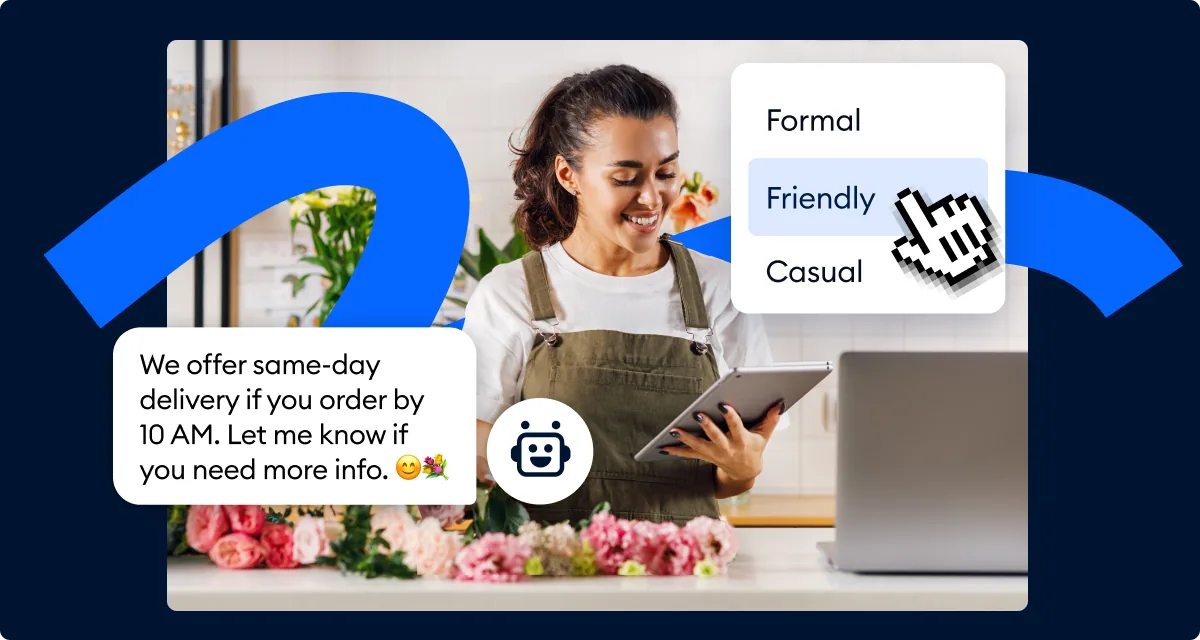
Lyro offers three tone presets that control the formality and style of its responses.
Friendly: Casual, warm, and conversational. Best for direct-to-consumer brands, lifestyle products, and companies with a relaxed brand voice. Lyro uses shorter sentences, occasional enthusiasm, and approachable language.
Neutral: Balanced and professional without being stiff. This is the default setting and works well for most businesses. Lyro provides clear, straightforward answers without being overly casual or formal.
Formal: Polished and businesslike. Best for B2B companies, financial services, legal firms, and industries where professionalism is expected. Lyro uses complete sentences, avoids colloquialisms, and maintains a reserved tone.
Select the tone that matches your brand voice. You can change this at any time and test the difference in the Playground before going live. For a deeper walkthrough on customizing Lyro’s communication style, see the Lyro Tone Customization guide.
AI Name Customization
By default, Lyro uses the name “Lyro” in conversations. You can change this to match your brand.

Navigate to the AI name settings within the Lyro panel. Enter your preferred name - many businesses use “AI Assistant,” their brand name followed by “Bot,” or a custom character name.
Engagement Rules
Configure when Lyro should activate in customer conversations.
Always on: Lyro responds to every incoming message immediately. This works well if you want AI to be the first point of contact for all inquiries, with human agents stepping in only when needed.
Offline only: Lyro activates only when no human agents are available. During business hours, conversations go directly to your live agents. After hours, Lyro handles incoming messages. This is a good middle-ground approach for teams that want to maintain the human touch during peak hours.
Custom rules: Set specific conditions for when Lyro engages, such as only on certain pages, for certain visitor segments, or during specific time windows.
Handoff to Human Agents
Configure how Lyro transitions conversations to human agents when it cannot resolve an inquiry.
Automatic handoff: When Lyro determines it cannot answer a question (because the information is not in the knowledge base), it automatically creates a ticket and notifies an available agent. The customer sees a message like “Let me connect you with a team member who can help with this.”
Customer-requested handoff: Allow customers to type phrases like “talk to a human” or “speak to an agent” to bypass Lyro at any point in the conversation.
Handoff message customization: Edit the message Lyro sends when transitioning to a human agent. Include an estimated wait time if possible.
Set Up Guidance Rules
Guidance rules are custom instructions that control specific aspects of Lyro’s behavior beyond tone and engagement settings. Navigate to Lyro AI > Guidance to configure these.
Think of guidance rules as guardrails for the AI. They tell Lyro what to do (and what not to do) in specific situations. Here are examples of useful guidance rules.
Pricing boundaries: “Never quote specific prices. Instead, direct customers to our pricing page at [URL] for the most up-to-date information.” This prevents Lyro from sharing outdated pricing if your knowledge base has not been updated recently.
Competitor mentions: “If a customer asks about competitors or comparisons, acknowledge their question and focus on our product’s strengths. Do not make negative comments about competitors.”
Sensitive topics: “If a customer mentions a billing dispute, account cancellation, or legal issue, immediately hand off to a human agent. Do not attempt to resolve these topics.”
Upselling boundaries: “Do not proactively suggest upgrades or additional products. Only mention relevant products if the customer specifically asks for recommendations.”
Language and formatting: “Use bullet points when listing multiple items. Keep responses under 3 paragraphs. Always end with a follow-up question to confirm the customer’s issue is resolved.”
You can add as many guidance rules as needed. Each rule should be specific and actionable - vague instructions like “be helpful” do not improve Lyro’s behavior because the AI is already designed to be helpful by default. Focus on rules that address specific scenarios or limitations relevant to your business.
Activate Channels
With your knowledge base configured and behavior rules set, it is time to enable Lyro on the channels where your customers reach you. Navigate to the channel activation settings within the Lyro panel.
Live Chat (Website Widget): This is the primary channel for most businesses. Enable Lyro on your website live chat widget so it handles incoming visitor messages. If you already have the Tidio widget installed on your site, Lyro starts working on that channel immediately after activation.
Email: Enable Lyro to respond to incoming support emails. Lyro reads the email, checks the knowledge base, and drafts a response. Depending on your settings, it can send replies automatically or queue them for agent review before sending.
Instagram: Connect your Instagram business account to Tidio and enable Lyro to handle direct messages. This is particularly valuable for ecommerce brands that receive high volumes of product questions through Instagram DMs.
Facebook Messenger: Similar to Instagram, connect your Facebook page and enable Lyro to respond to Messenger conversations. Lyro applies the same knowledge base and behavior rules across all channels, so customers get consistent answers regardless of how they reach you.
Enable each channel individually and test responses on each one before going live.
Test in the Playground
The Playground is your testing environment where you can interact with Lyro exactly as a customer would, without affecting real conversations. Navigate to Lyro AI > Playground to access it.
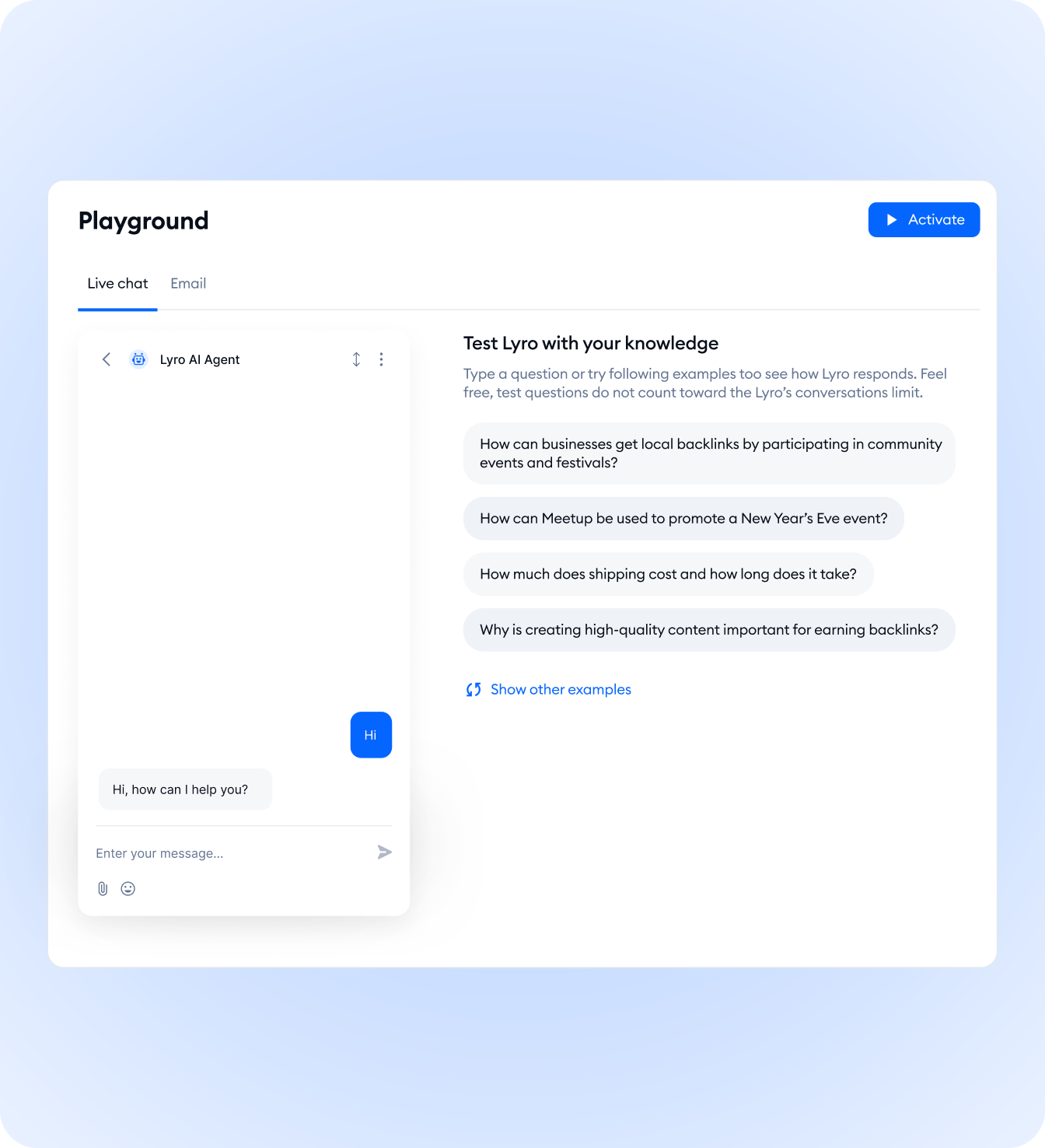
Step 1: Start a test conversation. Type a question in the Playground chat window just as a customer would. Start with questions you know are covered in your knowledge base to verify Lyro finds and delivers the correct answer.
Step 2: Test edge cases. Ask questions phrased in unusual ways. For example, if your knowledge base covers shipping times, try asking “When will my order get here?” or “I need this by Friday, is that possible?” to test whether Lyro understands intent beyond keyword matching.
Step 3: Test questions outside your knowledge base. Ask something Lyro should not be able to answer - a question about a product you do not sell or a policy you have not documented. Verify that Lyro correctly acknowledges it does not have the information and offers to connect the customer with a human agent.
Step 4: Test your guidance rules. If you set a rule about not quoting specific prices, ask a pricing question in the Playground and confirm Lyro redirects to your pricing page instead. Test each guidance rule to make sure Lyro follows your instructions.
Step 5: Iterate on your knowledge base. When you find gaps - questions Lyro cannot answer that it should be able to - go back to the Knowledge section and add the missing content. Then return to the Playground and test again. This iterative process is the fastest way to improve Lyro’s performance before going live. Our Lyro Playground Testing guide covers advanced testing strategies and common debugging scenarios.
Spend at least 10 to 15 minutes in the Playground before activating Lyro on live channels.
Monitor and Optimize
After Lyro is live, ongoing monitoring helps you maintain a high resolution rate and catch any issues early. Navigate to the Lyro analytics section in your Tidio dashboard.
Key Metrics to Track
Resolution rate: The percentage of conversations Lyro resolves without human intervention. A healthy target is 50% or higher. The Premium plan guarantees this threshold. If your resolution rate is below 40%, your knowledge base likely has significant gaps - our AI customer service automation guide covers benchmarking strategies across platforms.
Handoff rate: The percentage of conversations Lyro transfers to human agents. A high handoff rate is not inherently bad - it means Lyro is correctly identifying questions it cannot answer. But if the same types of questions cause repeated handoffs, add that content to your knowledge base.
Customer satisfaction (CSAT): If you have CSAT surveys enabled, compare scores for Lyro-handled conversations against human-handled conversations. Lyro should score within a few points of your human agents.
Most common questions: Review the topics Lyro handles most frequently. If certain questions dominate, consider whether your website could address them more prominently or whether Lyro’s answers for those topics could be improved.
Continuous Improvement
Review handoff transcripts weekly. Read conversations where Lyro handed off to a human agent. If the same types of questions cause repeated handoffs, add that content to your knowledge base.
Update the knowledge base when your business changes. New products, policy updates, price changes, and seasonal promotions should all be reflected in Lyro’s knowledge base. Maintaining a structured knowledge base is essential - set a monthly reminder to audit for outdated content.
Refine guidance rules based on real conversations. If Lyro handles certain situations poorly, add or update guidance rules to address the specific behavior.
Frequently Asked Questions
How many free Lyro conversations do I get?
Every Tidio account includes 50 Lyro conversations as a one-time allocation on the free plan. These do not renew monthly - once they are used, you need to purchase the Lyro add-on or upgrade to a plan that includes Lyro conversations. The Premium plan includes unlimited conversations. The exact tiers and add-on pricing are listed on the Tidio pricing page.
What happens when Lyro cannot answer a question?
When Lyro encounters a question that is not covered in your knowledge base, it acknowledges the limitation and offers to connect the customer with a human agent. It does not guess or fabricate answers. The conversation is transferred to an available agent with full context, so the customer does not have to repeat their question. This conservative behavior is exactly why a complete tidio lyro ai setup pays off - the more questions you cover in your knowledge base, the fewer transfers you trigger.
Can I train Lyro with my own data?
Yes. Lyro is trained exclusively on your data - it does not use general internet knowledge to answer customer questions. You provide the training data through the four knowledge source methods (URL scraping, manual Q&A, file upload, and historical conversations). The more relevant content you add, the more questions Lyro can handle without escalating to a human.
Does Lyro work in multiple languages?
Yes. Lyro automatically detects the language a customer is writing in and responds in that same language. You do not need to create separate knowledge bases for each language - Lyro translates from your source content on the fly. Maintain a single English knowledge base and Lyro handles the rest. For businesses with international audiences, compare this approach against dedicated AI translation tools for more complex localization needs.
How is Lyro different from Flows?
Flows are rule-based automation sequences that follow predefined decision trees with buttons and menus. You design every possible conversation path manually. Lyro is a conversational AI that understands natural language and generates responses from your knowledge base. Use Flows for structured processes (order tracking, returns, lead qualification) and Lyro for open-ended customer questions. Both can run simultaneously on your website. The Lyro AI agent product page covers the full feature comparison.
Can I control what Lyro says about specific topics?
Yes. Use the Guidance rules feature to set specific instructions for how Lyro handles particular topics. You can instruct Lyro to avoid discussing certain subjects, redirect specific types of questions to human agents, or follow particular messaging guidelines when responding about sensitive topics like pricing or competitor comparisons.
How quickly does Lyro learn new knowledge base content?
Changes to your knowledge base take effect almost immediately. When you add new Q&A pairs or import content from new URLs, Lyro starts using that information right away. There is no retraining process - add content and test it in the Playground within seconds.
Want to learn more about Tidio?
The Bottom Line on Tidio Lyro AI Setup
A complete tidio lyro ai setup is realistic in an afternoon if you already have FAQ content somewhere on your website. Scrape your help center, supplement with 20-30 manual Q&A pairs covering pricing, returns, and shipping, set guidance rules around any topics you want kept off-limits, and spend at least 15 minutes in the Playground before activating live channels. The free tier of Tidio gives you 50 Lyro conversations to validate the approach, after which the Lyro add-on unlocks additional monthly conversations. Compare current Lyro pricing tiers and add-on costs on the Tidio pricing page, and review the standalone Lyro AI agent product page for the full feature list and benchmarks.
Related Guides
- Getting Started with Tidio - Account creation, widget installation, and initial configuration
- Tidio Lyro Knowledge Base Guide - Deep dive on building a knowledge base that resolves more questions
- Tidio Lyro Tone Customization - Match Lyro’s voice to your brand
- Tidio Lyro Multilingual Guide - Configure language-specific responses
- Tidio Lyro Playground Testing - Advanced testing and debugging strategies
Related Reading
- Tidio - Full platform review with pricing breakdown and feature analysis
- Best AI Chatbot Platforms 2026 - How Tidio compares to Intercom and other platforms
- Best Customer Support Software 2026 - Complete roundup of AI-powered support tools
External Resources
- Tidio Help Center: Lyro AI Agent - Official documentation on knowledge sources, guidance rules, and channels
- Anthropic Claude - Background on the language model that powers Lyro
- AWS: What is Retrieval-Augmented Generation - Explains the RAG approach Lyro uses to answer from your knowledge base
Related Guides
- AI Chatbots Customer Service Setup: Complete 2026 Guide
- AI Customer Service Automation: Chatbots vs Agentic AI
- AI Workflow Automation Maturity Model: 5 Levels
- Building AI First Workflows: A Practitioner's 2026 Guide
- Building Mcp Servers Guide: 2026 Walkthrough for Teams
- ChatGPT Prompts 2026: Basic vs Engineered, 18 Examples
- ChatGPT Tips And Tricks: 2026 Walkthrough for Teams
- Craft Tips and Tricks: 12 Expert Hacks for Faster Docs
- Gemini AI Google Workspace - 15 Prompts & 2026 Pricing
- How to Organize Files with AI: Notion and Dropbox Guide