
The Tidio Lyro Playground is your safety net. Every change you make to your knowledge base, every guidance rule you add, and every tone adjustment you configure should be tested here before a real customer sees the results. Deploying untested AI responses is like pushing code to production without running tests - it might work, but when it does not, your customers are the ones who suffer.
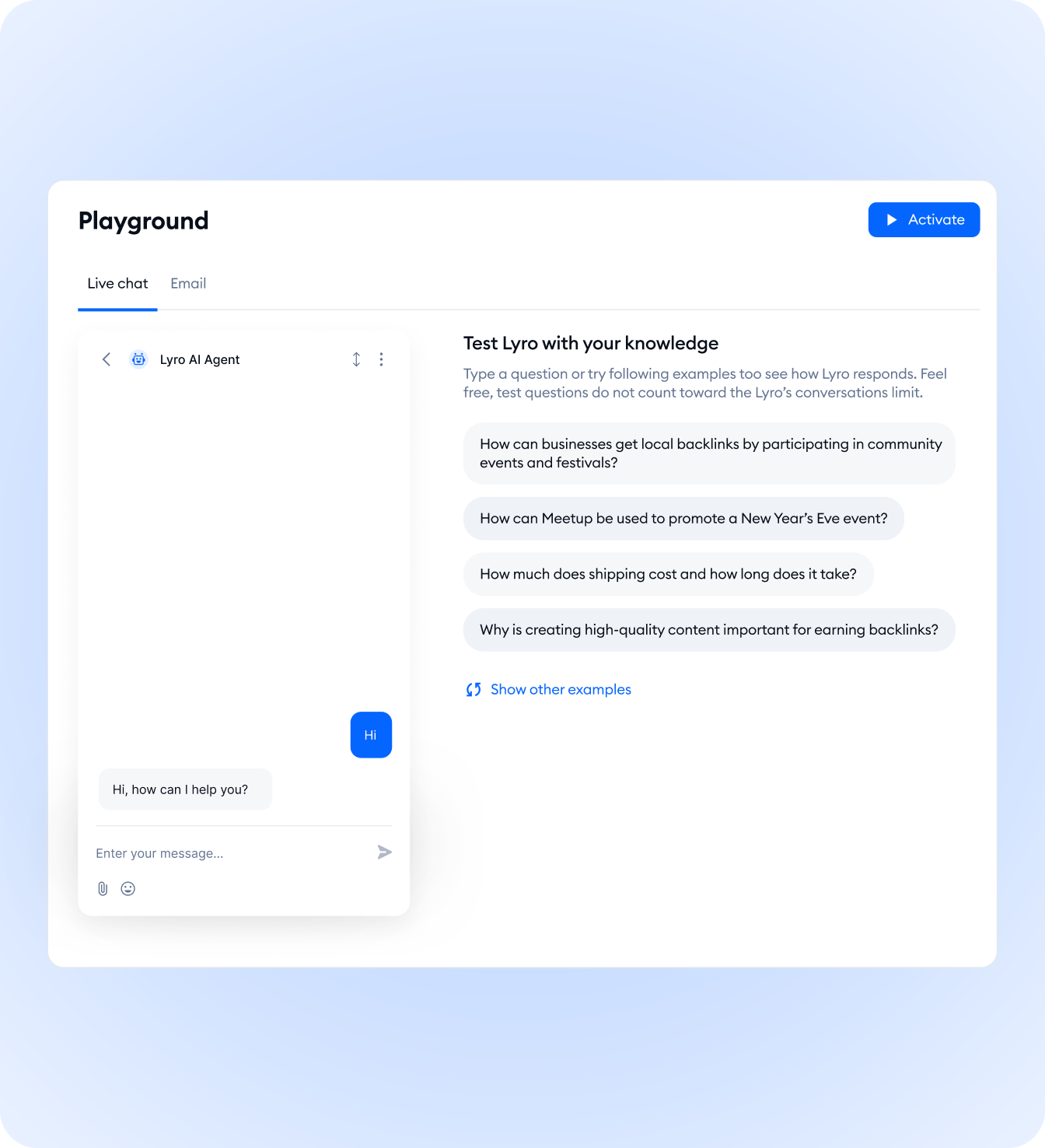
The Playground is a sandbox conversation interface built directly into the Tidio dashboard. It lets you chat with Lyro exactly as a customer would, without consuming any of your Lyro conversation credits. You can fire off dozens of test questions, examine which knowledge base entries Lyro draws from, identify gaps in your coverage, and refine responses until they meet your standards. This guide walks through everything from opening the Playground for the first time to building a repeatable testing workflow that keeps your AI agent sharp as your business evolves.
If you have not set up Lyro or populated your knowledge base yet, start with the Tidio Lyro AI Setup Guide and the Tidio Lyro Knowledge Base Guide first. You need content in your knowledge base before testing becomes meaningful.
What Is the Tidio Lyro Playground
The Tidio Lyro Playground is a dedicated testing environment within the Tidio dashboard that mirrors exactly what your customers experience when they interact with your AI agent. When you type a question in the Playground, Lyro processes it using the same retrieval system, the same knowledge base, and the same guidance rules that apply to live conversations. The only difference is that Playground conversations do not count against your Lyro conversation quota.
Think of it as a staging environment for your AI agent. Just as developers test code in staging before deploying to production, the Playground lets you validate Lyro’s behavior in a controlled setting before exposing changes to real customers. If you are still in the initial setup phase, the Tidio Getting Started guide covers the full onboarding process before you reach the testing stage.
Real-time reflection. The Playground always reflects the current state of your configuration. If you add a new Q&A pair to your knowledge base, you can immediately test it in the Playground without any delay or refresh. The same applies to tone changes, guidance rules, and name customization. What you see in the Playground is what your customers will see.
Source attribution. When Lyro answers a question in the Playground, it shows you which knowledge base entry it used to generate the response. This transparency is invaluable for debugging. If Lyro gives an incorrect answer, source attribution tells you exactly which Q&A pair needs fixing rather than leaving you to guess.
No credit consumption. This point is worth emphasizing. Playground conversations are completely free regardless of your plan tier. You can run 5 tests or 500 tests - it does not affect your monthly conversation count. This removes any hesitation about testing extensively, which is exactly the behavior Tidio wants to encourage.
Accessing the Playground
Getting into the Playground takes three clicks from anywhere in the Tidio dashboard.
Step 1: Log into your Tidio dashboard at app.tidio.com.
Step 2: Navigate to Lyro AI in the left sidebar. This opens the Lyro management hub where all AI agent configuration lives.
Step 3: Click Playground in the Lyro submenu. The Playground opens as a chat interface on the right side of the screen, resembling the customer-facing chat widget.
The interface is straightforward. There is a text input field at the bottom where you type test questions, a conversation thread that displays the exchange, and source attribution information alongside each response. You can clear the conversation at any time to start fresh, which is useful when testing different scenarios that should not carry context from previous messages.
If you do not see the Playground option in the Lyro submenu, confirm that Lyro is activated on your account. The Playground is available on all plans that include Lyro - including the free trial with 50 conversations. Check the Tidio pricing page if you are unsure about your plan’s Lyro access, or review the Lyro AI agent overview for current feature availability by tier.
Your First Test Conversation
Starting a test conversation is as simple as typing a question. But getting the most out of that test requires paying attention to the details.
Step 1: Type a customer question into the Playground input field. Start with something straightforward that you know is covered in your knowledge base. For example, if you have a Q&A pair about return policies, type “What is your return policy?” and press Enter.
Step 2: Read Lyro’s response carefully. Do not just check whether Lyro answered - evaluate the quality of the answer. Is the information accurate? Is it complete? Does the tone match your configuration? Would a customer find this response genuinely helpful, or would they need to ask a follow-up question to get the full picture?
Step 3: Check the source attribution. The Playground shows which knowledge base entry Lyro used to generate the response. Verify that it pulled from the correct source. If Lyro answered your return policy question using a Q&A entry about shipping, that indicates a matching problem in your knowledge base - the entries may be too similar or the question phrasing may be ambiguous.
Step 4: Ask a follow-up question. Real customer conversations rarely end after a single exchange. Type a follow-up like “How long does the refund take?” to test whether Lyro maintains context and provides coherent multi-turn responses.
Step 5: Clear the conversation and try the same question with different phrasing. Customers do not all ask questions the same way. Test variations like “Can I return this?”, “I want to send my order back”, and “Return policy?” to see if Lyro handles all of them correctly. If you find that human agents would benefit from canned phrasing for the same scenarios, the Tidio canned responses and macros guide walks through building a parallel library that complements Lyro’s coverage.
Testing Scenarios to Run
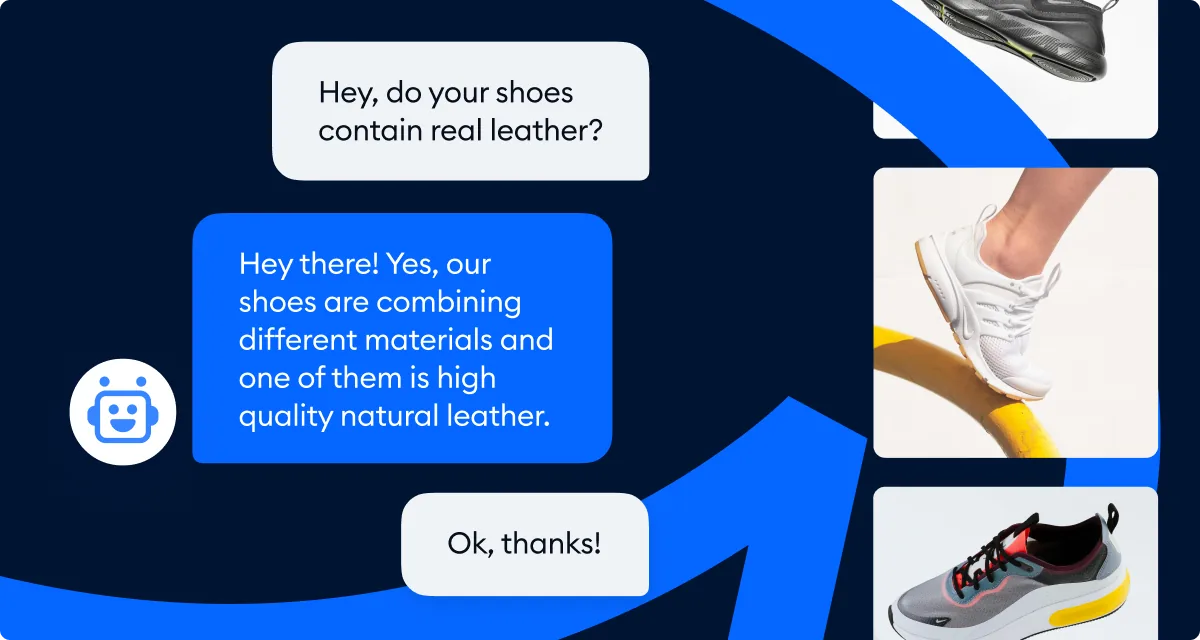
Random testing catches some issues, but systematic testing catches all of them. Work through each of the following scenarios to evaluate Lyro’s behavior comprehensively.
FAQ Accuracy
Start with your most frequently asked questions. These are the conversations Lyro will handle most often, so they need to be airtight.
- Type each FAQ exactly as customers typically ask it
- Type each FAQ with alternate phrasing (casual, formal, abbreviated)
- Verify that every detail in the response is accurate and current
- Check that responses are complete without being unnecessarily long
Out-of-Scope Handling
Test what happens when a customer asks something your knowledge base does not cover. This is just as important as testing correct answers because poor out-of-scope handling frustrates customers more than anything else.
- Ask a question completely unrelated to your business (“What is the weather today?”)
- Ask a question adjacent to your business but not in your knowledge base
- Ask about a product you no longer sell or a promotion that has ended
- Verify that Lyro acknowledges the gap honestly and offers to connect the customer with a human agent. Smooth escalation is one of the most important aspects of AI customer service automation
Handoff Behavior
When Lyro cannot help, it should transfer the conversation smoothly. Test this transition.
- Trigger a handoff by asking an out-of-scope question
- Verify that Lyro communicates the handoff clearly to the customer
- Check that the transfer message matches your configured guidance rules. If you need to fine-tune how the widget appears during handoffs, see the Tidio Live Chat Customization guide
- Test whether Lyro provides context to the receiving human agent
Tone Consistency
Your tone settings should produce a consistent voice across all topics and conversation types.
- Ask a happy question (“I love your product, where can I buy more?”)
- Ask an upset question (“This product is broken and I want a refund”)
- Ask a technical question that requires precise, detailed information
- Compare all responses to verify that the tone remains consistent with your brand voice. If you want to go deeper on voice tuning, the best AI chatbots for ecommerce roundup compares how different platforms handle brand personality
Edge Cases
Real customers do unexpected things. Test whether Lyro handles them gracefully.
- Typos and misspellings: “Wht is ur retrun polcy?” - Lyro should still parse the intent
- Slang and informal language: “yo can i get my money back lol” - verify the response does not mirror inappropriate casualness
- Multiple questions in one message: “What is your return policy and do you ship internationally?” - check whether Lyro addresses both questions
- Extremely long messages: Paste a paragraph-length question and verify Lyro handles it without truncation or confusion
- Empty or nonsensical input: “asdfghjkl” - Lyro should ask for clarification rather than guessing
Identifying Knowledge Gaps
The Playground is the most efficient tool for discovering what your knowledge base is missing. When Lyro says it does not have the information to answer a question, you have found a gap that real customers will also hit.
Systematic Gap Discovery
Step 1: Create a list of 20-30 questions that customers have asked your team in the past month. Pull these from support tickets, live chat transcripts, or email threads.
Step 2: Enter each question into the Playground and record the result. Categorize each response as one of the following:
- Correct and complete - No action needed
- Correct but incomplete - The answer is right but missing important details. Edit the existing Q&A pair to add the missing information
- Incorrect - Lyro pulled from the wrong knowledge base entry. Review the conflicting entries and clarify them
- No answer - Knowledge gap. Create a new Q&A pair to cover this topic
Step 3: Prioritize gaps by customer impact. A question that customers ask 50 times per week matters more than one that comes up once a month. Address high-frequency gaps first - your Tidio analytics dashboard shows ticket volume by topic so you can rank gaps objectively rather than guessing at frequency.
Adding Missing Q&A Pairs
When you identify a gap, navigate to Lyro AI > Knowledge and add the missing entry. Write the question exactly as customers would phrase it, then provide a clear and complete answer. For detailed instructions on creating effective Q&A pairs, see the Tidio Lyro Knowledge Base Guide.
After adding the entry, return to the Playground immediately and test the same question again. Verify that Lyro now answers correctly and pulls from the new source. This verify-after-adding cycle should be habitual - never assume a new entry works without testing it. For a complete walkthrough of building effective knowledge base entries, see the Tidio Lyro Knowledge Base Guide.

Testing After Changes
Every modification to your Lyro configuration should trigger a testing cycle. The Playground makes this fast enough that there is no excuse for skipping it.
The Change-Test-Verify Workflow
Follow this sequence every time you update your Lyro configuration:
- Make the change - Add a Q&A pair, edit an existing answer, update a guidance rule, or adjust the tone setting
- Open the Playground - Navigate to the Playground immediately after saving the change
- Test the affected area - Ask questions that should trigger the updated content or behavior
- Verify the result - Confirm that the change produces the expected outcome
- Test adjacent areas - Check whether the change inadvertently affected related responses. Editing one Q&A pair can sometimes shift how Lyro matches similar questions
Regression Testing
Regression testing means checking that existing functionality still works after you make changes. This is especially important when you modify knowledge base entries that cover similar topics.
Example scenario: You edit a Q&A pair about your premium plan pricing. After testing the updated entry, also test questions about your other pricing tiers and your free trial. The edit may have changed how Lyro distinguishes between related questions, and a regression test catches that before customers do.
When to run regression tests:
- After editing any Q&A pair that is similar to other existing entries
- After adding a large batch of new Q&A pairs (bulk imports can shift matching behavior)
- After changing guidance rules that affect response formatting
- After switching the base tone setting
Debugging Poor Responses
When Lyro gives a response that misses the mark, the Playground’s source attribution tells you exactly where to start debugging.
Wrong Answer
Lyro answered the question, but the information is incorrect. This typically happens when two knowledge base entries cover overlapping topics and Lyro retrieves the wrong one.
Fix: Review the source attribution to see which Q&A pair Lyro used. Then look at both the used entry and the entry you expected Lyro to use. Make the questions more distinct from each other. If one entry is about refunds and another is about exchanges, ensure the question text clearly differentiates between the two concepts.
Incomplete Answer
Lyro provided a partially correct response but left out important details. The customer would need to ask a follow-up to get the full picture.
Fix: Navigate to the Q&A pair shown in the source attribution and expand the answer to include the missing information. Keep answers comprehensive but focused. If the answer is getting too long, consider splitting the topic into two separate Q&A pairs - one for the overview and one for the details.
Tone Mismatch
The content is correct, but the way Lyro delivers it does not match your brand voice. Maybe it is too casual for a serious topic, or too formal when your brand is approachable.
Fix: Check your base tone setting in Lyro AI > Configure > General. If the base tone is correct but specific responses feel off, add a guidance rule to address the specific situation. For example: “When discussing warranty claims or product defects, use a professional and empathetic tone.” See the Tidio Lyro Tone Customization guide for detailed instructions on guidance rules. You can also review the Lyro AI agent documentation for guidance on how tone settings interact with each plan tier.
Unexpected Behavior
Lyro does something you did not anticipate - perhaps it answers a question you expected it to decline, or it transfers to a human agent on a question it should be able to handle.
Fix: Test the question multiple times with slight variations. If the behavior is inconsistent, the question may fall on the boundary between two knowledge base entries. Strengthen the relevant entry by adding alternative phrasings to the question field, or add a guidance rule that clarifies how Lyro should handle that specific topic.
Playground vs Live Testing
The Playground catches the majority of issues, but it does not replicate every aspect of the live customer experience. Understanding the difference helps you decide when each type of testing is appropriate.
What the Playground Catches
- Knowledge base accuracy and completeness
- Tone and personality consistency
- Guidance rule behavior
- Multi-turn conversation flow
- Out-of-scope handling and handoff triggers
- Source attribution correctness
What the Playground Does Not Catch
- Channel-specific formatting. The Playground renders responses as plain text. Live conversations on Facebook Messenger, Instagram DMs, or email may format responses differently. Links, line breaks, and special characters can behave differently across channels.
- Widget-specific behavior. The position, size, and styling of the actual chat widget on your website can affect how customers interact with Lyro. The Playground does not replicate widget-level behavior.
- Real customer language patterns. No matter how many test scenarios you create, real customers will find ways to phrase questions you did not anticipate. Monitoring live conversations after Playground testing is essential.
- Integration triggers. If you have Lyro connected to Shopify, your CRM, or other integrations, the Playground may not fully replicate data-driven responses that pull from those systems. For Shopify stores specifically, the Tidio Shopify Setup Guide covers the integration details that affect live responses.
When to Use Each
Use the Playground for all routine testing - after knowledge base changes, guidance rule updates, tone adjustments, and before initial deployment. The Playground should be your first stop for any change.
Use live testing after the Playground testing is complete and you are confident in the configuration. Start by enabling Lyro on a low-traffic channel or during off-peak hours. Monitor the first 20-30 live conversations closely, paying attention to any issues the Playground did not surface. For team setups, make sure your department routing is configured before going live so conversations land with the right agents - the Tidio Copilot agent assist guide can also help your human agents handle escalations more consistently with AI-suggested replies. If you are evaluating other live chat software alongside Tidio, compare how each platform handles the transition from sandbox to production.
Building a Test Suite
Ad hoc testing catches obvious issues. A structured test suite catches everything else. Invest 30 minutes building one and it will save you hours of debugging down the road.
Creating Your Standard Test Questions
Build a set of 15-20 test questions that cover every important area of your knowledge base. Include the following categories:
Core FAQ (5-7 questions). These are your highest-volume customer questions. If Lyro gets any of these wrong, the impact is significant.
- Return/refund policy
- Shipping information
- Pricing and plan details
- Account management
- Contact information
Edge cases (3-5 questions). These test Lyro’s robustness.
- Questions with typos
- Multi-part questions
- Vague or ambiguous questions
- Questions in different languages (if you support multilingual - see the Tidio Lyro Multilingual Guide for setup)
- Slang or highly informal phrasing
Out-of-scope (3-4 questions). These verify Lyro’s boundaries.
- Questions your business cannot answer
- Requests that require human judgment
- Topics outside your industry
Tone tests (2-3 questions). These evaluate consistency.
- A complaint scenario
- A positive feedback scenario
- A technical or detailed inquiry
Documenting Expected vs Actual Responses
For each test question, document three things:
- The question - Exactly as you will type it
- Expected response - What Lyro should say (summary, not exact wording)
- Expected source - Which knowledge base entry should be used
After running the test, add a fourth field:
- Actual result - What Lyro actually said, along with a pass/fail designation
Keep this documentation in a spreadsheet or shared document. When you run the test suite after future changes, you can quickly compare results against your baseline.
When to Run the Full Suite
- After any bulk knowledge base update (adding or removing 5 or more entries)
- After changing the base tone setting
- After adding or modifying guidance rules
- Weekly during the first month after initial deployment
- Monthly after your configuration stabilizes
Frequently Asked Questions
Does the Tidio Lyro Playground use Lyro conversation credits?
No. Playground conversations are completely free and do not count against your monthly Lyro conversation quota on any plan. You can run unlimited test conversations without affecting your billing or conversation limits. This is intentional - Tidio wants you to test extensively, and a credit-metered Playground would discourage that. Use the freedom to build comprehensive test suites without budget anxiety.
Can I test Lyro in different languages in the Playground?
Yes. Type your test question in any language that Lyro supports and it will respond in that same language, drawing from your existing knowledge base. This is a good way to evaluate multilingual performance before activating Lyro for international audiences. See the Tidio Lyro Multilingual Guide for more on language configuration and the tier system that explains response quality across language families.
How often should I test in the Tidio Lyro Playground after changes?
Test every time you make a change to your knowledge base, guidance rules, or tone settings. Beyond change-driven testing, run a full test suite at least monthly to catch any drift in response quality. During the first month after initial deployment, weekly testing is recommended. As your configuration stabilizes, monthly cadence is enough to catch regressions caused by new Q&A pairs or guidance rule additions over time.
Can I share Playground results with my team?
The Playground does not have a built-in sharing or export feature. To share results, take screenshots of the conversation thread or copy the response text into a shared document. If your team needs to collaborate on testing, each team member with dashboard access can run their own Playground sessions. A shared spreadsheet of test questions, expected outcomes, and actual results works well for distributed QA teams running parallel sessions.
Does the Playground reflect changes in real time?
Yes. Any change you make to your knowledge base, guidance rules, tone settings, or AI name takes effect immediately in the Playground. There is no delay or caching period. You can edit a Q&A pair, switch to the Playground, and test the change within seconds. This tight feedback loop is what makes the Playground so valuable - the cost of iteration drops to almost nothing, encouraging the kind of rapid testing cycles that produce a polished AI agent.
What is the difference between the Playground and the Preview in the widget editor?
The widget editor Preview shows how the chat widget looks visually on your website - its position, colors, and animations. The Lyro Playground tests how Lyro responds to questions. They serve completely different purposes. Use the widget Preview for design and the Playground for AI behavior. Many teams confuse the two early on, then realize they need both as part of the pre-launch checklist.
Want to learn more about Tidio?
The Bottom Line: Playground Testing Pays Off
A disciplined Tidio Lyro Playground workflow is the single biggest predictor of how well your AI agent performs in production. Pair it with the Tidio tool page review to confirm the platform fits your needs, and you will catch most issues before customers do. Investing 30 minutes building a structured test suite saves hours of debugging.
Related Guides
- Tidio Lyro AI Setup Guide - Initial Lyro configuration before testing
- Tidio Lyro Knowledge Base Guide - Build the content the Playground tests against
- Tidio Lyro Tone Customization - Tune voice settings then verify in Playground
- Tidio Lyro Multilingual Guide - Test multilingual responses with the Playground
- Tidio Lyro Tasks and Actions - Test API-driven actions before live deployment
Related Reading
- Tidio tool page - Full platform review including Lyro pricing and limits
- Best AI Chatbot Platforms 2026 - Compare Tidio against other chatbot platforms
- Best Live Chat Software 2026 - Live chat software roundup with Tidio coverage
External Resources
- Tidio Lyro AI Chatbot Overview - Official product page covering Playground access by plan
- Tidio Help Center - Vendor documentation including Playground walkthroughs and troubleshooting
- Tidio Blog - Vendor articles on AI testing best practices and case studies
Related Guides
- AI Chatbots Customer Service Setup: Complete 2026 Guide
- AI Customer Service Automation: Chatbots vs Agentic AI
- Tidio Abandoned Cart Recovery: Automation Workflows
- Tidio Analytics Dashboard: 2026 Walkthrough for Teams
- Tidio Canned Responses and Macros for Faster Support
- Tidio Copilot Agent Assist: AI-Powered Agent Assist Guide
- Tidio CSAT Tracking: CSAT Tracking and Improvement
- Tidio Ecommerce Chatbot: Tidio Chatbot Flows for Ecommerce
- Tidio Ecommerce Support Automation: Automation Best
- Tidio Flows Automation: Visual Automation Builder Guide