
Producing voiceovers as a solo creator is straightforward - you own every decision, every file, and every version. Murf AI team collaboration is a different problem entirely. Scripts go through multiple reviewers. Brand voice guidelines need to apply consistently across different producers. Projects accumulate across clients and campaigns. Without a deliberate collaboration structure, teams end up with duplicated files, inconsistent voice settings, and review cycles that take longer than the original production. Murf AI includes workspace and sharing features specifically designed to solve these problems for agencies, marketing teams, and content studios. If you are brand new to Murf, start with our Murf getting started guide before tackling team workflows.
This guide covers the complete murf ai team collaboration workflow - from initial workspace configuration through project organization, team sharing, structured review cycles, and maintaining brand voice consistency at scale. If you have a Murf Team or Enterprise account and at least one other team member ready to collaborate, you can have a working collaboration structure in place within 20 minutes of finishing this guide.
Why Teams Use Murf AI for Voiceover Collaboration
Individual voiceover workflows break down predictably when they move into team environments. A freelancer managing their own Murf projects can use informal naming conventions and keep review notes in a separate document. An agency producing voiceovers for eight clients simultaneously cannot rely on those same informal systems without creating version confusion, missed feedback, and inconsistent output. The Atlassian project management primer covers the underlying structure most production teams adopt.
Murf AI’s team features address friction points at scale, including murf ai team collaboration free trial questions. The shared workspace model ensures all team members access projects from a single organizational structure rather than separate accounts with siloed files - no murf ai team collaboration apk needed, since the workspace runs in-browser. Project sharing controls let you assign access levels precisely - a copywriter can edit scripts without touching voice settings, while an audio producer can adjust generation parameters (covered in our Murf voice changer guide) without seeing client-facing approval status.
For marketing teams, the brand voice consistency tools are particularly valuable. When five producers are generating voiceovers for the same brand’s campaign, small variations in voice selection, speed settings, and emphasis conventions accumulate quickly and become noticeable in the final output. Murf’s voice selection tooling and saved configurations let teams establish a single approved configuration and apply it uniformly. The HubSpot brand voice playbook is a useful starting point if your team has not yet documented its brand voice in writing.
Content studios operating at high volume - producing dozens of modules, videos, or podcast ads per month - benefit most from the project management layer. Murf’s folder structure and tagging system means a studio manager can see at a glance which projects are in draft, which are awaiting approval, and which have been exported and delivered. Pair this with our Murf eLearning narration guide for studios producing course content at scale.
Prerequisites
Before starting this workflow, confirm you have the following in place:
-
A Murf AI Business or Enterprise account - The standard Creator plan does not include team workspace features. The Business plan unlocks shared workspaces, project collaboration, and team management controls - see the latest tier breakdown on the Murf pricing page. The Enterprise plan adds SSO, advanced permissions, and dedicated support for larger organizations.
-
Team member accounts - Each collaborator needs either an existing Murf account or an invitation sent from your workspace admin. The admin manages invitation and role assignment from the Team Settings panel.
-
A defined project structure - Before building out your workspace, know how you want to organize projects: by client, by campaign, by content type, or by workflow stage. The Step 2 section covers organization approaches in detail, but having a rough structure in mind before you start saves reorganization time later. The Notion teamspaces guide is a useful reference for designing folder hierarchies.
-
Brand voice documentation - If your team produces voiceovers for specific brands, gather any existing voice guidelines before starting. This could be as simple as a document noting the approved voice name, baseline speed, and tone requirements. You will use this in Step 5.
You do not need advanced technical experience to complete this workflow. The collaboration features in Murf are built for team managers and content producers, not platform administrators.
murf ai team collaboration: Workflow Overview
The complete Murf AI team collaboration workflow runs through five stages:
- Set up your team workspace with appropriate roles and permissions
- Organize projects by client, campaign, or content type
- Share projects with the right team members at the right access level
- Establish a structured review and approval cycle
- Configure and maintain brand voice consistency across the team
Each stage takes between two and six minutes for a team of two to ten people. The 20-minute estimate assumes your team accounts are already created and your organization has a rough sense of how projects should be grouped.
Step 1: Set Up Your Team Workspace
The team workspace is the organizational layer that sits above individual projects in Murf AI. Everything your team produces lives inside this workspace, and the configuration you apply here determines how effectively the rest of the workflow runs.
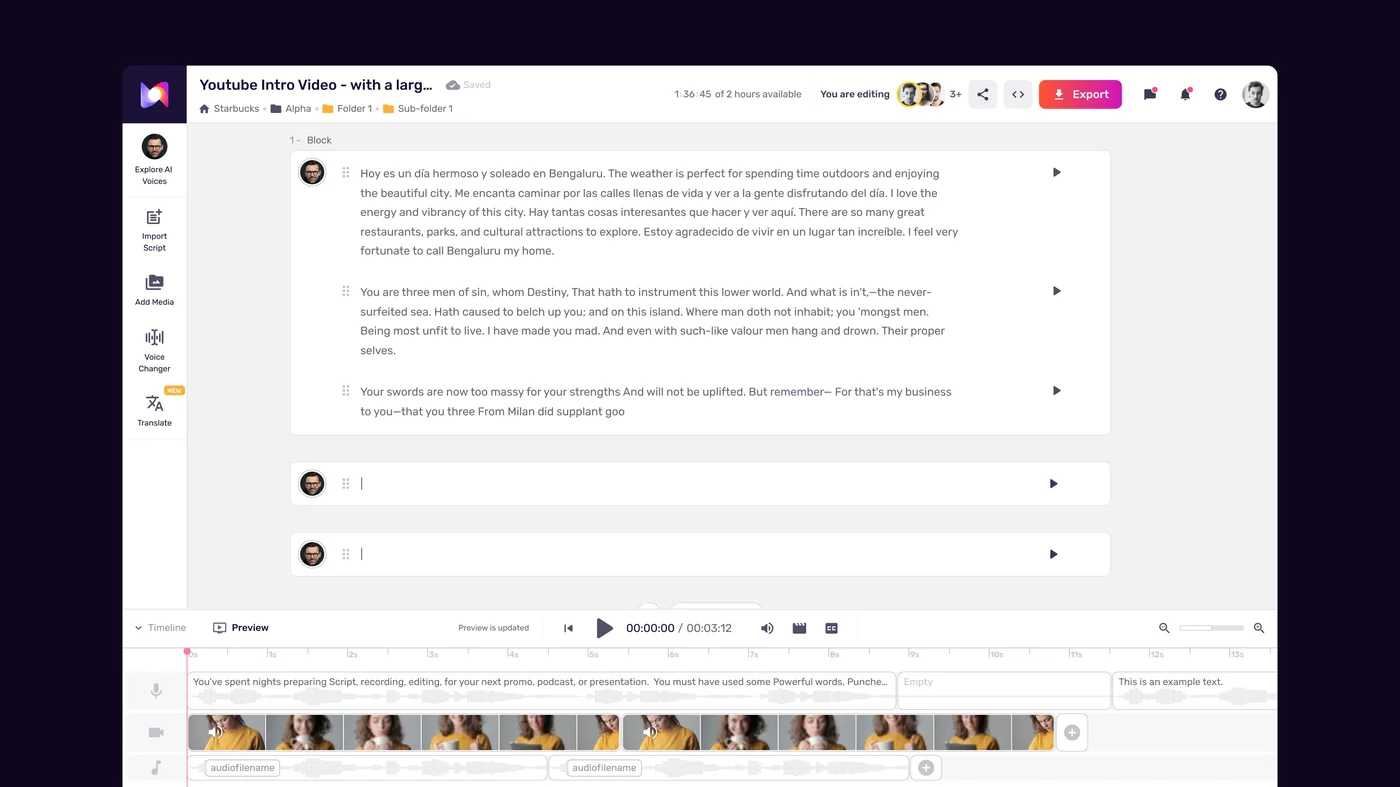
Access the Team Settings panel:
- Log into your Murf AI account as the workspace admin
- Navigate to the workspace settings - typically accessible from the account menu in the top right corner
- Open the “Team” or “Members” section to see the current user roster
Invite team members:
- Click “Invite Members” or the equivalent option in the team panel
- Enter each team member’s email address individually or paste a list of addresses
- Select the appropriate role for each invitee before sending - Murf typically offers roles along the lines of Admin, Editor, and Viewer, though the exact role labels vary by plan tier
- Send the invitations - team members receive an email with a link to join the workspace
Assign roles correctly from the start:
Role assignment at onboarding is significantly easier than reassigning roles after team members are already embedded in active projects. Apply this framework as a starting point:
- Admin - Workspace owner and one or two backup admins. Admins can invite and remove members, manage billing, and access all projects. Limit this role strictly. The principle of least privilege applies to creative tools as much as to security configurations.
- Editor - All active producers, writers, and audio specialists who create and modify voiceover content. This is the standard working role for most team members.
- Viewer - Clients, stakeholders, or approvers who need to review finished outputs but should not modify production settings. Viewer access prevents accidental changes to approved work.
Configure workspace-level settings:
Once team members are in place, review the workspace-level defaults. Settings you configure here apply across all new projects unless overridden at the project level:
- Set a default language to match your team’s primary output language - this saves a selection step each time a new project is created
- Review notification settings to determine whether project changes and comments trigger email notifications for all team members or only those assigned to the project
- If your plan includes SSO or directory sync, configure it now rather than after the team is actively using the workspace - the SAML 2.0 specification is the underlying standard most enterprise identity providers implement
Step 2: Organize Projects by Client or Campaign
A well-organized project library is the difference between a team that can locate and update any deliverable in under 30 seconds and one that loses 10 minutes per task to searching through an undifferentiated project list. The organization structure you establish in this step scales with your team’s output volume.
Choose your primary organization dimension:
Before creating any folders or project naming conventions, decide whether your team organizes primarily by client, by campaign, or by content type. Choose one primary dimension and stick with it:
- By client works best for agencies producing ongoing voiceover content for multiple brands. Each client gets a top-level folder, and all campaigns, ad variations, and video narrations for that client live inside it.
- By campaign works best for in-house marketing teams where a single brand runs multiple simultaneous initiatives. A Q3 product launch folder sits alongside an evergreen educational content folder and a social ads folder.
- By content type works best for content studios with high specialization - a folder for video narrations, a folder for podcast ads, a folder for e-learning modules - because it lets producers find all projects matching their specialty regardless of client.
Implement a consistent naming convention:
Folder-level organization only works if project names within folders follow a predictable pattern. Establish a naming convention before your team creates projects independently - once 40 projects exist with inconsistent names, retroactive cleanup is painful.
A reliable convention for agency work: [ClientCode] - [CampaignName] - [ContentType] - [Date]
For example: ACME - Summer2026 - ProductLaunchVideo - 0517
For in-house teams: [Brand] - [Campaign] - [Version] - [Date]. The ISO 8601 date format (YYYY-MM-DD) is the most reliable choice for sortable filenames.
Create a project template for recurring formats:
If your team produces the same type of content repeatedly - weekly podcast ads, monthly product tutorial narrations, quarterly investor update videos - create a template project with the voice, speed, and settings pre-configured. When a new deliverable of that type begins, duplicate the template rather than configuring a new project from scratch. This single practice saves several minutes per project and eliminates configuration drift between similar deliverables.
Step 3: Share Projects with Team Members
Once your workspace is organized and projects are in place, the next step is connecting the right people to the right projects. Murf’s project-level sharing lets you extend access beyond the workspace default, or restrict it below that level, for any individual project.
Open project sharing settings:
- Navigate to the project you want to share from the workspace dashboard
- Click the share icon or “Share” button - typically visible from the project card in list view or from the project header once inside the project
- The sharing panel shows the current list of users with access and their permission levels
Add team members to a specific project:
- Type a team member’s name or email into the collaborator field
- Select their permission level for this project - Editor access lets them modify the script, voice settings, and generation parameters; Comment access limits them to adding review notes without changing the project; Viewer access lets them play through and observe without interacting (this maps to standard role-based access control patterns)
- Click “Add” or “Invite” to apply the sharing
Sharing with external reviewers:
For clients or stakeholders who are not Murf workspace members, use the project share link feature rather than workspace invitations:
- Generate a shareable review link from the project sharing panel
- Set the link to “View and Comment” rather than “Edit” - this allows external reviewers to listen to the generated audio and add timestamped comments without access to production settings
- Set a link expiration date if the project has a defined review deadline - expiring links prevent outdated review sessions from occurring after the project has moved forward
- Send the link directly to the reviewer rather than posting it in a shared channel where unintended recipients might access the project
Maintain a project access log:
For agencies with strict client confidentiality requirements, keep a simple record of who has access to each client’s projects. Murf’s sharing panel shows current access, but it does not retain an audit trail of who was added and removed over time. A shared team document listing project names and current collaborators takes five minutes to maintain and prevents accidental cross-client access.
Step 4: Review and Approval Workflow
A voiceover review cycle without structure produces two predictable failure modes: feedback arrives too late to be useful, or feedback arrives from multiple reviewers simultaneously with conflicting instructions. A structured workflow prevents both.

Define the review stages before the first project begins:
Most voiceover production benefits from a three-stage review structure. Establish this before your team starts producing:
- Stage 1 - Internal script review - Script is reviewed and approved by the lead producer before voice generation begins. This prevents generating full audio on a script that will require significant rewrites - our Murf script writing tips covers what to look for at this stage.
- Stage 2 - Audio review - Generated voiceover is reviewed internally for voice quality, pacing, and brand alignment. This is an Editor-level review within the Murf workspace.
- Stage 3 - Stakeholder or client approval - Final audio is shared with the decision-maker via review link for approval before export and delivery. The Proof.com review workflow guide covers approval stages that translate directly to voiceover production.
Use comment threads for structured feedback:
Murf’s comment functionality allows reviewers to leave timestamped notes directly on the audio timeline rather than describing feedback in separate documents or emails. This eliminates the common problem of written feedback like “the second paragraph sounds flat” - a note that requires the producer to find the paragraph, identify the flat-sounding section, and then guess at what “flat” means in this context.
To use comments effectively:
- When sharing for review, instruct reviewers to leave all feedback as timeline comments rather than sending feedback via email
- Producers should respond to each comment within the project rather than in the email thread - this keeps all feedback and resolution in one place
- Mark comments as resolved when the corresponding change is made so reviewers can confirm their feedback was addressed
Establish a clear approval signal:
Ambiguous approval creates rework. Define a specific action that constitutes sign-off, and communicate it to all reviewers. Options include:
- Reviewer leaves a “Approved” comment on the project timeline at the final second
- Reviewer replies to the review link notification email with a specified phrase
- Admin receives a message in your team’s project management tool (Slack, Asana, etc.) with the project name and “Approved for export”
Export only after explicit approval:
Build a team norm that no project is exported and delivered until explicit approval is on record. This single rule prevents the common scenario where a producer exports and delivers an audio file, the client requests changes, and the team has to regenerate, re-export, and re-deliver a version that should have been caught in review.
Step 5: Maintain Brand Voice Consistency Across the Team
Brand voice consistency is the primary quality risk in team-based voiceover production. When different producers generate audio for the same brand using slightly different voice settings, the output diverges over time - a problem that becomes visible to clients only after multiple deliverables have been produced.
Create a brand voice configuration document:
For each brand or client your team produces voiceovers for, document the exact Murf settings used in approved deliverables:
| Setting | Value |
|---|---|
| Voice name | (exact name as it appears in Murf voice library) |
| Baseline speed | (e.g., 1.0x, 1.1x) |
| Emotion setting | (e.g., Neutral, Warm, Professional) |
| Pitch adjustment | (if modified from default) |
| Standard pause at section breaks | (e.g., 600ms) |
| Standard pause at concept transitions | (e.g., 400ms) |
Store this document where all team members can access it - a shared drive folder, a project management tool, or a pinned message in your team channel. Update it whenever a client approves a voice setting change.
Use project templates to enforce consistency:
The most reliable way to prevent configuration drift is to make correct configuration the default. For each active brand:
- Create a Murf project named
[BrandName] - VOICE TEMPLATE - DO NOT EDIT - Configure it with the exact settings from your brand voice configuration document
- When starting a new project for that brand, duplicate the template - the new project inherits all voice and settings configuration
- If a producer changes a setting during production, the template remains unchanged as the reference
Conduct periodic brand voice audits:
For agencies and studios producing ongoing work, schedule a brief monthly review where one team member listens back to the most recent three to five deliverables for each brand side by side. Listen specifically for differences in pace, tone, and emphasis conventions (covered in our Murf variability tips). Small drift accumulates faster than teams expect, and catching it monthly is significantly easier than catching it after a client raises the issue.
Handle voice selection changes carefully:
When a brand requests a different voice - a tone refresh, a new language version, or a replacement for a retired Murf voice - treat the change as a formal update to the brand configuration rather than an informal setting adjustment:
- Generate three to five test clips using the proposed new voice on representative scripts
- Have the relevant stakeholder explicitly approve the new voice before updating the template
- Update the brand voice configuration document with the new voice name and the date of the change
- Archive the old template rather than overwriting it - maintaining the original allows the team to reference historical settings if a discrepancy question arises
Collaboration Best Practices
Version your exports systematically. Each exported audio file should carry a version number in the filename: project-name-v1.wav, project-name-v2.wav. This prevents the common confusion of a client asking “which version did we approve?” when multiple files with the same name exist in a shared folder. Murf stores generation history within the project, but your delivery folder should also reflect the versioning clearly. Semantic Versioning conventions translate well to audio asset workflows.
Separate draft and production projects. Experimental voice tests, script drafts, and “what if we tried this voice” explorations should live in clearly marked draft projects rather than alongside production work. Use a naming prefix like DRAFT - or create a dedicated draft folder to keep experimental work from being confused with approved production assets.
Assign a project lead for every deliverable. Even in small teams, ambiguity about who is responsible for a project’s final quality creates gaps. Designate one person as the project lead for each deliverable - the person who owns the final review, coordinates external approval, and handles the export. This does not prevent others from contributing; it simply clarifies who makes the final call. The RACI matrix is a simple framework for documenting these responsibilities.
Document your pronunciation library centrally. Every team member who encounters a mispronounced word should add the phonetic correction to a shared pronunciation reference document, not just fix it locally in their current project. A central pronunciation library means the next producer who works on the same brand does not rediscover the same problem from scratch. See our Murf pronunciation and emphasis guide for the Say It My Way workflow.
Use Murf’s multi-voice feature intentionally. When a project genuinely requires multiple voices - a dialogue format, a narrator and character voice, a multi-language version - configure the voice assignments at the project outset and document them in the project notes. The full Murf text-to-speech library covers more than 200 voices to choose from. Unplanned voice switching mid-project is one of the most common sources of consistency problems in team-produced audio.
Build review time into project timelines. A voiceover project timeline that ends at “generate audio” is not a complete timeline. Account for internal review (one to two business days), revision cycles (one additional day per round), and stakeholder approval (two to three business days depending on client responsiveness). Teams that build review time into timelines deliver on time. Teams that treat review as post-timeline overhead consistently miss deadlines. The Atlassian project management guide covers timeline buffering patterns that translate directly to voiceover production.
Frequently Asked Questions
How many users can collaborate on a Murf AI team workspace?
The Team plan starts at two seats and scales with additional seat purchases. The Enterprise plan supports unlimited users with centralized management. The specific per-seat pricing and maximum seat count for the Team plan is confirmed on the Murf pricing page, as these details are subject to change. For organizations requiring more than 10 to 15 active producers, the Enterprise plan typically offers better per-seat economics and adds advanced permission controls.
Can external clients review Murf projects without a Murf account?
Yes. Murf’s shareable review link feature allows external reviewers to access a read-only or comment-enabled view of a project without logging into a Murf account. The reviewer receives the link, opens it in a browser, and can play back the generated audio and add timestamped comments. This is the standard workflow for client approval cycles. Reviewers cannot modify voice settings, regenerate audio, or access other projects in your workspace through a project-specific review link.
What happens to projects if a team member leaves the organization?
When a team member’s account is deactivated or removed from the workspace, their projects remain in the workspace under the original project name. The admin can reassign project ownership to another team member from the workspace management panel. This is an important reason to keep all production work within the team workspace rather than in individual accounts - projects owned by departed members are recoverable, but projects in a departed member’s personal account may be inaccessible.
How do we handle a brand requesting a different voice after extensive production?
A voice change request after significant production is a formal configuration change, not a quick edit. The practical steps are: generate test clips with the proposed new voice on five to eight representative scripts from the existing body of work, have the client explicitly compare and approve the new voice, update the brand voice configuration document and project template, and communicate the change date to all producers. For deliverables already exported and delivered under the old voice, do not retroactively re-generate unless the client specifically requests it - consistent treatment within a campaign matters more than cross-campaign consistency.
Can different team members work on the same Murf project simultaneously?
Murf does not support real-time simultaneous editing within the same project in the way that Google Docs handles concurrent document editing. The practical workflow is to divide projects into sections and assign specific sections to specific producers, or to sequence production tasks - writer completes script editing before audio producer begins voice generation. The comment and sharing features support asynchronous collaboration effectively, but teams should establish clear handoff points rather than expecting multiple producers to edit the same project at the same time.
Want to learn more about Murf AI?
Related Reading
- Murf AI Review
- AI Voiceover for YouTube Videos: Murf Workflow
- Murf AI eLearning Narration: Educator’s Guide
Related Guides
- Getting Started with Murf AI
- Murf Studio Interface Walkthrough
- How to Clone Your Voice with Murf AI
- Murf Text-to-Speech Tutorial
- Choosing the Right AI Voice in Murf
- Murf AI Emotion Controls
- Murf AI Pronunciation and Emphasis
- Mastering Pacing in Murf AI
- Murf MultiNative: Multilingual Voiceovers
- Murf AI Dubbing Walkthrough
- AI Voiceover for YouTube Videos: Murf Workflow
- Murf AI eLearning Narration: Educator’s Guide
- Murf AI Canva Integration
- Murf Falcon API Tutorial
- Murf AI Free Plan Tips
- Murf AI Voice Changer Guide
- Murf AI Podcast Intro Guide
- Murf AI Google Slides Voiceover
- Murf AI Voice Agent API
- Write Scripts for AI Voice: Murf Tips
External Resources
- Murf AI Help Center - Official documentation for workspaces, sharing, and team management
- Murf Voice Cloning and Brand Voice Resources - Vendor guidance on consistent brand voice production
- HubSpot Brand Voice Playbook - Foundational reference for documenting a brand voice your team can apply to AI voiceover settings
Related Guides
- AI Voiceover Corporate Training With WellSaid Labs
- AI Voiceover for YouTube Videos: Murf Workflow Guide 2026
- AI Voiceover Tips: Making Synthetic Voices Sound Human
- ElevenLabs Getting Started: Complete Beginners Guide
- ElevenLabs Voice Cloning Tutorial: Complete 2026 Guide
- Luma Dream Machine Video Tutorial 2026: Text-to-Video & Ray3
- Murf AI Canva Integration: Add Voiceovers to Designs
- Murf AI Custom Pronunciation: Say It My Way Guide (2026)
- Murf AI Dubbing: Complete Walkthrough | Complete Guide 2026
- Murf AI eLearning Narration: Educator's Guide | Review 2026