
A Murf AI podcast intro is a broadcast-quality opening or closing segment generated by writing a script, selecting a voice that matches your show’s tone, adjusting pacing, and exporting a clean audio file ready to drop into your editing software - no recording studio, voice actor, or audio engineering background required.
Podcast intros and outros are the most replayed audio in your entire show, which is exactly why a polished Murf AI podcast intro matters more than most creators realize. Podnews industry coverage regularly highlights the production quality gap between top shows and the long tail. Listeners skip forward through sponsorship reads and skim episode content, but they hear the same intro every single time they press play. A weak intro - muddy audio, flat delivery, or a voice that does not match your show’s energy - signals unprofessionalism before you have said a single word of content. A strong one anchors your brand and trains listeners to pay attention the moment it starts.
Murf AI makes it possible to create broadcast-quality podcast intros and outros without a recording studio, voice actor, or audio engineering background. You write the script, select a voice that fits your show’s tone, dial in the pacing, and export a clean audio file ready to drop into your editing software. This guide walks through the complete murf ai podcast intro workflow from script to final file in 20 minutes or less. New to Murf? Start with the Murf AI getting started guide, then circle back here.
Why AI-Voiced Intros and Outros Work for Podcasters
The traditional path to a professional podcast intro involved one of three options: hire a voice actor, record your own voice in a treated room, or use a pre-made template that sounds identical to a hundred other shows. Each option has a significant drawback - voice actors are expensive to update, self-recording requires acoustic setup and editing skill for a convincing AI storytelling voice, and templates sacrifice identity for convenience. Even text to storytelling voice AI tools struggle to match a committed human delivery on these legacy paths.
AI voiceover removes those constraints entirely. Working as a murf ai podcast intro generator and an AI voice generator for storytelling segments, Murf lets podcasters produce an intro that sounds like it came from a professional radio booth, update the wording any time the show evolves, and generate new variations for bonus episodes or seasonal content - all without leaving the platform or rebuilding the audio from scratch.
There are three specific scenarios where this approach excels:
New shows building from scratch. If you are launching a podcast and have not established a production budget, Murf AI delivers polished audio that competes with established shows at a fraction of the cost. The Murf free plan tips guide covers stretching evaluation minutes during pre-launch. First impressions compound over time - listeners who hear a professional intro in episode one associate that quality with everything that follows.
Existing shows refreshing their brand. When a podcast changes its name, format, or focus, the intro needs to change too. Re-recording with a voice actor means scheduling sessions and paying again. Re-generating in Murf takes 10 minutes and costs nothing beyond the existing subscription. The Murf pricing page documents the included generation minutes per tier.
Multi-format shows with different segment voices. Some podcasts use distinct voices for different segments - a neutral narrator voice for transitions, a warmer voice for sponsor reads, and a high-energy voice for teasers. Murf’s 120+ voice library makes this kind of layered audio identity achievable without managing multiple contractors. The Murf voice selection tips guide covers multi-voice planning.
The consistency that AI voiceover provides also matters in ways that are easy to underestimate. A human voice actor sounds slightly different every session depending on health, environment, and microphone placement. Murf generates identical delivery every time - the same tone, the same pace, the same character across every episode you produce.
What You Will Need
Before opening Murf Studio, confirm you have the following ready:
-
A Murf AI account - The free trial is sufficient to complete this guide and produce your first intro. For ongoing podcast production, the Creator plan ($29/month) or Business plan ($99/month) unlocks commercial use rights, the full voice library, and higher generation minutes. Confirm you are on a plan with commercial rights before publishing.
-
Your intro script - A completed intro script between 15 and 50 words. Step 1 covers how to write one if you are starting from scratch.
-
Your outro script - Typically shorter than the intro, between 10 and 30 words, covering your call-to-action and sign-off.
-
A podcast editor - Any standard audio editor (Audacity, Adobe Audition, GarageBand, Descript, Hindenburg) for combining the Murf voiceover with your background music.
-
Your background music file (optional) - Murf exports clean voiceover without music. You will layer the music separately in your editor.
You do not need a microphone, recording environment, or audio engineering experience. The workflow is designed specifically for podcasters who are new to AI voice generation.
Workflow Overview
The complete podcast intro and outro workflow in Murf AI runs through five steps:
- Write your intro and outro scripts
- Select a voice that matches your show
- Set up your project in Murf Studio
- Fine-tune pacing and pauses
- Export for podcast production
Each step takes two to five minutes. The 20-minute total assumes you have a rough sense of your show’s tone and topic. If you are building your show’s audio brand from scratch and need time to research voice options, add another 10 minutes for the voice selection step.
Step 1: Write Your Intro/Outro Script
Script quality determines output quality in any text-to-speech workflow. Murf AI’s engines are excellent at delivering well-written, naturally phrased prose - and noticeably less effective with awkward phrasing, excessive punctuation, or sentences built for the page rather than the ear. The Murf script writing tips guide covers TTS-friendly conventions in depth.
Intro structure that works:
An effective podcast intro does three things in sequence: names the show, establishes what listeners will get, and creates forward momentum into the episode. This structure fits comfortably in 15 to 40 words. The Murf script writing tips guide covers TTS-friendly script construction.
A template that works across most podcast formats:
“[Show name]. [One-sentence value proposition]. [Host name or episode teaser.] Let’s get into it.”
Concrete example: “The Product Loop. Weekly conversations with founders who have shipped real products and survived the process. I’m [Host Name], and this week we’re talking about pricing psychology. Let’s get into it.”
Outro structure that works:
Outros perform a different function - they convert listeners into subscribers, reviewers, and community members. Keep them under 30 words. Name the action you want listeners to take (subscribe, leave a review, visit a URL) and close with a consistent sign-off phrase.
Example: “Thanks for listening to The Product Loop. If this episode was useful, leave a review wherever you get podcasts - it helps more founders find the show. See you next week.”
Writing rules for TTS-friendly scripts:
- Use full words rather than abbreviations. Write “and” not ”&”, “episode” not “ep.”, “number” not ”#”
- Keep sentences under 20 words. TTS engines lose natural phrasing on longer sentences
- Avoid parenthetical asides in brackets or dashes that disrupt sentence flow
- Write out numbers as words when they appear in a spoken context: “three hundred” not “300”
- Read the script aloud before pasting into Murf. If you stumble, the AI will too
Script length reference for intros and outros:
| Type | Word Count | Approximate Duration |
|---|---|---|
| Short intro | 15 - 25 words | 8 - 12 seconds |
| Standard intro | 25 - 40 words | 12 - 20 seconds |
| Full intro with teaser | 40 - 60 words | 20 - 30 seconds |
| Short outro | 10 - 20 words | 6 - 10 seconds |
| Standard outro | 20 - 35 words | 12 - 18 seconds |
Most successful podcasts keep their intro under 20 seconds. Listener drop-off increases sharply when intros run past 30 seconds - they are there for your content, not your branding. Spotify for Podcasters resources offer additional pacing benchmarks.
Step 2: Select a Voice That Matches Your Show
Voice selection is the decision that shapes your show’s entire audio identity. Get it right here, and every intro and outro you produce will feel cohesive and professional. Get it wrong, and even technically perfect audio will feel off-brand. The Murf voice selection tips guide covers the audition methodology end-to-end.
Murf AI provides 120+ voices across 20+ languages - the Murf text-to-speech overview lists current language coverage. The selection process is less about finding the “best” voice in the library and more about finding the voice that your audience will associate with your show over hundreds of episodes.
Match voice character to show tone:
- Interview and conversation shows - Look for voices with natural warmth and a conversational delivery pace. Avoid voices that sound overly formal or broadcast-like. Voices tagged “conversational” or “friendly” in Murf’s library are strong candidates.
- News, analysis, and commentary shows - Authoritative voices with confident delivery and minimal expressiveness fluctuation. Look for “professional” or “informative” tags. The voice should sound like someone who knows their material.
- Storytelling and narrative shows - Voices with expressive range and natural variation in delivery. Tags like “narration” or “expressive” suit this format. The voice needs to carry emotional weight without sounding theatrical.
- Business and productivity shows - Energetic but measured delivery, projecting competence rather than excitement. “Business” and “dynamic” tagged voices work well here.
- Entertainment and pop culture shows - High energy, upward inflection, natural humor. Look for voices with personality rather than polish.
Audition voices with your actual script:
- Copy your intro script
- Open the voice browser from the Studio voice panel
- Paste your intro into the preview input - not a generic test phrase
- Listen to five to eight candidates before shortlisting
- Narrow to two or three finalists
Listen for these specifics in your finalists:
The Murf custom pronunciation guide covers fixing show-name pronunciation when the AI gets it wrong.
- Does the voice sound authoritative or tentative on the show name? The name delivery matters most.
- Does the voice land the final word of the intro with energy, or does it trail off?
- Does the pacing feel natural, or does it rush through phrases that should breathe?
- Would you want to hear this voice in your ears every time you open a podcast app?
The voice you choose now becomes the voice your audience identifies with your show. Take the time to listen to full deliveries of your actual script rather than 3-second previews.
Step 3: Set Up Your Murf AI Podcast Intro Project
With your scripts written and your voice selected, open Murf Studio to build the project. The Studio workspace handles both your intro and outro as separate script blocks within the same project, which keeps your settings consistent and your file library organized.
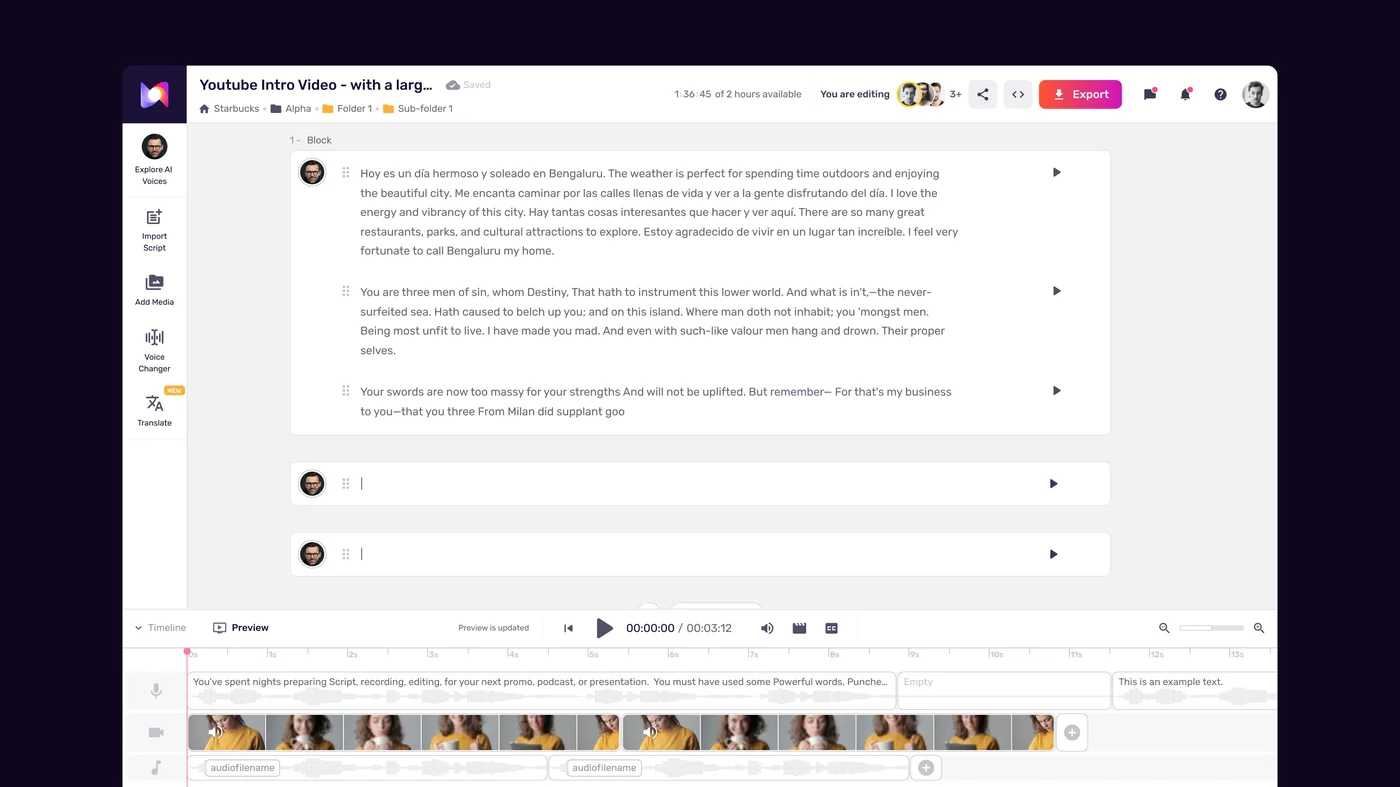
Create a new project:
- Log into your Murf account and click “Create New Project” from the dashboard
- Select “Voiceover” as the project type
- Name the project with your show name and content type - for example: “[Show Name] - Intro Outro - [Month Year]”. This naming convention keeps your project library navigable as it grows across episodes and seasons
- Select your primary language from the dropdown
Set up intro and outro as separate blocks:
The Murf Studio workspace walkthrough covers the editor environment in depth.
- Click into the script editor and paste your intro script
- Create a block break (Enter twice, or use the block divider tool) and paste your outro script on a new block
- Keeping them as separate blocks lets you fine-tune each one independently in Step 4 - the intro and outro have different pacing needs
- Review that the AI has divided your text cleanly. If the intro was split mid-sentence into two blocks, merge those blocks before proceeding
Configure project settings:
- Set your output audio quality to “High Quality” - podcast audio is consumed on headphones where compression artifacts are audible
- Confirm the sample rate matches your target export (44100 Hz for most podcast hosting platforms, 48000 Hz if you are editing in a professional video or audio suite)
- Apply your selected voice to the project - click “Apply to All Blocks” to start with a consistent baseline
The workspace now shows your intro and outro as labeled blocks with your selected voice applied. The next step handles the pacing and timing adjustments that separate professional podcast audio from flat TTS output.
Step 4: Fine-Tune Pacing and Pauses
Raw generation from a well-written script sounds competent. Fine-tuned generation sounds like it was produced in a studio. The difference comes down to two controls that most users skip: voice speed and manual pause insertion.
Adjust voice speed for podcast energy:
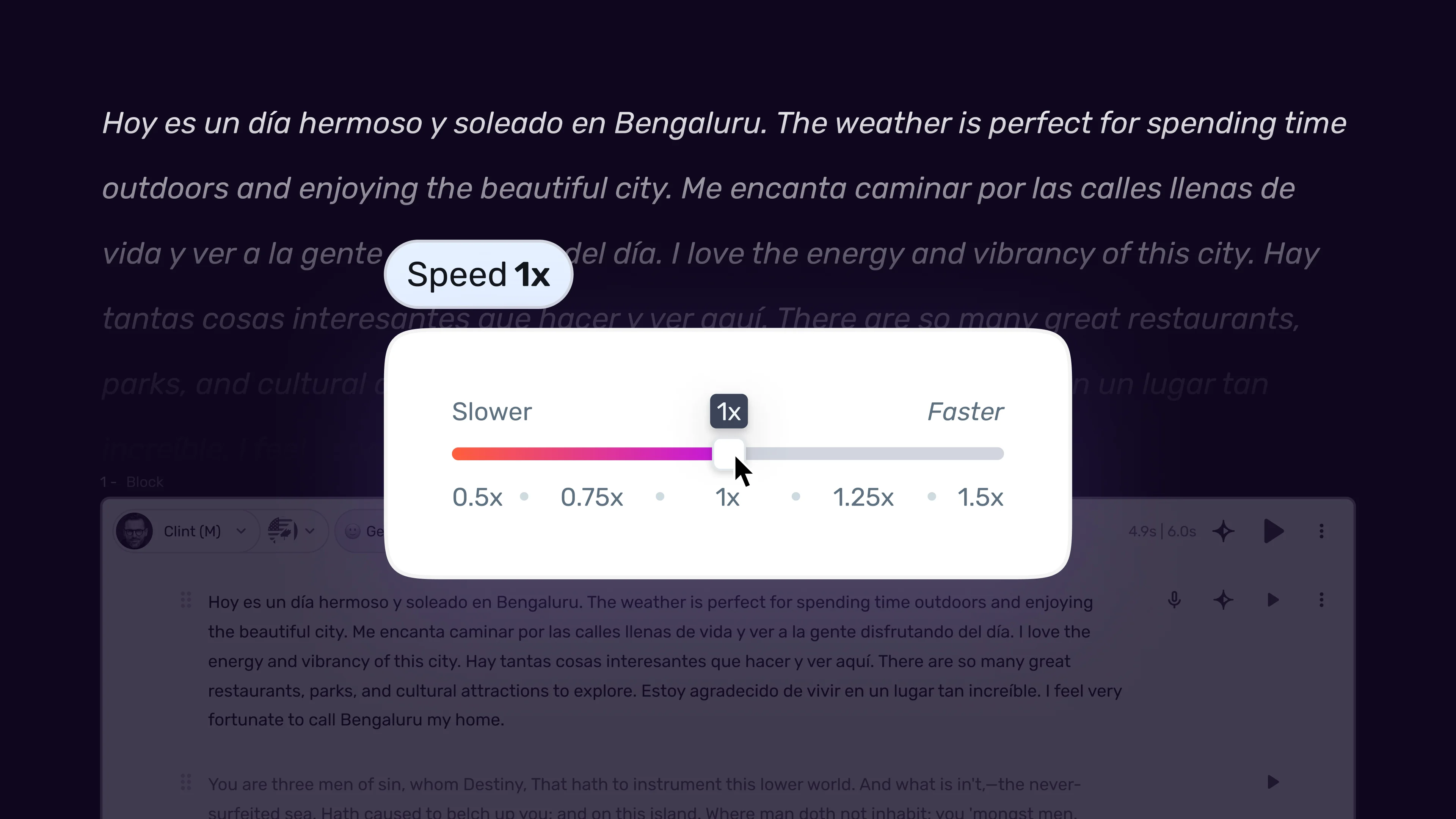
Podcast intros typically benefit from a slightly elevated delivery pace. The default 1.0x speed in Murf AI is calibrated for neutral delivery - it works well for instructional or educational content but can feel flat for the branded energy of a podcast intro. For most intro formats, 1.1x to 1.3x speed creates the forward momentum that signals “this show has energy.” See the Murf pacing pauses speed tips guide for the full per-section speed strategy.
The outro operates under different rules. Outros are often quieter, warmer invitations. A speed of 0.95x to 1.1x suits the sign-off tone without sounding slow.
Speed settings by intro type:
| Show Format | Intro Speed | Outro Speed |
|---|---|---|
| News and analysis | 1.0x - 1.1x | 0.9x - 1.0x |
| Interview and conversation | 1.1x - 1.2x | 1.0x - 1.1x |
| Storytelling and narrative | 0.95x - 1.05x | 0.9x - 1.0x |
| Business and productivity | 1.1x - 1.2x | 1.0x - 1.1x |
| Entertainment and comedy | 1.2x - 1.35x | 1.0x - 1.2x |
How to adjust speed:
- Select the intro block in the Studio editor
- Locate the speed slider in the voice controls panel
- Set the intro speed to your target value
- Select the outro block and set a separate speed value
- Preview both blocks individually before proceeding
Insert strategic pauses:
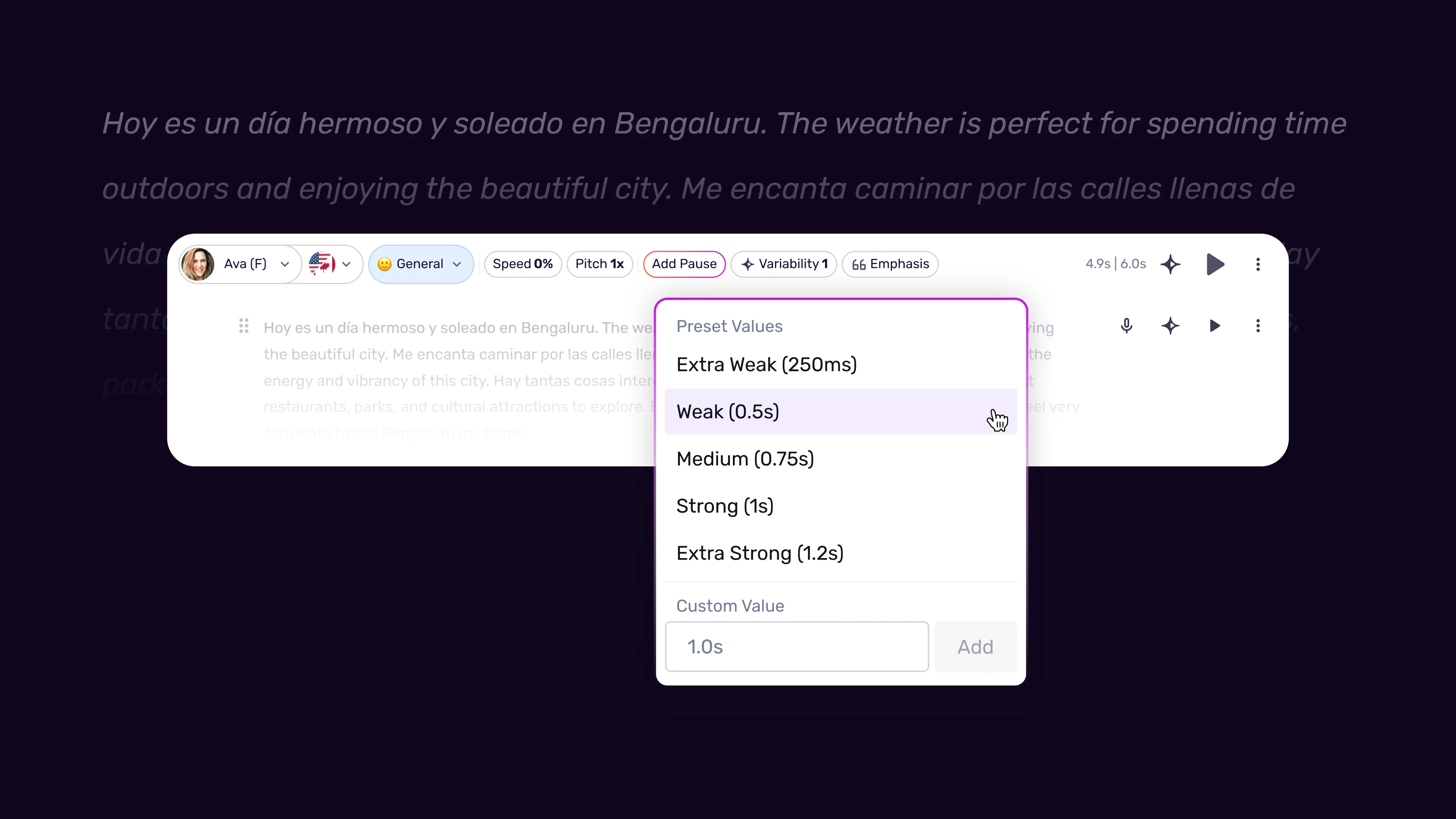
Pauses are the most impactful single adjustment you can make to podcast intro audio. Without manual pauses, TTS engines rush through phrases that should breathe - the show name, the host name, the call-to-action. Adding 300ms to 700ms pauses at the right moments transforms mechanical delivery into something that sounds anchored and intentional. The Murf pacing pauses speed tips guide covers the full pause-duration reference.
Where to place pauses in an intro:
- After the show name - A 500ms to 700ms pause after the show name is spoken creates a natural beat that lets the name land before the next phrase begins
- Before the episode teaser - A 400ms pause before “This week on…” or “Today we’re talking about…” signals a shift in the intro structure that listeners learn to expect
- Before the closing phrase - A 300ms to 500ms pause before your standard sign-off phrase (“Let’s get into it”, “Here we go”) creates the micro-moment of anticipation that signals the content is about to begin
Where to place pauses in an outro:
- After the thank-you phrase - A 400ms pause after “Thanks for listening” gives the sentiment time to register before the action prompt begins
- Before the call-to-action - A 300ms to 500ms pause before “subscribe”, “leave a review”, or “visit our website” adds emphasis to the action
- Before the sign-off - A 600ms pause before your closing phrase (“See you next week”, “Until next time”) signals closure
How to insert pauses:
- Place your cursor at the exact script position where you want the pause
- Open the pause insertion tool from the toolbar
- Select the duration or type a custom value in milliseconds
- The pause appears as a visual marker in the block - adjust duration if needed
- Preview the block with pauses inserted before generating the final version
Generate both blocks after applying speed and pause settings. Listen to each output from start to finish before making further changes. Resist adjusting mid-listen - complete the full playback, note issues, then address them systematically.
Step 5: Export for Podcast Production
When the intro and outro both sound correct on full playback, export the audio for integration into your podcast editing workflow.

Export settings for podcast production:
The Murf export formats and quality guide covers full format selection criteria.
- Click the Export button in the top right of the Studio workspace
- Select “Audio Only” as the export type
- Choose your format based on your editing workflow:
- WAV - Highest quality, best for professional editing setups. Use WAV if you are applying processing, EQ, or compression in your audio editor
- MP3 (320 kbps) - Smaller file size, maintains excellent quality for broadcast. Use high-bitrate MP3 if file size matters or your podcasting setup works natively with compressed audio
- Confirm “Export All Blocks” so the intro and outro are exported together, then separate the files in your editor - or export each block individually if your workflow requires separate files
- Download the exported file to your project folder
Naming convention:
Use a consistent file naming structure that prevents confusion when you update your intro for a new season or create show-specific variations:
[ShowName]-intro-v1.wav[ShowName]-outro-v1.wav
The version suffix becomes important when you return to update wording. Having v1 and v2 files in the same folder makes it immediately clear which version is current.
Integrating with your podcast editor:
- Import the Murf audio file into your editor on a dedicated voiceover track
- Layer your background music on a separate track at -18dB to -25dB below the voiceover level - this keeps the voice clear and intelligible while the music adds energy
- Apply any final EQ or compression to the voiceover track to match the tonal characteristics of your recorded host audio
- Export the finished intro and outro as self-contained audio files for insertion at the start and end of each episode
Do not apply background music inside Murf Studio. Keeping the Murf voiceover and music on separate tracks in your editor gives you full control over mix levels, ducking, and future updates.
Intro vs. Outro: Different Approaches
Intros and outros serve opposite purposes, and the most common mistake podcasters make is treating them as mirror images of each other. They are not. Producing them as if they are identical in purpose leads to outros that feel like a compressed second intro rather than a natural close.
The intro’s job is to signal identity and create momentum. The companion Murf marketing voiceover workflow covers similar momentum-building patterns for ad contexts. Every element - voice, speed, pacing, copy - should point forward, toward the episode content. The listener’s experience of a good intro is: “I know what show this is, I trust it, let’s go.” It should feel like an opening door, not a summary.
Intros work best with slight speed elevation (1.1x - 1.2x), forward-leaning energy in the voice selection, and minimal pause time between phrases. Every second of an intro is a second between the listener and the content they came for. Keep it sharp.
The outro’s job is to convert attention into action. The Murf emotion control guide covers warming the voice for outro sign-offs. The listener has completed the episode - they are in the highest-attention, highest-goodwill state they will reach in this session. An effective outro captures that moment and channels it into one specific action: subscribe, review, share, or visit. The phrasing should be direct and warm, not promotional.
Outros work best at slightly slower speed (0.95x - 1.1x), warmer voice character (if your voice library allows it - some voices in Murf support emotion settings; “Friendly” or “Warm” suit outros well), and deliberate pauses before and after the call-to-action. The pause before “leave us a review” creates the micro-moment of attention that increases the chance the listener actually does it.
One outro, one action. This is the most important structural rule. Outros that ask listeners to subscribe, rate, review, join a newsletter, follow on Twitter, and visit a website accomplish none of those things. Every additional action request reduces the probability of any action. Pick the one metric that matters most for your show’s growth right now, and make that the only ask.
Updating over time. Intros stay stable. Outros evolve. The full Murf AI review covers the editor features that make iterative updates fast. Your intro represents the show’s core identity and changes only when the show itself changes - a new format, a rebrand, a new season. Your outro should be reviewed every quarter. The action you want listeners to take in your first 10 episodes (leave a review to build social proof) is different from what you want them to do in episode 200 (join your newsletter or community). Update the outro script in Murf, regenerate, re-export, and drop the new file into your template session.
Frequently Asked Questions
Do I need a Murf paid plan to use podcast intros commercially?
Yes. The free trial and entry-level plans restrict commercial use. If your podcast earns revenue through ads, Patreon, merchandise, or any monetized platform, you need a plan that includes commercial licensing. The Creator plan ($29/month) includes commercial rights and is the practical minimum for podcasters publishing publicly. Check the current licensing terms on Murf’s pricing page before your first published episode.
How long should a podcast intro be?
Most listener research, including Edison Research’s podcast surveys, points to 15 to 25 seconds as the optimal intro length. Intros under 15 seconds can feel abrupt - there is not enough time to establish identity and create momentum. Intros over 30 seconds see measurable skip behavior in podcast analytics. The standard format - show name, value proposition, host name, and a brief episode teaser - fits comfortably in 20 seconds at a natural delivery pace. If your intro is currently running 45 to 60 seconds, cut it. Listener patience for pre-content branding is shorter than most podcasters assume.
Can I use Murf AI to create intro music as well as voiceover?
Murf AI is a voiceover platform - it generates voice audio, not music. For intro music, you will need a separate source: royalty-free music libraries (Epidemic Sound, Artlist, Soundstripe), AI music generators (Suno, Udio, Mubert), or a commissioned original piece. The standard production workflow is to generate your Murf voiceover, source your background music separately, and layer them in your podcast editor. Murf explicitly supports this workflow by exporting clean voice audio with no built-in music track.
What voice characteristics work best for a podcast intro?
The answer depends on your show format, but two principles apply universally. First, the voice should project confidence on the show name - that is the most important word in your intro, and a voice that trails off or sounds uncertain on it undermines the entire sequence. Second, the voice should match the energy level listeners expect from your content. If your show is high-energy interview content, a calm, measured voice creates dissonance. If your show is thoughtful analysis, an overly enthusiastic voice will feel mismatched. Audition each candidate voice with your actual script - not a demo sample - before deciding.
Can I update my podcast intro in Murf without starting over?
Yes. Murf projects are editable at any point - the Murf team collaboration guide covers shared project workflows for multi-host shows. If you want to update your show name, change the host credit, or refresh the wording for a new season, open your saved project, edit the script block, regenerate the affected blocks, and export the updated audio. Your voice selection, speed settings, and pause configurations are all preserved in the project. For minor updates - swapping one sentence, correcting a pronunciation - this takes less than five minutes. For a full intro rewrite, start a new project block within the same project to maintain a version history of your original.
Want to learn more about Murf AI?
Related Reading
Related Guides
- Getting Started with Murf AI
- Murf Studio Interface Walkthrough
- How to Clone Your Voice with Murf AI
- Murf Text-to-Speech Tutorial
- Choosing the Right AI Voice in Murf
- Murf AI Emotion Controls
- Murf AI Pronunciation and Emphasis
- Mastering Pacing in Murf AI
- Murf MultiNative: Multilingual Voiceovers
- Murf AI Dubbing Walkthrough
- AI Voiceover for YouTube Videos: Murf Workflow
- Murf AI eLearning Narration: Educator’s Guide
- Murf AI Canva Integration
- Murf Falcon API Tutorial
- Murf AI Free Plan Tips
- Murf AI Voice Changer Guide
External Resources
- Murf AI Pricing Plans - Compare commercial-licensing tiers required for published podcasts
- Murf AI Text-to-Speech Overview - Voice library and language coverage
- Murf AI Help Center - Official documentation for studio editor and export settings
Related Guides
- AI Voiceover Corporate Training With WellSaid Labs
- AI Voiceover for YouTube Videos: Murf Workflow Guide 2026
- AI Voiceover Tips: Making Synthetic Voices Sound Human
- ElevenLabs Getting Started: Complete Beginners Guide
- ElevenLabs Voice Cloning Tutorial: Complete 2026 Guide
- Luma Dream Machine Video Tutorial 2026: Text-to-Video & Ray3
- Murf AI Canva Integration: Add Voiceovers to Designs
- Murf AI Custom Pronunciation: Say It My Way Guide (2026)
- Murf AI Dubbing: Complete Walkthrough | Complete Guide 2026
- Murf AI eLearning Narration: Educator's Guide | Review 2026