
The best murf ai free plan tips start with a reframe: 10 minutes of AI voice generation sounds like a tight budget until you realize how far it actually stretches. A 10-minute allowance can produce a two-minute product demo narration, a 90-second YouTube intro, four short social media clips, and a full e-learning module introduction - all in the same month, with minutes to spare, if you use the free plan the right way. New to the platform? Pair this with the Murf AI getting started guide before you generate your first voiceover.
Murf AI offers one of the most generous free tiers of any free AI voice generator in the text-to-speech space. After your Murf AI login, you get 10 minutes of voice generation per month, access to 120 voices across 20 languages, full use of the studio editor, and every major feature except commercial usage rights and HD export. The catch is that 10 minutes disappears fast when you do not have a plan. Careless use - generating test outputs, regenerating with slightly different settings, re-running long scripts to fix a single word - can drain your allowance in an afternoon. The official Murf pricing page documents the current free-tier limits in detail.
These murf ai free plan tips cover everything you need to make those 10 minutes count. Whether you are asking is Murf AI safe for your evaluation, committing to a paid plan, or working on a personal project where the free tier is genuinely enough, this guide will help you get real, usable voiceovers without burning through your monthly balance. For broader context, see the best AI voice generators and the best text-to-speech tools roundups.
Murf AI Free Plan Tips: Understanding Your Limits
Murf AI Free Plan Tips cover the settings, shortcuts, and workflows that most users overlook. Knowing these techniques turns a basic setup into a productivity system that saves hours each week. This guide focuses on the high-impact adjustments that deliver immediate results.
Before diving into the tips, understanding exactly what the free plan includes - and what it does not - saves you from unpleasant surprises mid-project. The full breakdown is documented on the official Murf pricing page, and the Murf AI review covers tier comparisons in plain English.
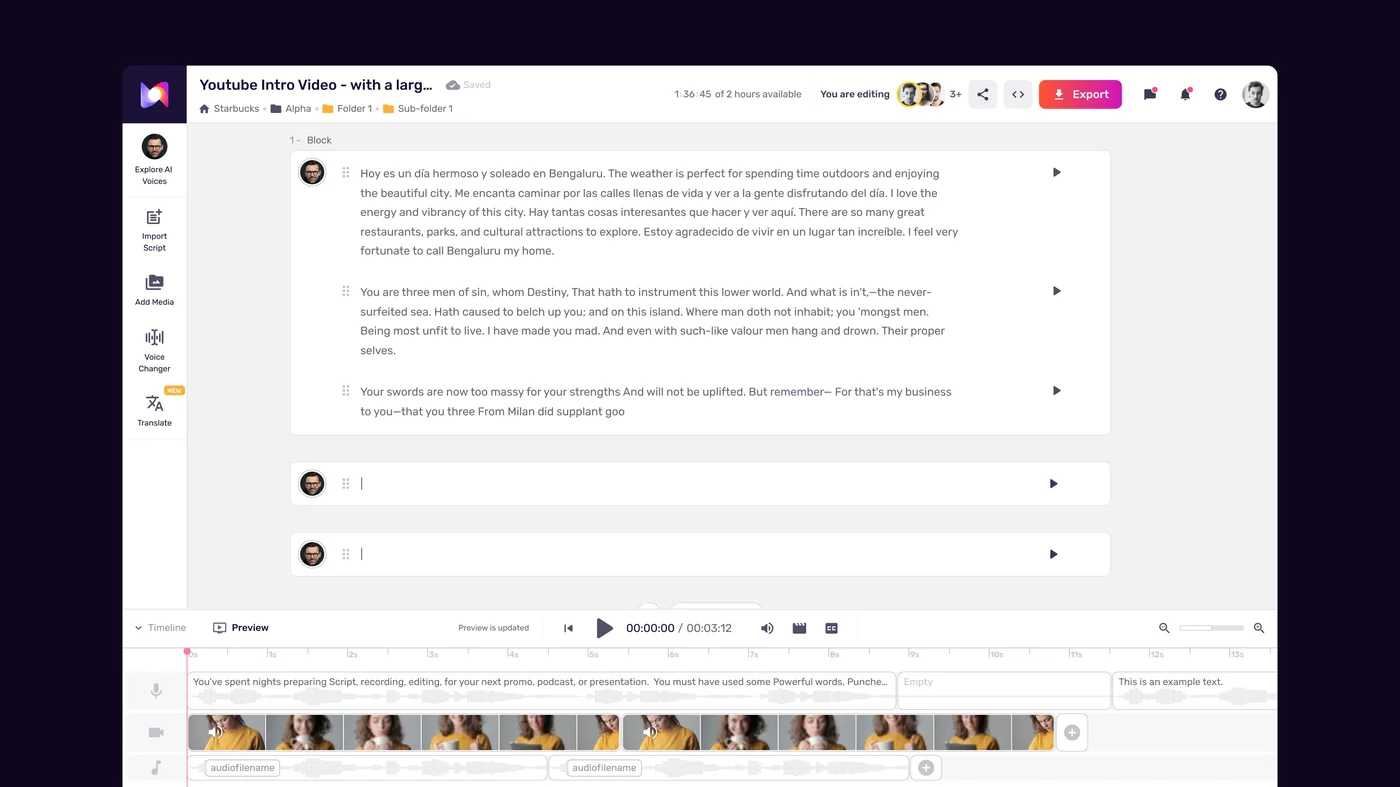
What you get on the free plan:
- 10 minutes of voice generation per month. This resets on your billing anniversary date. Generation time is measured by the audio duration of the output, not the script length or time spent in the editor. The exact reset behaviour is documented in the Murf Help Center.
- 120 voices across 20 languages. The full voice library is restricted to paid plans, but 120 voices is a substantial selection. All major English accents are included, along with voices for Spanish, French, German, Hindi, Japanese, and several other languages.
- Full studio editor access. The script editor, voice controls, speed and pitch sliders, pause insertion, and the timeline are all available. You can edit and re-edit your script as many times as you want without touching your generation balance - minutes are only deducted when you actually click Generate.
- 2 active projects. You cannot have more than two projects open simultaneously on the free plan. Plan accordingly if you work on multiple concurrent projects.
- All core features. The free plan is not a stripped-down demo. Speed controls, pronunciation tools, pause insertion, background music, and the emotion sliders all work on the free tier.
What the free plan does not include:
- Commercial usage rights. Audio generated on the free plan is for personal and evaluation use only. If you plan to use voiceovers in videos you monetize, courses you sell, or any commercial product, you need a paid plan.
- HD export quality. Free plan exports are standard quality MP3. Paid plans unlock higher-quality output and WAV export.
- Voice cloning. Creating a digital replica of your own voice requires the Pro plan or above - see the Murf voice cloning setup guide for the workflow.
- Unlimited projects. The two-project cap means you need to archive or delete old projects to start new ones.
- Priority generation. During high-traffic periods, paid users may get faster processing. Free plan generation can occasionally queue.
Understanding these boundaries is the foundation for all of the tips that follow. The generation minutes counter is the main constraint to work around - everything else is manageable.
Tip 1: Plan Your Script Carefully Before Generating
The single biggest waste of free plan minutes is generating audio from an unfinished script. Generating, noticing a problem, editing, and generating again effectively doubles your minute consumption - and most beginners do this three or four times before they are satisfied.
The studio editor is free to use. You can type, edit, rearrange, and refine your script as many times as you want without spending a single second of generation time. Use this. The Murf Studio workspace walkthrough covers every editor panel.
Before you click Generate for the first time, complete all of these:
Read your script aloud yourself. Seriously - read it out loud. This is the fastest way to catch awkward phrasing, sentences that are too long to sound natural when spoken, and transitions that read fine on the page but do not flow in spoken form. Every issue you catch and fix here is a regeneration you are not doing later.
Check for pronunciation risks. Scan your script for brand names, technical terms, acronyms, and any word you think the AI might mispronounce. Before generating, add these to the pronunciation dictionary inside Murf - the Murf custom pronunciation guide walks through the Say It My Way workflow. Setting correct phonetic pronunciations upfront prevents the frustrating scenario where you generate five minutes of perfect audio except for one mispronounced product name. For best practices on writing TTS-friendly scripts, see the Murf script writing tips.
Finalize your key messaging. If you are still deciding between two different calls-to-action or debating whether to include a particular sentence, decide before generating. Generating two versions of a 90-second script to compare different endings costs three minutes of your monthly allowance - 30 percent of your budget gone on a single decision you could have made in the editor.
Break long scripts into logical sections. For scripts over 60 seconds, split the content into separate text blocks for each major section. This lets you preview and generate one section at a time, which is useful if you want to catch problems early before committing to a full run.
Use the character count, not time estimates. Murf shows you the estimated audio duration as you type. Watch this number as you write. Aim to know exactly how long your output will be before you generate it. For YouTube-specific length targets, see the Murf YouTube voiceover workflow.
The planning phase should take roughly the same amount of time as the final audio output. A two-minute voiceover deserves two to three minutes of careful script review. It is a small investment that protects your entire monthly allowance.
Tip 2: Use Voice Speed to Control Usage
Voice speed has a direct relationship with generation time. A 300-word script at default speed produces approximately two minutes of audio. The same script at 1.3x speed produces roughly 90 seconds - saving 30 seconds of generation time. Across a month of free plan usage, those savings add up.
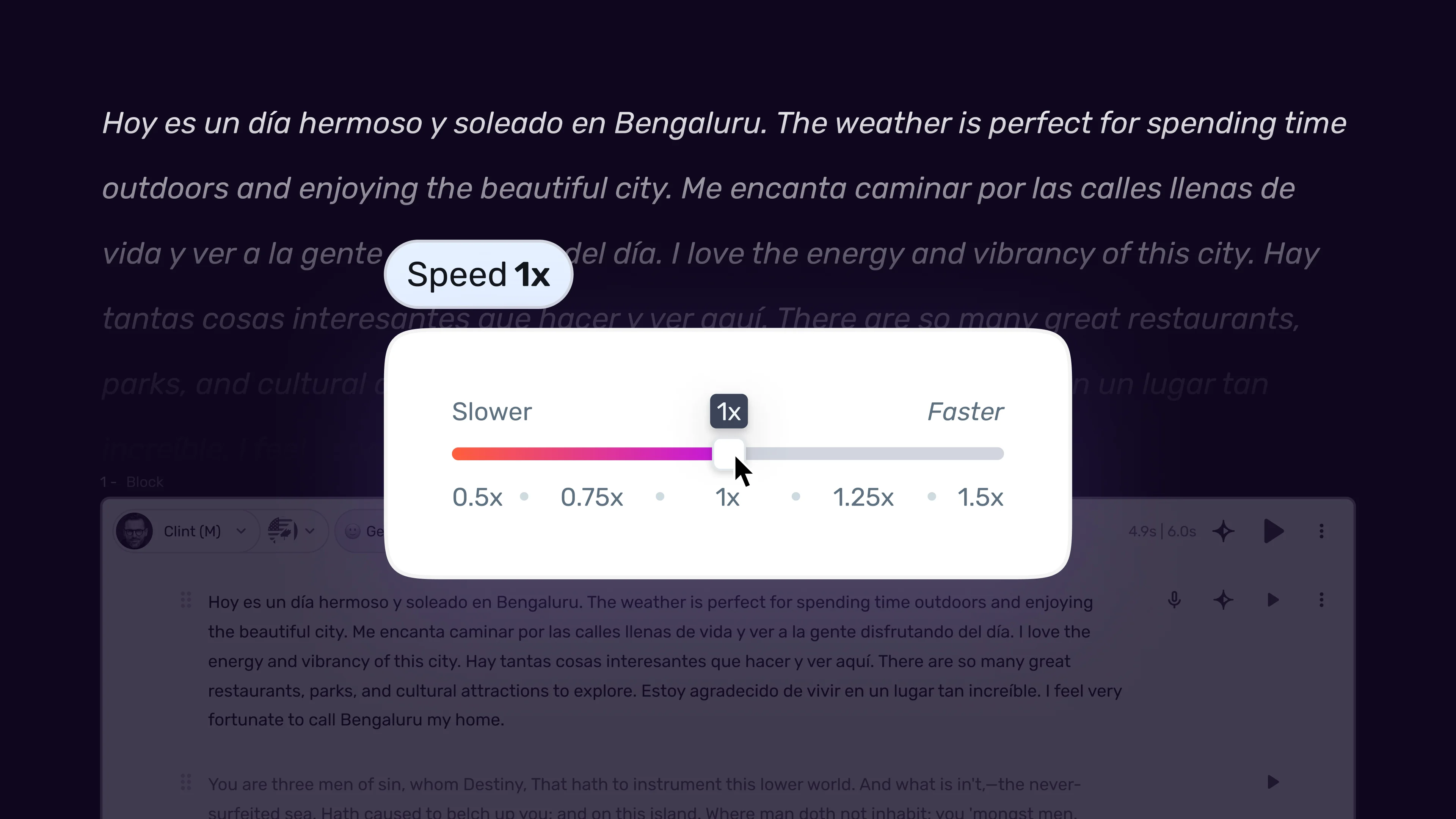
This is not about rushing your content. It is about matching voice speed to the natural delivery style for your specific content type and letting that alignment save you minutes as a side effect.
Speed ranges and their generation time impact:
| Speed | Audio Length for 300 Words | Minutes Saved vs 1.0x |
|---|---|---|
| 0.8x | ~2.5 minutes | -30 seconds (costs more) |
| 1.0x | ~2 minutes | baseline |
| 1.1x | ~1 min 49 sec | ~11 seconds |
| 1.2x | ~1 min 40 sec | ~20 seconds |
| 1.3x | ~1 min 32 sec | ~28 seconds |
| 1.4x | ~1 min 26 sec | ~34 seconds |
For conversational YouTube content, social media voiceovers, and short promo clips, 1.1x to 1.3x speed sounds completely natural - many professional voiceover artists deliver in this range anyway. The content sounds livelier, and you use fewer minutes per output. The deeper Murf pacing pauses speed tips guide covers per-section speed strategy in depth.
For slower-paced content like meditation narration or educational modules where comprehension requires more time, you need the lower speeds regardless of minute cost. Nielsen Norman Group research on audio listening speed documents how comprehension drops above 1.5x for new material. Do not sacrifice clarity or appropriateness for the content type just to save minutes - but when a faster delivery is genuinely right for your content, it is worth knowing that you are also saving from your balance.
Practical application: Before generating any script, decide on your target speed and enter it in the voice controls panel. Compare a 15-second preview at your target speed against the default to confirm it sounds right. Adjust once, then generate. Do not generate at default speed and then regenerate at a higher speed to compare - pick your speed first.
Tip 3: Preview Before Generating
Murf AI has a preview feature that lets you listen to a short sample of your selected voice reading a portion of your script without spending generation minutes. This feature is the free plan user’s best tool for avoiding wasted generation runs, and most beginners overlook it entirely.
How preview differs from generation:
Preview plays a short clip - typically 10 to 20 seconds - using the AI voice settings you have configured. It is a quick check, not a full render. Preview does not deduct from your monthly minutes. Generation produces the full-length audio file and does deduct.
Use preview to verify these things before generating:
Voice fit. Does this voice sound right for your content? A voice that sounds great reading generic sample text may not suit your specific script. Paste in the opening sentence of your actual script, hit preview, and listen. If it sounds off, switch voices and preview again. You can preview as many voices as you want without spending any minutes. The Murf voice selection tips guide covers audition strategy in depth.
Pronunciation of risky words. After adding any custom pronunciations, preview a sentence containing that word to confirm the correction worked before running the full script. Discovering a pronunciation error after a five-minute generation is painful. Discovering it in a ten-second preview costs nothing.
Speed and tone settings. After setting your voice speed, emotion controls, and pitch adjustments, preview a representative sentence to confirm the combined settings sound the way you intended. Sometimes a speed and emotion combination that looks right on paper sounds slightly wrong in practice. Better to catch that in preview.
Pause placement. If you have inserted custom pauses, preview the sections around those pauses to check the timing feels natural. A 700ms pause that looked correct in the editor can feel either too rushed or too theatrical when you actually hear it. The full pause-duration reference lives in the Murf pacing pauses speed tips guide.
The preview-check-adjust loop is completely free. Use it aggressively. Every time you save one regeneration through a thorough preview pass, you save two minutes toward a different project.
Tip 4: Choose the Right Export Format
Free plan users export in MP3 only, but there are still meaningful choices to make at export time that affect file quality, compatibility, and how efficiently you can work with the output in other tools.

MP3 quality settings on the free plan:
Murf’s free plan MP3 export uses standard quality. For most use cases - YouTube, social media, podcast, web content - standard quality MP3 is perfectly acceptable. Listeners on phone speakers and laptop speakers will not hear a difference between standard and high-quality MP3. The distinction matters more for broadcast, professional video post-production, and situations where audio will be further edited or processed.
Where the export decision actually matters:
Match export timing to your workflow. Export immediately after you are satisfied with the output, not later. Murf stores your projects, but waiting until you need the file creates unnecessary risk - if you later modify the script and regenerate, you will need to re-export. Export once and store the file in your own organized location.
Consider your destination platform’s requirements. YouTube accepts MP3 directly per the official YouTube upload specifications. Most video editing tools accept MP3. Canva accepts MP3 - see the Murf Canva integration guide if that is your workflow. If you are adding the voiceover to a video in CapCut, Premiere, or DaVinci Resolve, the MP3 works fine without conversion. Check your destination tool’s audio requirements before generating to confirm the free plan output format meets your needs.
Keep exports organized. Create a simple folder structure on your computer - by project, by month, or by content type - and save each export with a descriptive filename immediately. When you are managing multiple short projects on the free plan, it is easy to lose track of which export corresponds to which project version.
When format limitations are a real problem:
If your use case genuinely requires WAV quality - professional video production, broadcast delivery, audio post-production workflows - then the free plan’s MP3 export will eventually become a limitation. The Creator plan at $29/month unlocks HD quality export and WAV format. For commercial use cases, the paid plan also adds commercial usage rights, which may be the more pressing requirement. Check the Murf pricing page to compare what each tier includes, and review the Murf export formats and quality guide for format selection criteria.
Tip 5: Batch Short Projects Together
If you have several short voiceovers to create in a given month, batching them into a single well-planned session is significantly more efficient than spreading them across multiple separate sessions.
Why batching helps:
Each time you start a new session, you go through setup decisions - choosing or confirming your voice, setting speed and emotion controls, checking pronunciation settings. When you batch three short projects in one session, you make those setup decisions once rather than three times. Your voice is already warmed up in your ears, your settings are configured, and you are in the flow of the work.
More practically: batching forces you to plan all your scripts before you start generating any of them. This naturally leads to better script quality because you are thinking about all your content needs together rather than improvising one at a time.
How to batch effectively on the free plan:
Inventory your voiceover needs for the month. At the start of each month, list every voiceover you might need. YouTube intro, course module opening, social media clip, product description narration - whatever applies to your work. Assign an estimated length to each.
Prioritize by total duration. Add up the estimated lengths. If your total exceeds 10 minutes, cut or trim lower-priority items. If it comes to 8 minutes, you have a comfortable buffer. Do not plan to use all 10 minutes - leave 1 to 2 minutes of headroom for re-takes on any script that does not come out right.
Write all scripts before opening Murf. This is the discipline that makes batching work. If you write Script A in Murf’s editor, generate it, then write Script B, and so on, you lose all the planning benefits of batching. Write all scripts in a document first, review them all, then open Murf and work through them in sequence.
Use your two project slots strategically. With only two active projects on the free plan, name them something general - “Short Clips” and “Long Form” - and use them as buckets rather than creating a new project per voiceover. When you are done with a specific voiceover, export it, note the project it came from, and move on to the next without creating a third project that would exceed your limit.
Keep a monthly log. A simple spreadsheet or note tracking what you created, how many minutes you used, and what remains gives you a running picture of your free plan usage. Knowing you have 3 minutes left on the 20th of the month helps you decide whether to fit in another short project or save it for the following month.
Tip 6: Know When to Upgrade
The free plan is genuinely useful, but it has a ceiling. Knowing where that ceiling is - and recognizing when you have hit it - saves you from the frustration of trying to force a paid-plan workflow into a free-plan context.
Signs the free plan is working fine for you:
You are consistently finishing the month with minutes left over. Your projects are all personal use - no commercial sales, no monetized YouTube, no client work. The 2-project limit is not causing you to archive projects you would rather keep open. MP3 quality is meeting all your export needs. You are not using the platform often enough to justify a subscription.
Signs you should upgrade:
You are hitting the 10-minute ceiling regularly. If you are rationing minutes and making hard choices about what to create, the free plan is constraining your work. The Creator plan provides 2 hours per month - 12 times the capacity - at $29/month.
You need commercial usage rights. As soon as you start using voiceovers in monetized content, client deliverables, or anything you sell, you need a paid plan. The free plan’s terms are clear: personal and evaluation use only.
You want voice cloning. If consistent brand voice across all your content is important, Voice Cloning 2.0 on the Pro plan lets you create a digital replica of your own voice. This is the feature that takes Murf from a useful tool to a core production asset for many creators - the Murf voice cloning setup guide walks through the full workflow.
You need emotion controls for expressive content. While basic emotion controls are available on the free tier, the full range of emotion settings - including fine-grained happiness, excitement, and sadness adjustments - unlocks on paid plans. The Murf emotion control guide covers the full set of expressive controls.
You are regularly frustrated by the 2-project limit. Running multiple client projects, maintaining separate project environments for different channels, or simply wanting to keep your work organized requires more than two project slots.
Plan comparison for upgraders:
The Creator plan at $29/month covers most individual creator needs. The Business plan at $99/month adds team collaboration, the Canva integration, and advanced features for agencies and larger teams. Annual billing saves up to 35% on all paid plans. Compare everything in detail on the Murf pricing page before deciding which tier fits your workflow. The Murf team collaboration guide covers the Business-tier multi-seat features.
What You Can Create with 10 Minutes
Ten minutes of generation time sounds abstract until you map it to actual output. Here is a realistic picture of what the free plan produces for common beginner use cases.
YouTube content creators: See the Murf YouTube voiceover workflow for a complete creator pipeline. A standard YouTube intro runs 15 to 30 seconds. A mid-roll sponsor mention is typically 30 to 45 seconds. An outro with call-to-action is another 20 to 30 seconds. Together, these three voiceover segments for a single video total roughly 75 to 105 seconds - well under 2 minutes of generation. The free plan supports five to six complete YouTube video voice segments per month with careful management.
Online course builders just starting out: The Murf eLearning course narration guide covers the educator workflow end-to-end. A course introduction module of 3 to 4 minutes, plus a 60-second lesson summary, comes to roughly 4 to 5 minutes of generation. You have a second lesson’s worth of generation time remaining in the same month. The free plan works well for building out a course in phases - one or two modules per month while you develop content.
Small business owners testing AI voiceover: A product description voiceover of 90 seconds, a homepage intro of 45 seconds, and a FAQ narration of 2 minutes totals approximately 4 minutes 15 seconds. That leaves nearly 6 minutes for revisions, new projects, or the following month. For small businesses producing content occasionally rather than continuously, the free plan may be genuinely sufficient - though the commercial use restriction means anything customer-facing requires a paid plan.
Freelancers evaluating before pitching to clients: Ten minutes is more than enough to produce demonstration samples across three or four different project types. Create a corporate training demo (2 minutes), a YouTube narration sample (90 seconds), a marketing ad read (30 seconds), and a podcast intro (20 seconds). That is under five minutes total - enough to build a voiceover portfolio sample without spending anything.
Personal projects and hobbies: Narrating a short story chapter (5 minutes), recording a personal audio journal entry (3 minutes), or producing audio content for a non-monetized blog rounds out the month comfortably. For personal use, 10 minutes is a legitimate working budget.
The key across all of these scenarios is the commercial use restriction. If any of this content will be monetized or used for business purposes, upgrade before publishing.
Frequently Asked Questions
Does Murf AI’s free plan require a credit card?
No. You can create a Murf AI free account and start generating voiceovers without entering any payment information. The free plan activates automatically when you sign up. You only need payment details if you choose to upgrade to a paid tier. This makes the free plan a genuinely risk-free way to evaluate the platform.
Do unused free plan minutes roll over to the next month?
No. Murf AI’s free plan minutes reset each month and unused minutes do not carry over. This is an important reason to use your allocation strategically rather than holding minutes in reserve indefinitely. If you know you will not use your remaining minutes before the reset date, consider creating a short test project or vocal sample to get value from what remains.
Can I use free plan voiceovers on YouTube?
Only on non-monetized channels. Murf’s free plan allows personal use, which includes YouTube videos where you are not earning advertising revenue, channel memberships, or other monetization. As soon as your YouTube channel is monetized in any way, the voiceovers in your videos become commercial content, and you need a paid plan with commercial usage rights. If you are unsure whether your use case qualifies as commercial, Murf’s support documentation has clear guidance, or you can contact their support team.
How do I check how many free plan minutes I have left?
Your remaining generation balance appears in your account or billing settings inside the Murf Studio. Check this before starting any new generation session, especially toward the end of the month. The studio also shows an estimated audio duration as you type your script, which lets you calculate whether you have enough minutes before committing to a generation run.
What happens if I run out of free plan minutes mid-month?
Generation stops when your balance reaches zero. Any generation in progress when you hit the limit may not complete. The minutes reset on your account anniversary date. You can upgrade to a paid plan at any time to immediately restore your generation capacity - you do not need to wait for the monthly reset. Upgrading mid-month is worth considering if you have an urgent project that cannot wait.
Is the free plan good enough to evaluate Murf AI properly?
The full Murf AI review covers what each tier unlocks. Yes, with some caveats. Ten minutes is enough to test voice quality, explore the editor, and produce real outputs across several use cases. However, some paid-only features - voice cloning, HD export, full emotion control range, and commercial rights - cannot be evaluated on the free tier. If any of these features are critical to your intended workflow, the free plan gives you a solid foundation for evaluation but does not let you fully test those specific capabilities. Consider the Basic plan’s first month as an extended trial if you need to evaluate the complete feature set.
Want to learn more about Murf AI?
Related Reading
Related Guides
- Getting Started with Murf AI
- Murf Studio Interface Walkthrough
- How to Clone Your Voice with Murf AI
- Murf Text-to-Speech Tutorial
- Choosing the Right AI Voice in Murf
- Murf AI Emotion Controls
- Murf AI Pronunciation and Emphasis
- Mastering Pacing in Murf AI
- Murf MultiNative: Multilingual Voiceovers
- Murf AI Dubbing Walkthrough
- AI Voiceover for YouTube Videos: Murf Workflow
- Murf AI eLearning Narration: Educator’s Guide
- Murf AI Canva Integration
- Murf Falcon API Tutorial
External Resources
- Murf AI Pricing Plans - Compare free, Basic, Pro, Business, and Enterprise tier features and limits
- Murf AI Text-to-Speech Overview - Full overview of the studio editor, voice library, and export options
- Murf AI Help Center - Official documentation for free-plan limits and feature behavior
Related Guides
- AI Voiceover Corporate Training With WellSaid Labs
- AI Voiceover for YouTube Videos: Murf Workflow Guide 2026
- AI Voiceover Tips: Making Synthetic Voices Sound Human
- ElevenLabs Getting Started: Complete Beginners Guide
- ElevenLabs Voice Cloning Tutorial: Complete 2026 Guide
- Luma Dream Machine Video Tutorial 2026: Text-to-Video & Ray3
- Murf AI Canva Integration: Add Voiceovers to Designs
- Murf AI Custom Pronunciation: Say It My Way Guide (2026)
- Murf AI Dubbing: Complete Walkthrough | Complete Guide 2026
- Murf AI eLearning Narration: Educator's Guide | Review 2026