
Every ecommerce store faces the same gap between what customers expect and what a small team can deliver. Shoppers want instant answers about sizing, shipping times, and order status - and they want those answers at 2 AM on a Saturday. A tidio ecommerce chatbot bridges that gap by automating the conversations that happen dozens of times per day, freeing your team to handle the questions that actually require a human. The difference between a store that converts browsers into buyers and one that loses them to a competitor often comes down to response time - and chatbot Flows respond in milliseconds.
This guide provides five ready-to-build Flow templates designed specifically for online stores running Tidio. Each template includes the trigger logic, branching structure, message copy, and action nodes you need to build it from scratch in the visual Flows builder. If you have read a Tidio ecommerce chatbot review elsewhere and want the practical build steps most overviews skip, this is that follow-up. You will walk away with a welcome quiz that recommends products, an order status bot, an FAQ automation Flow, a lead capture sequence, and a shipping inquiry handler. Together, these five Flows cover the majority of repetitive ecommerce conversations.
If you are new to Tidio’s visual builder, complete the Tidio Flows Automation Guide first - it covers the builder interface, node types, and general Flow mechanics. This guide assumes you are comfortable creating and editing Flows and focuses specifically on ecommerce use cases. For broader strategy on layering automation across ecommerce sellers, the Tidio ecommerce support strategies guide is the companion piece.
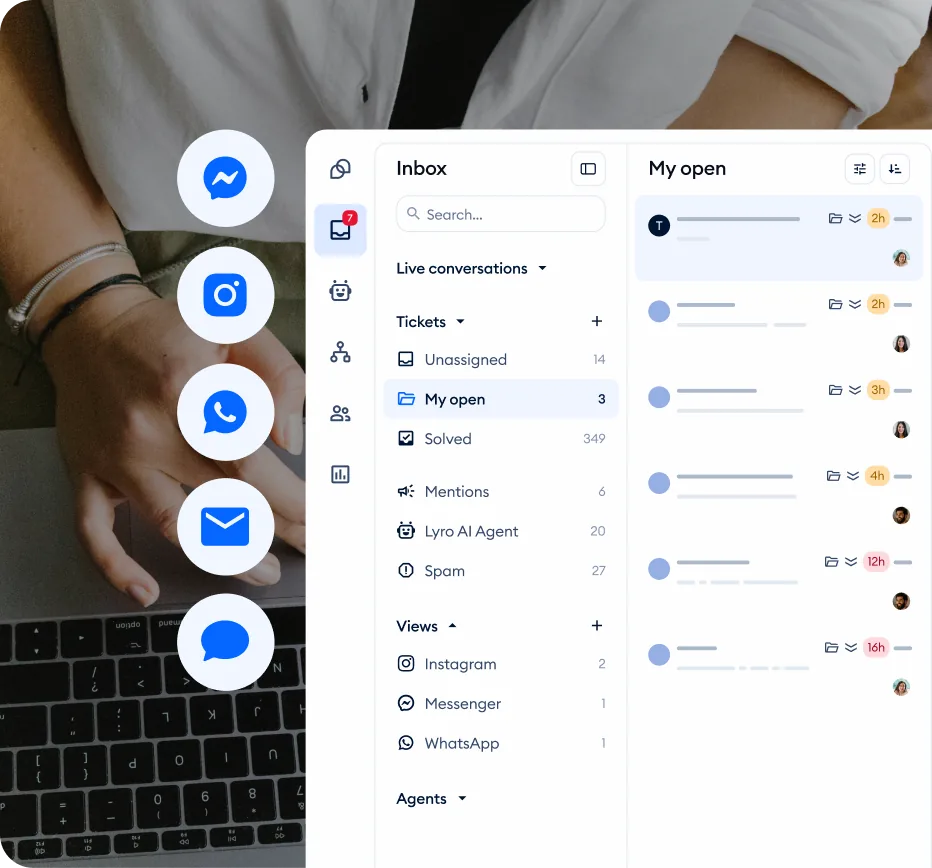
Prerequisites
Before building these templates, confirm the following are in place.
An active Tidio account with Flows access. Flows are available on all Tidio plans - you can build every template here as a Tidio ecommerce chatbot free on the no-cost tier. Each Flow interaction counts as a conversation against your monthly limit (50 on Free, 100 on Starter, 250 on Growth), so as volume grows check the Tidio pricing page against expected conversations. If you have not created your account yet, start with the Getting Started with Tidio guide.
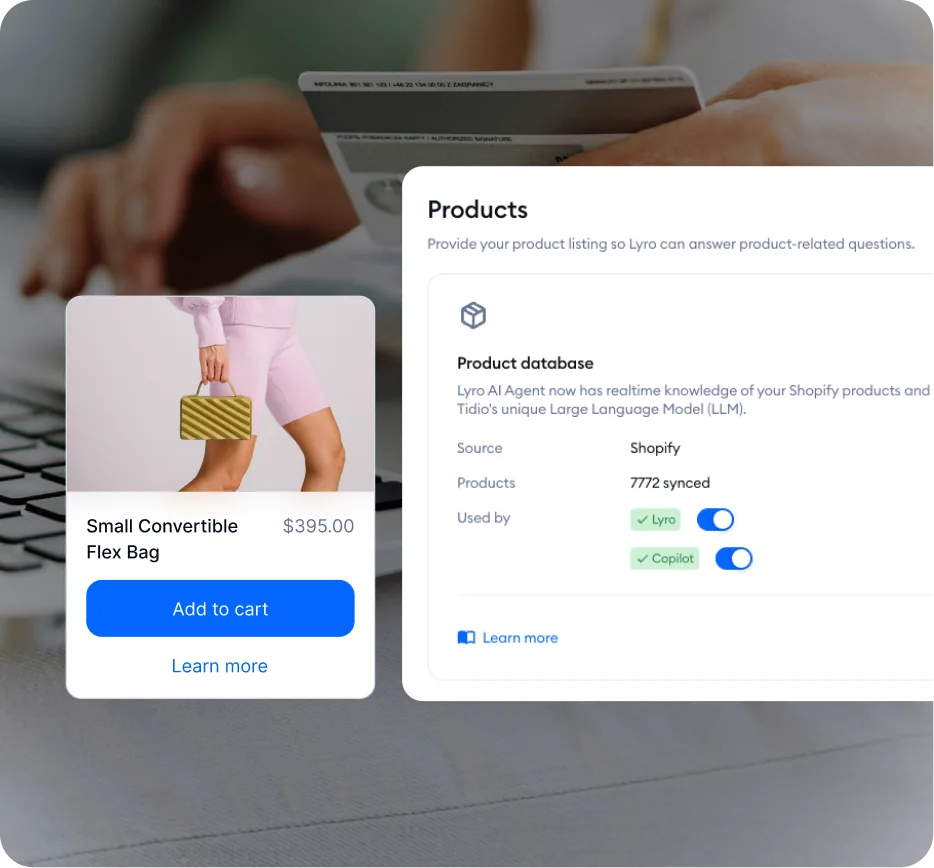
An ecommerce platform integration. Several of these templates reference product data, order information, or customer properties. If you run a Shopify store, follow the Tidio Shopify Integration Guide to connect your store. WooCommerce users can follow the Tidio WooCommerce Setup Guide. The product recommendation and order status templates work best with a connected store, though you can adapt the messaging for manual setups - see the Tidio pricing tiers for which plans include the API integrations these templates use.
Familiarity with the Flows builder. You should know how to add trigger nodes, condition nodes, action nodes, and message nodes. The Flows Automation Guide covers all of this in detail. If you also plan to layer human agents on top, the Tidio Copilot agent assist guide shows how AI suggestions complement structured Flows.
Your product catalog and FAQ content ready. The product quiz template requires knowledge of your product categories and attributes. The FAQ template requires a list of your most common customer questions. Gather these before you start building so you can move through each template without stopping.
Flows vs Lyro for Ecommerce
Tidio offers two automation approaches - rule-based Flows and AI-powered Lyro - and ecommerce stores benefit most from using both strategically.
Flows excel at structured interactions. When you need to collect specific data in a specific order - an email address, a product preference, an order number - Flows guarantee the conversation follows your designed path. Every button, every branch, every outcome is predictable. This makes Flows ideal for lead capture, product quizzes, order lookups, and any scenario where you need structured data collection.
Lyro excels at open-ended conversations. When a customer types “Does this come in blue?” or “What is your return policy for sale items?” - questions you cannot predict in advance - Lyro reads your knowledge base and generates a natural response. It handles the long tail of customer questions that would require hundreds of Flow branches to cover.
The ecommerce sweet spot is combining both. Use a Flow to greet visitors and offer structured options (browse products, track an order, talk to support). When the visitor selects support or asks a freeform question, hand the conversation to Lyro using a Transfer action node. The Flow handles intake and routing, Lyro handles conversation. For product recommendations specifically, see how Lyro’s AI-driven approach compares in the Tidio Lyro Product Recommendations guide.
The five templates below focus on the Flow side - structured, predictable automations where you control every step.
Template 1: Welcome and Product Recommendation Quiz
This Flow greets first-time visitors and walks them through a short quiz to recommend the right product category. It replaces the generic “How can I help you?” with an interactive experience that guides shoppers toward a purchase.
When to use it: Stores with multiple product categories where visitors may not know which product fits their needs. Particularly effective for stores selling skincare, supplements, electronics, clothing, or any catalog where personal preferences drive the purchase decision.
Trigger: First visit on site.
Flow structure:
Step 1: Welcome message. Start with a friendly greeting that sets expectations. Example: “Welcome! I can help you find the right product in under a minute. Want to take a quick quiz?” Offer two buttons: Yes, help me choose and No thanks, just browsing.
Step 2: First qualifying question. If the visitor clicks “Yes,” ask the first category-level question. Tailor this to your store. For a skincare brand: “What is your primary skin concern?” with buttons for Acne, Aging, Dryness, and Sensitivity. For an electronics store: “What are you shopping for?” with buttons like Laptops, Headphones, Cameras, and Accessories.
Step 3: Second qualifying question. Based on the first answer, narrow down further. If the visitor selected “Acne” in a skincare store, ask “What is your skin type?” with buttons for Oily, Combination, Dry, and Not sure. Use condition nodes to branch the conversation based on each combination of answers.
Step 4: Product recommendation. Based on the two answers, present a tailored recommendation. Use a message node with the product name, a brief description, and a button linking to the product page. Example: “Based on your answers, I would recommend our Clarifying Serum - it is formulated for oily, acne-prone skin and our bestseller in that category.” Add a View Product button with the product URL.
Step 5: Follow-up offer. After the recommendation, offer additional help: “Would you like to see more options, or do you have any questions?” with buttons for Show more options, I have a question (routes to Lyro or live agent), and That is all, thanks.
Pro tip: Keep the quiz to two or three questions maximum. Each additional question reduces completion rates by 15-20%. The goal is speed - get visitors to a relevant product before they lose interest. Baymard Institute checkout research shows the same friction-versus-conversion tradeoff applies across the entire ecommerce funnel.
Template 2: Order Status Bot
This Flow lets customers check their order status without waiting for a human agent. It is the single most requested automation for ecommerce stores because order status inquiries make up 30-50% of all support volume.
When to use it: Any store that processes orders and receives regular “Where is my order?” questions. Works best with a connected ecommerce platform that provides order data through the integration.
Trigger: Visitor sends a message (with keyword detection for terms like “order,” “tracking,” “shipment,” “delivery,” “where is my”). For high-volume stores, pair this with the abandoned cart recovery Flow so existing customers and undecided shoppers are both nurtured automatically.
Flow structure:
Step 1: Acknowledge and request order number. “I can help you check your order status. Could you share your order number? It starts with # and you can find it in your confirmation email.”
Step 2: Capture the order number. Use a text input node to collect the visitor’s response. Store the value in a contact property for reference.
Step 3: Condition check. If your ecommerce integration supports order lookup, use an API action to fetch order details. If you are on a platform without direct order API access, route the conversation differently.
For stores with order API access: Display the order status, tracking number (if available), and estimated delivery date. “Your order #12345 shipped on March 20 via USPS. Here is your tracking link: [link]. Estimated delivery is March 25-27.”
For stores without order API access: Collect the order number and email address, then route to a human agent with the context pre-filled. “I have noted your order number. Let me connect you with our support team who can pull up your details. One moment.” Use a Transfer to operator action with the order number included in the conversation notes.
Step 4: Follow-up. After providing the status, ask: “Is there anything else I can help with?” with buttons for Report an issue with this order, Track another order, and That is all, thanks.
Pro tip: Add a condition node that checks the day and time. During business hours, offer the option to speak with a live agent immediately. After hours, collect the information and set expectations: “Our team will follow up by email within one business day.”
Tidio Ecommerce Chatbot Template 3: FAQ Automation
This Flow handles the five to ten most common questions your store receives, deflecting them from your support queue entirely. Unlike Lyro’s open-ended FAQ handling, this Flow presents questions as clickable buttons - making it easy for visitors to find answers without typing.
When to use it: Every ecommerce store should have this Flow. It catches the repetitive questions that consume the most agent time: shipping costs, return policies, payment methods, sizing information, and delivery timeframes.
Trigger: Visitor clicks the chat widget (or use “Visitor opens a specific page” for FAQ/help pages).
Flow structure:
Step 1: Welcome with topic selection. “Hi there! I can answer common questions instantly. What would you like to know about?” Present buttons for your top FAQ categories:
- Shipping and Delivery
- Returns and Refunds
- Payment Methods
- Sizing and Fit
- Something else
Step 2: Category-specific answers. Each button leads to a message node with the answer. For Shipping: “We offer free standard shipping on orders over $50. Standard delivery takes 3-5 business days. Express shipping ($12.99) delivers in 1-2 business days. International shipping is available to 30+ countries - rates calculated at checkout.”
Step 3: Follow-up within category. After each answer, offer related sub-questions. After the shipping answer, show buttons for Do you ship internationally?, Can I change my shipping address?, and Back to main menu. This creates a self-service knowledge tree that visitors can navigate without ever typing.
Step 4: Escalation path. The “Something else” button and any dead-end paths should offer a transfer to a human agent or to Lyro. “I could not find what you are looking for. Would you like to chat with our team?” with buttons for Chat with support and No, I found my answer.
Pro tip: Review your support ticket history to identify the actual top questions. Do not guess - use data. The five questions you think are most common are often different from the five questions your customers actually ask most frequently. Tidio’s analytics dashboard can help you identify conversation patterns, and pairing it with CSAT tracking tells you which answers actually satisfied customers.
Template 4: Lead Capture for Email List
This Flow captures email addresses from visitors who are not ready to purchase but are interested enough to stay connected. It exchanges a discount code or early access for contact information - a standard ecommerce lead generation tactic that works because it offers immediate value.
When to use it: Stores that run email marketing campaigns and want to grow their subscriber list. Particularly effective when paired with a welcome discount for first-time buyers.
Trigger: Visitor has been on site for 30 seconds (use the time-on-page trigger to avoid capturing visitors who bounce immediately).
Flow structure:
Step 1: Value proposition. “Welcome! Would you like 10% off your first order? I just need your email address.” Offer two buttons: Yes, get my discount and No thanks.
Step 2: Capture email. If they click yes, use a text input node to collect the email address. Apply email validation if available to ensure you capture a valid address.
Step 3: Optional - capture name. “Great! And your first name so I can personalize your emails?” This step is optional but improves email marketing personalization. Some stores skip it to reduce friction.
Step 4: Deliver the code. Display the discount code immediately in the chat: “Here is your code: WELCOME10. It is valid for 30 days on any order over $25. Happy shopping!” Include a button linking to your best-selling products page.
Step 5: Tag the contact. Use an action node to add a tag like “welcome-discount” or “email-subscriber” to the contact record. This tag integrates with your email marketing platform and prevents the Flow from triggering again for the same visitor.
Step 6: Suppression logic. Add a condition node at the beginning of the Flow that checks whether the contact already has the “email-subscriber” tag. If they do, skip the Flow entirely. Returning customers should not see the same lead capture popup on every visit.
Pro tip: Test different value propositions. Some audiences respond better to free shipping than percentage discounts. Others prefer early access to new products or exclusive content. Run each version for two weeks and compare capture rates - the same testing discipline used in client onboarding automation workflows.
Template 5: Shipping Inquiry Handler
This Flow addresses the specific universe of shipping-related questions that go beyond what the FAQ template covers. While the FAQ provides static answers, this Flow uses conditional logic to give personalized shipping information based on the visitor’s location and order details.
When to use it: Stores that ship to multiple regions with different rates, carriers, and delivery timeframes. Especially useful for international ecommerce stores where shipping complexity is a major source of support tickets.
Trigger: Visitor sends a message (with keyword detection for “shipping,” “delivery,” “ship to,” “how long,” “shipping cost”).
Flow structure:
Step 1: Identify the inquiry type. “I can help with shipping questions! What would you like to know?” Present buttons:
- Shipping rates and costs
- Delivery timeframes
- Track an existing order
- International shipping
- Shipping policy and restrictions
Step 2: Location-based routing (for rates and timeframes). If the visitor selects shipping rates or delivery timeframes, ask for their location: “Where are you located?” with buttons for your primary shipping regions - United States, Canada, Europe, Australia, and Other.
Step 3: Region-specific information. Each location button leads to a message with the relevant shipping details. For United States: “US shipping options: Free standard (5-7 days) on orders over $50. Standard ($5.99, 5-7 days). Express ($14.99, 2-3 days). Overnight ($24.99, next business day).” For international regions, include customs and duty information where applicable.
Step 4: Track existing order redirect. If the visitor selects “Track an existing order,” redirect them into the Order Status Bot Flow using a redirect action. This avoids duplicating the order lookup logic across multiple Flows.
Step 5: Policy information. For the shipping policy option, provide a summary and link to the full policy page: “We ship to 35+ countries. Hazardous materials and oversized items have restrictions. View our complete shipping policy here: [link to shipping policy page].”
Step 6: Escalation. End each branch with: “Did that answer your question?” with buttons for Yes, thanks and I need more help. The “need more help” button transfers to a live agent or Lyro with the shipping context preserved.
Pro tip: Update shipping timeframes seasonally. Holiday periods, carrier delays, and promotional events all affect delivery estimates. Set a quarterly reminder to review and update the message content in this Flow so customers receive accurate information. The same review cadence applies to your Lyro knowledge base where outdated shipping content silently degrades AI accuracy.
Combining Flows with Lyro
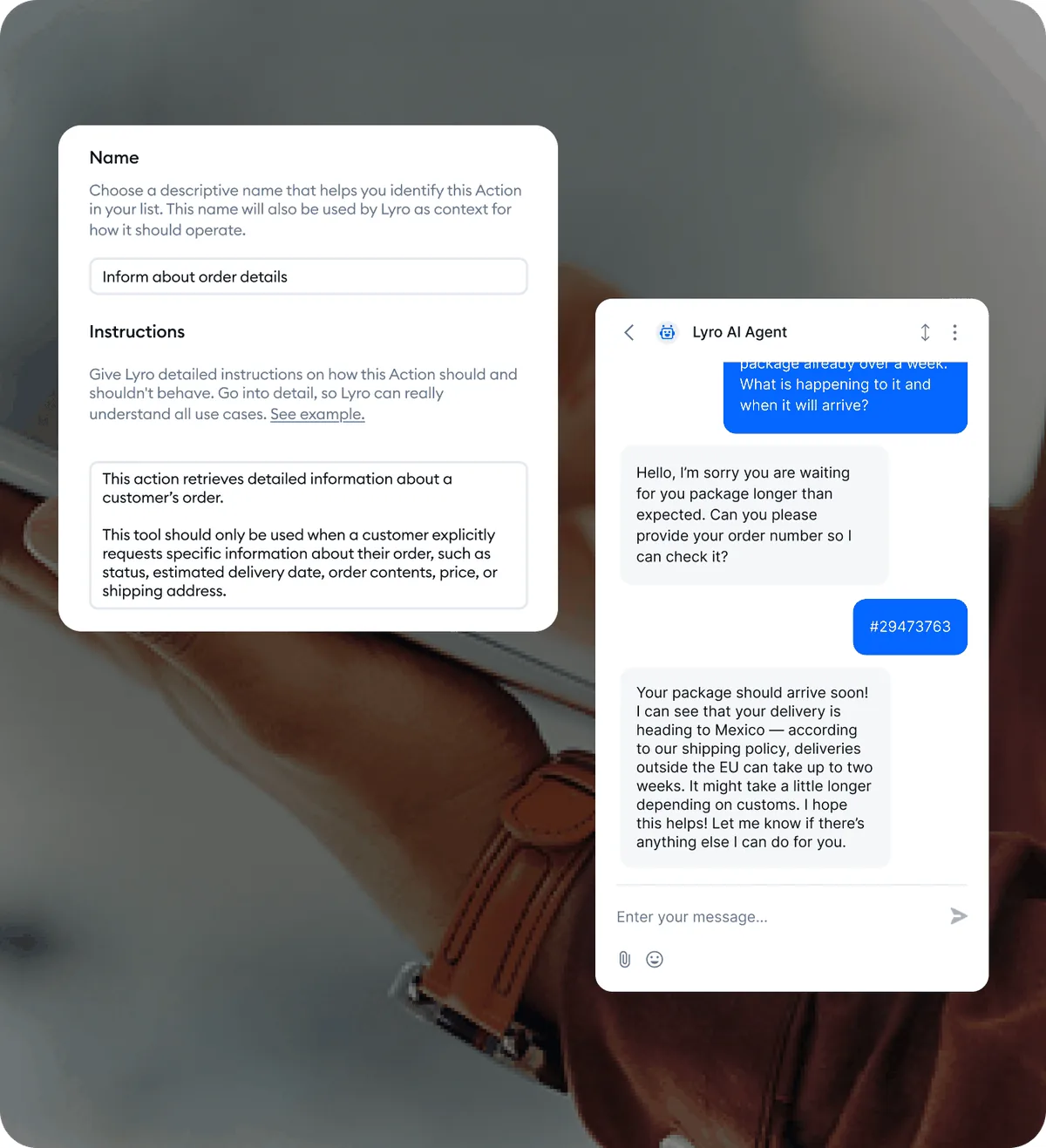
The five templates above handle structured, predictable interactions. But ecommerce customer conversations are not always predictable - visitors ask questions in their own words, reference specific products, or describe problems that do not fit neatly into button menus. This is where combining Flows with Lyro produces the best results.
Strategy 1: Flow for intake, Lyro for conversation. Use your Welcome Flow to greet visitors and identify their intent. When they select “I have a question” or type a freeform message, transfer the conversation to Lyro. The Flow captures the initial context (what category they are interested in, whether they are a new or returning customer), and Lyro handles the actual conversation with access to your knowledge base.
Strategy 2: Lyro as a fallback. In every Flow template, the “Something else” or “I need more help” paths should transfer to Lyro rather than immediately escalating to a human agent. Lyro can often resolve questions that fall outside your Flow’s button options, reducing the load on your support team. Only if Lyro cannot resolve the question does it escalate to a human operator.
Strategy 3: Lyro for product recommendations, Flows for everything else. The product quiz Flow above uses static button-based recommendations. For stores with large catalogs where building every product path is impractical, let Lyro handle product recommendations conversationally using its product recommendation capabilities. Use Flows for order status, FAQ, lead capture, and shipping - the structured interactions where predictability matters.
Implementation: In any Flow, add a Transfer to Lyro action node where you want to hand off. The visitor experiences a seamless transition - they stay in the same chat window, and Lyro picks up the conversation with full context of what happened in the Flow. The handoff also kicks in for Lyro Tasks and Actions when an action node needs to write data back to your store.
Measuring ROI
Building Flows is only half the work. Measuring their impact tells you which templates are earning their keep and which need refinement.
Key Metrics for Each Template
Welcome and Product Quiz: Track quiz completion rate (target: 40-60%), click-through rate on product recommendations, and conversion rate for visitors who completed the quiz vs those who did not. A well-built quiz should lift conversion rates by 15-25% for engaged visitors - similar lifts seen across Lyro product recommendations when paired with quiz-based intake.
Order Status Bot: Measure deflection rate - the percentage of order status inquiries resolved without human intervention. A good target is 70-80% full automation. Track the remaining 20-30% to understand what questions the bot cannot handle and refine accordingly.
FAQ Automation: Track which FAQ topics get the most clicks and which lead to escalation. If “Returns and Refunds” consistently escalates to a human, your FAQ answer might be missing critical information. High-performing FAQ Flows resolve 60-75% of inquiries without escalation.
Lead Capture: Monitor capture rate (email submissions divided by Flow triggers), discount code redemption rate, and the revenue generated by subscribers over 30 and 90 days. A healthy capture rate for a 10% discount offer is 8-15%.
Shipping Inquiries: Track resolution rate and identify which shipping regions generate the most questions. If 40% of shipping inquiries come from international customers, your international shipping information might need to be more prominent on your website.
Accessing Analytics
Navigate to the Tidio Analytics Dashboard to review Flow performance data. Key reports include conversation volume by Flow, completion rates, drop-off points, and customer satisfaction scores. Review these metrics weekly for the first month after launching a new Flow, then monthly once performance stabilizes. Shopify ecommerce statistics show that even small conversion-rate improvements compound substantially over a year.
Optimization Cycle
Follow a four-week optimization cycle for each Flow. Week 1: Launch and monitor. Week 2: Identify the highest drop-off point and revise the messaging or branching at that node. Week 3: Test the revision and compare metrics. Week 4: Lock in the winning version and move to the next highest drop-off point. Continuous small improvements compound - a 5% improvement each month results in a significantly better-performing Flow within a quarter. Stores running multichannel support should run this cycle independently per channel.
Frequently Asked Questions
How many Flows can I run simultaneously for my ecommerce store?
There is no limit to the number of active Flows in your Tidio account. You can run all five templates from this guide at the same time because each uses a different trigger condition. The only practical limit is your monthly conversation count - each Flow interaction counts as one conversation against your plan’s allocation (50 on Free, 100 on Starter, 250 on Growth). For stores with higher traffic, the Plus plan at $749 per month offers 5,000 conversations.
Will these Flows work on Shopify, WooCommerce, and other platforms?
The Flow templates work on any website with Tidio installed. The messaging, branching, and button logic are platform-independent. The Order Status Bot template works best with a connected ecommerce platform because it can access order data through the integration. On platforms without a direct integration, the bot collects the order number and routes to a human agent instead of performing an automated lookup.
Can I customize the message copy in these templates?
Yes - and you should. The message examples in this guide are starting points. Replace the placeholder text with your actual product names, shipping rates, policies, and brand voice. Generic copy feels generic to customers. Flows that use your brand’s tone and reference real products and policies convert better than templates used verbatim.
Do I need a paid plan to build all five templates?
No. The Flows builder is available on every Tidio plan, including the free tier. The free plan limits you to 50 conversations per month, which is enough to test and refine your Flows with moderate traffic. If your Flows generate more than 50 conversations monthly - which is a sign they are working - upgrade to the Starter plan at $29 per month for 100 conversations. Check the pricing page for current plan details.
How do I prevent the same visitor from seeing multiple Flows at once?
Tidio handles this automatically. When a Flow triggers, it takes priority and other Flows pause for that visitor. You can also control priority by adjusting trigger conditions - for example, making the lead capture Flow trigger only after 30 seconds (giving the welcome Flow time to fire first). Use the contact tagging strategy described in Template 4 to suppress Flows for visitors who have already completed them.
Can these Flows hand off to Lyro mid-conversation?
Yes. Every Flow can include a “Transfer to Lyro” action node at any point. The most common pattern is to add Lyro as a fallback when visitors select “Something else” or “I need more help” in a Flow. Lyro receives the full conversation context and continues seamlessly. This requires an active Lyro configuration - see the Tidio Lyro AI Setup Guide to get Lyro running, or the Tidio platform review for an overview of how Flows and Lyro complement each other.
Want to learn more about Tidio?
Related Guides
- Getting Started with Tidio - Account creation, widget installation, and initial configuration
- Tidio Flows Automation Guide - Complete visual builder walkthrough covering triggers, conditions, and actions
- Tidio Abandoned Cart Recovery - Recover lost sales with automated cart abandonment Flows
- Tidio Lyro Product Recommendations - AI-driven product suggestions for conversational selling
- Tidio Ecommerce Support Strategies - Strategic framework for scaling support automation as order volume grows
Related Reading
- Best Live Chat Software 2026 - Compare Tidio with other live chat platforms
- Best Customer Support Software 2026 - Wider help desk and support tooling roundup
- AI Chatbot Customer Service - Practical patterns and pitfalls for support chatbots
External Resources
- Tidio Help Center - Official product documentation and feature reference
- Tidio Blog: Chatbot Flow Strategy - Vendor guidance on building effective Flows
- Tidio Pricing Plans - Compare Free, Starter, Growth, Plus, and Premium tiers
- Tidio AI Agent Features - Full overview of Lyro AI capabilities for ecommerce automation
Related Guides
- AI Chatbots Customer Service Setup: Complete 2026 Guide
- AI Customer Service Automation: Chatbots vs Agentic AI
- Tidio Abandoned Cart Recovery: Automation Workflows
- Tidio Analytics Dashboard: 2026 Walkthrough for Teams
- Tidio Canned Responses and Macros for Faster Support
- Tidio Copilot Agent Assist: AI-Powered Agent Assist Guide
- Tidio CSAT Tracking: CSAT Tracking and Improvement
- Tidio Ecommerce Support Automation: Automation Best
- Tidio Flows Automation: Visual Automation Builder Guide
- Tidio Getting Started Guide - Full Setup in 20 Minutes