
Tidio copilot agent assist is a feature that turns your AI into a real-time partner for human support agents during live conversations. Instead of replacing your team, Copilot analyzes incoming messages, pulls relevant answers from your knowledge base, and suggests ready-to-send replies agents can accept, edit, or dismiss with a single click.
Tidio Copilot agent assist is the feature that turns your AI from a standalone chatbot into a real-time partner for your human support agents. Instead of replacing your team, Copilot sits alongside them during live conversations - analyzing incoming messages, pulling relevant answers from your knowledge base, and suggesting ready-to-send replies that agents can accept, edit, or dismiss with a single click. The result is faster response times, more consistent answers, and agents who spend less time searching for information and more time solving problems.
Most businesses start their AI journey with fully automated chatbots like Lyro, and that works well for straightforward FAQ-style questions. But complex conversations - billing disputes, multi-step troubleshooting, nuanced product questions - still need a human touch. Copilot bridges that gap by giving agents AI-powered suggestions without taking control away from them. Think of it as autocomplete for customer support, trained on your specific business knowledge.
This Tidio copilot agent assist tutorial covers everything from enabling the feature for the first time to configuring knowledge sources, using the Chrome extension, and measuring the impact on your team’s performance. If you have a workspace ready - or still need to sign up for Tidio - live chat and Lyro can be running quickly, and adding Copilot is a natural next step.
When to Use Copilot vs. Lyro
Before setting up Copilot, it helps to understand where it fits in the broader Tidio AI ecosystem - because Copilot and Lyro serve different purposes, and most teams benefit from running both.
Lyro handles conversations independently. When a customer sends a message and Lyro is active, the AI reads the question, searches your knowledge base, and responds on its own without any human involvement. This works best for repetitive questions with clear, documented answers - shipping times, return policies, pricing tier differences. See the Lyro AI Setup Guide for the full configuration walkthrough, and the Lyro product page for the latest feature matrix.
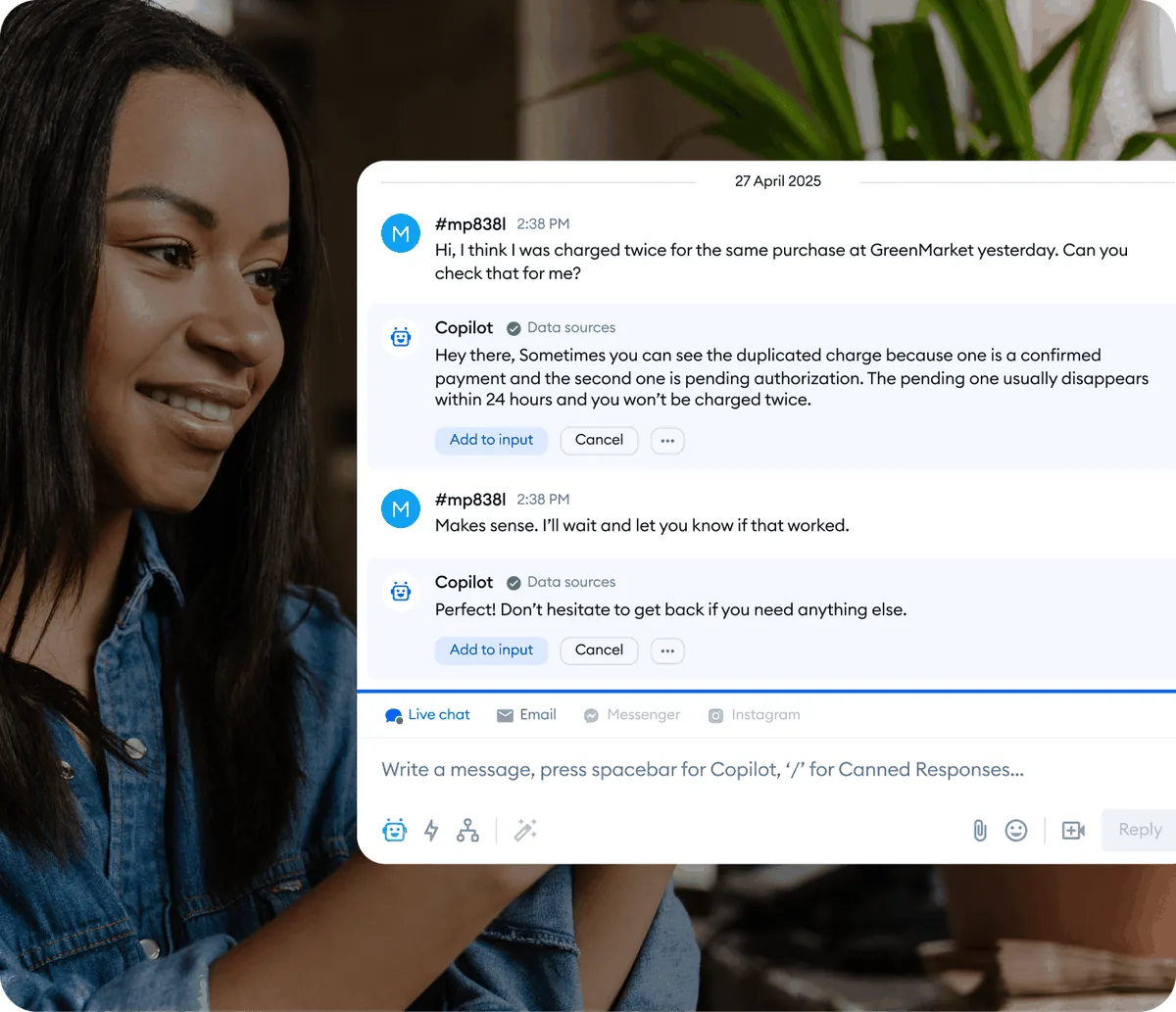
Copilot assists human agents in real time. When a conversation is being handled by a live agent, Copilot analyzes each incoming customer message and suggests a reply based on your knowledge base. The agent sees the suggestion in their chat panel, reviews it, and decides whether to send it as-is, modify it, or write their own response. The customer never knows AI was involved - they see only the agent’s final message. The same pattern shows up across AI customer service automation implementations on other platforms.
When to use each:
- Lyro alone - High-volume, repetitive inquiries where automation saves the most time. FAQ-heavy businesses with well-documented answers.
- Copilot alone - Teams that want to keep human agents on every conversation but need faster access to information. Businesses with complex products where AI-only responses are too risky.
- Both together - The most common setup. Lyro handles the straightforward questions automatically, and Copilot assists agents on the conversations that Lyro escalates. This gives you automation where it is safe and AI assistance where humans need to stay in control.
Tidio Copilot Agent Assist Prerequisites
Before enabling Copilot, confirm you have the following in place.
An active Tidio account with live chat configured. Copilot is a feature within the Tidio platform, not a standalone product. Your chat widget should already be installed on your website and your agents should be set up with individual accounts. If you have not done this yet, complete the Getting Started with Tidio guide first - or sign up directly through Tidio if you have not yet created an account. The vendor’s pricing page lists which tiers include Copilot.
A populated knowledge base. Copilot generates its suggestions from the same knowledge base that Lyro uses. If your knowledge base is empty, Copilot has nothing to work with. You need FAQ entries, product documentation, help center content, or manually created Q&A pairs already loaded into the system. The Lyro Knowledge Base Guide covers all the methods for adding content.
A plan that includes Copilot access. Copilot is available on Tidio’s paid plans. The Tidio+ plan includes Copilot along with advanced analytics and custom integrations. The Premium plan at $749 per month includes unlimited Copilot usage alongside unlimited Lyro conversations. Check the pricing page for the latest tier breakdown.
At least one active agent. Copilot assists human agents - it needs someone to assist. Make sure your team members have their Tidio agent accounts set up and are actively handling conversations - the Tidio team management guide covers role configuration if you have not added agents yet.
How Do You Enable Tidio Copilot?
Activating Copilot takes just a few steps in the Tidio dashboard.
Step 1: Navigate to the Copilot settings. Log into your Tidio dashboard at app.tidio.com. In the left sidebar, look for the Lyro AI section. Within the Lyro panel, you will find the Copilot configuration options. Copilot shares the Lyro AI infrastructure - they use the same knowledge base and the same underlying AI model.
Step 2: Toggle Copilot on. Enable the Copilot feature using the activation toggle. Once enabled, Copilot begins analyzing incoming messages in conversations that your human agents are handling.
Step 3: Select which agents receive Copilot assistance. You can enable Copilot for all agents or select specific team members. If you are rolling Copilot out gradually, start with a few agents to gather feedback before enabling it team-wide. New agents or team members who are still learning your product often benefit the most from AI-assisted suggestions.
Step 4: Configure suggestion behavior. The same approach works whether you use the chat widget on your own site or Tidio’s WordPress integration. Choose how Copilot presents suggestions to agents:
- Automatic suggestions - Copilot generates a reply suggestion for every incoming customer message. The agent sees it immediately and can act on it or ignore it.
- On-demand suggestions - Agents click a button to request a suggestion from Copilot when they want help. This is less intrusive and gives agents more control over when they use AI assistance.
For most teams, automatic suggestions are the better starting point. Agents quickly learn to glance at the suggestion and either use it or type their own response. The overhead of seeing an unused suggestion is minimal compared to the time saved when the suggestion is exactly right.
How Do You Configure Copilot Knowledge Sources?
Copilot is only as good as the knowledge it draws from. If you have already configured a knowledge base for Lyro, Copilot uses that same content automatically - no duplicate setup required.
If you have not built your knowledge base yet, or you want to expand it specifically for Copilot use cases, here is what to focus on.

Prioritize Agent-Specific Content
Lyro’s knowledge base is usually built around customer-facing FAQ content. Copilot benefits from the same content, but you should also add material that agents need during complex conversations.
Troubleshooting guides. Step-by-step resolution procedures for common technical issues. When a customer reports a problem, Copilot can suggest the exact troubleshooting steps your agents would otherwise need to look up in an internal wiki - especially valuable for ecommerce sellers handling product-specific issues at volume.
Escalation criteria. Document when and how agents should escalate conversations - to a senior agent, to a specific department, or to a manager. Copilot can remind agents of escalation paths by including this information in its suggestions.
Product comparison details. If customers frequently ask how your product differs from competitors or how your tiers compare, add detailed comparison content. Copilot can then suggest accurate, on-brand responses to comparison questions that agents might otherwise struggle to answer from memory. The Tidio Lyro Playground is a quick way to test that suggestions actually reflect your latest knowledge base entries.
Policy edge cases. Your standard FAQ might cover “We offer 30-day returns,” but Copilot-assisted agents need to know about exceptions - opened software, customized items, sale products. Add the edge cases that come up in real conversations.
Keep Knowledge Current
Navigate to Lyro AI > Knowledge regularly to review and update your content. Outdated information in the knowledge base means Copilot will suggest outdated answers to your agents. Set a recurring monthly reminder to audit entries for:
- Price changes or plan restructuring
- New product launches or feature updates
- Policy modifications (shipping, returns, warranties)
- Seasonal content that may need updating or removal
Using Copilot During Conversations
Once Copilot is enabled, here is what the day-to-day experience looks like for your agents.
The Suggestion Panel
When a customer sends a message, Copilot analyzes it and displays a suggested reply in the agent’s chat interface. The suggestion appears in a distinct panel - visually separated from the conversation thread so agents can clearly distinguish between what the customer said and what Copilot recommends.
Accepting a suggestion. If the suggestion is accurate and complete, the agent clicks the accept button (or uses a keyboard shortcut) to insert the text directly into the reply field. From there, they can send it immediately or make quick edits before sending.
Editing a suggestion. Agents can click into the suggestion text, modify specific details - adding a customer’s name, adjusting a number, or rephrasing a sentence - and then send the edited version. This is the most common workflow: Copilot provides the factual foundation and the agent adds the personal touch.
Dismissing a suggestion. If the suggestion is irrelevant or the agent prefers to write their own response, they dismiss it. Copilot does not force agents to use its suggestions, and dismissing a suggestion does not affect future suggestions.
The Chrome Extension
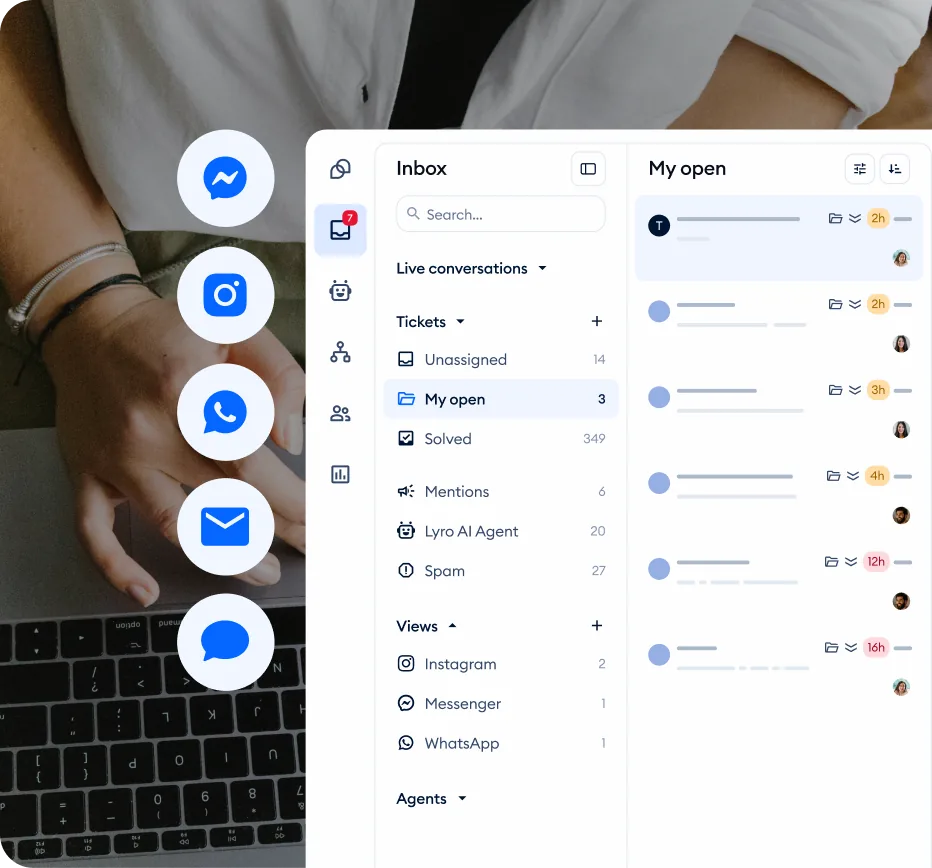
Tidio offers a Chrome extension that brings Copilot functionality outside the main Tidio dashboard. If your agents work across multiple tools - switching between your CRM, email, and the Tidio dashboard - the Chrome extension keeps Copilot suggestions accessible without constantly switching tabs. The same multi-tool reality is why Salesforce’s State of Service report highlights tool sprawl as one of the top productivity challenges in support orgs.
Installation. Search for “Tidio” in the Chrome Web Store and install the official extension. Sign in with your Tidio agent credentials. The extension icon appears in your browser toolbar.
Desktop notifications. The extension alerts agents to new conversations and incoming messages even when the Tidio tab is not active. Click a notification to jump directly to that conversation with the Copilot suggestion already visible.
Quick reply from notification. For simple conversations, agents can view the Copilot suggestion and send a response directly from the notification panel without opening the full Tidio dashboard.
Multi-Conversation Handling
Copilot generates suggestions independently for each active conversation. An agent handling five simultaneous chats gets five separate suggestion streams, each tailored to that specific customer’s questions and conversation history. This is where Copilot delivers the most value - agents who handle high volumes of concurrent conversations can respond faster without sacrificing accuracy, because they do not have to mentally switch contexts between knowledge base lookups for each customer. Pair this with structured Tidio Flows so simple inquiries get auto-routed before they reach an agent.
Advanced Settings
Beyond basic enablement, several configuration options let you fine-tune how Copilot operates.
Suggestion Confidence Threshold
Copilot assigns an internal confidence score to each suggestion based on how well the customer’s question matches available knowledge base content. You can adjust the confidence threshold to control when suggestions appear:
- Lower threshold - Copilot suggests replies more often, even when the match is not perfect. Agents see more suggestions but may need to edit them more frequently.
- Higher threshold - Copilot only suggests replies when it has a strong knowledge base match. Agents see fewer suggestions, but those suggestions are more likely to be accurate and ready to send.
Start with the default threshold and adjust based on agent feedback. If agents report that suggestions are frequently irrelevant, raise the threshold. If they wish Copilot would help more often, lower it.
Guidance Rules for Copilot
The same guidance rules that control Lyro’s behavior also apply to Copilot’s suggestions. If you have rules like “never quote specific prices” or “redirect competitor questions to our comparison page,” Copilot follows those rules when generating agent suggestions.
You can add Copilot-specific guidance rules in Lyro AI > Guidance. Examples of useful Copilot-specific rules:
- “When suggesting responses about account cancellation, always include a retention offer or discount code.”
- “Include the customer’s first name in suggested greetings when available.”
- “For technical support questions, structure suggestions with numbered troubleshooting steps.”
Integration with Lyro Handoffs
When Lyro handles a conversation autonomously and then transfers it to a human agent (because the question exceeded Lyro’s capabilities), Copilot immediately activates for the receiving agent. The agent gets the full conversation history - everything the customer said plus Lyro’s responses - along with a Copilot suggestion tailored to the specific question that triggered the handoff. This creates a seamless transition where the agent does not start from scratch.
Measuring Impact
Tracking Copilot’s effectiveness helps you justify the investment and identify areas for improvement.
Key Metrics
Suggestion acceptance rate. The percentage of Copilot suggestions that agents accept (with or without edits). A healthy acceptance rate is 60% or higher. Below 40% suggests your knowledge base needs improvement or your confidence threshold needs adjustment.
Average response time. Compare agent response times before and after enabling Copilot. Most teams see a 30-50% reduction in average response time because agents spend less time looking up information. Track this metric weekly for the first month after rollout - the Tidio analytics dashboard breaks it down by agent and topic.
First response time. How quickly agents send their first reply to a new conversation. Copilot typically has the biggest impact here - the first response is often the hardest because agents need to understand the customer’s question and find relevant information. With Copilot, the suggested first reply is ready within seconds.
CSAT scores. Monitor customer satisfaction scores for conversations where Copilot assisted versus conversations handled without Copilot. Faster, more accurate responses generally correlate with higher CSAT, but track this to confirm. HubSpot’s customer service benchmark research consistently shows speed and accuracy as the top two satisfaction drivers.
Conversations per agent per hour. With faster response times and less manual information lookup, agents can handle more concurrent conversations. This metric shows the productivity impact at the team level - and is the figure most likely to justify expanding to a higher Tidio tier on the pricing page.
Reporting to Stakeholders
When presenting Copilot’s value to management, focus on three numbers: time saved per agent per day, improvement in customer satisfaction, and the cost comparison between Copilot-assisted support versus hiring additional agents. The Tidio analytics dashboard provides most of these data points directly. Industry research on CX trends consistently shows that response speed and consistency are the two strongest CSAT drivers - both of which Copilot directly improves.
Pro Tips
Start with your highest-volume conversation topics. Before enabling Copilot, review your knowledge base to make sure your top 20 most common customer questions have thorough, well-written answers. These are the questions Copilot will assist with most frequently, so their quality has an outsized impact on the acceptance rate.
Encourage agents to edit, not dismiss. When agents receive a suggestion that is close but not perfect, editing it is almost always faster than writing from scratch. Set this expectation during onboarding. Some teams set an informal target - “try to use at least part of the Copilot suggestion before dismissing it entirely.” The same coaching approach applies to ticketing workflows where consistency across agents matters most.
Use Copilot suggestions to train new agents. New hires can learn your company’s communication style, product knowledge, and support processes by studying the suggestions Copilot provides. Even when new agents do not use the suggestion verbatim, reading it teaches them how experienced agents would handle that question.
Review dismissed suggestions weekly. Copilot tracks which suggestions agents dismiss. Reviewing these patterns reveals knowledge base gaps (questions where Copilot could not generate a useful suggestion) and style mismatches (suggestions that were factually correct but did not match your team’s voice). Both are actionable - add missing content or update guidance rules accordingly.
Combine Copilot with canned responses. For situations where you need agents to use exact phrasing - legal disclaimers, compliance statements, specific promotion terms - use Tidio’s canned responses instead of relying on Copilot. Copilot paraphrases from your knowledge base, so critical exact-wording scenarios are better handled with pre-written templates. Heavy users of Lyro AI often use Copilot as the human-side companion to that automation.
Frequently Asked Questions
Does Copilot work when Lyro is also enabled?
Yes, and this is the recommended setup. Lyro handles conversations it can resolve independently - typically straightforward FAQ questions. When Lyro encounters a question it cannot answer confidently, it transfers the conversation to a human agent. At that point, Copilot activates and provides the agent with a suggested response based on the same knowledge base. The two features complement each other rather than competing, and most teams running both report a meaningful drop in average handle time within the first month.
Can agents turn off Copilot suggestions for themselves?
Individual agents can toggle Copilot on or off in their personal settings. If an experienced agent finds the suggestions distracting or unnecessary, they can disable them without affecting other team members. Managers can also control which agents have access to Copilot from the admin settings, which is useful when rolling out the feature gradually to gather feedback before enabling it team-wide.
Does Copilot learn from agent edits over time?
Copilot does not automatically retrain based on how agents modify its suggestions. However, the patterns of acceptance and dismissal help you identify where your knowledge base needs improvement. When you update the knowledge base with better content, Copilot’s suggestions improve immediately - no retraining delay. Treat this as a continuous improvement loop: review dismissed suggestions weekly and feed the patterns back into your source content.
What languages does Copilot support?
Copilot supports the same languages as Lyro. It detects the language of the customer’s message and generates suggestions in that language, drawing from your knowledge base content. You do not need separate knowledge bases for each language. For a deeper dive into multilingual configuration, see the Lyro Multilingual Guide.
Is there a limit to how many Copilot suggestions agents can receive?
There is no per-suggestion limit. Copilot generates a suggestion for every incoming customer message in conversations handled by agents (when set to automatic mode). Usage is tied to your Tidio plan - the Tidio+ and Premium plans include Copilot as part of the subscription rather than charging per suggestion. Check the Tidio pricing page for the latest tier-by-tier breakdown.
Does Copilot work on mobile?
Copilot suggestions are available in the Tidio mobile app, though the experience is optimized for desktop use. On mobile, agents see the suggestion and can tap to insert it into their reply. The Chrome extension is desktop-only, but the in-app Copilot works across devices. For the full feature breakdown of how Copilot fits into the rest of the platform, see the Tidio platform review.
Want to learn more about Tidio?
Related Guides
- Getting Started with Tidio - Account creation, widget installation, and initial configuration
- Tidio Lyro AI Setup Guide - Full Lyro configuration for automated AI conversations
- Tidio Lyro Knowledge Base Guide - Adding and managing the content that powers both Lyro and Copilot
- Tidio Lyro Tone Customization - Adjusting the AI voice for your brand
Related Reading
- Best Live Chat Software 2026 - Compare Tidio with other live chat platforms
- Best Customer Support Software 2026 - Wider help desk and support tooling roundup
- AI Customer Service Automation - Strategy for blending humans and AI in support workflows
External Resources
- Tidio Help Center - Official product documentation and feature reference
- Tidio Lyro AI Overview - Vendor documentation on Lyro and Copilot capabilities
- Tidio Pricing Plans
- Tidio AI Agent Features
Related Guides
- AI Chatbots Customer Service Setup: Complete 2026 Guide
- AI Customer Service Automation: Chatbots vs Agentic AI
- Tidio Abandoned Cart Recovery: Automation Workflows
- Tidio Analytics Dashboard: 2026 Walkthrough for Teams
- Tidio Canned Responses and Macros for Faster Support
- Tidio CSAT Tracking: CSAT Tracking and Improvement
- Tidio Ecommerce Chatbot: Tidio Chatbot Flows for Ecommerce
- Tidio Ecommerce Support Automation: Automation Best
- Tidio Flows Automation: Visual Automation Builder Guide
- Tidio Getting Started Guide - Full Setup in 20 Minutes