
Most ecommerce stores treat customer support and sales as separate channels. Support handles complaints and questions. Marketing handles product discovery and promotions. But customers do not think in departments - when someone asks your live chat “Does this jacket come in blue?” they are one good answer away from adding it to their cart. Tidio Lyro product recommendations turn that support conversation into a revenue opportunity by suggesting relevant products naturally, right inside the chat window.
The numbers back this up. Stores using AI-driven product suggestions in live chat see 10 to 30 percent increases in average order value, because the recommendations arrive at the exact moment a customer is actively engaged and asking questions. Unlike static recommendation widgets that sit passively on product pages, Lyro’s suggestions respond to what the customer is actually talking about - their needs, preferences, and buying context.
This guide walks you through setting up tidio lyro product recommendations from scratch on your Tidio account. You will connect your product catalog, configure recommendation rules for cross-selling and upselling, train Lyro on your product knowledge, build conversation scenarios that trigger the right suggestions, and measure the revenue impact of your setup. The entire process takes about 25 minutes if you have your store integration ready, and you can review the underlying capabilities on the Lyro AI agent page before you begin.
How Tidio Lyro Product Recommendations Work
Before configuring anything, it helps to understand the mechanics behind Lyro’s product recommendation system and what makes it different from traditional recommendation engines.
Conversational context analysis. Traditional recommendation engines rely on browsing history and collaborative filtering - “customers who bought X also bought Y.” Lyro adds a layer by analyzing the actual conversation in real time. When a customer says “I need something waterproof for hiking,” Lyro understands the intent and filters your catalog for relevant matches. This contextual awareness produces recommendations that feel helpful rather than algorithmic.
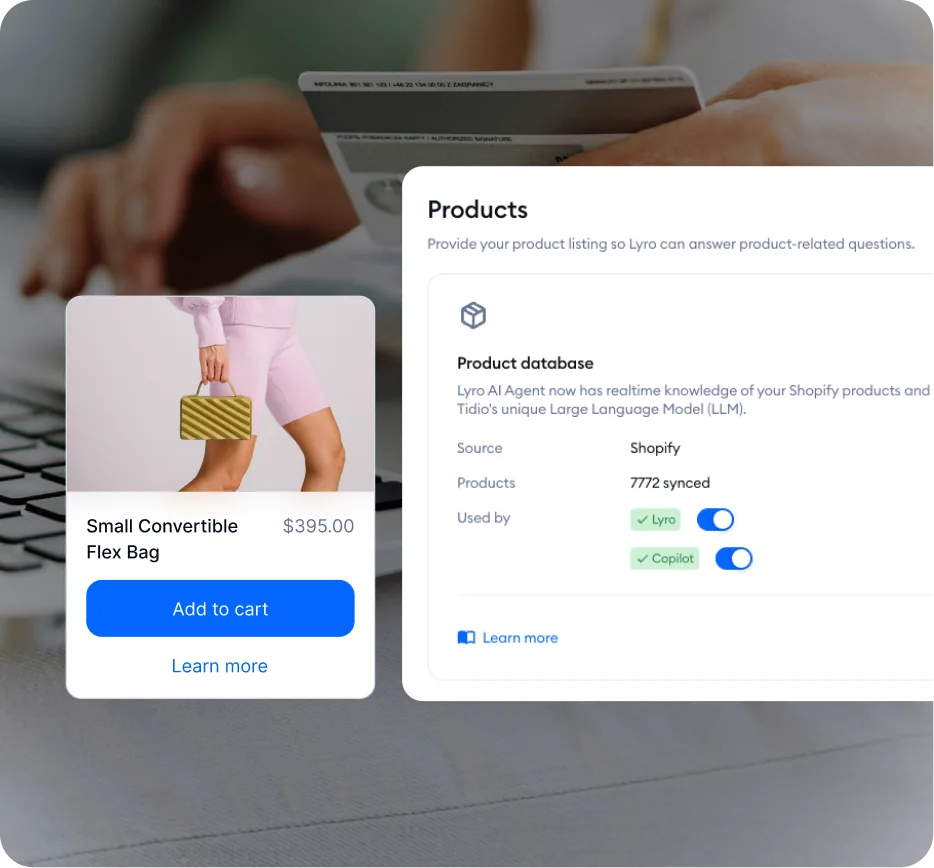
Product catalog sync. Lyro connects directly to your ecommerce platform - Shopify, WooCommerce, or other supported integrations - and pulls in product data including names, descriptions, prices, images, categories, and inventory status. When you update a product in your store, the changes sync automatically.
Natural language suggestions. Lyro weaves product suggestions into natural responses rather than dropping in robotic product cards. Instead of “You might also like,” Lyro says something like “Based on what you described, the Trail Runner Pro would be a great fit - it is waterproof and designed for rocky terrain. Would you like me to share the details?” This feels like talking to a knowledgeable AI sales assistant.
Knowledge base integration. Lyro draws on both your product catalog data and product-specific content in your knowledge base. The catalog provides structured data (pricing, specifications, availability), while the knowledge base provides contextual understanding - why one product suits beginners, which products pair well together, or what distinguishes your premium line from your standard range.

Prerequisites
Before starting the product recommendation setup, make sure you have the following in place.
An active Tidio account with Lyro enabled. Product recommendations are a Lyro AI feature, so you need an active Lyro configuration. If you have not set up Lyro yet, complete the Tidio Lyro AI Setup Guide first and return here once your basic knowledge base and behavior settings are configured.
A connected ecommerce platform. Lyro pulls product data from your store integration. Shopify and WooCommerce are the primary supported platforms. If you are on Shopify and have not connected yet, follow the Tidio + Shopify Integration Guide. Your store needs to be actively connected with product sync enabled. For broader conversion strategy, see our ecommerce conversion optimization guide.
A product catalog with descriptions. Lyro’s recommendation quality depends on the richness of your product data. Products with detailed descriptions, accurate categories, and complete variant information produce significantly better recommendations than products with bare-bones listings. If your catalog has thin descriptions, consider enriching them before enabling AI recommendations.
A plan that includes Lyro conversations. Product recommendation conversations count toward your Lyro conversation allocation. The free plan includes 50 one-time Lyro conversations for testing. For production use, the Lyro add-on starts at $39 per month for 100 conversations, or the Premium plan at $749 per month includes unlimited conversations. Compare tiers on the pricing page.
Enable Product Recommendations
With your prerequisites in place, you can activate the product recommendation capability within Lyro.
Step 1: Navigate to the Lyro panel. Log into your Tidio dashboard and click Lyro AI in the left sidebar. This opens the main Lyro management interface.
Step 2: Open the Tasks section. Click on Tasks within the Lyro panel. Tasks define specific actions Lyro can perform during conversations, and product recommendations are configured as a task type. For a deeper look at all available task types, see the Tidio Lyro Tasks and Actions guide.
Step 3: Enable the product recommendation task. Look for the product recommendation task in the available tasks list. Toggle it on to allow Lyro to suggest products during conversations. If the task is not visible, confirm that your ecommerce integration is active and your product catalog has synced successfully.
Step 4: Verify your product catalog sync. Before configuring recommendation rules, confirm that Lyro has access to your current product data. Navigate to your integration settings and check the last sync timestamp. If products are missing or outdated, trigger a manual sync. Lyro can only recommend products it knows about.
Step 5: Review sync scope. By default, Lyro syncs all published products from your store. If you want to exclude certain products from recommendations - discontinued items, internal-use products, or products with very low margins - configure your sync filters to exclude them. It is better to curate the recommendation pool than to let Lyro suggest products you would rather not promote.
Configure Recommendation Rules
Lyro supports several recommendation strategies. You can enable one or combine multiple approaches depending on your product catalog and business goals.
Cross-Sell Recommendations (Complementary Products)
Cross-selling suggests products that complement what the customer is already interested in or has purchased. This is the most natural form of product recommendation in a support conversation.
How to configure cross-sell rules:
Step 1: In the Lyro Tasks section, open the product recommendation configuration. Look for the cross-sell or complementary products option.
Step 2: Define product relationships. There are two approaches:
- Automatic relationships: Lyro analyzes your product catalog and identifies complementary products based on categories, descriptions, and purchase patterns. This works well for stores with well-organized catalogs and clear product categories.
- Manual relationships: Specify which products should be recommended alongside each other. For example, define that when a customer asks about a camera body, Lyro should suggest compatible lenses, memory cards, and camera bags.
Step 3: Set the maximum number of cross-sell suggestions per conversation. Two to three suggestions is the sweet spot - enough to be helpful without overwhelming the customer or feeling pushy.
Example scenario: A customer asks “Does the leather weekender bag come with a shoulder strap?” Lyro answers the question, then adds “It does include a removable shoulder strap. Many customers also pair it with our matching leather dopp kit - they are designed to complement each other.”
Upsell Recommendations (Higher-Tier Alternatives)
Upselling suggests premium alternatives when a customer is browsing a standard product. This works best when your product line has clear tiers with meaningful feature differences.
How to configure upsell rules:
Step 1: Define your product tiers. Identify which products have higher-tier alternatives - standard versus premium, basic versus professional, small versus large.
Step 2: Set upsell triggers. Configure when Lyro should suggest an upgrade. Common triggers include:
- Customer asks about a feature only available in the premium version
- Customer mentions a use case that the higher-tier product handles better
- Customer asks about capacity, durability, or performance where the upgrade delivers meaningful improvement
Step 3: Configure the price threshold. Set a maximum price increase for upsell suggestions. If a customer is looking at a $50 product, suggesting a $500 alternative feels tone-deaf. A 25 to 50 percent price increase is generally the comfortable range for upsell suggestions in chat.
Example scenario: A customer asks about a basic blender. Lyro responds with the product details, then mentions “If you are planning to use it for frozen drinks or nut butters, the Pro model has a more powerful motor and crushes ice much more effectively. It is $30 more but handles those tougher ingredients.”
Browse-Based Recommendations (Visitor Behavior)
If your Tidio integration tracks which pages visitors have viewed, Lyro can use that browsing context to inform its suggestions. This pairs well with Tidio Flows, which can trigger automated actions based on visitor behavior.
How to configure browse-based rules:
Step 1: Ensure page tracking is active in your Tidio installation. The chat widget tracks which product pages visitors view before starting a conversation.
Step 2: Enable browsing context in the recommendation settings. This allows Lyro to reference the products a visitor has already viewed when making suggestions.
Step 3: Define behavior-based triggers. For example, if a visitor has viewed three products in the same category without purchasing, Lyro can proactively offer help choosing between them when the visitor opens the chat.
Example scenario: A visitor has viewed four different running shoe pages. When they open the chat and say “I cannot decide which running shoe to get,” Lyro can reference the specific shoes they viewed and ask about their running surface, distance, and foot type to narrow down the best option.
Conversation-Context Recommendations
This is where Lyro’s conversational AI shines compared to traditional recommendation engines. Lyro analyzes the ongoing conversation to understand what the customer actually needs, then matches that understanding against your product catalog.
How it works: You do not configure specific rules for conversation-context recommendations. Instead, Lyro uses the product knowledge in your knowledge base combined with the real-time conversation to identify relevant products. The better your product knowledge base content, the more accurate these contextual recommendations become.
Example scenario: A customer says “I am looking for a birthday gift for my sister who just started doing yoga.” Lyro processes this context - gift, female recipient, beginner yoga practitioner - and suggests a yoga starter kit, a beginner-friendly yoga mat, or a gift card if your store offers them. No rule-based system could handle this level of contextual understanding.
Train Lyro on Your Products

Your product catalog provides the structured data - names, prices, images, descriptions. But Lyro needs additional context to make genuinely intelligent recommendations. This context lives in your knowledge base.
Add Product Comparison Content
Navigate to Lyro AI > Knowledge and create Q&A pairs that help Lyro understand how your products relate to each other.
Comparison entries to create:
- “What is the difference between [Product A] and [Product B]?” with an answer highlighting the key distinctions, ideal use cases, and price difference
- “Which [product category] is best for beginners?” with an answer recommending your entry-level option and explaining why
- “What do I need to get started with [activity/product category]?” with an answer listing the essential products as a starter bundle
These entries give Lyro the knowledge to recommend the right product for the right customer rather than just suggesting popular items.
Add Cross-Sell Knowledge
Create Q&A pairs that define product relationships:
- “What accessories work with [Product Name]?” - List compatible accessories with brief descriptions of why each is useful
- “What goes well with [Product Name]?” - For lifestyle products, describe complementary items and how they work together
- “Do I need anything else with [Product Name]?” - Address common follow-up purchases and explain when they are necessary versus optional
Include Pricing and Feature Context
Lyro needs to understand value propositions to make upsell recommendations that feel helpful rather than pushy:
- “Why is [Premium Product] more expensive than [Standard Product]?” - Explain the specific features, materials, or capabilities that justify the price difference
- “Is [Premium Product] worth the extra cost?” - Provide an honest assessment of who benefits from the upgrade and who is fine with the standard version
- “What is included in [Product Bundle]?” - Detail bundle contents, savings versus buying individually, and who the bundle is designed for
Write Product-Specific Q&A Pairs
For your top 20 to 30 products (or your highest-margin items), create dedicated Q&A entries:
- Product-specific use cases and ideal customer profiles
- Common questions customers ask before purchasing
- Size, compatibility, and specification details
- Care instructions and warranty information
The more Lyro knows about your products, the more naturally it can weave recommendations into conversations. You can also fine-tune Lyro’s tone and personality so recommendations match your brand voice.
Create Recommendation Scenarios
Beyond the automated recommendation engine, you can build specific conversation flows that guide Lyro toward relevant suggestions. Think of these as sales playbooks for your AI agent.
The Discovery Scenario
Trigger: Customer opens chat with a vague intent - “I am looking for…” or “Do you have anything for…”
Lyro behavior: Ask one or two qualifying questions to narrow down needs, then suggest two to three matching products.
Knowledge base entry: Question: “I am looking for a gift” / Answer: “I would love to help you find the perfect gift. Could you tell me who it is for and what their interests are? Also, do you have a budget in mind? I will find some great options for you.”
The Compatibility Scenario
Trigger: Customer asks “Is this compatible with…” or “Will this work with my…”
Lyro behavior: Answer the compatibility question directly, then suggest the recommended pairing or bundle. If not compatible, suggest the correct alternative.
Knowledge base entry: Question: “Will this case fit my phone?” / Answer: “Let me check that for you. Could you tell me your phone model? I will confirm compatibility and recommend the best fit from our range.”
The Budget Alternative Scenario
Trigger: Customer indicates price sensitivity - “Do you have anything cheaper?”
Lyro behavior: Acknowledge the budget concern, suggest a lower-priced alternative that meets core needs, and explain the trade-offs.
Knowledge base entry: Question: “That is too expensive” / Answer: “I understand. Let me suggest some alternatives in a lower price range that still cover the essentials. What is the main feature you need most?”
The Bundle Scenario
Trigger: Customer asks about purchasing or adds a product to cart.
Lyro behavior: Confirm purchase interest and mention relevant bundles, frequently bought-together items, or current promotions. Limit to one suggestion to avoid feeling aggressive.
Set Up Product Cards in Chat
For Shopify stores, Lyro can display visual product cards directly in the chat conversation. These cards include the product image, name, price, and a direct link to the product page or add-to-cart action.
Step 1: Verify your Shopify integration supports product cards. Navigate to your Tidio integration settings and confirm that product card display is enabled. This requires the Shopify integration to be fully configured with product sync active.
Step 2: Configure card display settings. Choose between inline cards (embedded within the conversation flow alongside Lyro’s text) or carousel cards (a horizontal scrollable format for presenting multiple options). Inline cards feel more conversational, while carousels work well when Lyro presents several alternatives.
Step 3: Set card content. Configure which details appear: product image, name and variant, current price (including sale pricing), call-to-action button (“View Product” or “Add to Cart”), and optional stock status indicator.
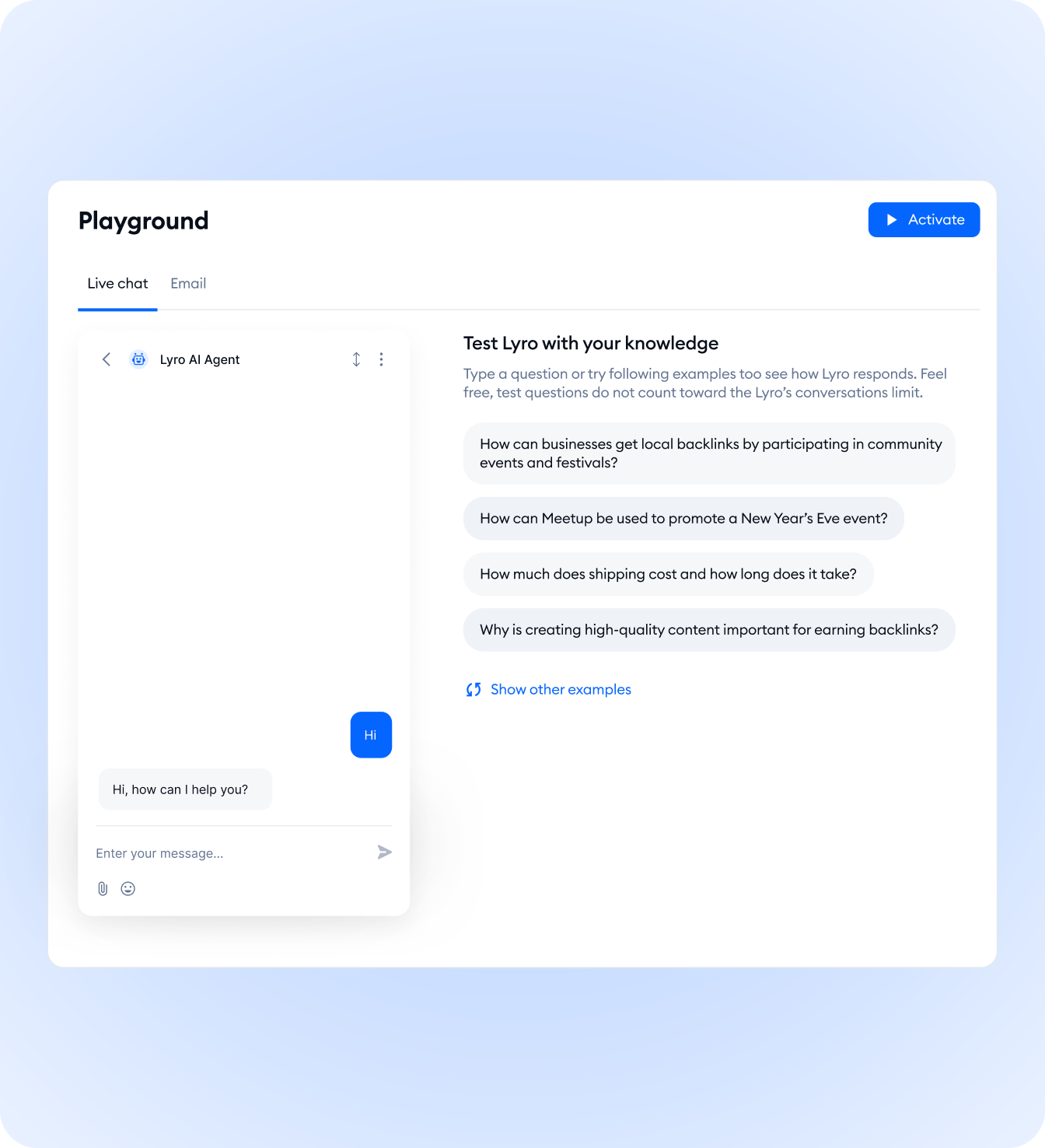
Step 4: Test product cards in the Playground. Navigate to Lyro AI > Playground and trigger a recommendation scenario. Verify that cards render correctly, images load, prices are current, and links work. For a complete testing walkthrough, see the Lyro Playground testing guide.
Measure Recommendation Impact
Product recommendations are only valuable if they drive revenue. Tidio provides several metrics to track the performance of your Lyro recommendations.
Key Metrics to Monitor
Recommendation engagement rate. The percentage of conversations where a customer clicked on a Lyro product suggestion. A healthy rate is 15 to 25 percent. Below 10 percent indicates recommendations are not resonating with customers.
Click-to-cart conversion. Of customers who clicked a recommended product, how many added it to their cart? A low click-to-cart rate with high engagement suggests the products do not match customer needs.
Average order value (AOV) impact. Compare AOV for customers who interacted with Lyro recommendations versus those who did not. This is your primary revenue metric - track it weekly as you refine recommendation rules.
Revenue attributed to recommendations. Track total revenue generated from Lyro-recommended products to justify your investment and calculate return on subscription cost.
Conversation-to-purchase rate. The percentage of recommendation conversations that result in a completed purchase. This end-to-end metric captures the full funnel.
Where to Find These Metrics
Navigate to the Lyro analytics section in your Tidio dashboard. Look for the product recommendation performance panel, which aggregates recommendation-specific metrics separately from general support conversation analytics.
Cross-reference Lyro analytics with your ecommerce platform’s analytics. Your Shopify or WooCommerce dashboard tracks overall conversion rates and AOV, which you can compare against the Lyro-attributed numbers to quantify the AI’s contribution. Piping this data into a CRM with AI analytics can give you a unified view of customer interactions across chat and email.
Optimization Tips
Once your product recommendations are live, continuous optimization maximizes their revenue impact.
Review top-performing recommendations weekly. Identify which product suggestions have the highest engagement and conversion rates. Create additional knowledge base content around those products and expand the recommendation scenarios that trigger them.
Adjust for seasonal relevance. Update your recommendation rules to reflect seasonal demand. A camping gear store should prioritize sleeping bag recommendations in autumn and hydration packs in summer. Set calendar reminders to update product knowledge base entries before each season.
Prioritize high-margin products. When multiple products are equally relevant, configure your recommendation rules to favor higher-margin items. When two products serve the same purpose equally well, Lyro leads with the more profitable option.
Audit recommendation quality monthly. Review 20 to 30 conversations where Lyro made product recommendations. Score each for relevance, timing, and tone. Use patterns to refine your knowledge base and guidance rules.
Monitor for out-of-stock recommendations. Ensure your product sync updates inventory status regularly. Lyro recommending unavailable products creates a frustrating customer experience.
Create feedback loops. When customers respond positively to a recommendation, note what worked. When they ignore or reject a suggestion, analyze the mismatch. Feed these insights back into your knowledge base and recommendation rules. As your customer service automation matures, these feedback loops become the difference between generic suggestions and genuinely personalized ones.
Frequently Asked Questions
Does tidio lyro product recommendations automatically access my catalog?
Yes. Once you connect your ecommerce platform and enable the product recommendation task, Lyro pulls product data directly from your store. Names, descriptions, prices, images, and inventory status sync automatically - you do not need to enter product information separately. The sync runs on a schedule, but you can trigger a manual sync any time you make significant catalog changes that need to appear in conversations immediately.
Can I control which products Lyro recommends?
Yes. Exclude specific products through your sync settings, and influence which products Lyro favors by adding detailed knowledge base entries. Products with richer knowledge base content surface more frequently because Lyro has more context for matching customer needs. This gives you editorial control over the recommendation pool without requiring custom rules per product, which keeps maintenance manageable as your catalog grows.
How many tidio lyro product recommendations should appear per conversation?
Limit recommendations to two or three per conversation. More than that feels aggressive and can undermine the support experience. Configure your recommendation rules with a maximum suggestion count. If a customer engages with a recommendation and asks for more options, Lyro can offer additional suggestions, but the initial recommendation should be focused and relevant. Quality matters more than quantity for conversion rate.
Do product recommendations work on all channels?
Visual product cards work best on the website live chat widget where cards render with images and add-to-cart buttons. On Instagram DMs and Facebook Messenger, Lyro can still recommend products conversationally with links, but the rich card experience may be limited. For multi-channel stores, plan for graceful degradation - your recommendations should still convert when displayed as plain text links rather than visual cards.
Will Lyro recommend products that are out of stock?
If your product sync is configured correctly, Lyro should not recommend out-of-stock products. However, there can be a brief delay between inventory changes in your store and the sync updating in Tidio. For fast-moving inventory, trigger more frequent syncs or schedule them every 15 to 30 minutes during peak sales periods to minimize the gap between stock changes and Lyro’s catalog state.
How does Lyro handle customers who do not want recommendations?
If a customer is focused on a specific support issue and shows no interest in product suggestions, Lyro prioritizes resolving their question. You can also add a guidance rule like “Do not suggest products when the customer is reporting a problem, requesting a refund, or expressing frustration.” This ensures recommendations only appear in conversations where they are welcome rather than feeling tone-deaf during a complaint.
Can I see which tidio lyro product recommendations led to purchases?
Tidio’s analytics dashboard tracks recommendation engagement (clicks on suggested products) and you can cross-reference this with your ecommerce platform’s conversion data. For complete end-to-end attribution, use UTM parameters on product links within Lyro’s recommendations to track the full journey from chat conversation to completed purchase in Google Analytics. This gives you a full revenue attribution view per recommendation type.
Want to learn more about Tidio?
The Bottom Line: Drive AOV With Tidio Lyro Product Recommendations
Done well, tidio lyro product recommendations turn support conversations into sales conversations without the awkward upsell feel that kills trust. Start with the Tidio tool page to confirm your plan supports the recommendation task, build a catalog with rich descriptions, and then iterate on conversation scenarios using analytics. The 10-30 percent AOV uplift compounds month over month.
Related Guides
- Tidio + Shopify Integration Guide - Connect Shopify before enabling product cards
- Tidio Lyro AI Setup Guide - Complete Lyro configuration foundation
- Tidio Lyro Knowledge Base Guide - Product context content for better recommendations
- Tidio Lyro Tasks and Actions - Extend recommendations with API actions
- Tidio Lyro Playground Testing - Test product cards before launch
Related Reading
- Tidio tool page - Full review with pricing breakdown and feature analysis
- Best Ecommerce Personalization Tools - Compare Tidio against dedicated personalization platforms
- Best Live Chat Software 2026 - How Tidio ranks among live chat solutions
External Resources
- Tidio Lyro AI Chatbot Overview - Official Lyro product page with recommendation capabilities
- Tidio Help Center - Vendor documentation including product recommendation configuration
- Shopify - Primary supported ecommerce platform for product card display
Related Guides
- AI Chatbots Customer Service Setup: Complete 2026 Guide
- AI Customer Service Automation: Chatbots vs Agentic AI
- Tidio Abandoned Cart Recovery: Automation Workflows
- Tidio Analytics Dashboard: 2026 Walkthrough for Teams
- Tidio Canned Responses and Macros for Faster Support
- Tidio Copilot Agent Assist: AI-Powered Agent Assist Guide
- Tidio CSAT Tracking: CSAT Tracking and Improvement
- Tidio Ecommerce Chatbot: Tidio Chatbot Flows for Ecommerce
- Tidio Ecommerce Support Automation: Automation Best
- Tidio Flows Automation: Visual Automation Builder Guide