
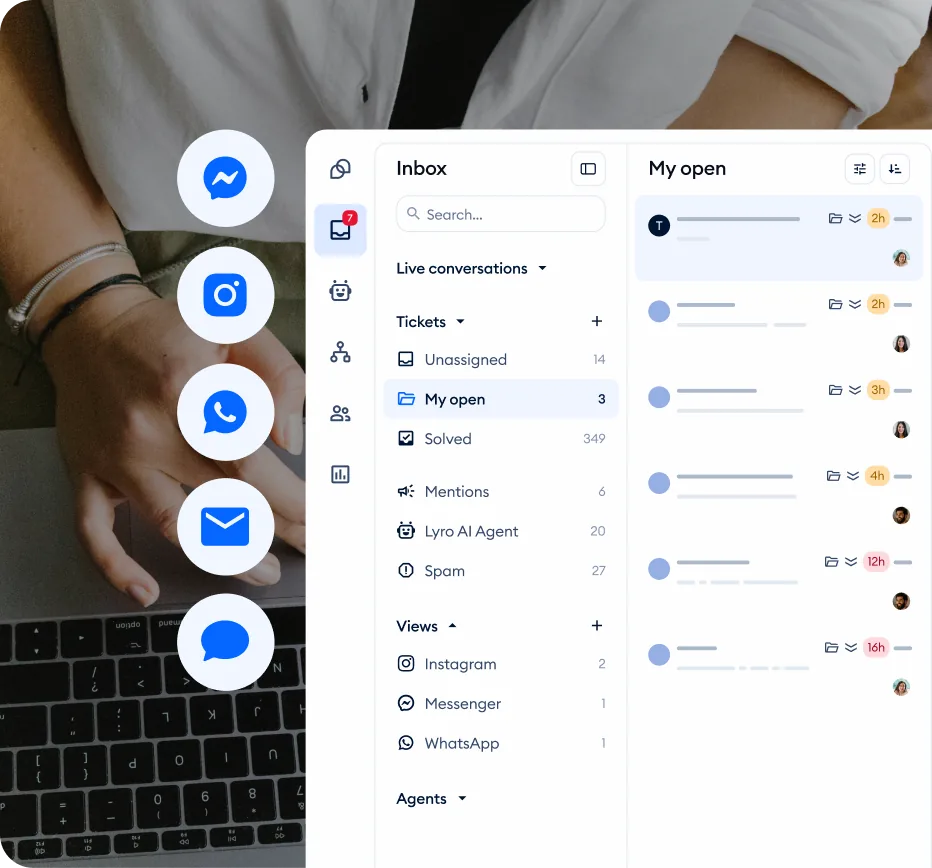
Tidio canned responses let your support agents reply to common questions in seconds instead of minutes. Instead of typing the same shipping policy explanation for the twentieth time today, an agent types a slash command, selects the right template, and sends a polished reply before the customer finishes reading the “someone is typing” indicator. For customer support teams handling dozens or hundreds of daily conversations, the time savings compound fast - and the consistency improvement is just as valuable. Every customer gets the same accurate, well-written answer regardless of which agent picks up the chat.
Most support teams already have informal shortcuts - a text file of common replies, a shared Google Doc, maybe a few agents who are just faster typists. Tidio canned responses formalize this into a system that lives inside the chat interface, accessible with a keystroke. Combined with macros that trigger actions beyond just sending text - like assigning conversations to departments, changing ticket status, or adding tags - you get a lightweight automation layer that sits between fully manual replies and full chatbot automation.
This guide walks through creating your first canned response in Tidio, organizing responses by category, setting up team-shared versus personal templates, using slash command shortcuts during live conversations, and building advanced macros that handle multi-step actions. You will also get a ready-to-use template library with 15 responses you can copy directly into your account.
Why Canned Responses Matter
Before diving into setup, it is worth understanding the three problems that canned responses solve - because each one affects your support quality in a different way.
Speed. The average customer expects a response within 60 seconds in live chat. Without templates, even an experienced agent needs 2-3 minutes to type a thorough reply to a product question, look up a tracking link, or explain a return process. Canned responses cut that to under 10 seconds. Multiply by 50 conversations per day and you are saving hours of typing - the same compounding logic that makes chatbot automation so effective at scale.
Consistency. When five agents explain your return policy from memory, you get five different versions - some accurate, some missing key details, some promising things your policy does not actually cover. Instead of relying on ad-hoc or generic responses, canned responses ensure every agent sends the same approved, accurate information. Customer service response examples like these protect your business from miscommunication and give every customer a reliable experience - particularly important for ecommerce sellers where a single inconsistent answer can break trust.
Onboarding. New agents take weeks to learn your products, policies, and communication style. A well-organized library of canned message templates acts as training material and a safety net at the same time. New hires can browse categories to find the right response, send it with confidence, and learn your company’s voice by reading the templates. The same dynamic shows up across client onboarding automation - templates and structured workflows shrink the ramp-up period significantly.
Prerequisites
Before creating canned responses, confirm you have the following in place.
An active Tidio account with live chat enabled. Canned responses are a feature within the Tidio live chat platform - one of several platforms covered in our best live chat software roundup, and one of the better entry points for teams shopping Tidio’s pricing tiers on a budget. Your chat widget should already be installed and your agents should be handling conversations. If you have not completed the initial setup, work through the Getting Started with Tidio guide first. Vendors document their feature set on the Tidio canned responses page if you want to confirm a specific capability before committing.
Operator or Admin access. Any agent can create personal canned responses for their own use. Creating team-shared responses that all agents can access requires Operator or Admin permissions. Check your role under Settings > Team in the Tidio dashboard, or read the Tidio team management guide for a deeper look at roles and permissions.
A list of your most common customer questions. Before building responses, identify the 10-15 questions your team answers most frequently. Review recent conversation history in the Tidio inbox to spot patterns - the Tidio analytics dashboard makes this audit much faster than scrolling chat history. Common categories include greetings, shipping questions, return requests, pricing inquiries, and technical troubleshooting. Having this list ready means you can create a useful library in one sitting rather than adding responses one at a time over weeks. For broader context on building the customer-facing side of this stack, the Gartner conversational-AI forecast is a useful reference for justifying investment to stakeholders.
Create Your First Canned Response
Setting up a canned response takes about 30 seconds. Here is the step-by-step process.
Step 1: Open the canned responses settings. Log into your Tidio dashboard at app.tidio.com. Navigate to Settings > Canned Responses in the left sidebar. This opens the canned response management panel where you can create, edit, organize, and delete templates.
Step 2: Click the create button. Click Add New Response (or the plus icon, depending on your Tidio version). A form appears with fields for the response content and configuration.
Step 3: Write the response text. Enter the message you want agents to send. Keep these guidelines in mind:
- Start with a greeting or acknowledgment when appropriate - “Thanks for reaching out!” or “Great question.” This makes templated replies feel less robotic.
- Include the core information clearly and concisely. Customers want answers, not filler text.
- End with a next step or offer - “Let me know if you need anything else” or “Would you like me to look into that for you?”
- Use placeholders for dynamic content where Tidio supports them, such as the customer’s name or order number. This personalizes the response without extra typing.
Step 4: Assign a shortcut. Give the response a short, memorable shortcut that agents will type to access it. Good shortcuts are intuitive abbreviations - /shipping for shipping information, /return for return policy, /greeting for a welcome message. The slash prefix is how agents trigger canned responses during conversations.
Step 5: Save the response. Click save, and the canned response is immediately available. Agents can start using it in their next conversation.
How Do You Organize Tidio Canned Responses with Categories?
Once you have more than a handful of responses, organization becomes essential. Without categories, agents scroll through a long unsorted list - which defeats the purpose of saving time.
Create logical groupings. Organize your canned responses into categories that match how agents think about conversations. A support agent handling a shipping question does not want to scroll past 20 sales responses to find the right template. Recommended categories include:
- Greetings and closings - Opening messages, farewell messages, hold messages
- Shipping and delivery - Tracking info, delivery times, international shipping
- Returns and refunds - Return process, refund timelines, exchange policies
- Product information - Features, pricing, compatibility, specifications
- Technical support - Troubleshooting steps, known issues, workarounds
- Billing and accounts - Payment methods, subscription changes, invoice requests
- Escalation - Transferring to specialist, manager callback, follow-up promises
Name categories clearly. Use descriptive names that any agent can understand without context. “Shipping” is better than “Cat-3” or “S.” If you have sub-categories, use a consistent naming pattern like “Returns - Process” and “Returns - Exceptions.”
Review and prune regularly. Set a monthly reminder to audit your canned response library. Delete responses for discontinued products, update pricing or policy changes, and merge duplicates. A bloated library with outdated content is worse than a lean one with accurate information, because agents will send wrong answers without realizing the template is stale.
What Is the Difference Between Team and Personal Canned Responses?
Tidio distinguishes between two types of canned responses, and understanding the difference helps you organize effectively.
Team responses are shared across all agents in your account. When an admin creates a team response, every agent sees it in their canned response list and can use it during conversations. Team responses are best for standardized information that should be consistent regardless of who sends it - company policies, product specifications, pricing details, and standard procedures.
Personal responses are visible only to the agent who created them. Individual agents can build their own collection of frequently used replies that suit their personal workflow. Personal responses work well for individual greeting styles, follow-up templates, or niche responses that only one agent handles regularly.
Best practice: Build a strong team library first, then let agents supplement with personal responses. If you notice multiple agents creating similar personal responses, promote those to team responses so everyone benefits. This keeps the team library focused on universal content while giving agents flexibility for their individual needs. Pair this with a ticketing workflow so escalations from canned-response conversations land in the right queue.
Managing team responses as an admin:
- Navigate to Settings > Canned Responses and use the team tab to manage shared responses
- Only Admins and Operators can create, edit, or delete team responses
- Regular agents can view and use team responses but cannot modify them
- When updating a team response, all agents see the updated version immediately - no need to notify them separately
How Do Slash Command Shortcuts Work in Tidio?
The real speed boost from canned responses comes from slash commands - the ability to trigger a response by typing a short code directly in the chat input field.
How it works. During a live conversation, an agent types / followed by the shortcut name in the reply field. Tidio displays matching canned responses as the agent types, filtering the list in real time. The agent clicks the correct response (or uses arrow keys and Enter to select it), and the response text populates the reply field. The agent can send it immediately or make quick edits before sending.
Designing effective shortcuts:
- Keep them short -
/shipbeats/shipping-information-domestic - Make them intuitive - Use the first few letters of the topic:
/retfor returns,/pricefor pricing,/greetfor greeting - Avoid conflicts - Do not create
/sfor shipping and/sfor sales. Use enough characters to be unique:/shipand/sale - Use a naming convention - If you have multiple responses per category, use a consistent pattern:
/ship-time,/ship-track,/ship-intlfor shipping subcategories - Document them - Share a cheat sheet of available shortcuts with your team, especially during onboarding
Speed tip: Experienced agents memorize their 5-10 most-used shortcuts and can respond to common questions in under 5 seconds. The combination of typing /greet, sending the greeting, then immediately typing /ship for a shipping question creates a rapid-fire workflow that keeps wait times minimal.
What Are Tidio Macros and How Do They Work?
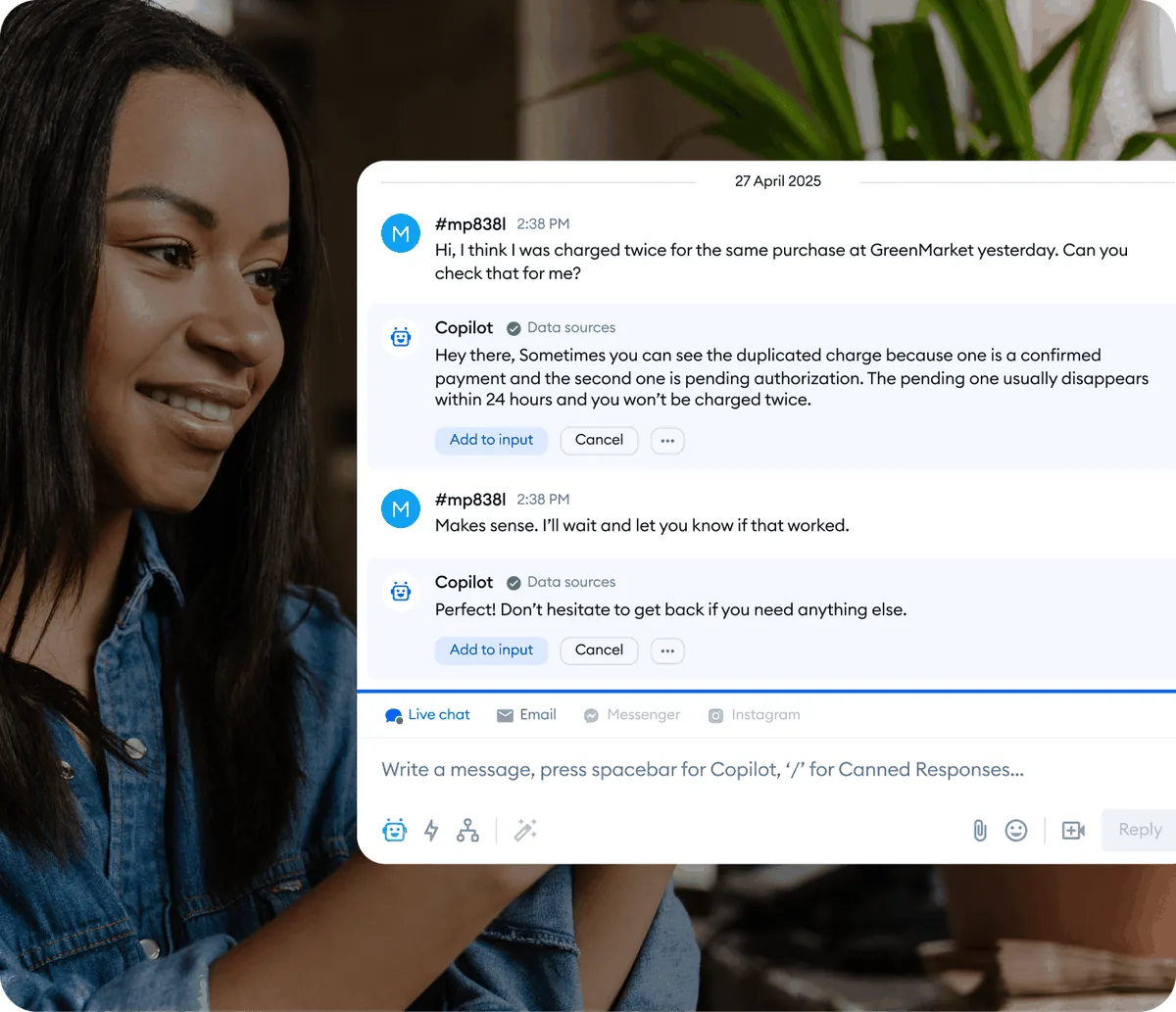
Canned responses handle text. Macros go further by combining text with actions - letting agents trigger multi-step operations with a single command. While basic canned responses cover most needs, macros are useful when your workflow involves repeated sequences of steps.
Auto-assign to department. Create a macro that sends a message like “Let me connect you with our billing team” and simultaneously assigns the conversation to the billing department. Without a macro, an agent types the message, sends it, then manually changes the assignment - two steps collapsed into one. The same routing logic shows up across multichannel support setups.
Add tags automatically. Macros can tag conversations with labels like “refund-request” or “technical-issue” when triggered. This improves reporting accuracy because tagging happens consistently rather than relying on agents remembering to tag conversations manually after resolving them - the same data feeds your CSAT tracking dashboards for cleaner per-topic insights.
Change conversation status. A closing macro might send “Thanks for chatting with us today! Do not hesitate to reach out if you need anything else” and simultaneously mark the conversation as resolved. This keeps your inbox clean without agents needing to close conversations manually after sending the final message.
Combined actions. The most powerful macros chain multiple actions together. For example, an escalation macro could: (1) send an apology message to the customer, (2) tag the conversation as “escalated,” (3) assign it to a senior agent, and (4) add an internal note with context. Four steps, one click.
Setting up macros: Navigate to Settings > Canned Responses and look for advanced options or the macro configuration section. The available actions depend on your Tidio plan - higher tiers unlock more macro capabilities. If you need automation beyond what macros offer, the Tidio Flows Automation Guide covers the visual workflow builder for more complex scenarios. Teams that want full conversational automation should also review the Lyro AI Setup Guide and Lyro Knowledge Base Guide to understand where AI takes over and where macros remain the better fit.
Template Library: Ready-to-Use Examples
Here are 15 canned response templates organized by category. Copy these directly into your Tidio account and customize the bracketed placeholders with your company’s specific information.
Greetings and Openings
Welcome greeting (shortcut: /greet)
Hi there! Welcome to [Company Name]. How can I help you today?
Returning visitor (shortcut: /welcome-back)
Welcome back! Good to see you again. What can I help you with today?
Busy queue acknowledgment (shortcut: /busy)
Thanks for your patience - we are experiencing higher than usual volume right now. I am reviewing your question and will have an answer for you shortly.
Shipping and Delivery
Standard shipping times (shortcut: /ship-time)
Our standard shipping takes [3-5] business days within the US. Express shipping ([1-2] business days) is available at checkout for an additional fee. International orders typically arrive within [7-14] business days depending on the destination.
Order tracking (shortcut: /ship-track)
You can track your order using the tracking number in your shipping confirmation email. If you do not have that email handy, send me your order number and I will look up the tracking details for you.
Shipping delay (shortcut: /ship-delay)
I am sorry to hear your order has not arrived yet. Let me look into the current status for you. Can you share your order number so I can pull up the tracking information?
Returns and Refunds
Return policy (shortcut: /return)
We accept returns within [30] days of delivery for items in their original condition. To start a return, [describe your return process - e.g., “visit our returns portal at yoursite.com/returns” or “reply with your order number and I will generate a return label for you”]. Refunds are processed within [5-7] business days after we receive the returned item.
Refund status (shortcut: /refund-status)
Once we receive your returned item, refunds are processed within [5-7] business days. The refund goes back to your original payment method. Depending on your bank, it may take an additional [2-3] business days to appear in your account. Let me check the status of yours - can you share your order number?
Exchange request (shortcut: /exchange)
We would be happy to help with an exchange. To swap your item for a different [size/color/model], we will need to process a return for the original and place a new order. Would you like me to walk you through the steps?
Product Questions
Pricing inquiry (shortcut: /pricing)
Great question about our pricing. [Product/Plan name] starts at [$X/month]. We also offer [a free trial / a free tier / annual billing with a discount]. You can see the full breakdown on our pricing page at [URL]. Would you like help choosing the right plan for your needs?
Feature availability (shortcut: /feature)
That feature is available on our [Plan Name] plan and above. If you are currently on [lower plan], you can upgrade directly from your account settings. Would you like more details about what is included in [Plan Name]?
Technical Support
Basic troubleshooting (shortcut: /troubleshoot)
Let us try a few quick steps to resolve this. First, try clearing your browser cache and refreshing the page. If that does not help, try opening the page in an incognito/private window. If the issue persists after both steps, let me know and I will investigate further.
Known issue acknowledgment (shortcut: /known-issue)
Thanks for reporting this. We are aware of this issue and our team is actively working on a fix. I do not have an exact timeline yet, but I will make sure your case is noted so we can follow up once it is resolved. Is there anything else I can help with in the meantime?
Closings
Conversation closing (shortcut: /close)
I am glad I could help! If you have any other questions in the future, do not hesitate to reach out. Have a great day!
Follow-up promise (shortcut: /follow-up)
I need to look into this further on my end. I will follow up with you via email at [customer email] within [24 hours / 1 business day] with an update. Is there anything else I can help with right now?
Pro Tips
Start with your top 10, then expand. Do not try to create 50 canned responses on day one. Identify the 10 questions your team answers most often, create responses for those, and add new ones as patterns emerge from real conversations. A lean, well-used library beats a bloated one where half the responses go untouched.
Write for editing, not perfection. The best canned responses are 80% complete - they provide the core information but leave room for agents to add personal touches. A response that reads “Hi [name], thanks for reaching out about [topic]” invites personalization, while a fully rigid template sounds robotic to customers who notice every agent sends identical messages.
Audit response usage monthly. Use the Tidio analytics dashboard to check which canned responses agents use frequently and which ones gather dust. Unused responses either address questions that rarely come up (delete them to reduce clutter) or have poor shortcuts that agents cannot remember (rename them). High-usage responses deserve extra attention to keep them accurate and well-written. Industry research from Zendesk shows that response speed and accuracy are the top two CX drivers - so the maintenance work pays off directly.
Combine with Copilot for maximum speed. If you are using Tidio Copilot for AI-powered agent assistance, canned responses and Copilot serve different strengths. Use canned responses for exact-wording situations - legal disclaimers, specific policy language, promotion terms - where precision matters. Use Copilot for dynamic questions where the AI can pull context-specific answers from your knowledge base. Together, they cover both standardized and adaptive responses.
Train agents on the shortcut system. If you handle support across multiple channels, shortcuts work the same way in every channel - including Instagram DM automation. During onboarding, give new agents 15 minutes to browse the canned response library and practice using slash commands in a test conversation. Agents who learn the shortcut system early adopt it naturally. Agents who start without training tend to type responses manually and never switch to shortcuts - even when templates exist for exactly what they are typing.
Version your responses. Track how response changes affect customer satisfaction scores. When updating a canned response, especially policy-related ones, note the date of the last update in an internal comment or tag. This makes it easy to verify during audits that responses reflect current policies rather than last year’s terms.
Frequently Asked Questions
How many canned responses can I create in Tidio?
There is no hard limit on the number of canned responses you can create. Both the free and paid plans allow you to build as large a library as you need. That said, quality matters more than quantity. A focused library of 30-50 well-organized responses typically serves teams better than 200 poorly categorized ones, because agents can find what they need faster. If your team is migrating from another platform - see our best customer support software comparison - use this opportunity to audit which responses still earn their place.
Can I use formatting in canned responses?
Yes. Tidio canned responses support basic formatting including bold text, line breaks, and links. You can include URLs that render as clickable links in the chat window. This is useful for directing customers to tracking pages, help center articles, or product pages without agents needing to copy-paste URLs manually. Use sparingly - links inside a templated reply should always feel intentional rather than promotional.
Do canned responses work in the Tidio mobile app?
Yes. Agents using the Tidio mobile app can access and send canned responses during conversations. The slash command system works the same way - type / followed by the shortcut in the reply field and select the response from the filtered list. The experience is slightly more compact on mobile but fully functional, which matters if your team handles after-hours coverage from phones rather than desks.
Can I import canned responses from another platform?
Tidio does not currently offer a one-click import from other live chat platforms. If you are migrating from Intercom, Zendesk, or another tool - see our best customer support software comparison - you will need to recreate your responses manually in Tidio. The upside is that migration is a good opportunity to audit and improve your templates rather than copying over outdated or inconsistent responses from the old system.
What is the difference between canned responses and Lyro AI?
Canned responses are pre-written templates that human agents select and send manually during conversations. They require an agent to be present and to choose the right response. Lyro AI, on the other hand, reads customer messages and generates responses automatically from your knowledge base without human involvement. Canned responses give agents speed and consistency. Lyro gives you full automation. Most teams use both - Lyro handles straightforward questions independently, and agents use canned responses for conversations that need a human touch. See the Lyro AI Setup Guide for the full automation walkthrough, or the full Tidio platform review for an overview of how all the pieces fit together.
Want to learn more about Tidio?
Related Guides
- Getting Started with Tidio - Account creation, widget installation, and initial configuration
- Tidio Ticketing System Guide - Organize and track support requests with Tidio’s ticketing features
- Tidio Copilot Agent Assist - AI-powered reply suggestions for live agents
- Tidio Flows Automation Guide - Visual workflow builder for automated conversation paths
Related Reading
- Best Live Chat Software 2026 - Compare Tidio with other live chat platforms
- Best Customer Support Software 2026 - Wider help desk and support tooling roundup
- AI Customer Service Automation - Strategy for blending humans and AI in support workflows
External Resources
- Tidio Help Center - Official product documentation and feature reference
- Tidio Blog: Canned Responses Best Practices - Vendor guidance on writing effective templates
- Tidio Pricing Plans
- Tidio AI Agent Features
Related Guides
- AI Chatbots Customer Service Setup: Complete 2026 Guide
- AI Customer Service Automation: Chatbots vs Agentic AI
- Tidio Abandoned Cart Recovery: Automation Workflows
- Tidio Analytics Dashboard: 2026 Walkthrough for Teams
- Tidio Copilot Agent Assist: AI-Powered Agent Assist Guide
- Tidio CSAT Tracking: CSAT Tracking and Improvement
- Tidio Ecommerce Chatbot: Tidio Chatbot Flows for Ecommerce
- Tidio Ecommerce Support Automation: Automation Best
- Tidio Flows Automation: Visual Automation Builder Guide
- Tidio Getting Started Guide - Full Setup in 20 Minutes