




Sider AI browser productivity is an approach to working faster online by using the Sider AI Extension, which places 30+ AI models directly in a sidebar panel. Available on Chrome and Edge, it eliminates tab-switching between tools like ChatGPT and Claude, letting users highlight text, ask questions, and get context-aware responses without leaving their current page.
If you are still copying text from web pages, pasting it into ChatGPT in another tab, waiting for a response, and then copying it back - you are wasting an enormous amount of time. Sider is an AI browser extension that puts 30+ AI models directly into your browser sidebar, so you never have to leave the page you are working on.
Sider works across Chrome and Edge, and the workflow difference is significant. Instead of juggling tabs between ChatGPT, Claude, and Perplexity, everything happens in a single sidebar panel. The extension currently holds across review platforms and has over 10 million users on the Chrome Web Store.
This guide covers 10 specific sider ai browser productivity hacks that go beyond the basics. The Sider AI Chrome extension free tier and the Sider AI extension download are both covered, so whether you are a researcher, writer, marketer, or developer, these tips will help you get substantially more done without leaving your current tab.
1. Use the AI Sidebar for Instant Answers While Browsing
Sider AI Browser Productivity covers the strategies and tools that deliver real productivity gains in this space. If you are still copying text from web pages, pasting it into ChatGPT in another tab. This guide walks through the practical steps from setup through advanced optimization.
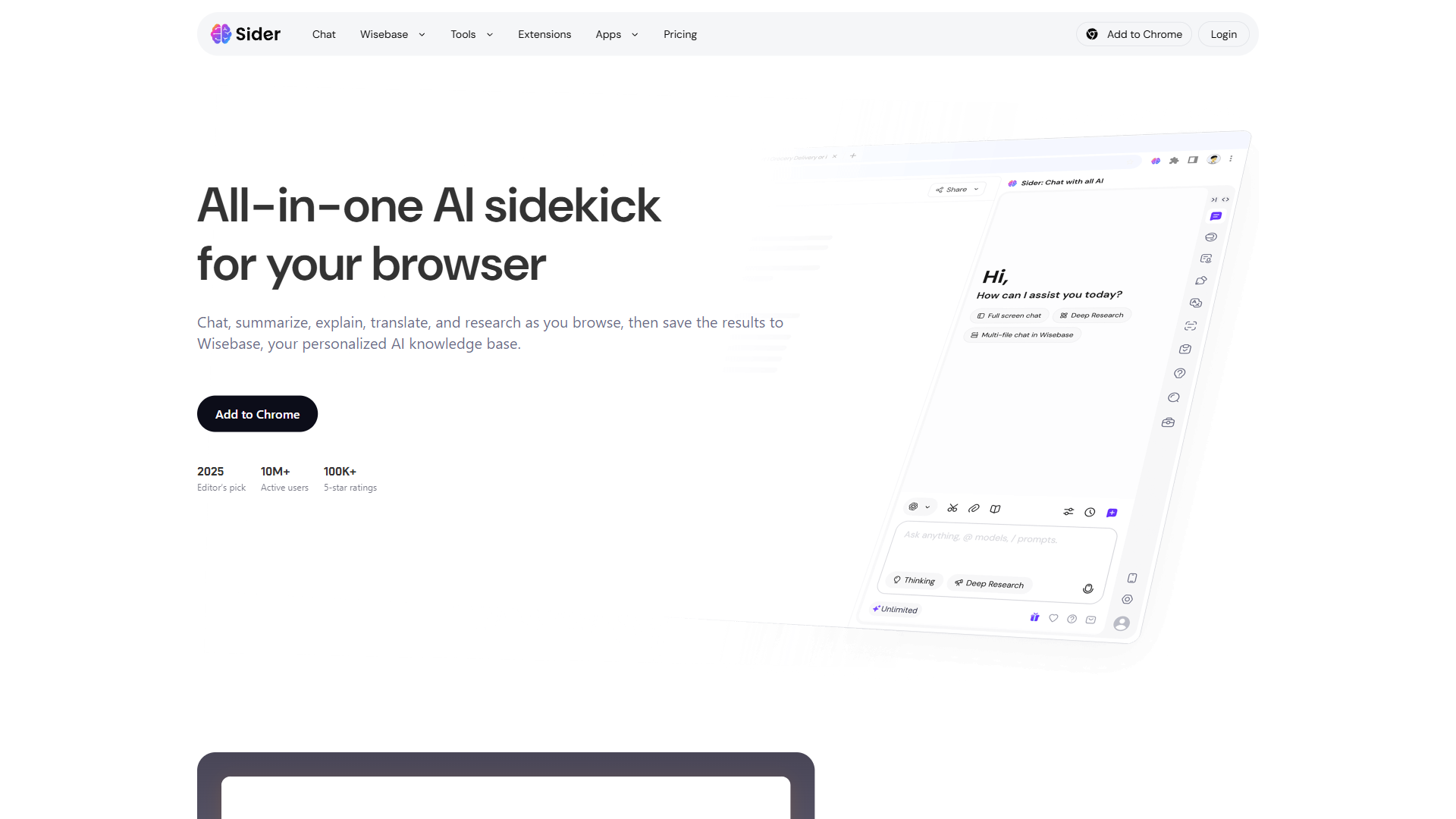
The core value of Sider is the AI sidebar that opens alongside any web page. Instead of switching to a separate AI tool, you highlight text or ask questions directly from the page you are reading.
How to use it effectively:
- Highlight and ask - Select any text on a web page, and a floating menu appears. Click to explain, summarize, translate, or ask a follow-up question about the selection.
- Context-aware responses - Sider reads the current page content automatically, similar to how OpenAI’s context window documentation describes prompt grounding. When you ask “what does this article mean by X,” it knows what “this article” refers to without you pasting anything.
- Persistent sidebar - The sidebar stays open as you navigate between pages. Your conversation history carries over, so you can reference previous questions while browsing new content.
Pro tip: Pin the sidebar on pages you visit frequently for research. This keeps AI assistance one click away instead of requiring you to reopen the extension each time. The keyboard shortcut (Ctrl+Shift+S on Windows, Cmd+Shift+S on Mac) toggles the sidebar instantly. The Chrome Side Panel API documentation explains why some extensions can stay pinned across navigation while older ones cannot.
Sider ai browser productivity free access starts with the Free plan, which provides 30 basic credits per day - enough for casual browsing, including productivity ios workflows on mobile. For heavy use, the Starter plan removes the daily limit pressure.
2. Switch Between AI Models to Compare Outputs
This is where Sider genuinely separates itself from single-model tools. You can send the same prompt to GPT-4o, Claude 3.5 Sonnet, DeepSeek-R1, and Gemini 2.0 Pro - and compare the responses side by side using the Group AI chat feature.
Why this matters in practice:
- Writing tasks - Claude tends to produce more natural, flowing prose, as shown in Anthropic’s Claude 3.5 Sonnet announcement. GPT-4o is better at structured, concise outputs. Seeing both lets you pick the best version or combine elements from each.
- Research queries - DeepSeek-R1 excels at reasoning through complex, multi-step questions, with details in the DeepSeek-R1 model card. GPT-4o handles factual lookups faster. Running both catches blind spots.
- Code generation - Different models handle different languages and frameworks with varying accuracy. Comparing outputs catches bugs that a single model might miss. Our best AI coding tools 2026 roundup compares specialist code-focused models.
How to set it up: Open the sidebar, click the model selector, and choose “Group Chat.” Select 2-4 models and type your prompt. All responses appear in parallel, labeled by model. This feature requires at least the Basic plan for access to advanced models.
This feature shines for client-facing writing where tone and accuracy both matter. Running the same brief through Claude and GPT-4o, then merging the best parts, consistently produces better results than relying on either model alone. Our AI content writing workflow guide walks through the full multi-model editing pass step by step.
3. Summarize YouTube Videos Without Watching Them
Sider’s YouTube summarization feature is a genuine time saver for anyone who consumes video content for work. Navigate to any YouTube video, open the sidebar, and get a structured summary with timestamps in seconds.
What you get:
- Key points summary - A condensed overview of the main arguments or lessons in the video
- Timestamped sections - Click any timestamp to jump directly to that part of the video
- Transcript access - The full transcript appears in the sidebar, searchable and copyable
- Follow-up questions - Ask specific questions about the video content without scrubbing through footage
Best use case: This works well for 30-60 minute industry podcasts and conference talks. Instead of watching the full video, read the summary, identify the 2-3 segments that matter, click the timestamps, and watch just those sections. A 45-minute video becomes a 5-minute information extraction exercise.
The Free tier includes limited YouTube summaries. For frequent use, any paid plan removes the restrictions.
4. Analyze PDFs and Documents Without Downloading
Sider’s ChatPDF feature handles PDFs up to 200 pages on the free tier. Open any PDF in your browser, and the sidebar lets you ask questions about the document, extract specific data, or generate summaries - all without downloading the file or switching to a dedicated PDF reader.
Practical applications:
- Contract review - Ask “what are the termination clauses in this agreement” and get extracted text with page references
- Research papers - “Summarize the methodology and key findings” turns a 40-page paper into a 2-minute read. If research is a core part of your workflow, see our AI tools for researchers roundup and our research faster with AI walkthrough for more options
- Financial reports - “What was the year-over-year revenue change” pulls specific numbers from dense spreadsheet-style PDFs - useful when paired with our AI tools for financial analysis shortlist
Pro tip: For documents you need to reference repeatedly, save them to Wisebase (covered in hack #9). This lets you ask questions across multiple documents at once instead of opening each PDF individually. The retrieval-augmented generation research from Google explains why grounding AI answers in specific documents (the Wisebase pattern) outperforms generic chat for factual questions.
The free tier allows 8 PDF files. Paid plans increase the limit, and the Unlimited plan removes it entirely.
5. Summarize Any Web Page in One Click
Long articles, documentation pages, and reports take time to read. Sider’s page summarization distills the key points from any web page into a structured summary.
How to get the most from it:
- Choose summary depth - Quick summary for skimming, detailed summary for comprehensive understanding
- Follow up with questions - After the summary, ask “what evidence does the author use for claim X” or “does this article contradict what I read earlier” (if you had a previous conversation in the sidebar)
- Multi-language support - Summarize pages in foreign languages and get the summary in English, or vice versa. Sider supports 50+ languages for translation and summarization
Where this saves real time: Email newsletters, industry reports, and competitor analysis. Instead of reading 15 articles about a topic, summarize all of them and only deep-read the ones with genuinely new insights. Research from McKinsey’s productivity report suggests AI-assisted knowledge work can return 20-30% in time savings, and Sider’s summarizer routinely cuts daily reading time by roughly 40% for users in similar roles.
6. Draft and Rewrite Emails Without Leaving Your Inbox
Sider works inside Gmail, Outlook, and other web-based email clients. Open the sidebar while composing an email, and you can draft, rewrite, adjust tone, or translate messages without copying text back and forth.
Workflow example:
- Open a new email in Gmail
- Tell Sider: “Draft a follow-up email to a client who missed our deadline. Professional but firm tone. Reference the March 1 deadline and request a revised timeline by Friday.”
- Review the draft in the sidebar, adjust if needed, and paste it directly into the compose window
Advanced email tricks:
- Tone adjustment - “Make this more casual” or “make this more formal” rewrites the entire email while keeping the core message intact
- Translation - Write in English and translate to any of 50+ supported languages. Useful for international teams
- Reply suggestions - Highlight an incoming email, ask Sider to draft a reply, and get a contextually appropriate response
This works on any plan since email drafting uses the basic sidebar functionality. Advanced models (GPT-4o, Claude 3.5 Sonnet) produce noticeably better results for professional communication than the free-tier models. For a deeper inbox-automation playbook beyond Sider, see our how to automate email with AI guide.
7. Run Deep Research for Complex Queries
The Deep Research Agent is Sider’s most powerful feature for serious research work. Unlike a simple chat query, Deep Research automatically searches and analyzes 100+ web pages, synthesizes the information, and produces a well-cited report.
When to use Deep Research vs. regular chat:
- Regular chat - Quick questions, definitions, simple tasks (“translate this paragraph,” “explain this concept”)
- Deep Research - Market analysis, competitive intelligence, literature reviews, technical deep dives, anything requiring multiple sources
How it works:
- Open the sidebar and select Deep Research mode
- Enter your research question. Be specific: “Compare the pricing and features of the top 5 project management tools for remote teams under 50 people” works better than “best project management tools”
- Sider’s agent browses the web, reading and analyzing dozens of pages, and compiles a structured report with citations
Important limitation: Deep Research requires the Pro plan ($20/month) with limited uses, or the Unlimited plan for unrestricted access. It uses Elite Credits, which are separate from regular Basic and Advanced credits. For researchers and analysts, this feature alone can justify the subscription cost since comparable tools like Perplexity Pro cost $20/month for similar functionality.
8. Automate Browser Tasks with the Browser Agent
The Browser Agent takes plain-language instructions and executes multi-step tasks in your browser automatically. Think of it as a lightweight automation tool that does not require any technical setup.
Practical examples:
- “Find the pricing pages for these five competitors and create a comparison table” - the agent navigates to each site, extracts pricing data, and compiles the table
- “Search for recent news articles about [topic] and summarize the top 10 results” - the agent performs the search, opens articles, and summarizes each one
- “Fill out this form with the following information” - the agent interacts with form fields directly
How to use it well:
- Give clear, step-by-step instructions rather than vague requests
- You can pause the agent at any time if it heads in the wrong direction
- Review the agent’s actions in real time - it shows you what it is doing at each step
The Browser Agent is available on the Pro and Unlimited plans. It works best for repetitive, multi-step tasks that you would otherwise do manually. For simple one-off tasks, the regular sidebar is faster. Our building AI-first workflows guide covers when an in-browser agent is the right call versus a dedicated automation platform like Make or Zapier.
9. Build a Personal Knowledge Hub with Wisebase
Wisebase is Sider’s knowledge management feature that lets you save web pages, PDFs, and research findings into organized collections. The real power is that you can then chat with your entire collection at once.
How to build an effective Wisebase:
- Save as you browse - When you find a useful article or document, save it to Wisebase with one click from the sidebar
- Organize by project - Create separate collections for different research projects, clients, or topics
- Multi-file chat - Ask questions that span your entire collection: “Based on everything I have saved about competitor pricing, what pricing strategy would you recommend?”
- Video upload - Upload local video files with transcript chat capabilities for analyzing presentations, webinars, or recorded meetings
Why this beats bookmarks: Bookmarks save links. Wisebase saves the content and makes it searchable and queryable with AI. When a web page gets taken down or updated, your saved version persists. And you can ask questions across multiple saved items at once, which is impossible with traditional bookmarks.
Wisebase is available on the Basic plan and above. For researchers and knowledge workers who accumulate references over time, this is the feature that turns Sider from a chat tool into a research platform.
10. Generate and Edit Images with Painter
Sider’s Painter tool handles quick image generation and editing tasks directly in the browser. While it is not a replacement for dedicated design tools like Canva or Midjourney, it covers the frequent “I need a quick visual” scenarios that interrupt browsing workflows.
Use cases that make sense:
- Social media images - Generate quick visuals for posts when you do not have time to open a design tool
- Concept mockups - Create rough visual concepts to share in team chats or client communications
- Image editing - Basic modifications to existing images like removing backgrounds, adjusting colors, or adding text
The Free plan includes 20 Painter queries. Paid plans increase the limit, and the Unlimited plan removes it. For occasional image needs, Painter saves the context switch to a separate tool. For production-quality design work, you will still want a dedicated solution.
Sider AI Browser Productivity Pricing: Which Plan Makes Sense?
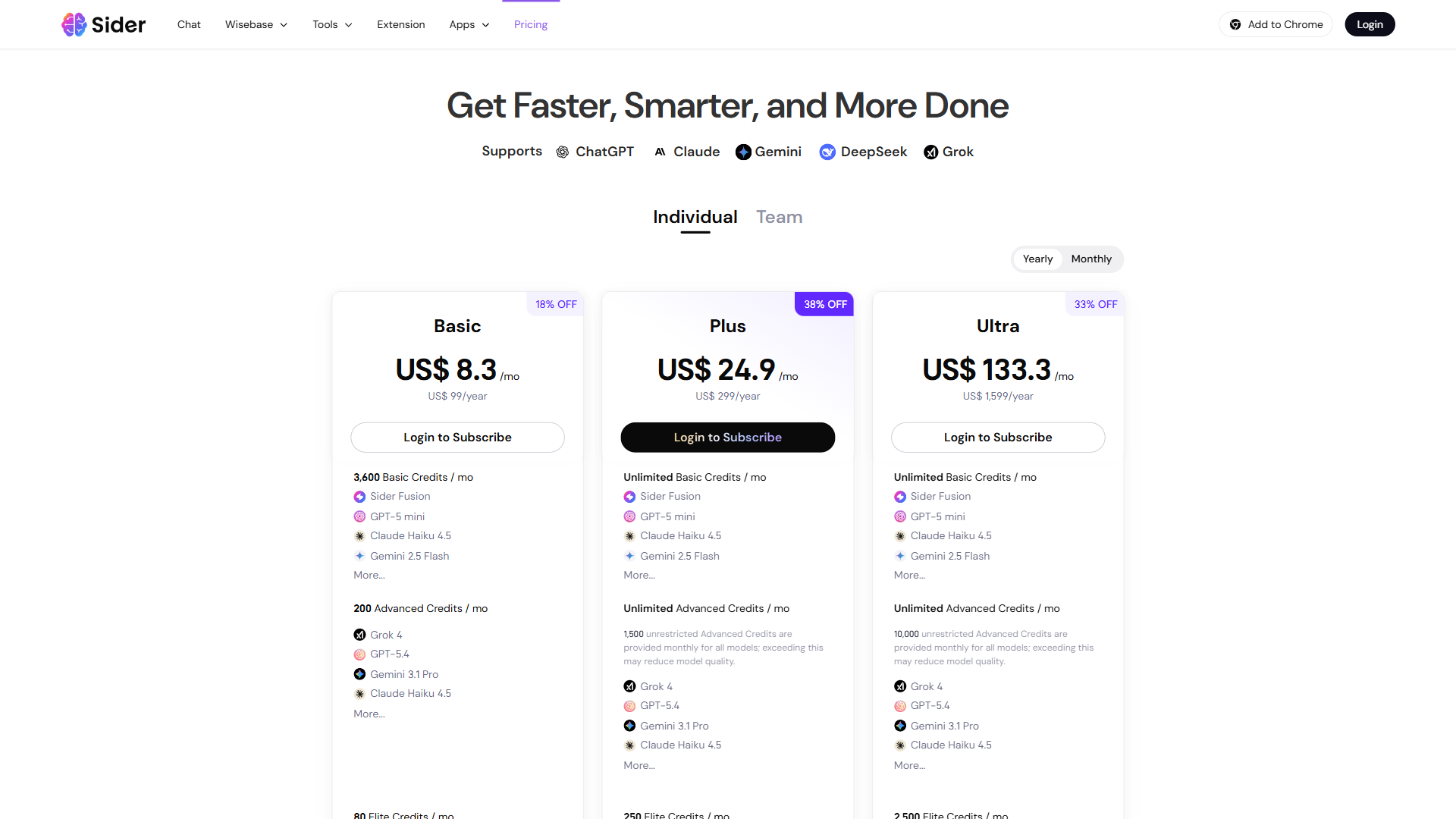
Understanding Sider’s pricing is key to maximizing your sider ai browser productivity setup. Sider uses a credit-based pricing model with five tiers. Here is a practical breakdown of which plan fits which use case:
| Plan | Best For |
|---|---|
| Free | Testing the extension, light browsing assistance |
| Starter | Casual users who need occasional GPT-4o/Claude access |
| Basic | Regular users who want Wisebase and super advanced models |
| Pro | Professionals needing Deep Research and Browser Agent |
| Unlimited | Power users who want no limits on any feature |
The value calculation: If you currently pay for ChatGPT Plus and Claude Pro separately, Sider’s Unlimited plan gives you access to both models plus DeepSeek-R1, Gemini 2.0 Pro, o3-mini, and more. Our apps like ChatGPT comparison covers other multi-model alternatives worth considering, and our Sider vs Perplexity breakdown weighs sidebar workflows against full-page assistants. That is a significant consolidation savings for anyone using multiple AI tools.
One thing to be aware of: the credit system has three tiers (Basic, Advanced, and Elite Credits), and they serve different purposes. Basic Credits cover lightweight models, Advanced Credits cover premium models, and Elite Credits power agent features like Deep Research. On the Pro plan, Elite Credits are limited. Only the Unlimited plan truly removes all caps.
Who Should Use Sider?
These sider ai browser productivity hacks are ideal for:
- Researchers and analysts who need Deep Research across 100+ sources and want to save findings in Wisebase for cross-referencing
- Content creators and writers who benefit from multi-model comparison to get the best output for different writing tasks
- Professionals who live in the browser - if your work involves constant web research, email, and document review, the sidebar eliminates friction
- Multilingual teams needing translation across 50+ languages without switching tools
- Budget-conscious AI users who want access to multiple premium models without paying for separate subscriptions
Sider is not the best fit for:
- Users who prefer deep, focused conversations with a single AI model - tools like ChatGPT or Claude offer better long-form interaction
- People on older hardware - running multiple AI models through the extension can be resource-intensive
- Teams needing enterprise-grade admin controls and compliance features - Sider is primarily a consumer/prosumer tool
- Anyone who needs fully offline AI capabilities - Sider requires an active internet connection for all features
The Bottom Line
These sider ai browser productivity techniques solve a specific problem well: they bring multi-model AI assistance into your browser without the friction of tab switching, copy-pasting, or managing multiple subscriptions. The 10 hacks covered here - from sidebar conversations and model comparison to Deep Research and Wisebase - represent a workflow where AI assistance is always present rather than something you have to actively seek out.
The extension is not perfect. The credit system is more confusing than it needs to be, the free tier is restrictive, and power users may bump into resource constraints on lower-spec machines. But for the core use case of browser-based AI productivity, Sider delivers genuine value at a reasonable price point.
If you are spending more than an hour a day on research, writing, or document review in your browser, the productivity gains from these 10 hacks will likely pay for the subscription within the first week. Start with the free plan to test the sidebar and YouTube summaries, then upgrade to Basic or Pro once you have identified which advanced features matter most for your workflow.
Check out our full Sider review and tool page for a detailed breakdown of features, pricing tiers, and user ratings.
Want to learn more about Sider?
Frequently Asked Questions
What does Sider AI do when visiting long webpages?
When visiting long articles, documentation pages, or reports, Sider’s page summarization feature distills the key points into a structured summary without requiring you to read the full content. Users report cutting daily reading time by roughly 40% by summarizing multiple pages and only deep-reading those with genuinely new insights. The sidebar also keeps follow-up questions grounded in the original page so you can drill into specific claims, statistics, or arguments without losing context.
Is Sider AI reliable for daily browsing work?
Sider has over 10 million users on the Chrome Web Store and holds strong ratings across review platforms. The extension stays current with new model releases - GPT-4o, Claude 3.5 Sonnet, DeepSeek-R1, and Gemini 2.0 Pro have all rolled in within weeks of their public availability. The credit system is more confusing than it needs to be, the free tier is restrictive, and power users may encounter resource constraints on lower-spec machines. For its core use case of browser-based AI productivity, it delivers genuine value at a competitive price point.
Is Sider AI better than ChatGPT for browser workflows?
For tab-jumping research and writing, Sider wins on convenience because the sidebar follows you across every page, while ChatGPT requires you to copy text into a separate tab. For deep, long-form conversations on a single topic, ChatGPT’s dedicated UI and longer context windows still feel more natural. The honest answer: most professionals benefit from running both - Sider for the 80% of “quick AI help while browsing” moments, and ChatGPT for the focused 20% where you want a long, threaded conversation with one model.
What browsers does Sider AI work with?
Sider works across Chrome and Edge as a browser extension, with Safari support available on paid plans. There are also standalone desktop apps for Windows and macOS, and mobile apps for iOS and Android, all of which sync conversations and Wisebase data across platforms. It has over 10 million users on the Chrome Web Store and keeps all AI interactions inside a single sidebar panel, eliminating the need to switch between tabs or separate tools like ChatGPT, Claude, or Perplexity.
How much does Sider AI cost per month?
Sider offers five tiers: Free (30 daily credits), Starter, Basic, Pro ($20/month), and Unlimited. The Unlimited plan removes all feature caps and can replace separate ChatGPT Plus and Claude Pro subscriptions. For most knowledge workers, the Basic plan delivers the best ratio of features to cost - it unlocks Wisebase, advanced models, and unlimited daily prompts. See the Sider pricing page for current rates.
Related Guides
- Sider AI Research and Writing Walkthrough - Companion guide focused on research and long-form writing workflows
- How to Research Faster with AI - Multi-tool research playbook that pairs well with Sider’s sidebar
- AI Content Writing Workflow - End-to-end workflow for turning research into published content
- Building AI-First Workflows - Strategy guide for embedding AI into daily knowledge work
Related Reading
- Sider Review - Full review with pricing, features, and ratings
- Best AI Assistants for Productivity in 2026 - A comprehensive comparison of the top AI assistants including Sider, ChatGPT, and Claude
- AI Tools for Content Creators - Browse the best AI tools for writing, research, and creative work
- AI Tools for Researchers - Deep dive into research-focused AI tools and how they compare
- Perplexity Tips and Tricks - If you use Perplexity alongside Sider, these tips will help you get more from both
External Resources
- Sider Official Guides - Tutorials and walkthroughs from the Sider team
- Sider on Chrome Web Store - Install the extension and read user reviews
- Sider on Microsoft Edge Add-ons - Edge install with the same feature set as the Chrome extension
- Sider Pricing - Current pricing tiers and feature comparison
Related Guides
- Activecampaign AI Content Generation: Complete 2026 Guide
- AI Content Writing Workflow: 2026 Walkthrough for Teams
- AI Image Generation Tips: 2026 Walkthrough for Teams
- AI Presentation Creation Guide: Gamma, Beautiful.ai
- AI Product Discovery Ecommerce: Lift Revenue in 2026
- AI Productivity Trends 2026: 6 Real Shifts, No Hype
- AI Workflow Automation Maturity Model: 5 Levels
- Building AI First Workflows: A Practitioner's 2026 Guide
- Building Mcp Servers Guide: 2026 Walkthrough for Teams
- ChatGPT Custom GPTs Guide - Save 130+ Hours a Year